
Google search operators can be extremely useful:
They can help you find what you're looking for on Google faster and give you a hand with many tasks around SEO and content marketing.
The problem is:
Hardly any search operators are widely known. And even if you already know a few operators, chances are you're not getting the most out of them.
What's more:
Most of the articles, lists, and tables that already exist on the topic are outdated and include many operators that no longer work.
Not so in this article:
I checked the 47 search operators in my list against Google's official documentation and Google's change logs. What Google has discontinued is in section 5.
Further down, I've also put together 24 easy-to-implement examples that can save you a massive amount of time in content marketing and SEO.
- Google search operators are special characters and commands that make your search queries more precise and help you find what you're looking for faster.
- This list contains 47 operators (including the discontinued ones), plus 24 practical examples for SEO and content marketing.
- With operators like site:, intitle:, filetype:, and many more, you can search specific websites, titles, or file types.
1. What are search operators?
Strictly speaking, search operators are a relic of the past. From a time when Google couldn't deliver results as precise as it does today.
They are special characters, Boolean operators or words followed by a colon, which you enter in Google together with a search term (a single word or a phrase) to make the search query more precise.
Officially, Google now documents only a few operators: quotation marks, the minus sign, site:, before:, after:, and filetype:. For image search, imagesize: and src: are added. All other operators in this list are undocumented and can disappear at any time.
Unfortunately, Google has abolished numerous search operators in recent years, such as the tilde (~) in 2013, related: in 2023, and cache: in 2024.
On the one hand, that's because the search engine's algorithm keeps getting smarter and the need for operators isn't as great anymore. On the other hand, certain search features were switched off, for example Google Blog Search in 2011, which also meant the end for many operators.
You'll find an overview of all operators that no longer work in section 5. But let's start with the ones that still work.
2. Basic search operators
Here you'll find all the basic search operators, which are either Boolean operators or consist of just a single special character:
Search operator | Description | Example |
|---|---|---|
| "search term" | The quotation marks show you only pages that contain your keyword in exactly that spelling. | "walt disney" (this way you only get results about the founder of Disney instead of the company) |
| OR or | | If you want results for two different terms at the same time, use this search operator. Instead of “OR” you can also use the pipe operator “|”. | Darth Vader OR Darth Maul |
| AND | Returns pages that contain both keywords. Since Google returns results for both terms even without AND, this operator only makes sense in combination with others. | Darth Vader AND Darth Maul |
| - | With the minus sign you can deliberately exclude a term so that your search query doesn't go in the wrong direction. That mainly makes sense when several terms are closely linked. | George Lucas -"star wars" (in case you're looking for a different George Lucas who has nothing to do with Star Wars) George Lucas -"star wars" -lucasfilm -regisseur (this also excludes the director (regisseur in German) and Lucasfilm to get even better results) |
| * | Can be used as a wildcard anywhere in the query. | Crepés mit* (to find out which fillings or sides you can eat crêpes with) |
| () | The two parentheses let you group search terms and combine them with another search term. That makes sense when you want two or more general terms shown only in relation to exactly one topic. Inside the parentheses you usually work with OR / AND. | (Ewan McGregor OR Alec Guinness) Obi Wan Kenobi (this way you get all search results for both actors that relate exclusively to their role as Obi Wan Kenobi) |
| $ or € | With the dollar or euro sign you can run a price-related search. | Star Wars Lego Millennium Falcon € (this way you only get search results tied to a price for the Millennium Falcon) |
| _ | An underscore gives you better control over Google's autocomplete, because it acts as a placeholder at the spot you want. | darth_ star wars (this way Google Autocomplete would list all Sith Lords, for example Darth Vader or Darth Maul) |
| #..# | This operator lets you narrow the search to a specific time period or numeric range. | star wars filme 2000..2020 (shows only the movies from 2000 to 2020) |
3. Search specific parts of web pages
Here you'll find advanced Google search operators that let you search specific parts of web pages (such as anchor texts, URLs, the text, or the titles) for words or phrases.
That's useful for making search results even more relevant to the keyword you entered, or for finding pages that are optimized for a specific keyword:
Search operator | Description | Example |
|---|---|---|
| inanchor: | Shows only pages that link to another page using a specific anchor text. | inanchor:mcgregor (shows only pages that contain a link whose anchor text includes mcgregor ) inanchor:mcgregor star wars (shows only pages that contain a link whose anchor text includes mcgregor and that are relevant to Star Wars) |
| allinanchor: | Works like inanchor: except that all words must appear in the anchor text (though not in the exact order). | allinanchor:mcgregor star wars (shows only pages that contain a link whose anchor text includes mcgregor , star and wars ) |
| intext: | Shows only pages that contain a specific word in the text. | intext:mcgregor (shows only pages that contain mcgregor in the text) intext:mcgregor star wars (shows only pages that contain mcgregor in the text and are relevant to Star Wars) |
| allintext: | Works like intext: except that all words must appear in the text (though not in the exact order). | allintext:mcgregor star wars (shows only pages that contain the words mcgregor , star and wars in the text) |
| intitle: | Shows only pages that contain a specific word in the title. | intitle:mcgregor (shows only pages that contain mcgregor in the title) intitle:mcgregor star wars (shows only pages that contain mcgregor in the title and are relevant to Star Wars) |
| allintitle: | Works like intitle: except that all words must appear in the title (though not in the exact order). Unfortunately, allintitle: doesn't work well in combination with many other operators. | allintitle:mcgregor star wars (shows only pages that contain the words mcgregor , star and wars in the title) |
| inurl: | Shows only pages that contain a specific word in the URL. | inurl:mcgregor (shows only pages that contain mcgregor in the URL) inurl:mcgregor star wars (shows only pages that contain mcgregor in the URL and are relevant to Star Wars) |
| allinurl: | Works like inurl: except that all words must appear in the URL (though not in the exact order). | allinurl:mcgregor star wars (shows only pages that have the words mcgregor , star and wars in the URL) |
4. More search operators
Search operator | Description | Example |
|---|---|---|
| after: | Shows pages with an update or publication date after a given day or year. | marvel after:2009-12-31 |
| around(x) | Shows pages where two keywords appear within a certain distance of each other. The x sets how many other words may sit between the two keywords. | ewan mcgregor around(3) alec guinness (to find pages that mention Ewan McGregor and Alec Guinness very close together) |
| before: | Shows pages with an update or publication date before a given day or year. | marvel before:2008-12-31 |
| define: | This search operator shows the search term in Google's dictionary (in a box above the results). Only works for general terms. | define:disney |
| ext: | Shows pages that have a specific file extension. | star wars ext:pdf |
| filetype: | Shows pages with a specific file type. Can be combined with ext: . | star wars filetype:pdf |
| in | A converter within the search results. If you want to convert one unit of measurement into another, you can use this operator. | 100 € in $ or 1000 m in km |
| imagesize: | With this operator you can limit the images shown in Google Image Search to a specific format. Entered following the pattern imagesize:widthxheight (in pixels). | star wars wallpaper imagesize:1920x1080 |
| location: | In Google News, shows only articles that relate to a specific place. | location:münchen |
| map: | With this operator you force Google to show map data for a search term. | map:hollywood |
| movie: | If you're looking for information about a movie, you can use this operator. If you've allowed location access, it even shows showtimes at cinemas nearby. | movie:black widow |
| site: | One of the best-known and most important search operators. It restricts the results to a specific domain. | site:projektstarwars.de (this way only one of the best-known German-language Star Wars forums gets searched) |
| source: | With source: you can limit the news shown in Google News to a specific source. | avengers source:tv spielfilm (this only shows news about the Avengers from TV Spielfilm) |
| stocks: | Shows stock information above the search results. | stocks:disney |
| weather: | Shows the weather for a specific place above the search results. | weather:hollywood |
5. Search operators that no longer work (well)
Here you'll find all the Google search operators that have either been discontinued over time or no longer deliver good results:
Search operator | Description | Discontinued |
|---|---|---|
| @ | Adding @ before a word let you search on social networks. The operator now only gives mixed results. | unknown |
| ~ (tilde) | This operator was used to include synonyms of the search term in the results. | 2013 |
| # | This operator was originally introduced for Google+, but was abolished again when the social network was shut down. | 2019 |
| + | This operator was used to search for an exact phrase or word. So it had the same function as "search term". | 2011 |
| blogurl: | Within the now-discontinued Google Blog Search, you could use this operator to find all blogs hosted under a specific domain. | 2011 |
| daterange: | This operator showed pages that were published within a specific time period. | unknown |
| cache: | This operator showed the cached version of a page. Google removed the cache links from the search results and dropped the documentation in September 2024. Alternative: the Internet Archive (Wayback Machine). | 2024 |
| related: | This operator was meant to find similar websites. Google confirmed in July 2023 that it is going away because it hadn't worked well for some time. | 2023 |
| info: | This operator showed results with information about a specific page. | 2017 |
| loc: | The goal of this operator was to give you local results for a search term. | unknown |
| inpostauthor: | Within the now-discontinued Google Blog Search, this operator let you search specifically for posts by a particular author. | 2011 |
| allinpostauthor: | Similar to inpostauthor: . Here, however, the full name was matched exactly. | 2011 |
| inposttitle: | Found posts within Google Blog Search that had specific words in the title. | 2011 |
| link: | The goal was to find pages that pointed to a searched URL. It still returns results today, but they're often inaccurate. | 2017 |
| phonebook: | With this operator you could search specifically for a person's phone number. | 2010 |
6. On-page SEO (examples 1-9)
The first 9 examples are about on-page SEO.
For example, how you can use Google search operators to find indexing problems and improve your internal linking:
1. Find out how many of your pages are indexed
The first step in finding indexing problems is to enter the following search command in Google:
site:yourdomain.comThat shows you how many search results Google has in its index:
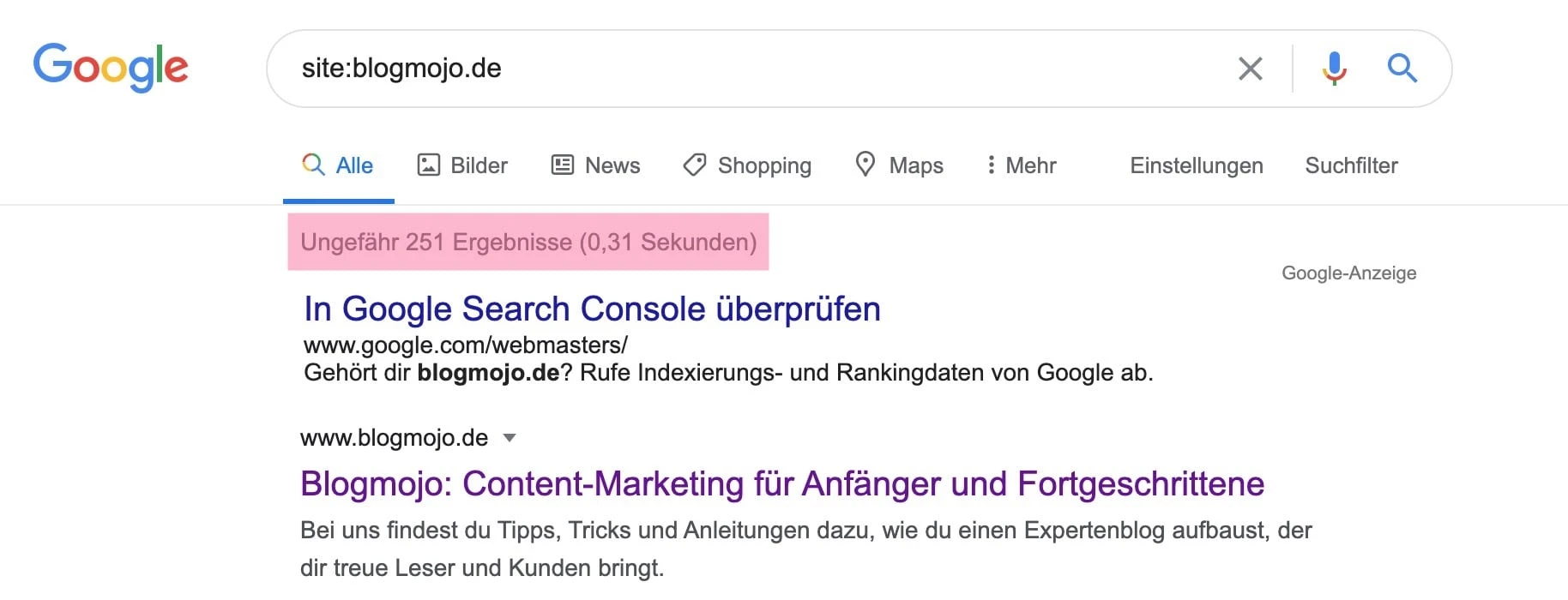
This number shouldn't be much higher than the number of your blog articles and/or pages. If you've written 100 blog articles but 2,000 pages are in the index, you probably have a problem.
That said:
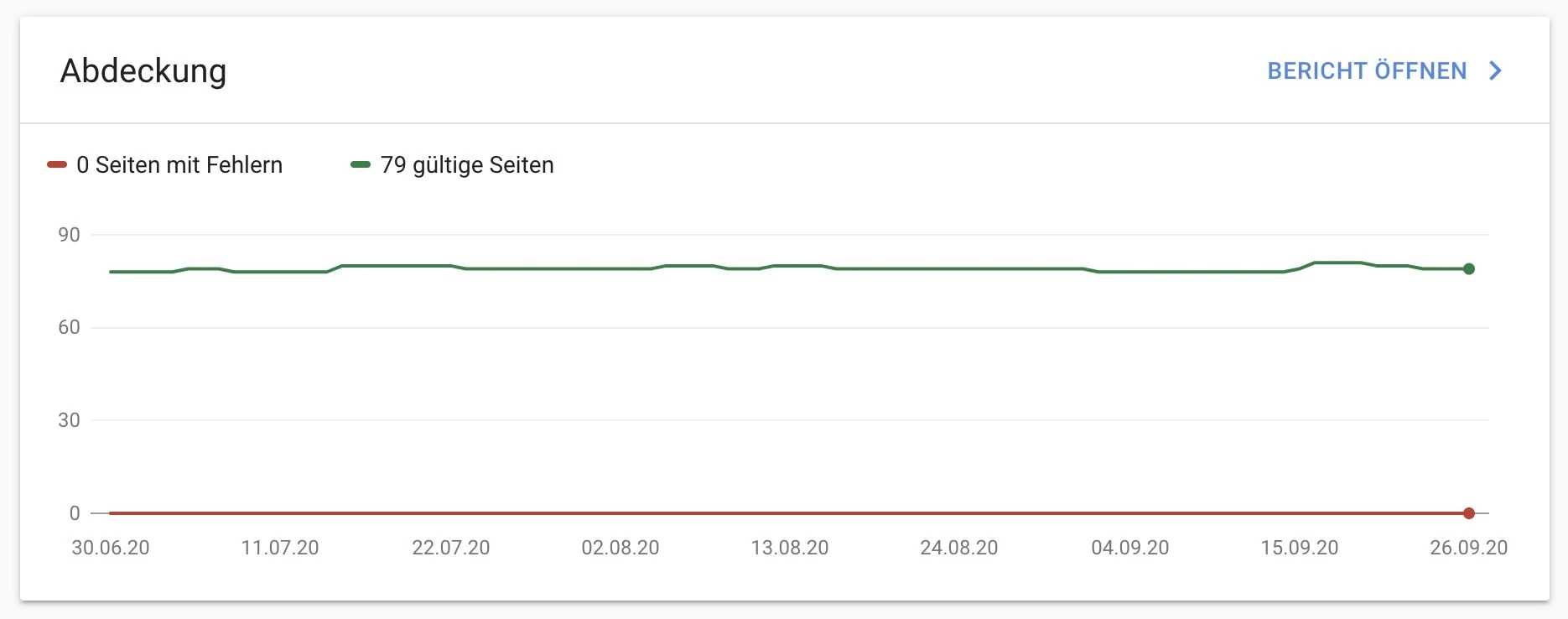
The number of search results shown isn't 100 percent accurate. In its own documentation, Google itself says that the list for site: isn't always complete. For Blogmojo, 251 results are shown, but according to Google Search Console it's only 79:
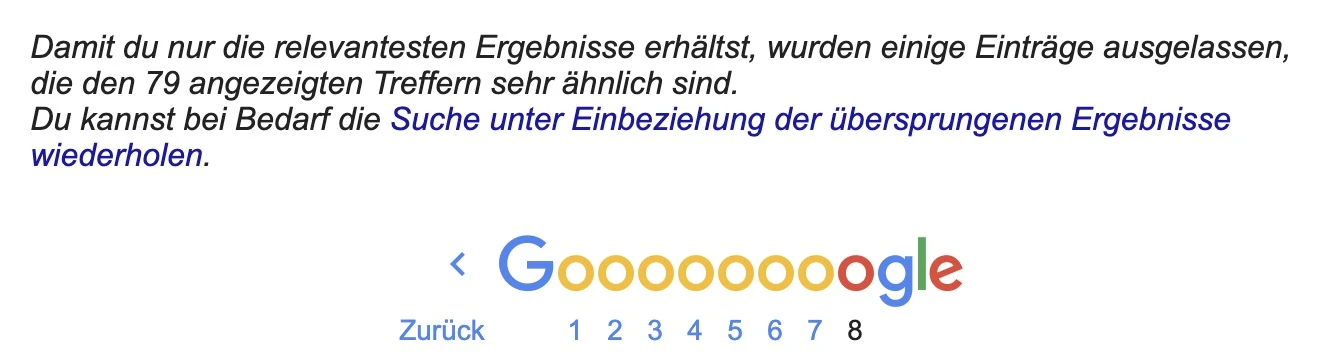
When you click through to the eighth page of search results, it turns out there are only 8 pages of results with 79 results:
In short:
If you really want to know exactly how many of your pages are indexed, look in Google Search Console. For a single page, you can also use the URL inspection in Google Search Console.
2. Check whether affiliate links are being indexed
Plugins like Pretty Links or Thirsty Affiliates are great for managing affiliate links or redirects and monitoring their performance.
With the wrong settings, though, they can get indexed unnecessarily (if they're mistakenly set up as a 301 redirect instead of a 302 or 307 redirect).
You can find out whether that's the case by entering the following in Google:
inurl:yourdomain.com/affiliate-prefix/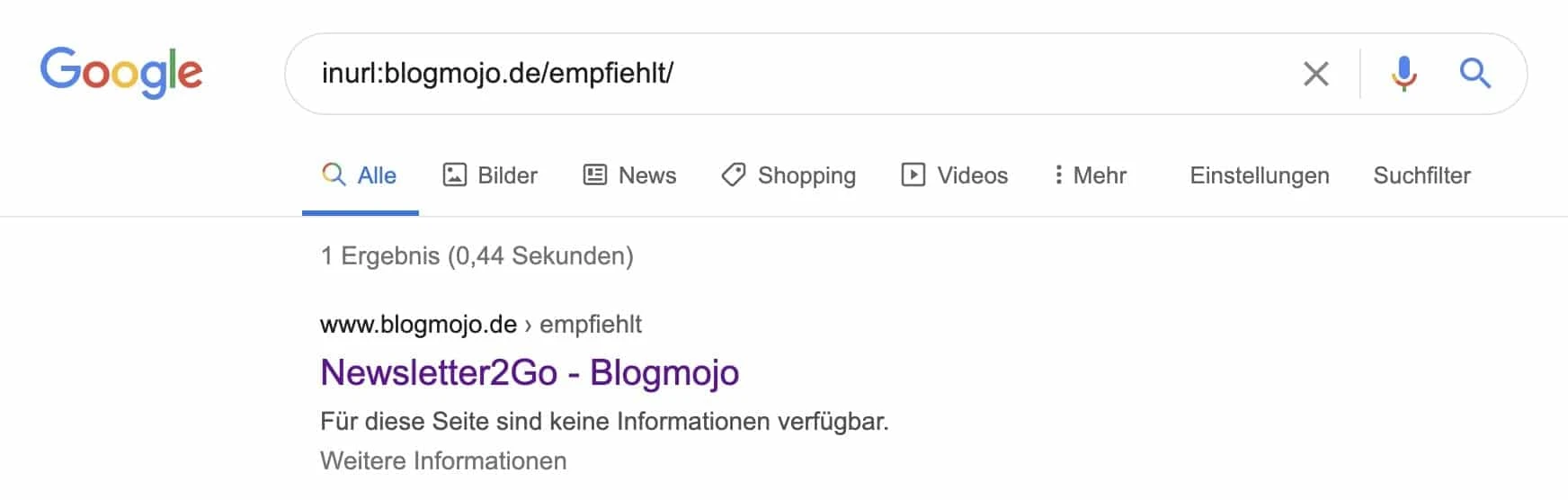
3. Find category and tag pages
In 90% of cases, WordPress category and tag pages do not belong in the Google index.
The reason is simple:
For the many topics and keywords, category and tag pages aren't the best possible search result.
To find out whether your categories and tags have ended up in the index, first look in WordPress under Einstellungen > Permalinks (Settings > Permalinks) to see which category and tag base you chose:
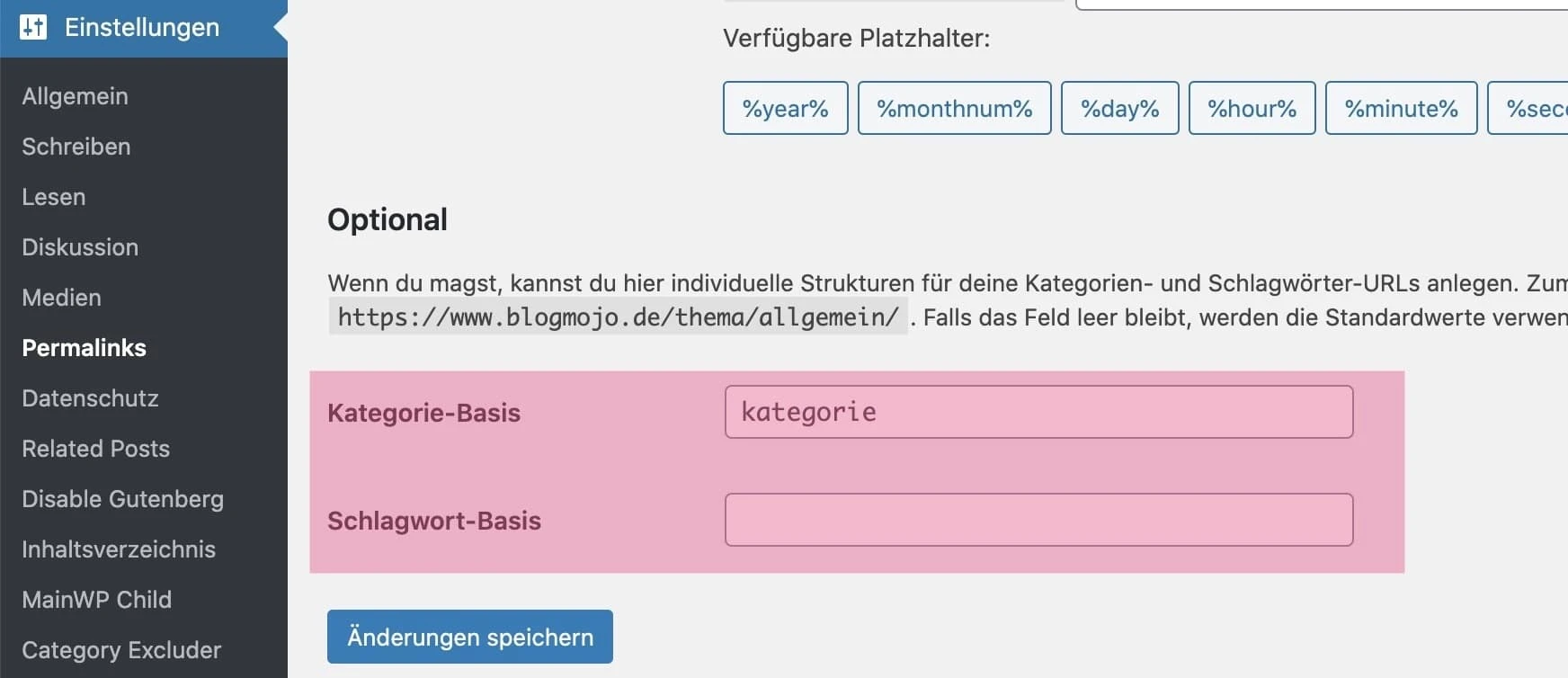
Then you enter the following in Google:
site:yourdomain.com/category (replace category with your own category base if needed)

site:yourdomain.com/tag (replace tag with your own tag base if needed)

site:yourdomain.com inurl:archive (finds archive pages on your website)

site:yourdomain.com inurl:category (finds more categories, e.g. from portfolio posts)

site:yourdomain.com inurl:page (finds pagination pages on your website)
4. Find unwanted documents in the index (e.g. freebies)
There are some documents you want to keep secret from your readers, or that you uploaded to your website at some point and then forgot about.
These include, for example:
- Materials from online courses
- Paid e-books
- Freebies (that should actually only be available after subscribing to your newsletter)
- Readme files
- Internal company PowerPoint presentations or PDF files
You can find files like these with the following search command:
site:yourdomain.com (filetype:pdf | filetype:txt | filetype:ppt | filetype:xls)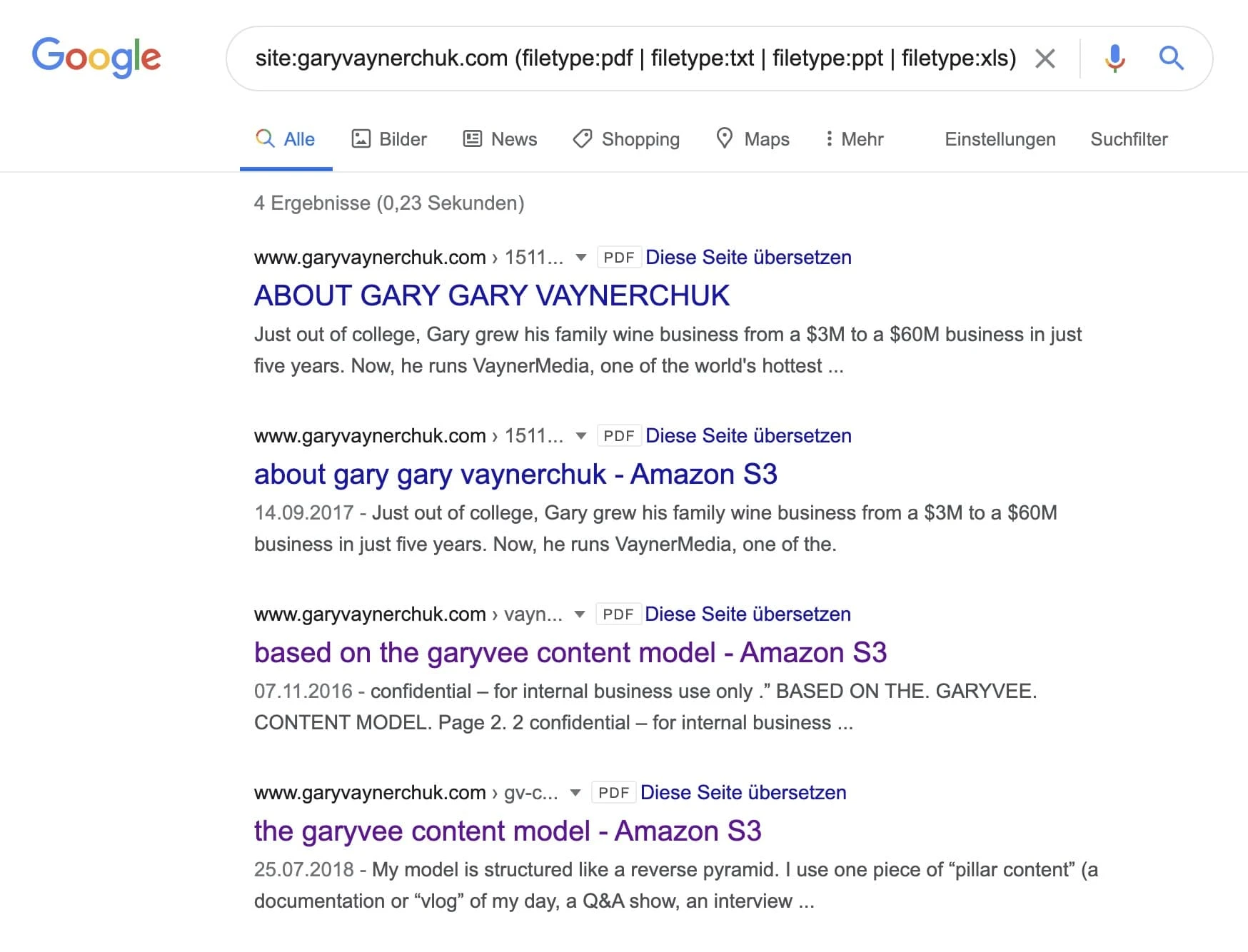
5. Check your site for placeholder content
You should usually avoid content that's reused on different pages at all costs, because Google can see it as duplicate content.
Seriously:
The famous “Lorem ipsum” text or other placeholder content that you can create with a text generator , or sample content like the “Hello World” post in WordPress, often gets forgotten and never deleted.
Even on renowned websites like the Encyclopedia Britannica:
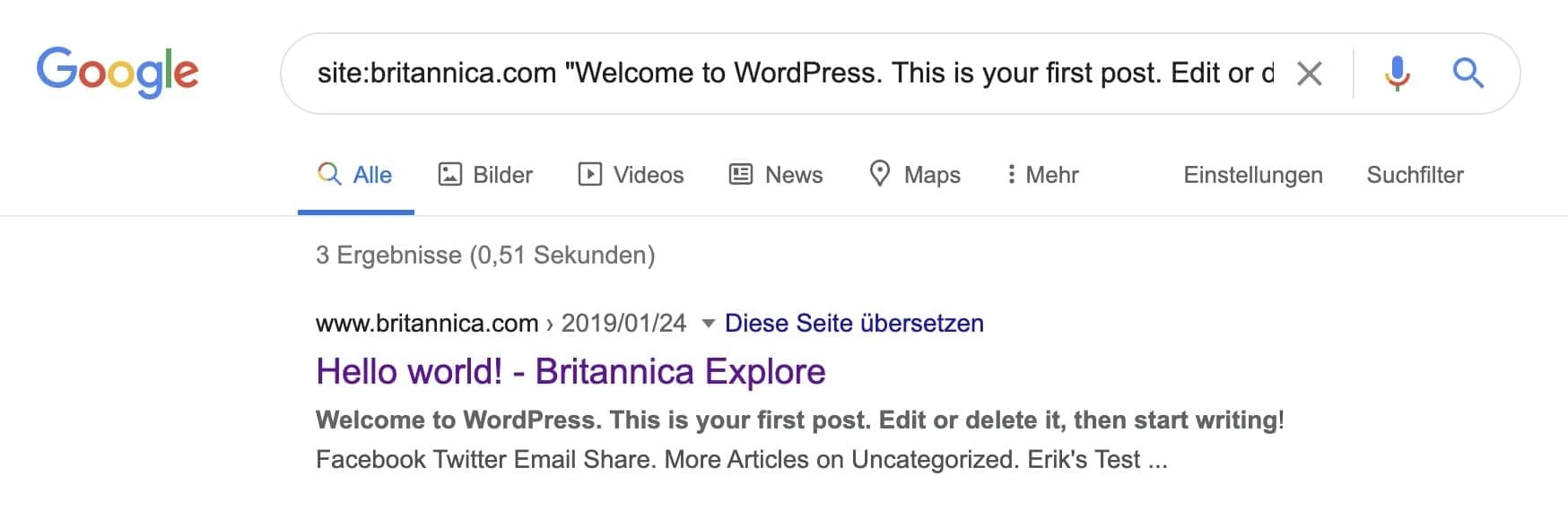
To find placeholder text on your website, you can use the following operator combination:
site:yourdomain.com "Lorem ipsum"You can find the sample post created during the WordPress installation in two ways:
site:yourdomain.com "Welcome to WordPress. This is your first post. Edit or delete it, then start writing!"

site:yourdomain.com "Hello World"
Or in German:
site:yourdomain.com "Willkommen bei WordPress. Dies ist dein erster Beitrag. Bearbeite oder lösche ihn und beginne mit dem Schreiben!"

site:yourdomain.com "Hallo Welt"
This is how you find the sample page created during the installation, in English:
site:yourdomain.com "Sample Page"

site:yourdomain.com "This is an example page. It’s different from a blog post because it will stay in one place and will show up in your site navigation"
And in German:
site:yourdomain.com "Beispiel-Seite"

site:yourdomain.com "Dies ist eine Beispiel-Seite. Sie unterscheidet sich von Beiträgen, da sie stets an der selben Stelle bleibt"
6. Find duplicate content on your website
Google and users want to see unique content.
Not run-of-the-mill texts you can read everywhere, or that were stolen from another website.
Online shops in particular often have a problem with so-called duplicate content.
Product descriptions or categories are often copied from other online shops or from the manufacturer.
Here's an example (which I didn't have to look long for):
I grabbed this product description of the Nintendo Switch from the OTTO online shop:

And I entered it in Google with the following operator combination (you should exclude your own online shop from the search with the minus sign):
-site:yourdomain.com "text"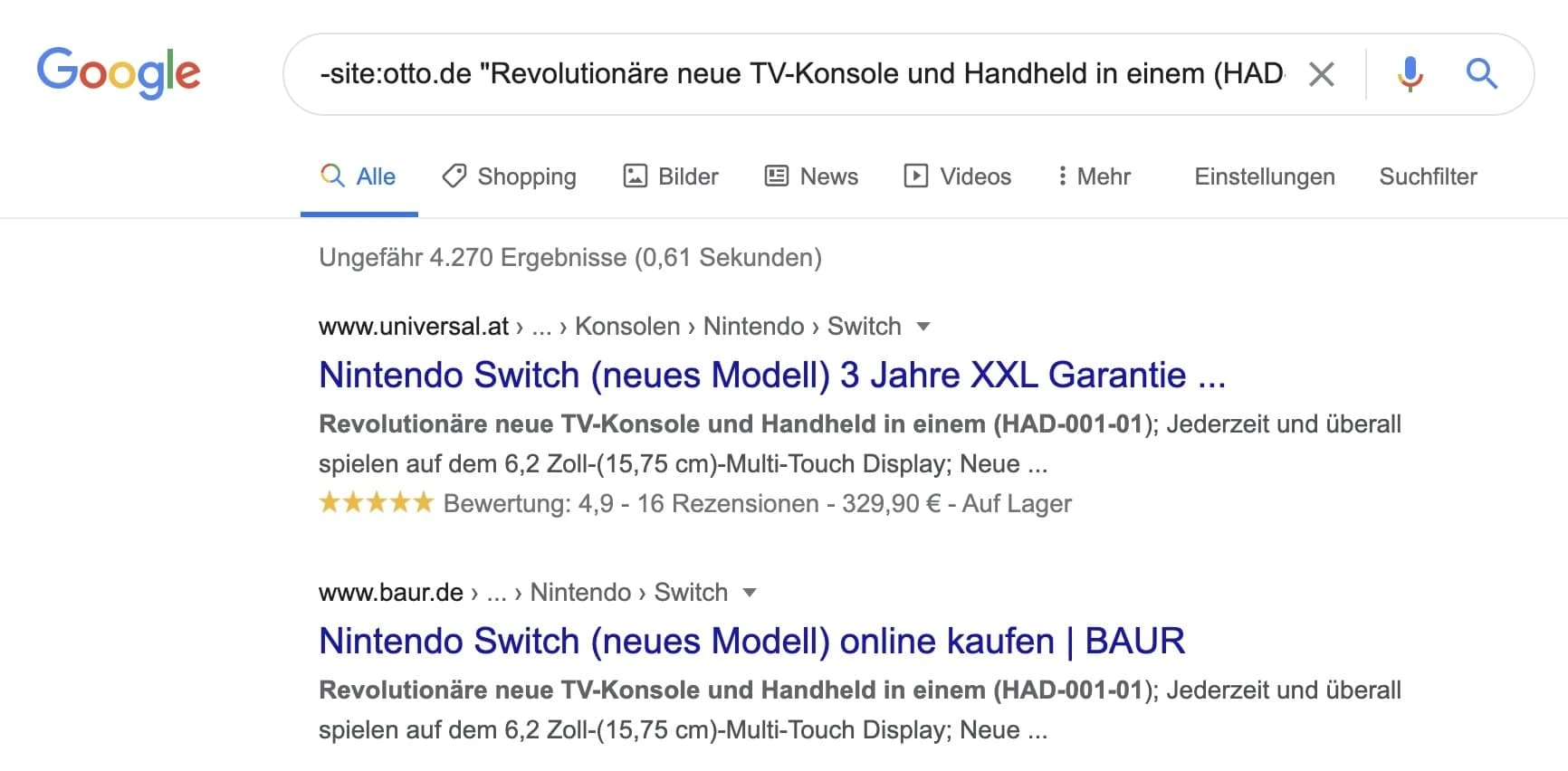
Boom! Over 4,000 results.
That means a lot of people haven't bothered making their product descriptions unique...
7. Check your website's SSL status
As part of SEO, you shouldn't only keep an eye on the competition, but on your own website too.
A very important point in your “on-page optimization” is switching your website to HTTPS.
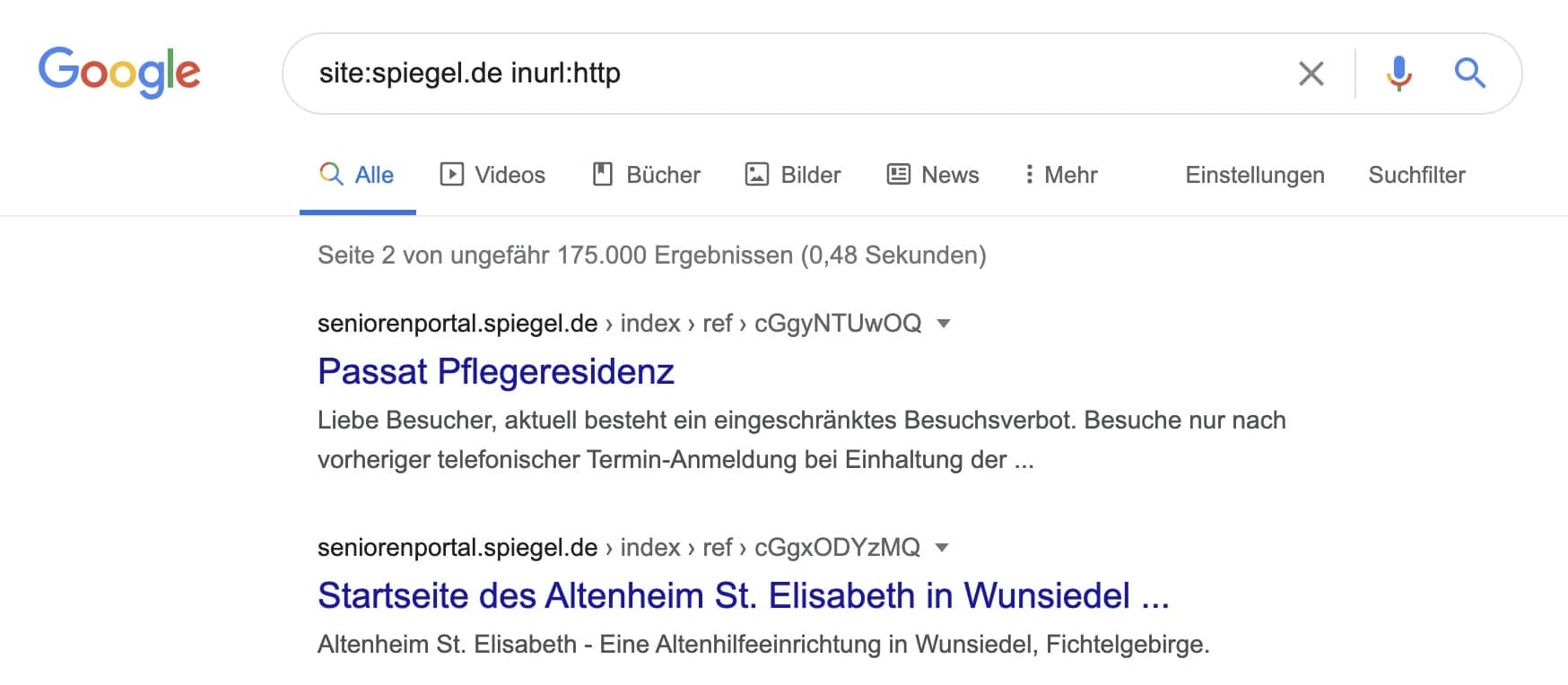
To find out whether Google has already indexed your entire website with the new HTTPS URLs, or whether parts of your website haven't been switched to HTTPS yet, you can simply use this operator combination:
site:yourdomain.com inurl:httpOr alternatively:
site:yourdomain.com -inurl:httpsAn analysis of Spiegel ONLINE, for example, shows that its senior citizens portal hasn't been switched to SSL:
8. Find out whether your website was hacked
When your website gets hacked, in 90% of cases it's used to generate advertising revenue.
For that, all or part of your website is redirected, for example, or the hackers create hundreds or thousands of new pages that they try to get into the Google index. It's also possible that ads are simply injected into your existing pages.
In some cases, such a hack is unfortunately not obvious and, if it goes unnoticed for too long, can hurt your Google rankings.
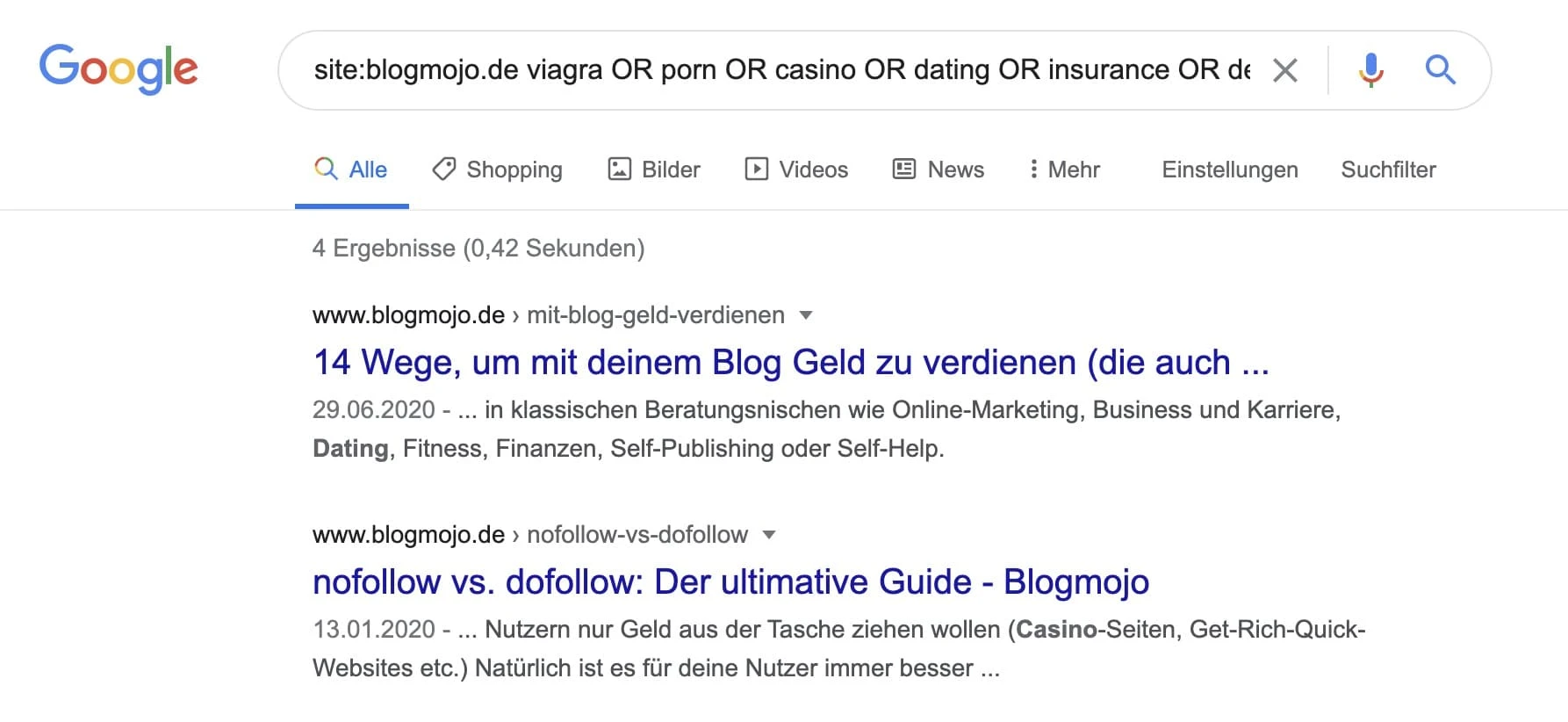
The following search command can help you find out whether your website was hacked:
site:yourdomain.com viagra OR porn OR casino OR dating OR insurance OR debt OR sex OR pharmacy OR poker OR "make money online" OR credit OR hackedThis searches your website for typical spam words (if you like, you can add more words to the command).
We weren't hacked (thank God!):
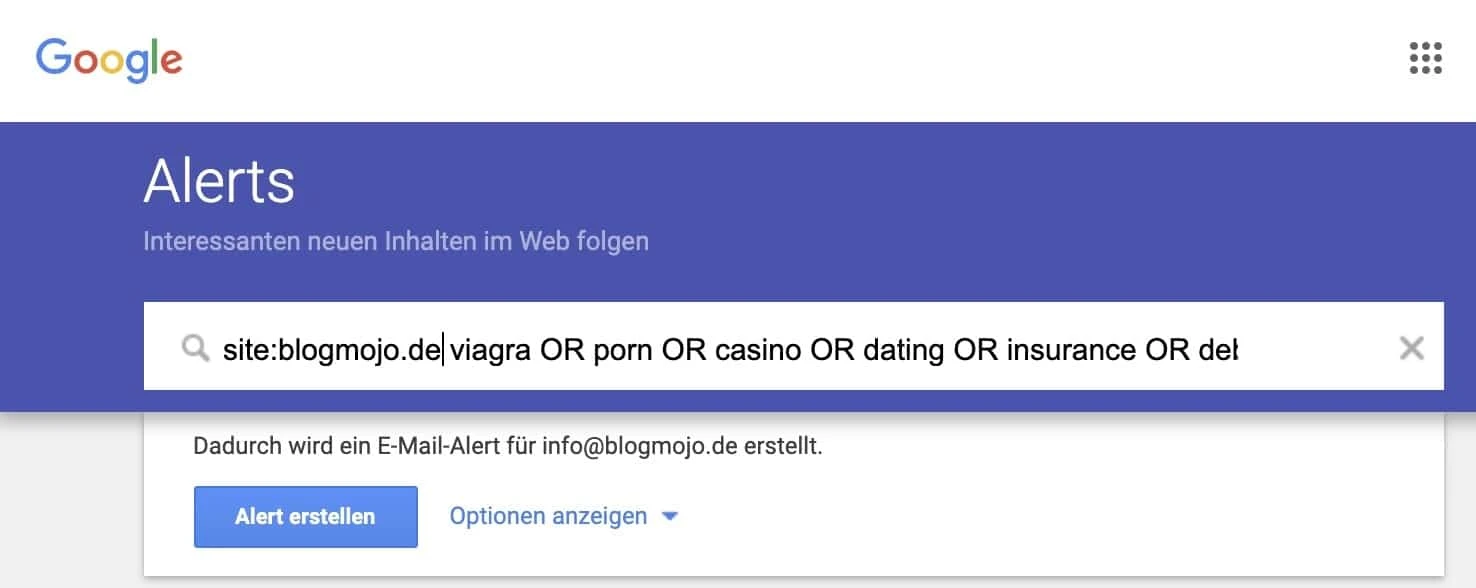
So you don't have to do this manually on a regular basis, I recommend setting up a Google Alert for it:
9. Find internal linking opportunities
Internal links help your visitors find their way around your website and are an important building block for SEO.
Once your website reaches a certain size, though, content to link to gets harder and harder to find...
Good thing Google search operators can help here too!
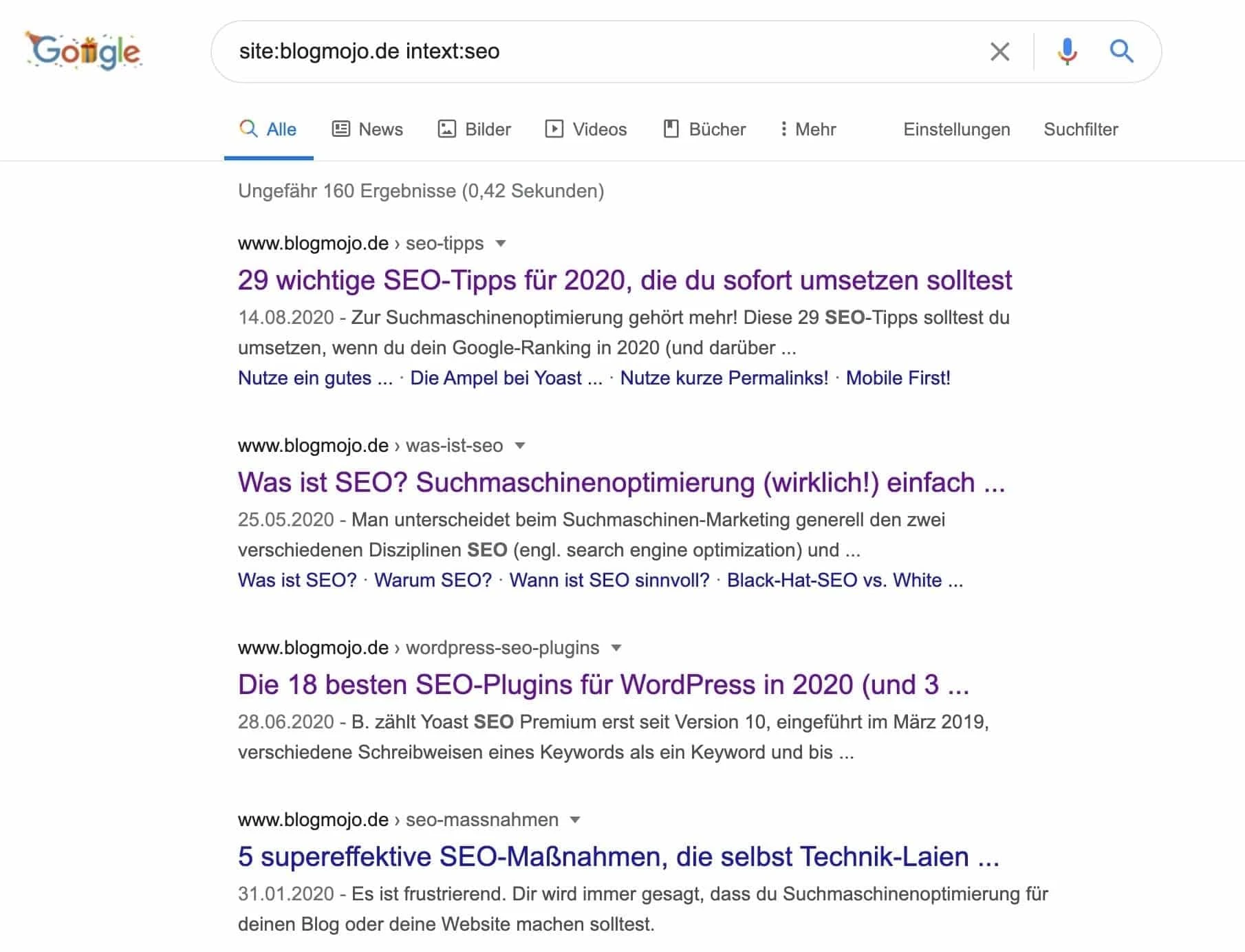
I enter the following search command in Google every time before I publish a new article:
site:yourdomain.com intext:keywordOptionally, you can leave out intext:, which usually gives just as good results:
site:yourdomain.com keywordThat way, only pages of yourdomain.com that contain the given keyword in the text (“SEO” in my example) are shown:
7. Promotion and link building (examples 10-18)
In this section, I show you 9 recipes that help with link building or that you can use to find PR opportunities.
10. Find websites that accept guest posts
Guest posts are still an excellent source of backlinks and can also help you position yourself as an expert in a niche or get your blog known.
The only problem:
Not every website accepts guest posts.
That means if you email webmasters on the off chance, there's a very high probability they'll say no or not reply at all.
You can, however, use a search operator to only show websites in the SERPs that already have guest posts online, which significantly increases the chance of a positive reply.
We're assuming here that guest posts are labeled as such. Usually that happens in the first sentence of the post, which briefly introduces the author and their website: This is a guest post by ..., who runs the website ....
So it makes sense to use this command:
yourtopic intext:gastbeitrag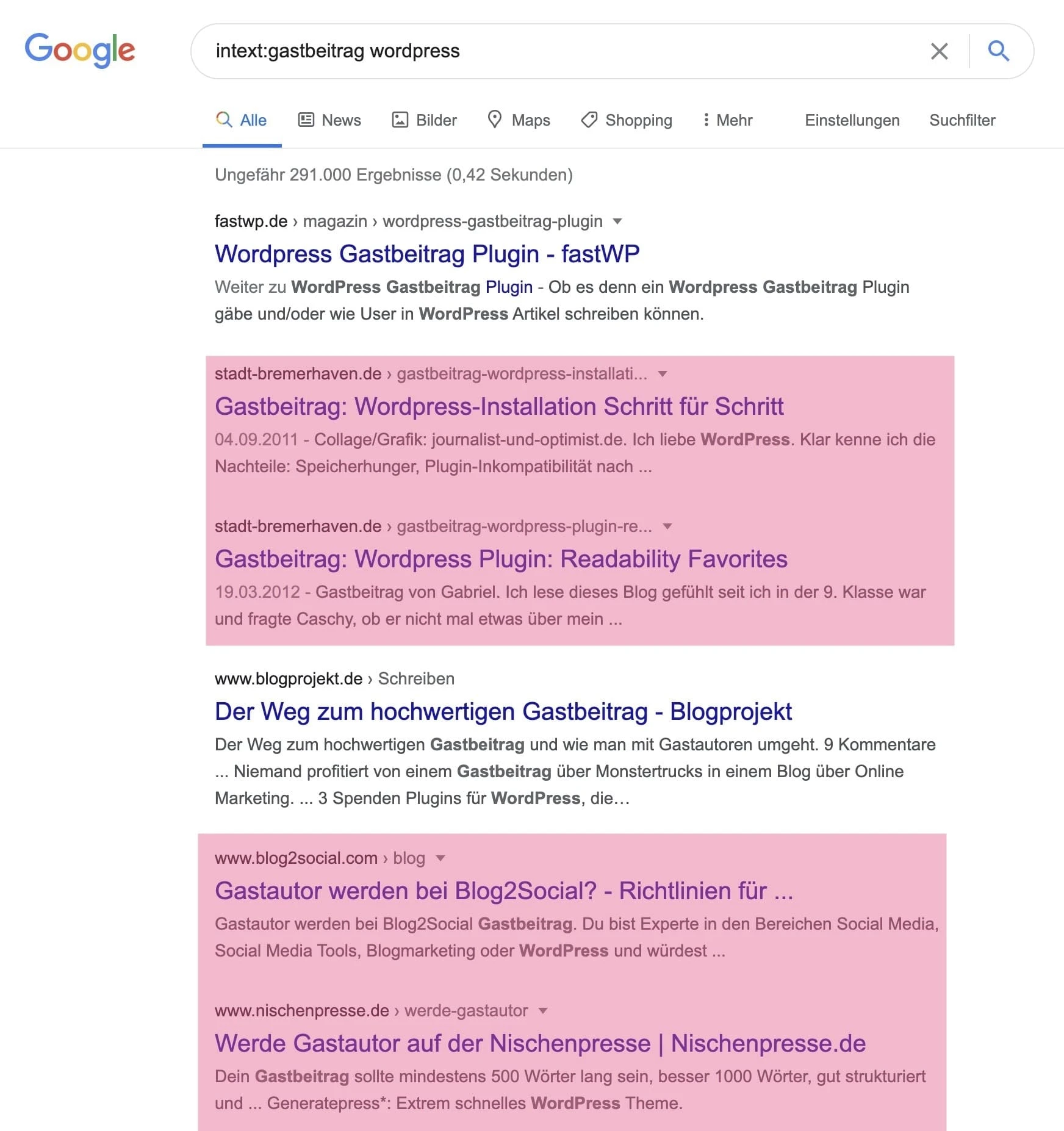
Alternatively, these searches also work:
yourtopic inurl:gastbeitrag

yourtopic inurl:gastbeitraege (for tags and category pages)

yourtopic inurl:gastautor (to find profile pages of guest authors)

yourtopic inurl:gastauthor (to find profile pages of guest authors)

yourtopic intext:gastautor

yourtopic intext:gastautorin

yourtopic intitle:gastbeitrag
The search words in these commands are German, because the examples search German-language websites: gastbeitrag means guest post, gastbeitraege is the plural, and gastautor and gastautorin mean guest author (male and female).
11. Find your own mentions
You can also use search operators to find out very effectively whether you, your website, or your brand name has been mentioned on a website.
Just use the following search command:
yourbrandname -site:yourdomain.comAnd then show only the search results from the last month:
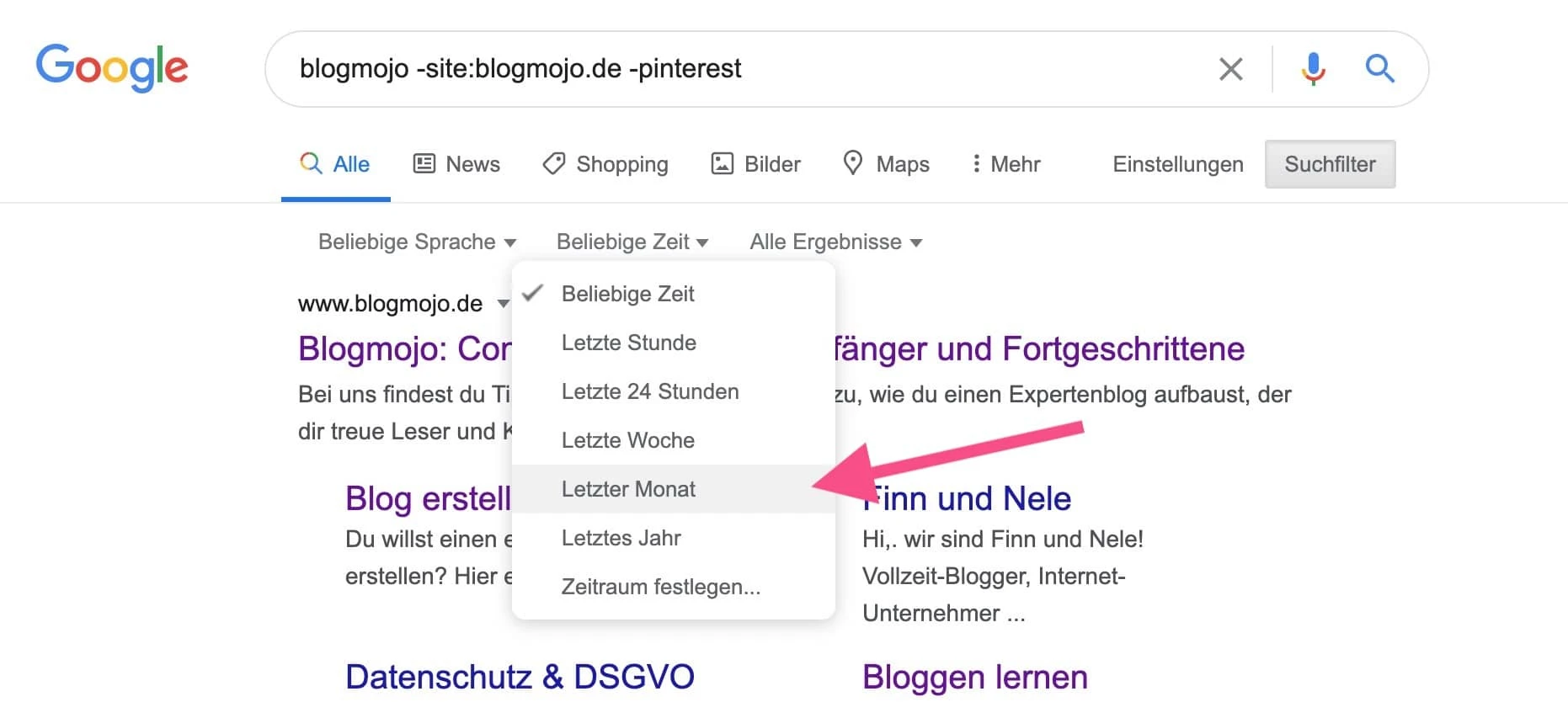
As in the screenshot above, you can make further exclusions too, for example Pinterest.
If your brand name is in a foreign language, it can also make sense to show only pages in German.
Checking your mentions regularly can have the following benefits:
- You find people who like your brand and your content and can connect with them
- You can email people who mention your brand but don't link to your website and ask them to add a link (probably the easiest link-building method there is).
12. Find mentions of your competitors
It can be useful not only to find your own mentions, but also those of your competitors.
Because wherever your competitors are mentioned, there's always potential for you to be mentioned instead, or as well.
The search command for that is a bit longer, but I'll explain in a moment how all the search parameters work together:
(intext:"competitor1" OR "competitor2") -site:competitor1.com -site:competitor2.comHere's an example based on Blogmojo's competitors:
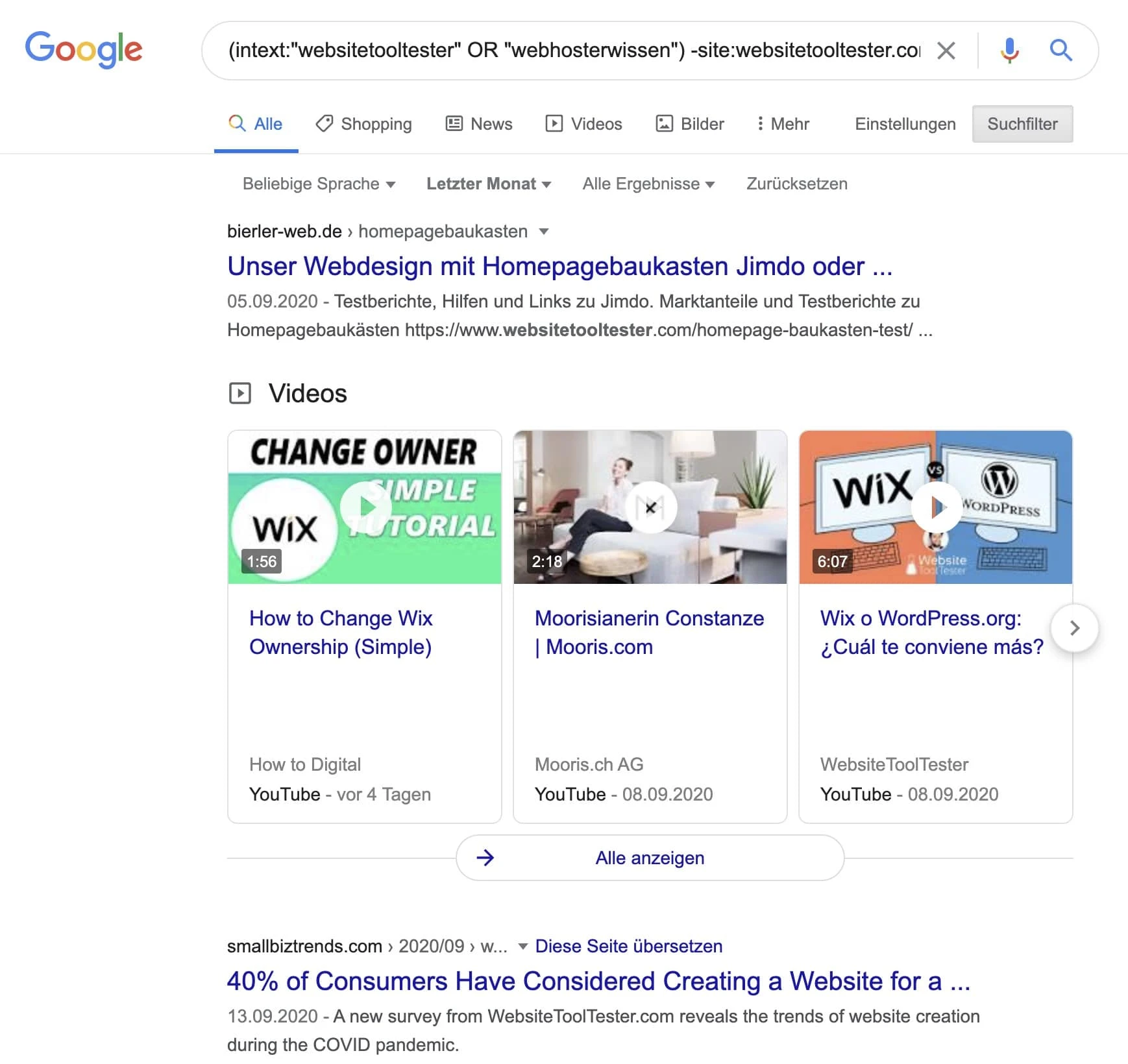
And here's the explanation:
intext:specifically searches for web pages that mention your competitor 1 or your competitor 2 in the text.- With the
ORoperator, you handle two competitors in a single search, which saves time (if you like, you can add a third or fourth) - With
-site:you exclude the competitors' own websites. Otherwise Google would show you lots of results from their websites.
Actually simple, right?
13. Find commenting opportunities
Blog comments are very good for getting in touch with other influencers or bloggers in your niche and so raising your own profile.
To find topically relevant blog articles that allow comments, you can use this search command:
yourtopic "kommentar speichern"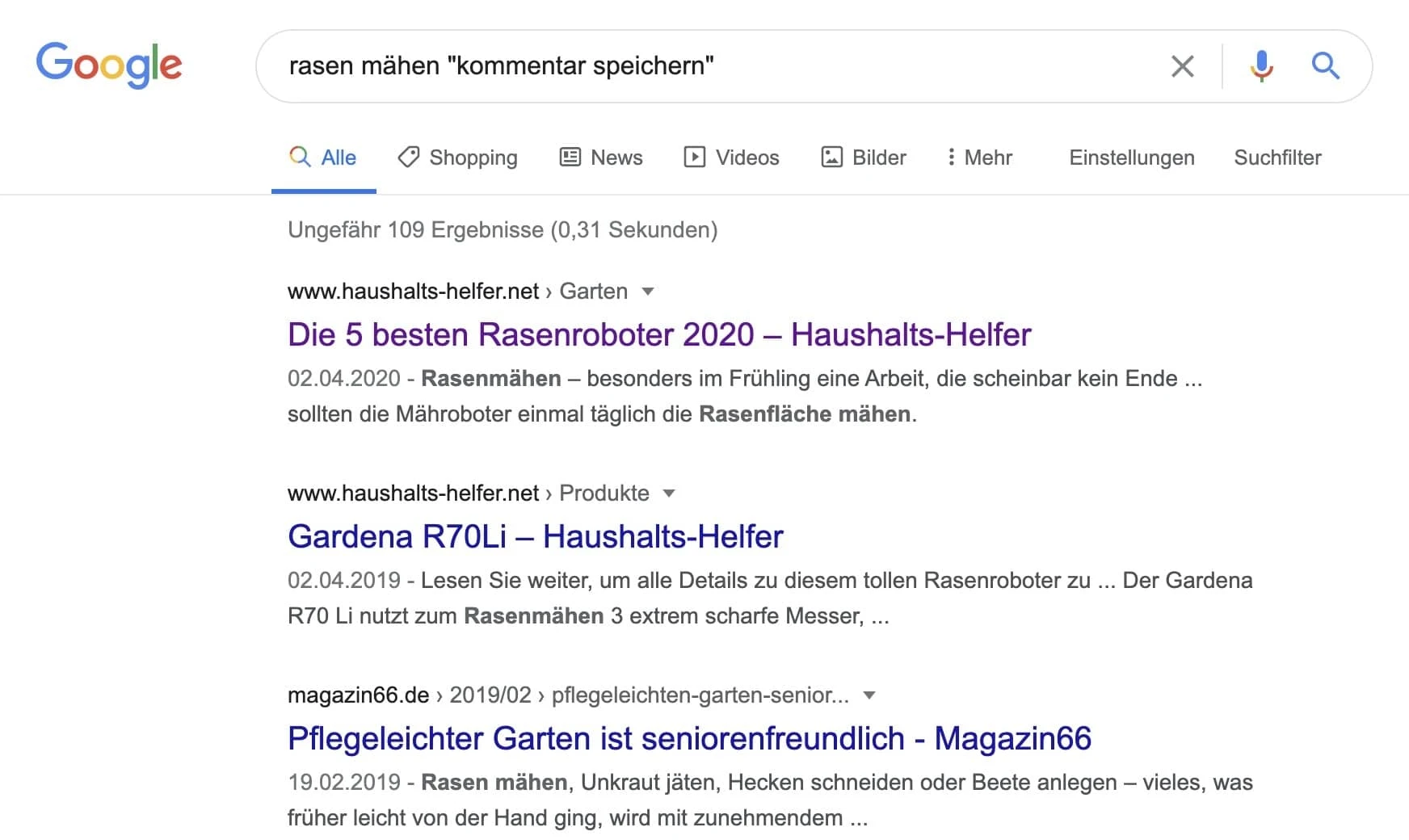
That identifies only pages that contain a button labeled “Kommentar speichern” (save comment).
I recommend testing more variations, because the button labels aren't the same everywhere:
- Send/Leave Comment
- Kommentar senden/abschicken/versenden (send comment)
- Hinterlasse/Schreibe einen Kommentar (leave/write a comment)
- Meinen Namen, E-Mail und Website in diesem Browser speichern, bis ich wieder kommentiere. (Save my name, email, and website in this browser for the next time I comment.)
14. Find collaboration partners
If you're a blogger, it's essential to connect and work with other bloggers in your niche. Whether to exchange knowledge, recommend each other, or start a joint venture.
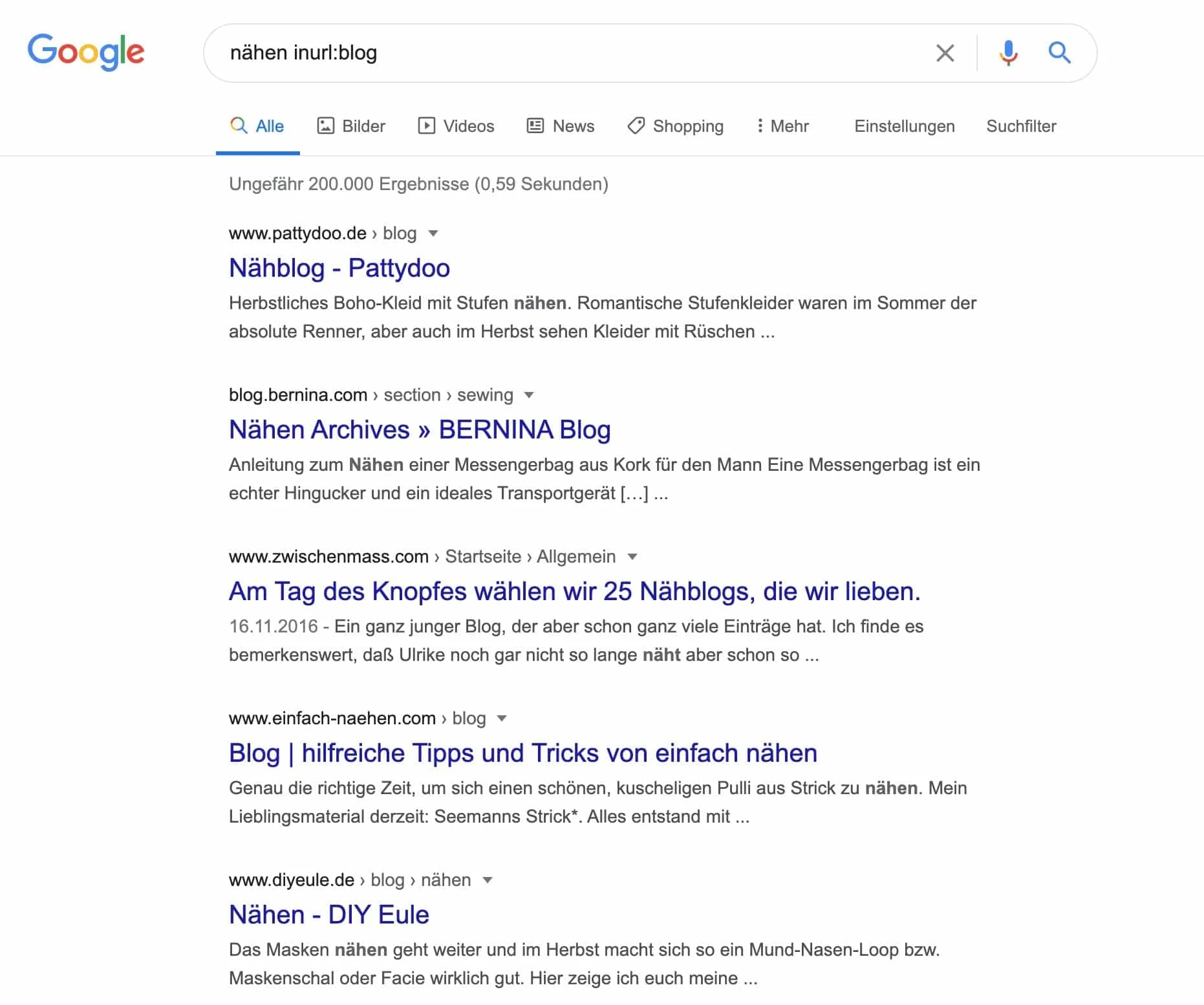
To find other blogs in your niche, just enter the following in Google:
yourtopic inurl:blogThat gets you, for example, a long list of sewing blogs in no time:
15. Find round-up posts
An easy way to get your blog known is through so-called “round-up posts”.
These are posts in which a blogger introduces other bloggers or has collected expert opinions on a particular topic.
You can find them, for example, with a search command following this pattern:
intitle:yourtopic blogs inurl:yourtopic-blogs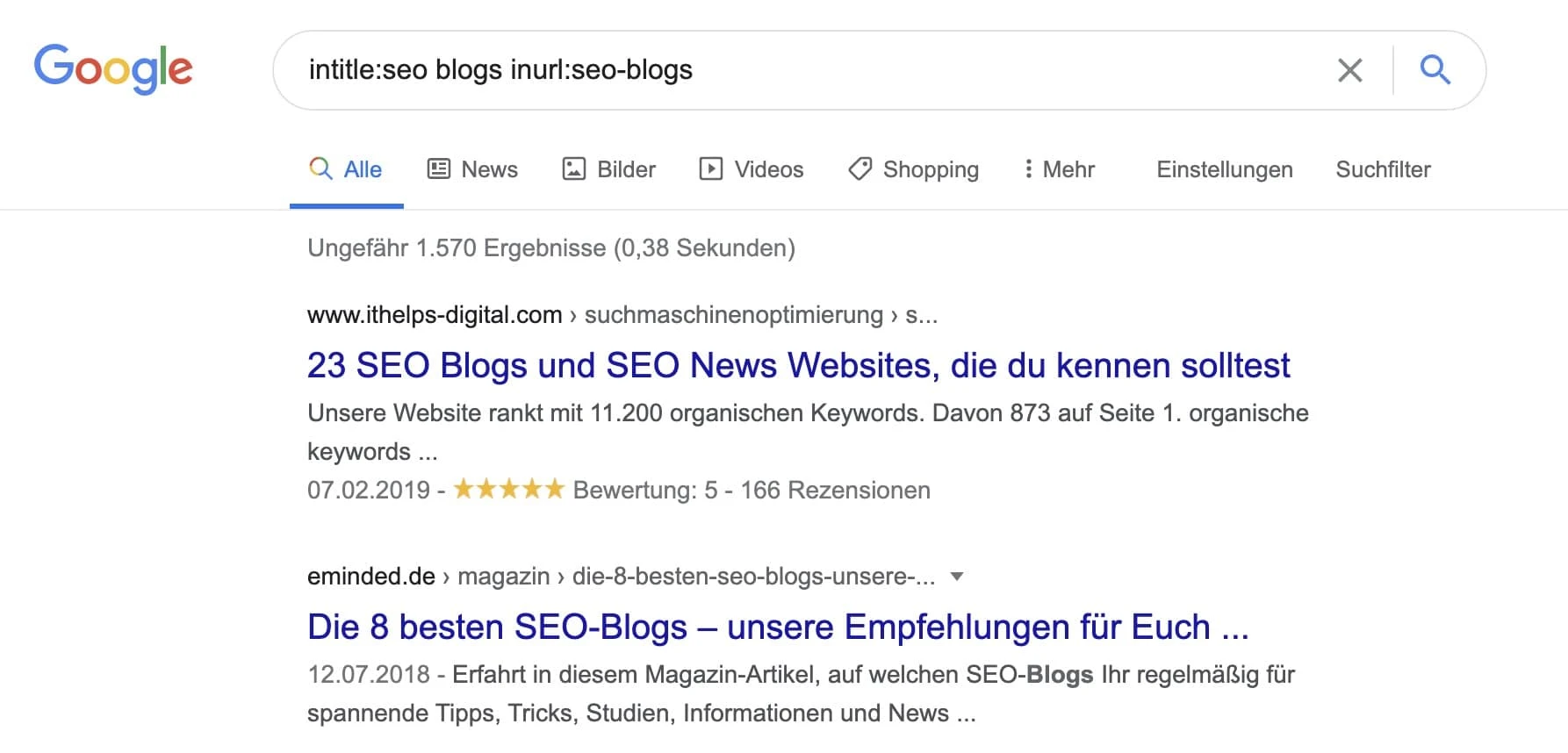
Or alternatively:
intitle:bloggertype inurl:bloggertype: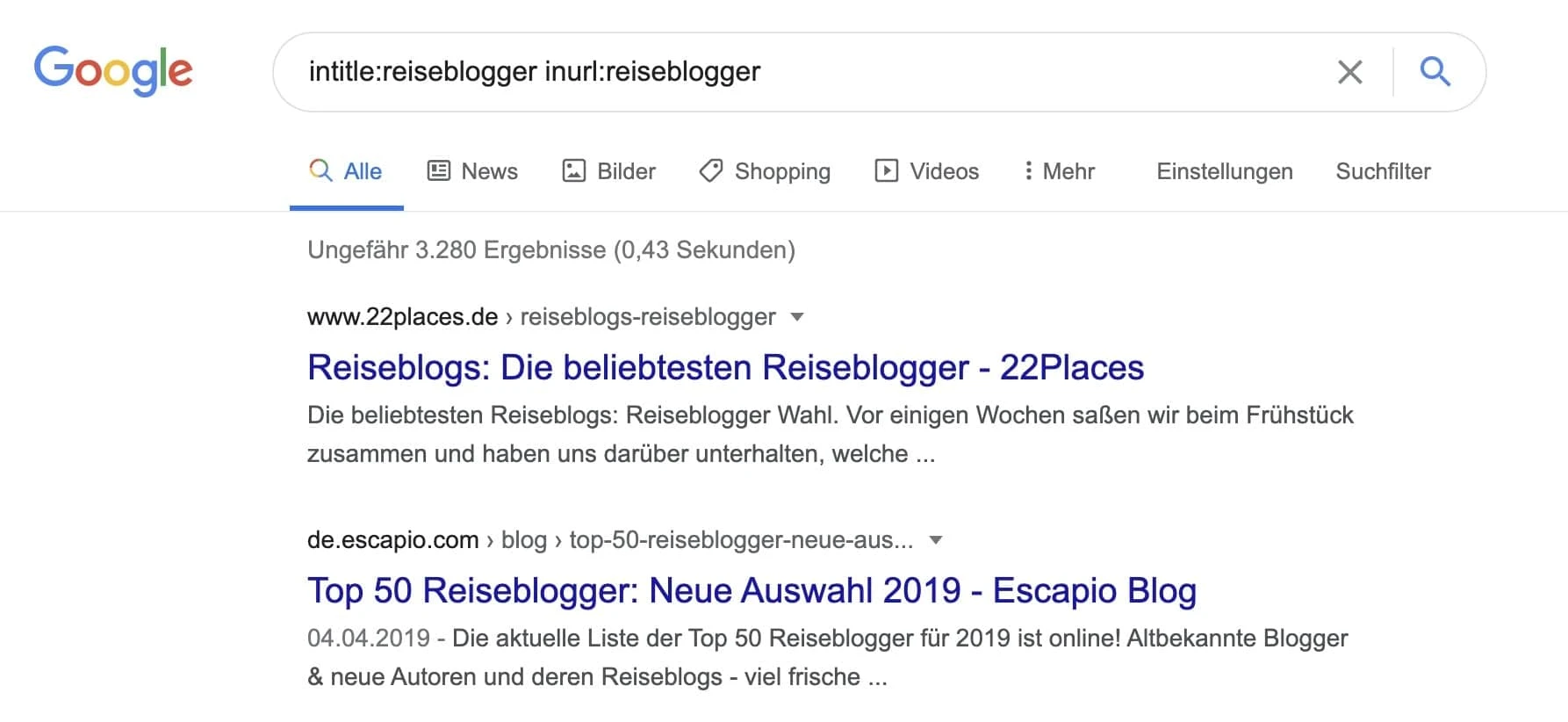
16. Find infographics
Infographics aren't as “hip” as they were a few years ago...
But it can still be worth creating your own infographics and then contacting bloggers or online magazines and asking whether they want to embed them. Whether for link building or to raise your own profile.
What hugely increases your chance of a positive reply:
Only contacting bloggers or online magazines that have already embedded infographics on their website.
Because they're more likely to have “a sympathetic ear” for your request.
And you can find that out with the following search command:
yourtopic intitle:infografik inurl:infografikFor Blogmojo, it would make sense, for example, to create an SEO infographic and for me to approach t3n or OnlineMarketing.de to get it spread:
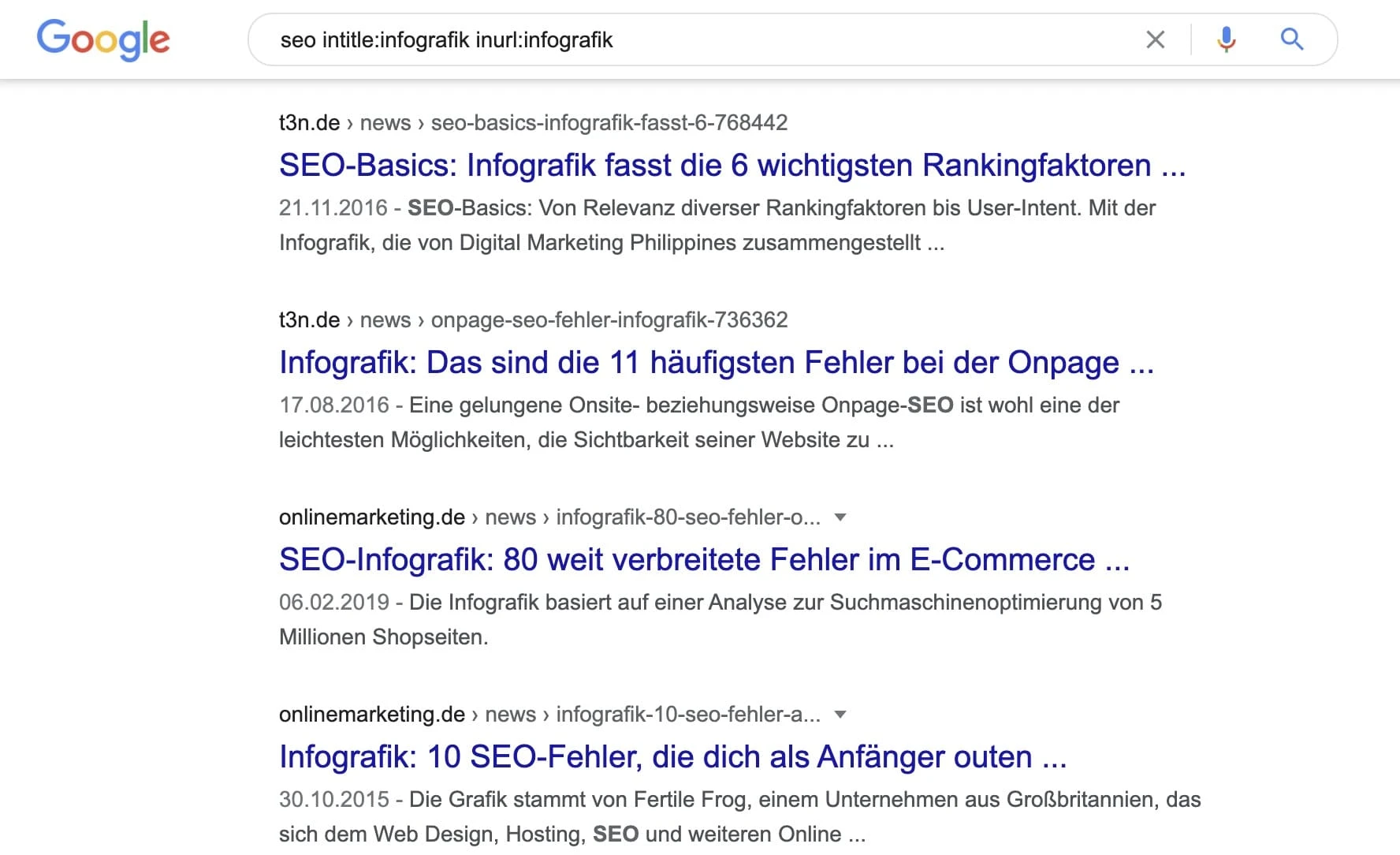
(infografik is German for infographic.)
17. Find link collections
Link collections like this one on the topic of GDPR are great for link building:
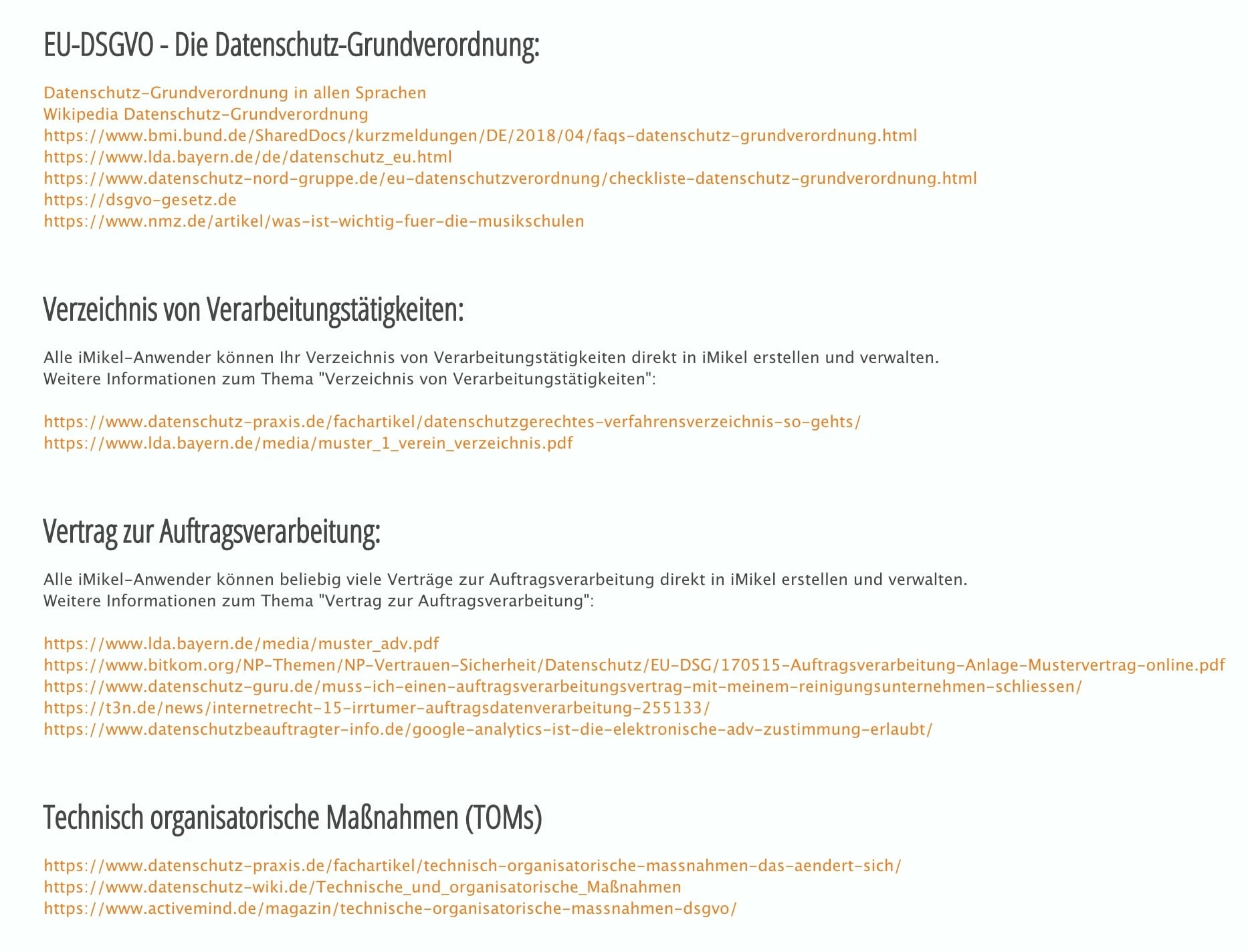
If you have a great, topically relevant article on GDPR yourself, you simply ask the website owner whether they'll include your link.
Easy.
You can find link collections with the following search commands:
yourtopic intitle:"nützliche links"

yourtopic intitle:linksammlung

yourtopic intitle:ressourcen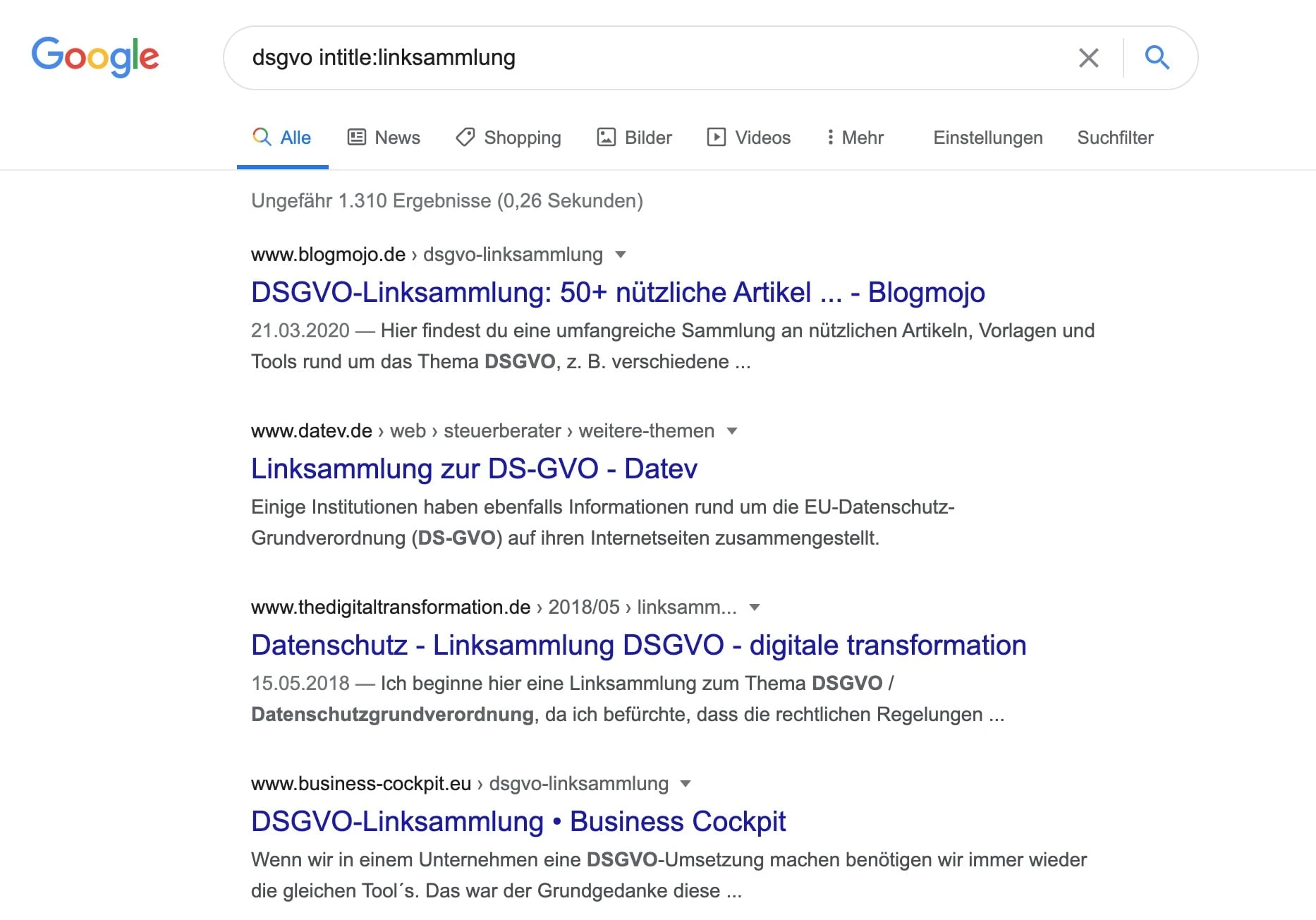
In German, nützliche links means useful links, linksammlung means link collection, and ressourcen means resources.
18. Check the backlinks of a domain
To find out which websites link to you or to one of your competitors, it doesn't always have to be a backlink checker.
The link: operator was officially discontinued in 2017. Its results are incomplete and unreliable, but you can still try it:
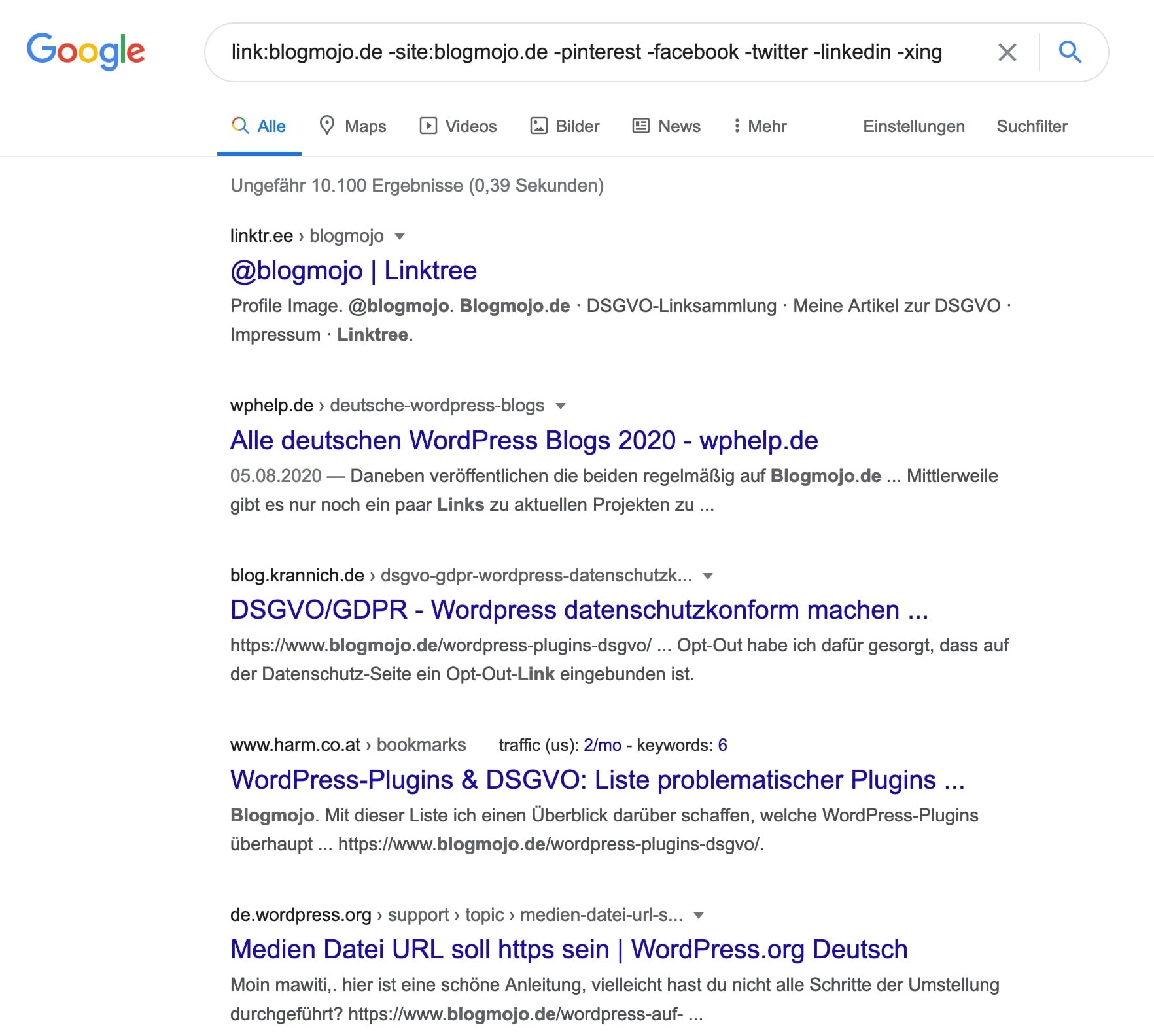
To get better results, you should exclude social networks and the domain you're examining from the search, like this:
link:domain.com -site:domain.com -pinterest -facebook -twitter -linkedin -xingSince the anchor text often contains the domain name, you'll find plenty of backlinks with the following search parameters too:
"domain.com" -site:domain.com -pinterest -facebook -twitter -linkedin -xing8. Other tricks and hacks (examples 19-24)
The usefulness of search operators goes far beyond link building and PR.
Below, I've put together some more recipes that can help you in your online business or with internet research:
19. Find collaboration partners for sponsored posts
I can tell you from my own experience:
It's easier to win a company as a collaboration partner for a sponsored post if the company has already worked with bloggers in the past.
And Google search operators can help you find such companies!
I've found that the easiest way to find sponsored posts is through WordPress categories and tags. Many bloggers create their own categories and/or tags for sponsored posts:
yourtopic inurl:category/sponsored

yourtopic inurl:tag/sponsored

yourtopic inurl:category/werbung

yourtopic inurl:tag/werbung

yourtopic inurl:category/kooperationen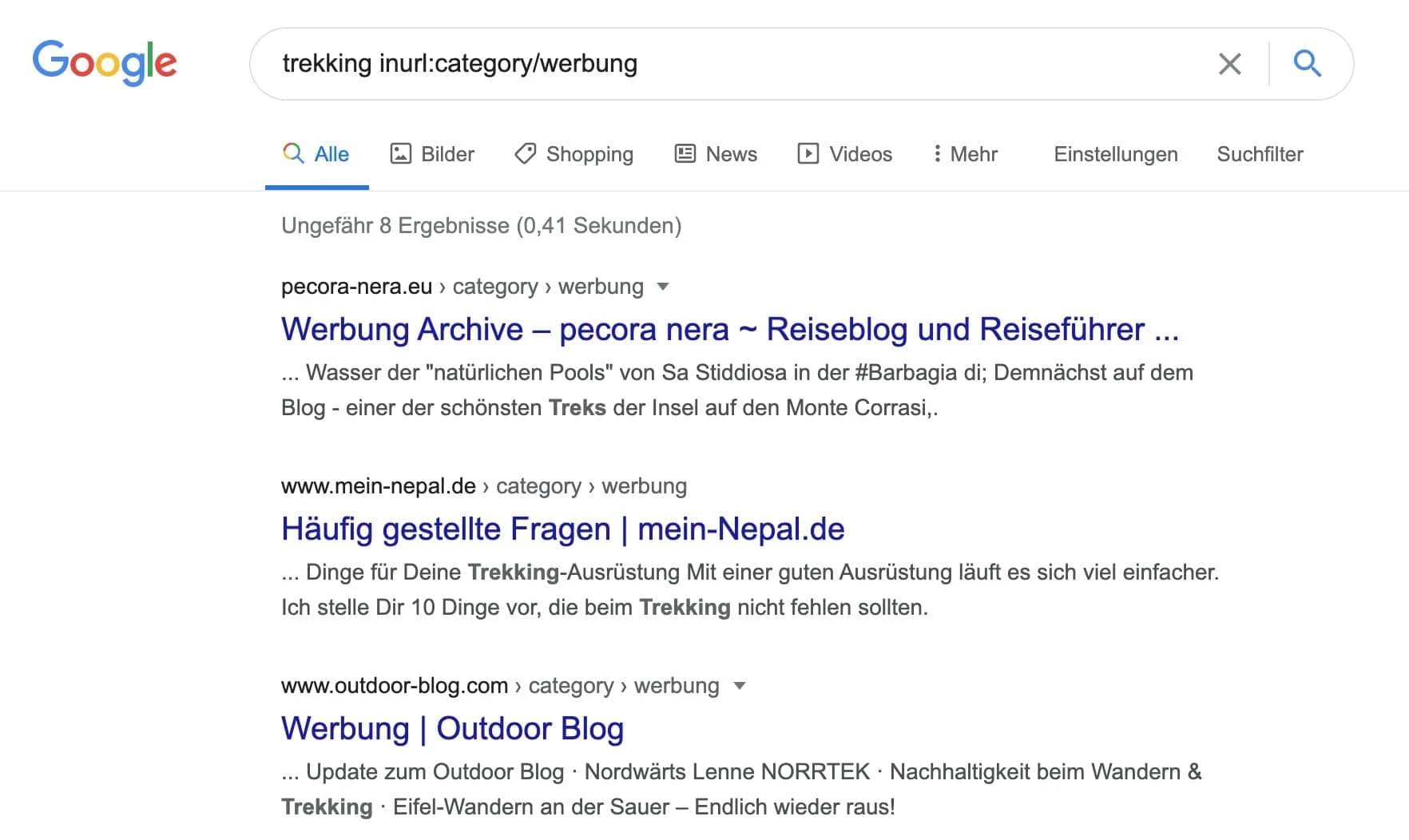
Alternatively, you can also search for the brand, product, or product category name:
blog brandname (inurl:sponsored | inurl:werbung | inurl:anzeige)

blog productcategory (inurl:sponsored | inurl:werbung | inurl:anzeige)

blog productname (inurl:sponsored | inurl:werbung | inurl:anzeige)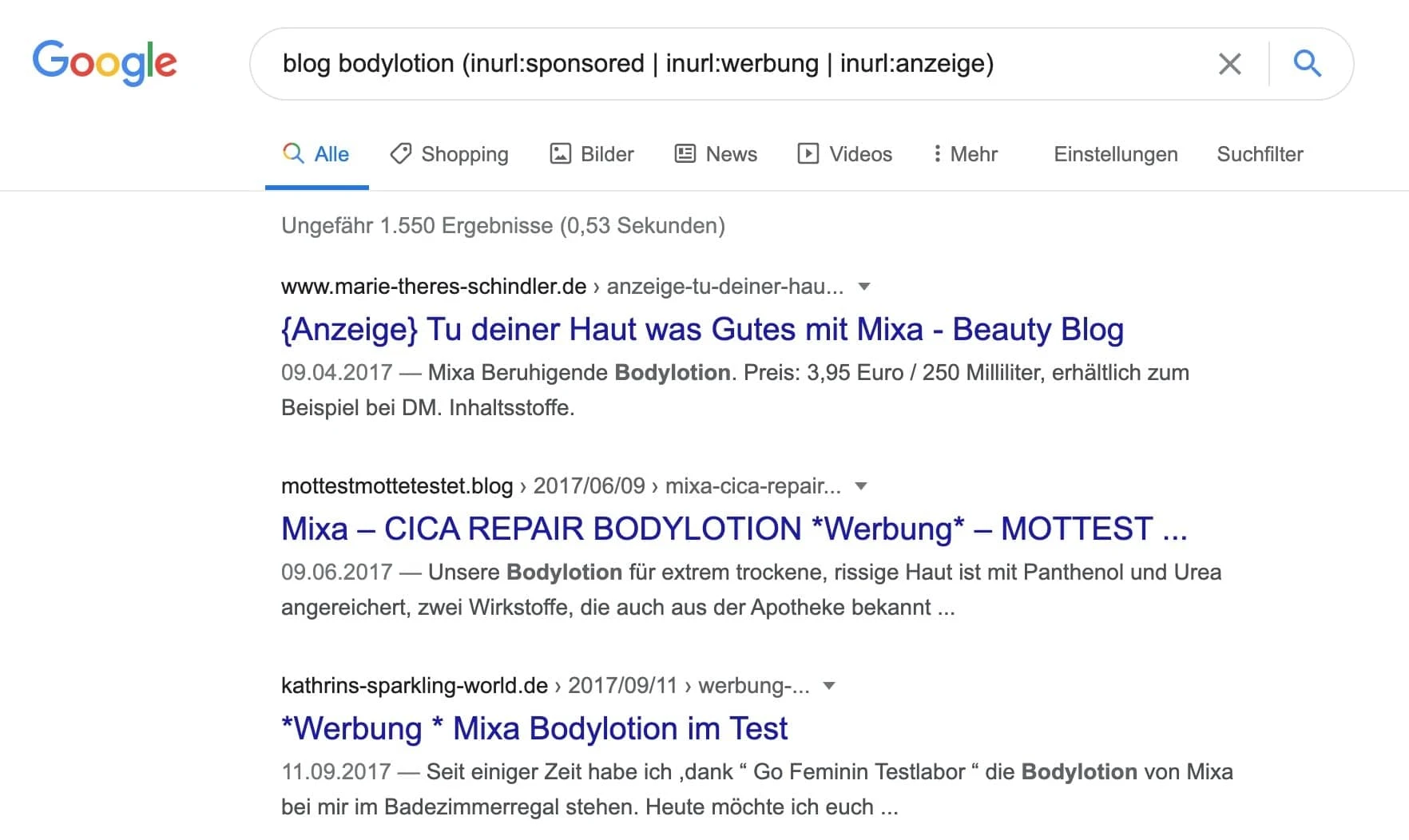
A quick explanation of how the search command works:
Google shows pages that contain the word “blog” and the product category (or product name or brand name) and have either sponsored, werbung, or anzeige in the URL. In German, werbung means advertising, anzeige means ad, and kooperationen (above) means collaborations.
20. Find subdomains
Do you want to know which subdomains exist for a domain and what content is on them?
Then you can use this search operator:
site:*.domain.com -inurl:wwwOr alternatively:
site:*.domain.com -https://domain.com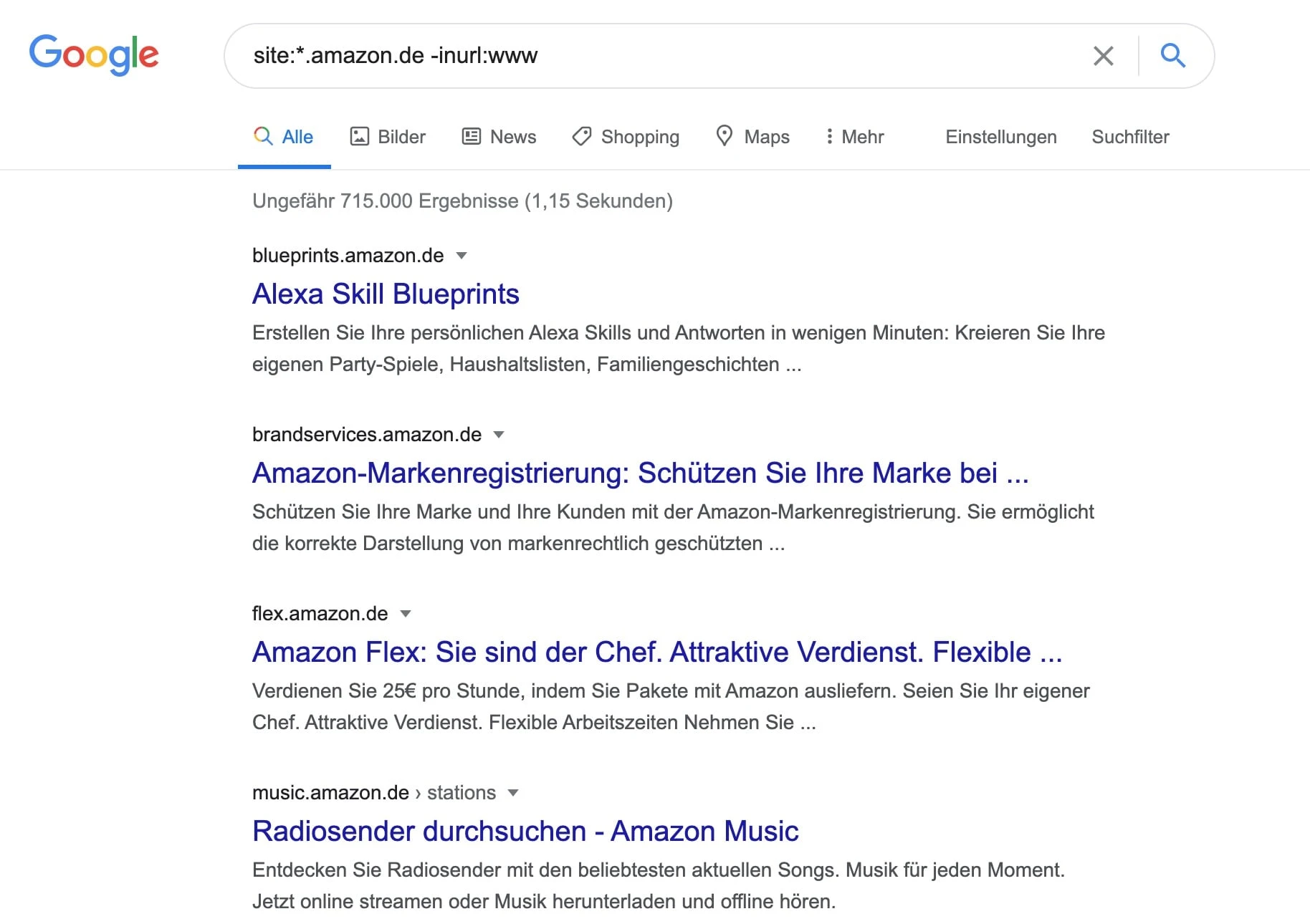
21. Find social media profiles
Do you want to approach a blogger or influencer in your niche (e.g. for a collaboration)?
Then it's often easiest to do that through social media.
You can find the social media profiles of a specific person, for example, by entering the following combination:
Name (site:facebook.com | site:twitter.com | site:linkedin.com | site:instagram.com | site:xing.com)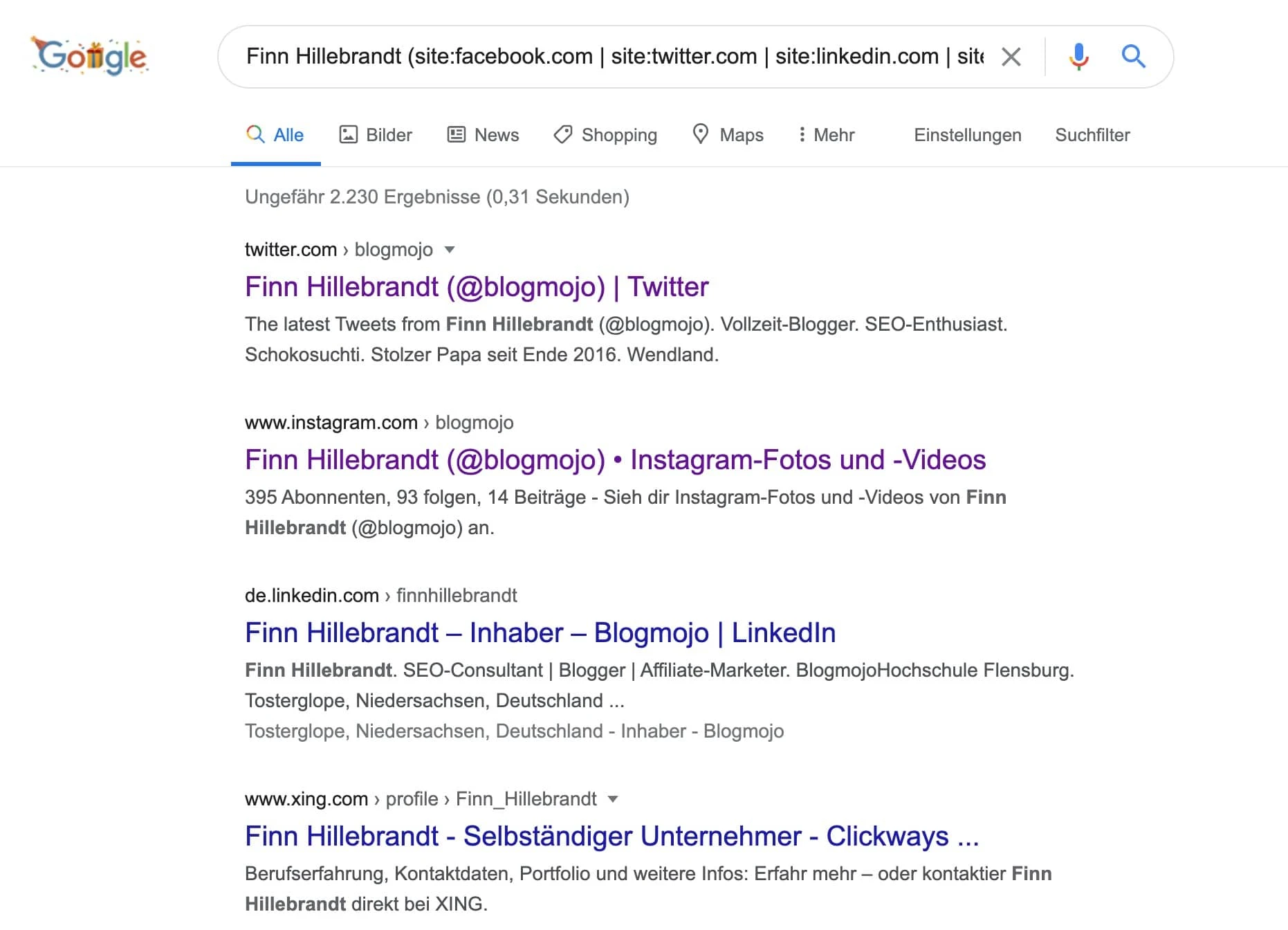
22. Search question and answer portals
Question and answer portals such as Quora or gutefrage.net are a popular way to build first backlinks quickly and effectively.
But they can also be very helpful for getting a feel for your own target group and their problems and goals.
The problem:
Quora and gutefrage.net are huge websites with hundreds of thousands of subpages.
That can make it hard to find specific topics. Especially since their internal search functions aren't particularly good.
To get results faster, you can use the following operator combination in Google:
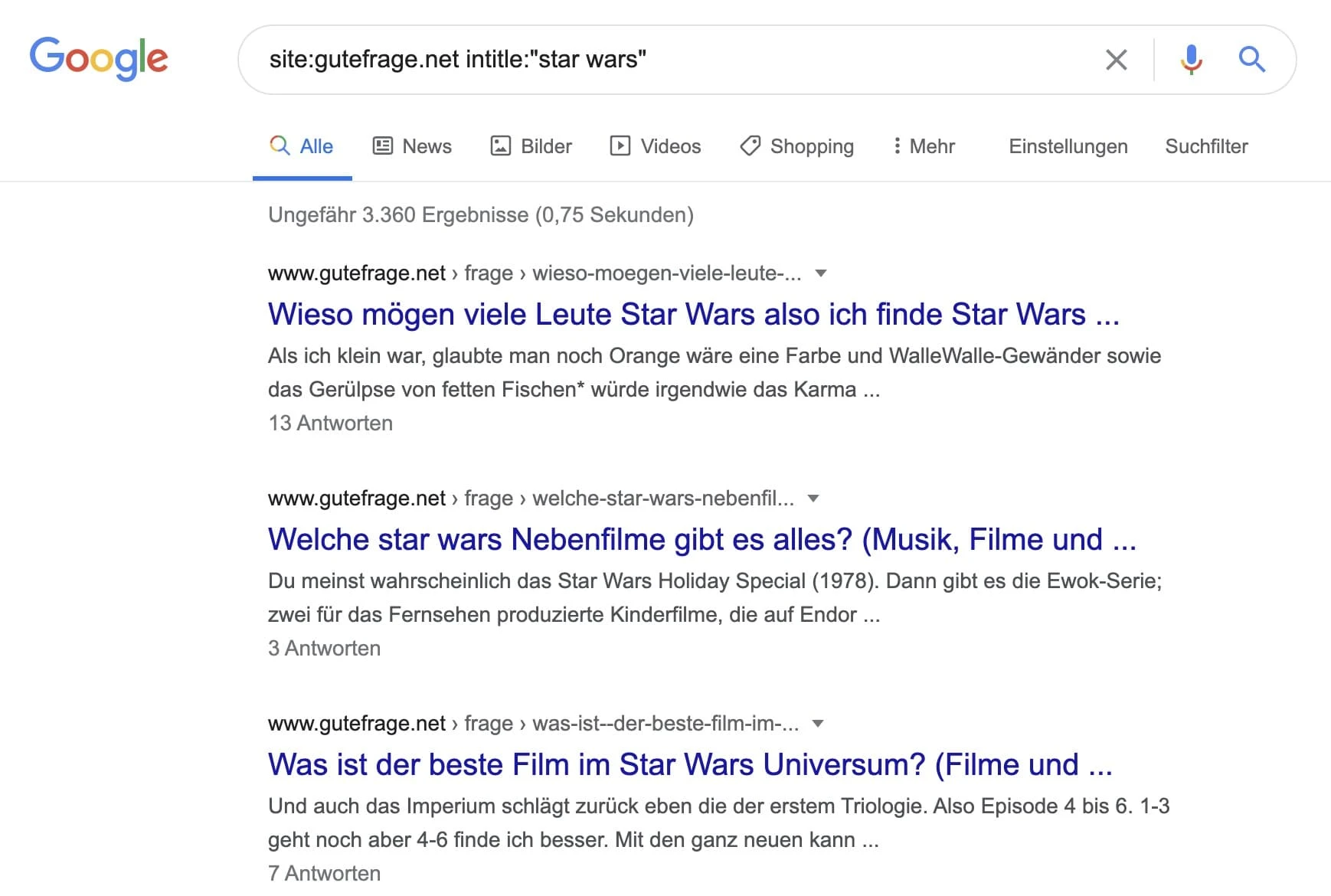
site:gutefrage.net intitle:"your topic"That's it.
That way you can, for example, show search results from gutefrage.net that deal with the topic Star Wars:
If you plan to comment in threads and possibly place a link to your website, it's a good idea to use the search filter to set the search results to Letzten Monat (past month) or, better yet, Letzte Woche (past week):
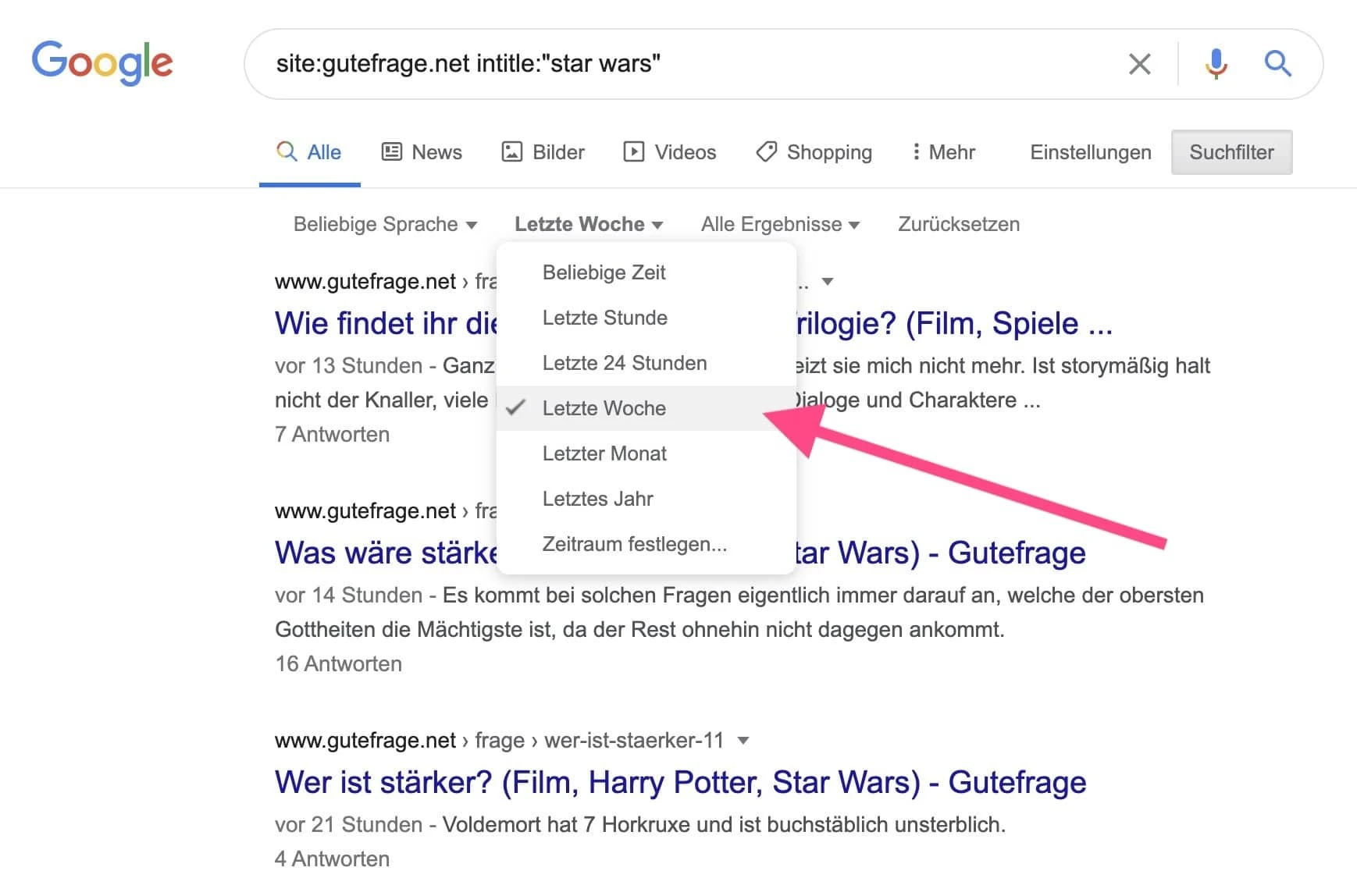
It always looks a bit suspicious when someone comments on a thread that's several months or years old...
If you don't get good results, you can also experiment with the following search commands:
site:gutefrage.net inurl:your-topic

site:gutefrage.net your topic

site:gutefrage.net "your topic"
23. Find forum threads on a topic
Forums are very good for getting to know your own target group better. They reflect their challenges and problems, but also their expectations and wishes on a particular topic.
To land on matching forum threads right away, you can use the following operator combo:
yourtopic inurl:forum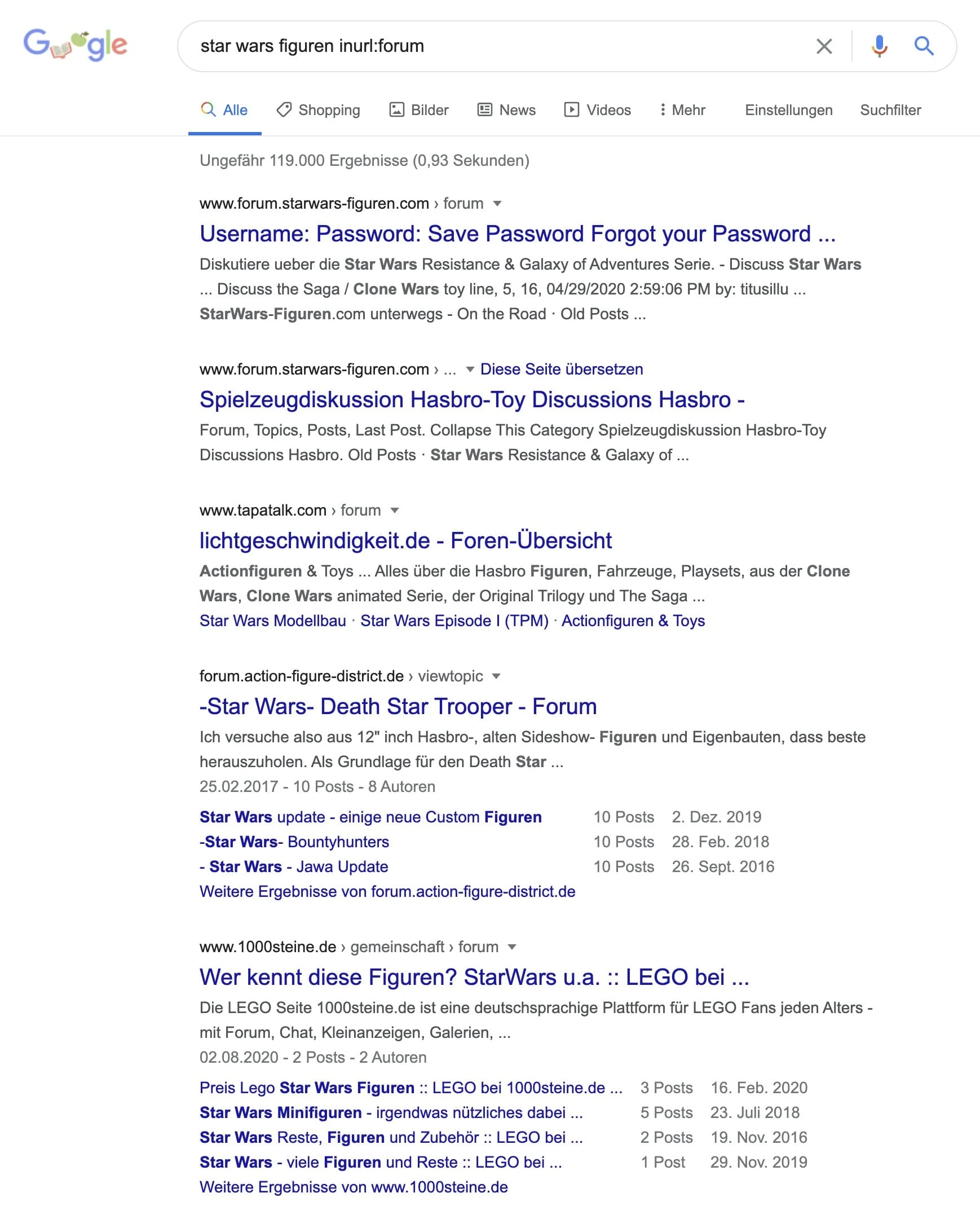
With more general search terms, you may get forum home pages or categories instead of individual forum threads.
To prevent that, you can include URL components that are typical for forum threads:
yourtopic inurl:forum AND (inurl:topic | inurl:view | inurl:thread)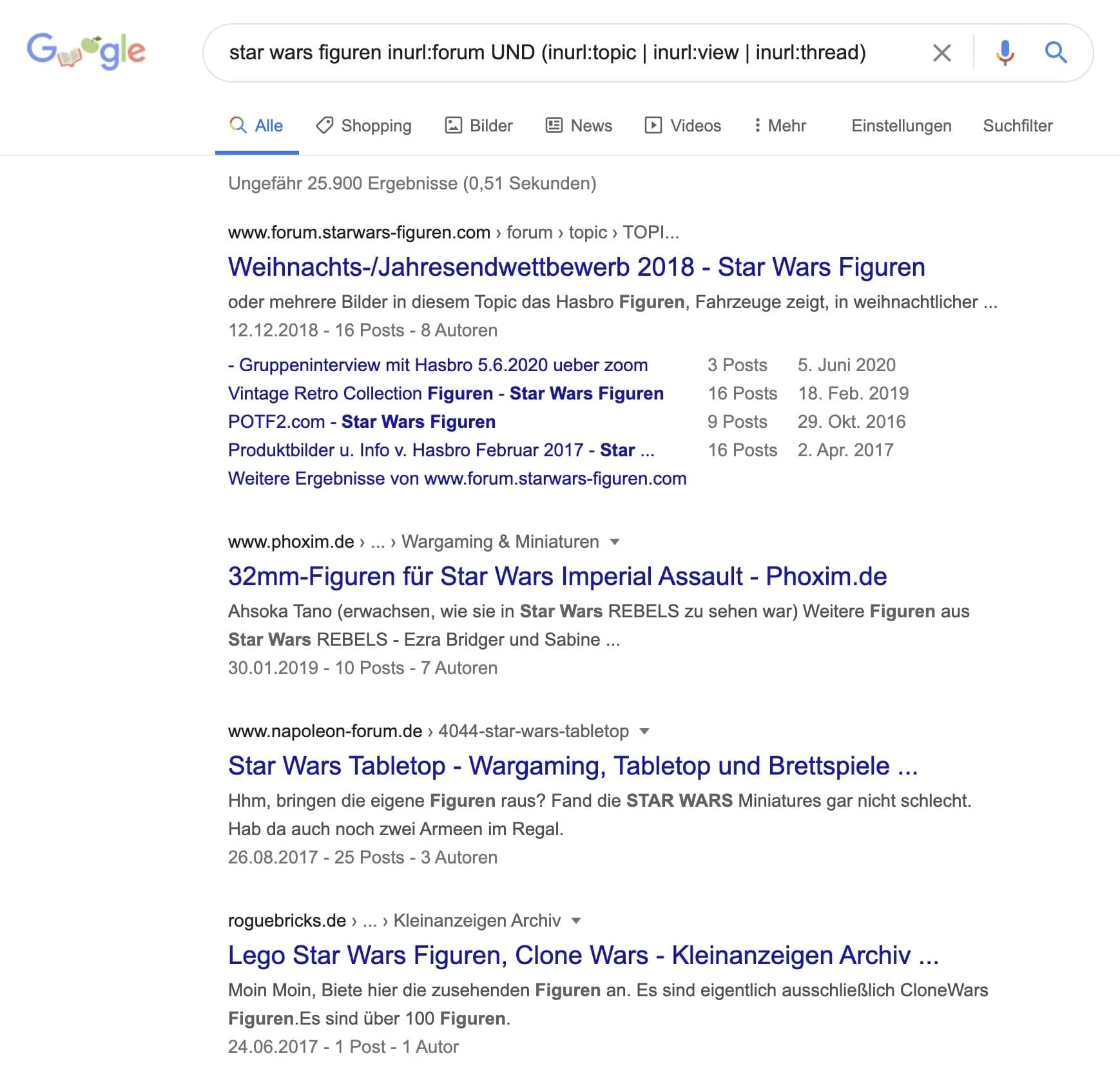
24. Restrict search results to specific TLDs
If you're looking for link-building or promotion opportunities, or want to refine your internet research, you can also restrict the search to specific TLDs (top-level domains, such as .de, .fr, or .org).
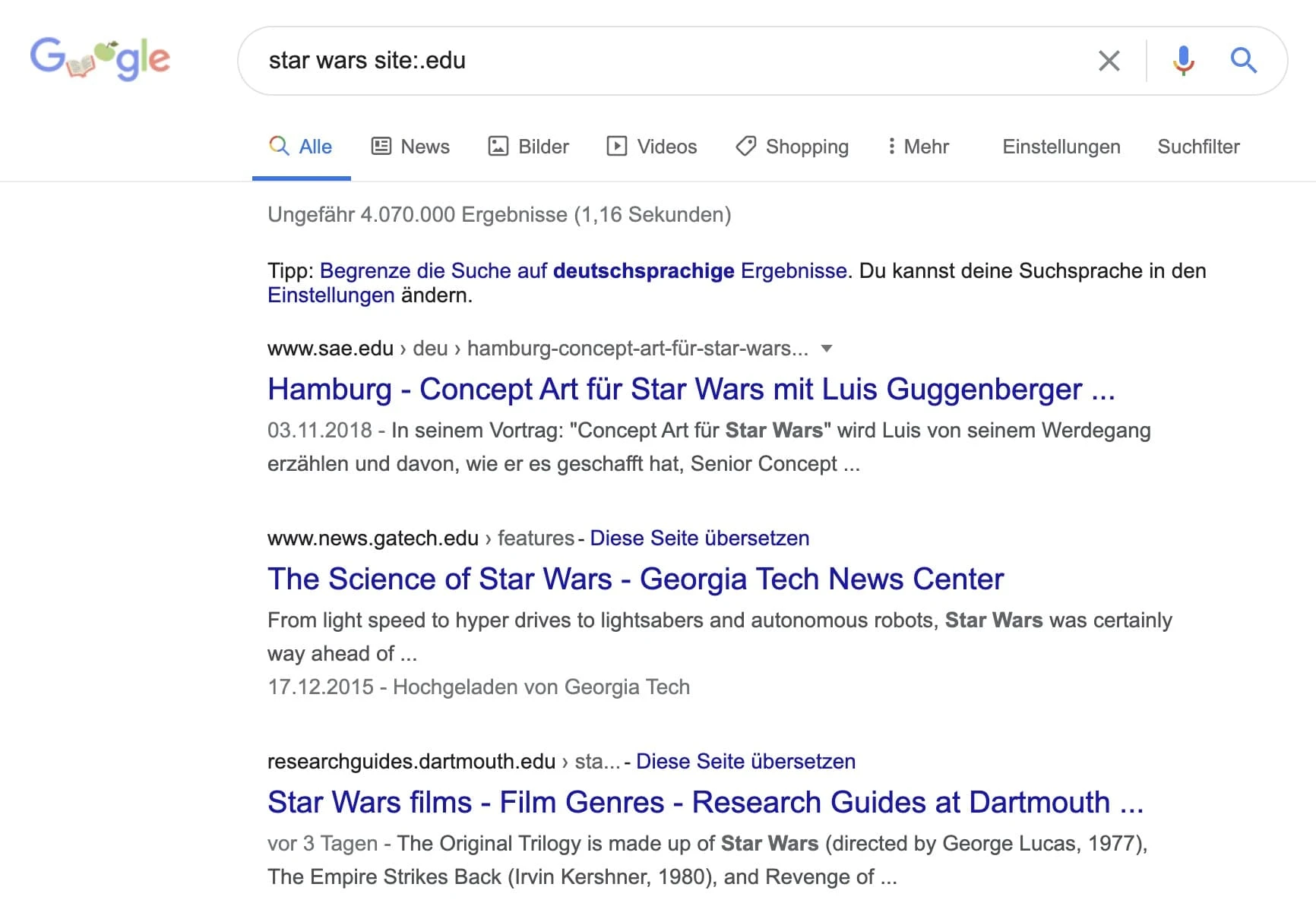
To do that, enter:
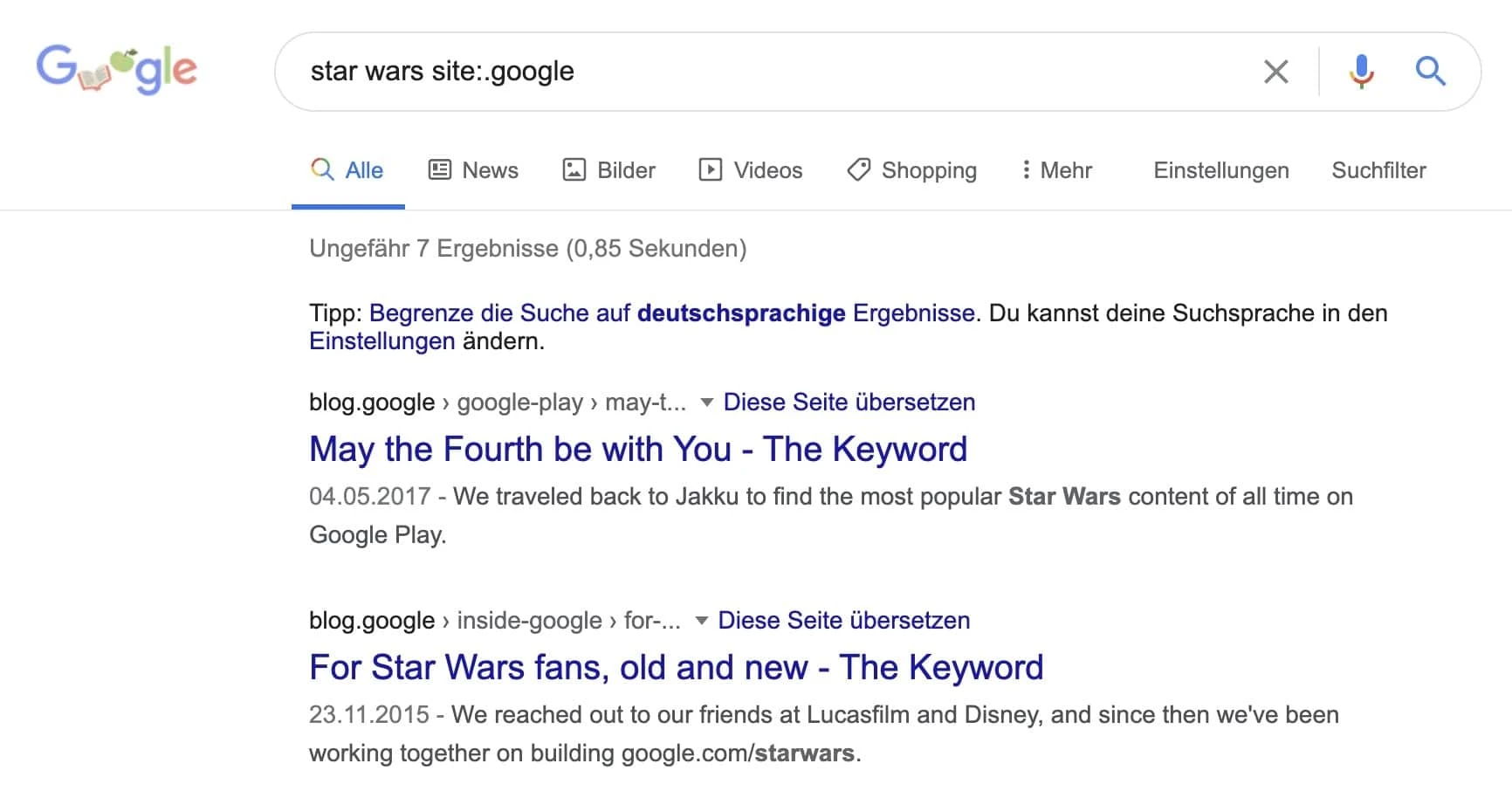
yourtopic site:.tldThat lets you restrict your search to universities and education organizations, for example:
Or to Google's own blogs and websites:
9. FAQ
Here you'll find answers to common questions about Google search operators:
Which search operators does Google officially support?
Google's help pages currently document only a few operators: quotation marks for exact phrases, the minus sign, site:, before:, after:, and filetype:.
The Search Central documentation for website owners adds imagesize: and src: for image search.
All other operators in this list are not officially documented. Some of them work, but they can disappear at any time.
Does the cache: operator still work?
No. Google removed the cache links from the search results, and according to the change log of the documentation, the cache: operator no longer works. You can find archived versions of a page in the Internet Archive (Wayback Machine) instead.
Can I use site: to count exactly how many pages are indexed?
No. According to Google, the list of results for site: isn't always complete, and the number shown is only a rough guide. For exact numbers, use the page indexing report and the URL inspection in Google Search Console.
What other advanced search options does Google have?
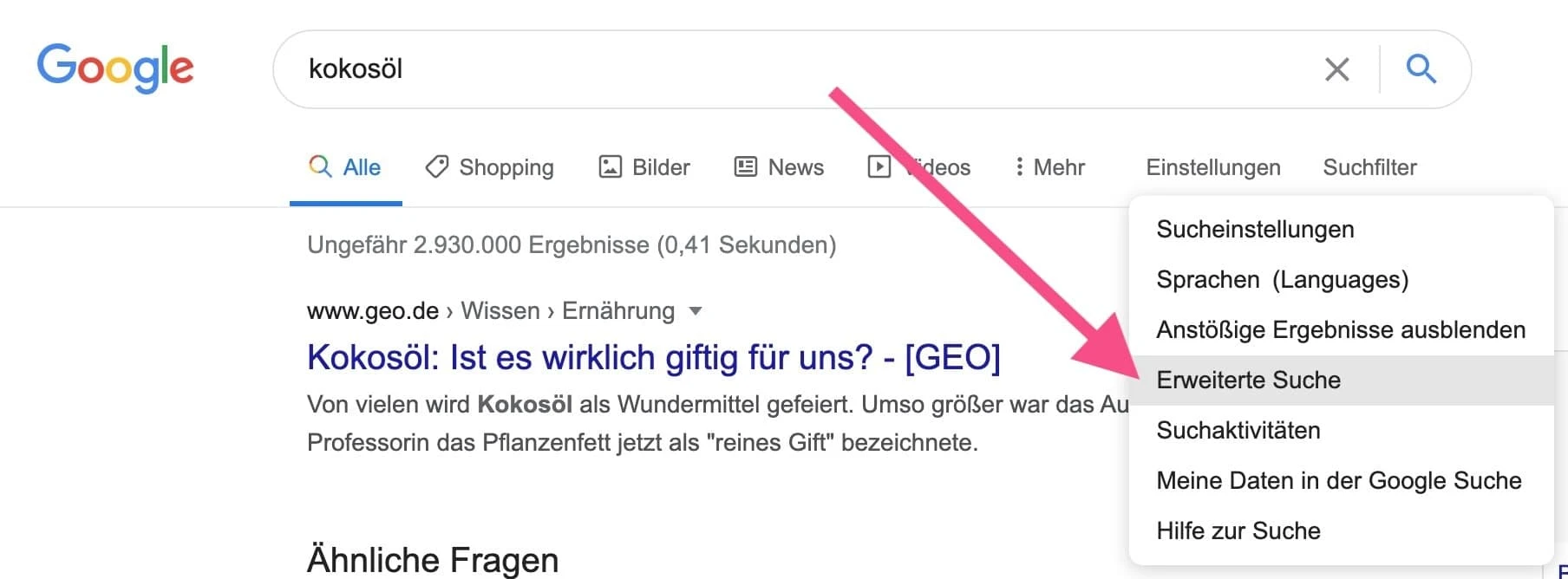
First, there's Google's advanced search, which you can open in the “Settings” menu above the search results.
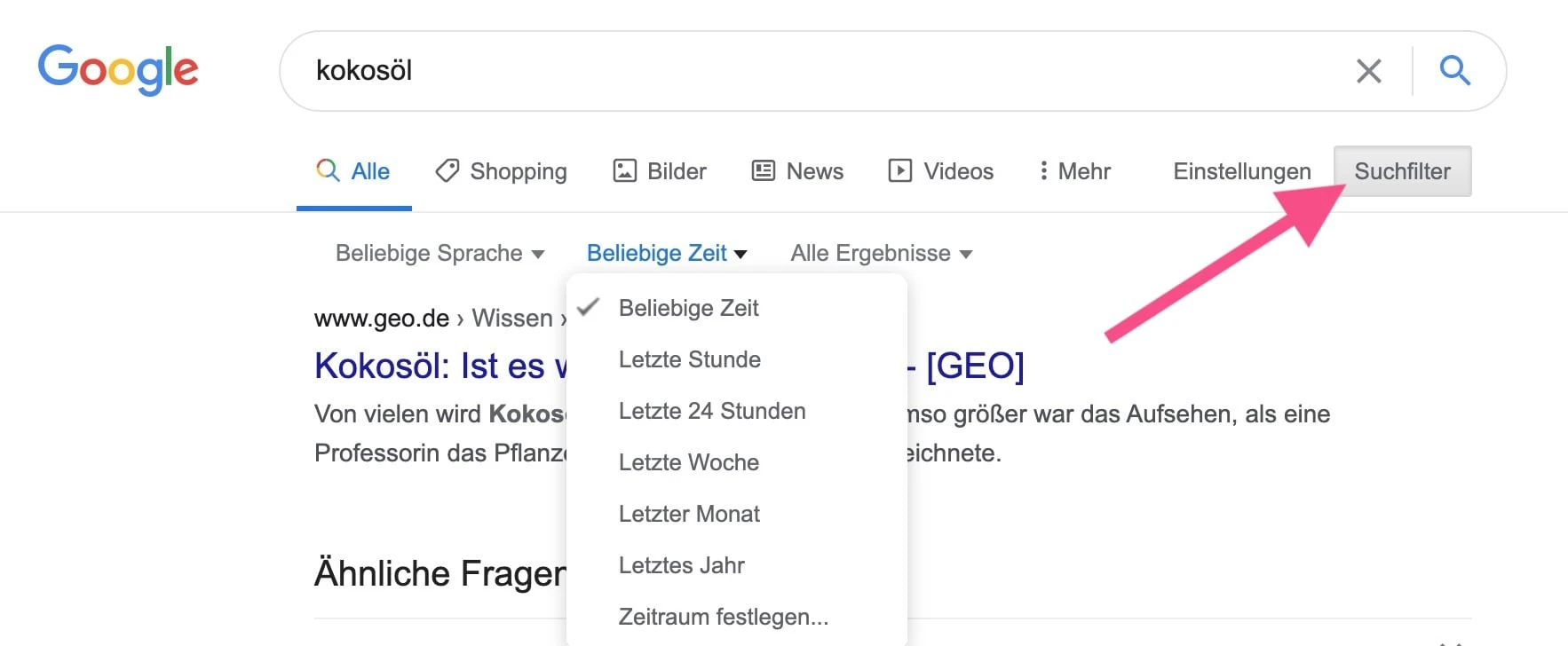
Second, there are the search filters, which you can use to narrow down the search results by time, for example.
Third, you can change the URL of a Google search directly and use additional search parameters that way.
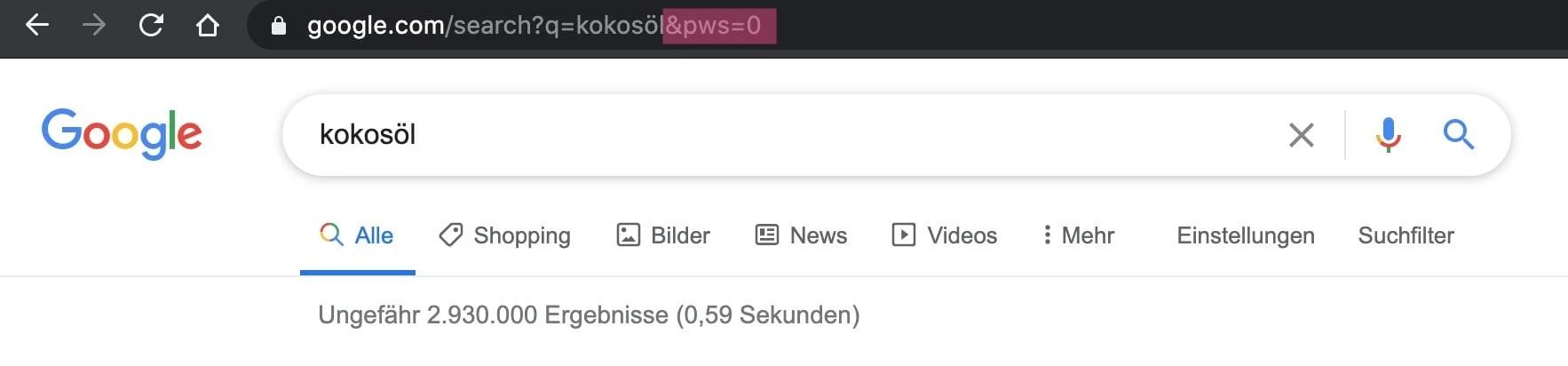
By appending &psw=0 to a Google search, for example, you can turn off personalized results.
You'll find a detailed overview of such URL modifiers at MOZ.
Do Google search operators also work for image search?
Most of the search operators listed here unfortunately don't work for image search. You can, however, use imagesize:widthxheight to show only images with a specific format.
Are there search operators for Bing too?
Yes, there are. Bing supports quotation marks, AND, OR, NOT, parentheses, and the plus sign, for example. You'll find an overview in Microsoft's help page on advanced search options.