
Professional SEO tools like Ahrefs, Semrush, or Sistrix cost €80 or more per month, which most SEO beginners probably can't or don't want to afford.
The good news:
For many SEO measures, you don't necessarily need these tools.
Google itself gives you plenty of free SEO tools that can help you, for example, identify crawling and indexing problems, make your website more user-friendly, find keywords, analyze visitor behavior, and much more.
In this article, I'll introduce you to all the Google tools you can use for SEO and for optimizing your website.
I guarantee:
Even if you already know a bit about SEO, there will surely be some in here that you haven't heard of yet.
- Google Search Console remains the most important free Google tool for crawling, indexing, and search performance.
- Several earlier recommendations have been discontinued or replaced, including the Mobile-Friendly Test, Test My Site, the URL Parameters tool, and the Web Vitals extension.
- For performance testing, PageSpeed Insights, Lighthouse, CrUX, and Chrome DevTools are currently the most important places to go.
1. Google Search Console
Google Search Console (formerly Webmaster Tools) is by far the most important SEO tool and shouldn't be missing from any SEO toolbox.
Strictly speaking, it's not a single tool but a comprehensive collection of tools:
With Search Console, you can find out not only which keywords your visitors actually come through, but also spot slow-loading pages, submit a sitemap to Google, check backlinks and internal links, or identify security problems.
Below, I'll introduce you to 22 features and reports of Google Search Console:
1.1 Google Search Console Insights
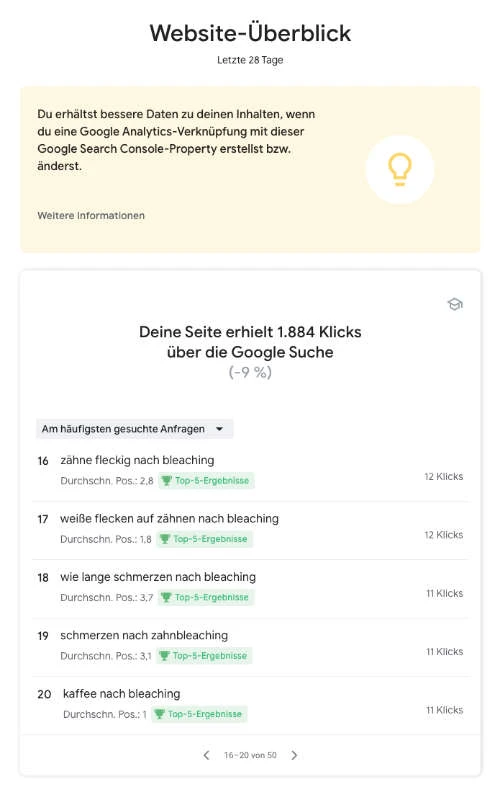
The Insights report in Google Search Console was integrated directly into Google Search Console in June 2025. It replaces the earlier standalone beta and gives you a quick overview of clicks, impressions, pages, and search queries with notable changes.
You don't need to link Google Analytics for the current report. The data comes from the search performance data in Search Console.
1.2 “Core Web Vitals” report
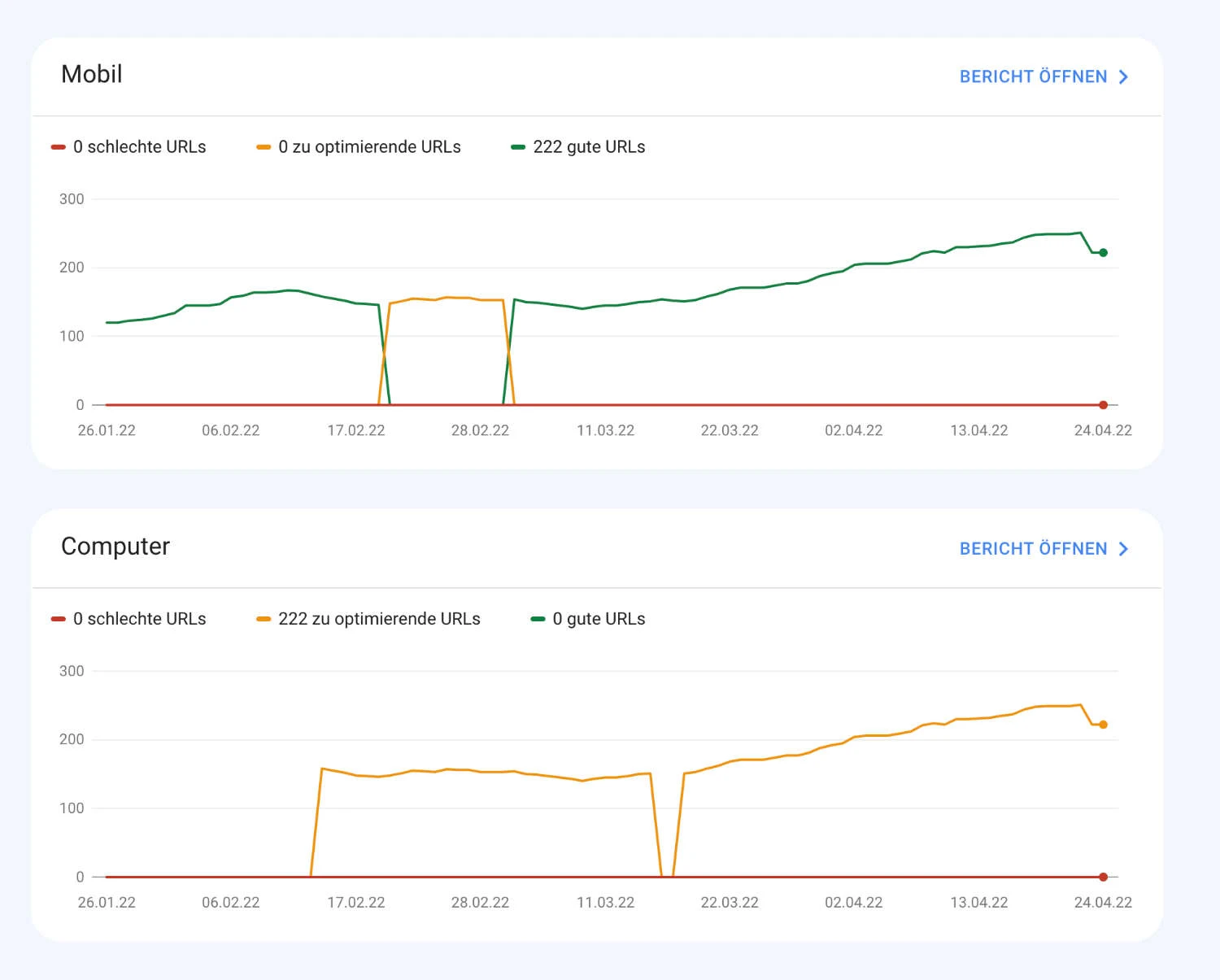
The “Core Web Vitals” report shows you how well your website's URLs perform on the Core Web Vitals.
This isn't lab data but data from real Chrome users who visited your website. This so-called “field data” is also used for the Google ranking of your URLs.
The report shows you separate statistics for performance on mobile devices and desktop computers. URLs are divided into three categories: “poor,” “needs improvement,” and “good.”
In combination with PageSpeed Insights or Lighthouse, you can pinpoint slow and unfriendly URLs and optimize them.
1.3 “Mobile Usability” report (archive)
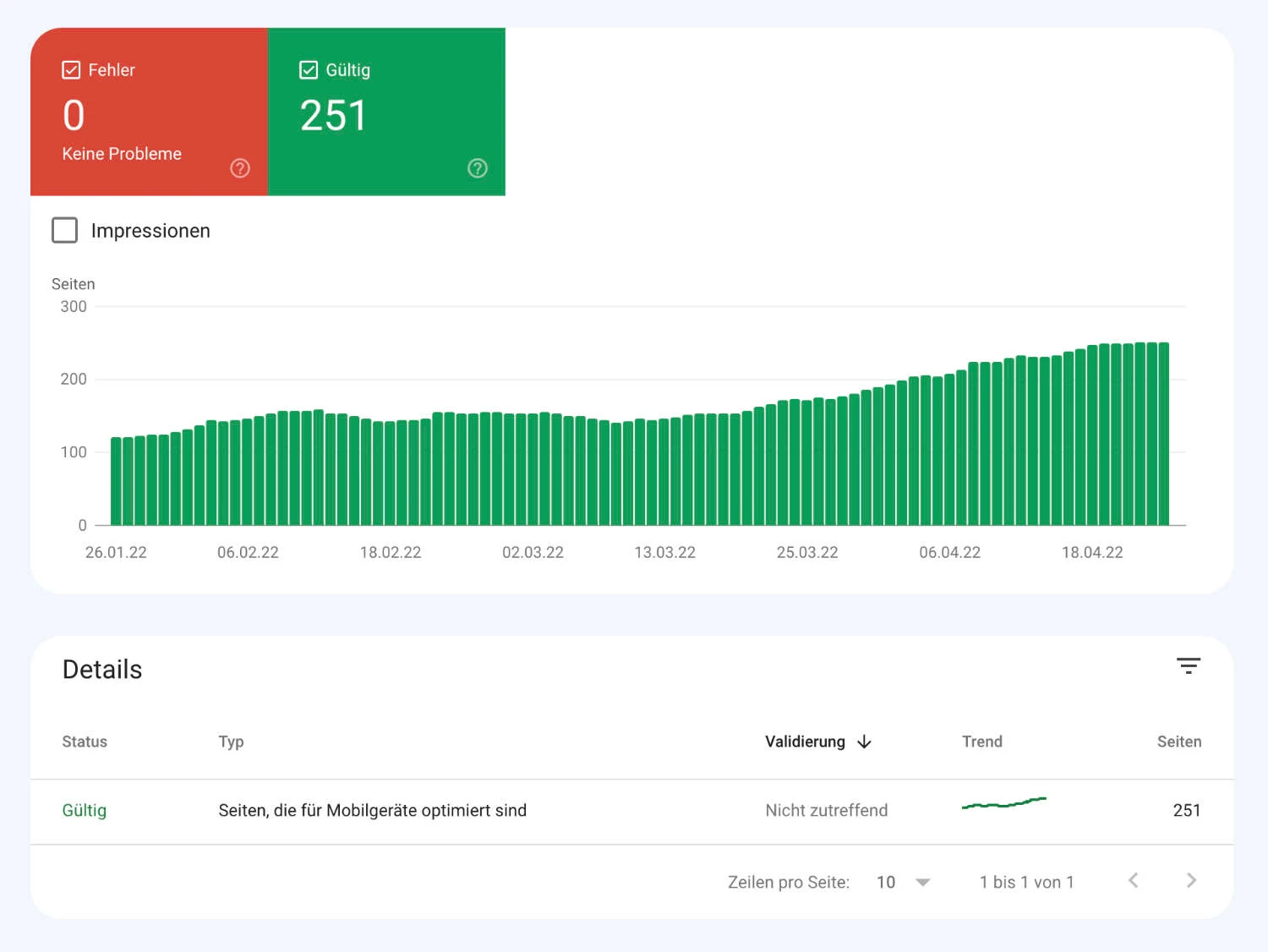
The former “Mobile Usability” report was discontinued on December 1, 2023. For mobile friendliness, Google now recommends Lighthouse, among other things.
Mobile friendliness is still important. So keep checking responsive display, readability, and usability with current browser and lab tests.
1.4 “Page indexing” report
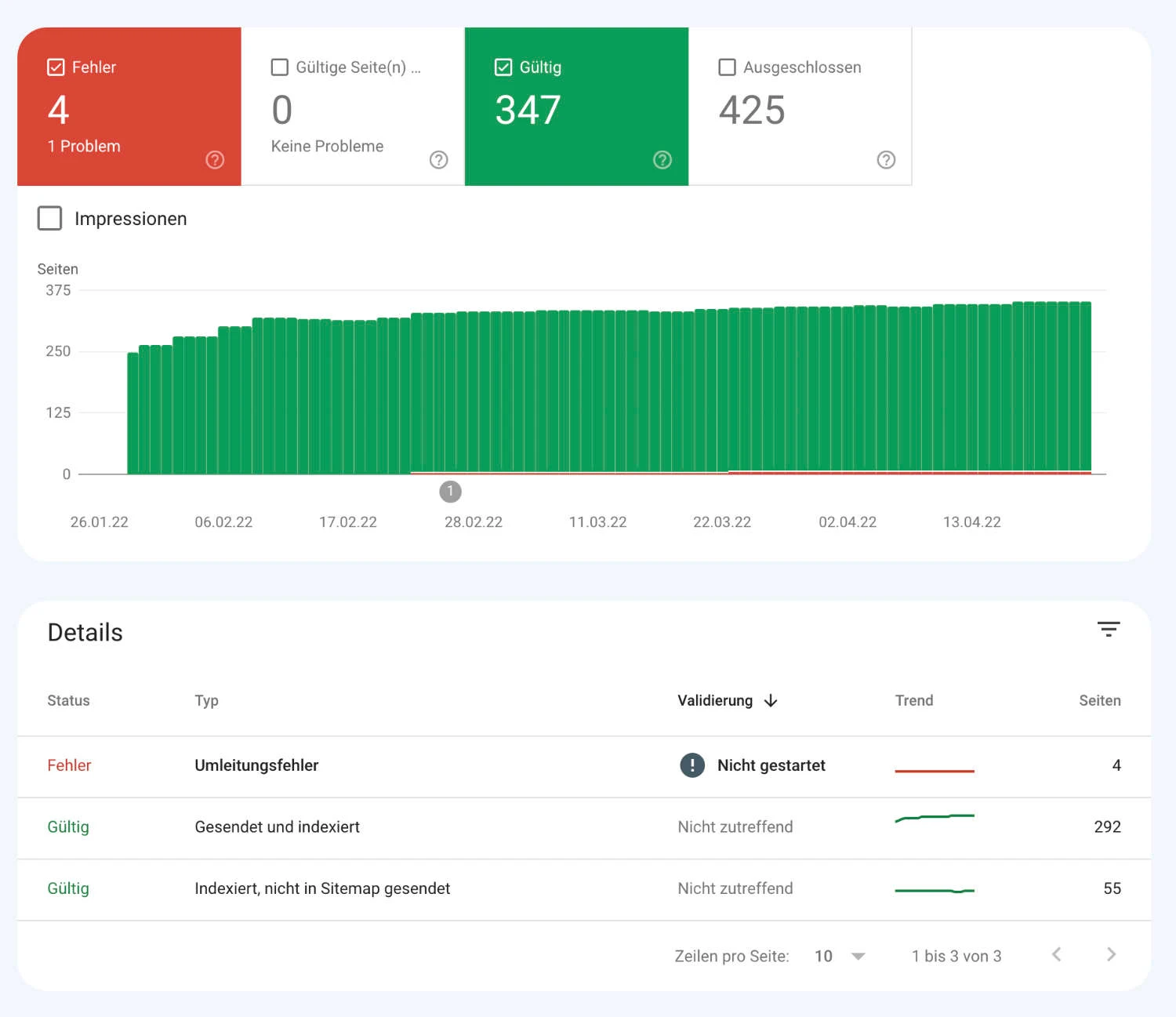
The Page indexing report is the successor to the former Coverage report. It shows which URLs Google has indexed and why other URLs are not indexed.
The key distinction is:
- Indexed
- Not indexed, with a specific reason
You should check “Error” and “Excluded” in particular on a regular basis. Entries in these two categories may require you to take action.
1.5 “Sitemaps” report
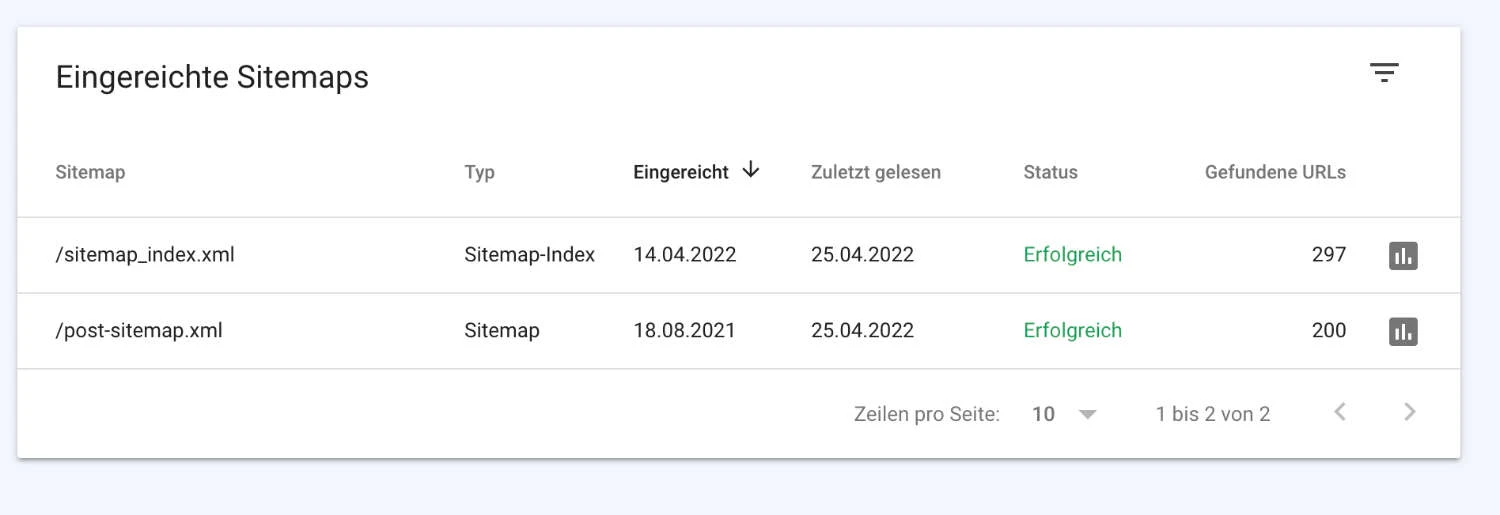
The Sitemaps report tells you whether any XML sitemaps have been submitted to Google at all. And if so, how well they were processed.
Under “Last read,” you can also see when Google last crawled your sitemap.
A button takes you straight to the page indexing report for the respective sitemap, and you can see right away which pages were excluded and which were indexed.
1.6 “AMP” report
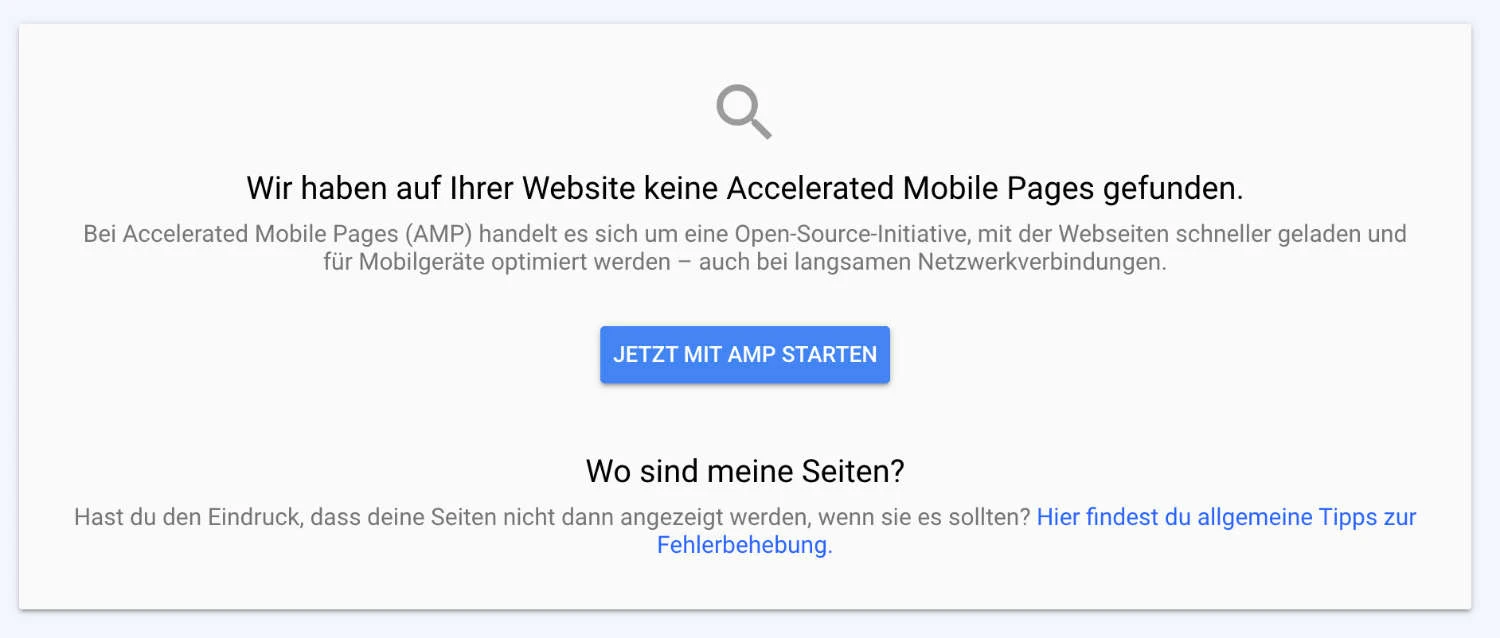
If you use AMP on your website (which we don't, and which is rarely a good idea), the AMP report shows you which problems exist in this area.
Each open issue is listed as its own category. A click gives you more details about the error itself, and Google also tells you which pages are affected.
1.7 “Manual actions” report

A manual action occurs whenever a Google employee specifically reviews your website because there is a suspicion that your website (or part of it) doesn't comply with Google's quality guidelines for webmasters.
The consequence can be ranking losses or even a complete removal from Google's search index.
With the “Manual actions” report, you can see whether such actions have been imposed on your website.
1.8 “Security issues” report

The Security issues report shows you whether your website may have been hacked.
For this, Google breaks down various suspicions, such as phishing or unwanted malware that can endanger your visitors.
1.9 “Links” report
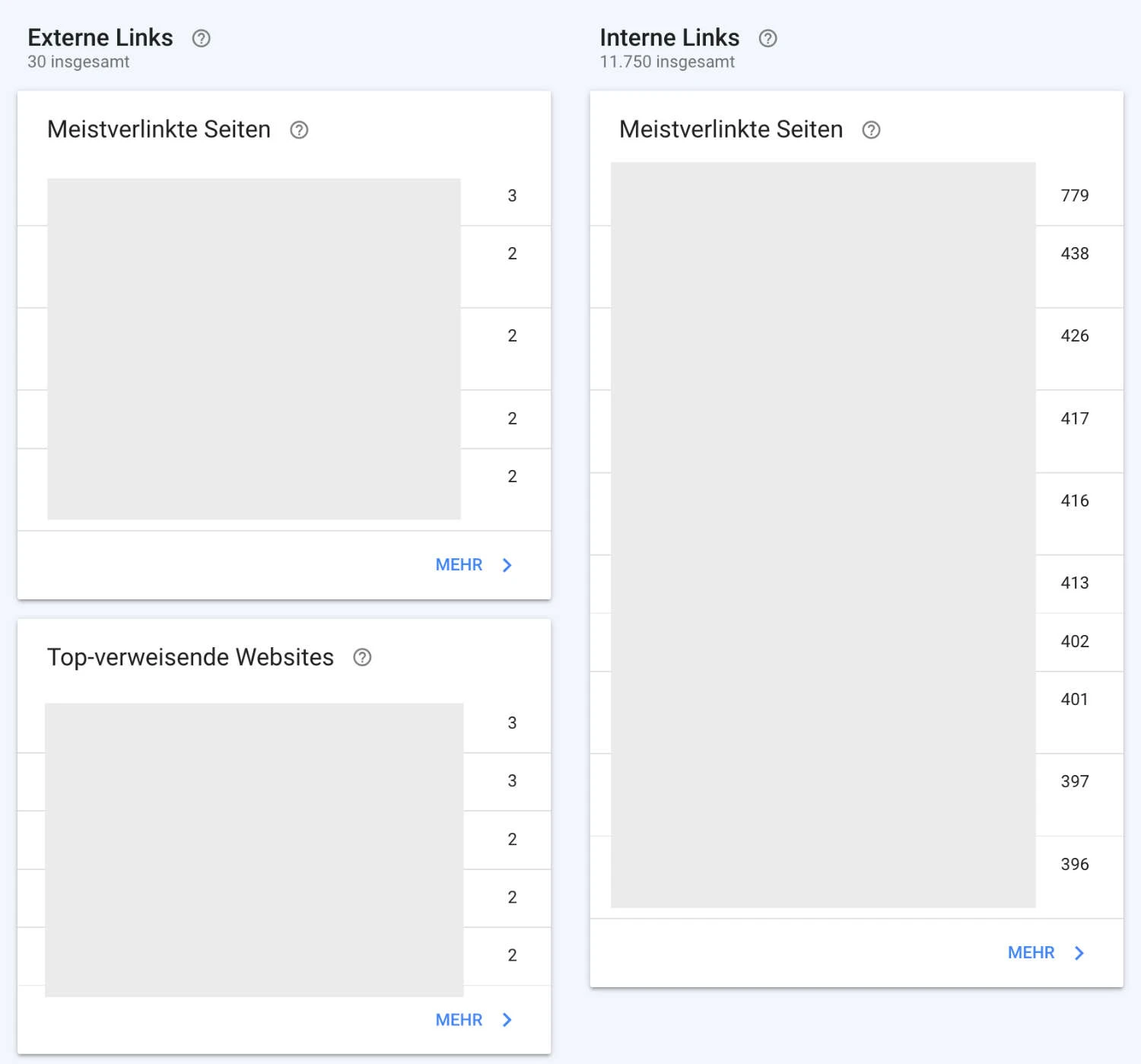
With the Links report, you get a free backlink audit of your site and find out which external sources link to your website with which anchor text.
Google Search Console also shows you here which of your internal pages are linked to the most.
With this data, you can optimize internal linking and identify so-called “orphan pages” that have no internal links at all.
1.10 Disavow tool
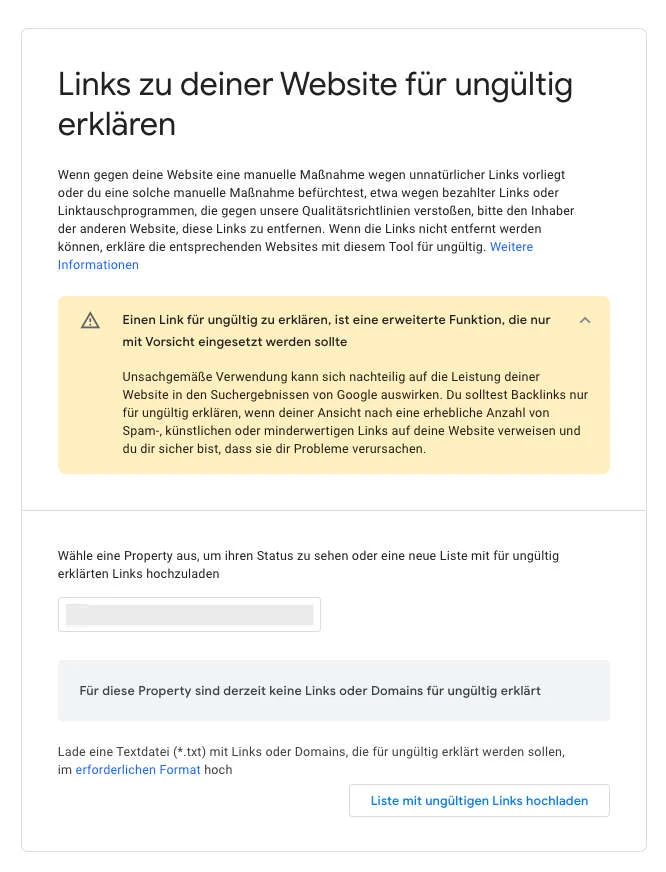
With the Disavow tool, you can declare backlinks invalid.
That can help prevent or resolve manual or algorithmic actions caused by spam links or negative SEO.
Google itself advises using this tool with care. Most spam links are now detected automatically by Google and simply ignored for ranking, so in most cases you no longer have to act yourself.
1.11 Crawl stats
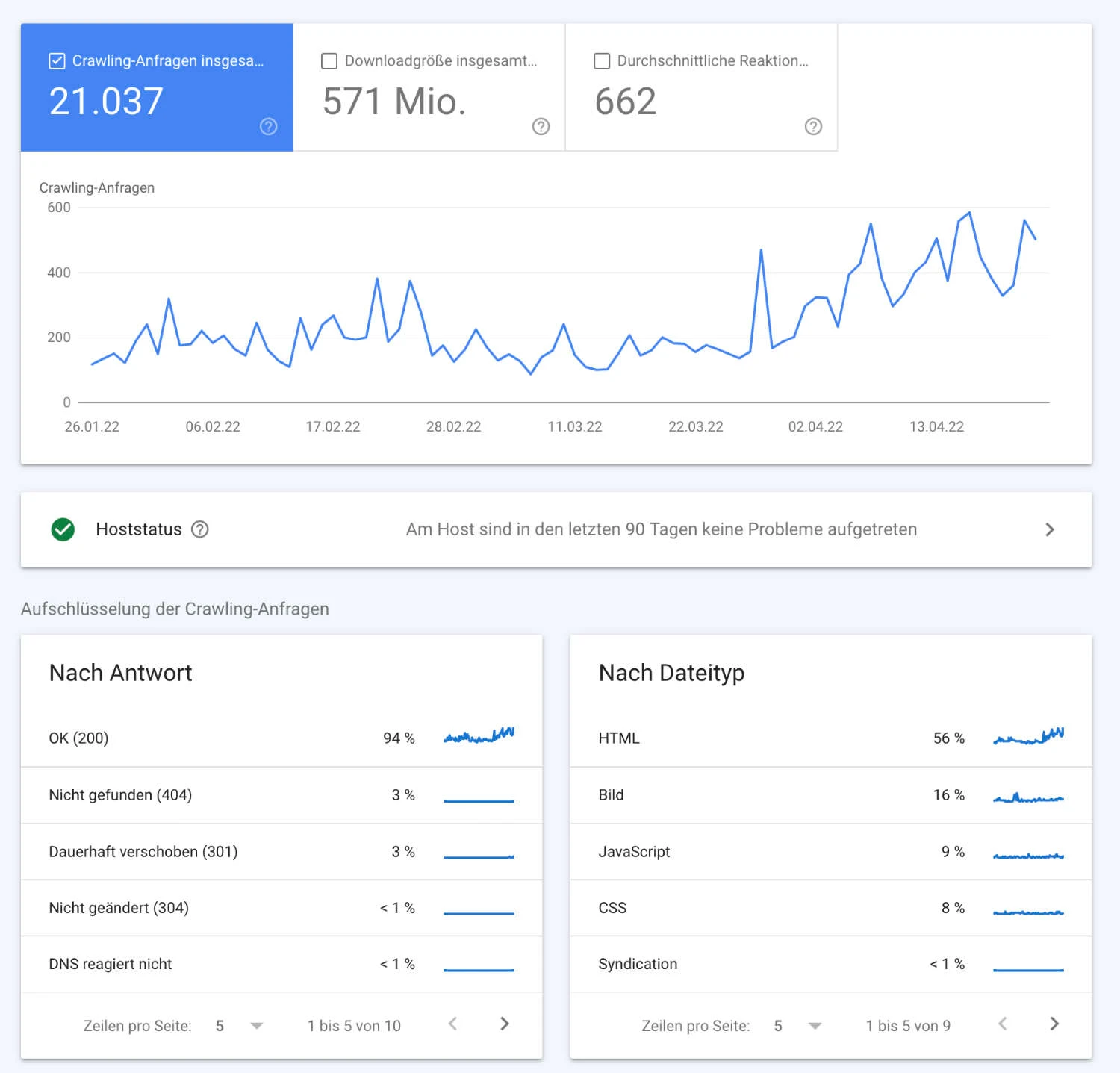
The Crawl stats break down how Googlebot has crawled and analyzed your site over the last 90 days.
You get three different data sets:
- Total crawl requests
- Total download size
- Average response time
Google also shows your host status here and raises the alarm if there are problems with availability.
1.12 Crawl rate settings (archive)
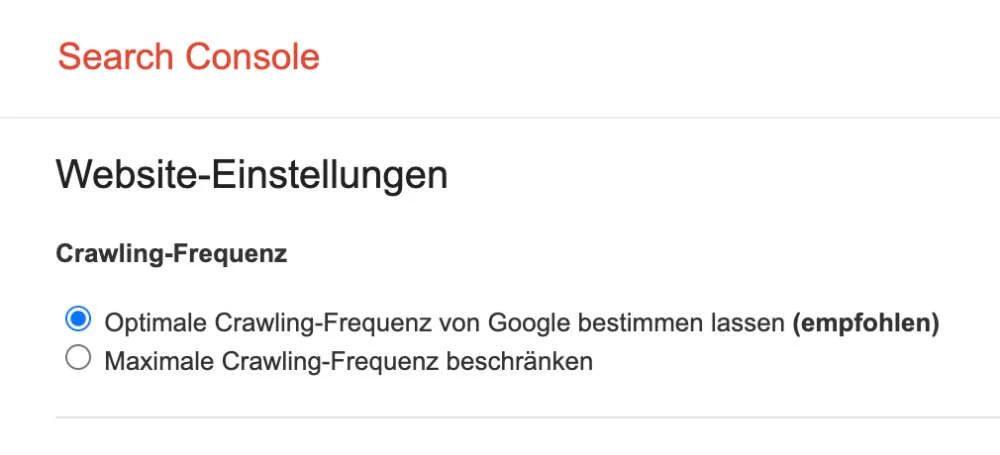
The former tool for the crawl rate was discontinued on January 8, 2024. Google now adjusts the crawl rate automatically based on server responses.
If the load is unusually high, you should first investigate server errors, response times, and crawl stats.
For emergencies, Google still provides a form for reporting unusual Googlebot activity.
1.13 URL Inspection tool
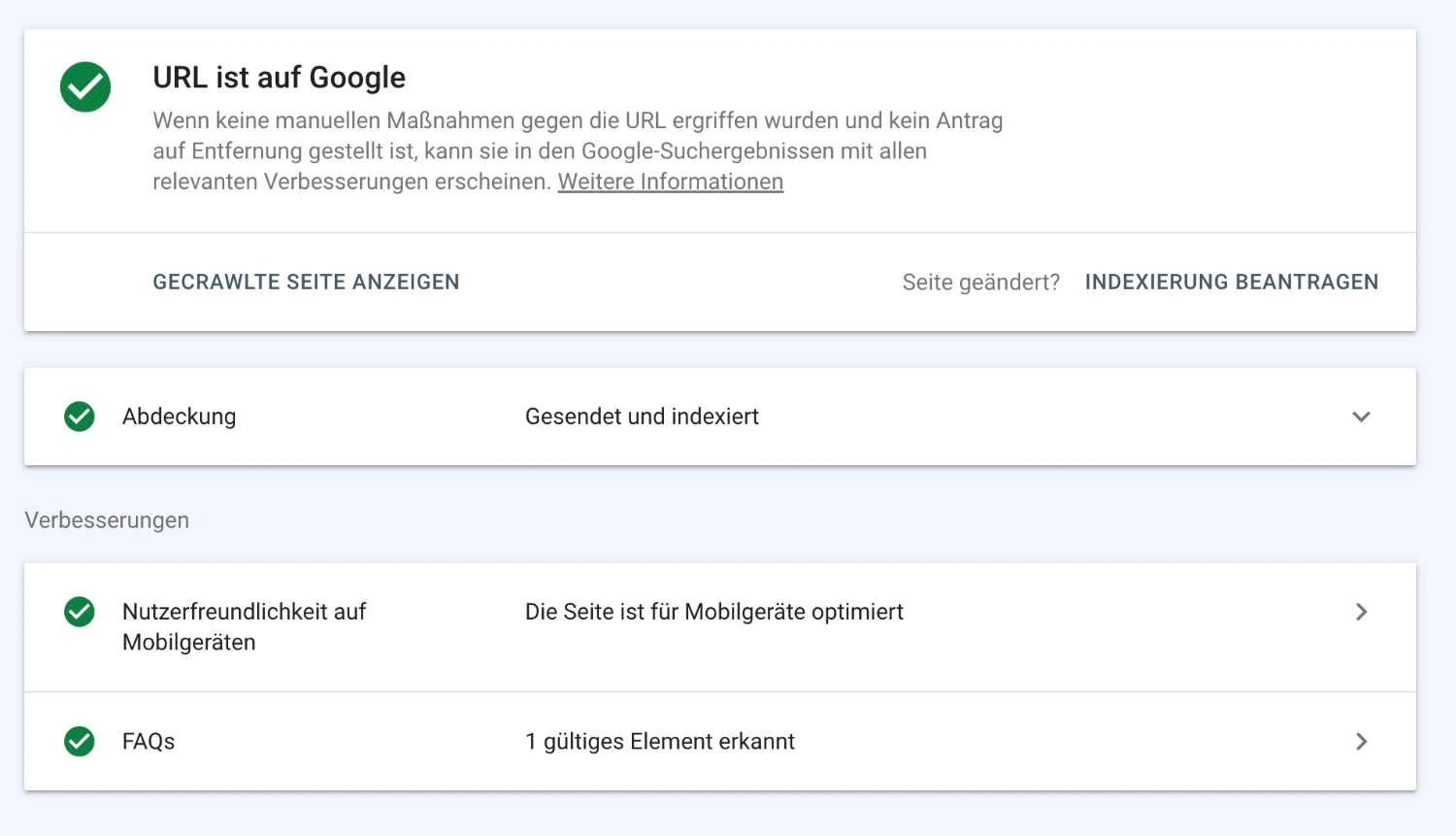
The URL Inspection tool tells you the current indexing status of a URL.
Here you find out whether there are indexing problems and, if so, what's causing them. You can also see whether a page is optimized for mobile devices and whether its structured data is error-free.
With the “Request indexing” button, you can also trigger the indexing of a URL manually.
1.14 URL Parameters tool (archive)
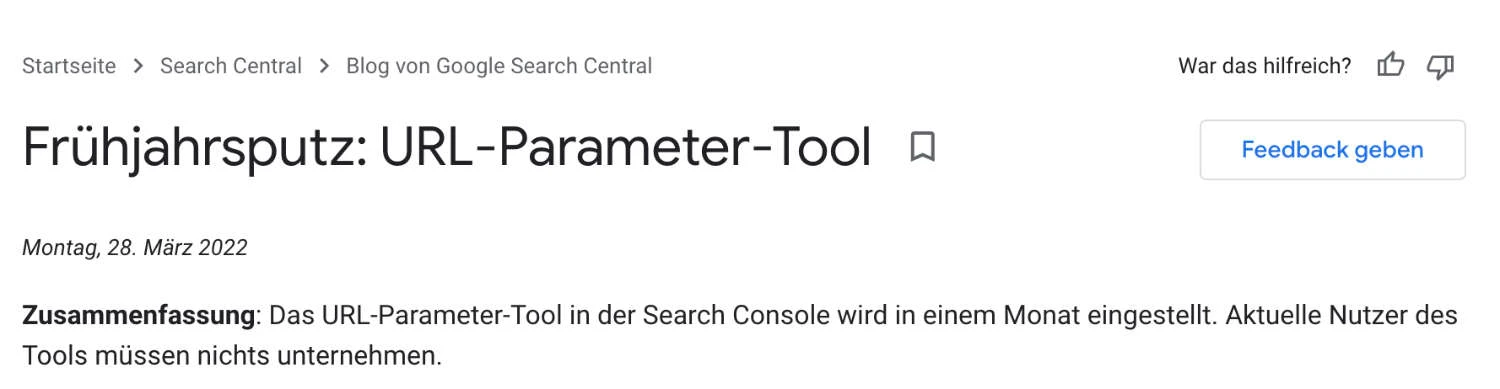
The URL Parameters tool was discontinued by Google effective April 26, 2022.
With the tool, you could define parameters that Google should ignore in order to avoid duplicate content.
1.15 Removals tool
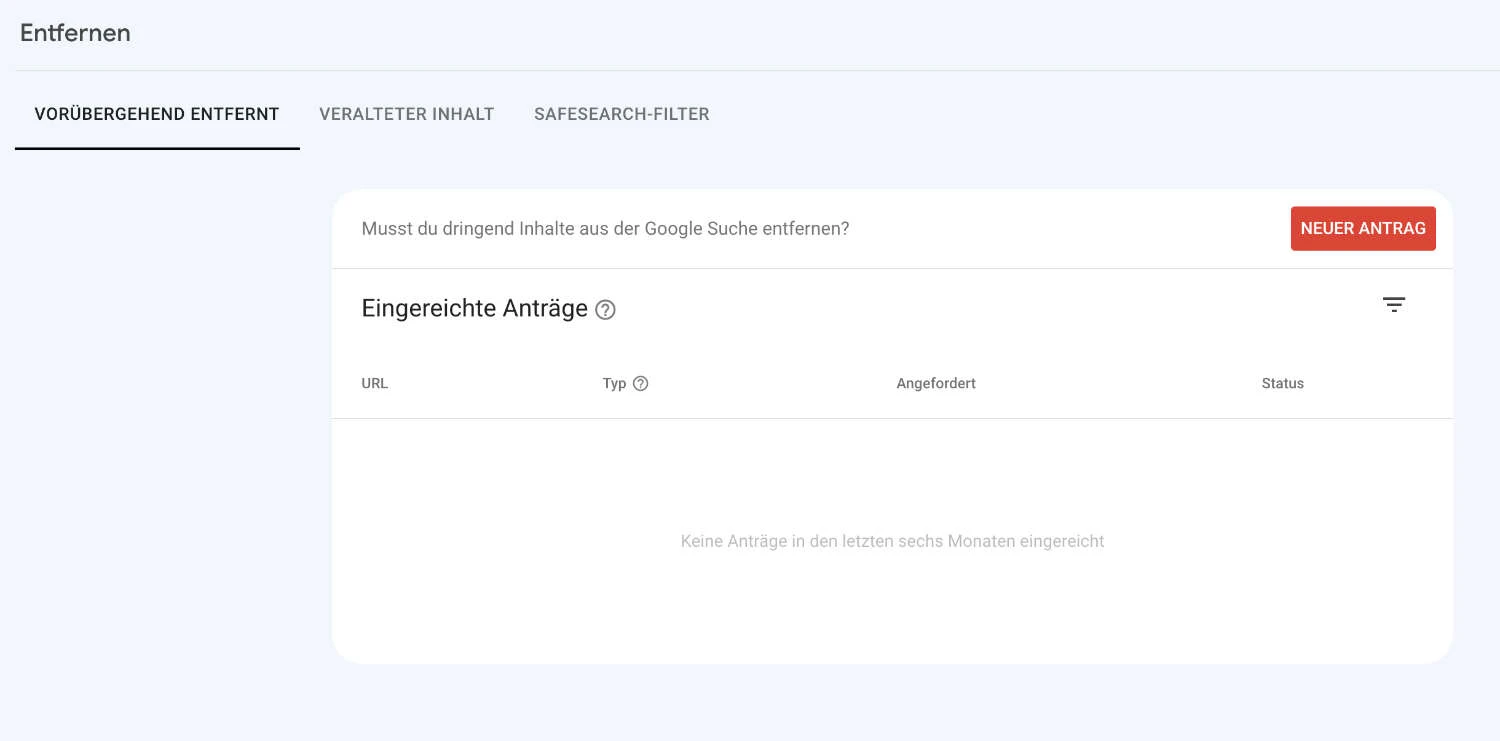
With the Removals tool, you can have individual URLs of your website removed from the Google index for 6 months.
That makes sense whenever, for example, an Impressum (the legal notice German websites must carry), a privacy policy, or a page that is actually private has accidentally crept into the SERPs.
The tool also shows you a detailed overview of the requests you've submitted so far and their status.
1.16 Remove outdated content tool
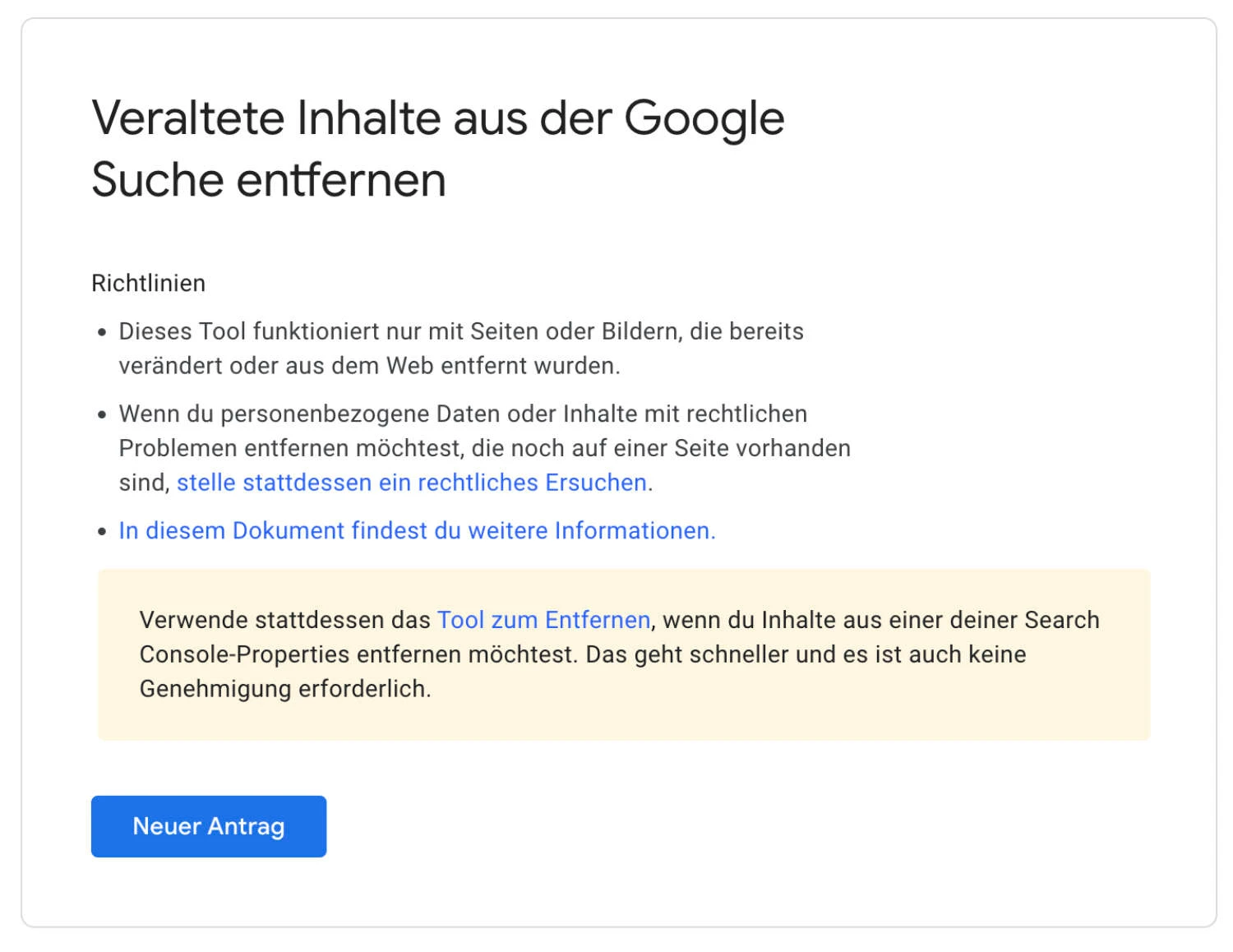
With the Remove outdated content tool, you can have other people's content that is obviously outdated removed from the Google index.
If you want to remove your own content, the Removals tool introduced in the previous section is the right place to go.
1.17 “International Targeting” report (archive)
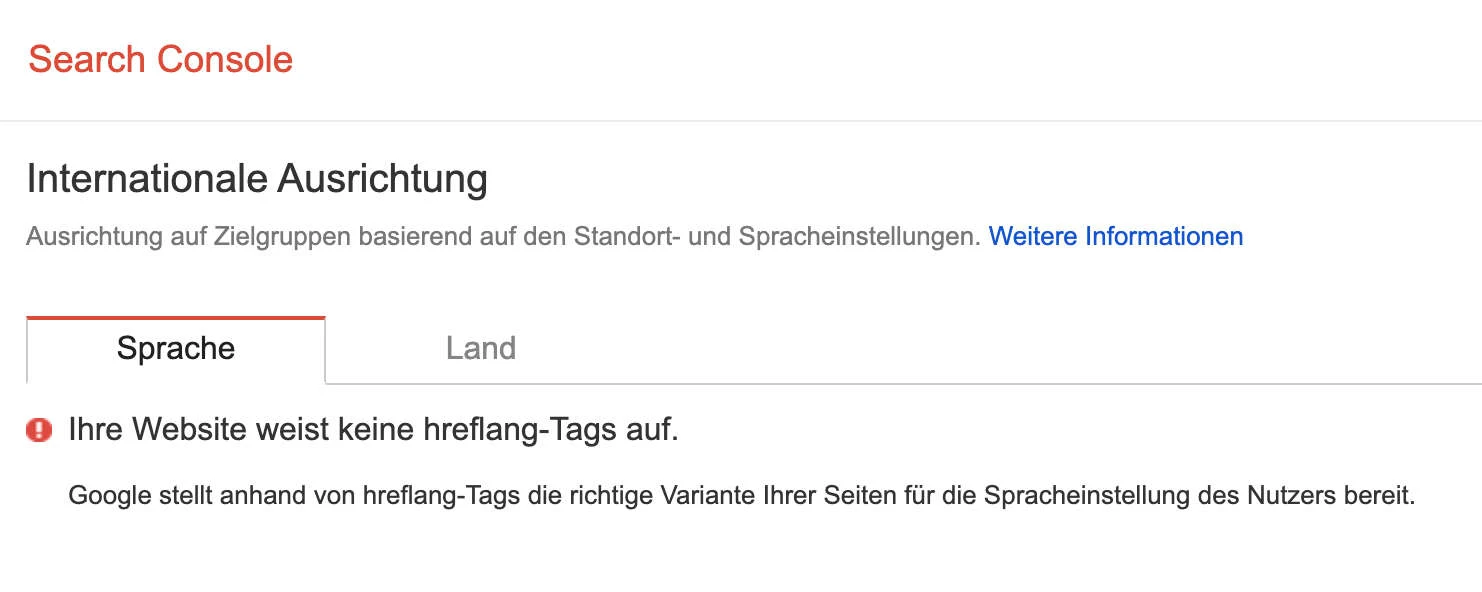
The former International Targeting report was discontinued in 2022. For multilingual websites, correctly set hreflang annotations and a clear URL structure remain crucial.
Search Console no longer offers an equivalent separate report for this.
1.18 Change of Address tool
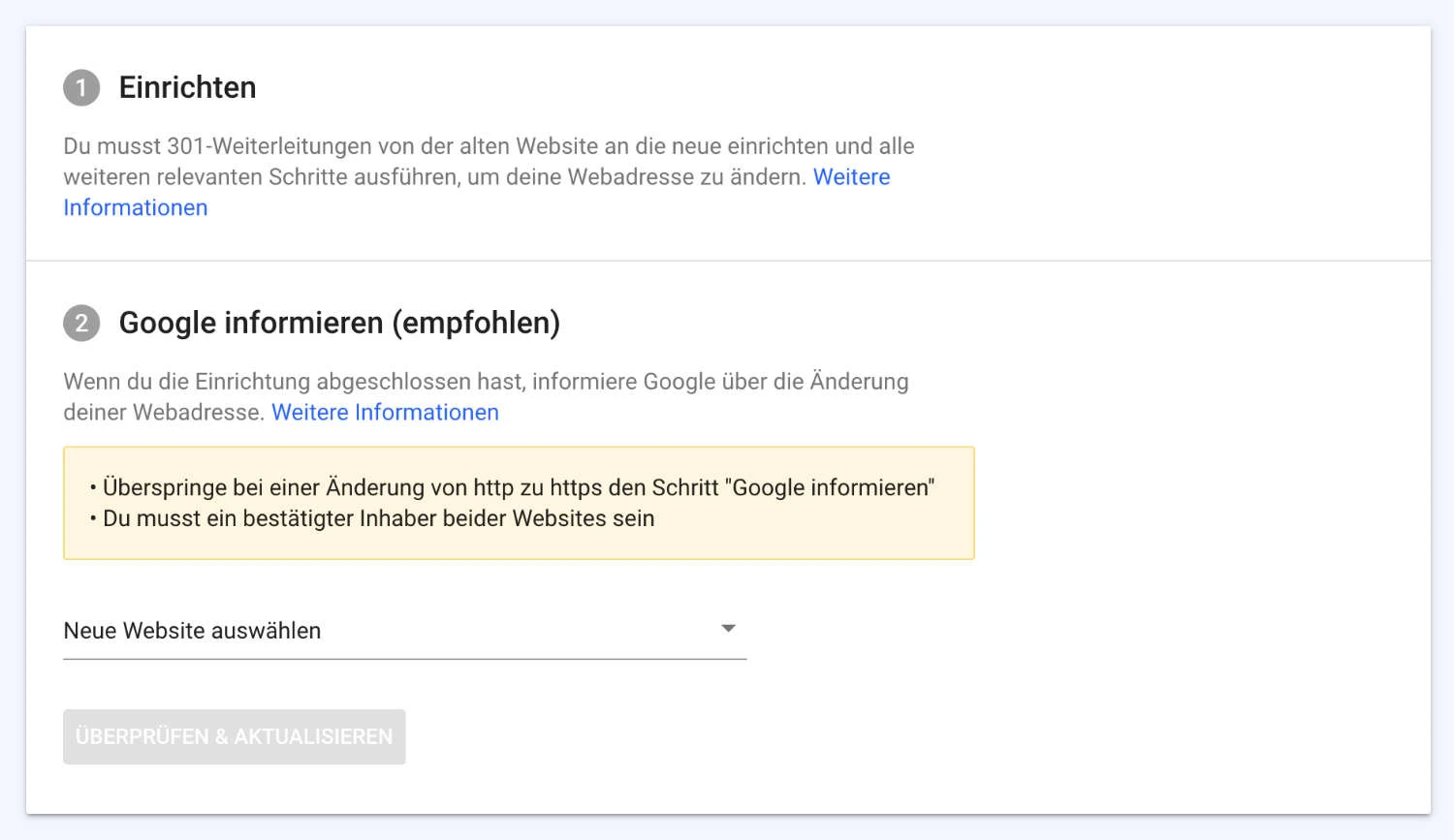
The Change of Address tool lets you notify Google when your website's domain has changed.
Before you use the tool, you should definitely read the entry in the Search Console Help to understand how it works and when using it makes sense and when it doesn't.
1.19 robots.txt report
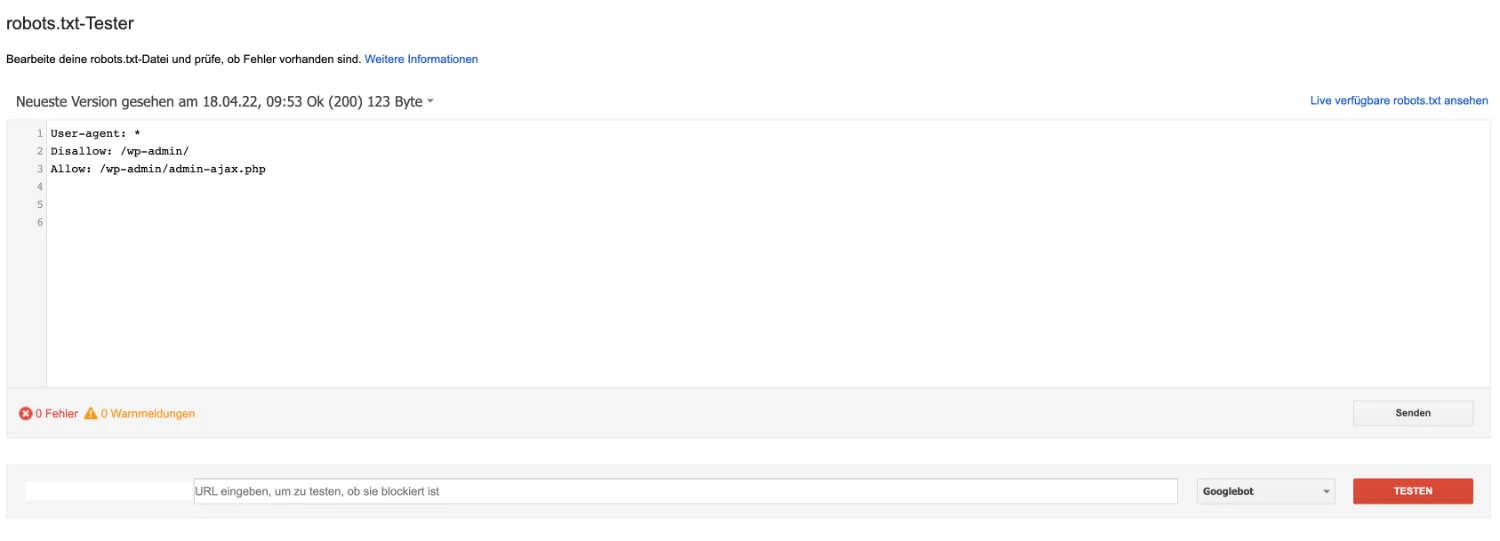
With the robots.txt file, you can tell crawlers whether they may crawl your website or exclude certain parts from crawling or include them.
The former standalone robots.txt Tester was replaced by the robots.txt report in Search Console. There you can check whether Google can fetch and process the file and, if needed, request a recrawl.
1.20 Structured data: Markup Helper
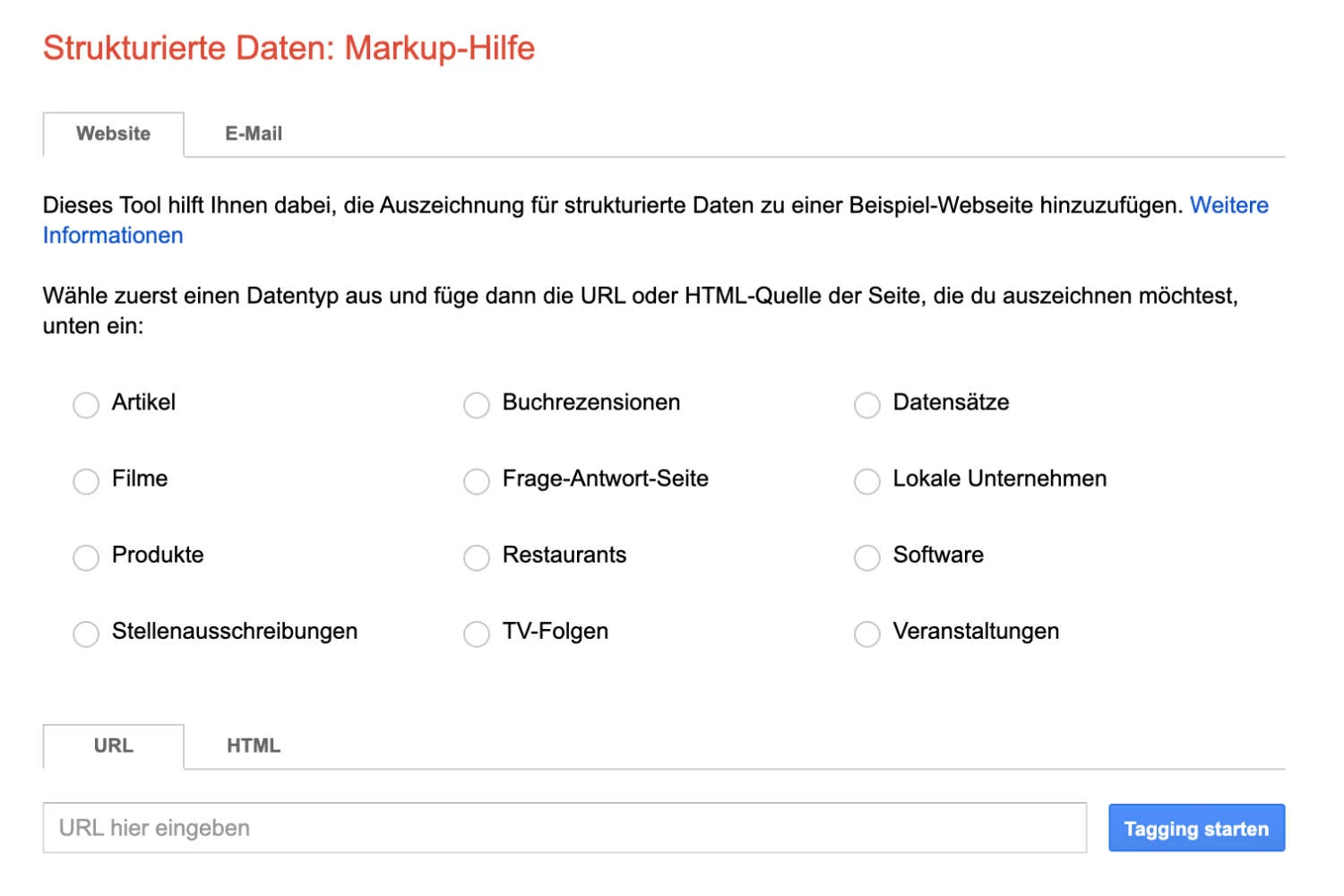
The Structured Data Markup Helper is a rather unknown tool that can be super useful, though.
You can use it to generate structured data for your pages quickly and easily, without having to work in the source code.
To do that, you first select a Schema.org type and the URL of the page you want to add structured data to.
Then you can tag the relevant data on your page in a live editor, and it is automatically added to the markup. At the end, you can download the finished markup or simply copy it out.
1.21 Data Highlighter tool
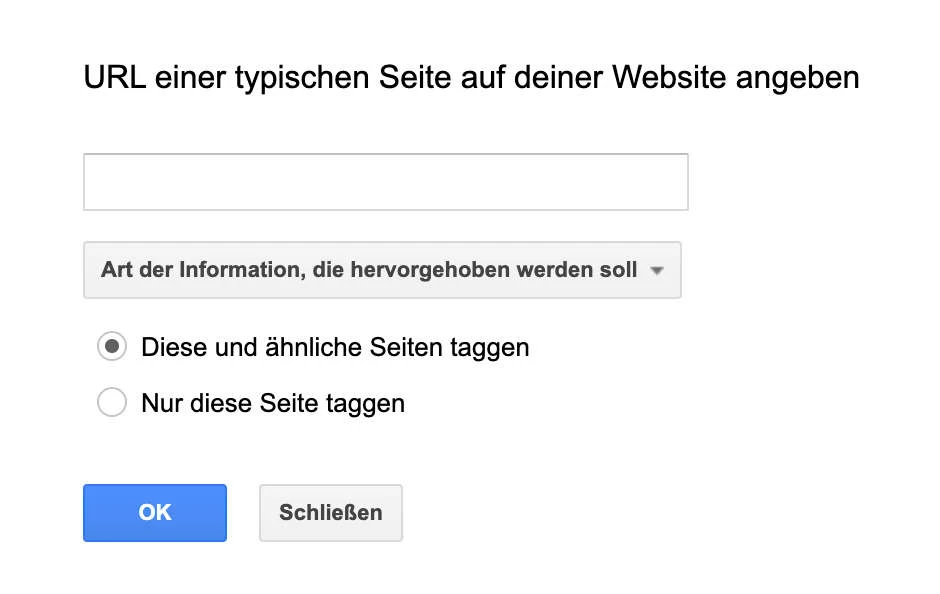
The Data Highlighter tool works exactly like the Markup Helper for structured data. But with one crucial difference:
You no longer have to add the data to your page's HTML code. It is sent directly to Google.
It doesn't get any easier than that, does it?
You can change or delete every highlight you've submitted at any time. So there's no need to worry if you accidentally sent Google the wrong data with the tool.
1.22 Web Tools
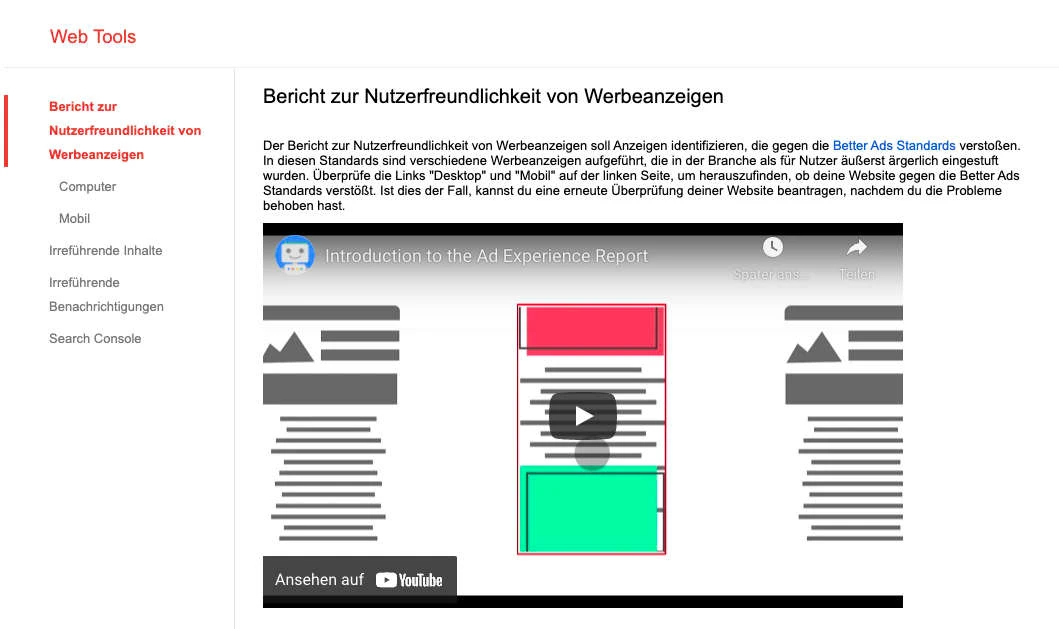
Web Tools brings together various smaller legacy reports
These include:
- Ad Experience report
- Misleading content
- Misleading notifications
Keep in mind that all reports only work with URL properties. The newer domain properties are not supported.
2. Core Web Vitals & Page Experience
Here you'll find all the free Google tools you can use to improve ranking factors that fall into the “Page Experience” category. These include the Core Web Vitals, HTTPS, Safe Browsing, and mobile usability.
2.1 Test My Site (archive)
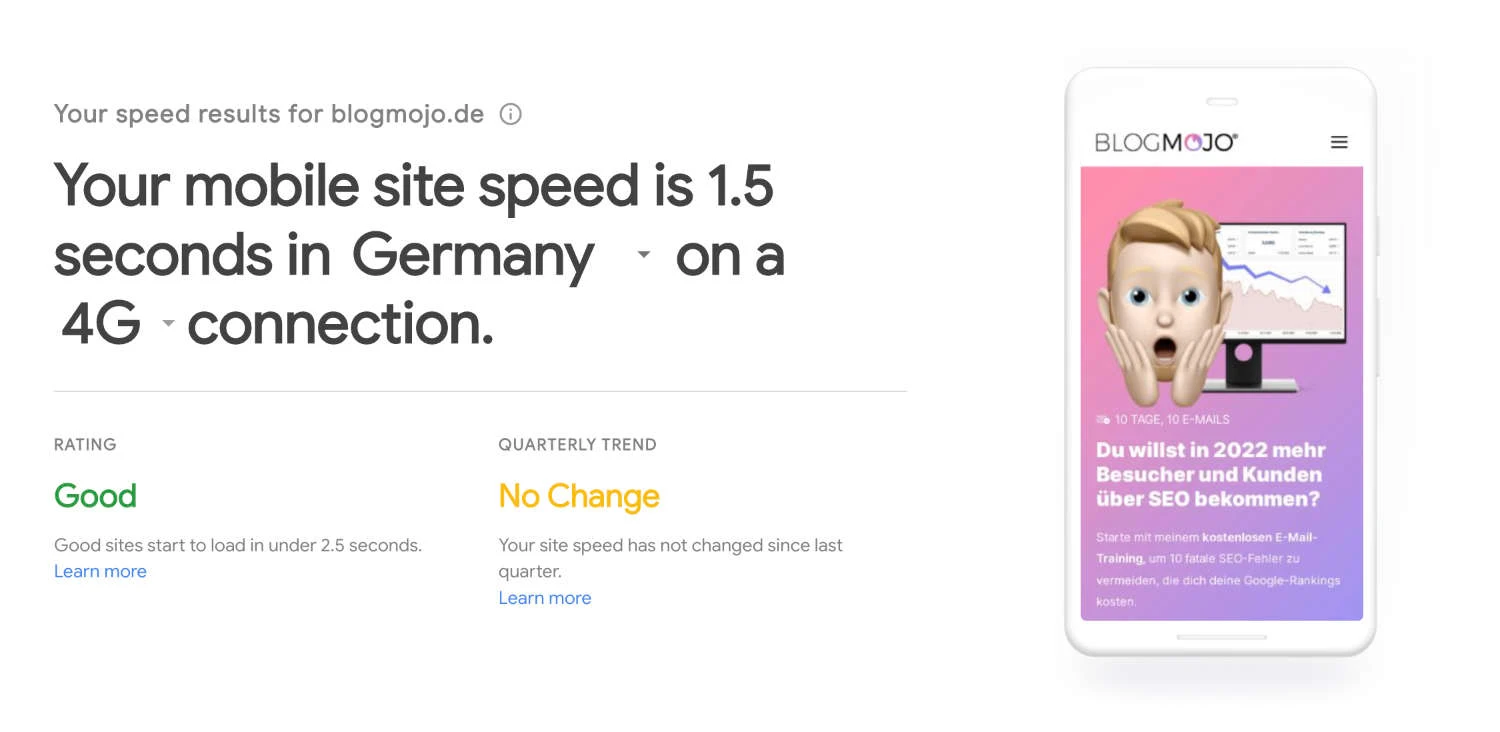
The former tool Test My Site is no longer available. For mobile speed measurements, Google now points to PageSpeed Insights.
2.2 Google PageSpeed Insights
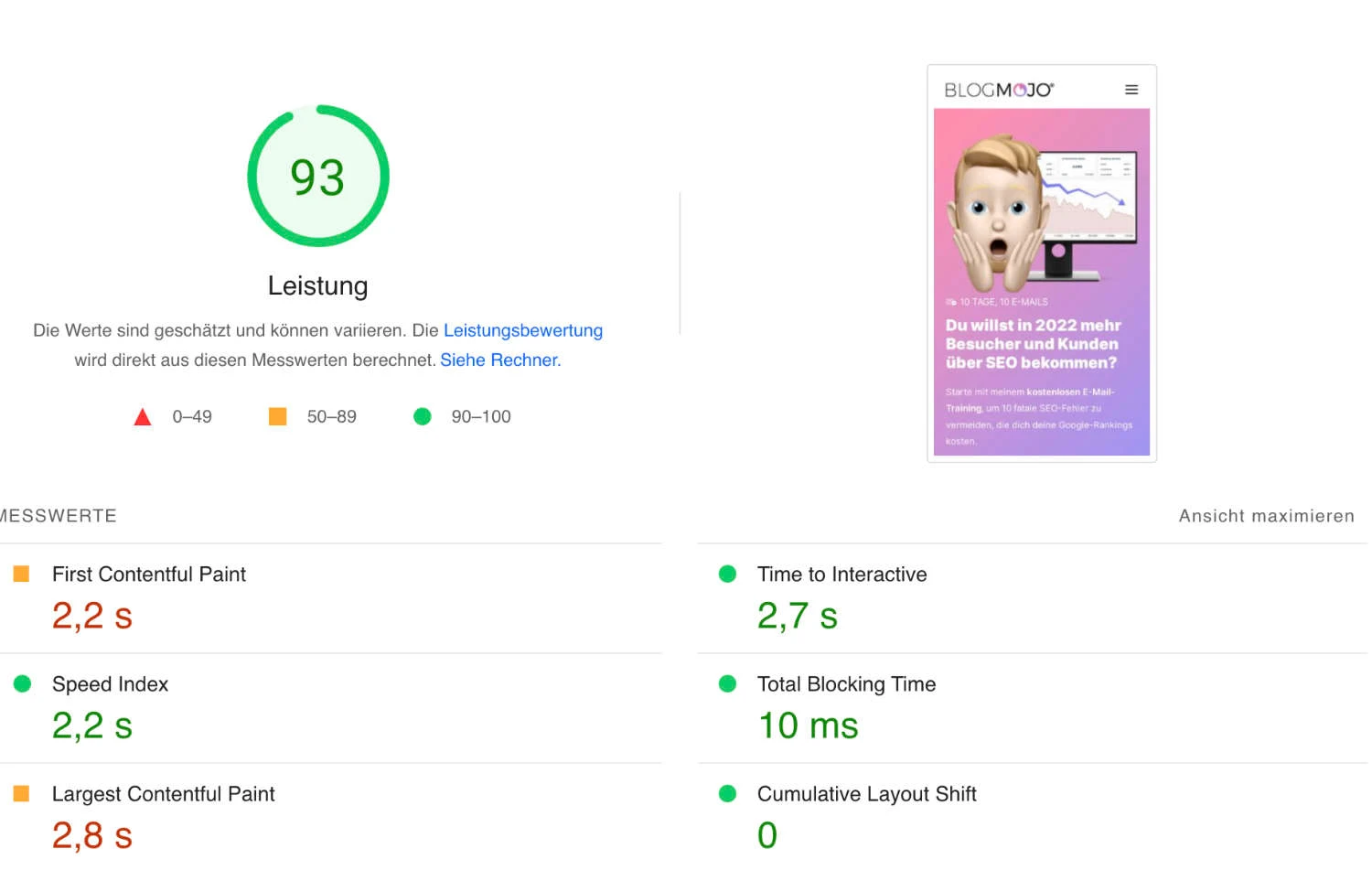
Google PageSpeed Insights is a tool you probably already know as a blogger, website owner, or SEO. It generates a performance report for a page with regard to the Core Web Vitals and various loading time metrics.
Google distinguishes between desktop and mobile devices here.
In a detailed analysis report, you get numerous suggestions for improving a page's performance. These include image optimizations and code improvements, but also technical settings such as the server setup.
2.3 Lighthouse
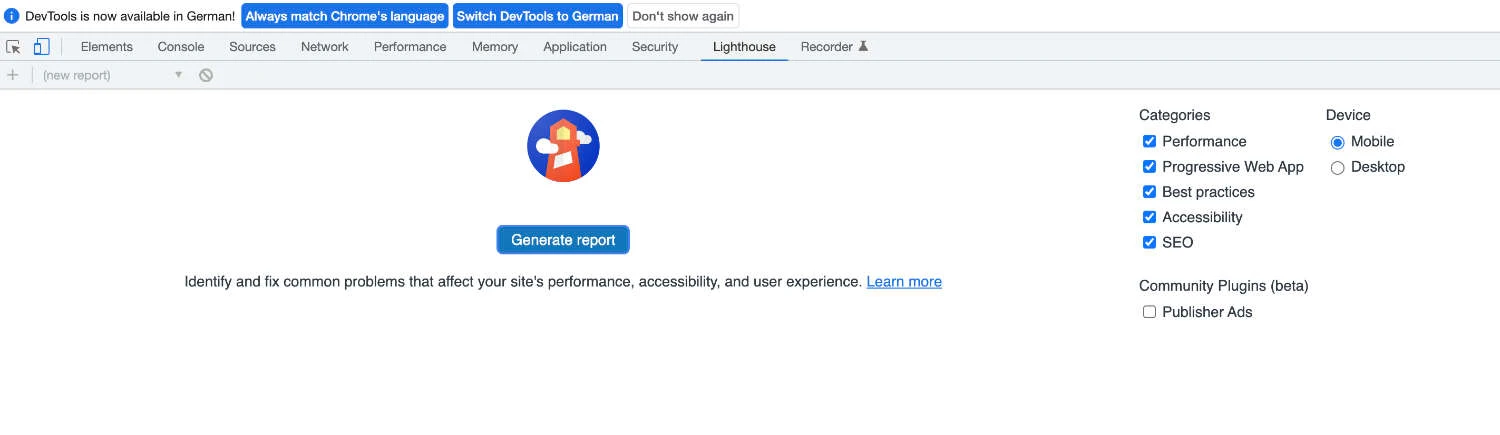
Lighthouse is an open-source tool introduced by Google to improve the quality of a web page.
It is the technical basis of other Google tools, such as web.dev Measure and PageSpeed Insights.
You can also run Lighthouse locally in Google Chrome, though. You'll find it in the “Lighthouse” tab of the Chrome DevTools, which you can open by clicking “Inspect” in the context menu.
You can analyze the following five areas.
- SEO
- Performance
- Accessibility
- Best Practices
- Progressive Web App (not relevant for “normal websites”)
Based on these five areas, Lighthouse creates a report that can help you optimize your page systematically.
2.4 web.dev Measure (archive)
The former measurement page web.dev Measure now redirects straight to PageSpeed Insights. So it is no longer a standalone tool.
For more comprehensive local checks, use Lighthouse in the Chrome DevTools.
2.5 Chrome User Experience Report (CrUX)
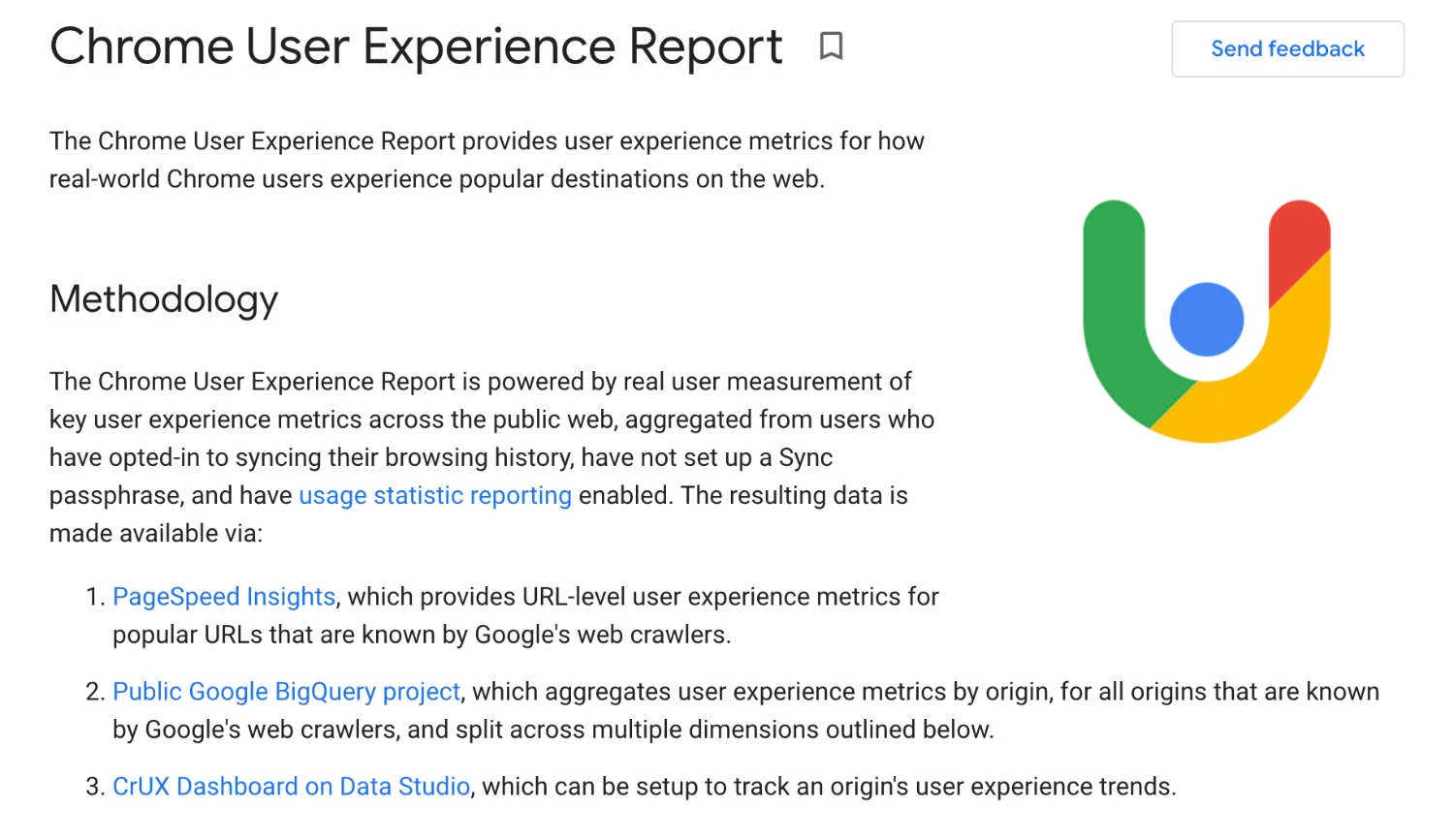
The Chrome User Experience Report (CrUX) isn't a tool in the classic sense.
It consists of measurement data from Chrome users who have chosen to sync their browsing history in their Google account. Websites' Core Web Vitals are assessed based on this data.
This measurement data is also shown in PageSpeed Insights and Search Console.
As a developer, you can access it through the CrUX Dashboard in Looker Studio, Google BigQuery, or the Chrome UX Report API.
2.6 Web Vitals (Chrome extension, archive)
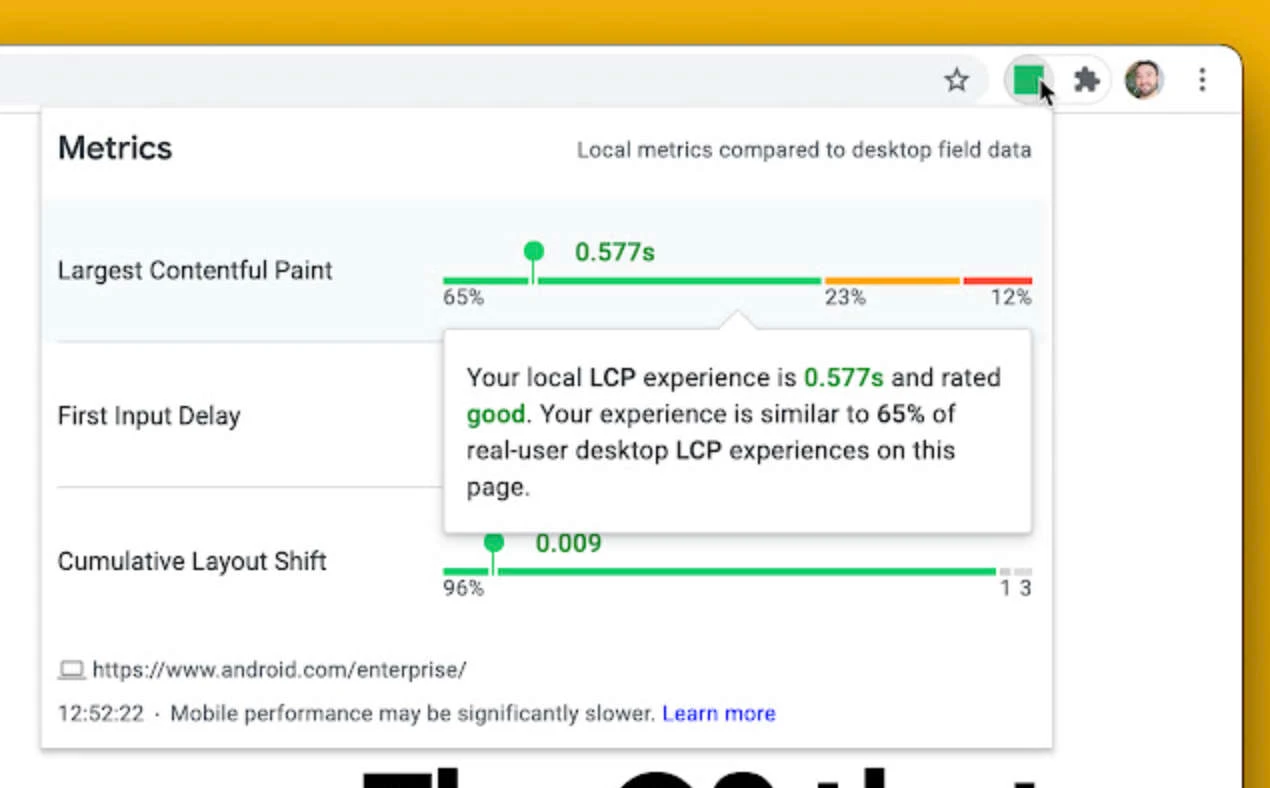
Support for the former browser extension Web Vitals ended in January 2025. Its features were integrated into the Performance panel of the Chrome DevTools.
So use the live metrics in the DevTools. The current Core Web Vitals are LCP, CLS, and INP.
2.7 Mobile-Friendly Test (archive)
The former Mobile-Friendly Test was discontinued on December 1, 2023.
Today, check mobile friendliness with Lighthouse, the Chrome DevTools, and real tests on several screen sizes.
2.8 Safe Browsing Site Status
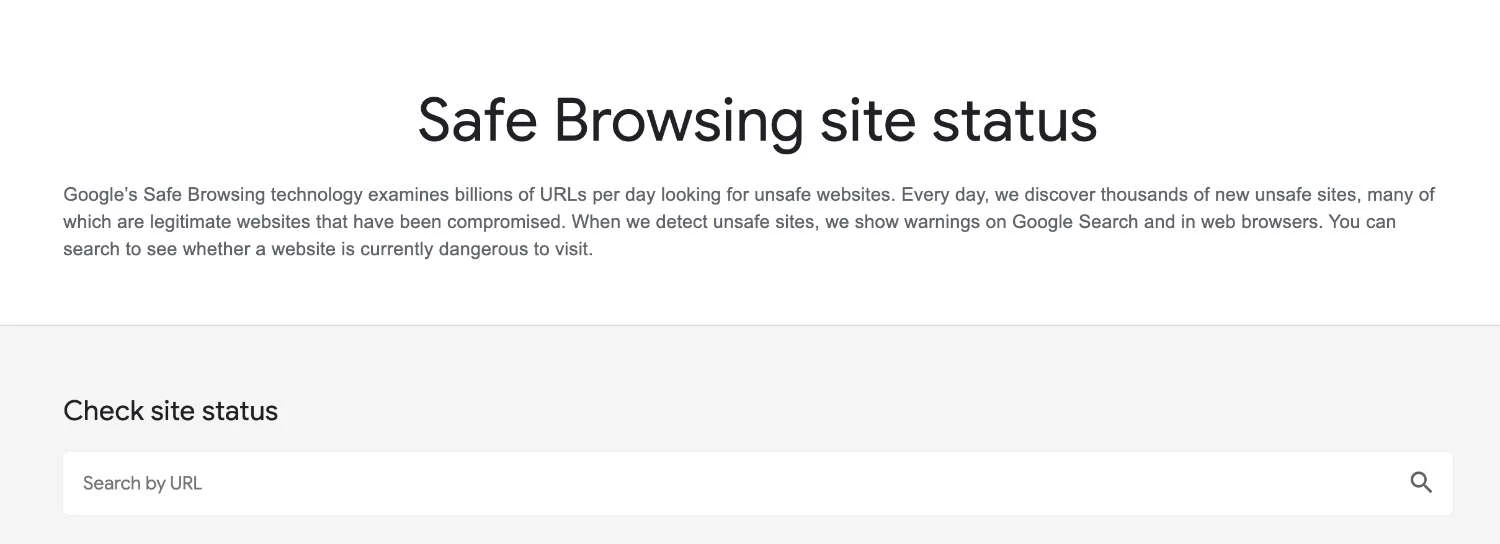
You can use the Safe Browsing Site Status to check a website's safety. Just enter a URL, and Google shows you whether a potential threat was found.
Google runs this check automatically on a regular basis and, if it finds something, displays it directly in the Google search results or in Google Chrome.
Keep in mind that the automated check may be a few days old and Google may not yet have detected current malware on your website.
The security status is also shown to you in Google Search Console.
3. WordPress plugins
Here you'll find a selection of WordPress plugins that were (co-)developed by Google:
3.1 Site Kit
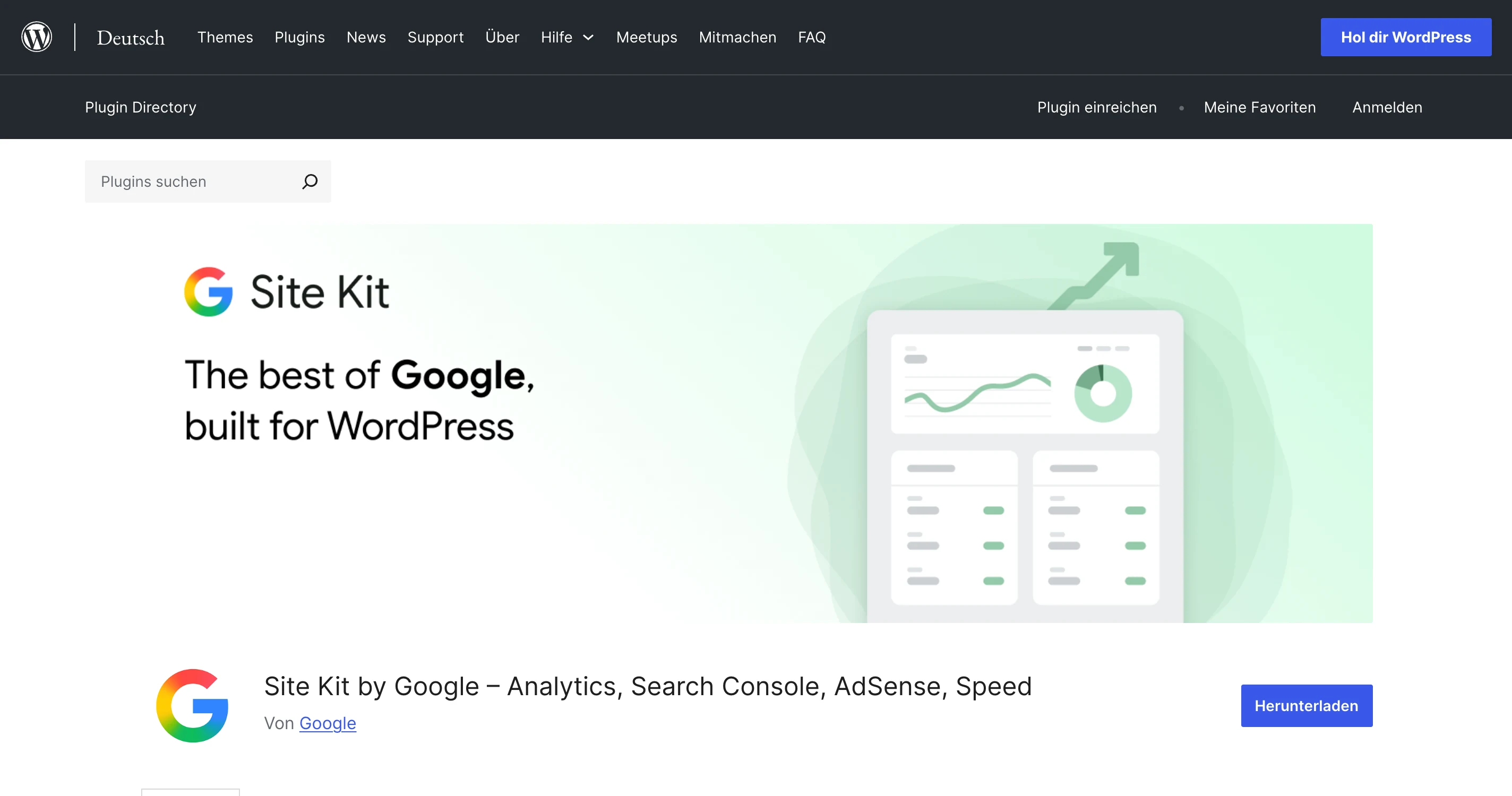
With Site Kit Google gives you a plugin that provides deep insights into the user perspective of your website, displayed directly in the WordPress dashboard.
It pulls together data from many different Google products. These include:
- Search Console
- Analytics
- AdSense
- PageSpeed Insights
- Tag Manager
So if you use one or more of the Google products listed, installing Google Site Kit can save you a lot of time when analyzing your user data.
3.2 Web Stories
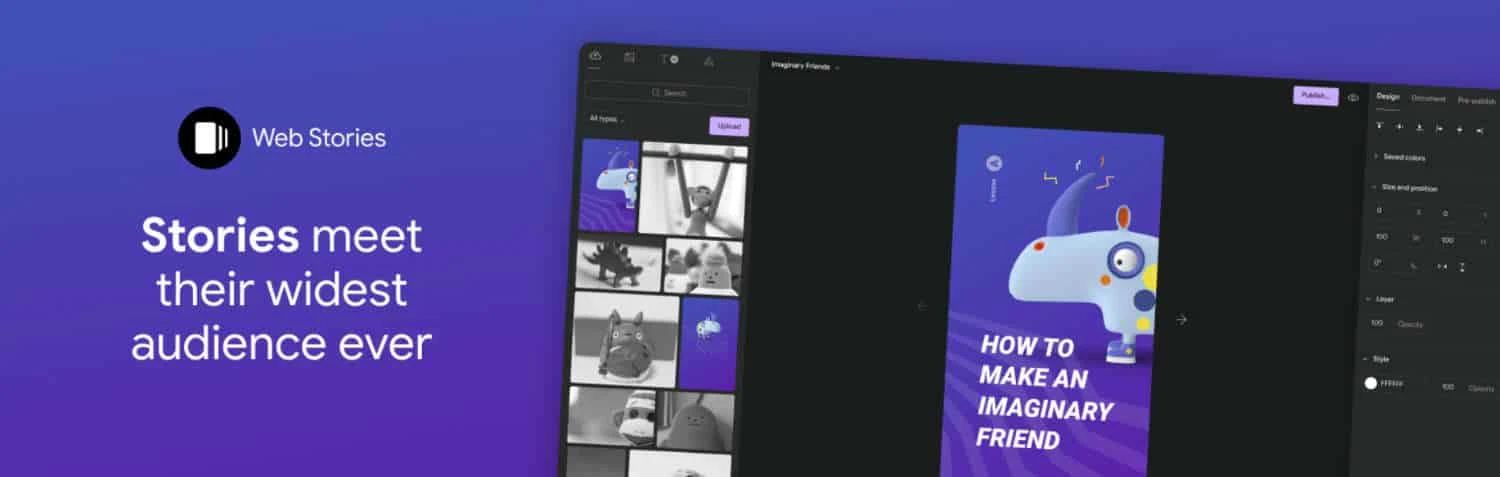
Web Stories are modeled on the well-known story format you know from Facebook, Instagram, or WhatsApp.
They can be shown in Google Discover, in Google Search, or in Google Image Search.
With the Web Stories plugin, you can create and publish suitable stories directly in the WordPress backend.
3.3 Modern Images WP
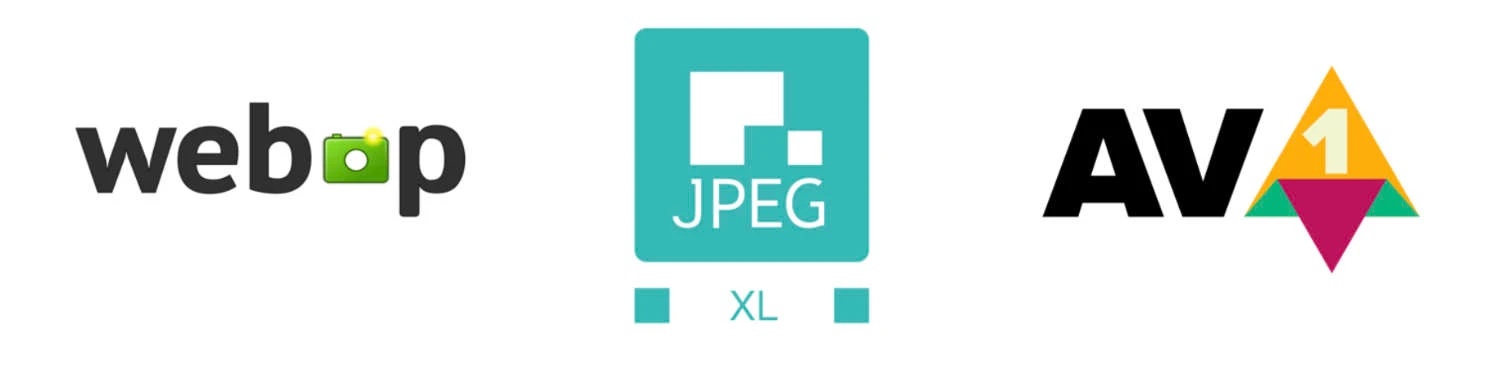
Image optimization is an important building block of search engine optimization.
The rule here:
The smaller the file size, the better. Of course, that only applies as long as the quality of an image doesn't suffer.
An image's file size is heavily influenced by the file format used. For example, WebP images are usually significantly smaller than JPEG or PNG images.
Modern Images WP is a plugin that lets you specify a default image format for the image sizes generated by WordPress. You can choose between WebP, AVIF, and JPEG XL.
4. AMP
Here you'll find all the tools for AMP pages:
4.1 AMP Test
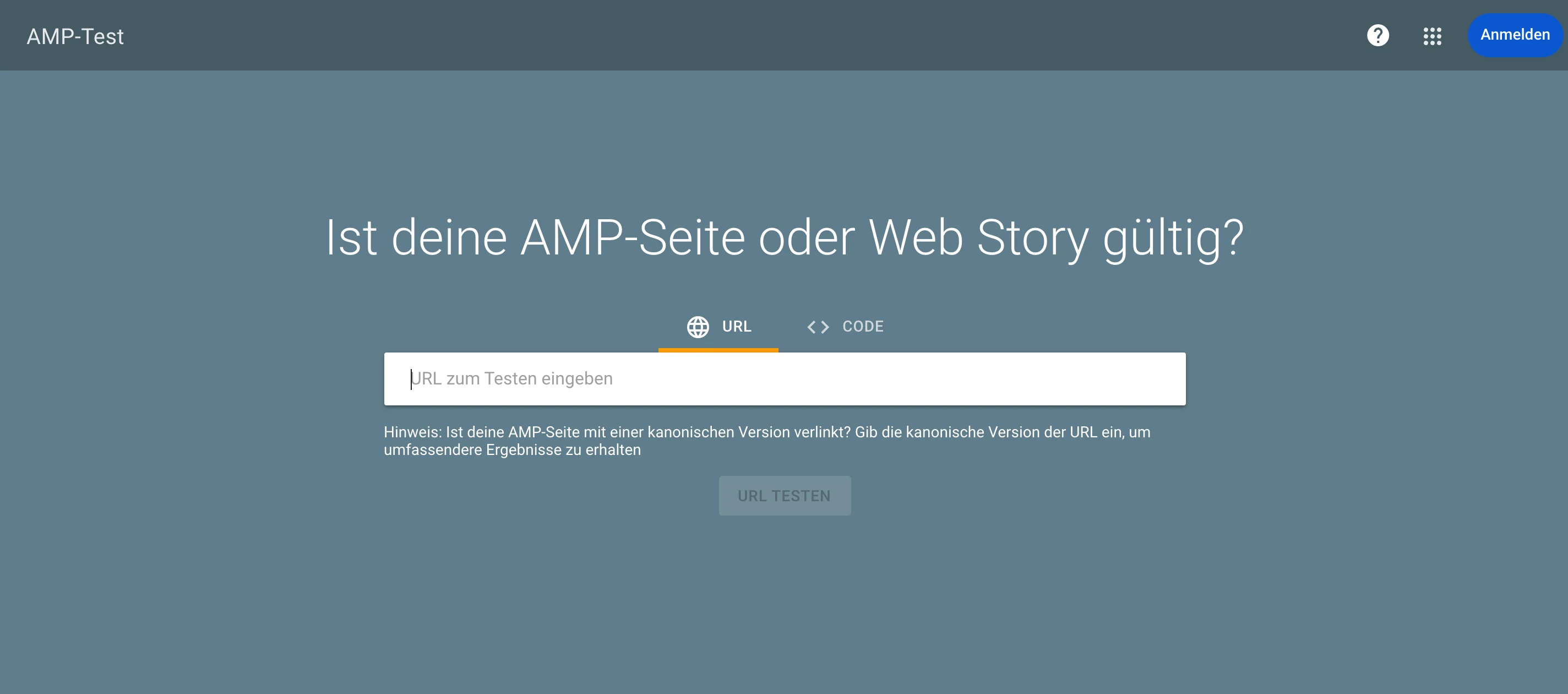
With the AMP Test, you make sure that a page or code has the configuration required for AMP.
Web Stories can also be analyzed with this tool.
In its layout, the AMP Test is very similar to other Google tools, such as the Mobile-Friendly Test.
4.2 AMP Validator
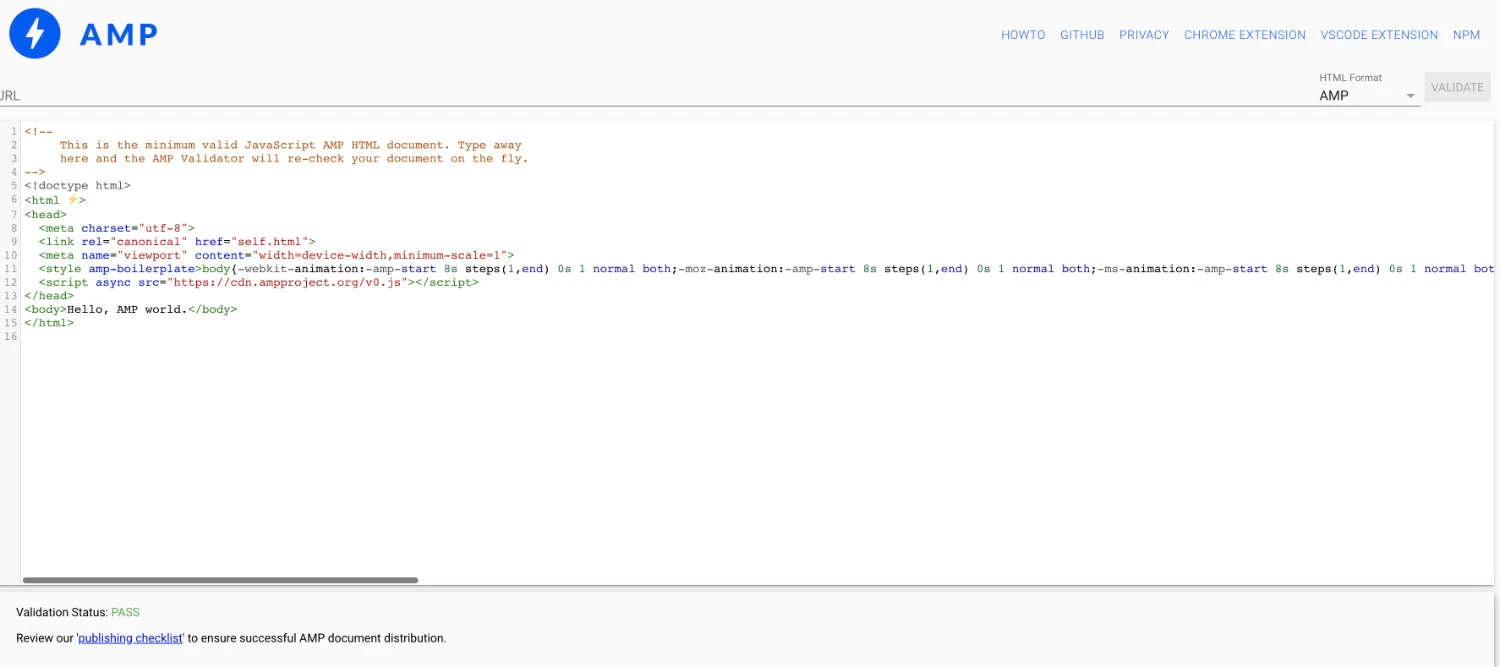
With the AMP Validator, you can analyze your website and identify problems that stand in the way of error-free AMP functionality.
The tool distinguishes between “Passed” and “Failed.”
If there are problems, potential solutions are shown as a clear list that you can work through step by step.
5. Web analytics tools
Here you'll find an overview of all of Google's web analytics and statistics tools:
5.1 Google Tag Manager
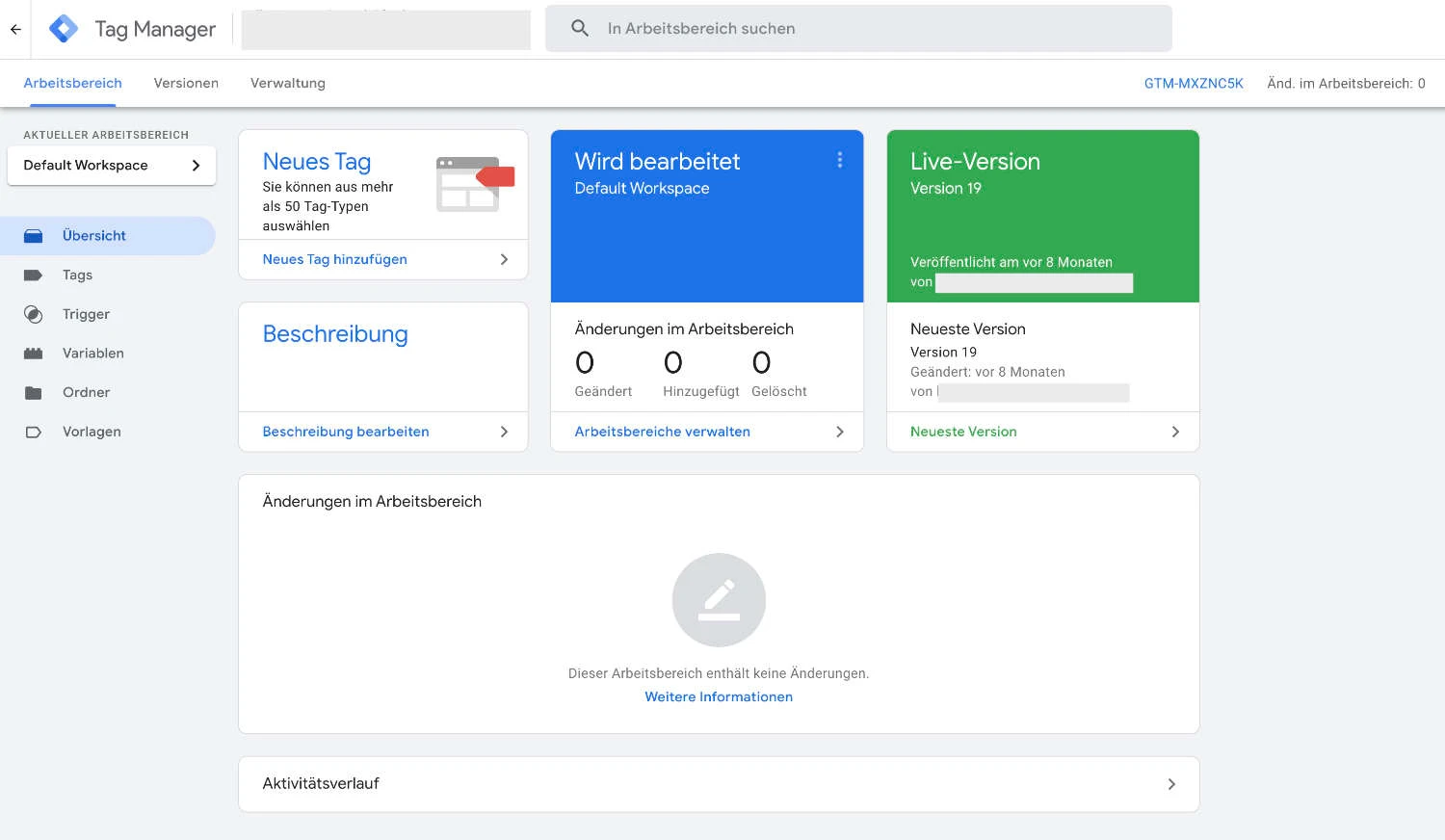
Google Tag Manager is, so to speak, the Swiss Army knife of Google's statistics tools. It lets you configure various tags, for example to customize Google Analytics to your needs.
For many standard configurations, you don't have to edit any page code.
Google Tag Manager is clearly and simply structured, so even beginners will find their way around quickly. Numerous tutorials online, especially on YouTube, also make it easy to get to grips with its features.
5.2 Google Analytics Universal (archive)
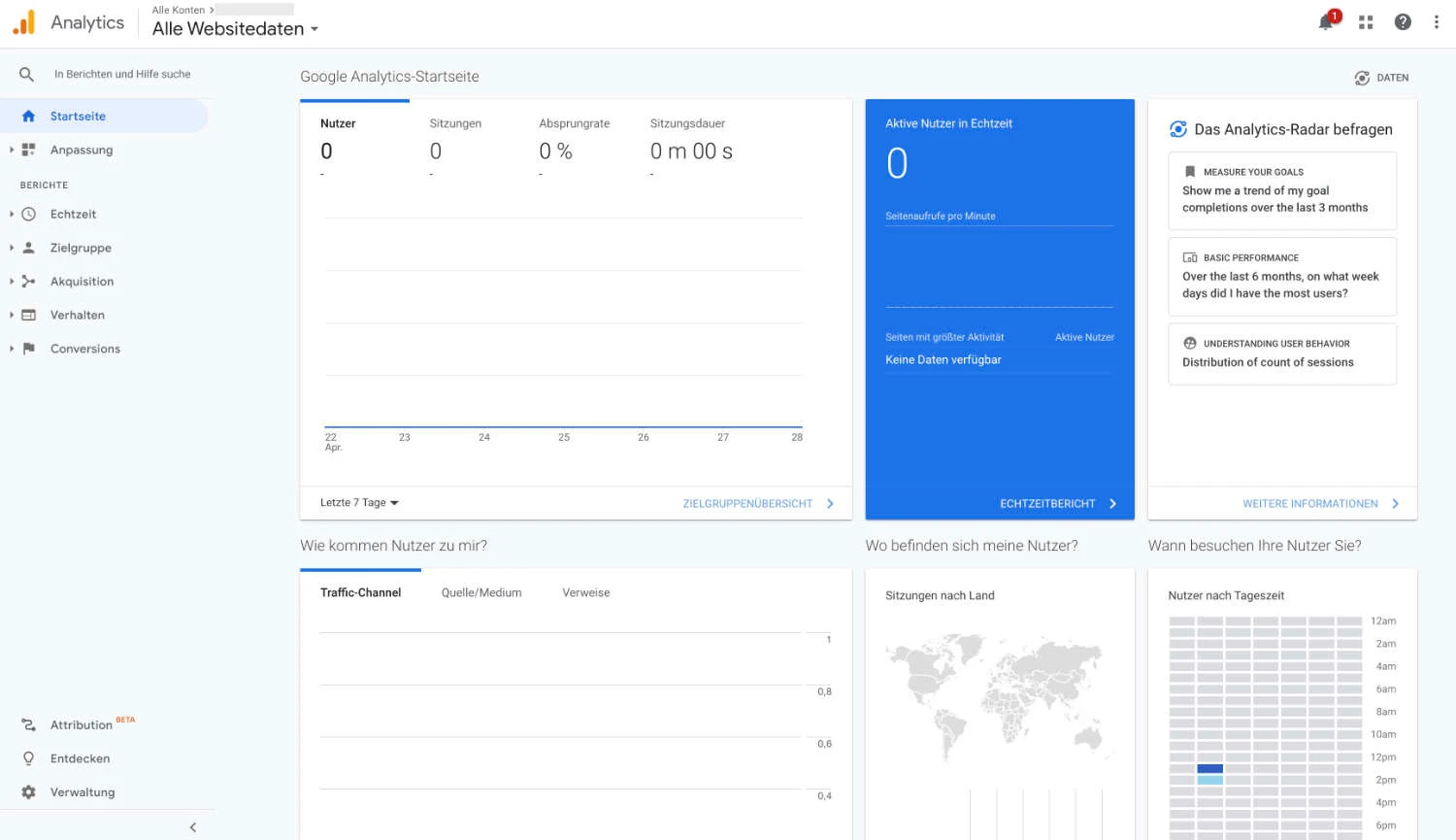
Google Analytics was Google's former web analytics system. Standard properties have stopped processing new data since July 1, 2023. Google Analytics 4 is the successor.
This section is kept only for historical context.
5.3 Google Analytics 4
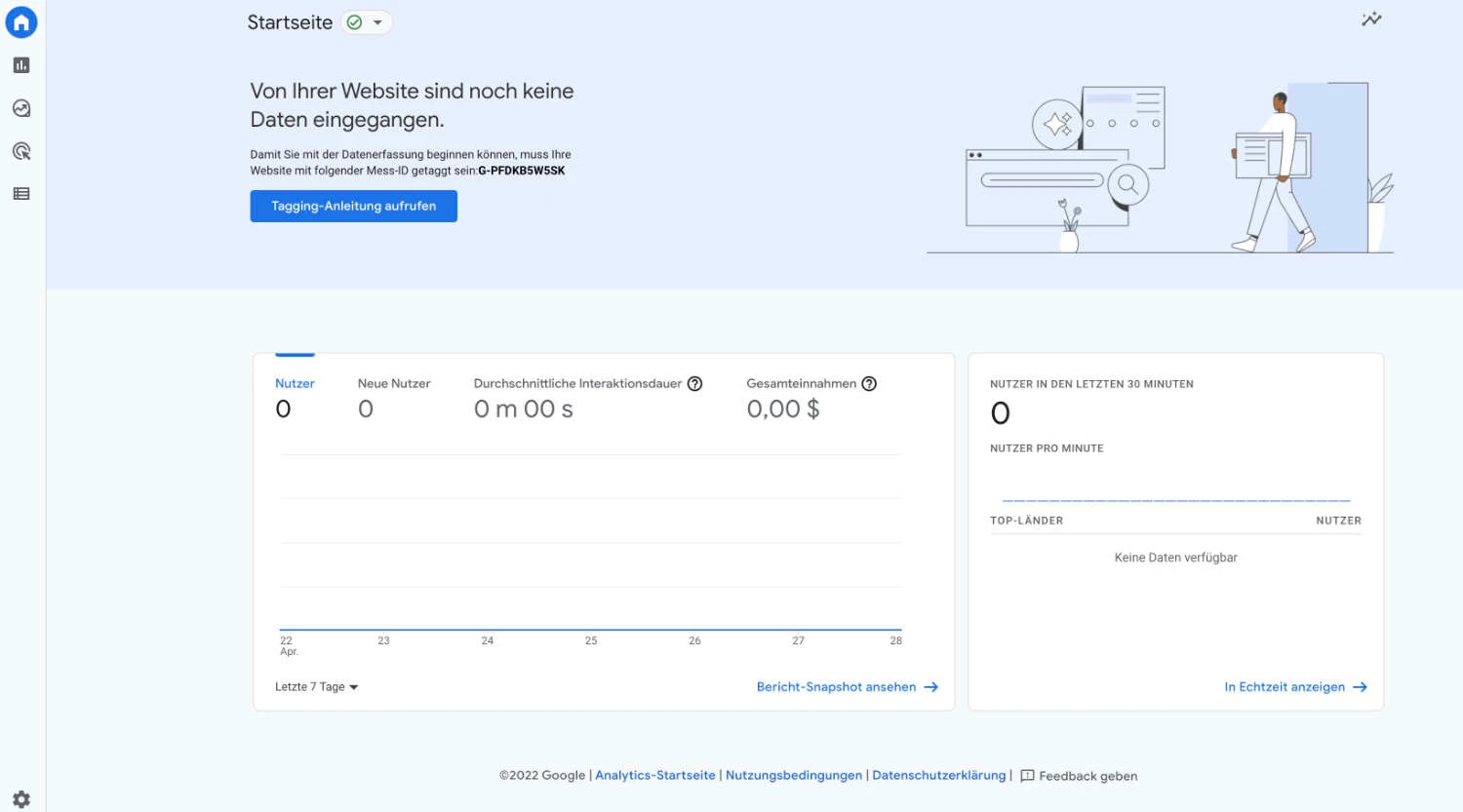
Google Analytics 4 has been the regular successor to Universal Analytics since July 2023.
Google Analytics 4 is now the standard and is continuously being developed further.
The big difference between the two versions is that Google Analytics 4 uses event-based tracking rather than user-based tracking. You can find more on this topic in the Google Analytics Help.
5.4 Looker Studio
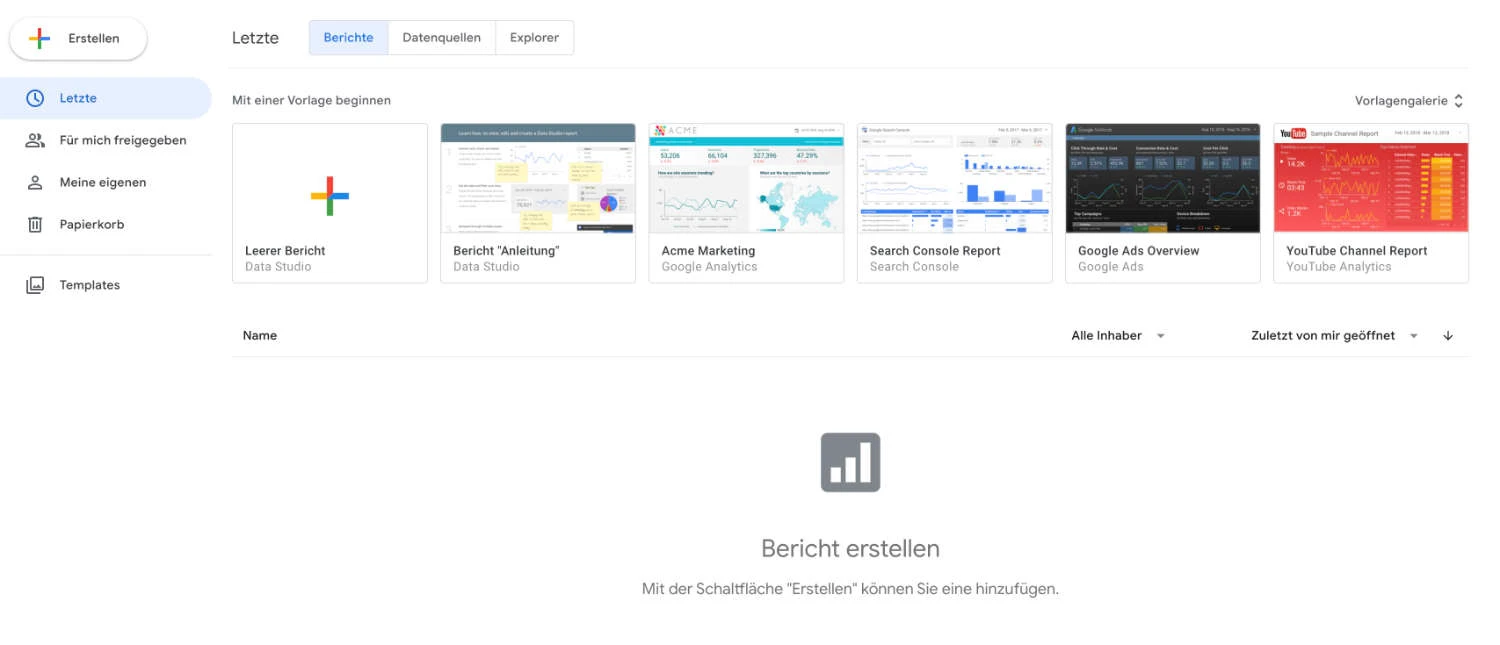
Looker Studio used to be called Google Data Studio. You can use it to visualize data from different sources and, for example, create customized Search Console reports.
The reports are generated automatically as soon as you authorize Looker Studio to access your data.
6. Keyword research
Here you'll find all the Google tools you can use for keyword research:
6.1 Google Ads Keyword Planner
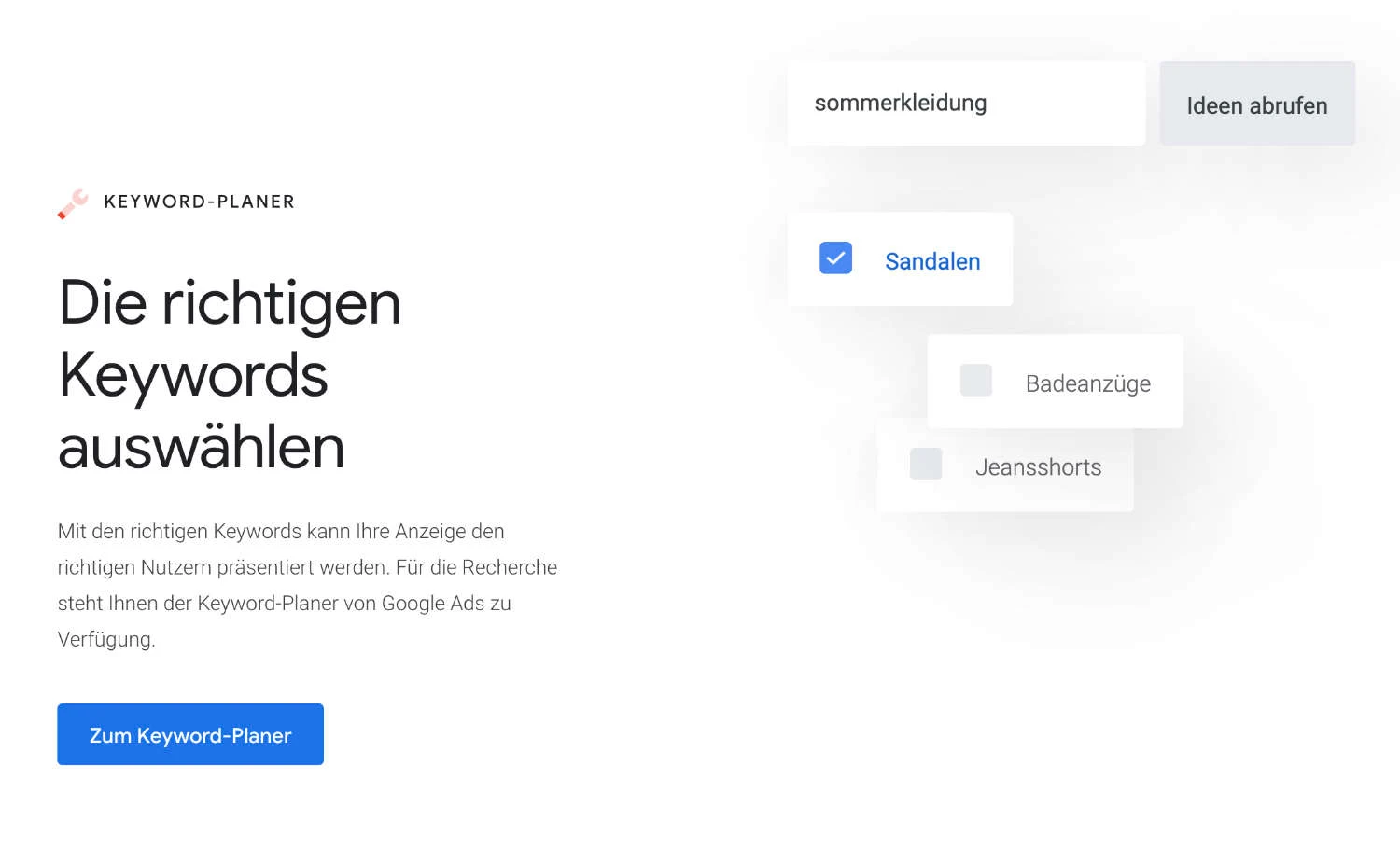
With the Google Ads Keyword Planner, you can research keywords for your website and find new article topics. The tool shows search volumes including CPC prices and tells you how high the ad competition for a keyword is.
Unfortunately, Keyword Planner only gives you imprecise search volumes (e.g. 1,000 - 10,000). The exact search volumes for keywords are only shown if you have an active ad campaign.
That's why I generally advise using other keyword tools.
6.2 Google Trends
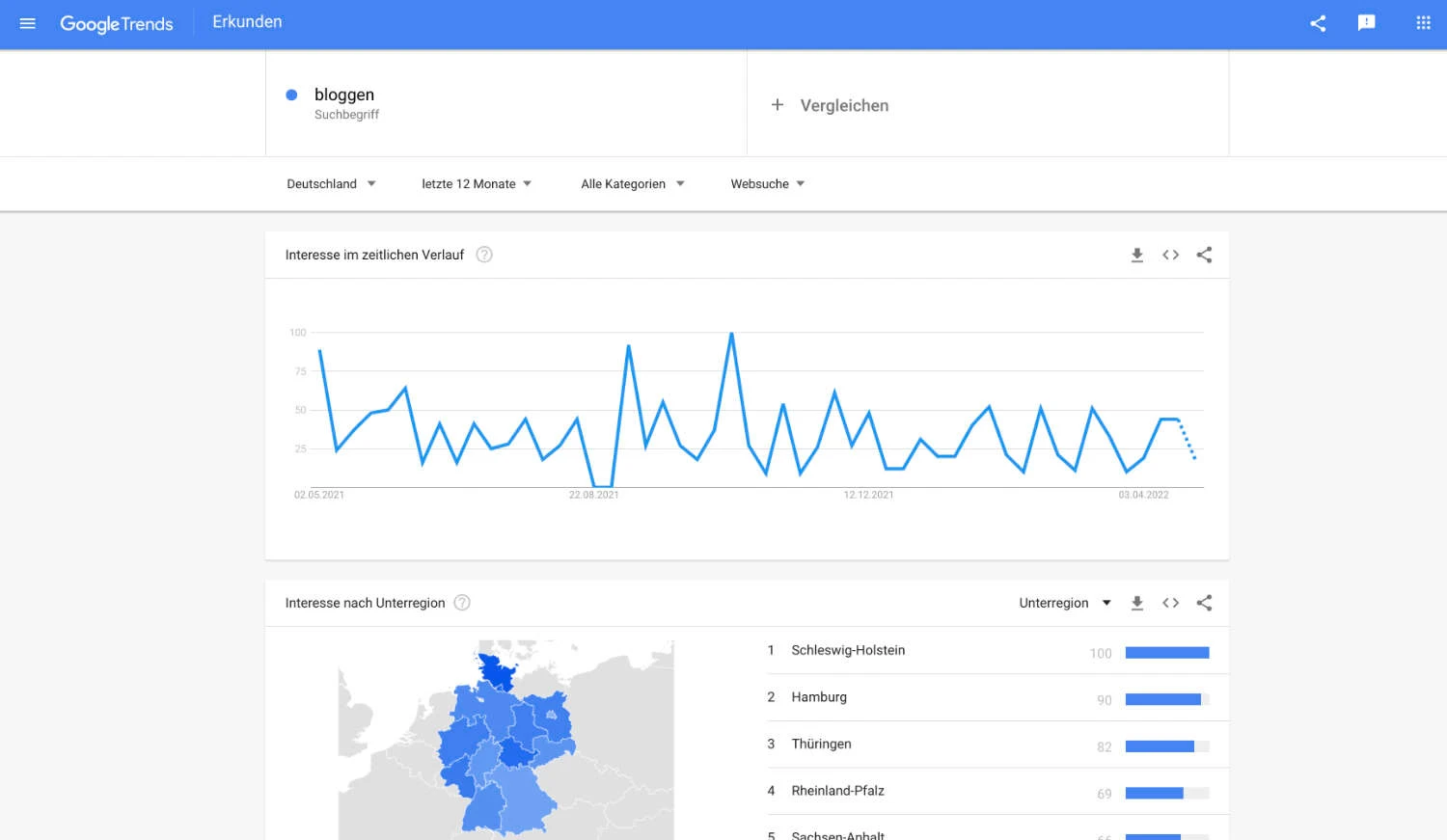
Google Trends is a fantastic tool for showing interest in a keyword over time and comparing it with other keywords.
It also shows regions where a topic is or was especially popular.
One downside is that Google Trends doesn't give absolute search volumes, only relative ones. For gauging general interest in a keyword and especially possible seasonality, though, it's fantastic.
We use Google Trends fairly often for keyword research and can absolutely recommend it.
7. Web design and development
Here you'll find all the Google tools that can help you with the design or development of a website:
7.1 Chrome DevTools
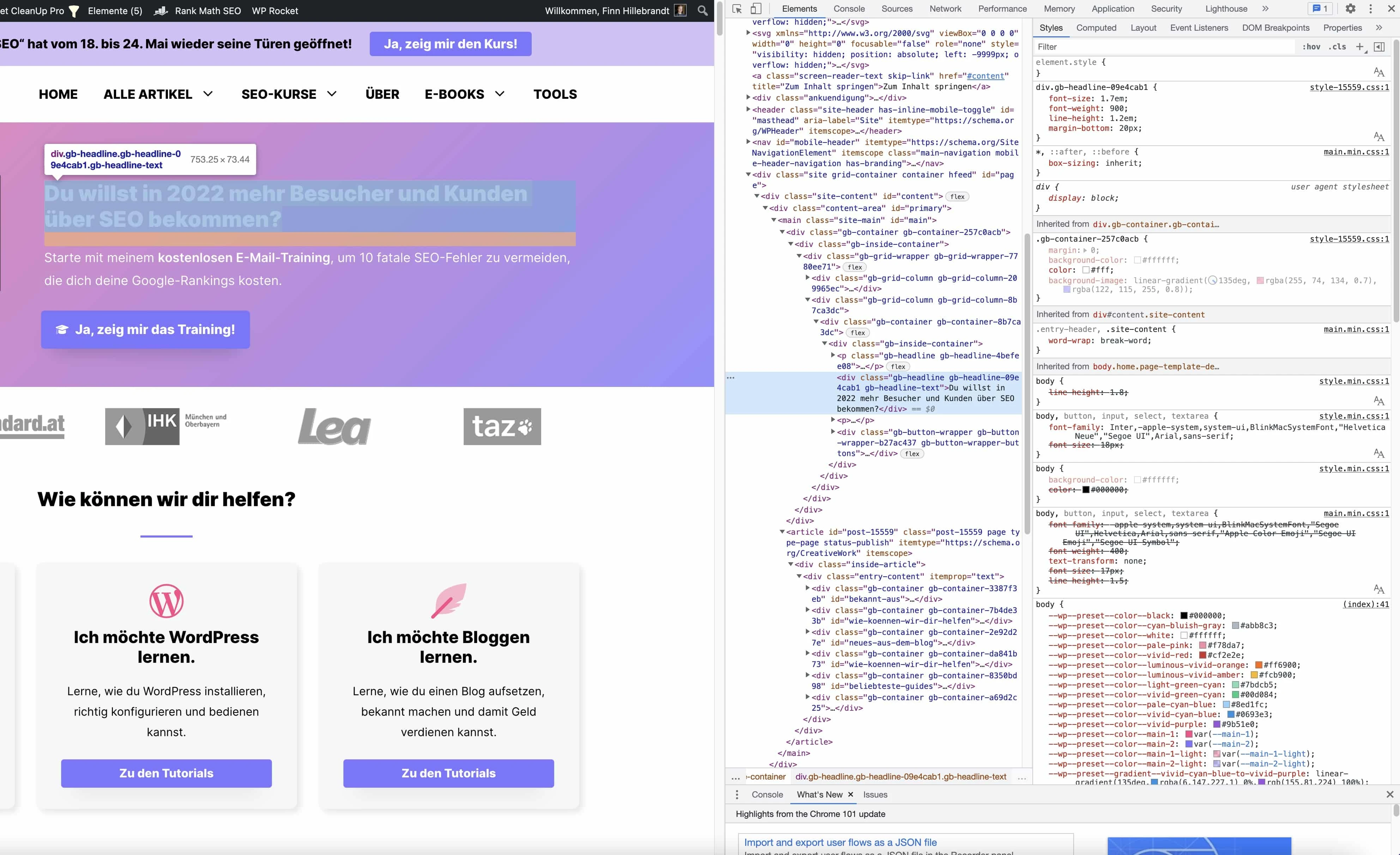
The Chrome DevTools are a collection of various aids for web designers and developers that are built directly into the Chrome browser.
You can open them by right-clicking the web page you want to analyze and choosing “Inspect.”
The features include, for example:
- Inspecting HTML elements and the CSS styles associated with them
- Loading time measurement
- Display of requests and request sizes
- Error console
- Security check
7.2 Material Icons
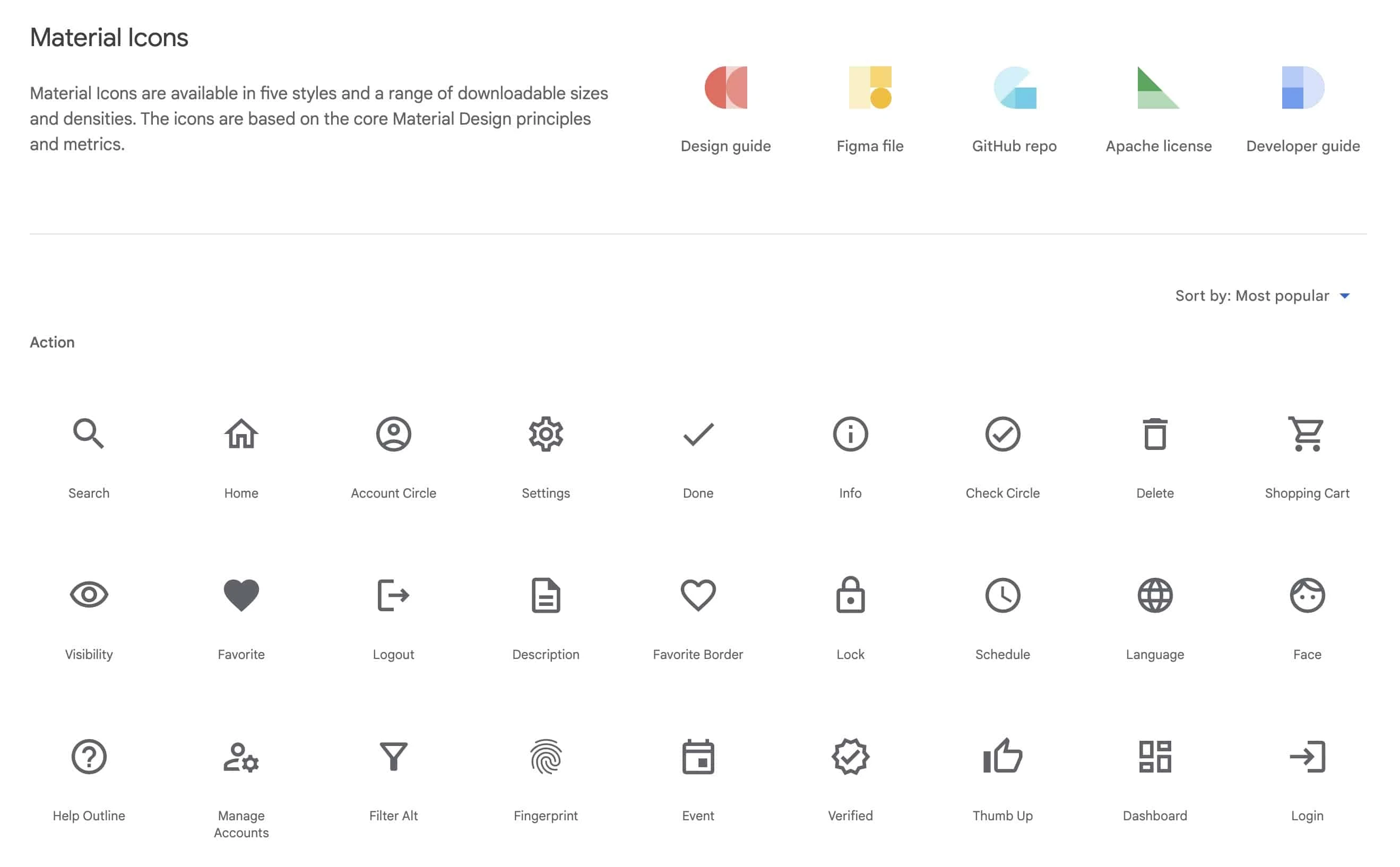
With the Material Icons, Google offers an extensive library of free icons.
These icons are also used in many Google websites, apps, and products, so they have the big advantage that many users are already familiar with them.
They are licensed under Apache 2.0, which means you're very free in how you use them and can use them on your website without attribution.
7.3 Type Scale Generator
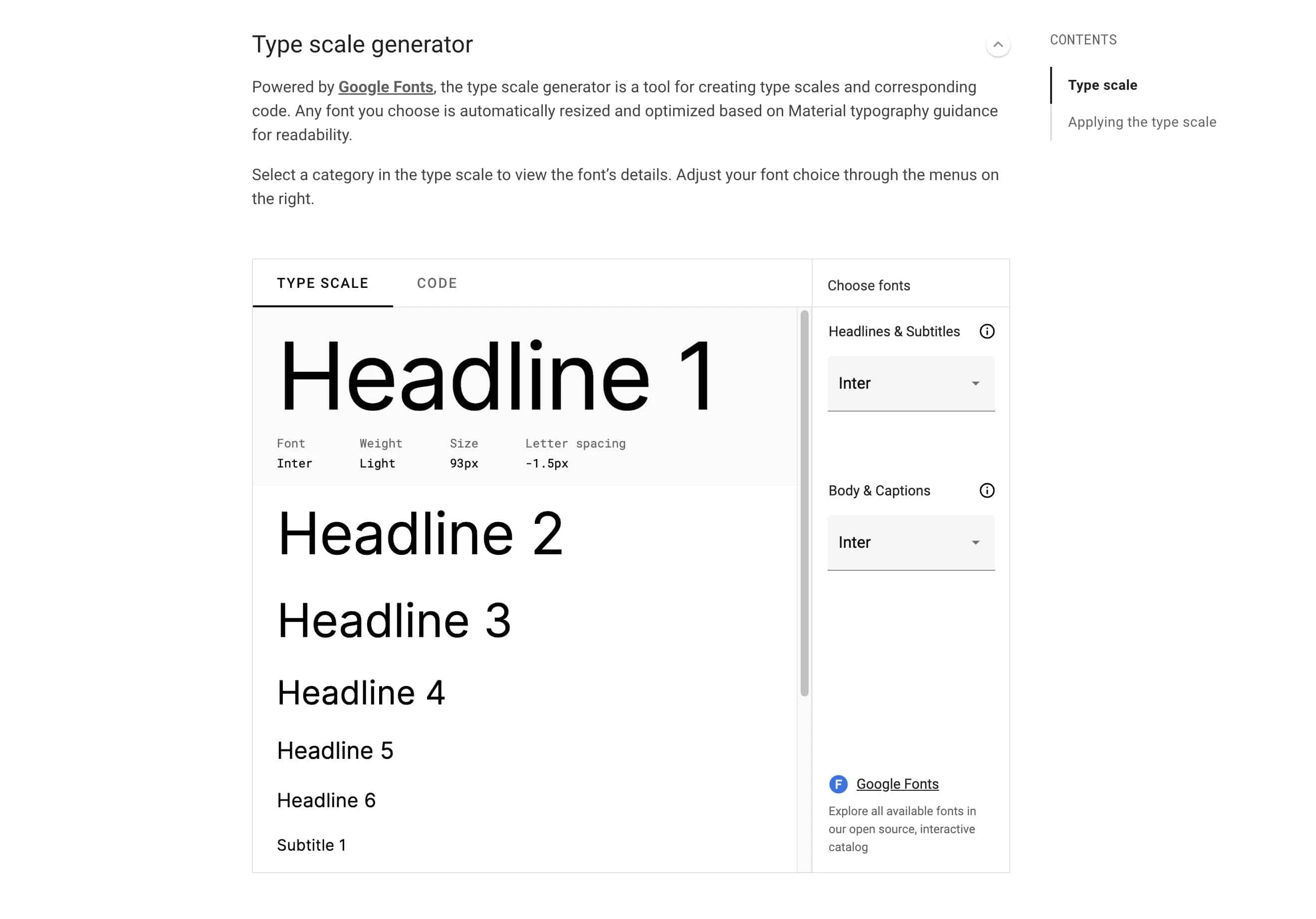
Have you ever wondered what the optimal size ratios are for your H headings, buttons, and body text?
Then the Type Scale Generator can help. Based on Google's own design philosophy, Material Design, it outputs all suitable font sizes and letters for Google Fonts.
7.4 User-Agent Switcher
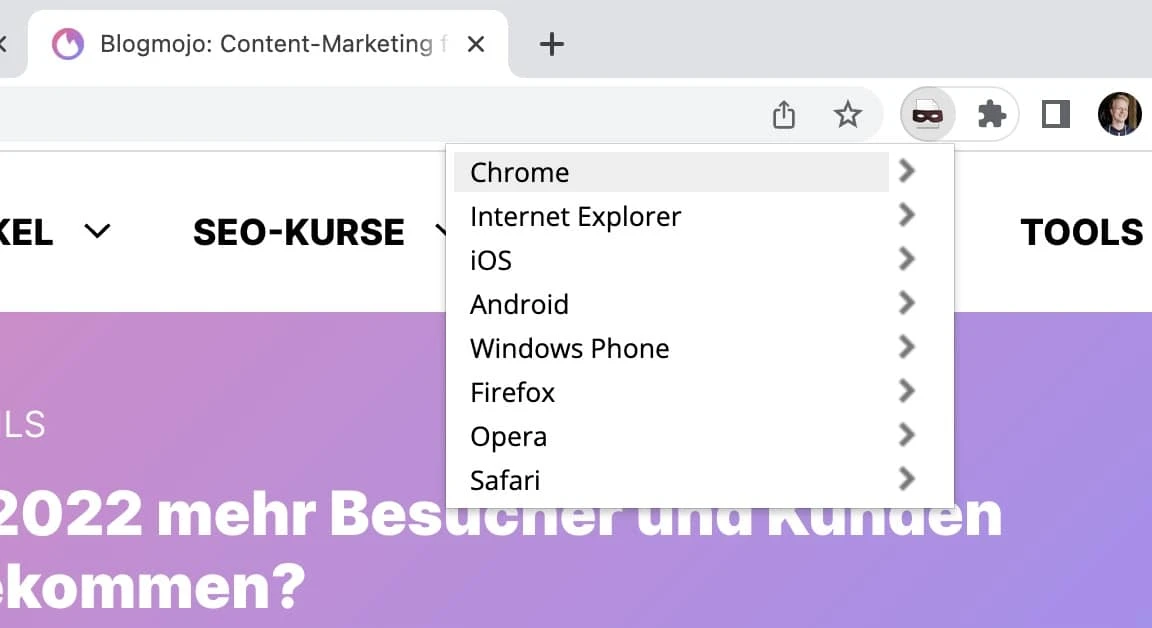
The Chrome extension User-Agent Switcher lets you make a website believe that you're using a different mobile browser or desktop browser to surf.
A handy extension for checking your own website or client websites for compatibility with Firefox, Internet Explorer, Safari, and the like.
7.5 Google Fonts
Google Fonts is a directory of numerous free font families.
They are licensed under Apache 2.0, which means you're very free in how you use them and can use them on your website without attribution.
Google Fonts are widely used in web design.
If you use WordPress, it's very likely that your theme uses Google Fonts or that using them is at least possible.
For privacy and loading time reasons, you should avoid loading them from Google's servers and host Google Fonts locally instead.
7.6 Google Open Source
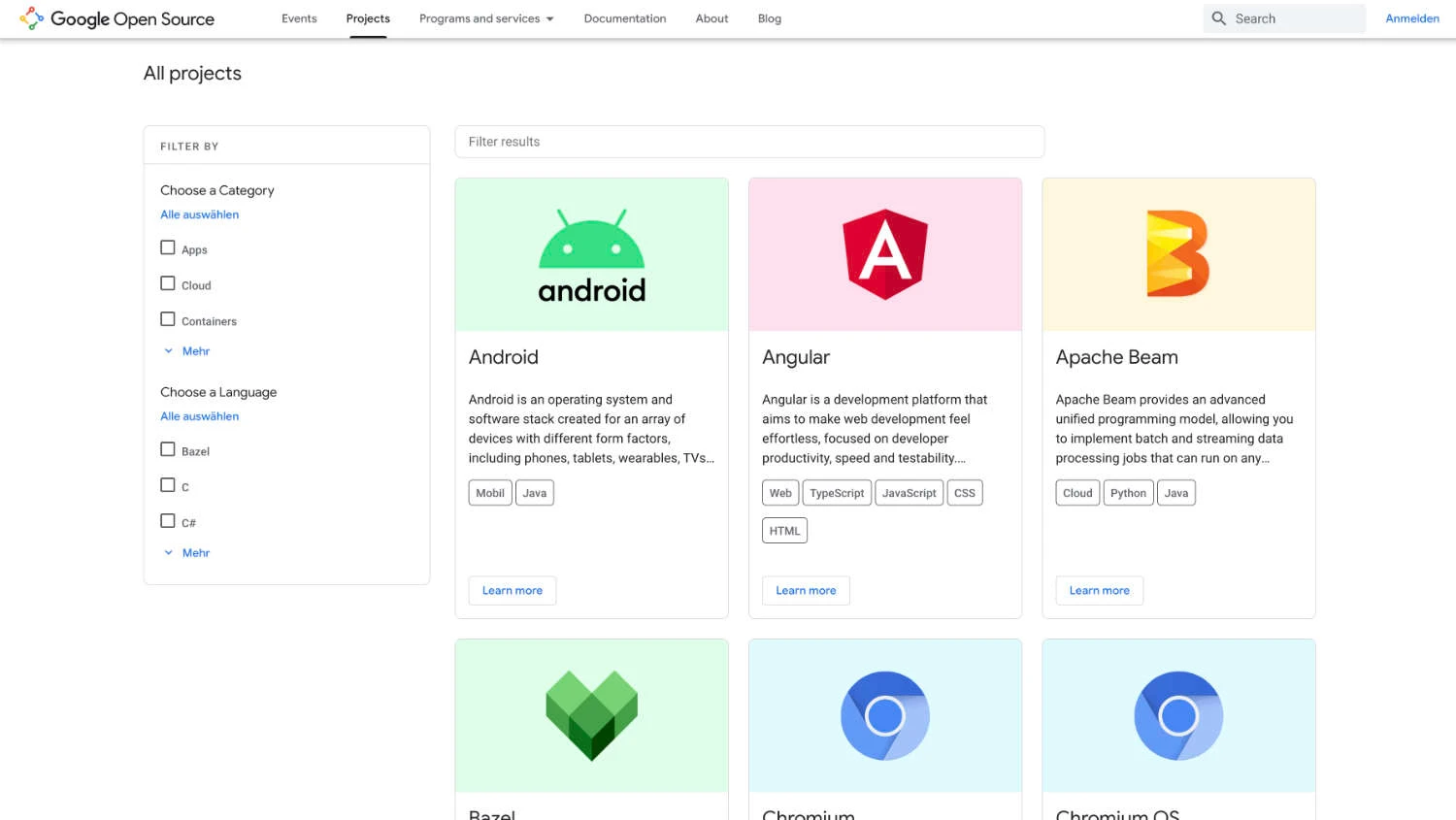
Google Open Source brings together all of Google's public projects that you can use for free. All applications listed here are distributed under an open-source license.
Besides well-known applications like the Android operating system, you'll also find various web development projects here, such as Angular, Dart, Chromium, or the Firebase SDK.
7.7 Google Cache (archive)
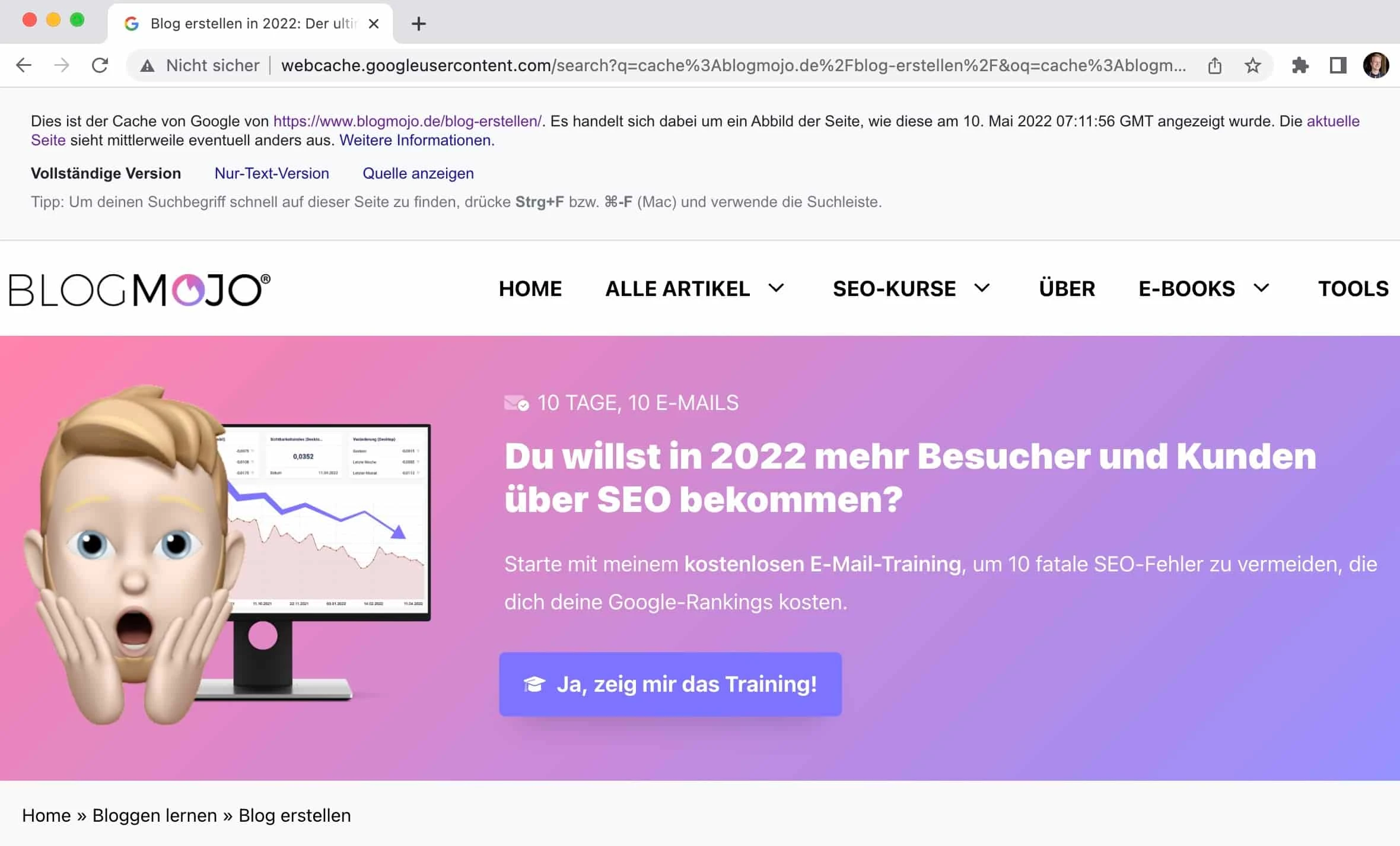
Google removed the publicly accessible cache links and the cache: search operator in 2024.
For historical versions of a page, you now need other archives or your own backups.
7.8 Google Web Designer
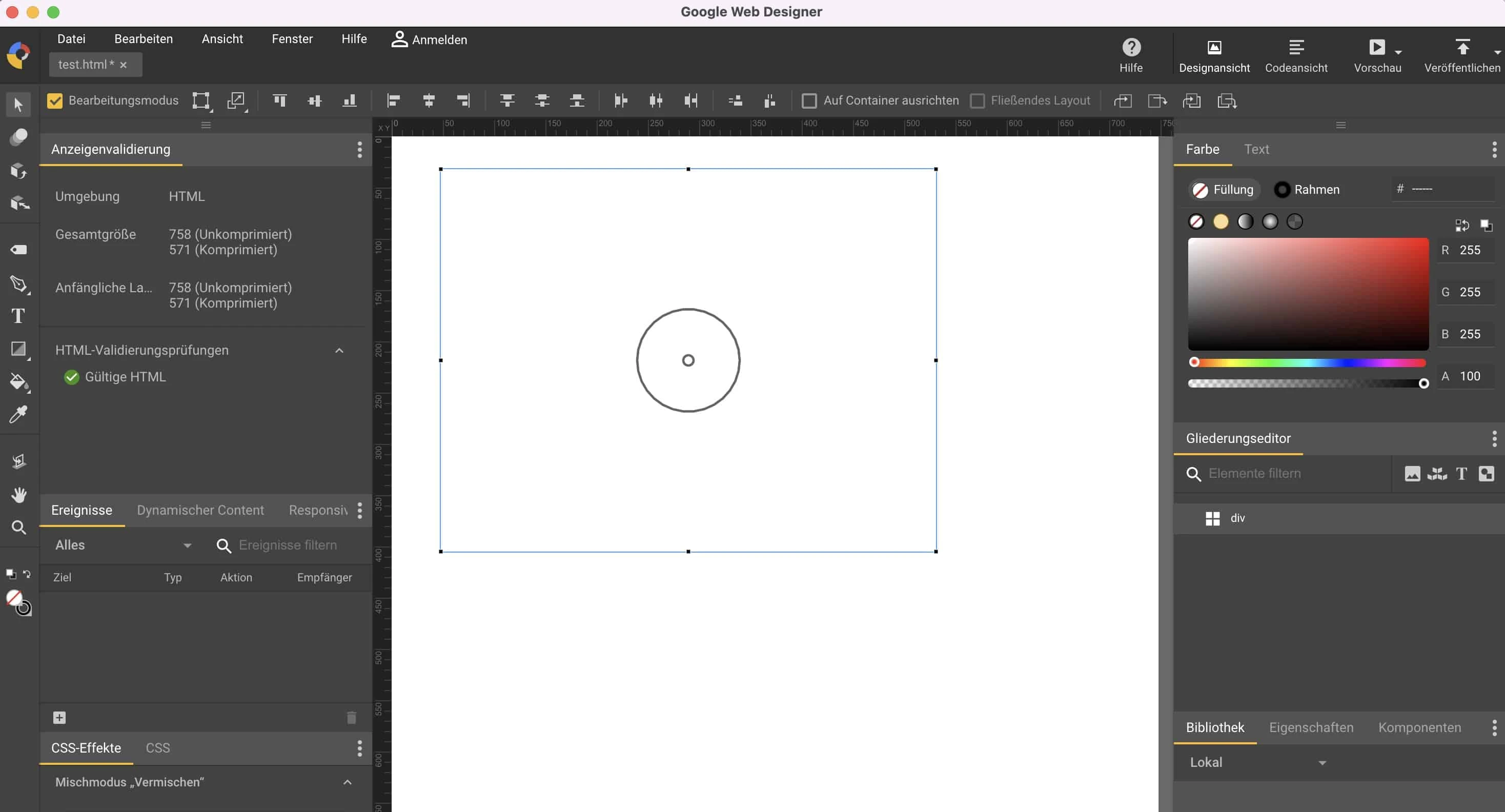
Google Web Designer is a free program for Mac, Windows, and Linux that you can use to create HTML5 ads, images, videos, and other web content.
Similar to Adobe Dreamweaver, it has a visual editor and a code editor.
With the visual editor, you can create content with drawing tools, text, and 3D objects and then animate it on a timeline.
8. Structured data
Here you'll find all the Google tools that help you add structured data to your website:
8.1 Schema Markup Validator
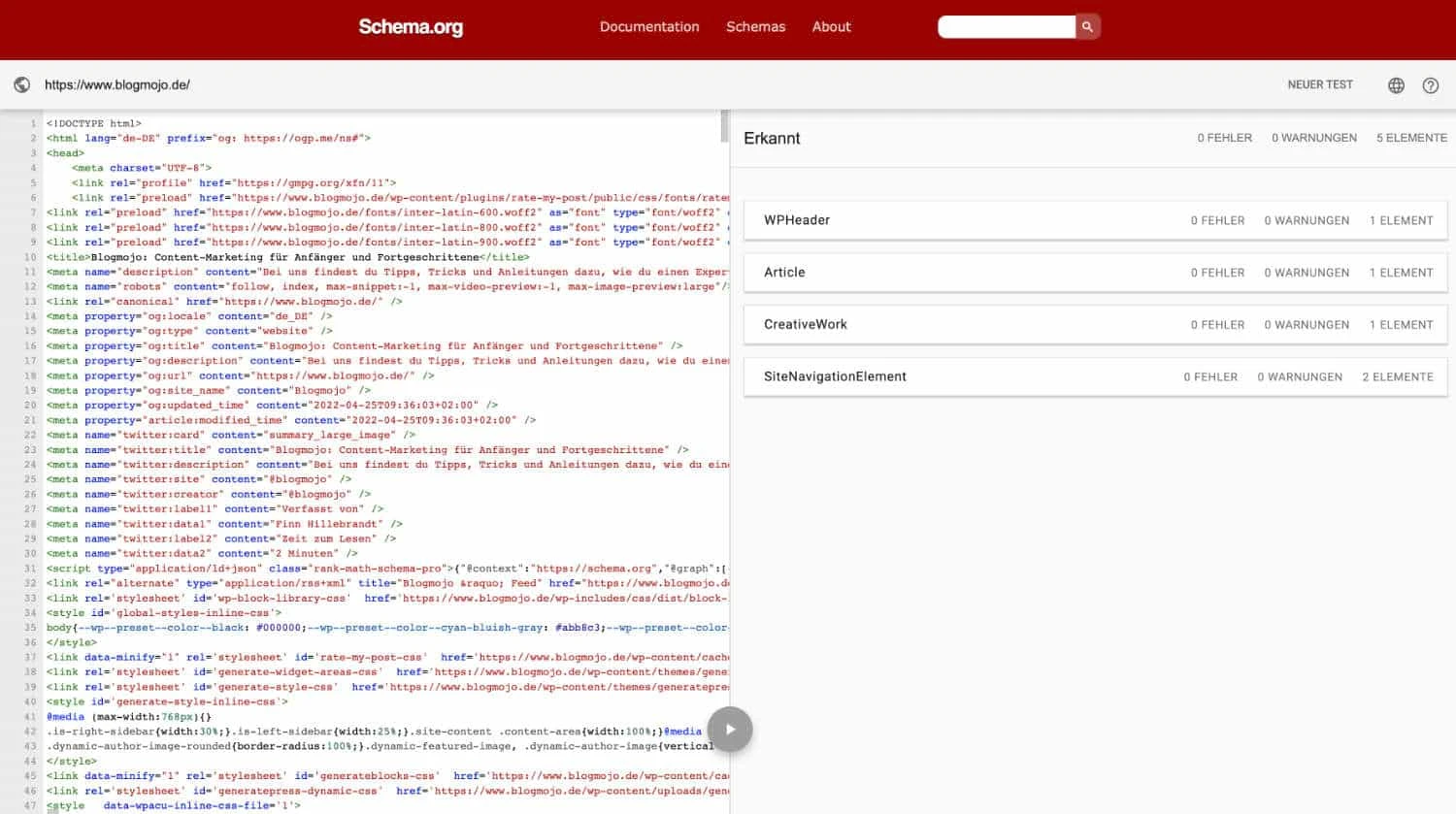
The Schema Markup Validator analyzes a web page for embedded markup and checks it for validity.
Alongside the page's source code, a list view shows all detected Schema.org types and the errors and warnings related to them.
You'll also find detailed documentation on Schema.org here.
8.2 Rich Results Test
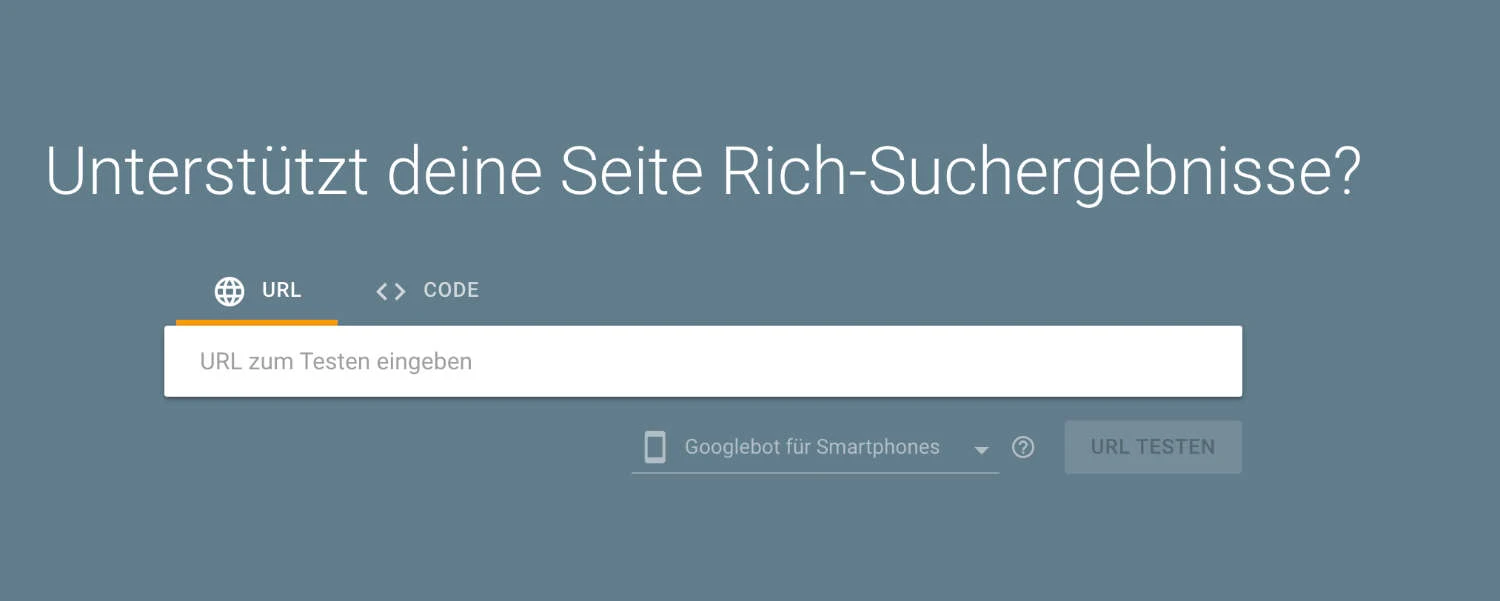
Rich results present a page more prominently in the search results through various features, such as star ratings.
With the Rich Results Test, you can check whether a page has the right structured data to get such rich results.
All detected structured data is shown in a clear list. If there are problems, you get a corresponding message.
9. Other tools
Here you'll find all the Google tools that fit into none of the previous categories or into several of them:
9.1 Google Alerts
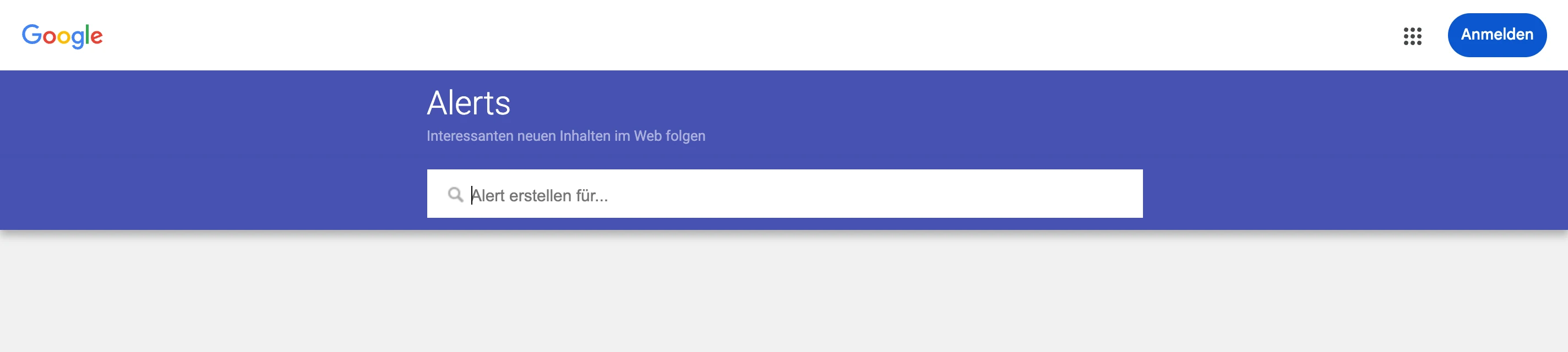
Google Alerts was introduced back in August 2003. You can feed the tool keywords and topics, and it then automatically informs you by email as soon as new content on them goes online.
The tool can help you, for example, keep an eye on the competition or on mentions of your own name or brand.
9.2 Google Business Profile
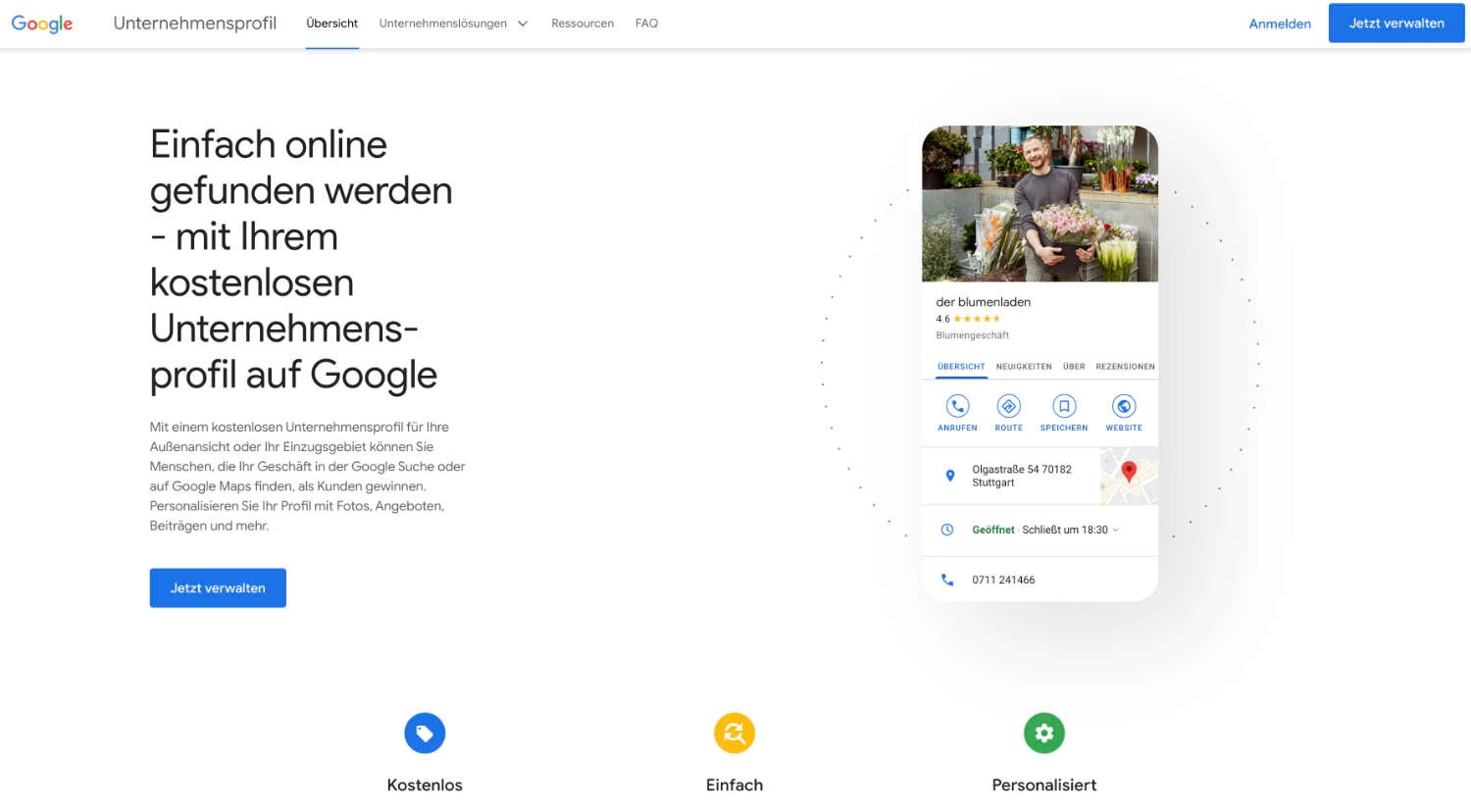
With the Google Business Profile (formerly Google My Business), you can create a profile for your company or organization, which automatically creates a listing in Google Maps.
For matching keywords, reviews, address, and opening hours are also shown in the Google search results.
9.3 Search Quality Evaluator Guidelines
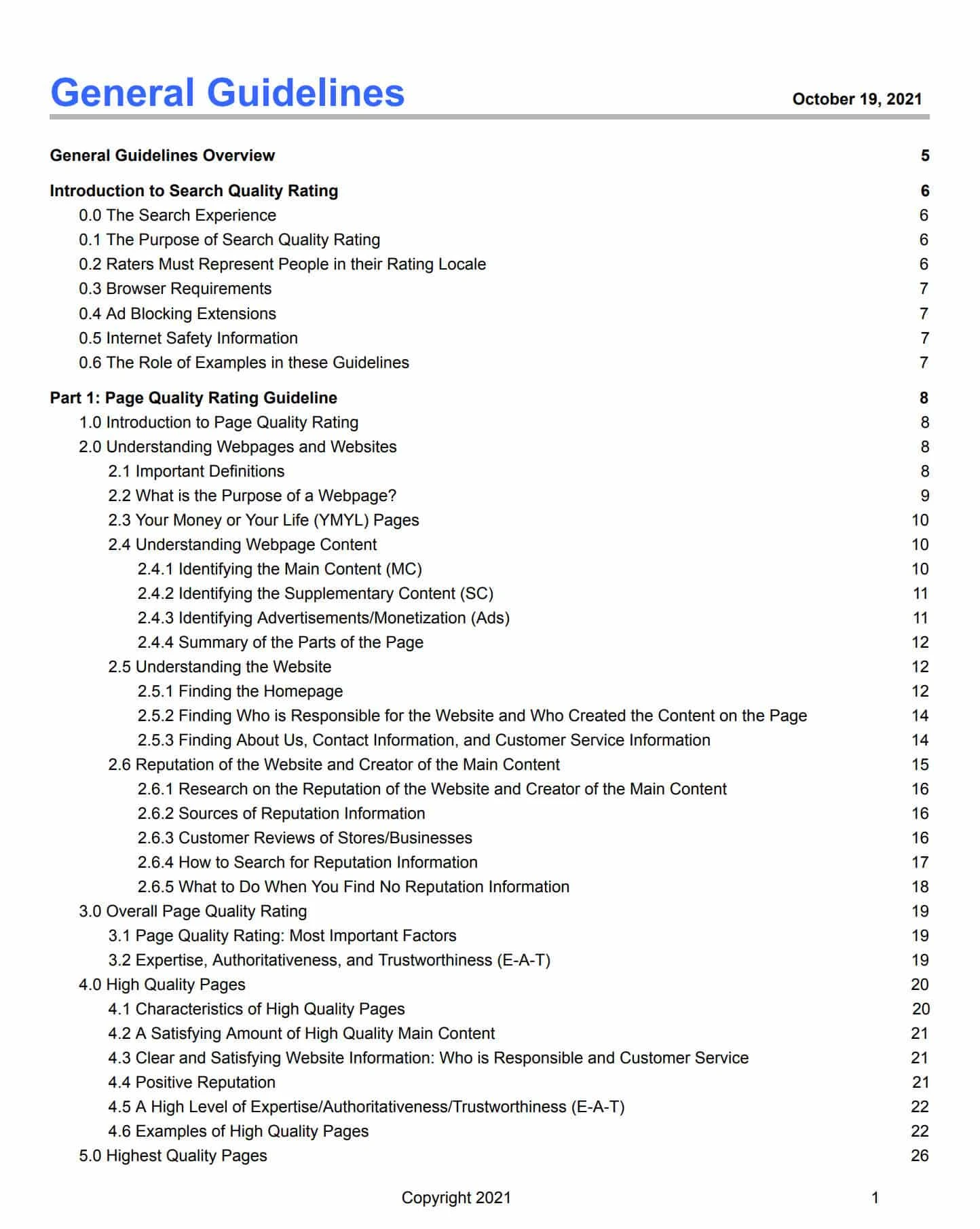
The Search Quality Evaluator Guidelines aren't a tool in the strict sense, but they're still super important for SEO, which is why I've simply listed them here.
The guidelines are a manual for external human evaluators whose ratings are used to improve the Google algorithm (e.g. to compare the search results before and after a Google update).
After they had leaked every now and then in the past, Google decided in 2015 to make them completely public.
Over time, the guidelines have become something of an SEO bible and have had a lasting impact on the SEO scene with concepts like YMYL and E-A-T.
And not without reason:
They show in great detail what quality and relevance mean to Google and what kind of results Google would like to see in search.
However, they don't show how the Google algorithm works or which ranking factors lead to the ideal search results described in the guidelines.
Or as Ben Gomes, the former Vice President of Search, put it in an interview with CNBC:
You can view the raters’ guidelines as where we want the search algorithm to go. They don’t tell you how the algorithm is ranking results, but they fundamentally show what the algorithm should do.
9.4 Suspicious Site Reporter (archive)
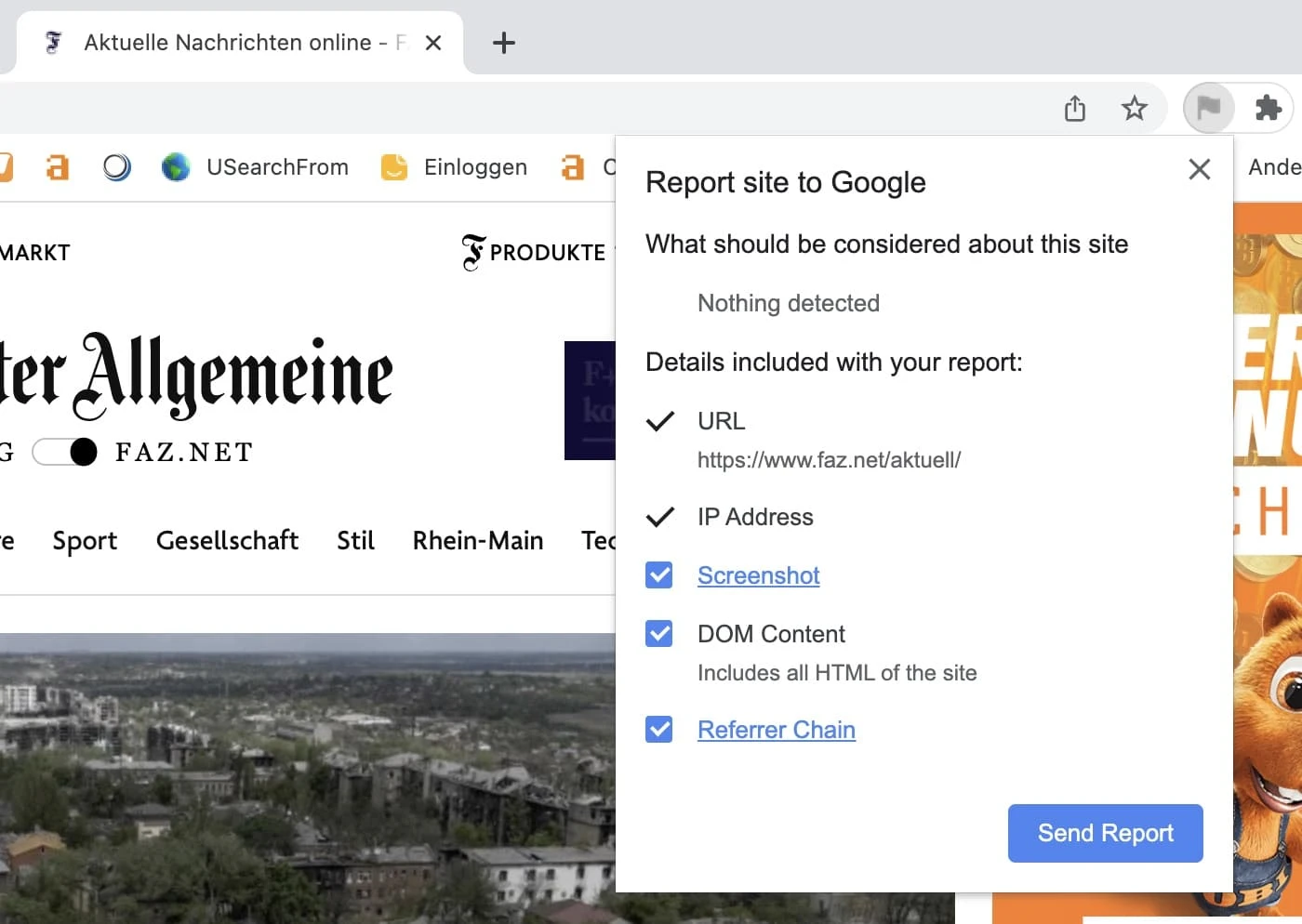
The Suspicious Site Reporter is no longer available in the Chrome Web Store.
Instead, check a website's security status with the Safe Browsing Site Status or the security report in Search Console.
9.5 Natural Language API
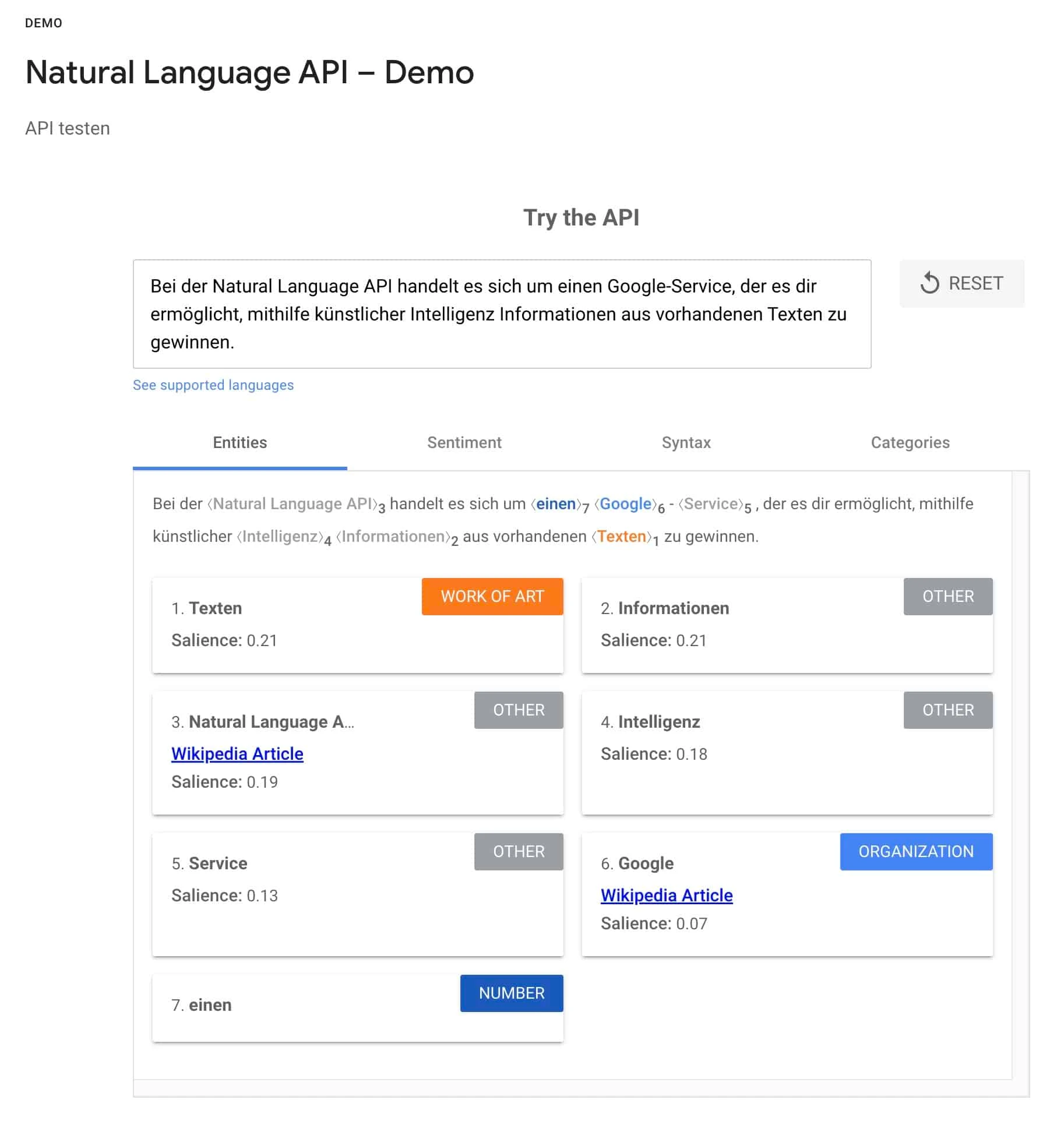
The Natural Language API is a Google Cloud service that lets you classify and analyze text using artificial intelligence.
The API itself is probably of less interest to you as an SEO or website owner, unless you plan to release your own SEO or text analysis tool.
Among other things, the product page describes entity, sentiment, and syntax analysis. An analysis by this cloud API is not proof of how Google Search evaluates a text.
FAQ
Here I've put together the answers to the most common questions about Google's SEO tools: