
If you've embedded Google Fonts the default way, meaning through Google's servers, data such as your visitors' IP address or the browser they use may be transmitted to Google.
According to Google the fonts don't store any cookies, and the data isn't linked to Google accounts.
But since Google Fonts is used by probably every second website, Google could use it to track user activity across the internet on a large scale.
Under the GDPR, that can be an acute legal risk.
In January 2022, for example, a website owner was ordered to pay damages in a ruling of the Munich Regional Court (LG München) because she had embedded Google Fonts on her website that were loaded from Google's servers. Since then, cease-and-desist letters (Abmahnungen) and damages claims have been sent out in huge numbers to website owners.
But don't worry:
Below I'll show you step by step how to disable Google Fonts and host them locally on your WordPress website (in other words, host them yourself instead of loading them from Google's servers).
- Loading Google Fonts from Google's servers can be a legal risk, because IP addresses and other data are transmitted to Google.
- The easiest solution is the plugin OMGF Pro (currently €49 instead of €59 per year for the Business License), which automatically detects Google Fonts and hosts them locally.
- Alternatively, you can download Google Fonts manually, upload them to your server, and embed them with CSS.
1. With the plugin OMGF Pro

By far the easiest and fastest way to host Google Fonts locally is the small but brilliant WordPress plugin OMGF Pro.
It finds all Google Fonts on your website, loads them from your own server, and at the same time disables every instance that comes from Google's servers.
The plugin is very easy to use. After installing it, all you have to do is click “Save & Optimize” in the settings, and within seconds all Google Fonts are detected and loaded locally:
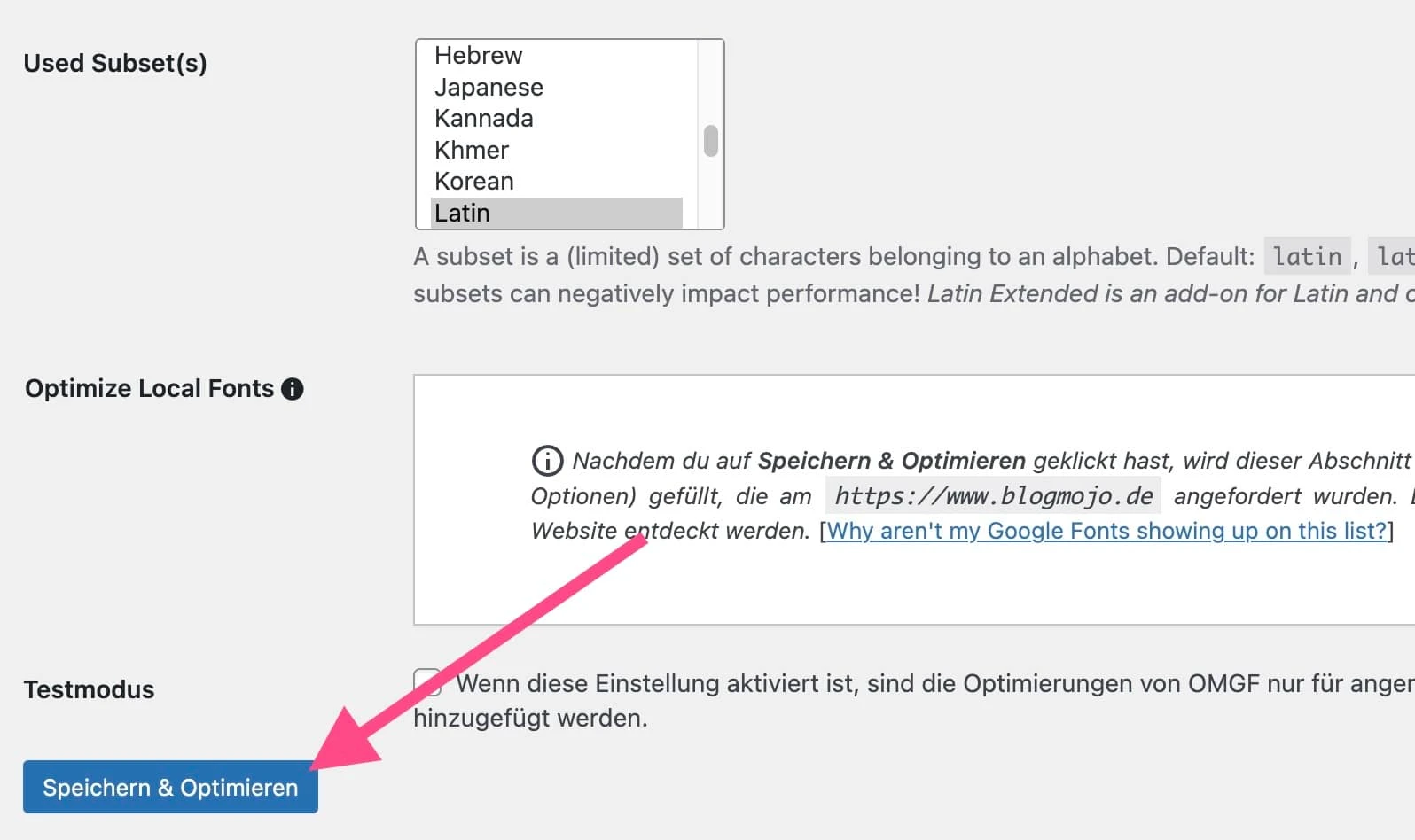
That means it takes care of all the steps for you, and it also offers various options for advanced users.
And at the moment it costs €49 instead of €59 per year (Business License, for up to 10 websites), which makes it an absolute no-brainer. Just keep in mind that the license renews at the regular price afterward.
2. The manual method
If you're technically skilled or don't feel like using a plugin, you can of course also host Google Fonts locally by hand.
You need the following seven steps to embed Google Fonts:
- Find out which Google Fonts you use
- Download the fonts
- Upload the Google Fonts to your FTP server
- Add the CSS code
- Avoid FOIT and FOUT
- Disable Google Fonts
- Check the result
Step #1: Find out which Google Fonts you use
To host Google Fonts locally, you first have to find out which fonts your website uses in the first place.
Theme options
The first clue is your theme options. In the WordPress admin area, you'll probably find them in one of these places:
- in a menu item of their own
- in a sub-item of Appearance or Settings
- under Appearance > Customize
Once you're there, look for a sub-item like Typography or Fonts. Here's what that looks like in my theme GeneratePress, for example:
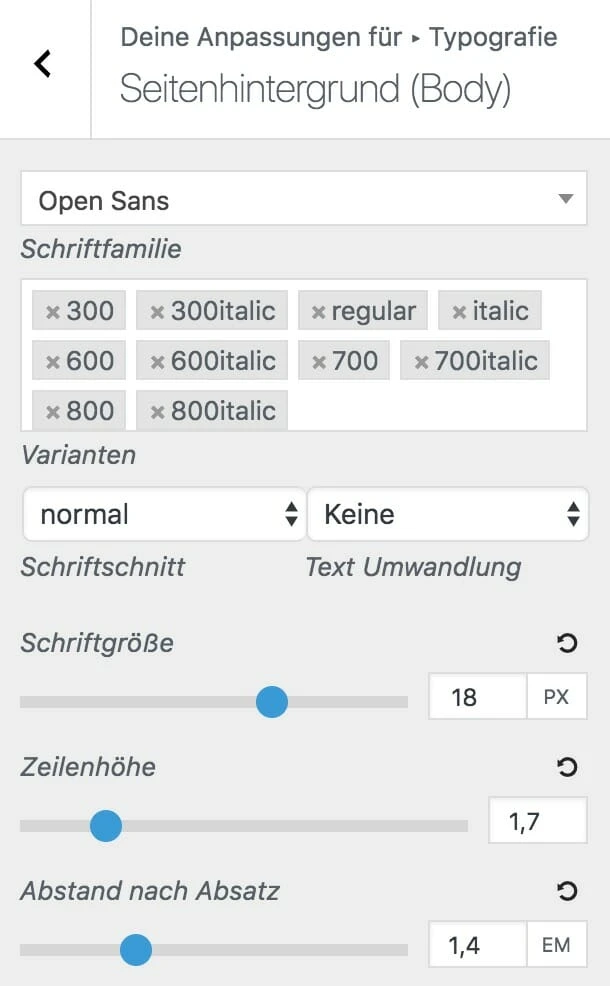
Once you've found the fonts, open a text editor and write down which Google Fonts are used and in which weight (100, 200, 300, 400, 500, 600, 700, 800, 900, normal, bold, and so on).
With some themes, you can also set directly that the Google Fonts loaded through the theme should be hosted locally.
That's the case with:
- Avada (under Avada > Theme Options > Advanced > Privacy > Google Fonts Mode you can set Google Fonts to load locally)
- Divi (offers the option to use your own fonts)
- Enfold (offers the option to use your own fonts)
- Themes by ThemeZee (see the blog post on GDPR updates)
Some WordPress themes like GeneratePress, Astra or Kadence also let you use system fonts or web safe fonts as an alternative to Google Fonts.
That not only saves work, it also means better load times and more stable page loading.
However, you have to make compromises on design: A standard font like Arial just doesn't look as elegant as Open Sans or Roboto.
Plugins or external code
In some cases, Google Fonts are also loaded through plugins or external code. That's the case with, for example:
- Google Maps, reCAPTCHA, and some other Google services
- Easy Google Fonts
- WP Google Fonts
- NextGEN Gallery (loads Open Sans)
With Google Maps, reCAPTCHA, and other external resources that are loaded through iframes, you often have no choice but to remove these resources completely to prevent Google Fonts from being loaded.
Developer console
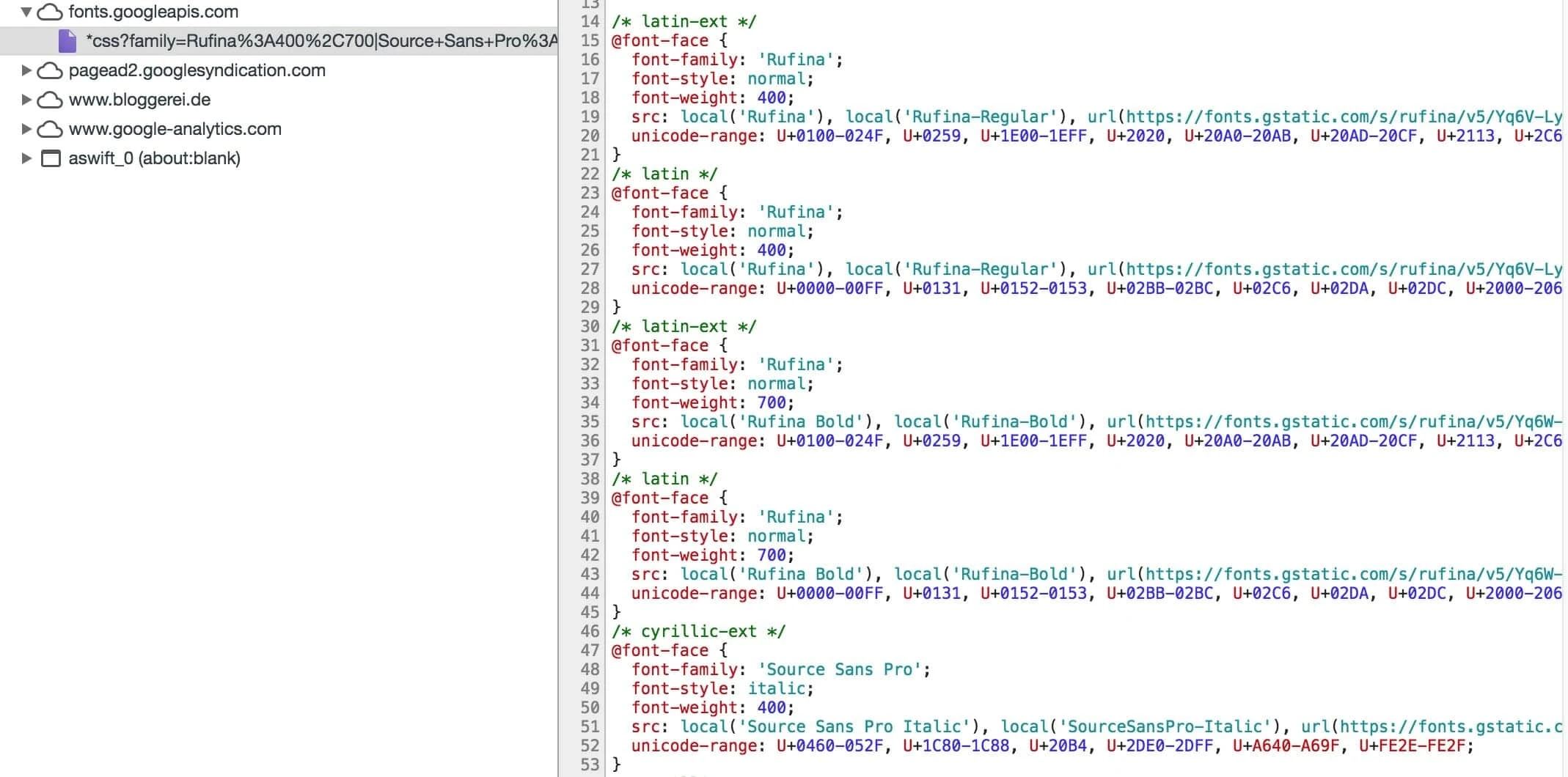
Finally, you should check your browser's developer console to see which Google Fonts are loaded. To do that, right-click on your own website and choose “Inspect” (German: “Element untersuchen”).
The console opens. There you click the “Sources” tab. Now you can see all the sources your website uses to load resources.
Google Fonts usually hide under the following entries:
- fonts.googleapis.com
- fonts.gstatic.com
In the example, the Google Fonts “Rufina” and “Source Sans Pro” are used (bundled in a single server request). On the right-hand side, you can see exactly which font weights and character encodings are used:
Step #2: Download Google Fonts
Once you've found out which Google Fonts you need, you have to download them.
The easiest way is the Google Webfonts Helper, which also gives you the CSS code you need in step 4:
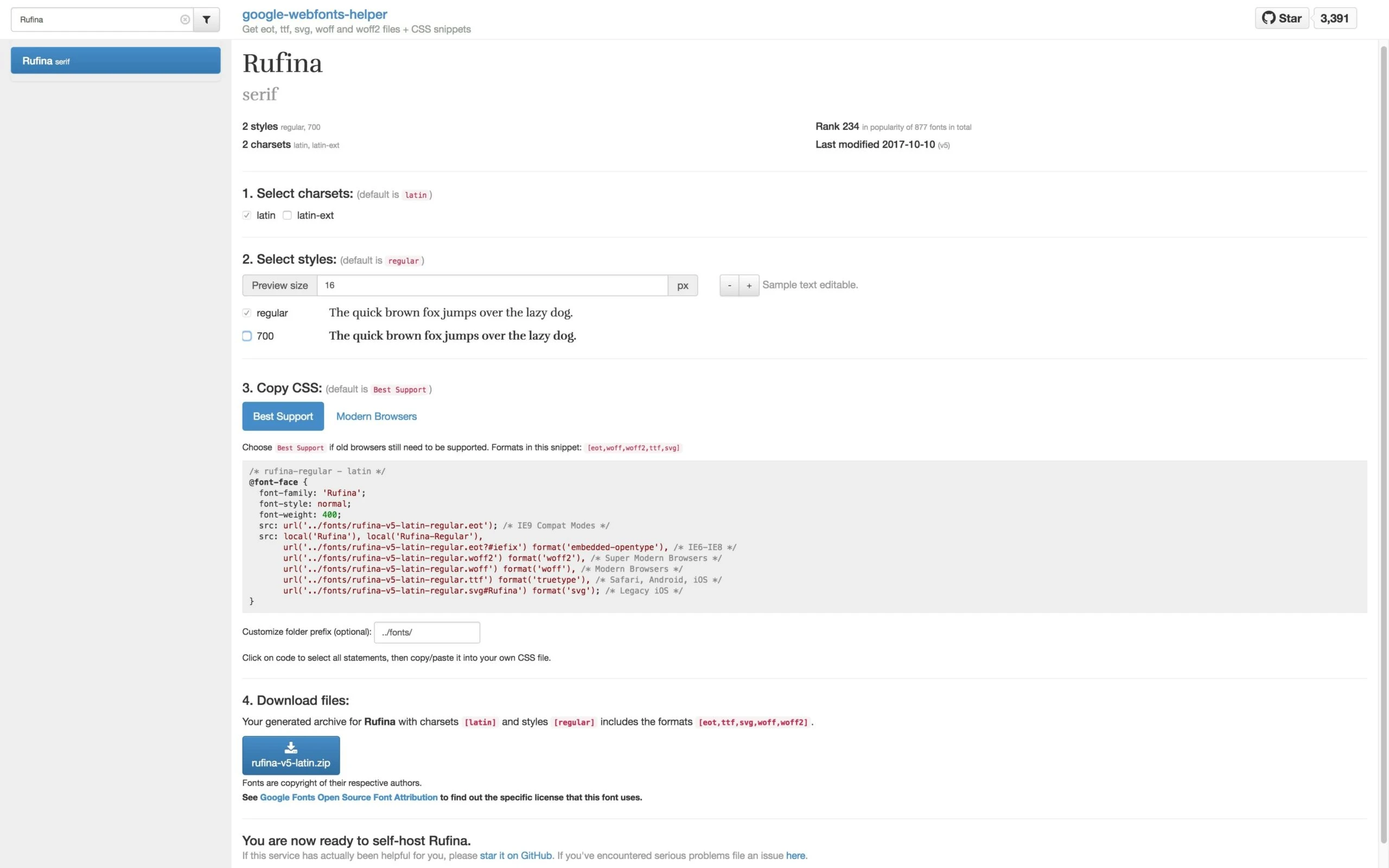
First, you select the font you want on the left-hand side. Then you have to configure it:
- For Select charsets you can usually leave everything as it is. Only if your blog is in Greek, for example, do you also need to select greek; for Eastern European languages, further character sets are added.
- For Select styles you choose the weights you use on your blog. You should definitely add 700 (bold), otherwise bold text looks messy.
- For Copy CSS you leave “Best Support” selected and copy the CSS code into a simple text editor.
- Now you can download the font package as a ZIP file.
If you use several Google Fonts, you simply repeat the steps and copy the CSS code of the other fonts below the first one.
Step #3: Upload the Google Fonts to your FTP server
After you've downloaded and unpacked the font package, you have to upload the font files to your FTP server.
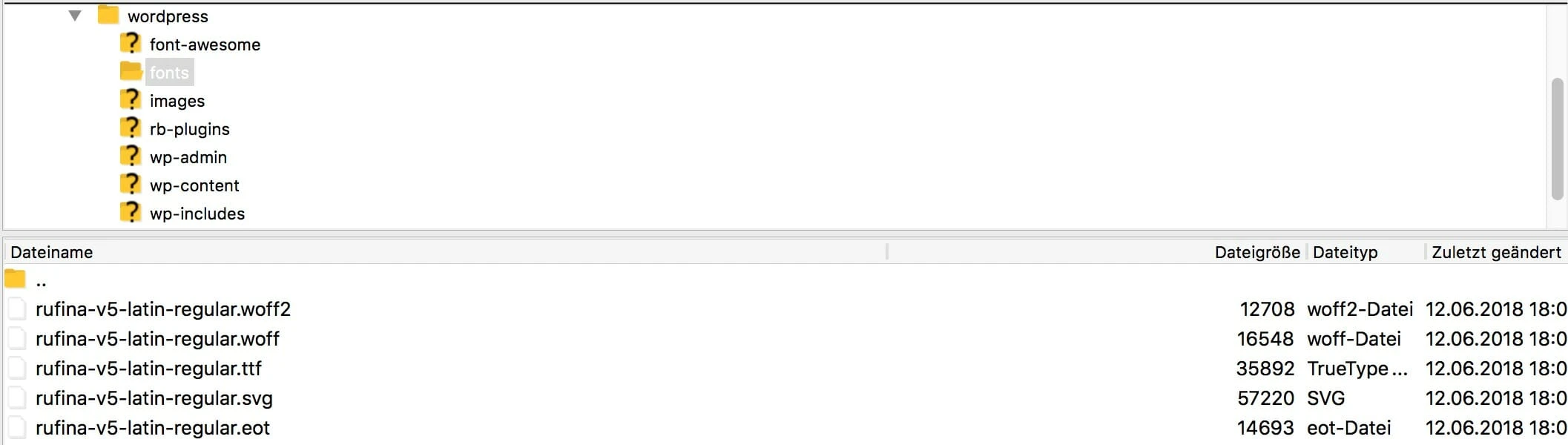
To do that, open FileZilla (or another FTP program) and go to the root directory of your domain, the place where WordPress is installed.
There you create a folder called fonts and copy the downloaded fonts into it. The whole thing should then look something like this:
Step #4: Add the CSS code
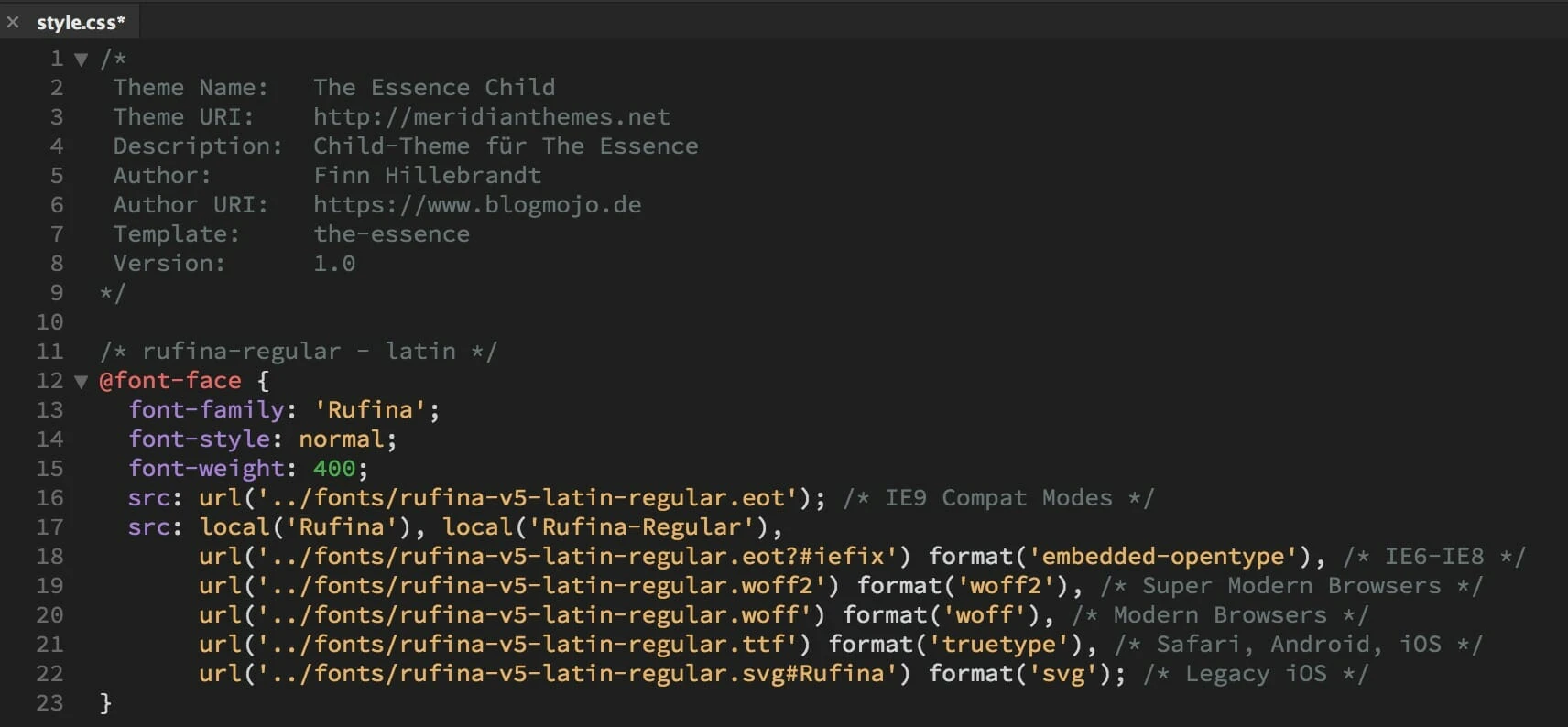
So that browsers know where your uploaded font files are, you have to tell them via CSS.
To do that, copy the CSS code you put into the text editor in step 2 into the style.css file of your child theme. It then looks like this:
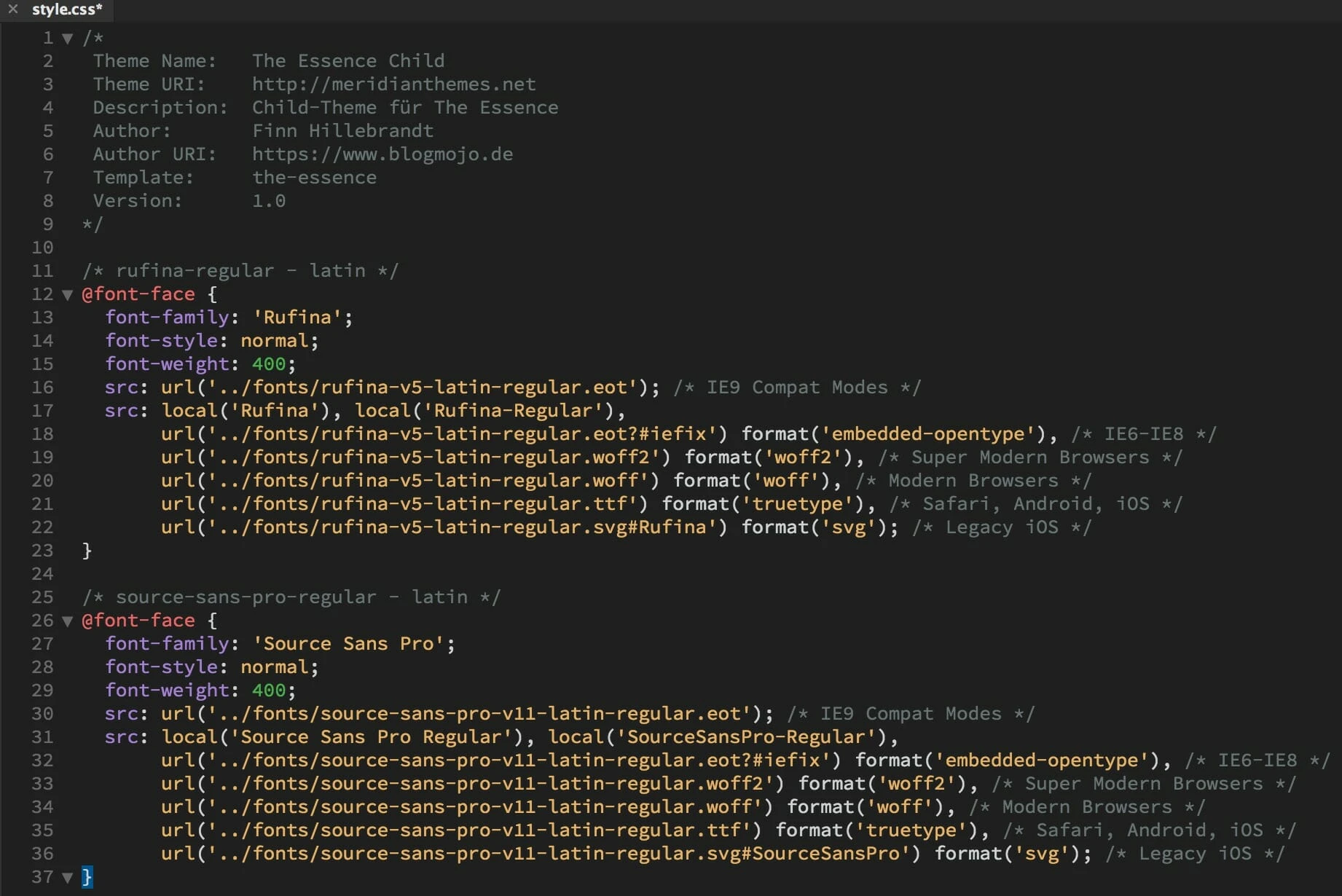
If you use several fonts, font weights, or character sets, you simply paste the individual code sections one below the other:
Step #5: Avoid FOIT and FOUT
When you use Google Fonts, two unpleasant phenomena can occur:
- Flash of Invisible Text (FOIT): No text is displayed at all before your Google Fonts have loaded.
- Flash of Unstyled Text (FOUT): At first a default font appears, which is then replaced by your Google Fonts.
FOIT and FOUT aren't just annoying for users, they can also trigger a high Cumulative Layout Shift and cause you to fail the Core Web Vitals test.
To avoid both, you should first add font-display: swap to @font-face. That makes FOIT disappear, but it creates FOUT.
You can get rid of the resulting FOUT by preloading your fonts with <link rel="preload">. In HTML, that looks like this:
<head>
  <link rel="preload" href="/fonts/inter-v2-latin-regular.woff2" as="font" type="font/woff2" crossorigin>
</head>
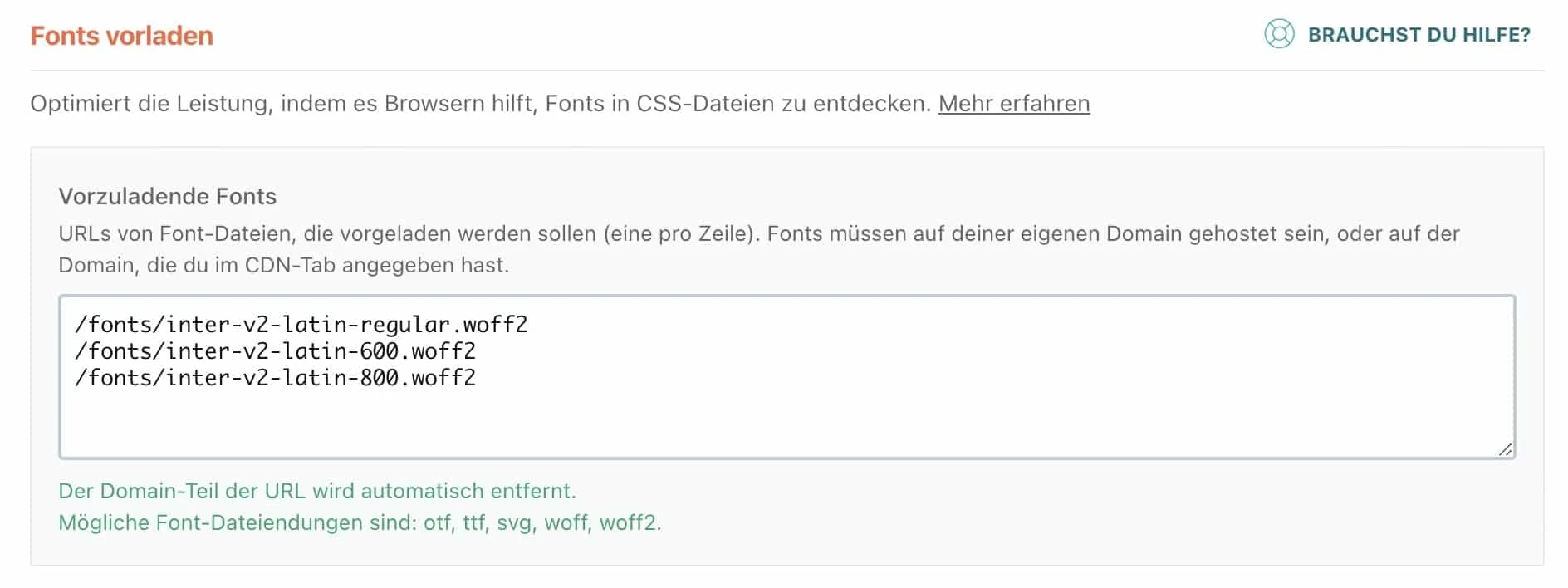
If you use WP Rocket you can also enter the fonts to preload directly in the settings (under Einstellungen > WP Rocket > Cache füllen > Fonts vorladen in the German interface shown in the screenshot, which corresponds to Settings > WP Rocket > Preload > Preload fonts):
Step #6: Disable Google Fonts
To disable Google Fonts (in other words, to prevent a connection to Google's servers from being made), the easiest way is to install the free plugin Disable and Remove Google Fonts.
The plugin should disable the Google Fonts of many common themes like Avada, Enfold, Hestia, Kadence, and all the default themes (Twenty Twenty, Twenty Nineteen, and so on).
It also works with well-known page builders like Divi, Elementor, or WPBakery.
Some performance plugins also let you disable Google Fonts. If you use Autoptimize or perfmatters, for example, you can skip “Disable and Remove Google Fonts”:
Autoptimize
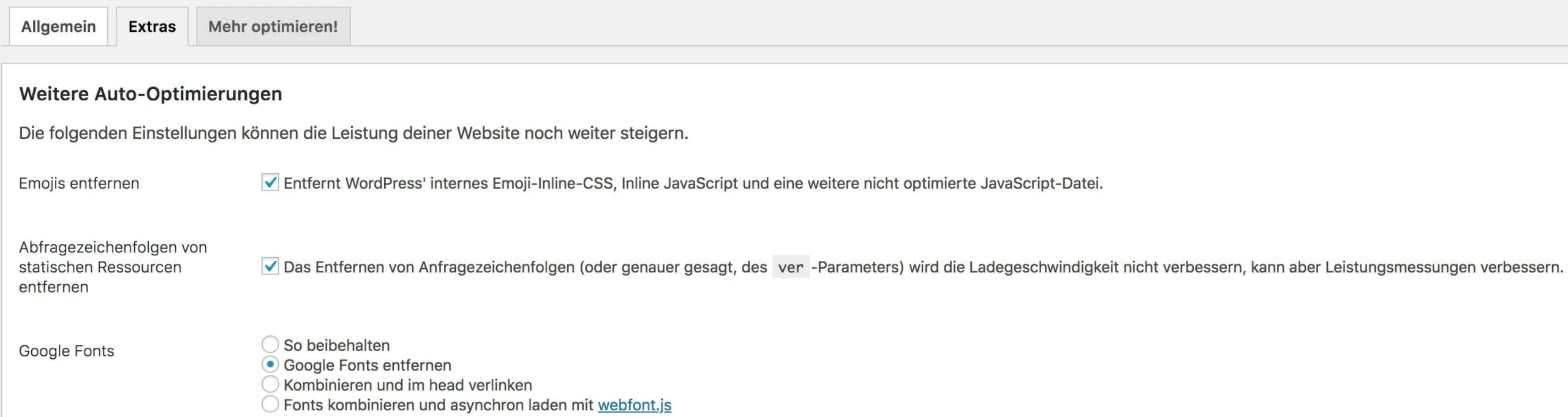
With Autoptimize you can disable Google Fonts under Settings > Autoptimize > Extras > Google Fonts:
perfmatters
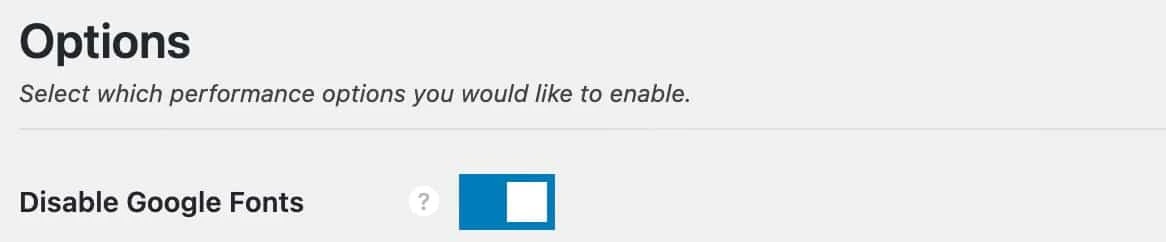
With perfmatters you turn off Google Fonts by activating the “Remove Google Fonts” switch under General > Options:
Step #7: Check the result
Once you've done all the steps, all that's left is to check whether your local fonts are loaded correctly and whether any connections to Google's servers still exist.
To do that, first clear the cache of your caching or performance plugin as well as the files in your browser cache.
Then look at your website, ideally logged out or in an incognito window, and use Chrome's developer tools (see step #1) to check whether connections to fonts.googleapis.com or fonts.gstatic.com are still being made.
Remember to test not just the homepage, but also posts, categories, tags, and pages. Google Fonts can always be loaded by a plugin that isn't active everywhere.
3. FAQ
Here I've put together answers to common questions about Google Fonts:
Do Google Fonts set cookies?
Does hosting Google Fonts locally make my load time worse?
Which web safe fonts are a good alternative to Google Fonts?
Are there downsides to hosting Google Fonts locally?
Yes, there are a few things you should keep in mind:
- Your own server has to deliver the additional font files.
- Automatic updates no longer apply, so you have to add new versions yourself.
- Depending on your setup, there is extra effort or you have to pay a service provider.
- You may need an extra plugin like OMGF Pro.
Which data does Google process through Google Fonts?
When fonts.googleapis.com or fonts.gstatic.com is called, the following data, among other things, is transmitted:
- The visitor's IP address
- The URL requested on the Google server
- HTTP headers such as user agent and referrer, depending on the browser and its referrer policy
You'll find more details in the official Google Fonts FAQ.
What should I do if I get a cease-and-desist letter or a damages claim because of Google Fonts?
Consult an IT lawyer and look at template letters like the one from Schreiner & Lederer or Wilde Beuger Solmecke. They don't replace individual legal advice, though.