Photoshop is the undisputed class leader when it comes to image and photo editing.
However, the software's wide range of features comes at a price.
Since not everyone can afford the high monthly costs of Adobe Creative Cloud in the long run, this article rounds up 9 Photoshop alternatives that cost less or nothing at all.
- The list presents free and paid Photoshop alternatives for photo editing, graphic design and RAW workflows.
- Luminar Neo tops the list: cheaper than Photoshop, more beginner-friendly and with more than 30 AI-based photo effects and editing functions.
- There are suitable tools for different use cases: Canva for graphic design, GIMP as a free open-source solution and Affinity as a free professional alternative.
1. Luminar Neo
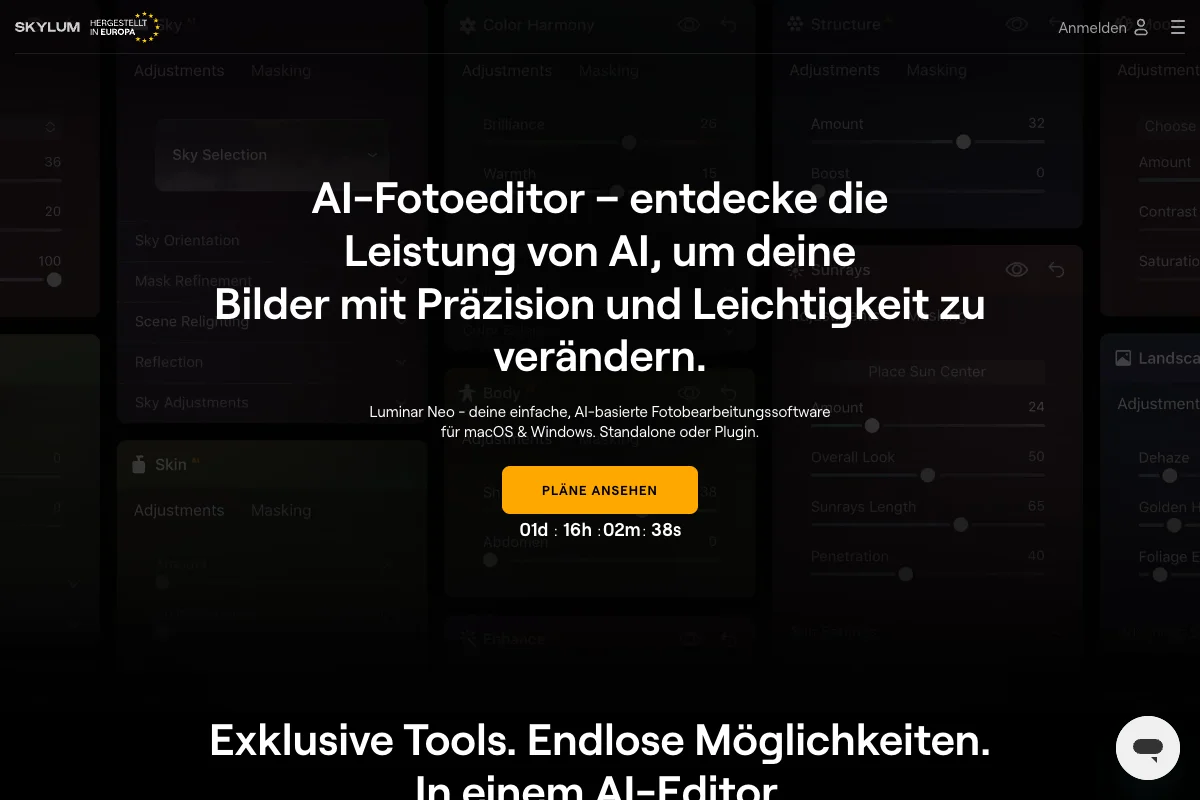
Price: One-time purchase from €99 (desktop), €139 including mobile and web (Source: Skylum)
Operating systems: macOS and Windows
Luminar Neo is one of the best Photoshop alternatives available right now. It offers more than 30 great photo effects and editing functions, many of them AI-based.
For example, you can replace the sky in a photo completely:
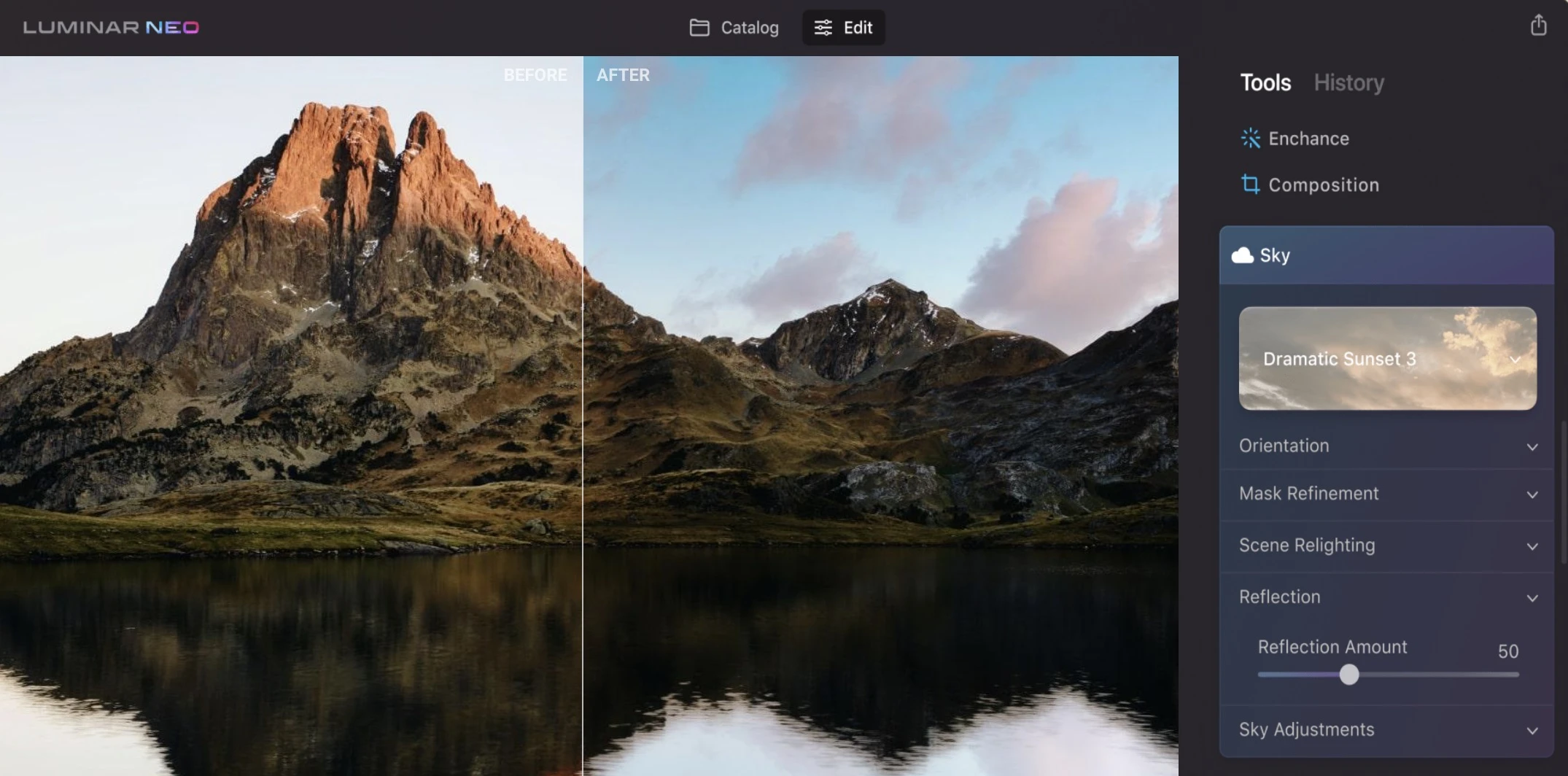
Or add fog:
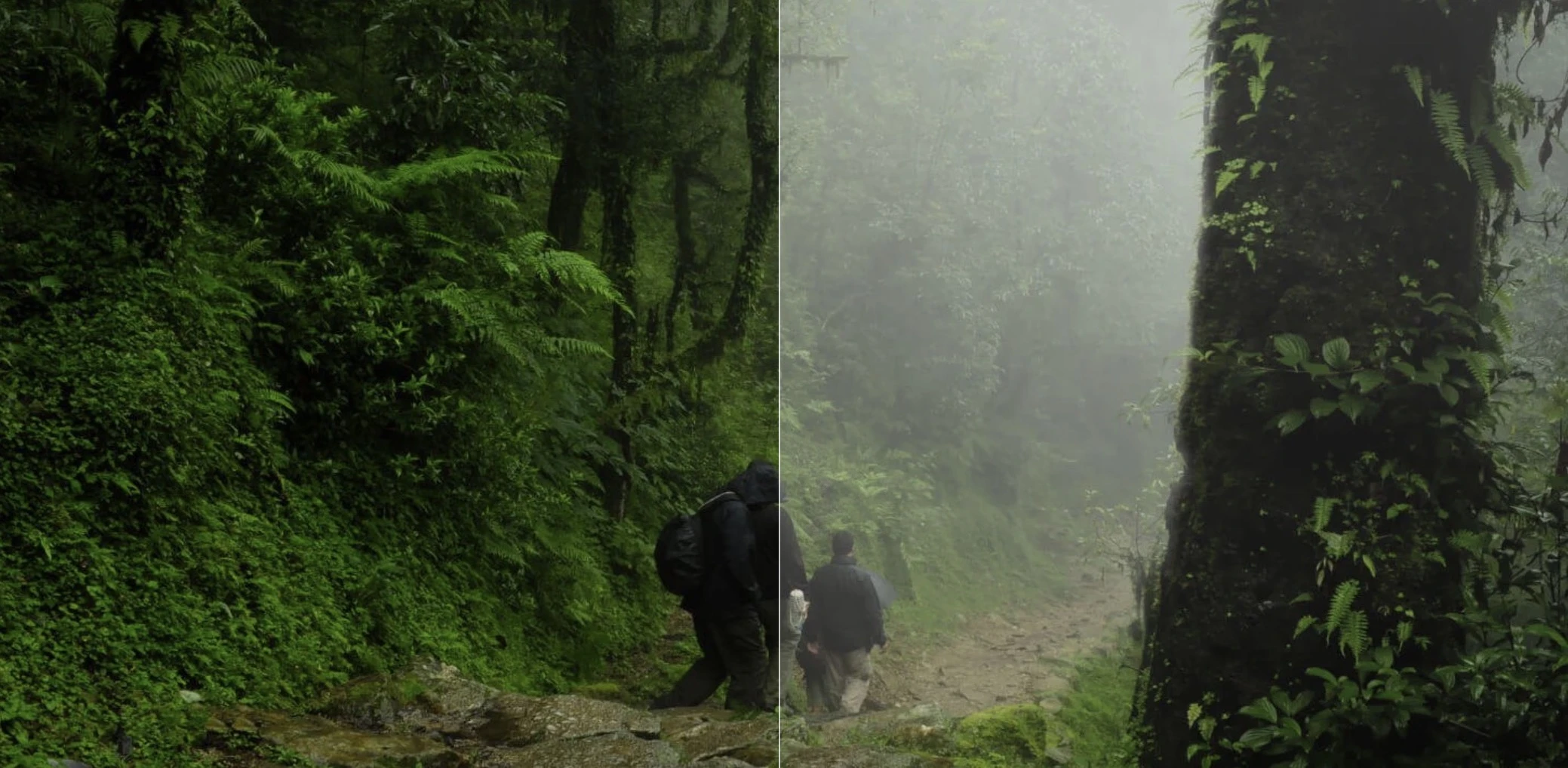
Other AI features include:
- Exposure adjustment
- Adjusting depth of field
- Improving skin blemishes
- Background removal
- Noise removal
It's also much easier to use than Photoshop and suitable for beginners too. The user interface is more intuitive and not as overloaded as Photoshop's.
- Affordable price
- Much easier to use than Photoshop
- Large range of features with 30+ photo effects and editing functions
- RAW file editing possible
- Many built-in presets
- AI features, e.g. for skin retouching or background removal
- Can be used as a Photoshop or Lightroom plugin
- Desktop license usable on 2 devices
- Extensions available (from the Pro version)
- Not as many features as Photoshop
- Generative AI tools are only included for 365 days, after that you need Luminar Prime
If you're looking for beginner-friendly photo editing with lots of AI features, you can take a look at Luminar Neo and its current plans.
2. Canva
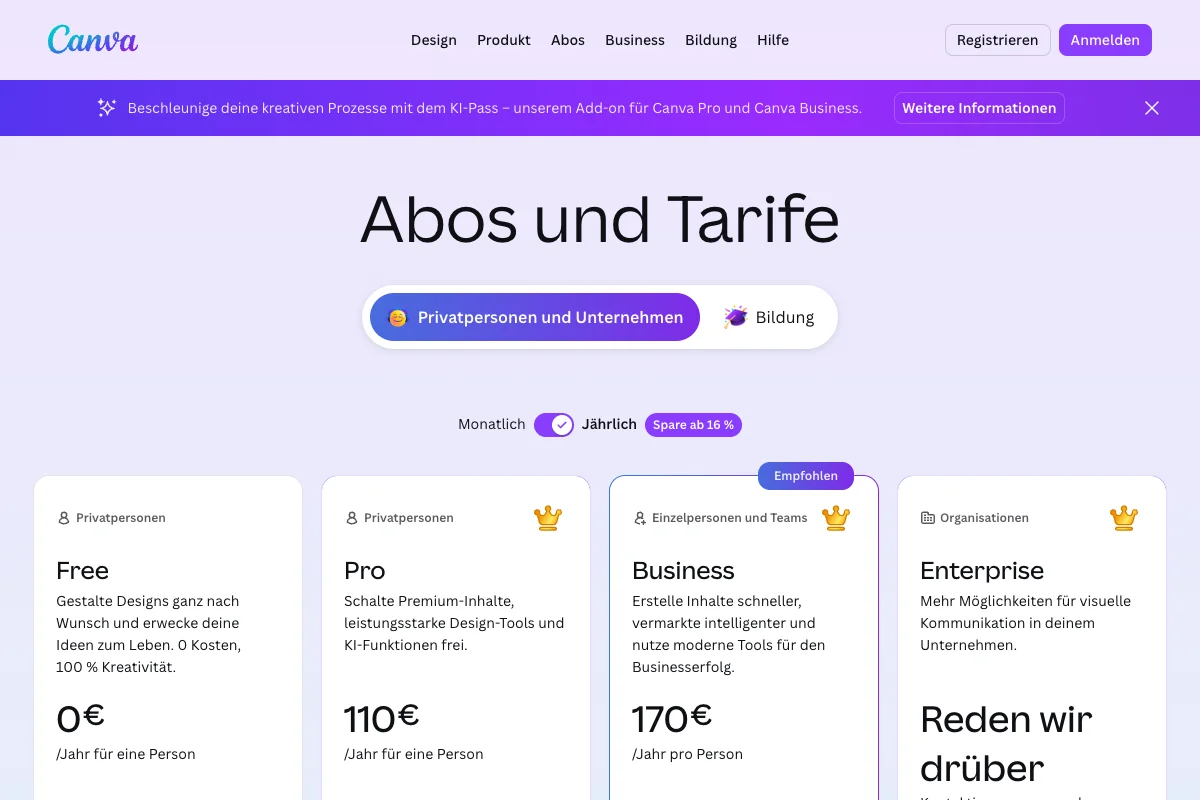
Price: free, Pro version about €12 a month
Operating systems: All (browser-based)
Canva is the best alternative to Adobe Photoshop if you want to create graphics or designs (it's rather unsuitable for professional photo editing).
Unlike the Adobe dinosaur, Canva is easy to use, and you don't need to take a three-week course to produce halfway decent results.
The program has hundreds of thousands of ready-made templates for you: from Instagram posts to YouTube banners and slide presentations, you'll find the right template for every area.
Numerous other features such as an integrated image database, an AI image generator, icons or shapes round out what Canva offers.
One particular highlight is the team function. If you work with external freelancers, you can bring them into your workspace. After that, you can assign jobs directly through Canva and review the finished designs there.
Canva is free to use. I can still recommend the Pro version, though. For about €12 a month you get access to a huge database of stock photos and quite a bit more:
What does the Pro version offer?
- Access to over 100 million (!) premium stock photos
- Brand kit: Define fonts, colors and designs that belong to your brand and apply them to nine designs at the push of a button
- Background remover: Remove distracting backgrounds from images with a single mouse click. This feature is really brilliant if you need transparent images of objects (product images) or people.
- Resizing: Change the dimensions of a design at any time, even while editing.
- Content planner to structure workflows.
- 1 TB of online storage
- More AI tools (e.g. Magic Eraser, Magic Write and Beat Sync)
- Free to use
- Very beginner-friendly
- Browser app, desktop app and smartphone app
- Great templates for every area
- Competent support
- Team function for great collaboration
- Access to numerous stock photos
- Ready-made shapes and objects
- Affordable Pro version
- Rather unsuitable for professional photo editing
3. GIMP
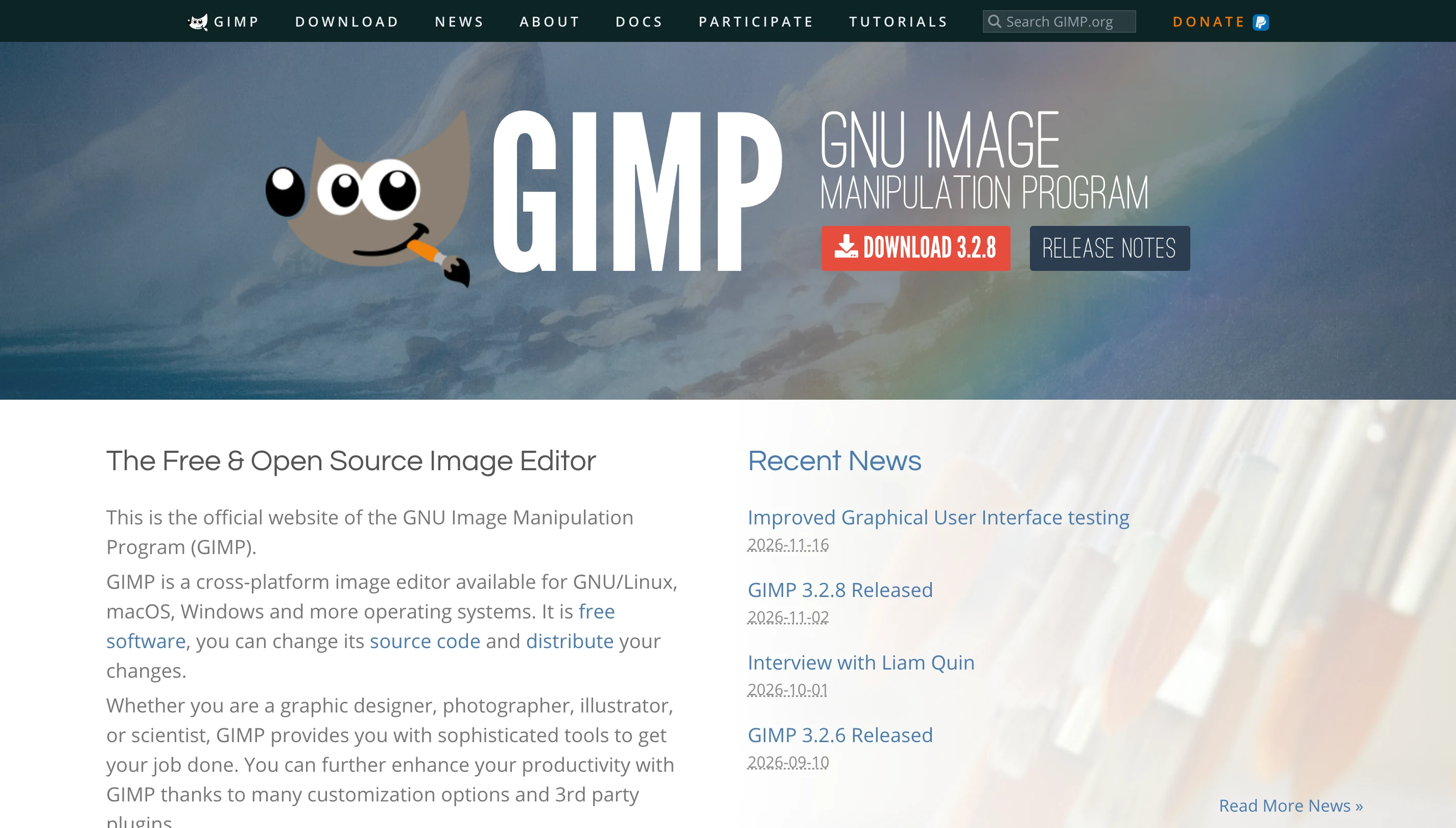
Price: free
Operating systems: Linux, macOS, Windows
GIMP was originally developed for Linux, but today it's one of the most popular graphics programs for Windows and Mac.
The great thing about GIMP is that it now includes numerous Photoshop features, yet it's distributed as free open-source software. The current version is 3.2, available for Windows, macOS and Linux.
A huge community has grown up around the program and is happy to help with questions. You'll also find high-quality tutorial videos on YouTube for almost every topic and every function.
The one downside: usability.
The interface still strongly recalls the old days of Linux, and the program's usability isn't comparable to modern applications either.
Still, GIMP is a really excellent and very comprehensive graphics program that leaves almost nothing to be desired.
- Free
- Regular updates
- Numerous free tutorials (YouTube)
- A great many tools
- Interface takes some getting used to
4. Affinity
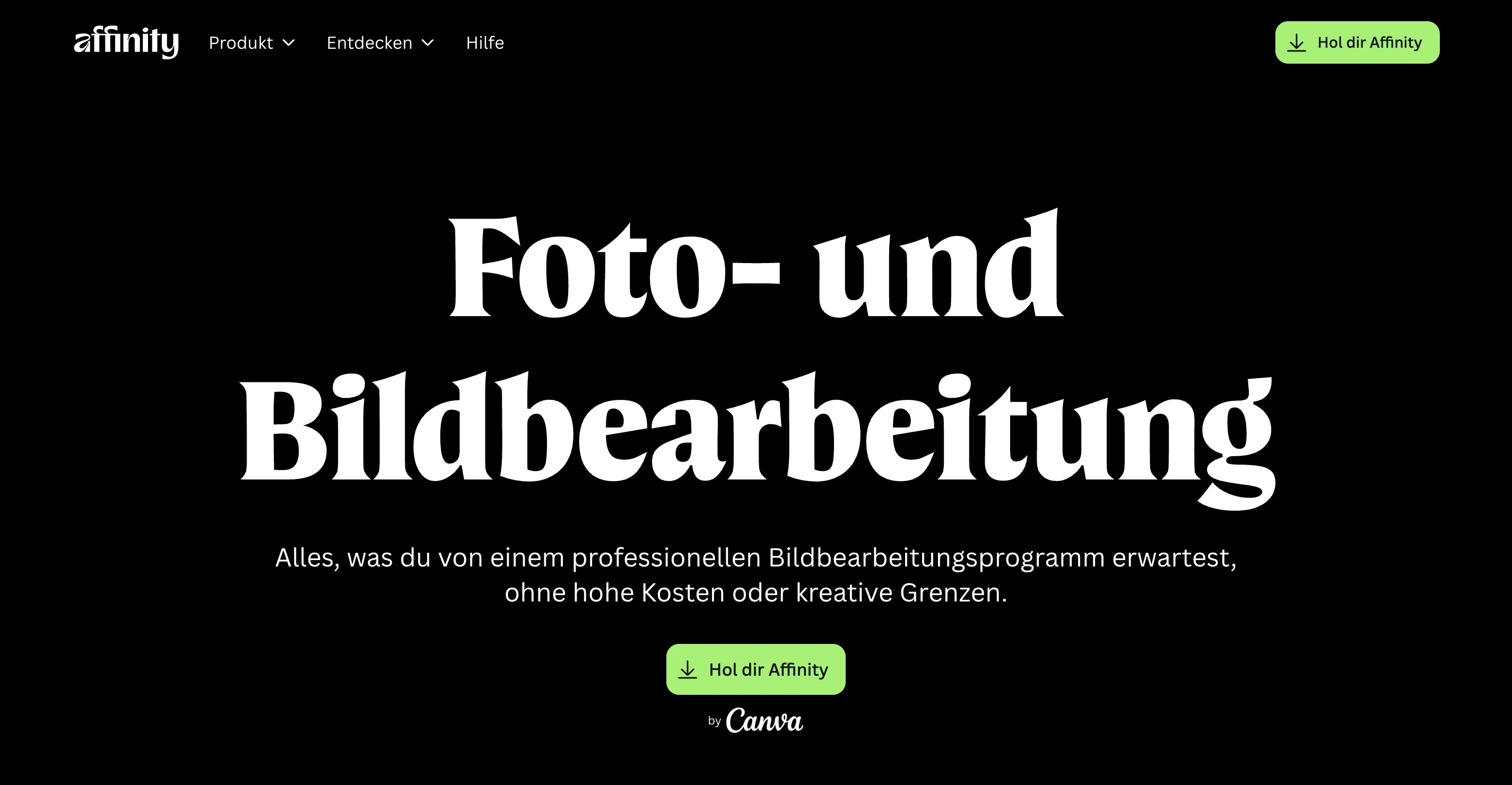
Price: free (AI features only with a Canva Premium subscription) (Source: Affinity)
Operating systems: macOS and Windows
The formerly separate programs Affinity Photo and Affinity Designer are now part of Canva's free Affinity app. It bundles professional pixel, vector and layout tools and, in photo editing, comes close to Adobe Photoshop in many areas.
We deliberately use the wording “comes close” here, because Affinity is not a full replacement for Photoshop.
The differences between the two programs will only be noticeable to real professionals, though. Average users will probably never exhaust Affinity's range of features. You'll definitely find all the tools you need for comprehensive image editing.
People switching over in particular will enjoy this program, because the developers modeled its structure closely on Photoshop. Even the keyboard shortcuts are almost identical.
With the vector tools (formerly Affinity Designer), you can also create logos, icons and graphics for your website or add graphic elements to photos. All you need is a free Canva account to use all the tools.
- Free to use
- Pixel, vector and layout tools in one app
- Clean interface
- Large range of features
- Closely modeled on Photoshop
- Numerous tutorials on YouTube
- Canva account required
- AI features only with a Canva Premium subscription
5. Pixelmator Pro
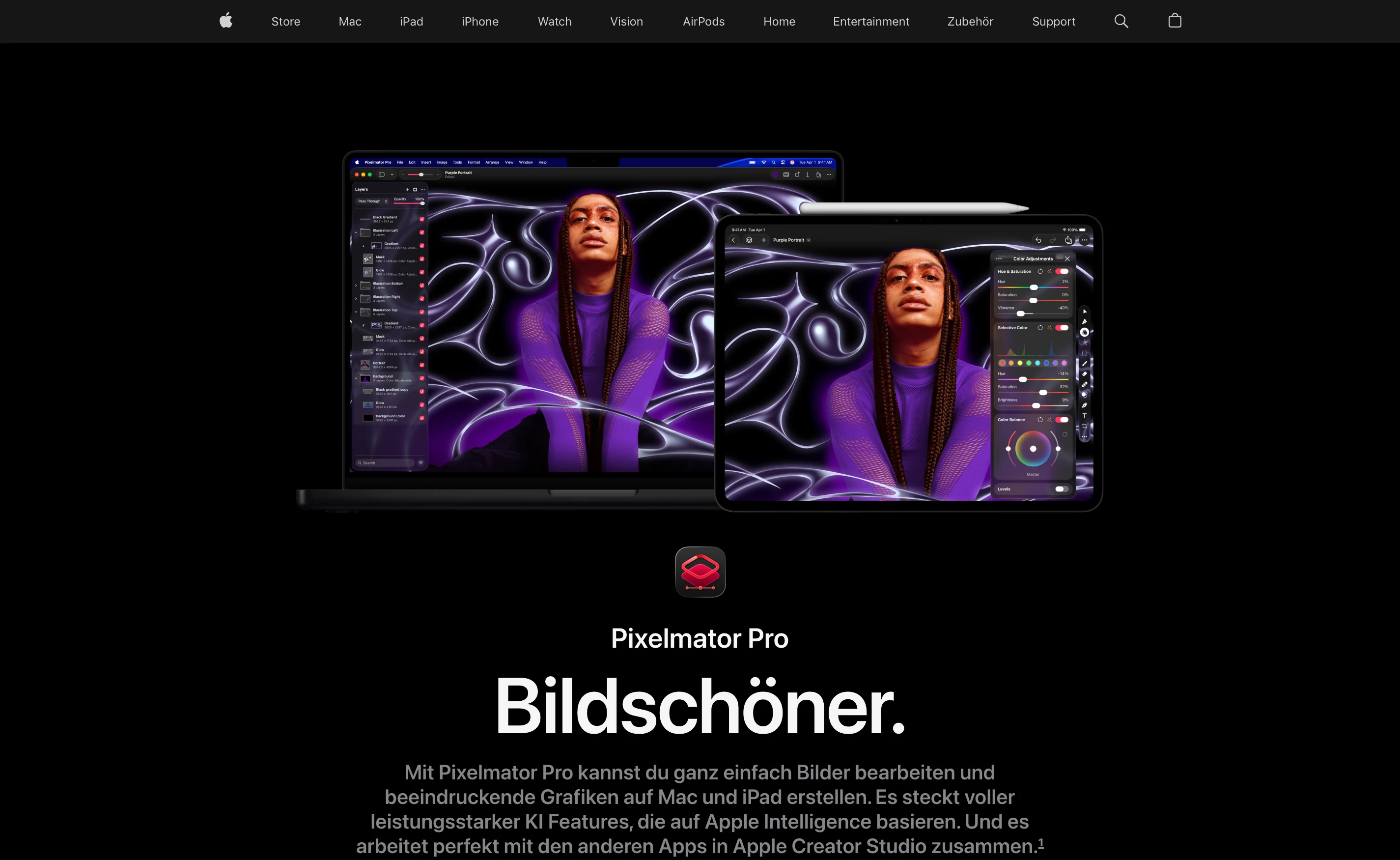
Price: €59.99 one-time (Mac) or included in the Apple Creator Studio subscription from €12.99 a month (Source: Apple)
Operating systems: macOS, iPad (subscription only)
Pixelmator Pro is an image editing program for the Mac and belongs to Apple. There's a version for the iPad, but it's only available as a subscription.
Pixelmator Pro impresses with almost unbeatable value for money. For €59.99 (one-time, Mac) you get a very comprehensive image editing program that hardly lacks any feature. Alternatively, it's included in the Apple Creator Studio subscription, which costs €12.99 per month or €129 per year and also includes Final Cut Pro and Logic Pro. The warp tool is only available in the subscription version.
The interface looks tidy and clear, and the toolset is huge. Even Apple Intelligence and other AI features from Apple have been integrated (on compatible devices), so you can build lots of automations and work quickly.
Of course, Pixelmator is compatible with most image formats such as RAW or HEIF.
How does it compare directly with Photoshop?
Here Pixelmator can't keep up across the board. For private users who didn't use all the functions in Photoshop, though, this program is more than sufficient.
- Excellent value for money
- Easy to use
- Large range of features
- Very fast workflows
- German translation
- Regular updates
- Doesn't quite match Photoshop
- Crashes now and then
6. ACDSee Photo Studio
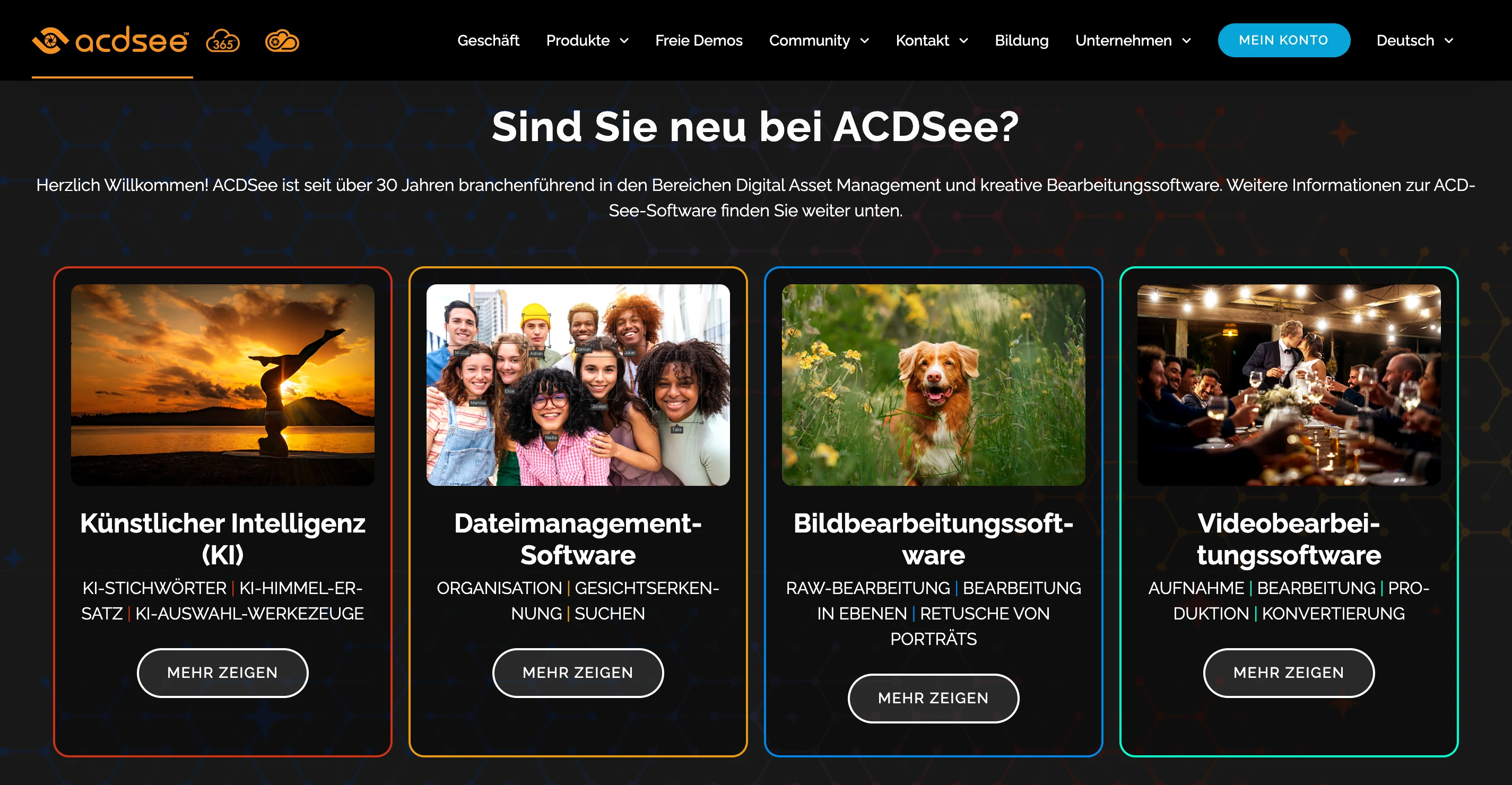
Price: Windows: Home €85.99, Professional €139.99 (version 2027), Mac version €139.99 regular, each one-time incl. VAT (Source: ACDSee)
Operating systems: macOS and Windows
ACDSee Photo Studio comes with all the features you'd expect from a comprehensive image editing program. These include red-eye removal, photo size adjustments and color effect optimization.
Its real strength, however, lies in organizing large image databases.
With ACDSee you can sort and group thousands of images extremely well and give them custom metadata.
So the program is the right alternative if your focus is on organization and you only want to optimize your images lightly. The editing tools in particular don't match the scope of Photoshop.
- Perfect for organizing photos
- Add custom metadata to images
- Simple optimization tools
- Affordable price
- Expandable with additional programs
- Mac version much more expensive
- Generative AI tools require additional AI credits
- Tools significantly reduced compared to Photoshop
7. Polarr
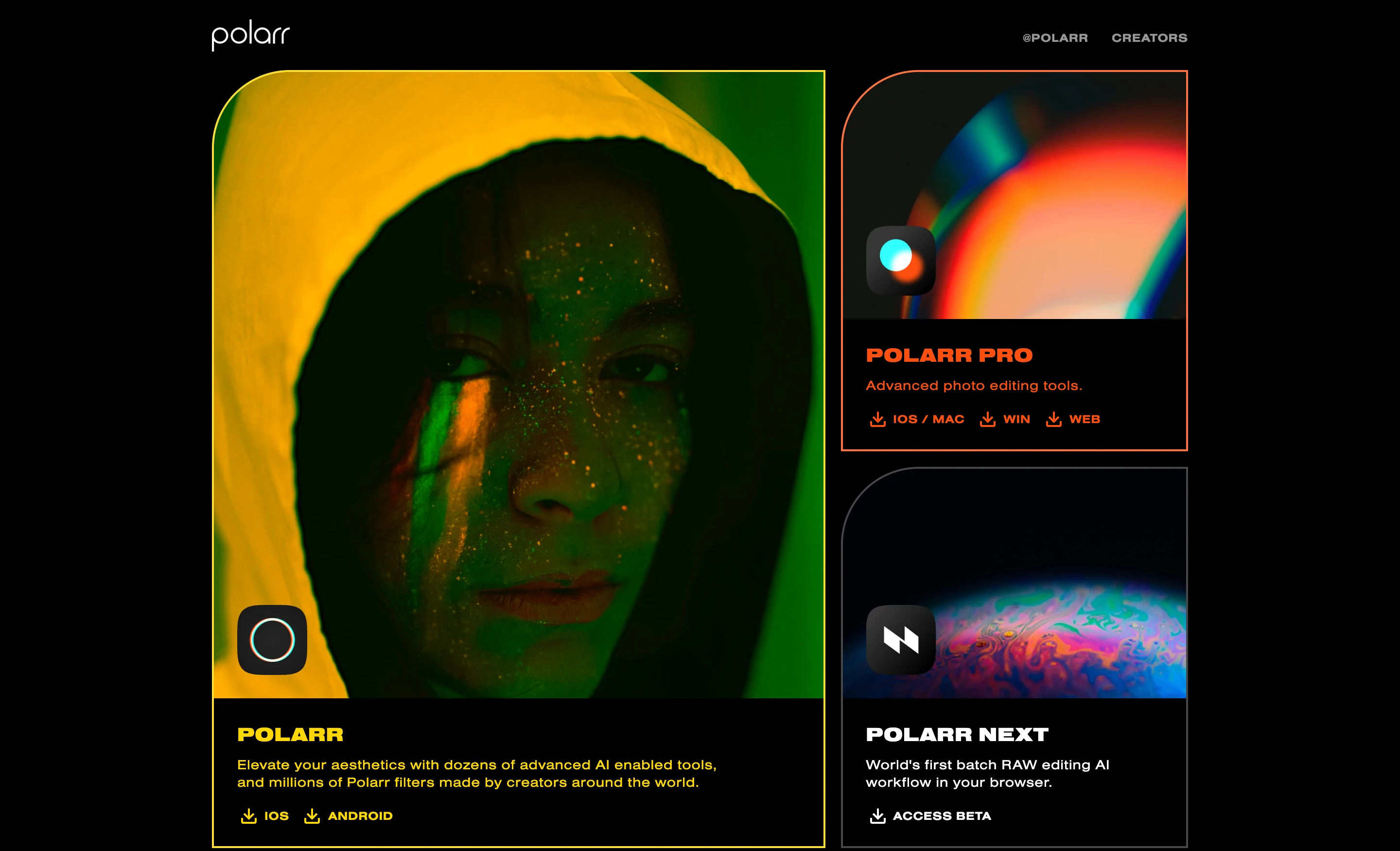
Price: free, Pro version paid
Operating systems: All (browser-based), app for macOS and Windows
Polarr is a simple, rudimentary image editing program that you can use for free in the browser.
Right in the browser application you can add color effects or text boxes, crop images or add elements to landscape photos.
In terms of functionality, Polarr certainly doesn't come close to Photoshop, but it's a really great alternative if you only want to make small changes to your images and don't want to learn a complex program.
For some years now the program has also been available as a Mac app that can be downloaded from the App Store.
By the way: Polarr can handle most file formats such as PNG, BMP, JPG or RAW.
- Free
- Browser-based
- Easy to use
- App available
- Very limited range of features
8. Darktable
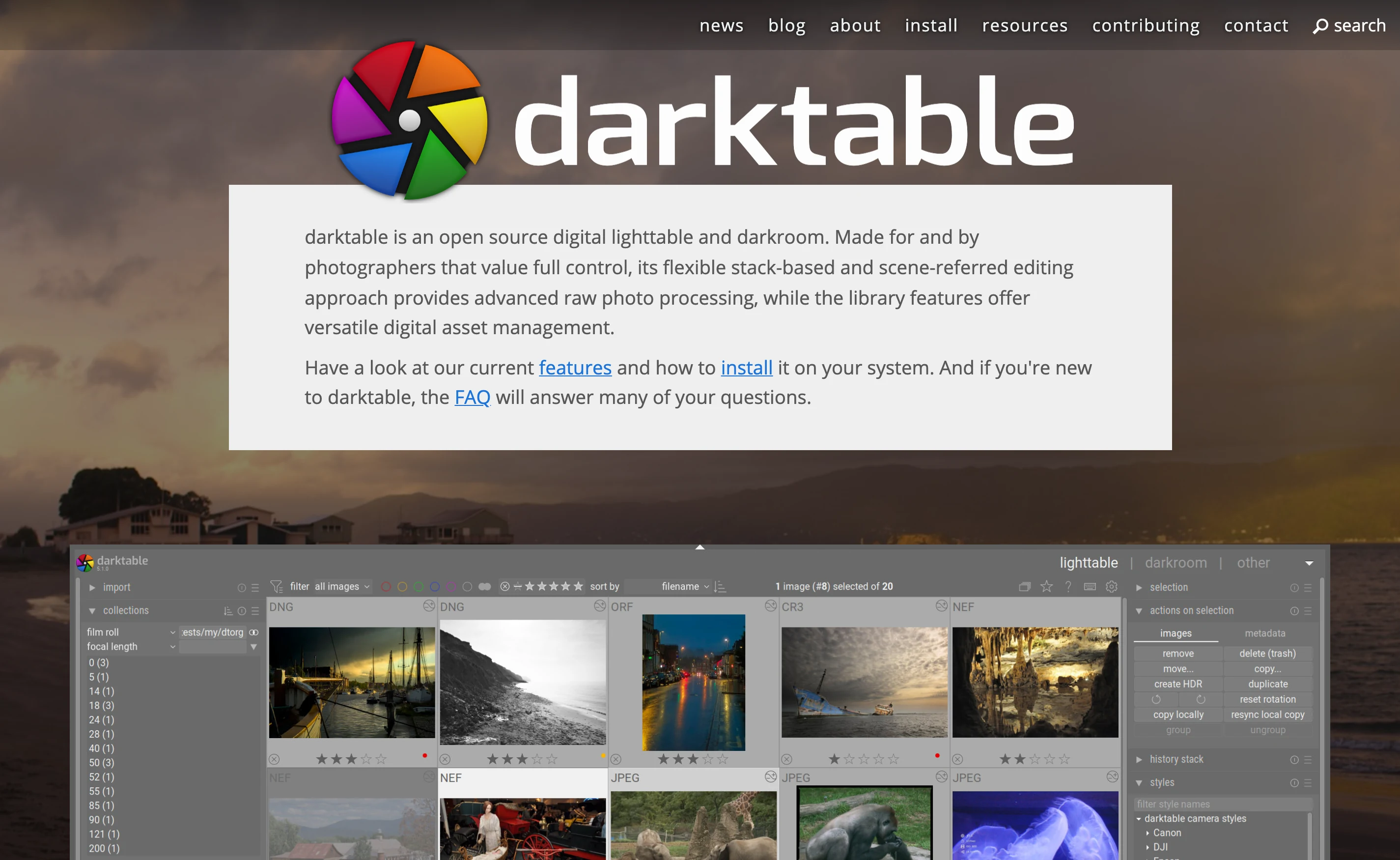
Price: free
Operating systems: Linux, macOS, Windows
Like GIMP, darktable is a free open-source program.
Especially if you often work with files in RAW format, darktable is a very useful program that can compete with Photoshop in some areas. Its tools are nowhere near as extensive, but the program's strengths lie in organizing large amounts of data.
Through the so-called “darkroom” you can easily and quickly carry out tasks such as white balance, contrast enhancement or vignetting.
- Free
- Open source and continuously developed
- RAW conversion possible
- Perfect for organizing large databases
- Tools somewhat limited
9. Photopea
Price: free with ads, ad-free premium version paid
Operating systems: All (browser-based)
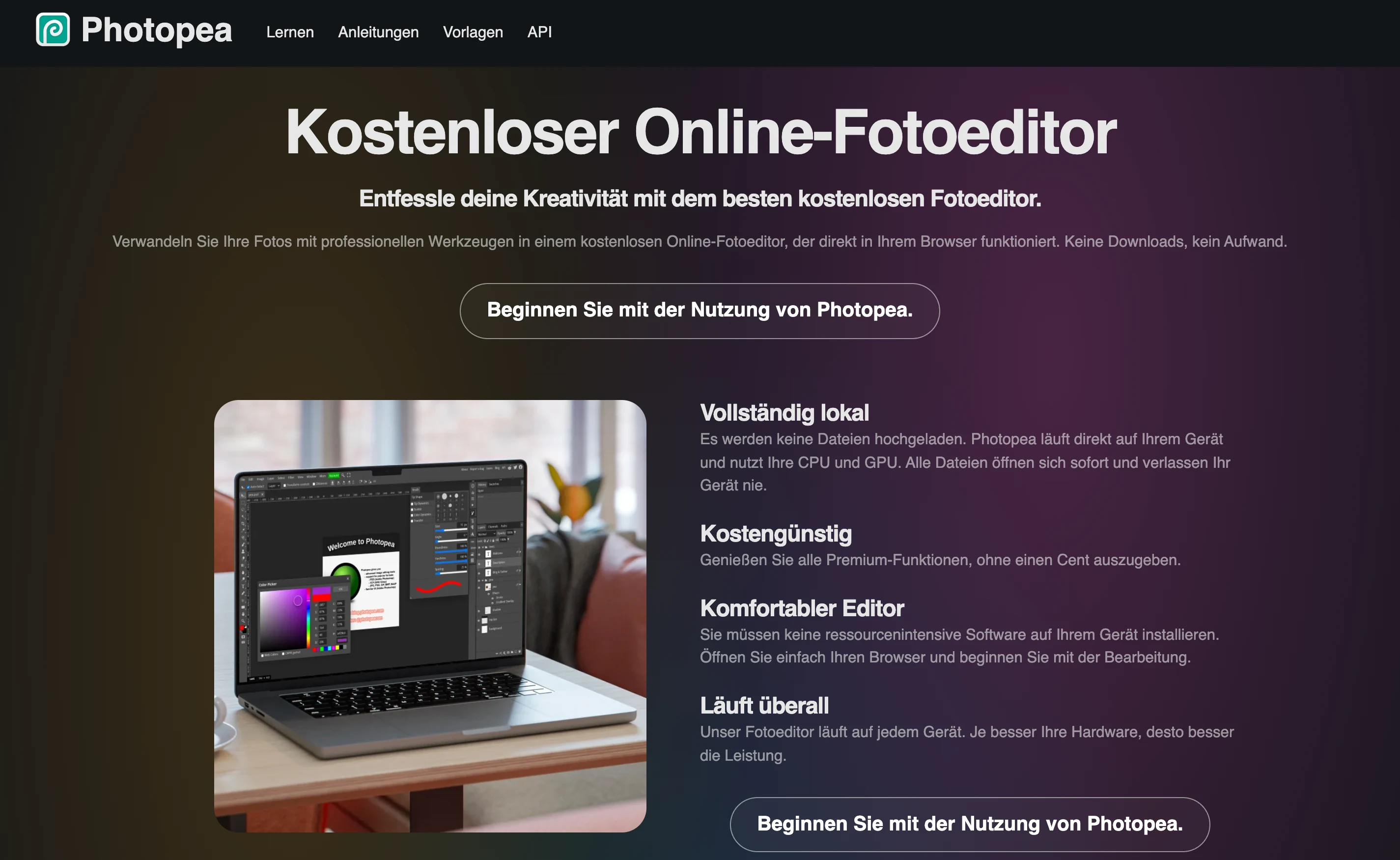
Photopea is another browser-based application that definitely can't be missing from our list. The program gives you numerous tools you also know from Photoshop and can even handle file formats such as PSD, RAW, PDF or CDR.
With Photopea you can not only work on multiple layers, but also get numerous repair and correction tools.
Even removing the background is no problem.
So it's definitely worth a look, especially since for questions and problems you'll find many YouTube videos that explain the basic functions very well.
- Free
- Browser-based
- Very extensive features
- Clean menu
- Working with multiple layers possible
- Compatible with many file formats
- Ads in the free version
Which software suits whom?
In this list of the best Photoshop alternatives, we tried to cover many different needs.
Here is the reality:
There is no single best image editing program.
The software differs considerably in its range of features and focus, so you should first analyze your needs to find the right program for you.
Roughly, the following categorization can be made:
- Online business: Canva
- All-rounders: GIMP, Affinity, Photopea, Luminar Neo
- Best for organizing photos: Darktable, ACDSee
- Best for beginners: Pixelmator, Polarr
- Illustrator: Affinity
Is there a free version of Photoshop?
There is no current, free version of Photoshop. You can only try the program for free for 7 days. After that, the monthly fee of the Adobe membership becomes due unless you cancel beforehand.
And an older version?
You shouldn't saddle yourself with an ancient version like Photoshop CS2 from 2005. It doesn't run cleanly on current systems and gets no security updates.