
Wix claims its website builder is “the easiest way to create a website.”
Even so, Wix's countless editing and customization options can feel overwhelming for new users:
- Do I go with Wix ADI or the Editor?
- How does the domain work?
- Which plan do I choose?
But don't worry:
In this guide, I'll take you by the hand and show you step by step how to build a website with Wix.
I won't show you every feature in detail, but by the end of this guide you'll know your way around well enough to design a simple, professional-looking Wix website.
- Wix offers an all-in-one package with hosting, domain and page builder, and a free registration is all you need to get started.
- Choose between Wix ADI (automatic, AI-assisted creation) and the classic Wix Editor (full design control via drag and drop).
- Premium plans from €16.66 per month remove ads and allow custom domains, which is indispensable for professional projects.
1. What do you need to build a Wix website?
All you need to build a website with Wix is an idea and a free account at Wix.com.
That's it!
Wix gives you the famous all-in-one package that contains all the essential building blocks of a website. That's web space / hosting, a domain of your own if you want one or a free subdomain, and the software you need (such as the page builder) to publish your own content and ideas on the site once you've registered.
Registration itself is free for you as a new customer and takes only a few minutes.
The best part: Wix is even free on the starter plan.
This free Wix account isn't suitable for serious projects, but it's definitely enough to get a first overview and take a closer look at the website builder.
2. Guide to building your own website
Let's now take a detailed look at the individual steps you need to bring your own Wix website to life.
One thing I can already tell you: Wix is really very beginner-friendly and is guaranteed not to raise any big questions.
But see for yourself...
2.1 Signing up at Wix.com
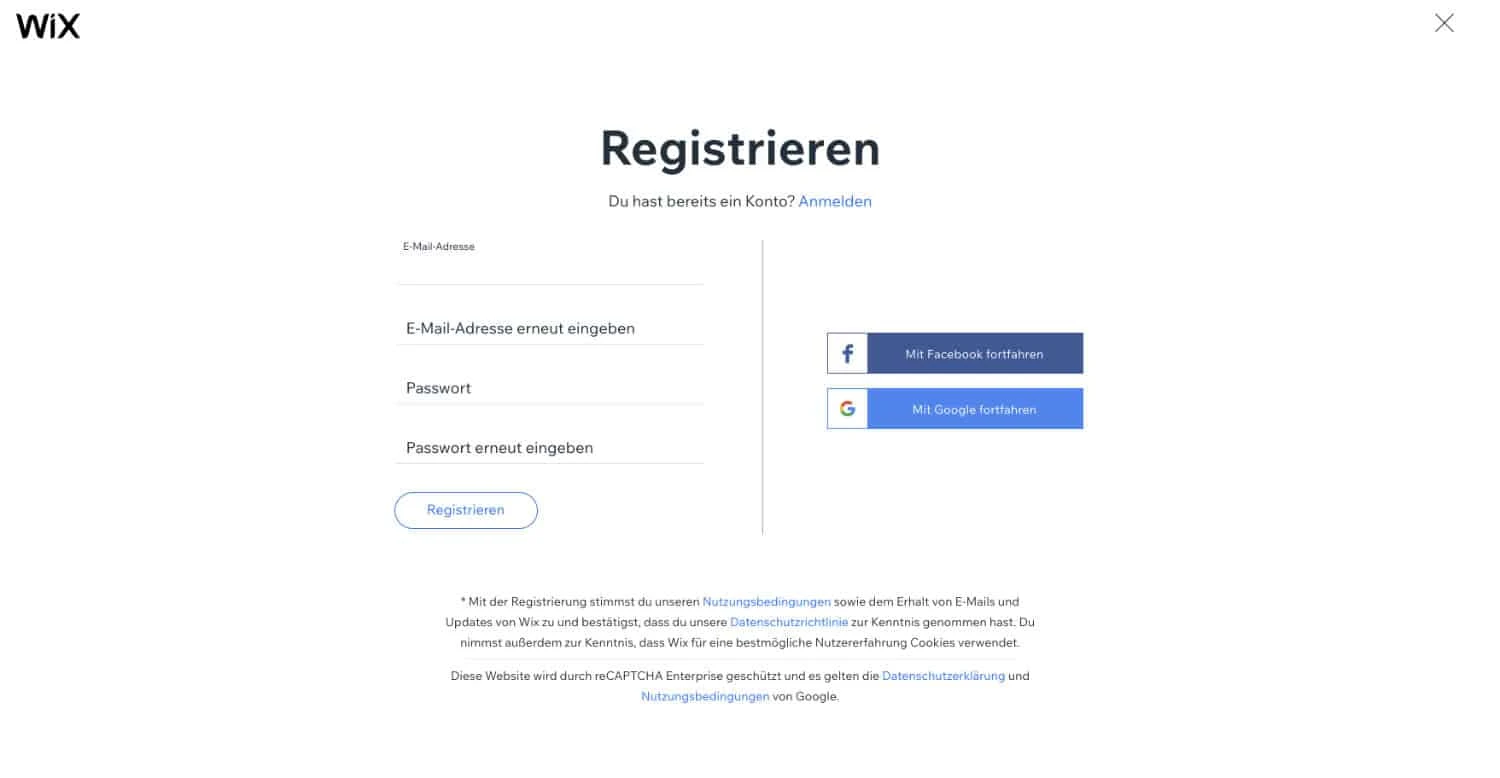
You register with Wix using an email address. You also have to set a password at this point so you can log in to the backend later.
Alternatively, you could use an existing Facebook or Google account.
2.2 First steps
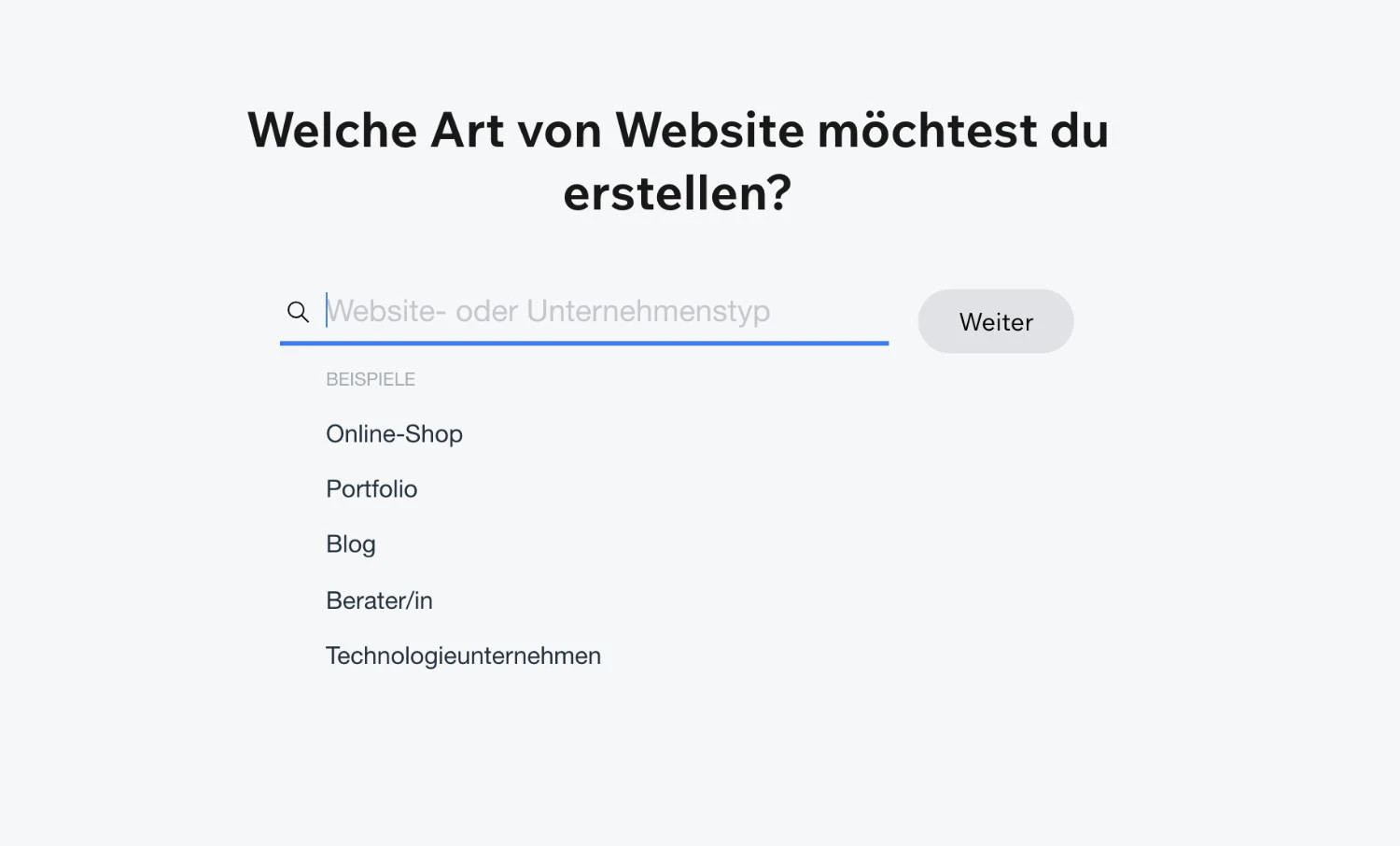
We already mentioned that Wix is built to be very beginner-friendly.
That becomes clear right after registration: An excellent assistant guides you through the initial setup and asks you important questions so it can then automatically build the basic framework of your site to your specifications.
In the first step, you define what kind of website you want to build.
2.3 Choosing the features of your Wix site
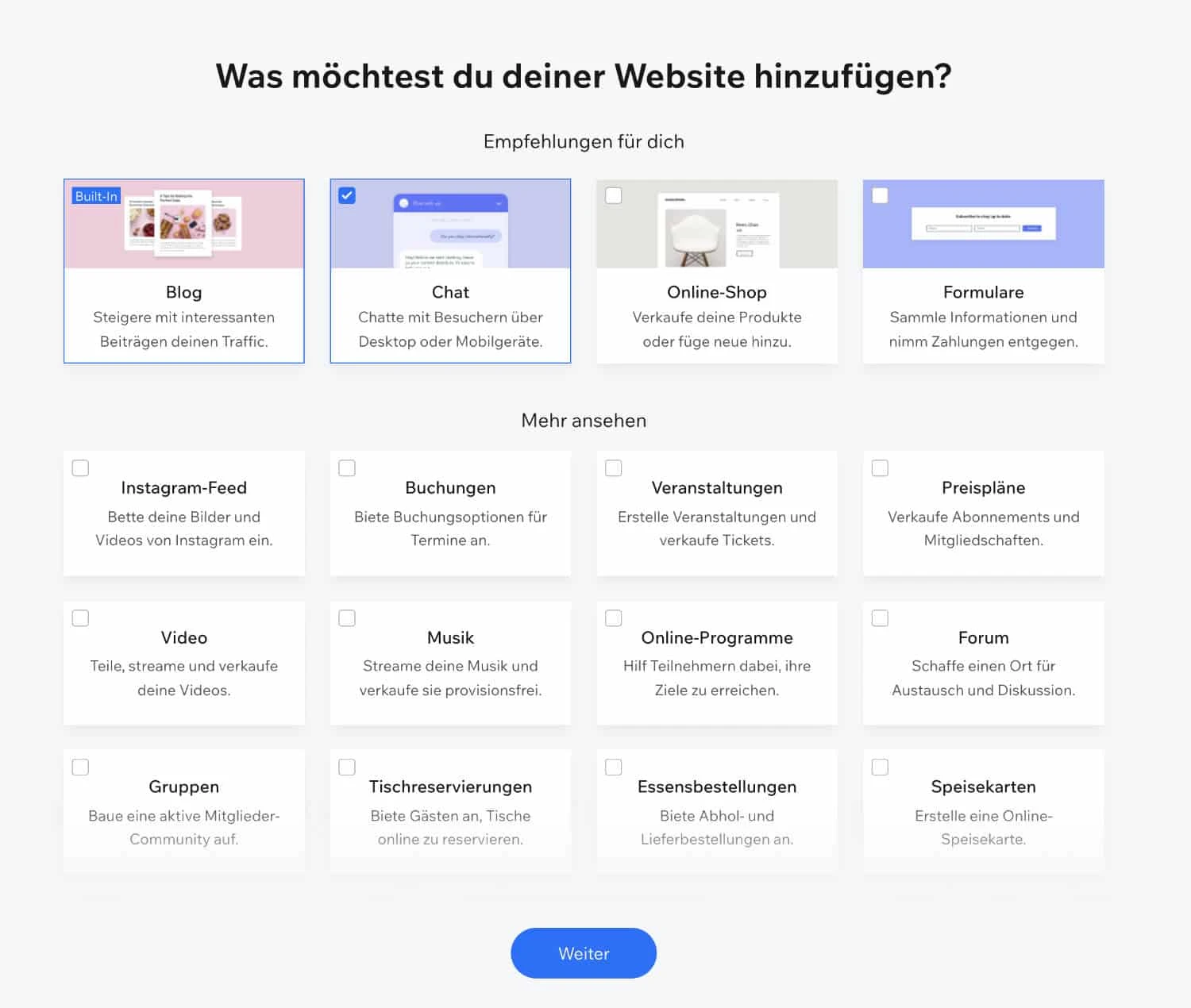
As part of the initial setup, Wix already automatically adds important features to your website.
That means you should have the basic structure of your site in mind at this point so you can define all features as precisely as possible. That doesn't mean you can't change the decisions you make here later.
If you haven't thought about this yet or are stumped at this point, you can skip this step at any time.
2.4 Individual experience
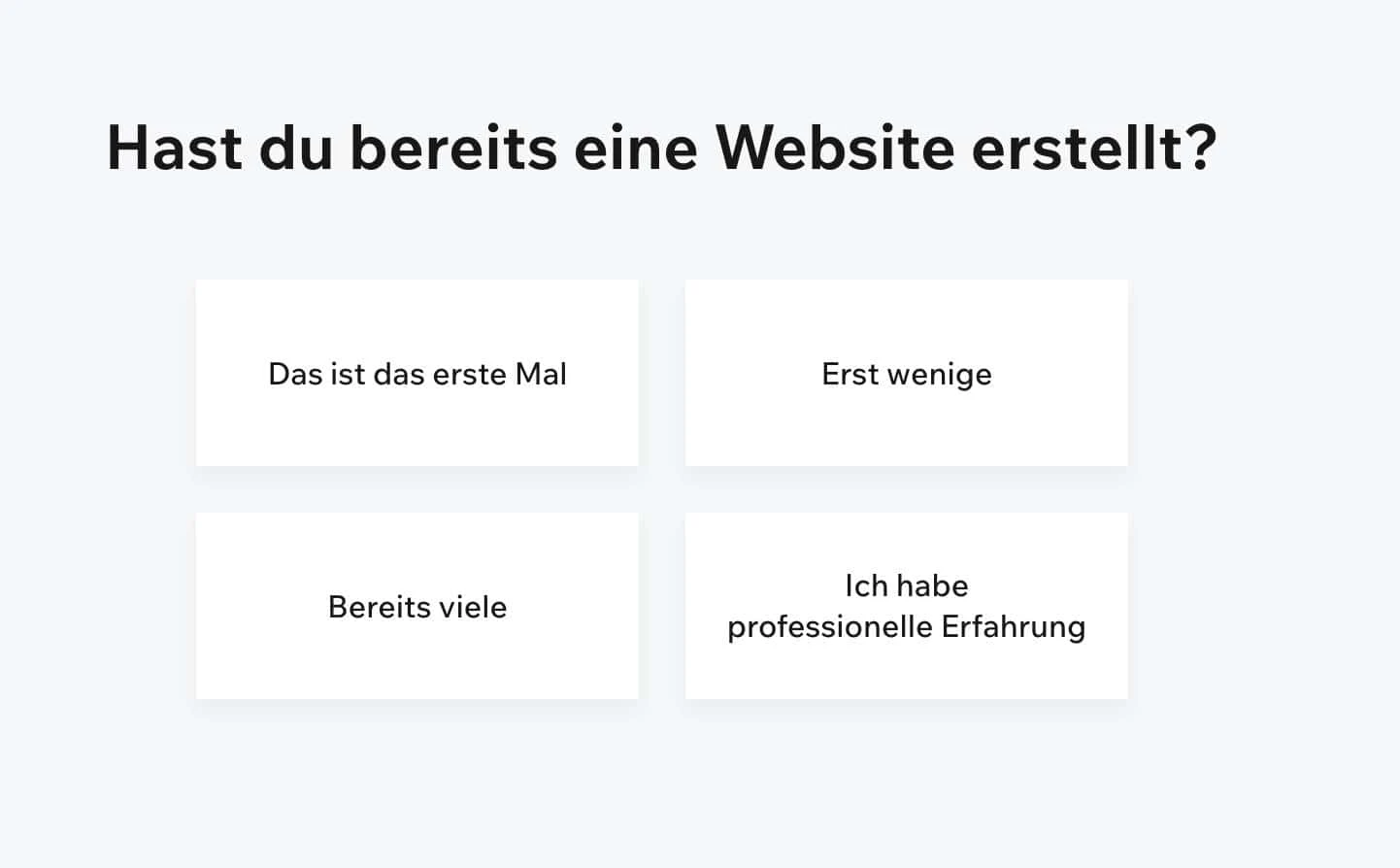
In the fourth step, you're asked about your individual experience.
That is: How many websites have you already built and how familiar are you with web design?
This question forms an important basis for the next step in the sign-up process, which we'll look at more closely now...
2.5 Choosing between Wix ADI and Wix Editor
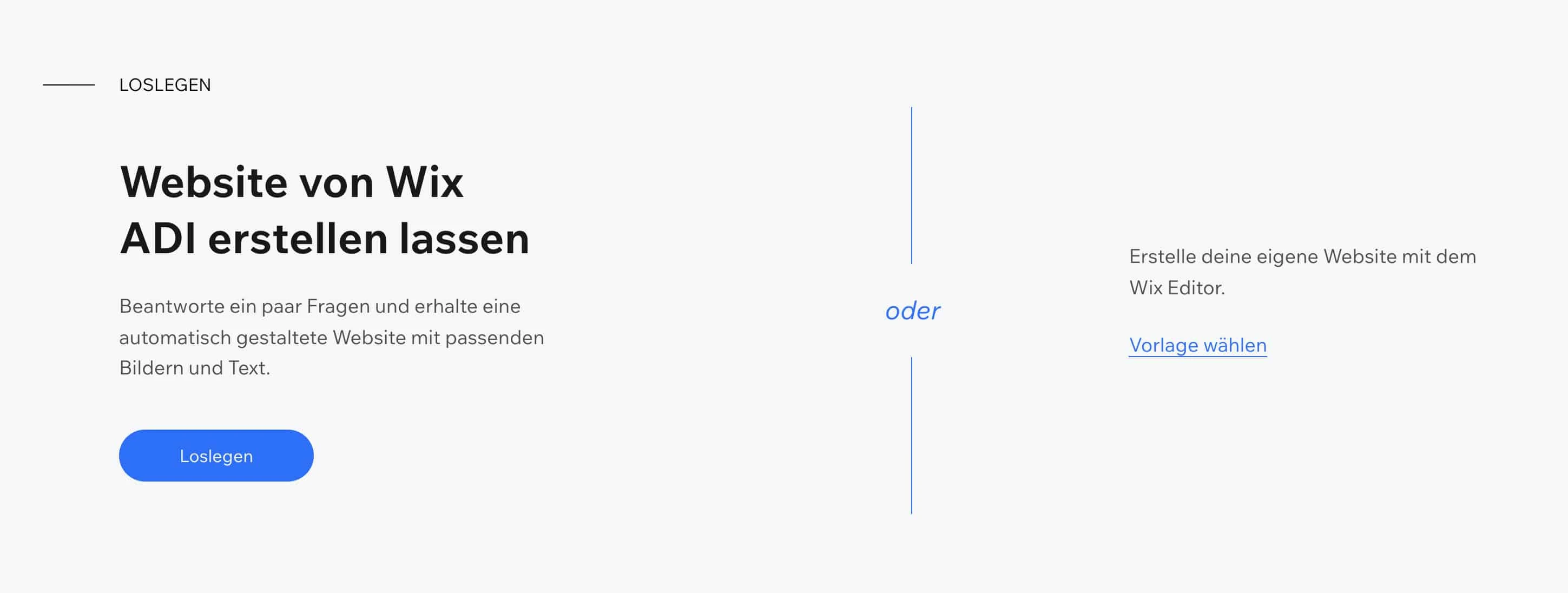
The choice between “Wix ADI” and “Wix Editor” is a central element of the sign-up process and shouldn't be answered lightly or in a rush.
So that you can make the right choice for your project, we'd like to explain the difference between the two and look more closely at the pros and cons.
Wix ADI
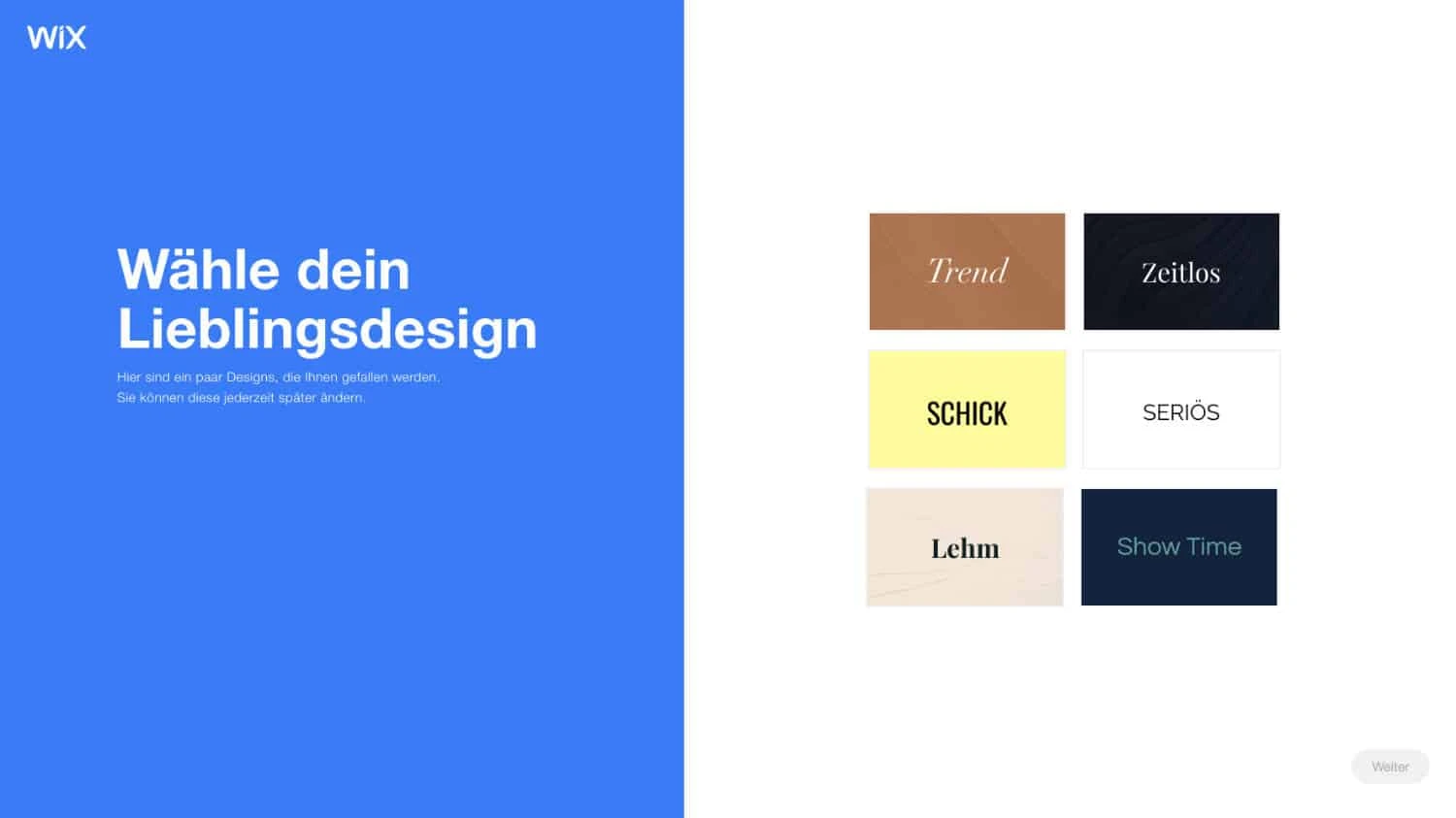
Wix ADI stands for “Artificial Design Intelligence”.
So this is an artificial intelligence meant to help you design a website to your wishes and ideas.
That means:
ADI first asks you a few questions, such as the niche of your website and your design preferences. Your answers are then matched against the web design rules already built into the tool.
In a further step, an algorithm creates a ready-made website that you only need to add your own texts and images to.
So Wix ADI is the right tool for you if you want results as fast as possible and really don't want to invest any time at all in building a website.
Wix Editor
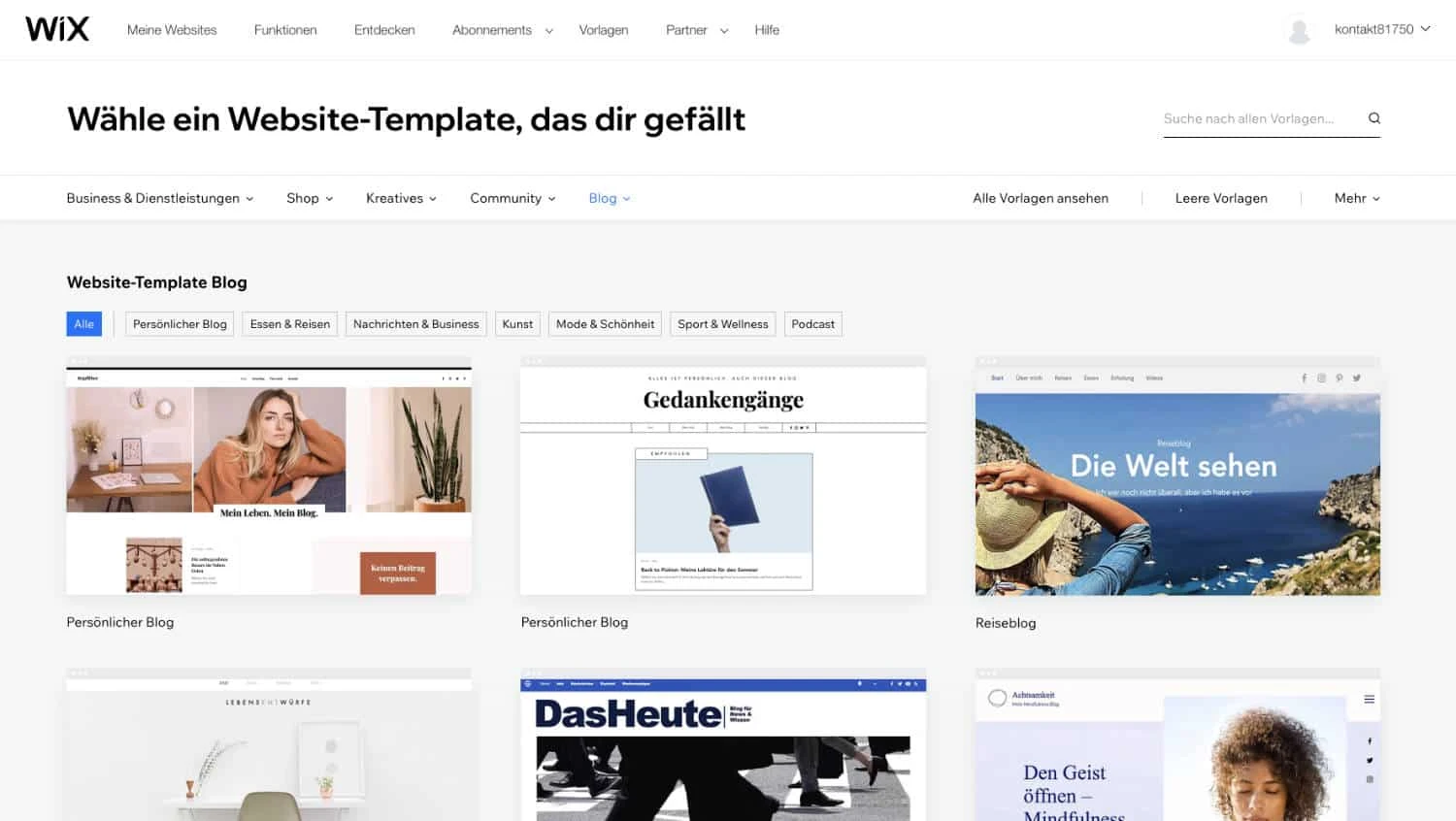
The Wix Editor is the builder's classic website tool.
With a very innovative page builder, you can create very professional pages even without any programming skills.
You decide yourself whether to start with a blank sheet or pick from a well-stocked template database.
Wix ADI or Wix Editor?
Which is better: Wix ADI or Wix Editor?
Both features have their pros and cons and are even very similar in many areas.
Wix ADI takes important preliminary thinking off your hands, but also restricts features a bit here and there. You get a ready-made website, but you can only adjust the design minimally.
The Wix Editor demands more initiative from you, but rewards that with much more flexibility. You also need to be aware that it takes more time to design your own website.
Our advice: The time factor gives the best basis for a decision:
- No time: Wix ADI
- More time: Wix Editor
By the way, our choice would always be the Wix Editor!
2.6 Editing and customizing your website
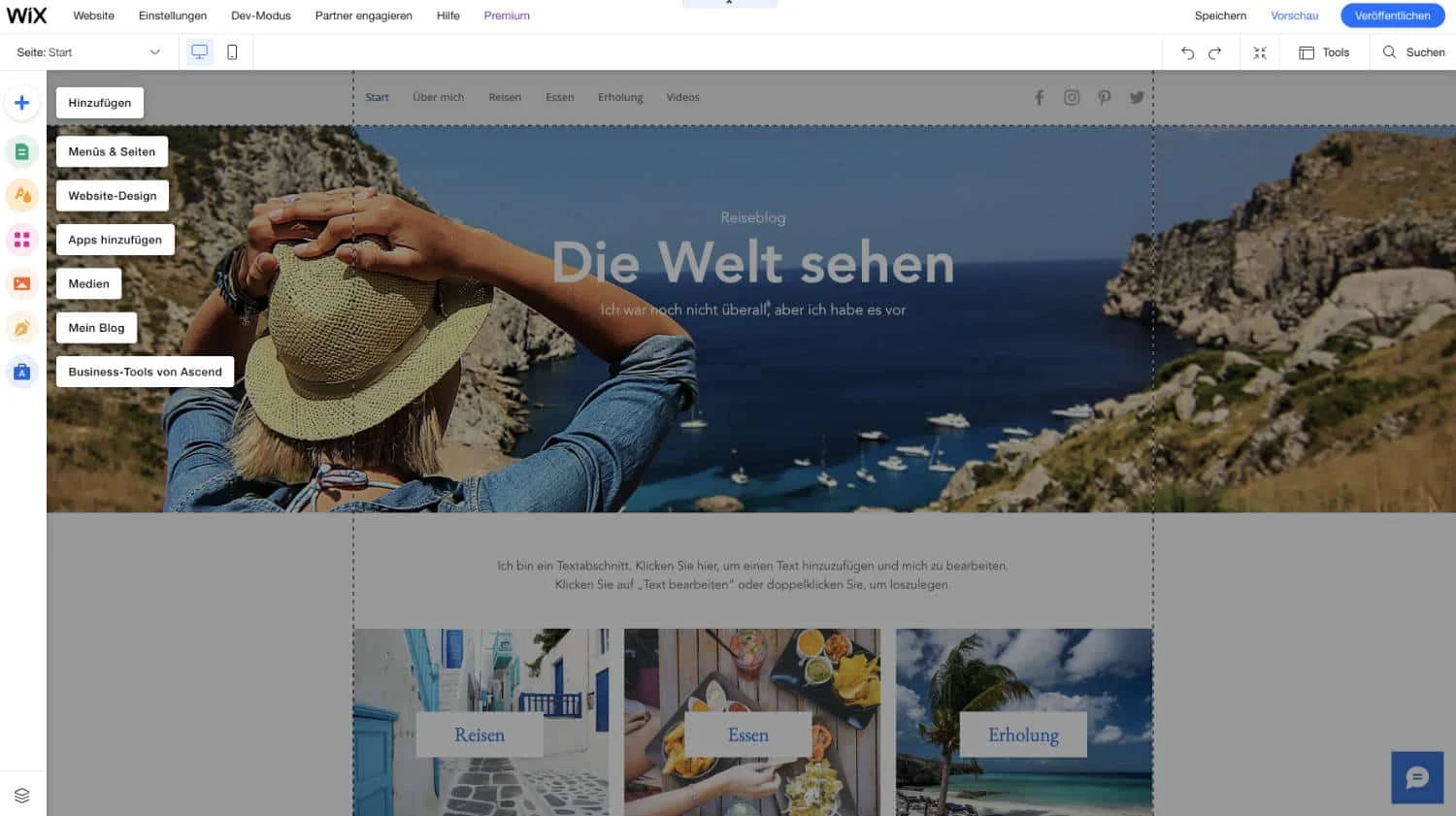
Right after you finish the initial setup, your homepage loads straight into the Wix drag-and-drop editor and you can make your first adjustments.
With one click on “Publish” you could even share it with the world.
By the way, our example shows a template we picked, which we can now customize to our liking using the WYSIWYG editor (what you see is what you get).
2.7 Naming your domain
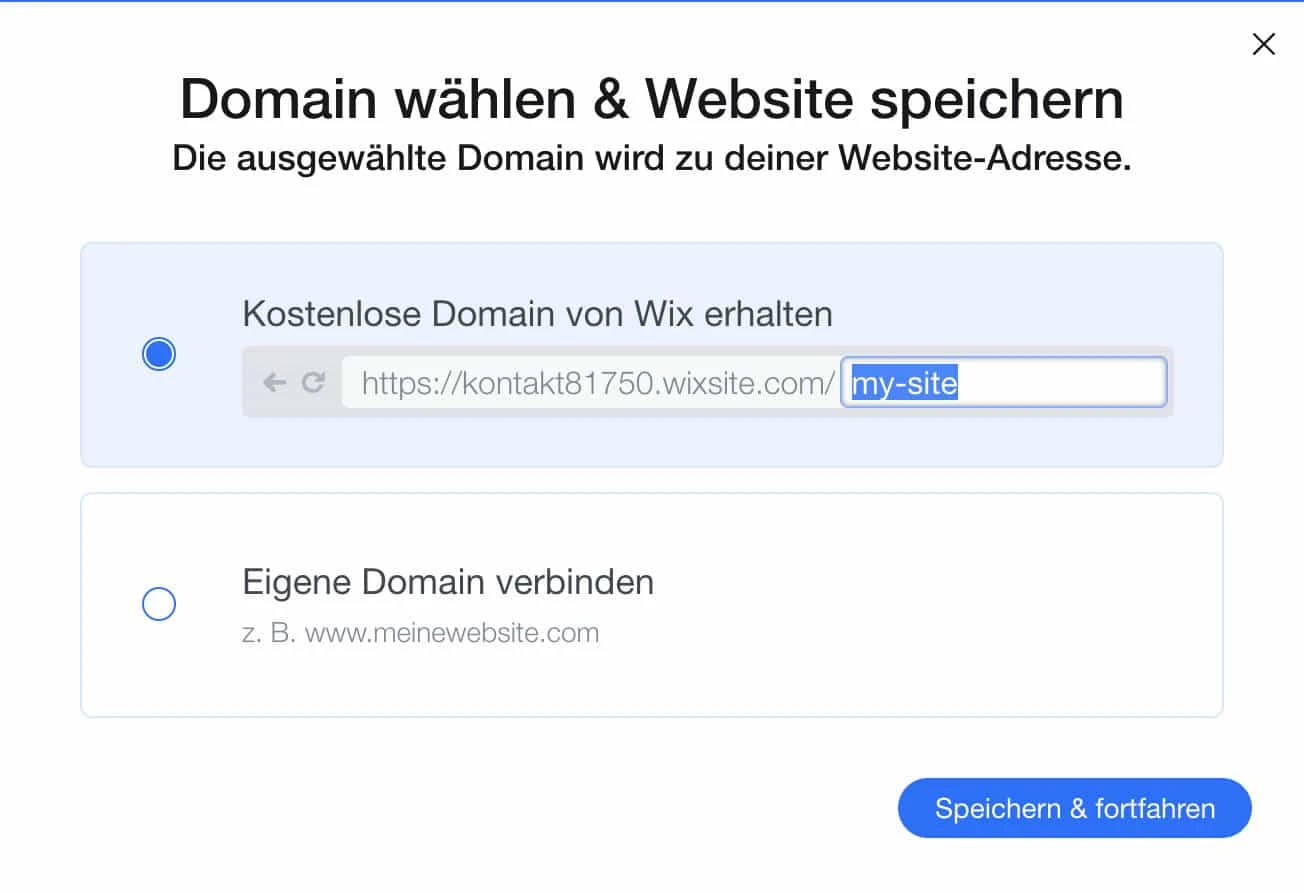
Once you've made all the changes you need (alternatively, you can do this step later), you should first save your website.
Here Wix asks you under which domain your site should be reachable.
Connect a domain of your own or use a custom Wix subdomain.
2.8 Completing the setup
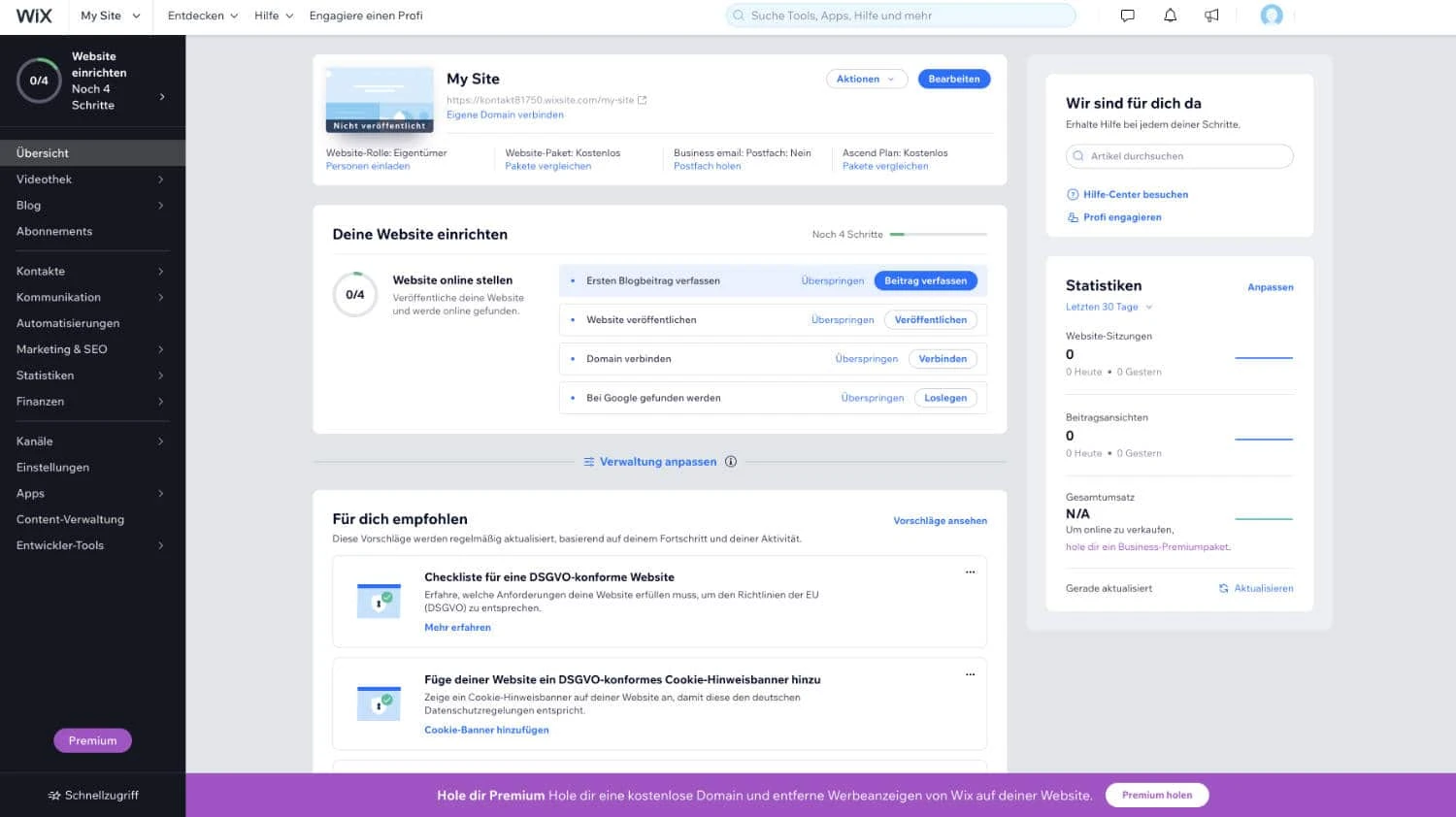
After you've taken your first steps with the Wix page builder, you can then complete the initial setup in the backend.
Here, too, Wix guides you step by step through all the required processes.
Heads up: While many of the individual steps surely aren't top priority, you absolutely must meet all legal requirements before publishing. That means creating and publishing an Impressum (the legal notice German websites must carry) and a privacy policy!
3. Wix pricing and plans
Wix offers you a wide range of pricing models. There are four premium plans in total: Light, Core, Business and Business Elite.
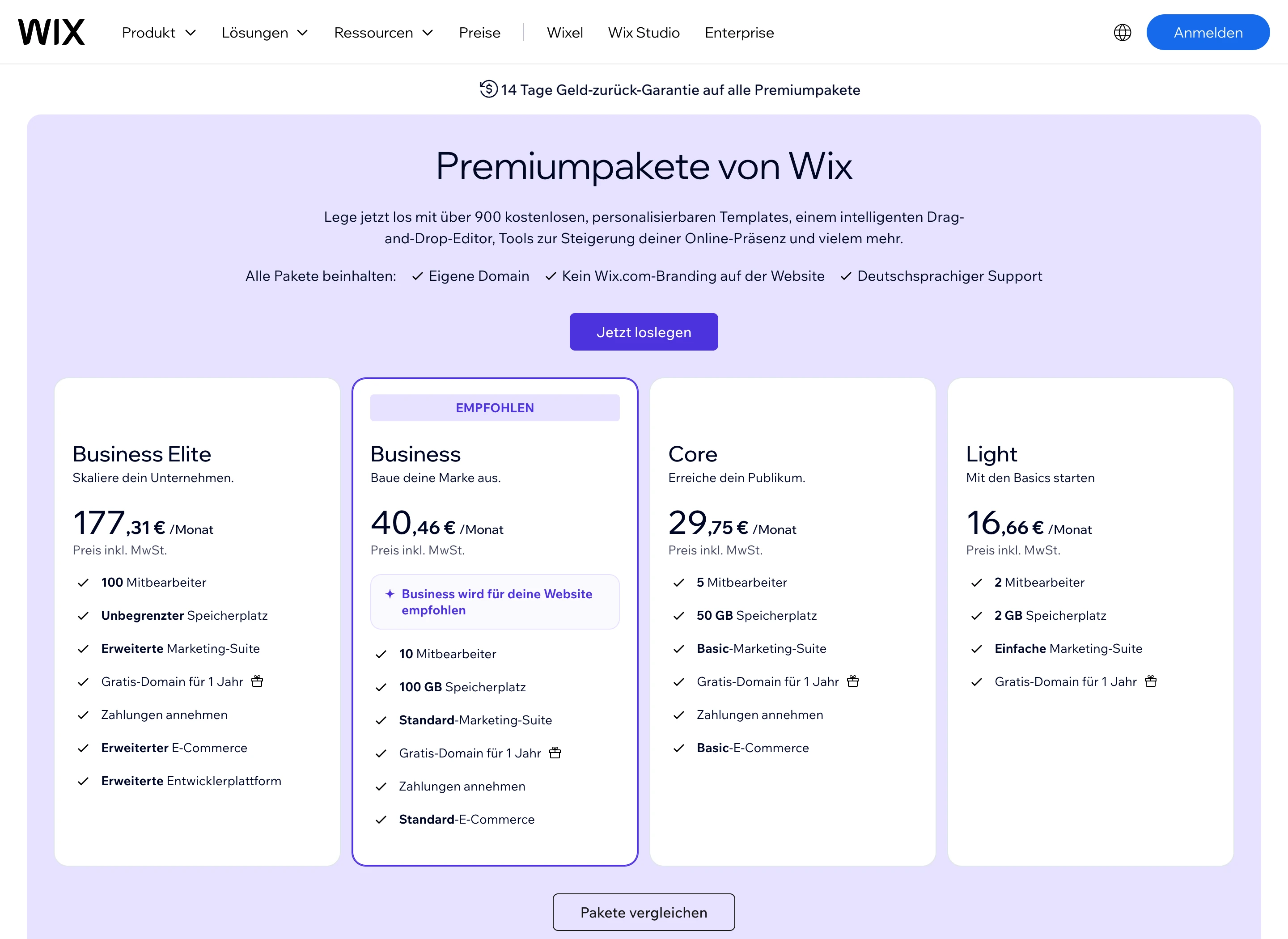
The prices apply when you pay one year in advance and include VAT. There are no separate e-commerce plans. The shop features are part of the regular plans from Core upward and are expanded in Business and Business Elite. The Light plan includes no shop and no payment feature.
The plans mainly differ in storage (2 GB for Light, 50 GB for Core, 100 GB for Business, unlimited for Business Elite), the number of collaborators, and the scope of the marketing and e-commerce features. A domain of your own is included in all plans, free for the first year.
The premium plans are rounded out by extended features such as the Site Booster app or an Analytics app, plus improved customer service, none of which you definitely need for your first steps, though.
Wix lets you choose between a monthly, yearly or two-year membership. There's also a free trial period within the legally required 14-day money-back guarantee.
All in all, the Wix plans are very well tiered, so you're sure to find one that suits you.
We'd only recommend the Light plan for very small projects, since it offers just 2 GB of storage and includes neither a shop nor payments.
4. Alternatives to Wix
When you're looking for Wix alternatives, two options come into question:
4.1 Other website builders
In our website builder test, Wix took a good third place and is a really great solution, especially for bloggers.
Even so, Wix had to give ground in a few areas, such as storage and email marketing.
Depending on the kind of website you want to build, it can therefore make sense to turn to another website builder.
The webgo homepage builder, which came out best in our comparison, is highly recommended.
4.2 WordPress
WordPress is the most widely used CMS in the world.
There are three reasons for that:
- WordPress is free
- WordPress is very beginner-friendly
- WordPress can be extended as much as you like
While website builders will always be limited in their range of features, WordPress gives you the freedom to adapt your site to exactly your needs.
On the other hand, the system is of course more complex than a builder. So you have to weigh where your priorities lie.
For bloggers in particular, we see no real alternative to WordPress.
With WordPress, too, you can start easily and quickly and get your website online within 1 to 2 hours. Check out our guide: Create a WordPress website: Here's how in 6 simple steps
5. FAQ
Here you'll find answers to common questions about building a Wix website:
How can I delete my website on Wix?
You delete a Wix website by clicking the corresponding trash can icon in the site overview in the backend.
If you also want to delete the associated external domain, you do that via the “Domain” tab and the “Show more” button next to the relevant entry. There you can permanently remove a domain from Wix.
If you also want to close your Wix account, you can do that via this link.
Do I need Wix Premium?
To take your first steps with Wix and find out whether Wix is the right website builder for your needs, you don't need Wix Premium.
Once you've decided to build and publish your website with Wix, though, the Premium plan is a must.
Here's why:
- Bandwidth and storage on the free plan are fairly low
- You can't use your own domain.
- Ads are displayed on your website, which doesn't exactly look professional.
Can you upgrade or downgrade plans?
Upgrading a plan is possible at any time.
You can downgrade a Wix plan whenever the term you chose runs out. That can be monthly, yearly or every two years.
Can Wix be canceled monthly?
Wix can only be canceled monthly if you've also signed a monthly contract.
Besides monthly payment, Wix also offers yearly and even two-year payment. Annual contracts are much cheaper, but they also limit your flexibility considerably.
We recommend starting with a monthly contract and only switching to yearly payment once you've made your final decision for Wix.