
A fast loading time is essential for a successful website today.
In that context, caching is a must.
In some cases you need to clear this cache, for example to make changes to your website visible to all new visitors right away.
But one thing at a time:
In this post you'll learn what WordPress caching is, why you should never go without a cache, and how best to clear yours.
- Page caching turns dynamic WordPress content into static files and so drastically reduces database queries, which speeds up your website considerably.
- You should clear the cache after updates (theme, plugin, WordPress core), new content, design changes, or database changes. Most plugins offer a quick-access option for this in the backend.
- Don't forget to clear the browser cache (Chrome: History > Clear browsing data) so you can see changes yourself. Use preload features (e.g. in WP Rocket) so the cache is refilled right after clearing.
1. How does (page) caching work in WordPress?
WordPress by itself generates dynamic websites. That means every element on your page (e.g. menus, widgets, posts, etc.) triggers a database query on every page view.
For some websites, whose content changes quickly or which want to show content in real time, dynamic loading may make sense. For most WordPress websites and blogs, though, it's more of a hindrance. Too many database queries make the loading time worse, and the reader gets no benefit from the dynamic loading.
So-called page caching, which you can set up with a plugin like Cache Enabler, WP Rocket, or W3 Super Cache, solves this problem.
With page caching, static files are generated from dynamic content. That drastically reduces the number of database queries needed to display a website (not to be confused with server requests, which the caching plugin doesn't change).
The caching plugin then regenerates these static files after a set interval (e.g. one day) and/or when the content changes (new post, new comment, etc.).
2. How do I clear the WordPress cache?
If you've made changes to your site, for example updated a blog article or changed the design through the Customizer, you should definitely clear the WordPress cache.
Some caching plugins promise to automatically clear the cache for a particular URL or the entire website after changes, but that isn't always 100% reliable.
Below I'll show you how to do it with the most common performance and caching plugins:
2.1 WP Rocket
WP Rocket is one of the best performance plugins for WordPress.
You clear the cache directly from a quick-access bar in the WordPress backend.
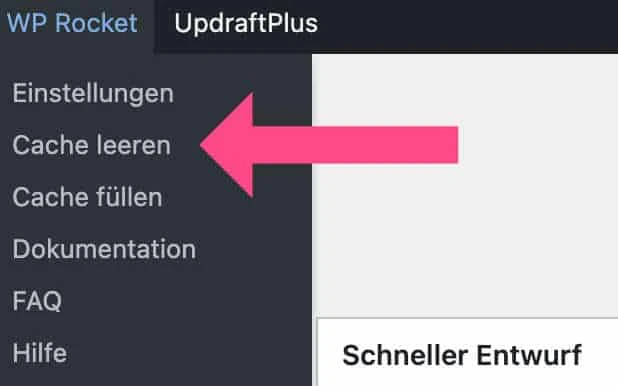
Automatic clearing is possible too. All you have to do is define the maximum age of the cache under WP Rocket > Cache.
2.2 Autoptimize
In Autoptimize, too, you clear the cache through a menu item in the quick-access bar of your WordPress admin area:
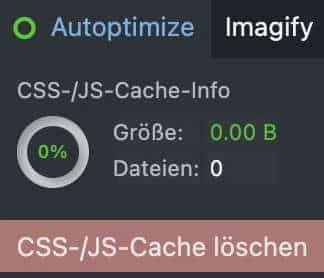
It also shows you the current size of your cache.
2.3 Cache Enabler
The plugin Cache Enabler lets you define various rules that trigger an automatic cache clear.
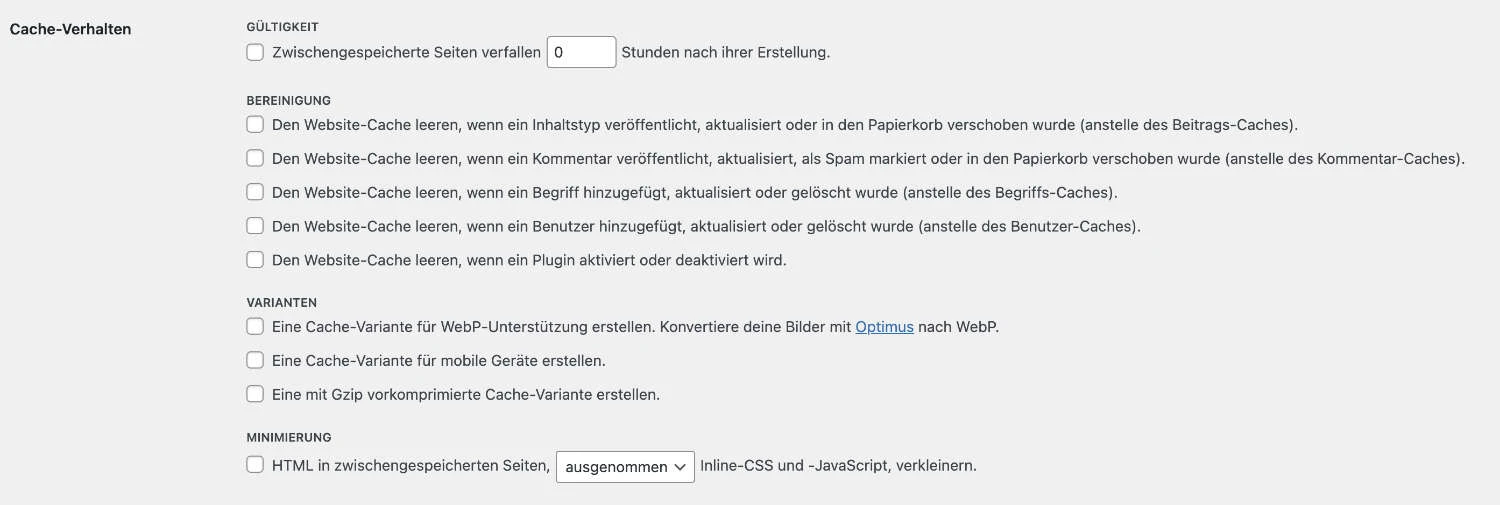
Of course, you can also clear the cache yourself, directly in the plugin's backend.
Heads up: for the plugin to work properly, you have to add define( 'WP_CACHE', true ); to your wp-config.php.
2.4 WP Fastest Cache
WP Fastest Cache gives you extensive options for clearing the cache.
Besides a manual approach that distinguishes between “Delete all caches” and “Delete minified CSS/JS”...

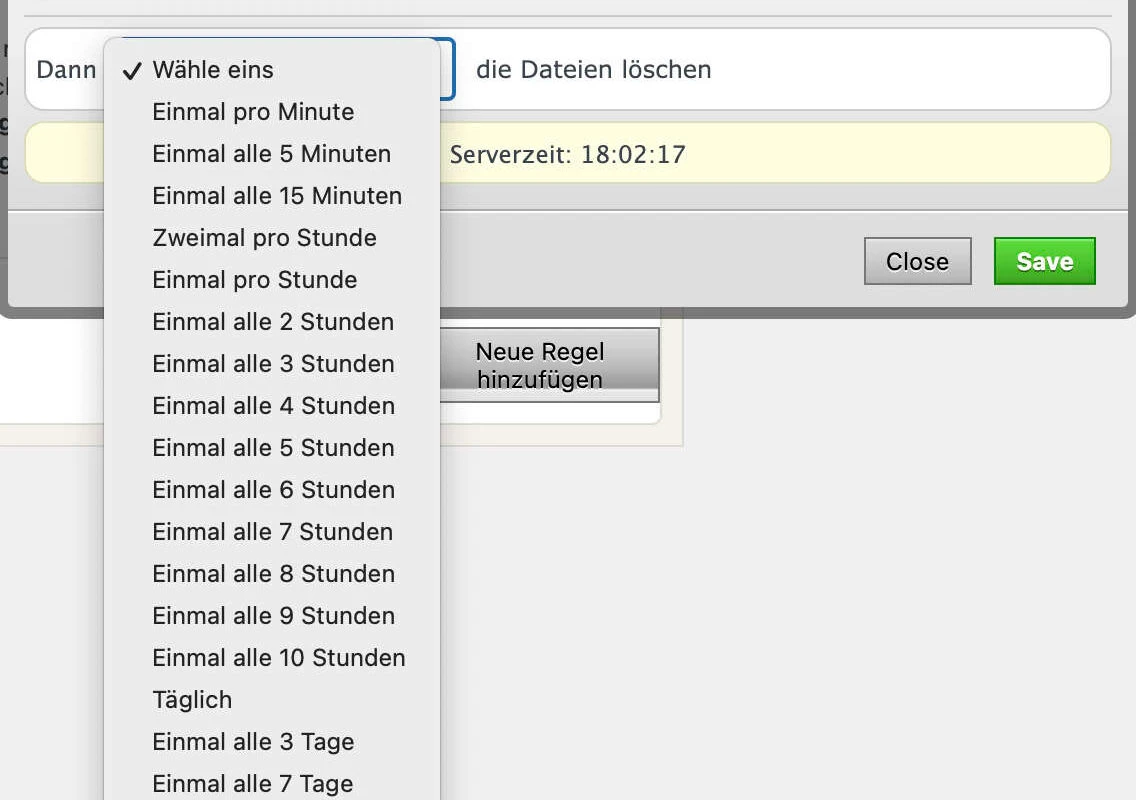
...you also get extensive automation options. Here you can define very individually when which caches should be deleted.
2.5 W3 Total Cache
W3 Total Cache is a comprehensive, free caching plugin with a wealth of features. For example, the tool creates a separate cache for pages, the database, or the browser.
It also includes extra features like lazy load for images.
You clear the cache directly from the WordPress quick-access bar.
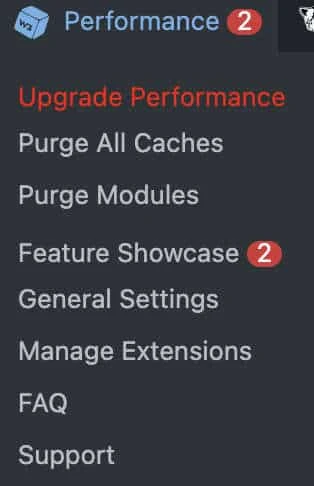
2.6 Hummingbird
Hummingbird is still one of the lesser-known caching solutions, but it's a complete plugin that can improve your site's performance considerably.
You clear the cache in the plugin menu or through the quick-access bar.

2.7 WP Super Cache
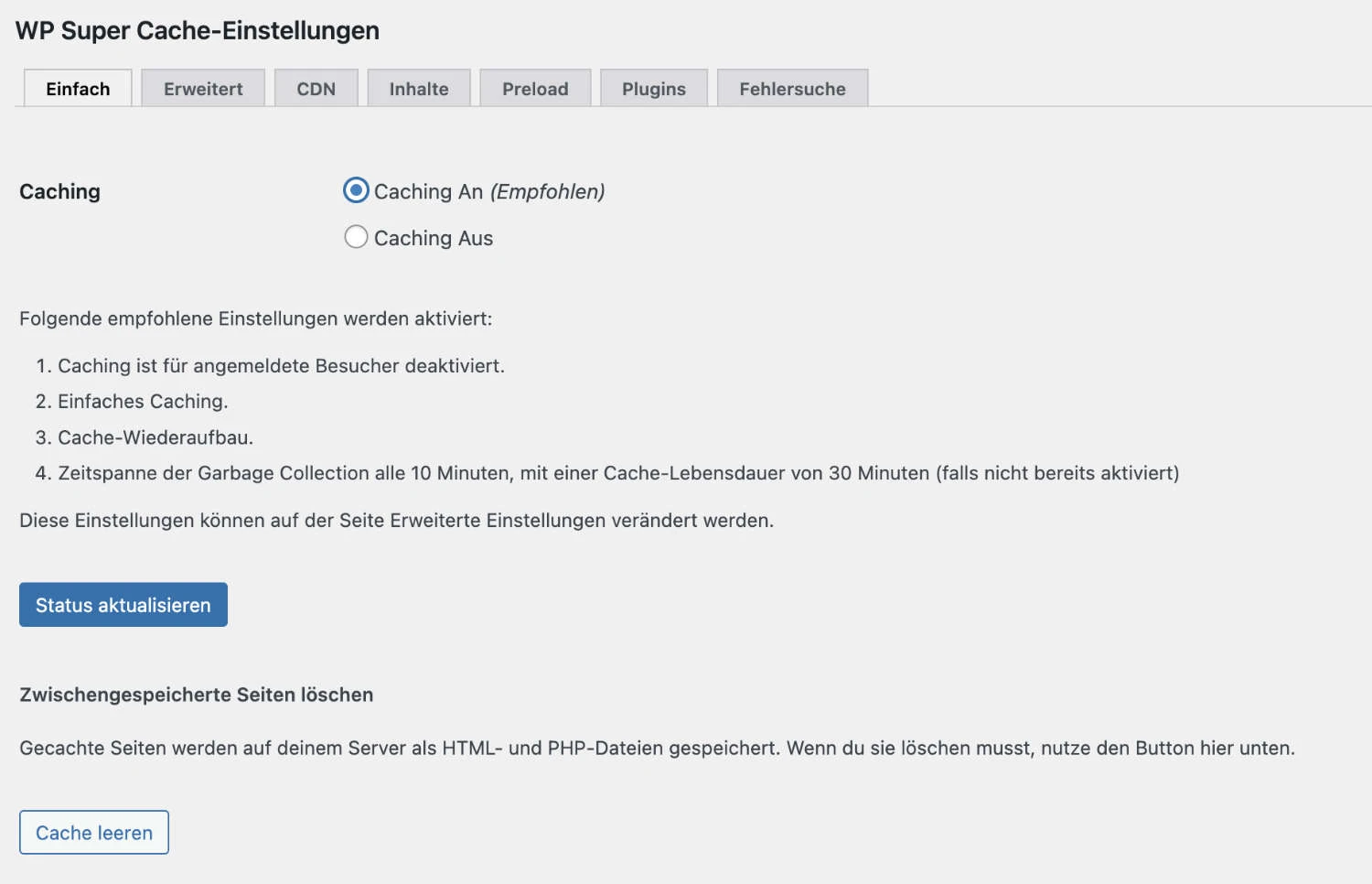
WP Super Cache is one of the most popular caching solutions for WordPress, with over 2 million active installations. No wonder: it has a wide range of features and is simple to use.
You clear the cache in the plugin menu, or alternatively through the menu bar.
2.8 Theme caches
Some themes already have their own cache built in.
One example is Divi.
To enable the cache for Divi, go to Divi > Options > Builder > Advanced > Generate static CSS file.
2.9 Clearing the WordPress cache via FTP
You can also clear the cache manually via FTP.
All you have to do is connect to your web space (for example with a tool like FileZilla).
Then navigate to wp-content > cache and delete all entries in that folder.
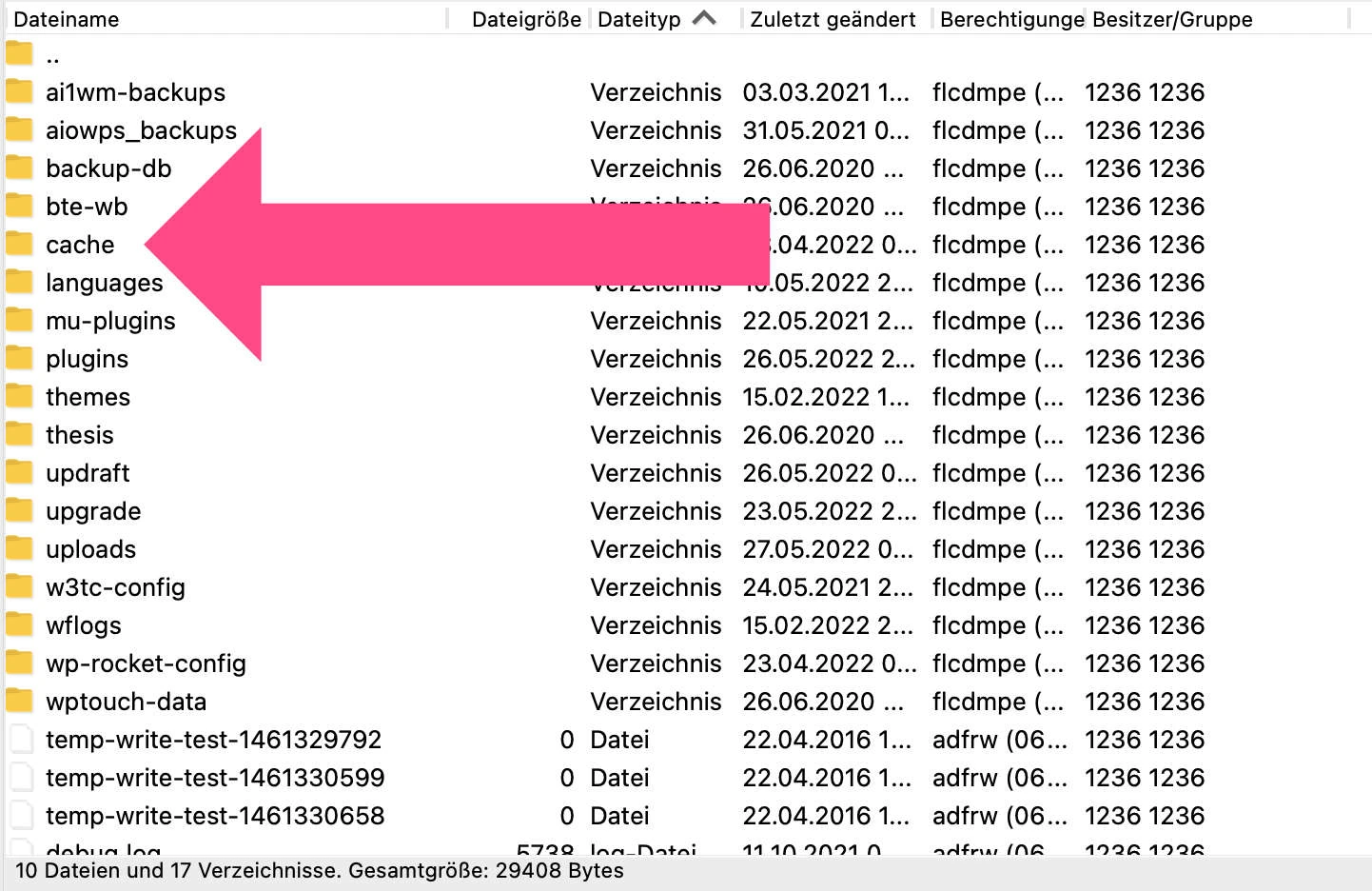
That's it!
2.10 Clearing the WordPress cache via SSH
Besides clearing the cache over an FTP connection, you can also use the SSH network protocol.
The process is the same as deleting via FTP, only the connection type is different.
3. When does it make sense to clear the WordPress cache?
As mentioned, various scenarios can make it necessary to clear the cache. Otherwise visitors are shown an outdated version of your website.
The most common reasons are:
- You ran an update, for example for a theme, a plugin, or even a WordPress core update
- You added new content, for example a blog post or new products in your online store
- You updated existing content, for example expanded a blog post or updated the prices of a product in your store.
- You made various changes to the design
- Changes were made to the database
By the way: good caching plugins like WP Rocket automatically tell you after a relevant change when clearing the cache is recommended.
3.1 Clearing the cache for individual URLs only
It doesn't always make sense to clear the entire cache of a site. If you've only made selective changes that affect individual pages, for example added / expanded / updated a blog post or a product, you should delete the cache for that URL only.
That way the cache for the entire website doesn't have to be regenerated.
4. Don't forget to clear the browser cache!
To make the changes you've made to your website visible, you must clear the browser cache as well as the WordPress cache. Google Chrome and others also create a cache to improve loading times.
In Google Chrome, go to History > Show full history > Clear browsing data and select the entries you want to reset.
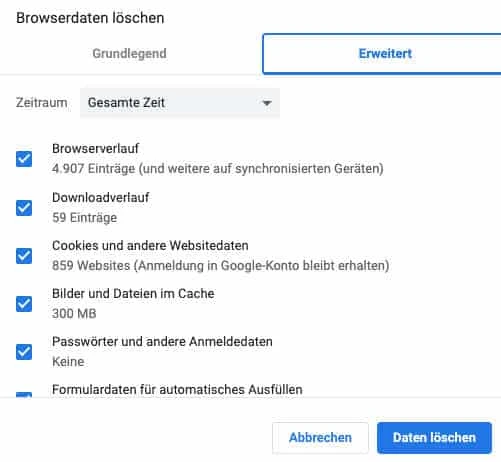
In any case, the browsing history must be deleted.
5. Clearing the WordPress cache automatically after every change
We've already mentioned that you should definitely clear the cache after various changes.
But you don't always remember this step.
Right?
To fix this problem, you can use the small plugin Clear Cache for Me, which is compatible with most classic tools such as Autoptimize, WP Super Cache, Cache Enabler, and many more.
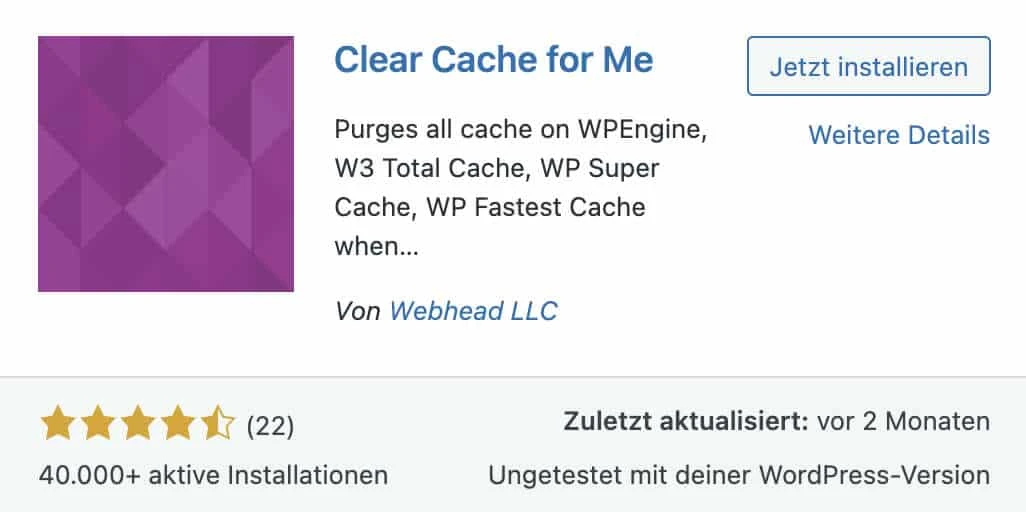
The plugin automatically clears the cache as soon as a fundamental change is made to the site. This includes:
- Saving in the Customizer
- Changes to menus
- Changes to widgets
- Adjustments in WooCommerce
- Updates of any kind
- and many more...
6. Automatically refilling the WordPress cache after clearing
To refill a cleared cache right away (without site visitors having to do it), some premium caching plugins have a so-called preload feature built in.
WP Rocket gives you extensive settings for this.
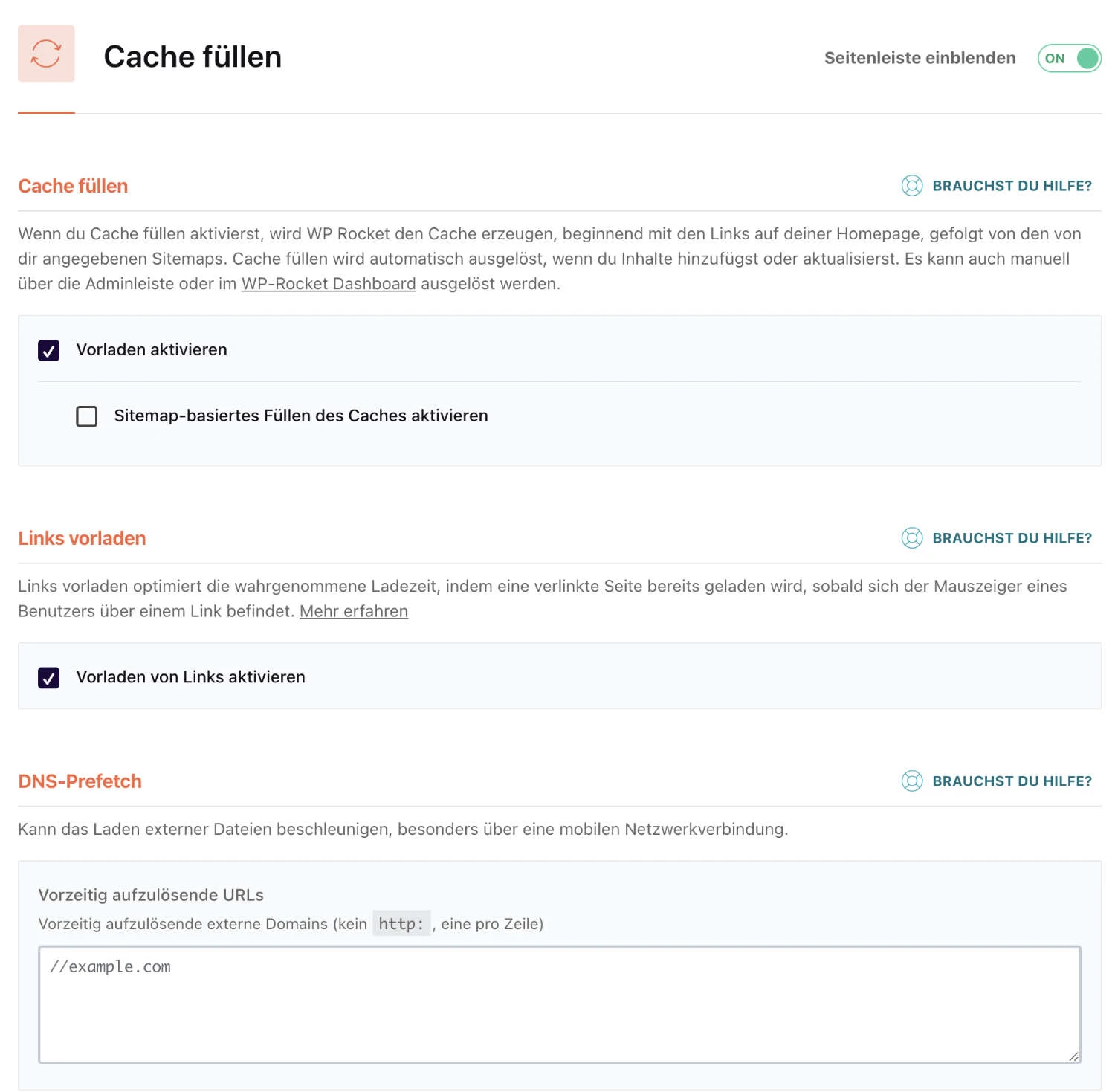
If you'd rather use a free solution, we recommend the plugin Warm Cache, which fills your cache based on the XML sitemap.
7. FAQ
Here I've put together answers to common questions about the WordPress cache:
Why does my website still look odd after I clear the cache?
Display errors on a website can have many different causes, and clearing the cache doesn't automatically fix them.
Be sure to check whether your caching plugin minifies CSS and JavaScript and whether that is causing the errors.
Also test the page in different browsers.
Why is my website slow after I clear the cache?
That's because the cache has to be filled again before it can be used again.
To avoid this, you can use cache preloading. Plugins like WP Rocket offer this feature automatically.
How often should the WordPress cache be cleared automatically?
There is no fixed rule for how long you should wait before clearing the cache. You should definitely clear it after updates or changes to your content.