
For a long time after the Gutenberg editor was introduced, we at Blogmojo kept using the Classic Editor combined with Elementor.
At the start of 2021 we decided to switch to Gutenberg. For one thing, because the new WordPress editor now has far fewer teething problems, and for another, because there are now very good extensions and additional blocks for it:
With the right plugins, you can turn Gutenberg into a full page builder that is every bit as good as common page builders like Elementor, Divi, Avada or Beaver Builder.
In this article we've collected the 17 best Gutenberg extensions for you, the ones that really get everything out of the editor:
- Block collections like GenerateBlocks and Ultimate Blocks extend the Gutenberg editor with powerful elements for professional websites, without a page builder.
- Most block plugins are built so that they only slightly affect loading time, by loading only the code of the blocks in use.
- With the right plugins, Gutenberg becomes a full alternative to Elementor, Divi or Beaver Builder, with much better performance.
1. Block collections
Block collections extend the preinstalled Gutenberg blocks with useful content that makes your page more appealing, and with important features such as contact forms or pricing tables.
1.1 GenerateBlocks
GenerateBlocks was the decisive reason for me to switch from Elementor to Gutenberg.
This brilliant plugin, which comes from the makers of GeneratePress, now extends the Gutenberg editor with six blocks (Container, Headline, Grid, Buttons, Image, Query Loop).
And they pack a punch!
You can use it to design great landing pages (such as the one for my SEO course) or to massively upgrade the content design of blog articles.
And all that without hurting loading time and Core Web Vitals much, as is the case with most other page builders.
What does the Pro version offer?
The biggest advantage of the Pro version is the template library with a proud 200+ ready-made designs.
You also get numerous additional design settings, such as hover or block effects.
I also find it especially handy that in GenerateBlocks Pro you can build your own templates (such as an email opt-in) with Global Styles and reuse them later. That saves you a lot of time when designing pages.
The Pro version is available from $39 per license per year.
1.2 Ultimate Blocks
Ultimate Blocks is an extensive block collection for the Gutenberg editor.
It's great for adding some interactive or animated elements for landing pages or blog articles to GenerateBlocks.
For example, it offers blocks for a table of contents, tabs, toggles, a countdown timer or a progress bar, which isn't possible with GenerateBlocks.
The best part:
Ultimate Blocks is completely free.
For us, the plugin is therefore almost part of the standard installation of every WordPress website. Not least because of the really good table of contents and the star rating, which includes schema markup.
To avoid putting unnecessary load on loading time, and to keep the Gutenberg backend easy to navigate, you can deactivate blocks you don't use.
Of course the code is optimized and lean, so your page speed doesn't suffer. On every page, only the code of the blocks that are actually used is loaded.
1.3 Kadence Blocks
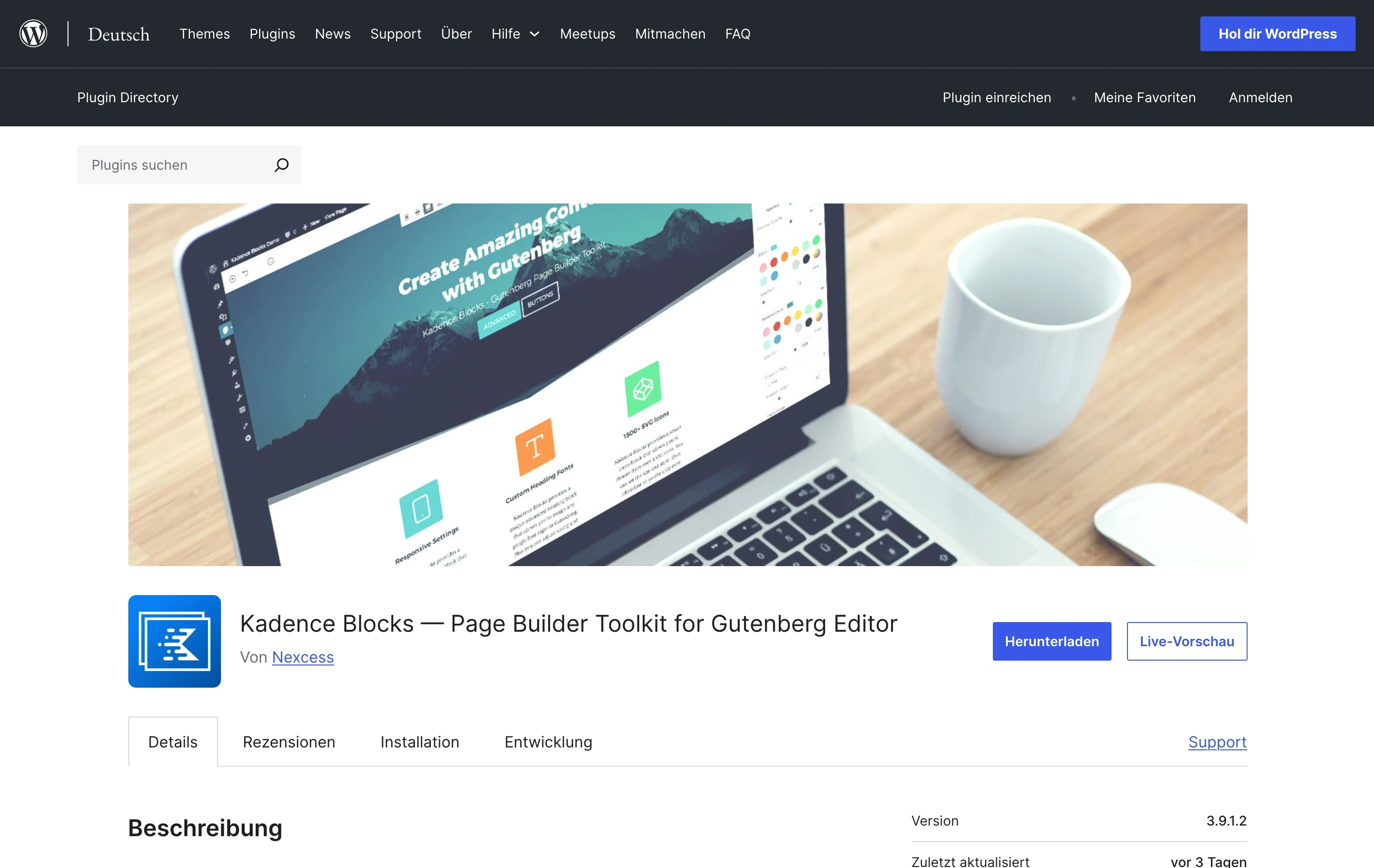
The number of active WordPress installations and a rating of 4.8 out of 5 stars make it immediately clear how strong Kadence Blocks is.
The plugin extends the Gutenberg editor with useful basic features such as different column layouts, a gallery or buttons that you can adjust however you like.
You also get really good icon lists with 1500+ built-in SVG icons, testimonials or video pop-ups to make your page even more individual.
Kadence Blocks sets almost no limits on design customization, so you can build really any page with this plugin without bloating loading time too much.
Other smart features, such as automatically saving Google Fonts locally, round Kadence Blocks off nicely.
The one downside: The plugin is designed to be used with the Kadence Theme. It also works with most other themes (we tested it together with GeneratePress), but there is no support and no guarantee for that.
What does the Pro version offer?
One of the most useful things in the Pro version is the Dynamic Content feature, which lets you create ready-made templates with automated content, such as a design for a blog post.
The template library with finished designs that you only have to import is also really great.
Additional features like “Animate on Scroll” or “Custom Fonts” are certainly nice gimmicks, but not strictly necessary.
The Essentials bundle contains Kadence Theme and Kadence Blocks and costs $99 per website per year. You get more features with the bigger packages.
View the Kadence bundle with theme and blocks
1.4 Stackable
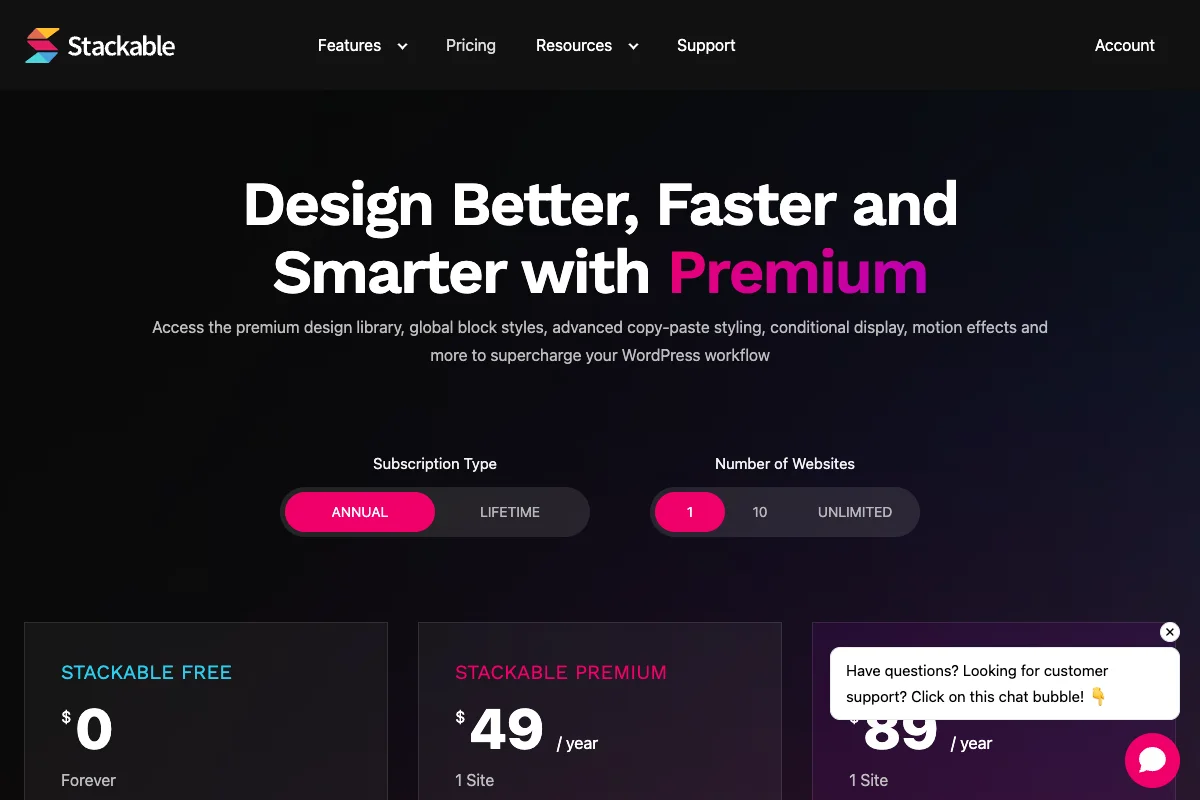
Stackable has a really great selection of blocks that will especially appeal to bloggers and online sellers. We particularly like the blog grids, blockquotes and the clear pricing tables.
In general, the blocks are very well built and stand out with great performance and a very attractive design.
Here you can take a look at a demo page.
The plugin also gives you extensive settings. For example, you can activate or deactivate blocks, which we find very pleasant for keeping the Gutenberg editor from getting overloaded.
In short: Great clarity, well-built blocks and lean code.
What does the Pro version offer?
The only catch with Stackable: For advanced users, only the Pro version makes sense, because the free plugin lacks numerous important features, such as Dynamic Content or CSS options.
But the Pro version is definitely worth it!
You don't just get extra features, but also access to an extensive template library and really competent support.
Stackable Pro is available from $49 per year for a single license.
1.5 Elementor Blocks for Gutenberg
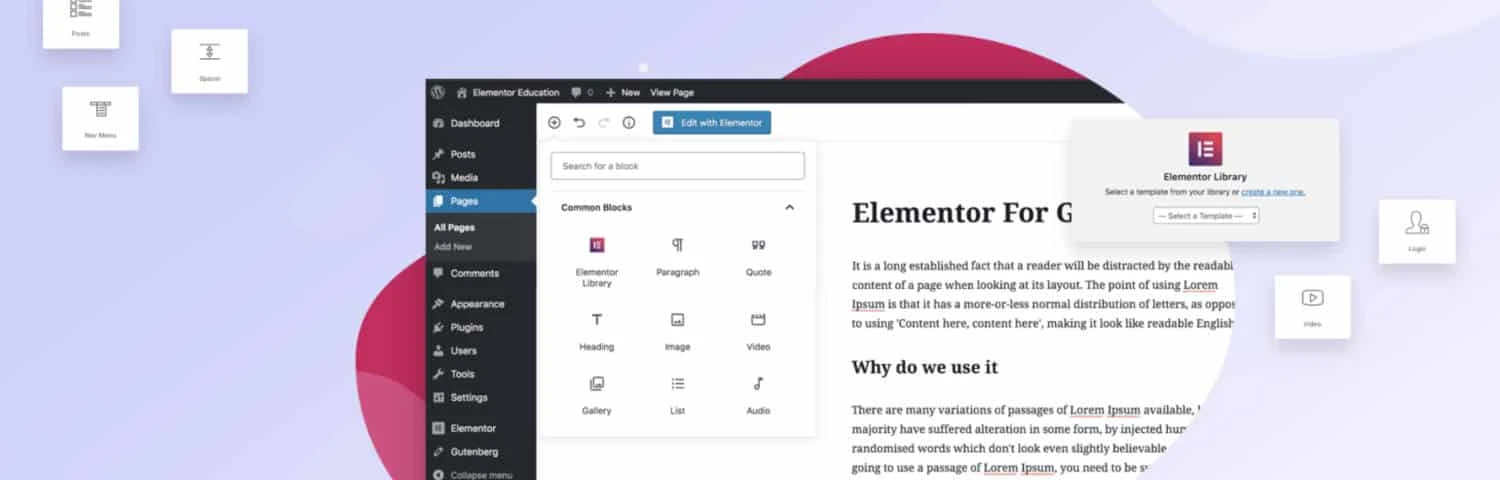
With the Elementor Blocks for Gutenberg plugin, you can create content in Elementor and then simply insert it into a Gutenberg block via shortcode.
That means: You combine the advantages of the WYSIWYG editor with the fast loading times of Gutenberg.
The plugin makes the most sense when you want to create recurring content in an appealing design and use it on many different subpages. An example would be an opt-in form for your newsletter.
What does the Pro version offer?
The plugin itself is free. However, it only works in combination with the page builder Elementor, which in turn is offered in a free and a paid version.
Elementor Pro extends the available blocks significantly and gives you even more freedom in page design.
1.6 Spectra WordPress Gutenberg Blocks

Spectra WordPress Gutenberg Blocks, formerly Ultimate Addons for Gutenberg, adds a full 30 blocks to your editor, which you can customize to your heart's content.
Ultimate Addons for Gutenberg was free, whereas Spectra WordPress Gutenberg Blocks is available in one free and three premium versions.
Even the free version looks good, even if the customization options in the backend are somewhat limited here. For most “normal” users, though, they will definitely be enough.
The selection of blocks ranges from blog grids and calls to action to sophisticated timelines and attractive icon lists.
The blocks are rounded off by fully ready-made templates for entire pages, which you can check out here.
We think you should definitely take a look at Spectra WordPress Gutenberg Blocks. The 600,000+ active installations and a rating of 4.7 out of 5 stars in the WordPress plugin directory confirm that.
By the way: The extension can be used with any theme.
1.7 CoBlocks

CoBlocks was developed by the renowned hosting company and domain provider GoDaddy and is one of the most popular Gutenberg extensions on our list, which is certainly also due to the fact that you can use all of CoBlocks' features for free.
The plugin is designed to be very simple and lean, but still adds 32 useful blocks to your editor, including pricing tables, author boxes or image galleries, which make your page look better and will certainly improve conversion in many areas.
CoBlocks is especially recommended for bloggers, since many blocks are designed specifically for use in posts. One example is the Food & Drink block.
It's compatible with any WordPress theme.
1.8 PublishPress Blocks

PublishPress Blocks is a small but fine Gutenberg extension that adds 32 useful blocks. These include classic elements like icons, info boxes, galleries or tables. But also oddities that only a few other plugins offer, such as a newsletter opt-in or WooCommerce products.
In design customization you're somewhat limited compared to GenerateBlocks or Kadence Blocks, but beginners will certainly appreciate the somewhat stripped-down scope.
PublishPress is definitely worth a closer look, especially since you can install the plugin for free.
The only catch: A PublishPress branding is added to all designs, and it can only be removed by buying the Pro version.
What does the Pro version offer
Admittedly, we're a little disappointed with the Pro version of the plugin.
It only adds 3 more blocks to the free version (Countdown, Pricing Table and Feature List), removes the branding and unlocks premium support.
At $69 per year for a single license, the cost is a bit too high when you compare the feature set with other plugins.
1.9 Qubely
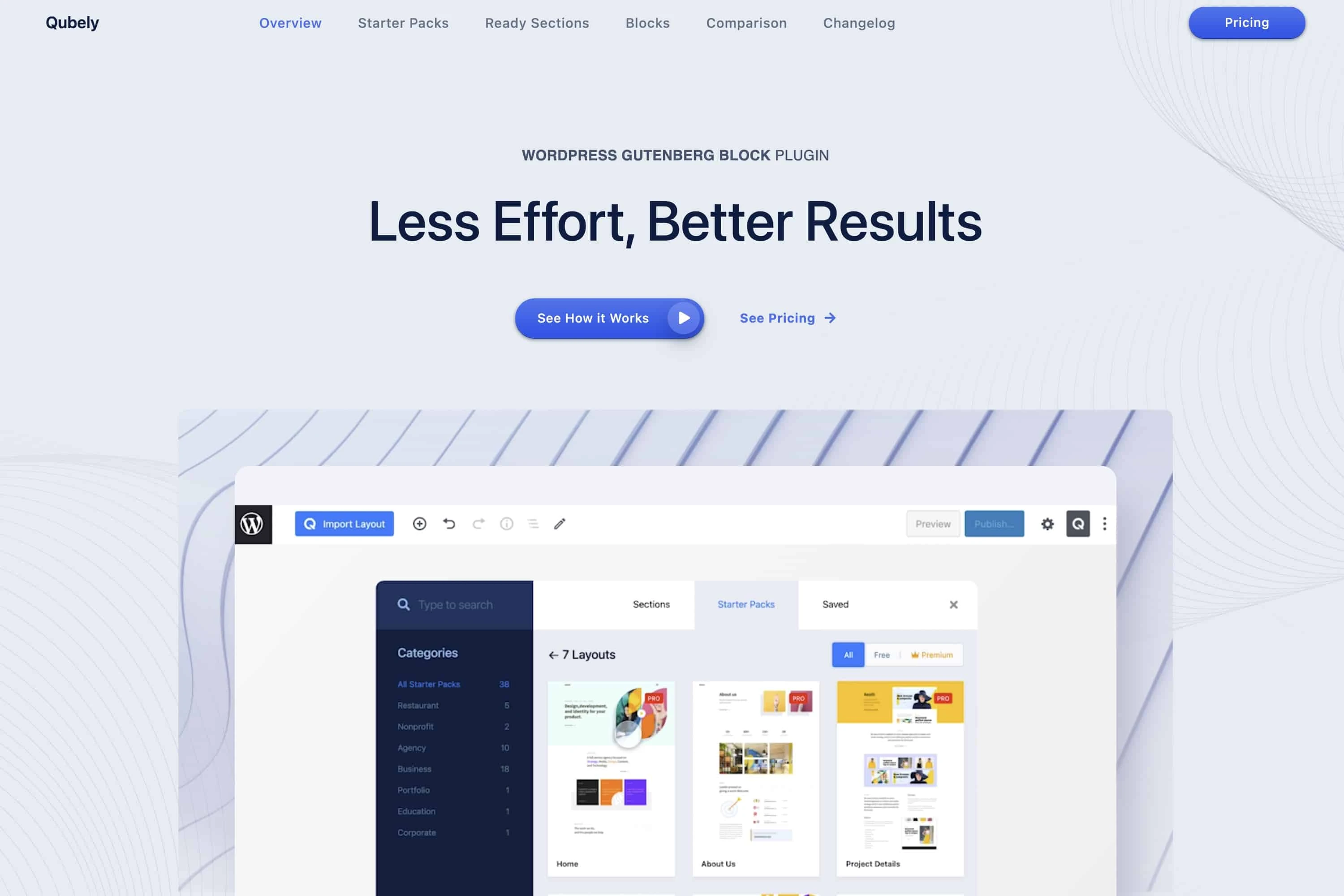
Qubely is one of the most extensive plugins on our list when you go by the number of available blocks. We currently count 39, and the selection grows month by month.
The extension offers a great mix of standard blocks that no page should be without (tables, table of contents or buttons), complemented by a variety of special content. This includes:
- WooCommerce carousel and product overview
- Image comparison with slider
- Timeline
- Contact form
- Various countdowns
The feature set meets even the highest demands, which is why we see Qubely as a plugin we can recommend to shop owners and bloggers as well as businesses.
The blocks are rounded off by 160+ ready-made templates that you can import into your website quickly and easily. Even finished page templates have already been developed.
What does the Pro version offer?
The Pro version, which you can buy from $39 per year, includes 14 premium blocks as well as free updates with new blocks and one year of premium support.
1.10 Genesis Blocks

Genesis Blocks comes from the workshop of StudioPress, which is best known for its high-quality WordPress themes.
The plugin extends your Gutenberg editor with 22 beautifully designed blocks that are completely sufficient for everyday needs. You get different layouts, an accordion, author boxes and much more.
Numerous configuration options let you control exactly which blocks should be activated or which users are allowed to access the blocks at all.
The free version even gives you 8 ready-made blocks as well as 4 page layouts.
Google AMP support is also implemented.
What does the Pro version offer
To get the Pro version of this plugin, you're forced to subscribe to the Genesis Pro suite. It includes not only Genesis Blocks Pro, but also access to the StudioPress themes.
The price: A proud $360 + taxes PER YEAR!
In our eyes, a no-go.
If you still decide on this membership, Genesis Blocks gains 2 blocks, 26 page layouts and 56 ready-made sections. You can also create local templates.
2. Plugins that improve the editor
2.1 Disable Gutenberg Blocks
The Gutenberg editor already comes with 34 blocks in the standard WordPress installation. Depending on your theme and configuration, several hundred more blocks can quickly be added.
With such a large number, you quickly lose track as a user.
A problem that the “Disable Gutenberg” plugin solves. In the backend, you can quickly and easily deactivate blocks you don't need.
The plugin lets you target not just the core blocks but, under some circumstances, also add-ons. The CoBlocks we already covered, as well as Yoast and WooCommerce, can be configured in the backend.
By the way: Sidebar widgets are also covered by Disable Gutenberg Blocks.
2.2 Custom Blocks Constructor (formerly Lazy Blocks)
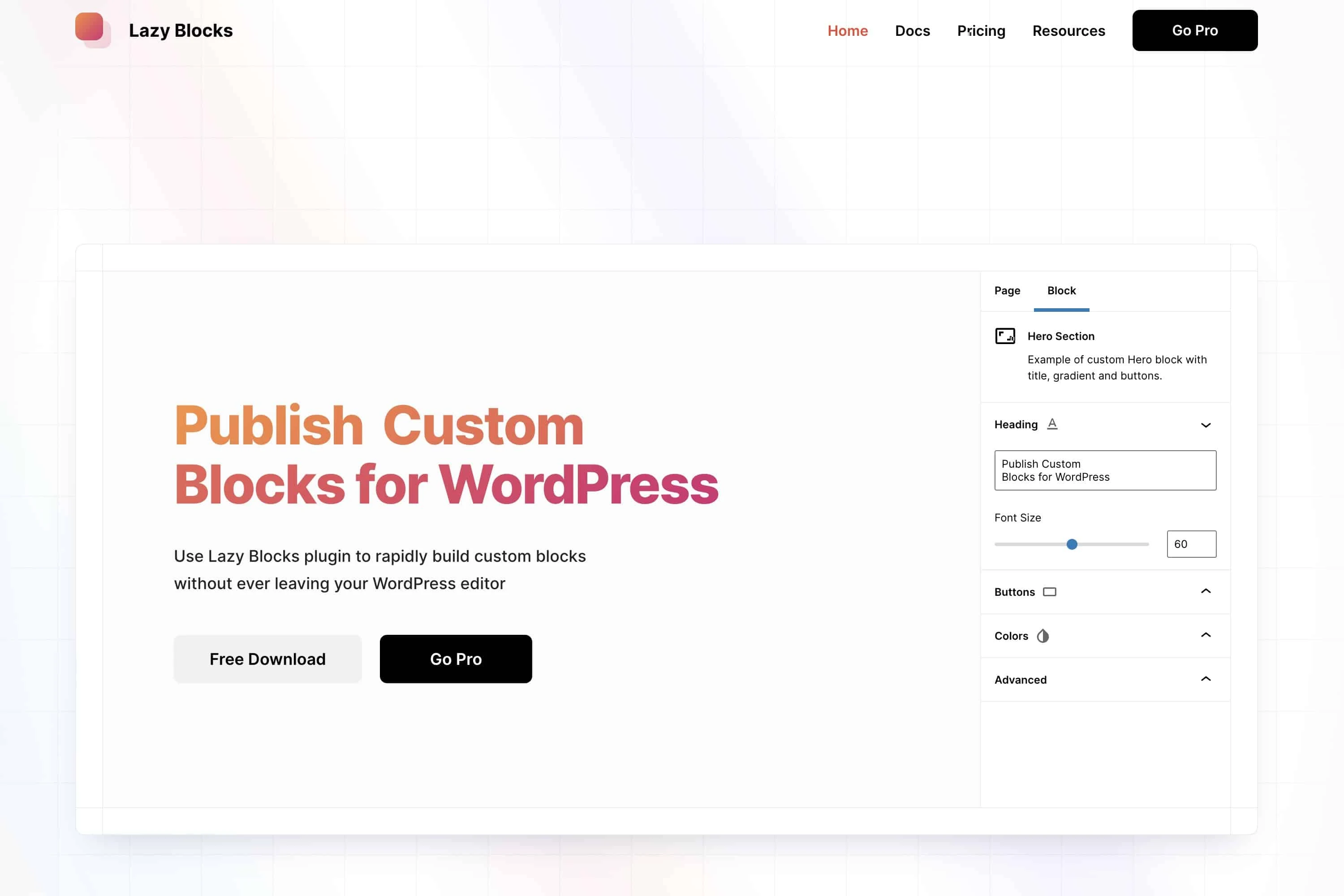
The Custom Blocks Constructor is a real treat for programmers and developers, because it makes it possible to create custom blocks directly in Gutenberg.
How easy is it?
Over 20 ready-made controls such as text, image, checkbox, email, password or URL are already included in the plugin.
As you can surely tell, this is a plugin for WordPress pros that beginners won't really be able to do much with.
Anyone with programming skills, though, can look forward to a plugin that really pushes the limits of what you can build.
Custom Blocks Constructor is free and can be downloaded directly from the WordPress plugin directory.
- Step 1: Add and name a block
- Step 2: Add controls
- Step 3: Create code for the block
2.3 Advanced Editor Tools (formerly Tiny MCE Advanced)
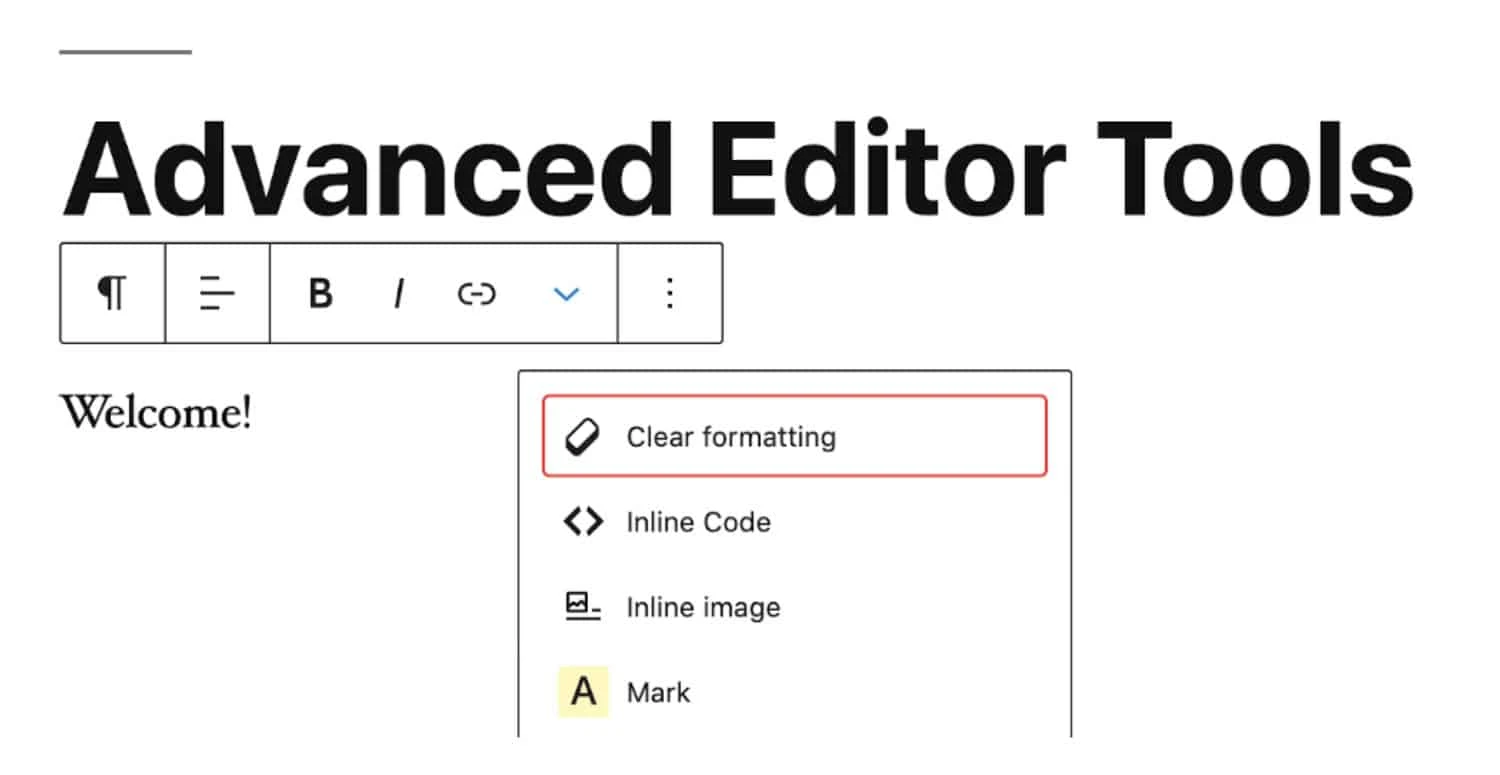
With 2 million active installations, Advanced Editor Tools is one of the most widely used WordPress plugins of all.
It turns the WordPress editor into a kind of hybrid of the Classic Editor and Gutenberg.
That means: With the plugin you can switch between Gutenberg blocks and the Classic Editor at any time with a mouse click. That way you get the advantages of both editors.
You're free to write an entire post in the Classic Editor, or to combine classic posts with Gutenberg.
Of course, it includes all the tools of the Classic Editor that you may have missed in Gutenberg.
2.4 Editor Block Outline

A rather unknown plugin is Editor Block Outline, whose only job is to give every single Gutenberg block an outline.
That way you recognize individual blocks immediately and can target them much more precisely.
In the plugin's backend you can adjust numerous settings, such as changing the color of the outlines, turning the name display for blocks on or off, or adjusting the style of the line.
2.5 Central Color Palette

If you keep working with the same colors on your website, it can be very annoying and time-consuming to look up the color codes and enter them again and again.
Central Color Palette helps with this problem.
The free plugin adds colors you define yourself to the standard color palette of the Gutenberg editor, so you can select them easily and quickly.
The great thing: The color palettes are automatically added to numerous other plugins too, such as Elementor, GeneratePress or Beaver Builder.
2.6 Melonpan Block - Container
The plugin Melophan Block Container lets you style individual blocks.
You can add background images, change the positioning of a container, add borders and shadows, or adjust the spacing above / below or left and right.
2.7 PDF Viewer Block for Gutenberg
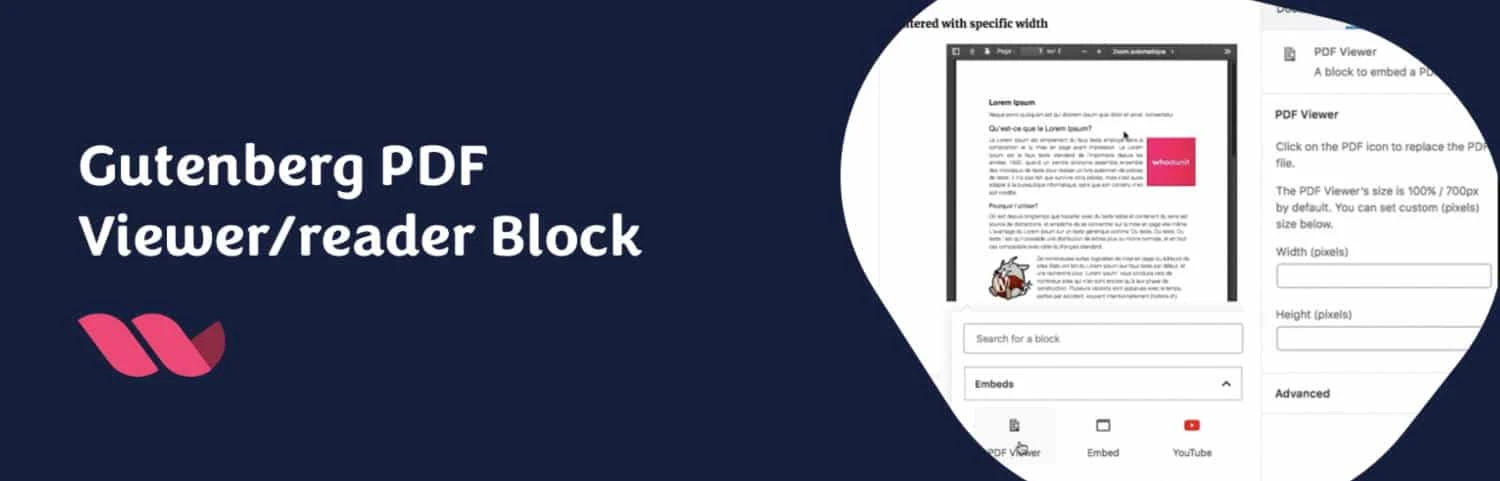
If you want to show PDFs to your visitors directly on the website, this extension for the Gutenberg editor is exactly what you need.
PDF Viewer Block for Gutenberg provides a responsive PDF preview window through which PDFs can be read directly.
It's embedded directly in the blocks via the embed function.
3. FAQ
Here I've put together the answers to the most common questions about WordPress Gutenberg plugins:
Which block collection suits whom?
Most of the block collections we've introduced in this article contain many blocks that will be completely sufficient for most websites.
So each of the ones mentioned is certainly a good choice.
On a closer look, though, a few block plugins have special features:
- GenerateBlocks: If you use GeneratePress, we would definitely advise you to go with GenerateBlocks. The two are perfectly matched. You also get very competent support that knows both the plugin and the theme inside out.
- Kadence Blocks: If you use the Kadence Theme, you should also rely on Kadence Blocks. Reasoning see above.
- Qubely: The plugin contains some great blocks specifically for WooCommerce. That is certainly a unique selling point and makes Qubely a great solution for shop owners.
Our insider tip is Ultimate Addons for Gutenberg.
The plugin is so extensive and good that it's surely only a matter of time before you can no longer get it for free. So being quick pays off.
Do block plugins slow down my website?
In general, more code added to your website also means a longer loading time.
However, most of the block plugins presented should only slightly worsen your loading time and Core Web Vitals.
What happens to the additional blocks when I deactivate a block plugin?
If you added content via a block plugin, it should stay activated.
After deactivation, the Gutenberg editor can no longer display the block correctly and reports the following error:
Your website doesn't support the “Container” block. You can try to install this block, convert it to a custom HTML block, or remove it entirely.
In this case, the only option is to convert the container to HTML, which doesn't fix the problem, because the content is no longer displayed correctly.
That means:
Pages built with a block plugin can no longer be displayed correctly without it.