
The theme is the heart and soul of every WordPress website.
With a WordPress theme, you not only give your site a very individual design, you also add extensive functionality to it.
Depending on where you got your WordPress theme from, the installation steps can differ considerably. You should also know exactly what to do when installation problems come up.
In this article, we show you four different ways to install a WordPress theme.
- You install free themes directly in the WordPress backend under Design > Themes > Theme hinzufügen (Appearance > Themes > Add New Theme), with preview, ratings and over 4,700 free options.
- You upload premium themes as a ZIP file (Design > Themes > Theme hinzufügen > Theme hochladen, or Appearance > Themes > Add New Theme > Upload Theme) and can test them in the preview before activating them.
- For installation problems or mass installations, the FTP method helps: copy the unzipped theme files to the /wp-content/themes/ folder and activate the theme in the backend.
1. Directly in WordPress (for free themes)
WordPress comes with its own theme library, which offers you an impressive 4,795 free themes right in the backend of the CMS.
So you don't have to spend hours searching the depths of the internet for a theme for your site. You can pick the right design directly in the backend and even view it live in WordPress with the preview function.
You'll find the theme library under Design > Themes > Theme hinzufügen (Appearance > Themes > Add New Theme).
Installing a WordPress theme directly in WordPress is also really child's play.
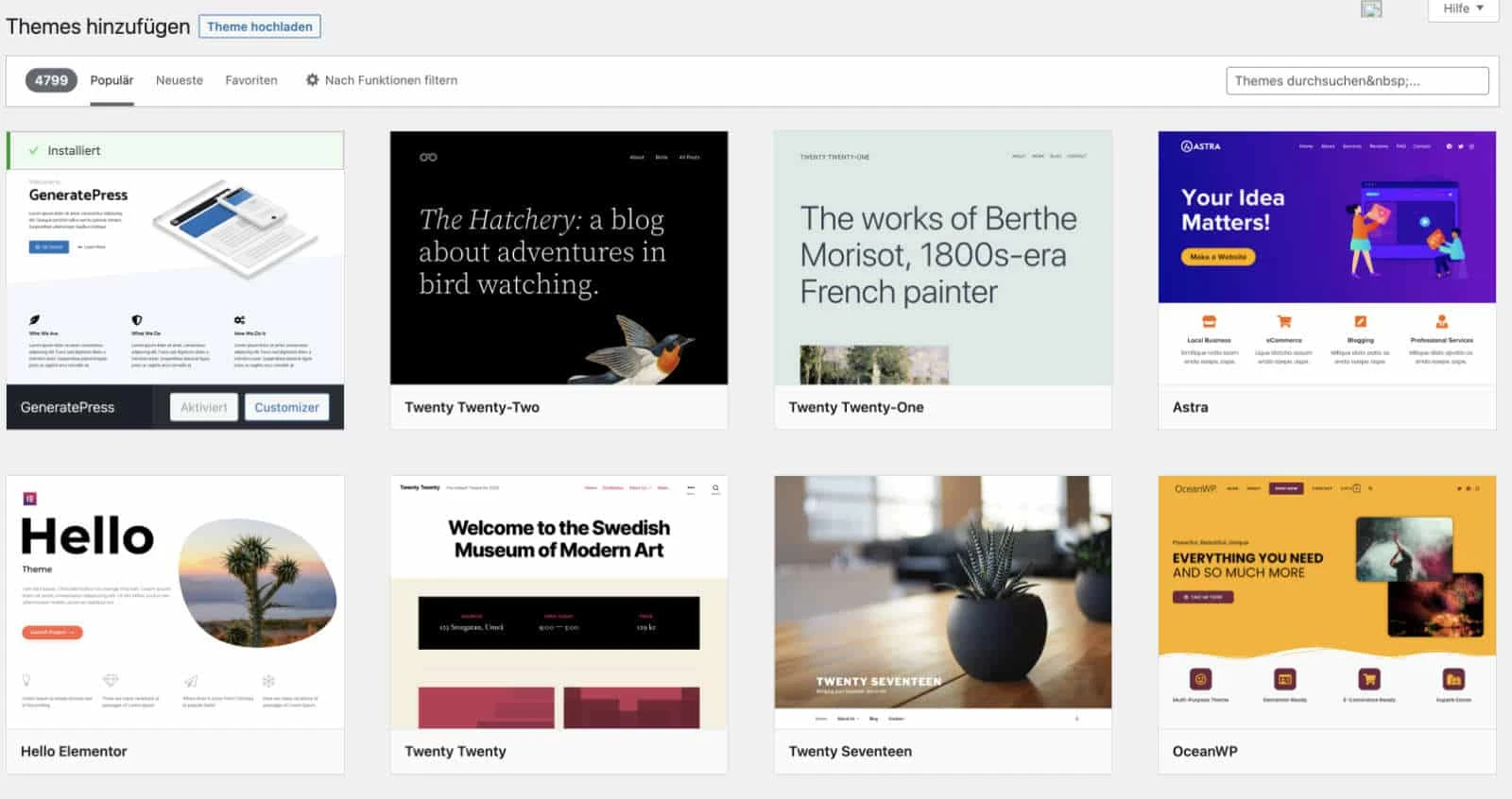
Once you've decided on a WordPress theme, it gets installed with a mouse click and activated in WordPress right afterward.
That's it!
If you're not satisfied, you can uninstall the theme and replace it with another one.
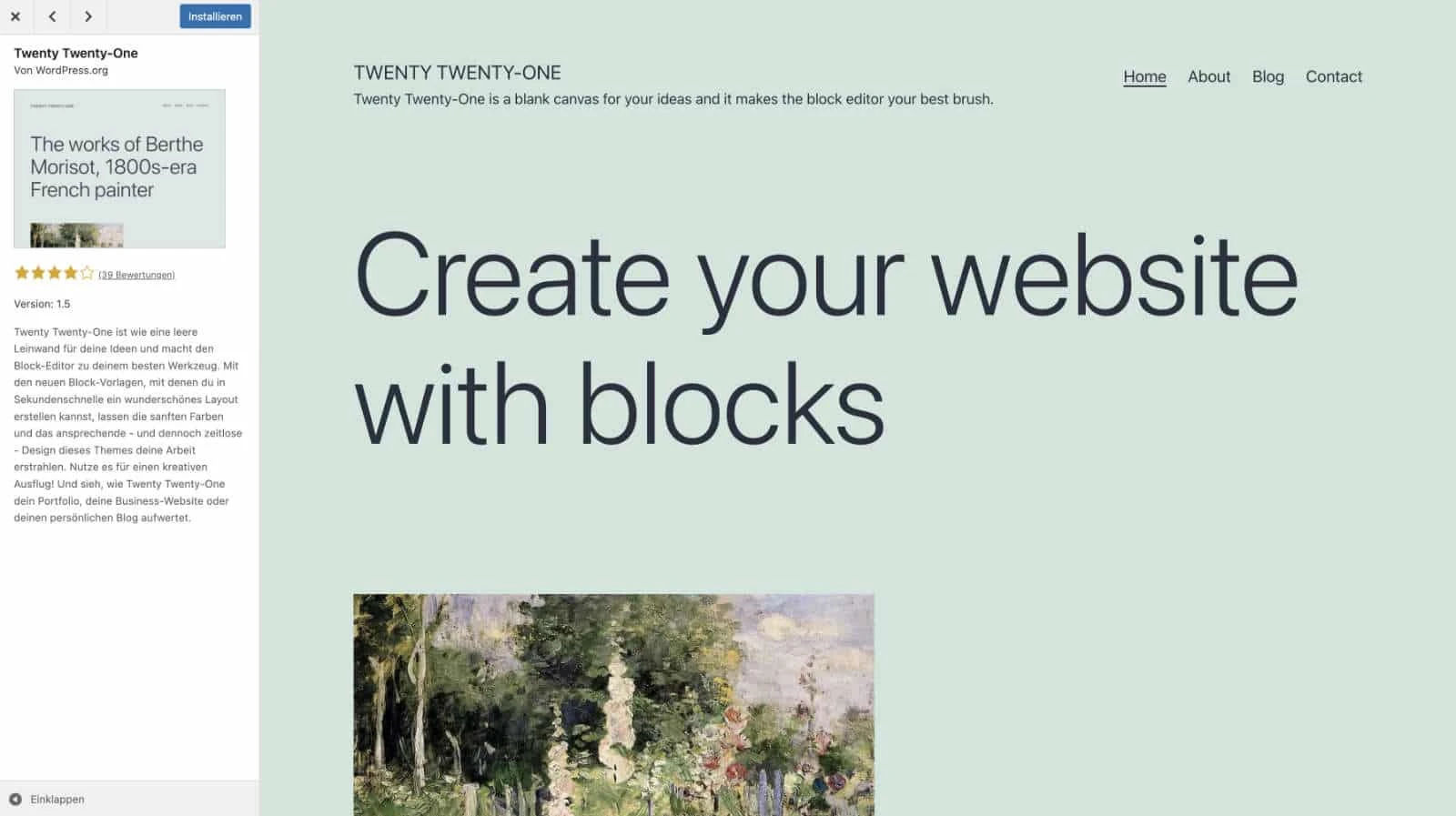
We also really like the information WordPress provides. From customer ratings to functionality, all the important facts about a WordPress theme are presented.
There's even a preview mode.
2. Upload as a ZIP file (for premium themes)
Free WordPress themes are a really great thing, especially for beginners.
Once your site's visitor numbers grow, and with them your own requirements, the feature set of these free themes will probably no longer be enough for you.
You need a premium theme!
The good news: thousands of third-party providers offer exactly these kinds of premium themes.
The bad news: you can't find and download them directly in the WordPress backend. Your path has to lead through an external site.
But installing a premium theme isn't really complicated either.
The developers of such themes give you a ZIP file that you can upload to WordPress and install. It works via Design > Themes > Theme hinzufügen (Appearance > Themes > Add New Theme).
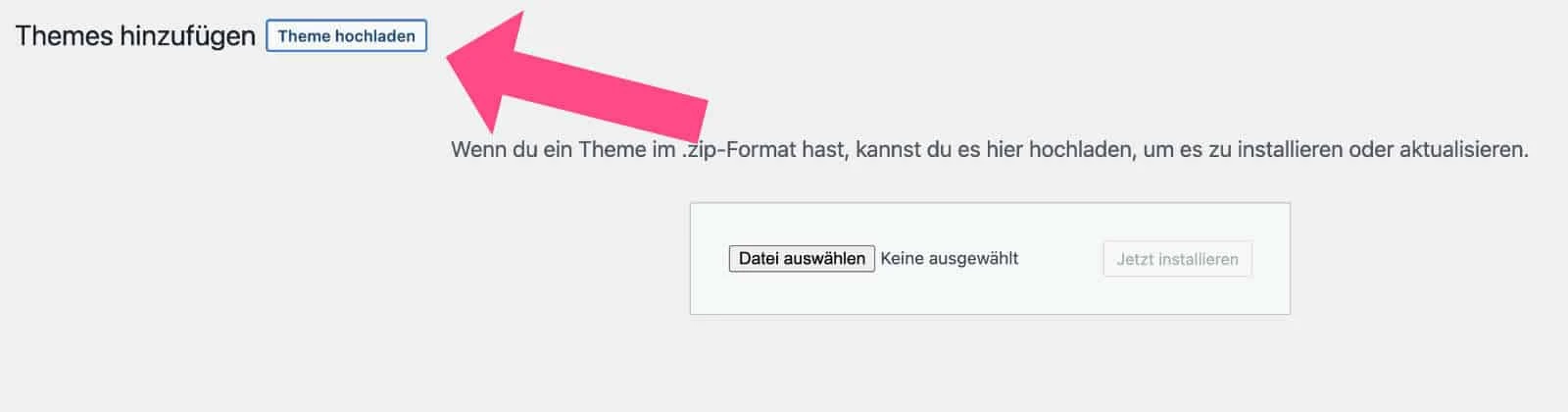
Afterward, you only need to activate the WordPress theme to use it.
By the way: we would strongly recommend using the preview function to check whether the new theme is suitable before you activate it.
3. Install via FTP server
Besides the two options already described, you can also install a theme via FTP server.
This approach mainly makes sense in two cases:
- You get an error message when installing a theme
- You want to install several themes to test them first and get to know their features
Installing via FTP server doesn't happen in the WordPress backend, but it's just as simple once you know all the steps.
3.1 Download FileZilla
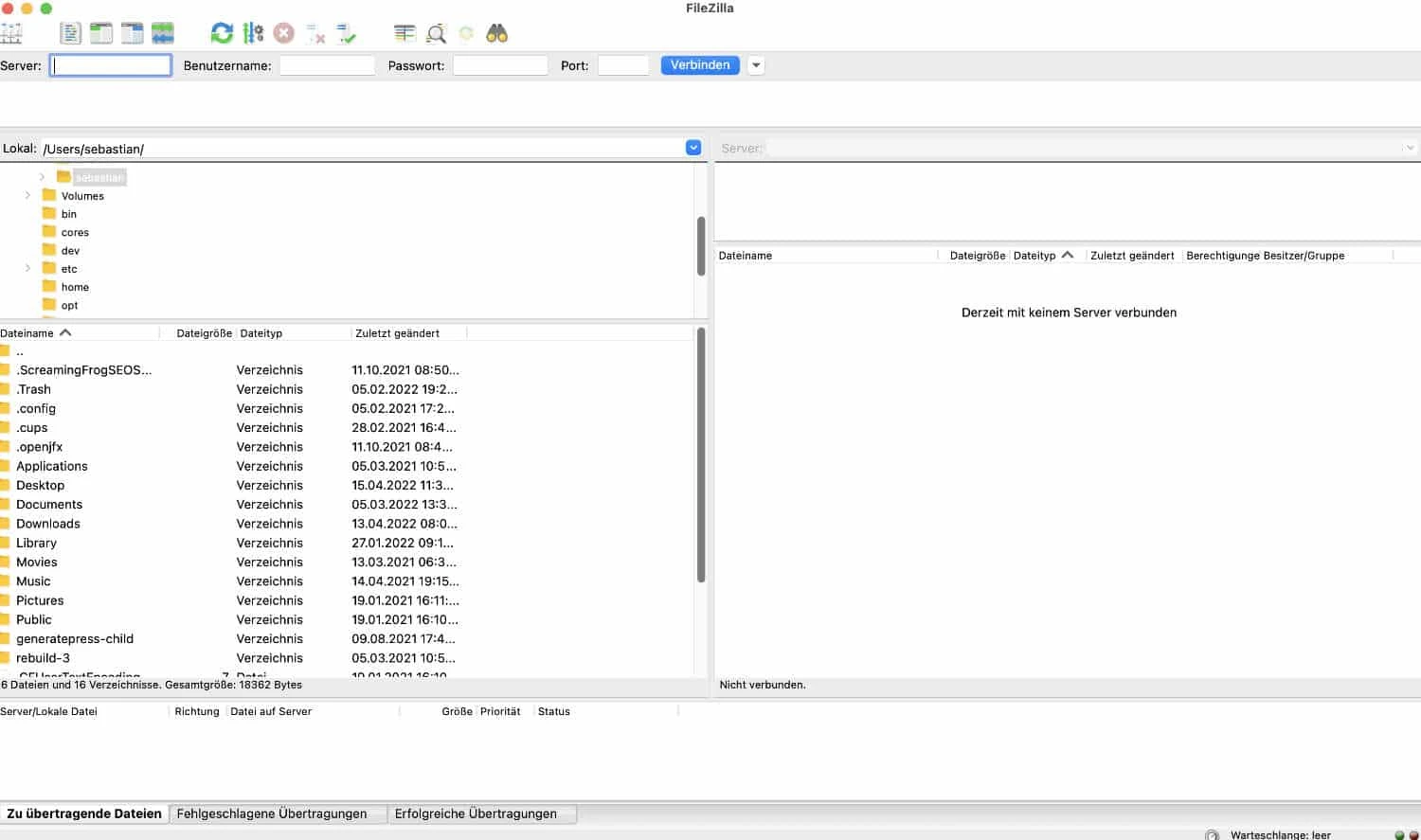
With the free tool FileZilla, you can connect to your web space. All you need is the username and password for your FTP access, which your hosting provider gives you.
Once you've entered both in FileZilla, the program automatically establishes a connection via FTP.
3.2 Unzip WordPress themes
Unlike installing a ZIP file directly in the WordPress backend, here you first have to unzip the theme's ZIP file before we can move on to the next step.
3.3 Copy theme files
Now it's time to upload the unzipped theme files to your web space.
To do that, drag and drop the files into this folder: /wp-content/themes/.
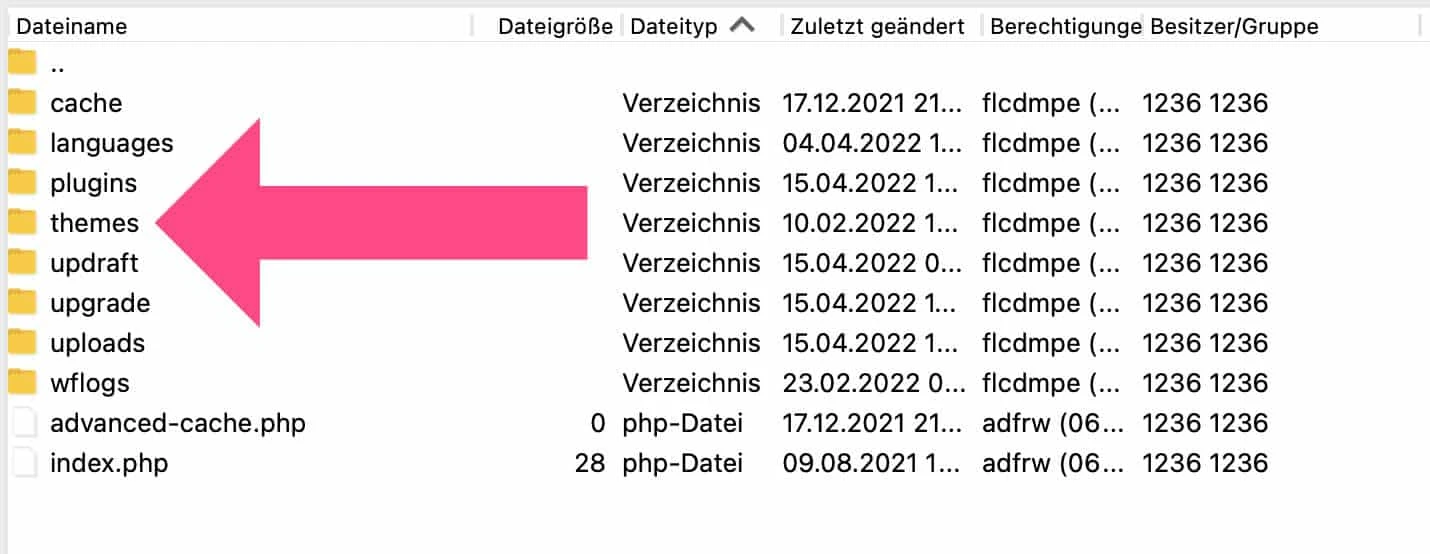
3.4 Activate the theme
Once all files are uploaded, you can close the connection in FileZilla. Finally, you only need to activate the uploaded theme in WordPress (Design > Themes) so you can use it fully.
4. Via WP-CLI (for advanced users)
WordPress has its own terminal called WP-CLI, which is very reminiscent of the terminal interface of a Mac.
You can install themes this way as well, although we would really only recommend this approach to pros who work with WP-CLI anyway. For beginners, there is absolutely no reason to try the route described here.
To install a theme via WP-CLI, you have three different options:
Free theme
You start the installation of a free theme from the WordPress directory with this command:
$ wp theme install twentysixteen --activatePremium theme as a ZIP file
If you want to install a premium theme that you saved on your computer as a ZIP file, the command is:
$ wp theme install ../my-theme.zipPremium theme from online storage
With WP-CLI, you can even install a theme that is stored on another online storage. In this case, the command is:
$ wp theme install http://s3.amazonaws.com/bucketname/my-theme.zip?AWSAccessKeyId=123&Expires=456&Signature=abcdefFAQ
Here I've put together the answers to common questions about installing WordPress themes:
How much do WordPress themes cost?
There are almost 5,000 WordPress themes you can use for free. You can also install a premium theme. Prices for those range from €30 to €100 per year.
Can I also install themes on WordPress.com?
Yes, you can install themes on WordPress.com too. However, using premium themes requires the Pro plan. It costs €15 per month, but it extends the feature set of WordPress.com considerably.
How can I customize my WordPress theme?
Depending on the theme, there are several ways to customize it:
- Most themes have their own menu where you make the basic settings.
- Layout and design are usually defined in the WordPress Customizer
- Premium themes often come with a theme builder. With it, you can create custom headers, footers or page templates.
How can I edit the files of my WordPress theme?
You edit the theme file directly in the WordPress backend, in a special editor you'll find under Design > Theme-Datei-Editor (Appearance > Theme File Editor).
Alternatively, you could edit it with a text editor and then upload it via FTP server.
Which WordPress themes are suitable for beginners?
We recommend a theme that is very popular and has therefore won a lot of users. Themes like that have a large community that helps with advice and support when you have questions.
Very beginner-friendly themes are:
- GeneratePress
- Avada
- Enfold
- Divi
- Astra
Can I have several themes active at the same time?
No. You can install several themes, but only really install one of them.
How can I delete a WordPress theme?
You delete a theme directly in the WordPress backend. First go to the overview of all installed themes under Design > Themes (Appearance > Themes), then pick the theme you want to uninstall.
In the theme's detail view, you'll find the “Löschen” (Delete) button on the right.