
What shouldn't be missing from any WordPress installation?
A backup plugin!
Because it can always happen that you accidentally delete a blog post, uploaded media, settings, or plugin data.
A theme or design change can also go wrong, your entire WordPress installation can become unreachable because of a plugin error, or you can even face a total loss of your data because of a server outage.
So that you never have to worry about data loss again, I've put together five popular and recommended backup plugins for you in this article. For each one, you'll see what the free version can really do and when Pro is worth it.
And no, it doesn't have to cost a fortune:
All five plugins presented are either free or offer a usable free basic version.
- WP Staging is my favorite: fast backups, a staging environment for safe testing, and a migration function. Cloud storage, however, only comes with Pro.
- With over 4 million installations, UpdraftPlus is the most popular backup plugin and already backs up to Google Drive, Dropbox, and Amazon S3 for free. WPvivid even offers more destinations in its free version.
- A good backup plugin offers automatic scheduled backups, remote backups, and error notifications. But a backup only counts once you've tested the restore at least once.
1. WP Staging
WP Staging is one of my must-have plugins and shouldn't be missing from any professionally used WordPress installation.
Besides a very fast and reliable backup function with many settings, such as scheduled backups, a cloning function, and a migration function, it offers one big special feature:
It lets you create an exact copy of your website as a test environment with just a few clicks.
This test environment, also called a staging environment, is completely decoupled from your live website. That means you can test changes to WordPress, such as plugin updates, code changes, or a complete redesign, without any risk.
Pretty cool, right?
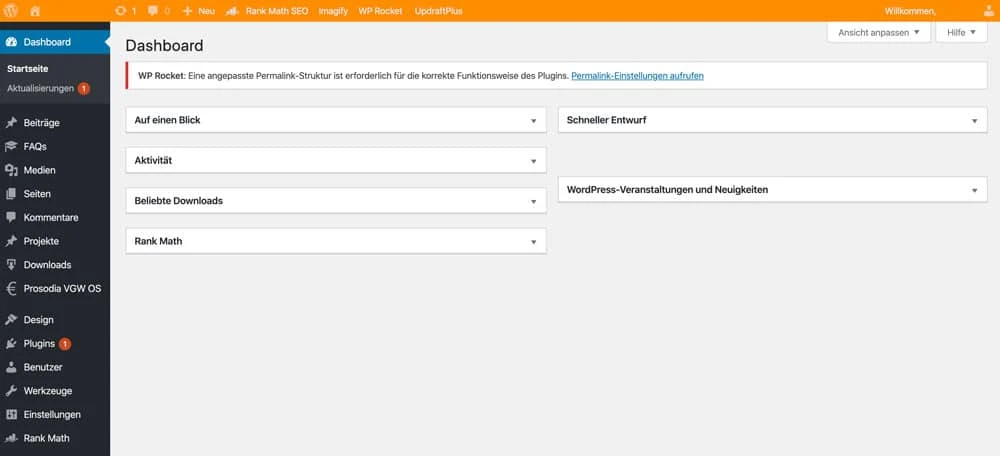
The backend of the staging environment looks exactly like that of your live website (it just has an orange top bar to tell them apart):
What does the Pro version offer?
For everyday use or smaller websites, the free version of WP Staging is enough, too.
With it you can create full backups, database-only or files-only backups, back up automatically every day, restore backups, and use the staging environment to test smaller code changes, new plugins, or updates.
What the free version can't do: send backups to the cloud (Google Drive, Amazon S3, (S)FTP, or Dropbox), freely configurable schedules, retention rules, and email notifications for failed backups. Those only come with the Pro version. If you only back up to your own server without a cloud destination, you'll have exactly the problem I describe below under remote backups when disaster strikes.
Pro starts at €89 per year (net) for one website (Personal). Cloud destinations and pushing the staging changes to the live website only come with the Business plan for €139 per year (net, 3 websites). The Pro version is interesting if you...
- want to make bigger changes to your website, like a complete redesign (the free version doesn't let you push changes from the staging environment to the live website).
- want to back up automatically to the cloud and be notified by email when something goes wrong.
- use a multisite
- want to clone your website to another domain or subdomain.
- want to switch servers, domains, or hosts.
- Easy to use despite the large range of features
- Clear plugin settings
- Create manual or scheduled backups of the entire website
- Backups run faster and with less server load than with many other plugins
- Can back up very large websites
- Restore and daily automatic backups already in the free version
- Create staging environments (incl. pushing the changes to the live website)
- Multisite support
- Migrate websites to another server or clone them there
- Clone the staging site to a separate database or a subdomain
- You can give user roles or specific users access to the staging site or deny it
- Regular updates
- Cloud storage (Google Drive, Amazon S3, (S)FTP, Dropbox) only comes with the Pro version
- Custom schedules, retention rules and email notifications for failed backups are Pro features
- Pushing changes from the staging environment to the live website only works with Pro
2. UpdraftPlus
With over 4 million active installations, UpdraftPlus is the most popular backup plugin in the world.
There's a reason for that:
It not only offers a wide range of features that you'll hardly find in any other free backup plugin, but it's also very easy to use:
WordPress and database backups can be started conveniently with a single click and also scheduled automatically.
You can also create more than local backups and choose from numerous remote locations, for example Dropbox, (S)FTP, Amazon S3, or Google Drive.
The manufacturer's complementary plugins are also highly recommended. For example the UpdraftCentral Dashboard, which lets you manage several sites.
What does the Premium version offer?
For client websites and my own websites, I use UpdraftPlus Premium, because it offers many extra features that make it more convenient to use, improve data protection, and widen the range of uses:
- incremental backups (saves a lot of storage space)
- a cloning and migration function
- automatic backups of your website before WordPress updates (no more fear of updates, really great!)
- support for multisites
- the option to encrypt the database backups (useful if you upload them to cloud services)
- support for various additional cloud services, such as OneDrive or Google Cloud
- backup of non-WordPress directories (I usually have several, e.g. for certain product images and logos)
That said:
If you only have a single smaller WordPress website, the Premium version is probably not worth it.
- The most popular backup plugin, with over 4 million active installations
- Very well rated (4.8 out of 5 stars on average in the plugin directory)
- Clear and easy to use
- Regular updates and ongoing development
- Backups run quickly
- Manual and scheduled backups
- File and database backups can be run separately
- Transfer to a remote location possible
- Support for Google Drive, Amazon S3 and Dropbox already in the free version
- Not always translated well into German
- Customer support only available in English
- Directories you created yourself on the server are not backed up by the free version
3. BackWPup
BackWPup has over 400,000 active installations, which is far fewer than UpdraftPlus, but it's an established classic available in a Free and a Premium version.
The same applies here:
In most cases, the Free version is perfectly sufficient. Before I switched to UpdraftPlus and WP Staging, because I was struggling with performance and reliability problems on larger websites, I used the free version of BackWPup.
File and database backups, either manually or automated on a schedule, are no problem for the plugin. Transfers to remote locations like Dropbox, an FTP server, or Amazon S3 work without problems, too.
The highlight of the plugin is the extensive settings for the scope of the backups:
You can set exactly which database tables and which directories should be backed up and which should not. Unlike UpdraftPlus, the free version of BackWPup also supports backing up directories you created yourself on the server.
That comes with a downside, though:
The plugin isn't as clear and beginner-friendly to use.
What does the Pro version offer?
The Free version can restore backups that you uploaded manually beforehand. The Pro version, by contrast, restores them directly from the cloud, so you don't have to download and upload the file first.
Some popular cloud services like Microsoft OneDrive, Google Drive, and STRATO HiDrive are also only supported in the paid version. On top of that come encryption, migration, and a standalone restore app.
According to its pricing page, Pro costs from €45 per year (Starter, 2 websites), €91 for 5 and €183 for 20 websites.
- Free
- Manual and automated scheduled backups
- Extensive features in a free basic version
- Transfer of backups to remote locations
- Repair and optimization function for databases
- Detailed settings for the scope of database backups
- File and database backups can be run separately
- German support
- Direct restore from the cloud only possible with the Pro version (the free version also restores backups that you upload manually)
- Sometimes performance and reliability problems on WordPress installations with many files or large databases
- Backup to Google Drive only possible with the Pro version
- Not as clear and easy to configure as WP Staging or UpdraftPlus
- Incremental backups only indirectly possible (via synchronization with Google Drive)
4. WPvivid
WPvivid has over 900,000 active installations and 4.9 out of 5 stars from around 1,570 reviews, which makes it the best-rated of the plugins presented here.
The reason is the free version:
Even for free, you back up the complete website, only the files, or only the database, schedule backups from every 12 hours to monthly, send them to Dropbox, Google Drive, Amazon S3, Microsoft OneDrive, DigitalOcean Spaces, FTP, or SFTP, and restore them with one click. On top of that come a one-click migration to a new domain or server and a simple staging function.
You mainly need the Pro version for incremental backups, encrypted database backups, pushing staging sites back to the live website, and multisite. It starts at $49 per year for two websites.
If you're looking for a free plugin with cloud destinations, you should try WPvivid alongside UpdraftPlus. The information comes from the plugin description and the manufacturer's pricing page.
- Best-rated plugin on this list (4.9 out of 5 stars, over 900,000 active installations)
- Many cloud destinations already free, e.g. Google Drive, Dropbox, Amazon S3, OneDrive and SFTP
- Schedules from every 12 hours to monthly
- One-click migration and simple staging in the free version
- Restore with one click
- Incremental backups, encryption and pushing staging to the live website only with Pro
- Backing up themes and plugins as a separate selection and multisite only with Pro
- Interface and support in English
5. WP-DBManager
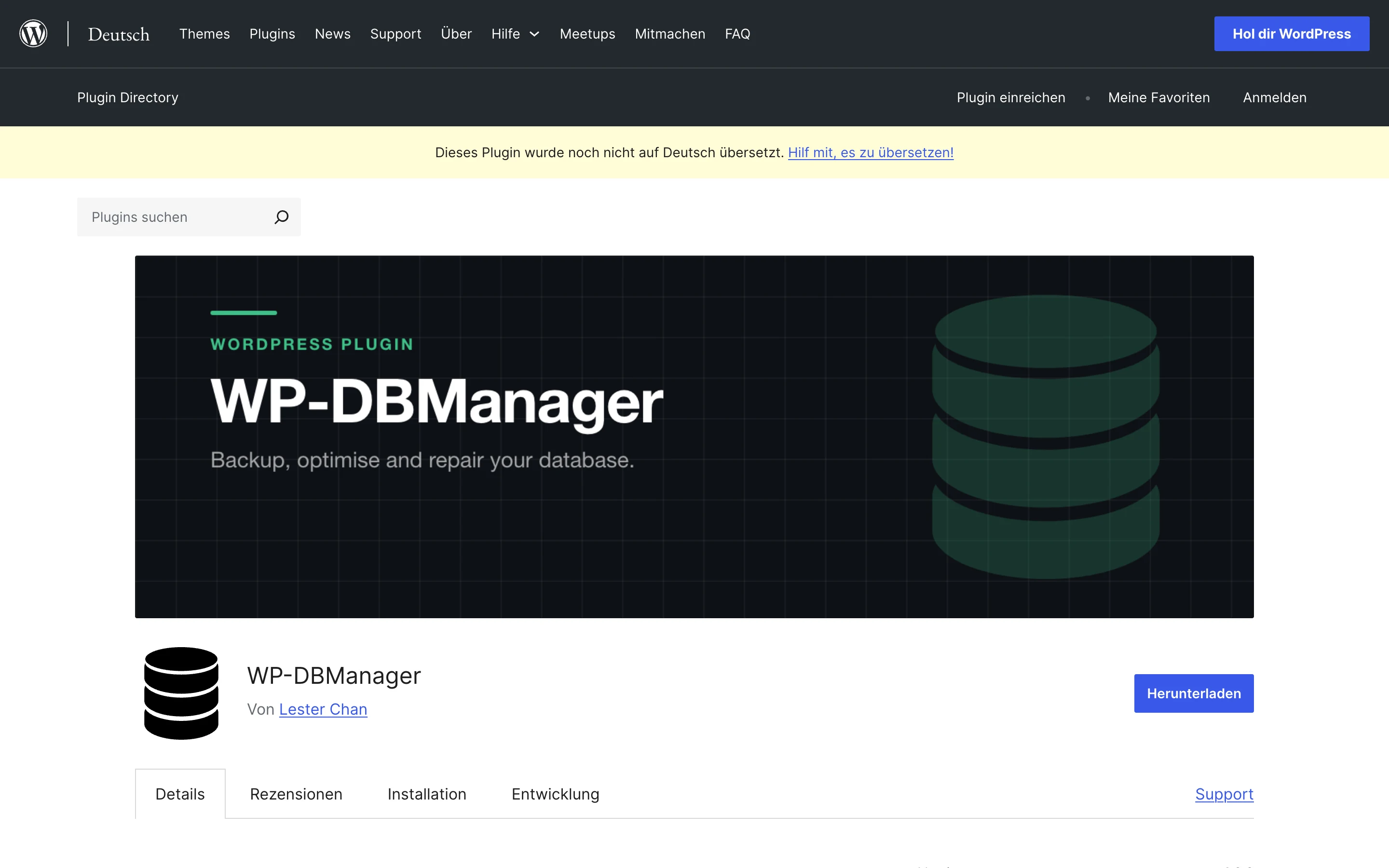
WP-DBManager focuses on backing up your database. A file backup isn't possible with this plugin. With over 50,000 active installations and regular updates (version 4.0.0 came out in 2026), it's no longer a mass-market product, but it still does its job.
Automatic scheduled database backups are possible as well.
The plugin also offers an extensive repair function for damaged databases.
However, the plugin doesn't offer a transfer of the backed-up files to external cloud storage or to an FTP server.
WP-DBManager is certainly not the most comprehensive backup plugin, but it can be a good choice if you want to back up your database automatically at short intervals.
- Free
- Automatic scheduled database backups possible
- Extensive repair function for damaged databases
- No transfer to a remote location possible (neither FTP nor cloud services)
- No built-in file backup
- No advanced features, such as migration, cloning or staging
- Not suitable for multisites
What does a good backup plugin need?
Not every backup plugin is the same.
There are some features and properties that a good backup plugin should definitely have:
- Automatic scheduled backups: If you have to make backups manually, sooner or later you'll forget one or only make them irregularly. It's easier and safer when a backup plugin can create backups automatically every day, every week, every month, or on specific weekdays.
- Remote backups: Having a backup on your own server is no use to you if your server fails completely. It's always safer to be able to create backups on another server in addition to local backups.
- Cloud backups: One of the easiest and most convenient forms of remote backups is backups with cloud services like Google Drive, Dropbox, or OneDrive. A good backup plugin should offer integrations with the most important cloud services.
- Performance: A backup plugin shouldn't need several hours for backups or drag down the performance of the whole WordPress website while it runs.
- Reliability: You should be able to rely 100% on your backup plugin actually carrying out its backup tasks every day, every week, or every month. Period.
- Error notifications: A good backup plugin must offer the option to notify you of backup errors. Because it's no fun to find out in an emergency that your backup plugin hasn't been creating any backups, or faulty ones, for 2 months.
Then there are a few convenience features that aren't indispensable but can be handy:
- Migration: It's an advantage if a plugin can also help with migrating websites to another server. That's especially helpful for agencies, web designers, or WordPress service providers.
- Staging environment: A staging environment is a clone of your WordPress website where you can safely test changes and, if the test goes well, push them to your live website. Very handy for extensive configuration changes or a theme switch!
Testing backups: Without a restore, a backup is just a guess
Most backup problems only show up when the website is already broken. The file is incomplete, the server's time limit aborted the backup, or the cloud storage is full.
That's why you should try out a backup at least once:
- Set up a staging or test environment (e.g. with WP Staging or WPvivid) or use a local WordPress installation.
- Restore a current backup there.
- Check whether the homepage, recent posts, images, and login work.
- Repeat this every few months and after major changes to the website.
Also turn on the email notification for errors. With WP Staging it's a Pro feature; with the other plugins you'll find it in the settings.
Is my host's backup enough?
Many hosts create backups automatically. That's a good addition, but not a replacement for your own backup.
Check in your plan how often backups are made, how many days they're kept, and whether you can download and restore them yourself. With some plans, the restore costs extra or only goes through support. Host backups also usually sit with the same provider. If your account goes down, the website and the backup are gone at the same time.
My recommendation: Use the host backup as a second backup and use a plugin to store your own copy in another place, e.g. with Google Drive or an EU storage provider.
FAQ
Here I've put together the answers to the most common questions about WordPress backup plugins:
What do I need to keep in mind about data protection when using backup plugins?
When you use a backup plugin, you should do or watch out for the following:
- Sign a data processing agreement (AV-Vertrag) with your host
- Sign a data processing agreement with the cloud services or hosts you use for remote backups
- Your local hosting provider and remote server should have their server location within the EU
- Backups should be stored in server directories that only you can access
- You should encrypt backups that you upload to remote locations (optional)
- When you upload your backups to a remote location, the connection should be encrypted (e.g. via SFTP or SSH)
Which backup plugins offer German-language support?
BackWPup offers German support and German-language documentation, and the interface is fully in German. With UpdraftPlus, support is only available in English, and WPvivid and WP Staging are English-language products as well.
How often should I back up WordPress?
That depends on how often your website changes. For a blog with one post per week, a daily database backup and a weekly file backup are usually enough. For an online store or a site with comments and members, you should back up the database daily or more often, because that's where the orders and user data live. A backup right before every major update is also worth it.
Is my host's free backup enough?
It's a good addition, but not a replacement. Host backups usually sit with the same provider, are only kept for a limited time, and depending on the plan can only be restored through support or for a fee. Your own copy with a different provider protects you better.
Where do I find my local backups?
Most backup plugins store local backups in the “wp-content” folder. You'll find the UpdraftPlus backups, for example, in the subfolder “wp-content/updraft”.
How can I restore a WordPress backup manually?
To restore a WordPress backup manually, you download the compressed backup file, unpack it, and upload the files and the database to your server again. I explain how that works in my guide: Create a WordPress backup: The complete guide