
Branding is super important online.
To make your website easier to recognize and to put the final touch on the design, you should definitely add a favicon, a small icon that is shown next to the address bar in the browser, among other places.
In this article you'll learn what a favicon is exactly and what to watch out for when you create it and add it to your site later.
- A favicon is a small icon (512 × 512 pixels, JPG or PNG) that appears in browser tabs, bookmarks, mobile search results, and as an app icon, and makes your website easier to recognize.
- The easiest method is the WordPress Customizer: Site Identity > Site Icon. There you upload your favicon, crop it, and publish it with one click.
- Alternatively, you can upload the favicon to the home directory via FTP (named favicon.ico) or add it directly in the theme settings of premium themes like Enfold.
1. What is a favicon? And why is it important?
The term favicon is an abbreviation of “favorite icon.” It describes a small symbol that appears whenever a visitor opens your website.
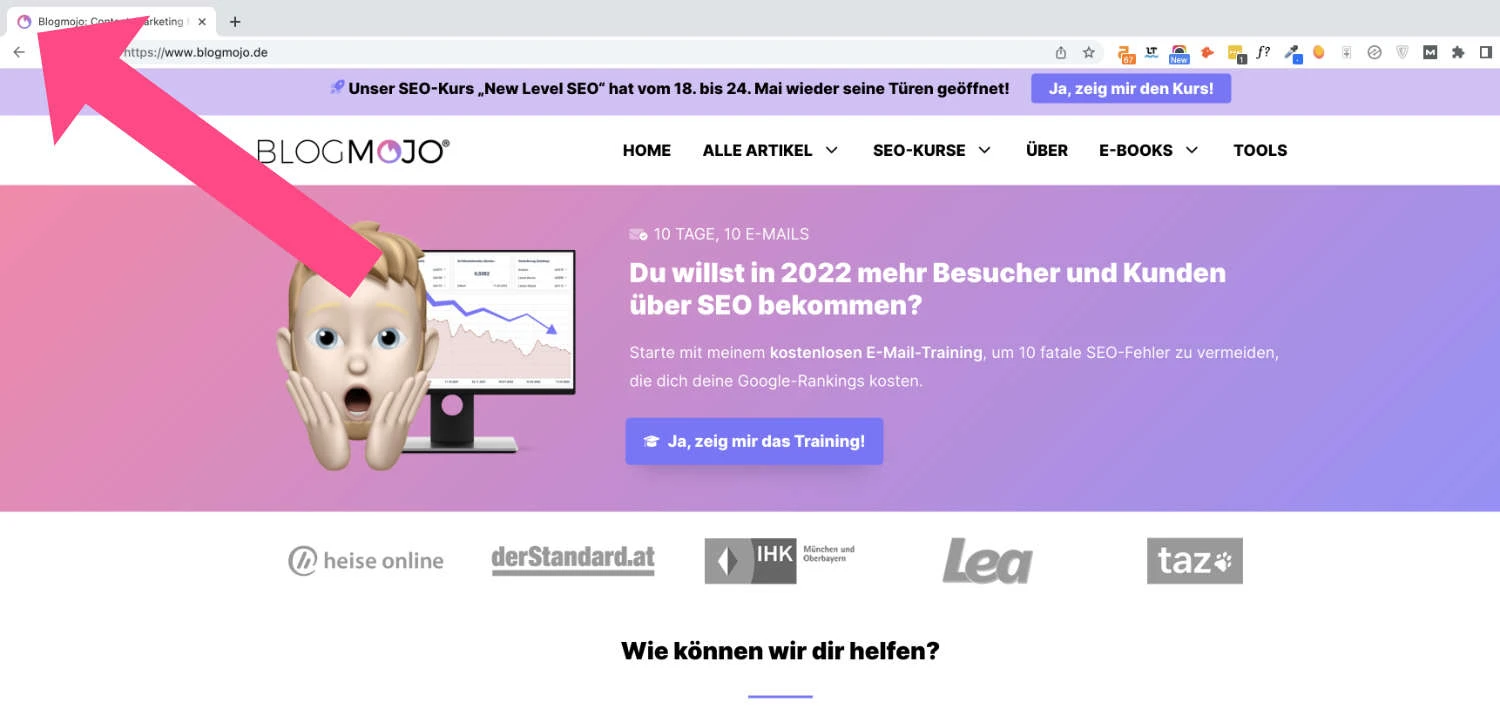
It's even displayed in the search results (more on that in a moment).
As you can see, a favicon shows up in many prominent places. So you should never skip choosing and adding a suitable icon for your website.
Adding one takes little time, and the benefit is all the greater:
- You make your site easier to recognize
- You make mobile search results look better
- You make your website look more professional
1.1 Where are favicons displayed?
You come across a favicon in all kinds of places, including in the web browser. Many browsers show the icon next to the address bar, others (Google Chrome) in the tabs.
The favicon is also displayed in bookmarks and in mobile search results.
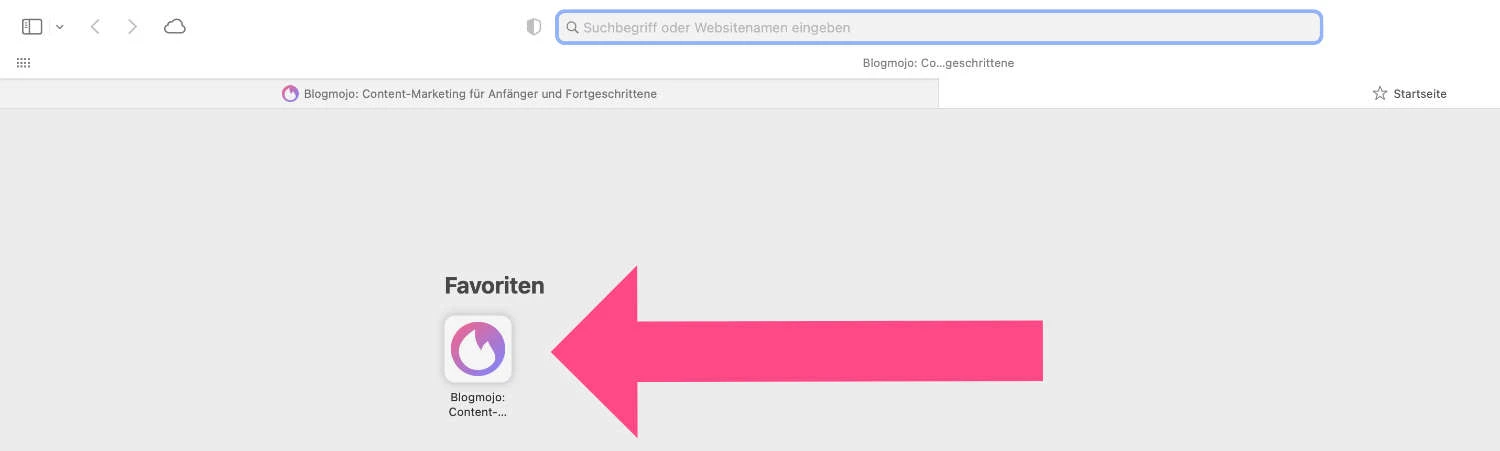
Your smartphone even uses it as an app icon if you put a link to a website on the home screen. The same goes for Windows tiles.
2. How do I add a favicon in WordPress?
There are many different ways to add a favicon. The easiest and fastest method goes directly through the WordPress backend and its Customizer.
Here's how it works, step by step.
2.1 Create the favicon file
In the first step, you of course need to create a favicon.
Ideally that would be your logo, but that isn't always possible. Because favicons are very small, rectangular logos in particular don't seem like a good choice. A square image is best.
Whichever image you finally decide on, bring it to the format 512 × 512 pixels.
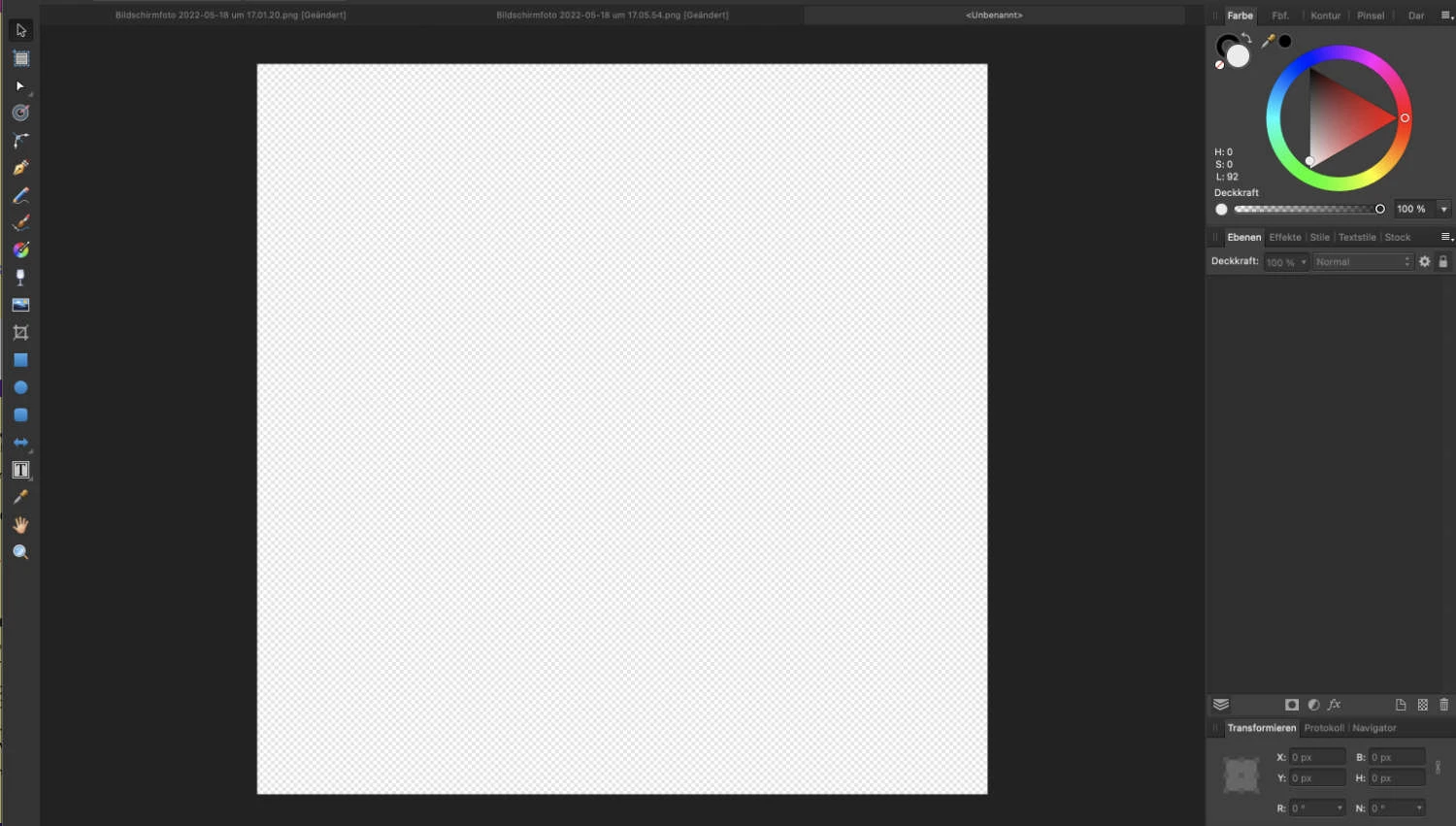
If a background is visible, you should choose the JPG file format, and PNG for a transparent background. In both cases, it's essential to reduce the file size as far as possible. The easiest way to do that is with an image editor like Gimp or Adobe Photoshop.
Caution: The ICO file format is NO LONGER needed today. So you can save yourself the effort of complicated format conversions.
For Apple and Android icons, you create the right sizes with our free favicon generator.
2.2 Upload the favicon in the WordPress Customizer
After you've created your favicon file, your next step takes you to the Customizer.
More precisely, to the entry Customizer > Site Identity > Site Icon.
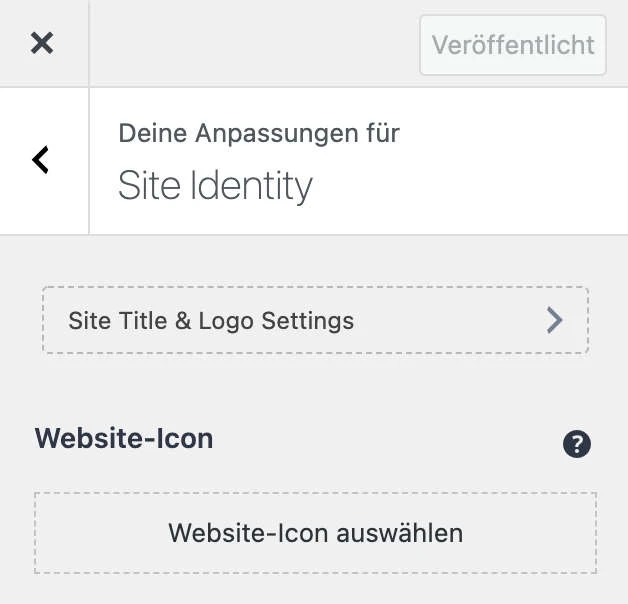
Here you can upload the icon you want and, in the next step, crop it if needed. WordPress even shows you a preview of how your chosen image will look as a favicon.
After you click Publish, you're done and your favicon is successfully added.
2.3 Clear the WordPress cache and browser cache
To make the changes visible to all visitors right away, don't forget to clear the WordPress cache.
You also need to clear your browser cache to see the changes yourself.
2.4 Test the favicon
In the last step, you should check whether your favicon was added correctly.
You can do that by hand, or you can use one of many online tools.
3. Upload a WordPress favicon via FTP
It's also possible to upload a favicon via FTP.
For that, you first need a tool that gives you access to your web space. FileZilla is ideal here.
After you've logged in successfully, navigate to the home directory of the website you want to add a favicon to (this is where htaccess or robots.txt are stored, among other things).
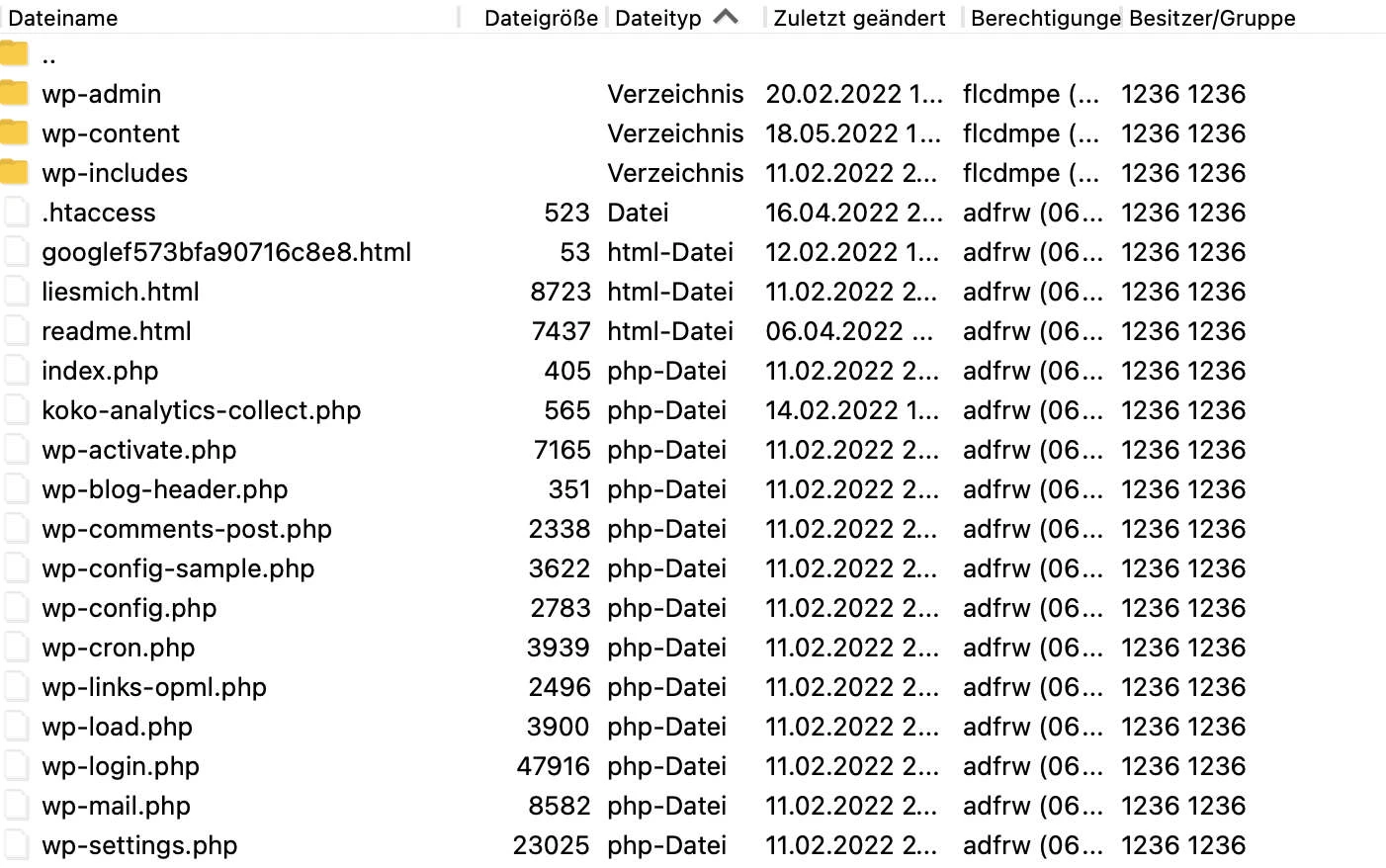
Now you just need to copy the image file that will later become your favicon into this directory.
In the last step, you rename this image file to “favicon.ico”. The right menu opens with a right click on the file name.
That's it!
4. Upload a WordPress favicon via the theme settings
Many premium themes let you add a favicon directly in the theme settings.
With Enfold (one of the most popular themes on Envato Market), for example, you can add a site icon directly in the theme options. That way you can save yourself detours or an additional plugin.
Most themes, however, fall back on the Customizer, including very popular ones like Elementor or Divi.
5. Why isn't my WordPress favicon displayed?
Even though the error rate when adding a favicon is really low, it can happen every now and then that your favicon isn't displayed.
Pinpointing a single cause is simply impossible, and it also depends heavily on the method you used to add your favicon.
Maybe one of the following causes applies to you:
- You haven't cleared the WordPress cache or browser cache
- You deleted or renamed the image file that you set as the icon in the Customizer
- When uploading via FTP, you copied the favicon to the wrong directory or named the file incorrectly (favicon.ico)
6. FAQ
Here I've put together answers to common questions about WordPress favicons:
Can I set WordPress favicons for individual pages?
Yes, that's possible. Unfortunately not with a plugin, though. You'll find instructions for solving it with code at CSS-Tricks.
How can I rotate different WordPress favicons automatically?
With the plugin Favicon Rotator you can store several images as favicons, and they are served at random. That way, visitors see different favicons.
Which browsers display the WordPress favicon?
Nearly all modern browsers display a favicon, including Edge, Firefox, Google Chrome, Internet Explorer, Opera, and Safari.
All browsers can display the file formats ICO, PNG, and GIF. Animated GIFs are only displayed correctly by Firefox and Opera 7.0.
Internet Explorer is also unable to read JPEG and SVG correctly.