
Sitemaps are an important part of a search-engine-optimized website.
They help the crawlers of Google and other search engines find the pages and content on your website completely and faster.
They also help your readers and customers find their way around your site. Creating a WordPress sitemap should therefore be one of the first SEO tasks you tackle when you build a new website, because your sitemap doesn't just make your (online) life easier, but your visitors' lives too.
In this article I'll show you step by step how to create a sitemap in WordPress, which types of sitemaps there are, which plugins you need for it, and what else you should watch out for when you create a sitemap.
1. What is a sitemap?
A sitemap is a structured overview of all the content on a website.
The content of a sitemap can include individual web pages (subpages), but also PDF documents, images, and videos.
There are two types of sitemaps:
1.1 XML sitemap
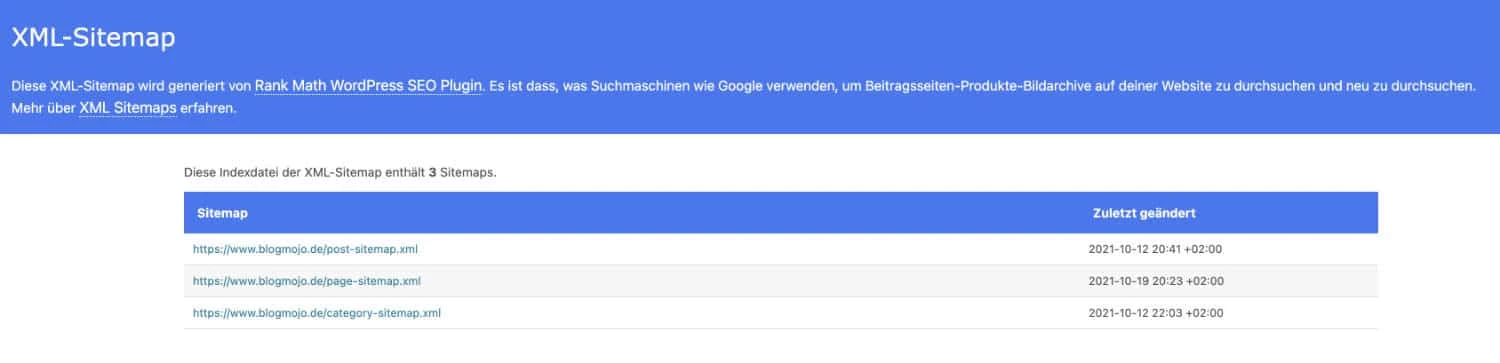
An XML sitemap is a text file that contains the URLs of a website in a specific format based on the markup language XML (short for EXtensible Markup Language).
An example XML sitemap with one URL (the homepage) could look like this:
<?xml version="1.0" encoding="UTF-8"?>
<urlset xmlns="http://www.sitemaps.org/schemas/sitemap/0.9">
   <url>
      <loc>https://deinedomain.de/</loc>
      <lastmod>2026-01-01</lastmod>
      <changefreq>monthly</changefreq>
      <priority>0.5</priority>
   </url>
</urlset>
Besides the URLs themselves, XML sitemaps (or rather the sitemap files) can contain additional information, such as:
- the date the URLs were last modified
- how often they are updated (e.g., hourly, daily, monthly, yearly)
- their priority (from 0.0 to 1.0)
- images they contain
- and other content
Important here: Google ignores the details on update frequency and priority. Google does use the modification date (lastmod), but only if it's verifiably correct. So only enter a new date when the content has really changed, not for every little thing.
A single sitemap file may contain at most 50,000 URLs and may be at most 50 MB uncompressed. For larger websites, SEO plugins automatically split the sitemap into several files, which come together in the index file.
XML sitemaps are mostly read only by search engines like Google and Bing. Your sitemap offers your visitors no added value and exists solely to make it easier for Google and co. to capture the content of your website completely.
As a rule, there are separate sitemaps for the different content types, all combined in one index file.
With WordPress, most tools create separate sitemaps for pages, posts, categories, tags, custom post types, and sometimes also for media.
Creating an XML sitemap is easy and quick with an SEO plugin like Yoast SEO, Rank Math, or other SEO plugins. More on that in a moment.
1.2 HTML sitemap
An HTML sitemap is there to give your visitors an overview of all the pages on your website, or all the important ones.
HTML sitemaps consist mostly of simple text links and are organized hierarchically.
An example of a good and clear HTML sitemap is the one on the Apple website:
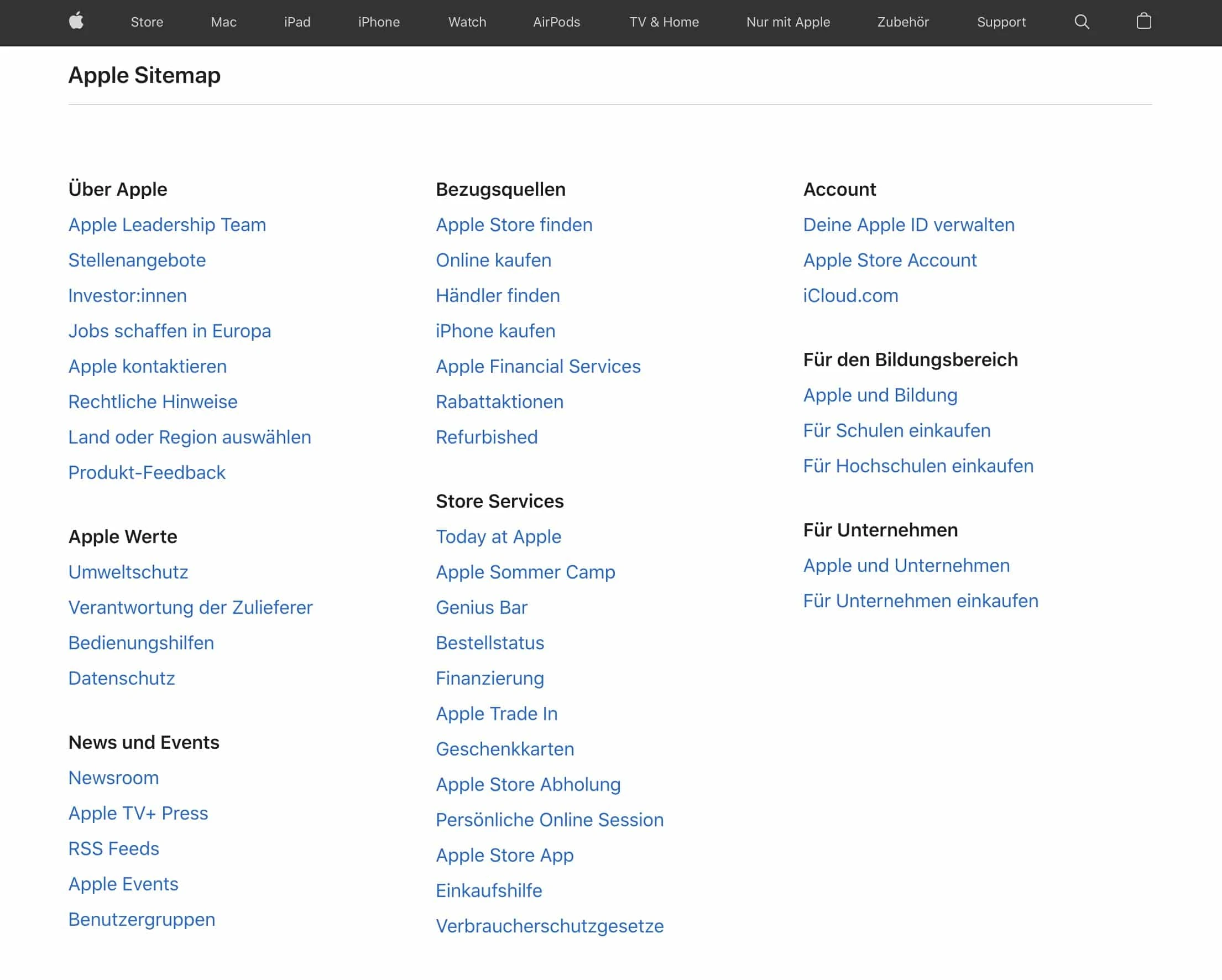
Apple uses the HTML sitemap on its website as a menu to show the content and structure of the site. You can tell from the way the sitemap is built that it's used to present a listing of the articles. Ideally, support gets contacted less, because the sitemap's good structure already provides information and solutions for many potential questions.
Basically, HTML sitemaps are there for the visitor's readability, and an XML sitemap helps the search engine categorize the content better.
2. Creating XML sitemaps in WordPress
There are many different ways to create an XML sitemap in WordPress.
Below I'd like to show you four simple and quick ways for your site:
2.1 With the native WordPress feature
Since version 5.5, WordPress automatically creates an XML sitemap that you can reach at the following address:
https://deinedomain.de/wp-sitemap.xmlThat's a nice thing, but it also comes with some downsides:
By default, all the content of your WordPress website is included in the XML sitemap.
That includes content you may not want in there at all, such as tags, categories, or custom post types (post types created by plugins or your theme, such as sliders or testimonials).
And unfortunately, there is so far no way to exclude content from the XML sitemap through the settings in the WordPress admin area or in the posts of your WordPress website itself.
Excluding individual posts or post types is only possible via the functions.php.
There's a better and easier way! You can also create your WordPress sitemap manually, with the help of SEO plugins like Rank Math and Yoast SEO.
2.2 With Rank Math
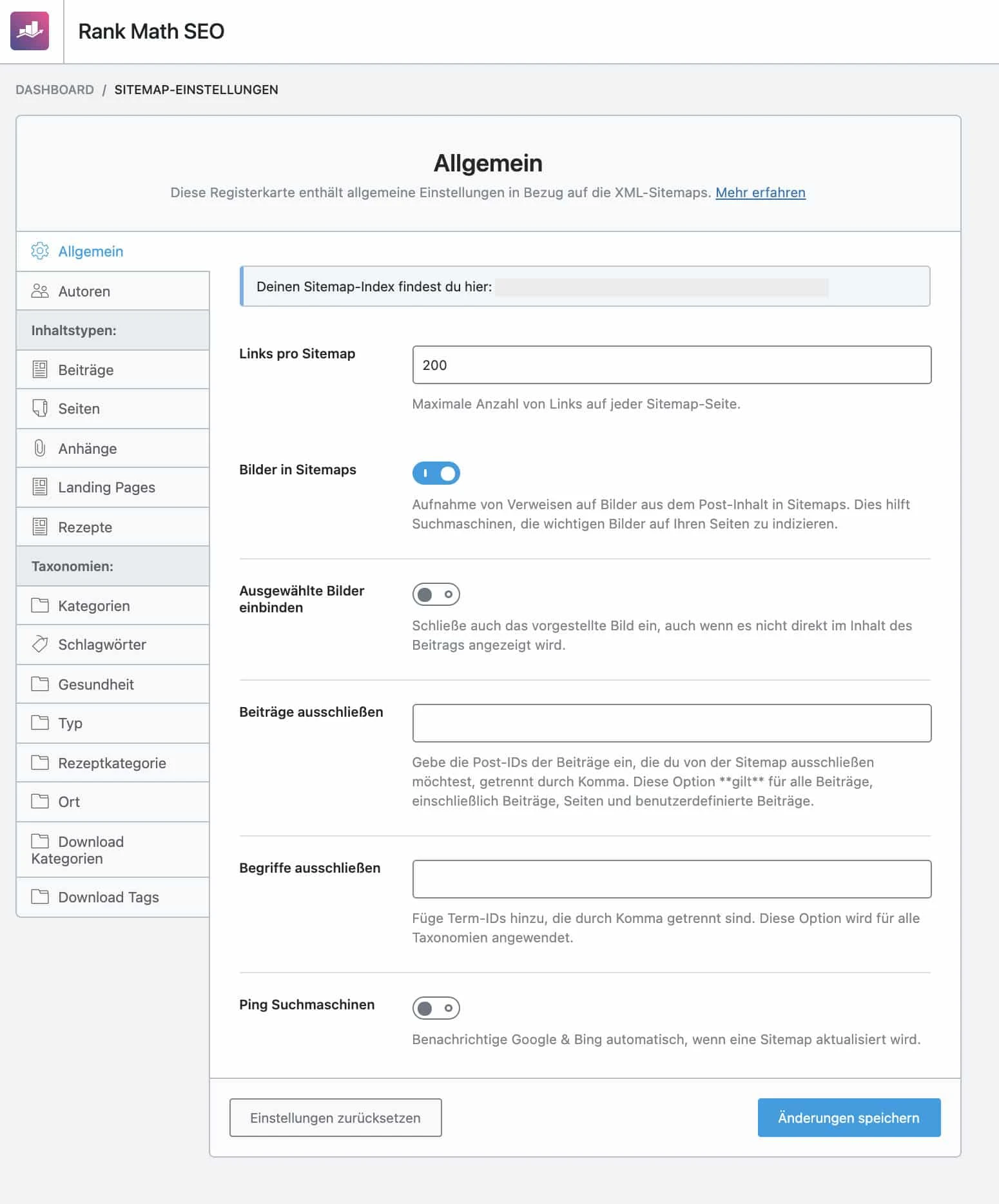
The SEO plugin Rank Math offers a great and extensive WordPress sitemap feature.
After the initial setup, you can define exactly which content should go into your XML sitemap and which shouldn't under Rank Math > Sitemap-Einstellung (Sitemap Settings).
Here you can not only enable or disable individual file types and content, but also exclude individual posts via the post ID and define exactly how many entries an XML sitemap should contain.
A small highlight is the ping function:
When you publish a new post, which of course then also gets included in the WordPress XML sitemap, Rank Math can notify search engines via the IndexNow protocol. Bing and Yandex, for example, support it. Google doesn't: Google shut down the old sitemap ping at the end of 2023. For Google, what counts is therefore the sitemap submitted in Search Console.
The XML sitemaps created by Rank Math (more precisely, the sitemap index) can be found at the following URL:
https://deinedomain.de/sitemap_index.xml2.3 With Yoast SEO
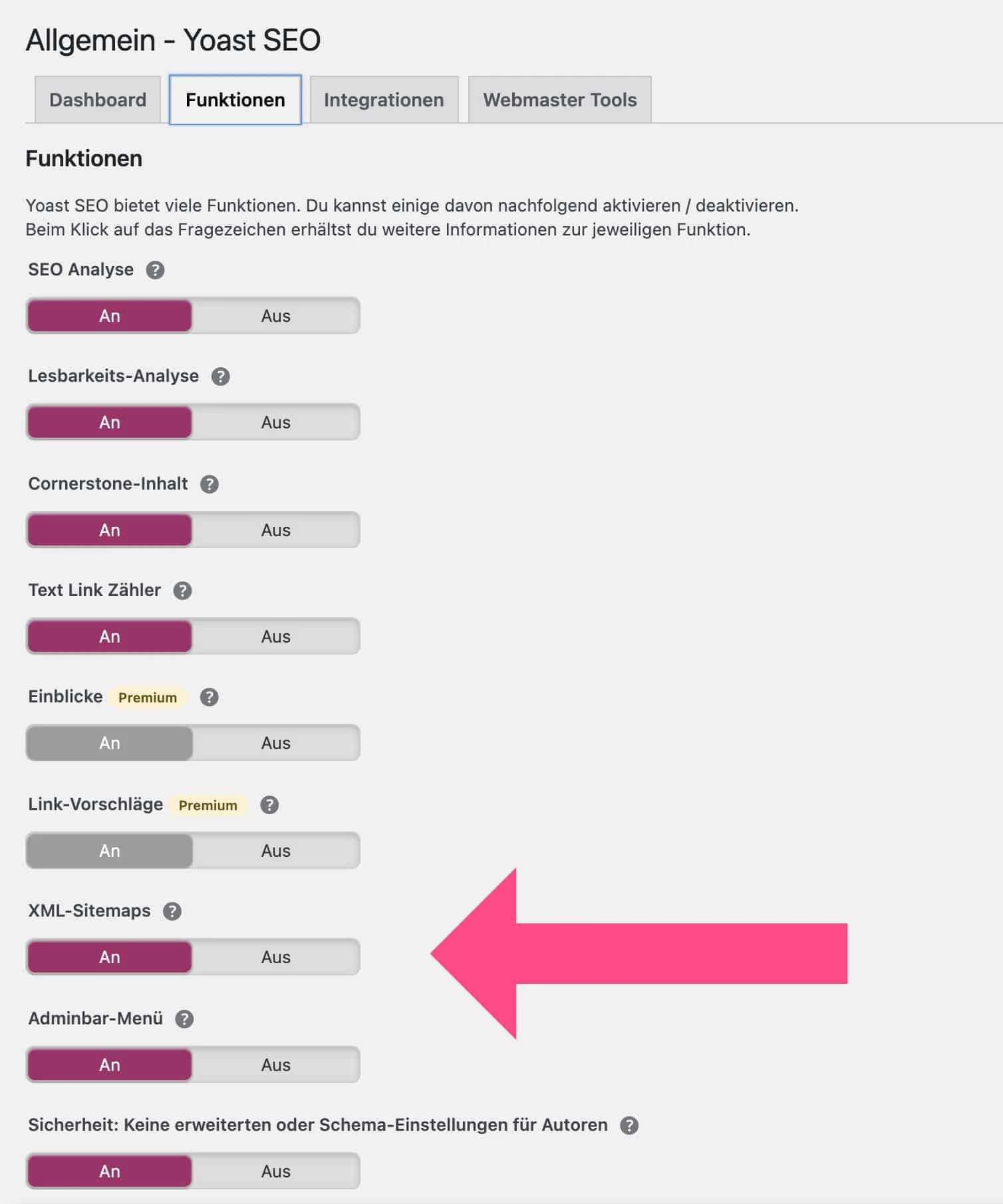
The popular SEO plugin Yoast SEO also includes a WordPress sitemap feature, which works a bit differently from Rank Math's:
Which posts and post types go into the WordPress sitemap can't be set individually with Yoast SEO, but depends on its sitemap indexing settings.
If the taxonomies setting Darstellung in der Suche > Kategorien (Search Appearance > Categories) is set to exclude them from search results, they won't be included in the WordPress sitemap either:
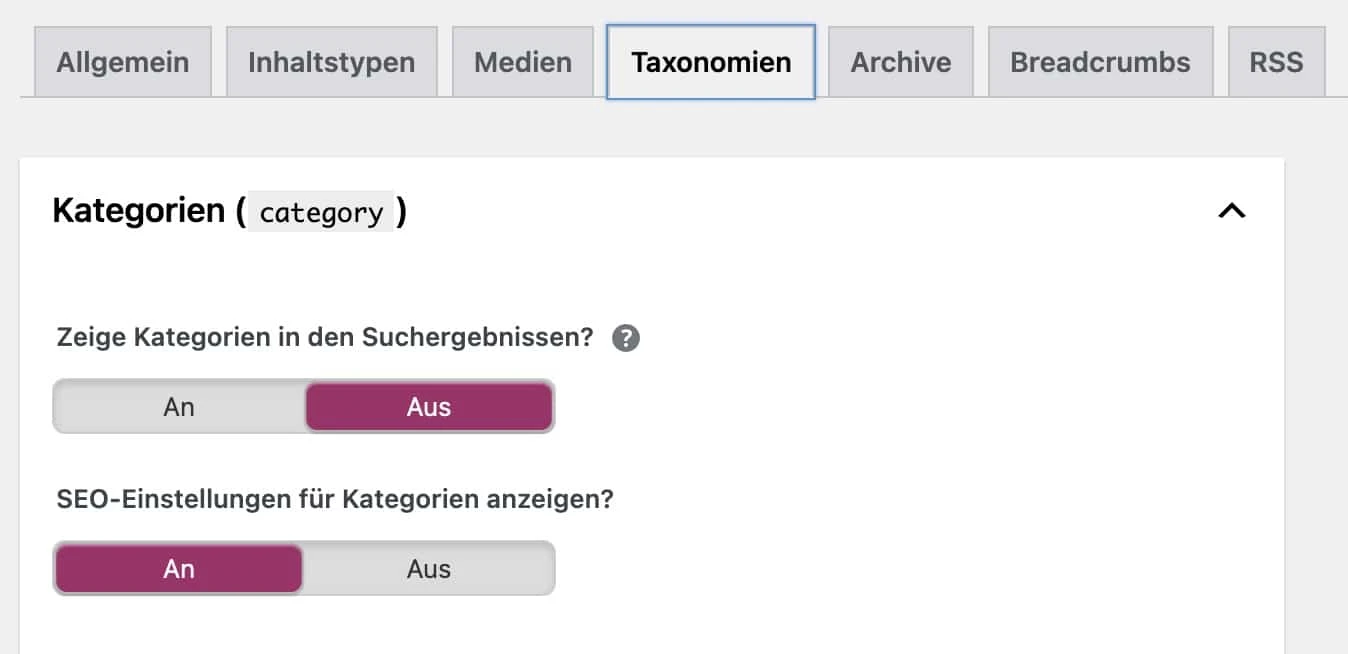
That has the big advantage that you then have less configuration work for the XML sitemap, and the risk of wrong settings is lower than with setting up the WordPress sitemap manually.
In return, the Yoast SEO XML sitemap isn't as customizable as the Rank Math sitemap.
The Yoast SEO XML sitemap can be reached at the following URL:
https://deinedomain.de/sitemap_index.xml2.4 With a sitemap plugin
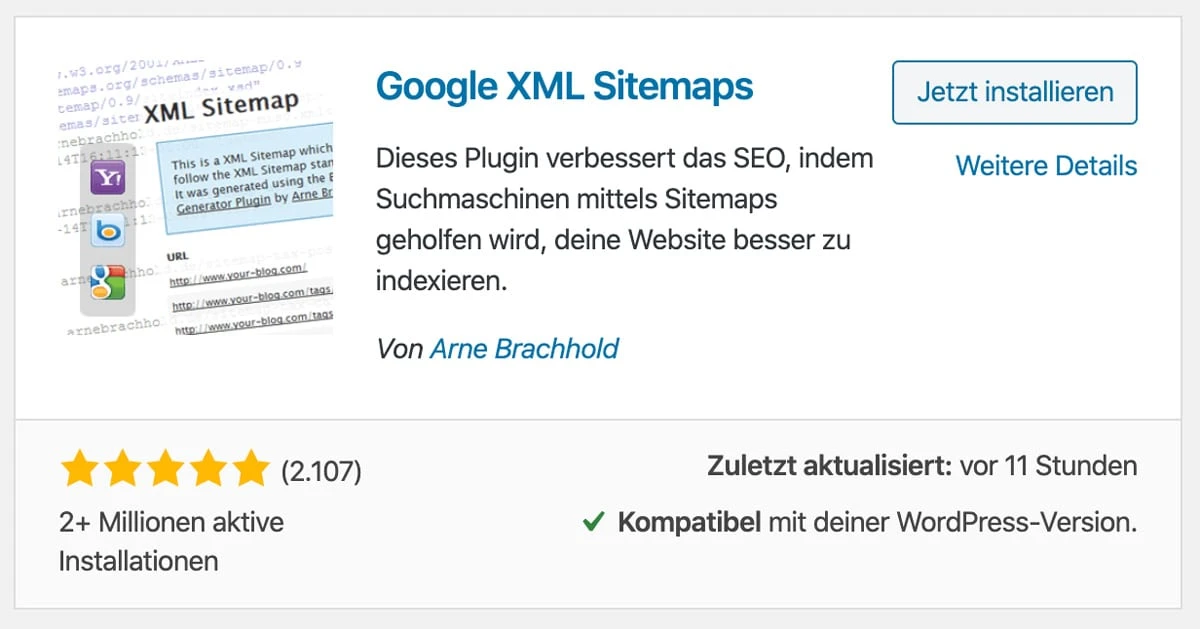
Besides the two SEO plugins mentioned above, Rank Math and Yoast SEO, you can also use a standalone plugin to create your WordPress sitemap.
The standard plugin for a sitemap has always been Google XML Sitemaps by Arne Brachhold, which with more than one million active installations and an average rating of 4.8 stars is by far the most popular plugin of its kind. This plugin has helped many website and blog owners create their sitemap.
After installation, the plugin automatically creates an XML sitemap, which you'll find at the following address:
https://deinedomain.de/sitemap.xmlThe slim and clear backend gives you all the important functions at a glance and thereby makes your sitemap far easier to operate.
You can also define exactly which content should go into your WordPress sitemap and which shouldn't, to keep your XML website tidy and not have all content indexed.
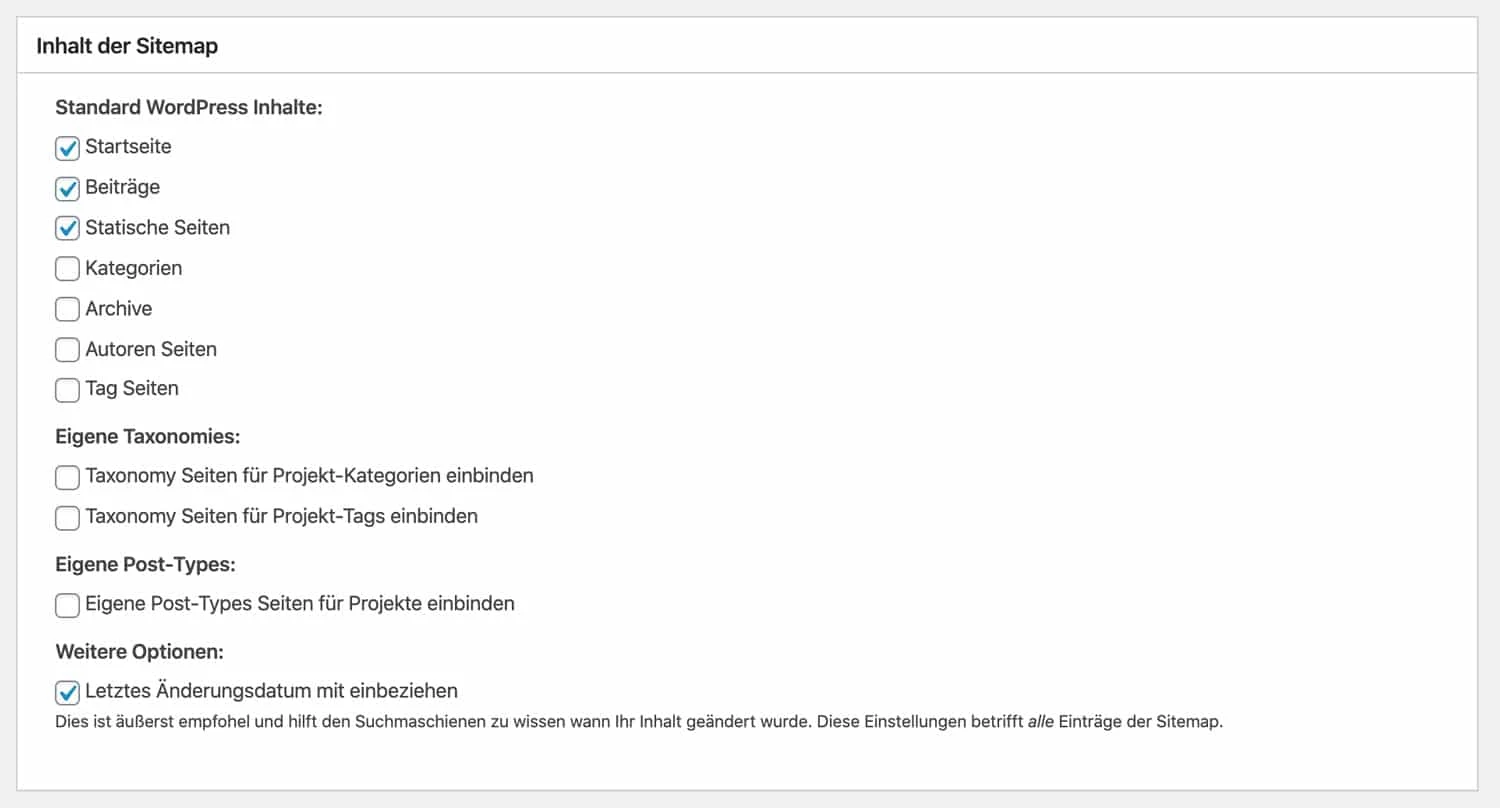
It's also worth mentioning that with the plugin you can display the XML sitemap in HTML format. That saves you the work of laboriously creating this HTML sitemap yourself later.
2.5 Which pages should be in the XML sitemap and which should not?
In search engines, especially Google, only the pages of a website that are relevant for search engine users and customers should be in the index.
That is not the case for very many of the pages WordPress generates.
In addition to posts and pages, WordPress generates, for example:
- Categories
- Tags
- Date archives
- Author archives
- Custom post types (e.g., image galleries, portfolios, testimonials, pop-ups, etc.)
Sometimes this means that for 100 posts, a whopping 500, 1,000, or even more additional web pages end up in Google's index.
Google has become good at finding and recognizing irrelevant pages on its own and no longer indexing them, but “bloated websites” can still lead to problems, such as:
- a manual action for thin content (quite unlikely, though)
- an algorithmic demotion of your website (more likely, e.g., some websites lost visibility after a bug in Yoast SEO caused attachment posts to be indexed)
- problems with duplicate content (Google no longer knows which of your pages or posts is relevant for a topic)
- The pages or posts that are really important get crawled less often (meaning visited by Google to update them)
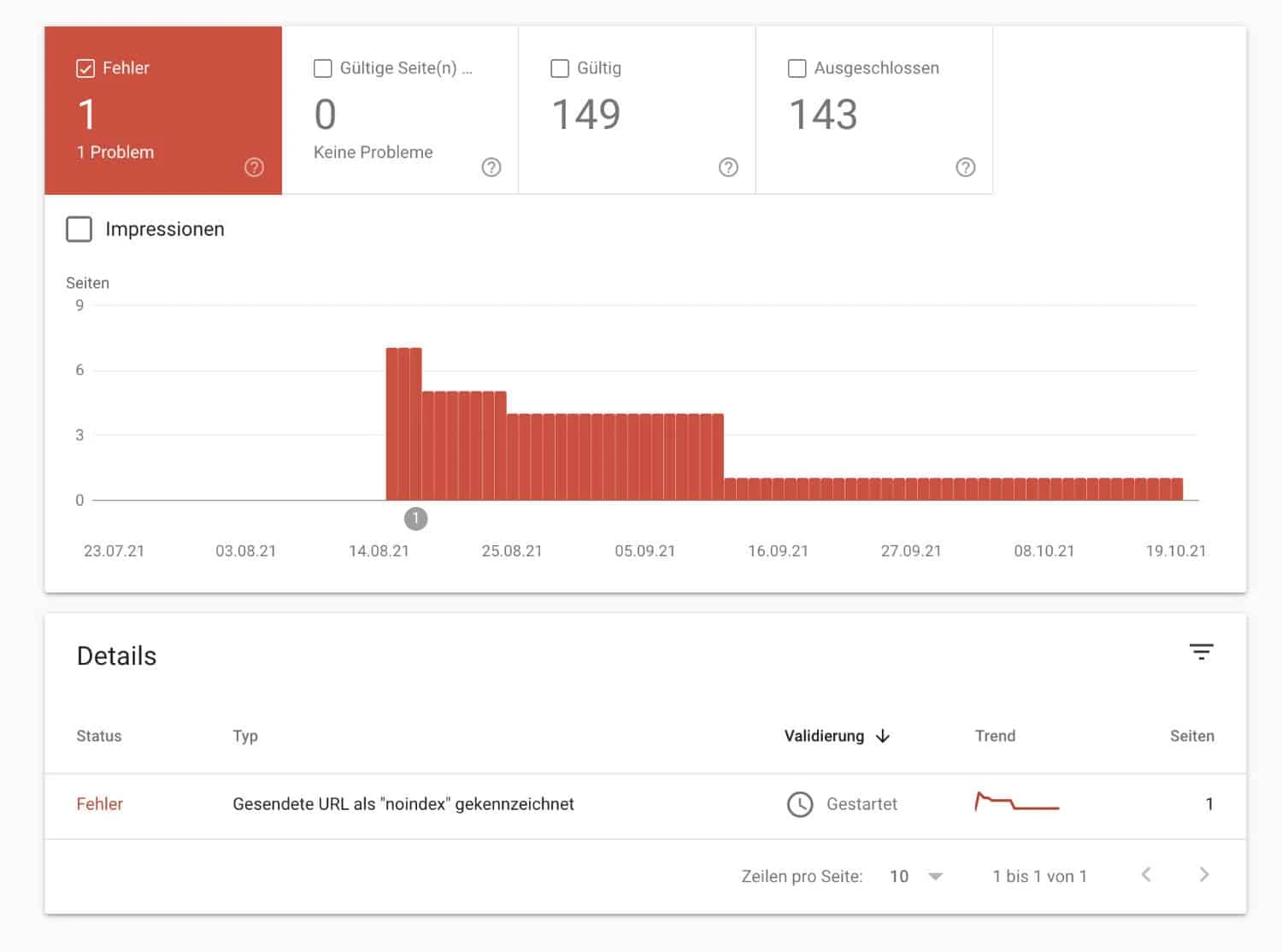
In addition, no pages should be included in the XML sitemap that are reported as errors in Search Console.
These include, for example, redirected URLs or pages that were classified as noindex in the sitemap settings.
You can check whether your sitemap contains such addresses with our free Sitemap Validator.
2.6 Where do I find my XML sitemap?
Depending on which plugin or method of sitemap creation you chose, it can be found at different URLs.
Here you'll find the URLs of eight common WordPress plugins and methods:
Plugin | URL |
|---|---|
| Google XML Sitemaps | https://deinedomain.de/sitemap.xml |
| Rank Math | https://deinedomain.de/sitemap_index.xml |
| SEOPress | https://deinedomain.de/sitemaps.xml |
| Squirrly SEO | https://deinedomain.de/sitemap.xml |
| The SEO Framework | https://deinedomain.de/sitemap.xml |
| WordPress (native) | https://deinedomain.de/wp-sitemap.xml |
| Yoast SEO | https://deinedomain.de/sitemap_index.xml |
2.7 How do I submit an XML sitemap to Google?
Submitting your XML sitemap to Google is relatively simple. The only requirement is a free registration of your website with Google Search Console.
In the Sitemaps report of Search Console you can then enter the address of your sitemap. Alternatively, you add it to your robots.txt, for example with the line Sitemap: https://deinedomain.de/sitemap_index.xml. You create the file for that with our free robots.txt generator.
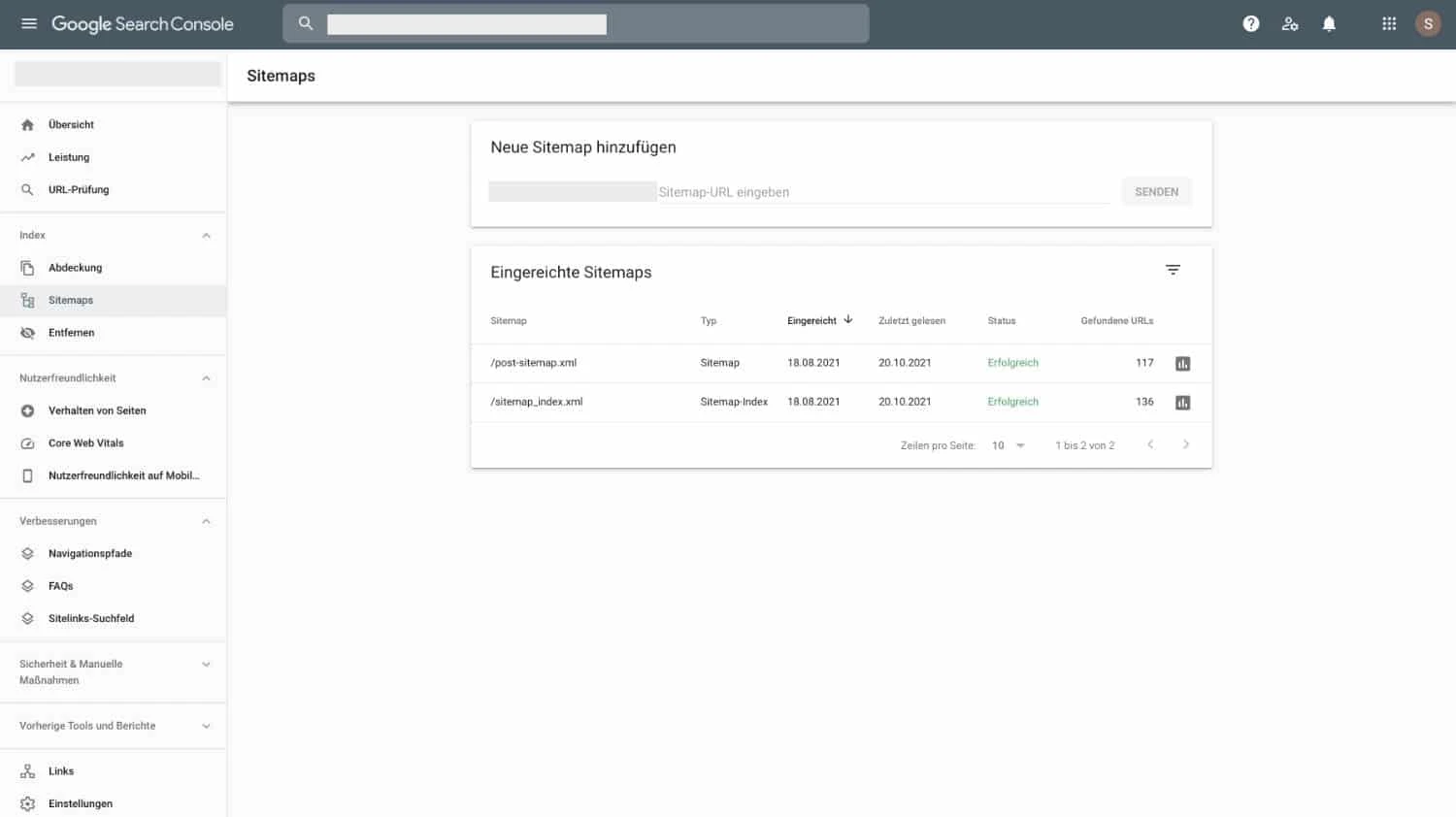
Once you've submitted your WordPress sitemap to Google, you can also follow in Google Search Console how Google has processed the individual pages and whether any errors occurred when you submitted your sitemap:
3. Creating an HTML sitemap in WordPress
For very large and extensive projects with a great number of subpages, an HTML sitemap is a useful addition to the main menu.
This sitemap, which you can think of as a table of contents of your entire WordPress website, helps your visitors find their way around better and faster.
If you want to create such an HTML sitemap, you have two options:
- You create the WordPress sitemap by hand (I wouldn't recommend it)
- You use a plugin to create your sitemap
Even though I'm a big fan of handling as many tasks as possible without plugins, I can't endorse that for creating an HTML sitemap.
On large websites, it can take a long time to capture and link all the subpages.
The best plugin I've found for it so far is Simple Sitemap:
Simple Sitemap isn't just compatible with Gutenberg, it also comes with numerous customization options:
You can exclude individual pages or adjust the order of the entries as you like. Even Elementor is supported. With more than 60,000 active installations, the plugin is much smaller than the XML sitemap solutions, but it is still maintained.