
Tables are used on many websites and are a great way to present large amounts of data or product comparisons clearly.
The problem:
Inserting tables in WordPress can be fiddly and awkward.
Reason enough to take a closer look at table plugins.
We took a closer look at five of the most popular plugins in this category and tested them in detail.
Admittedly, we were surprised ourselves by how many features some of these plugins actually have.
But see for yourself...
- WP Table Builder is the best free table plugin, with a very easy to use drag-and-drop builder, perfect for pricing tables and product comparisons.
- wpDataTables Pro (from €59 / year) is ideal for large amounts of data, with a filter function, MySQL import and Google Sheets connection.
- TablePress is a free veteran among table plugins and offers a very tidy backend editor with Excel-style formulas and CSV import.
1. wpDataTables
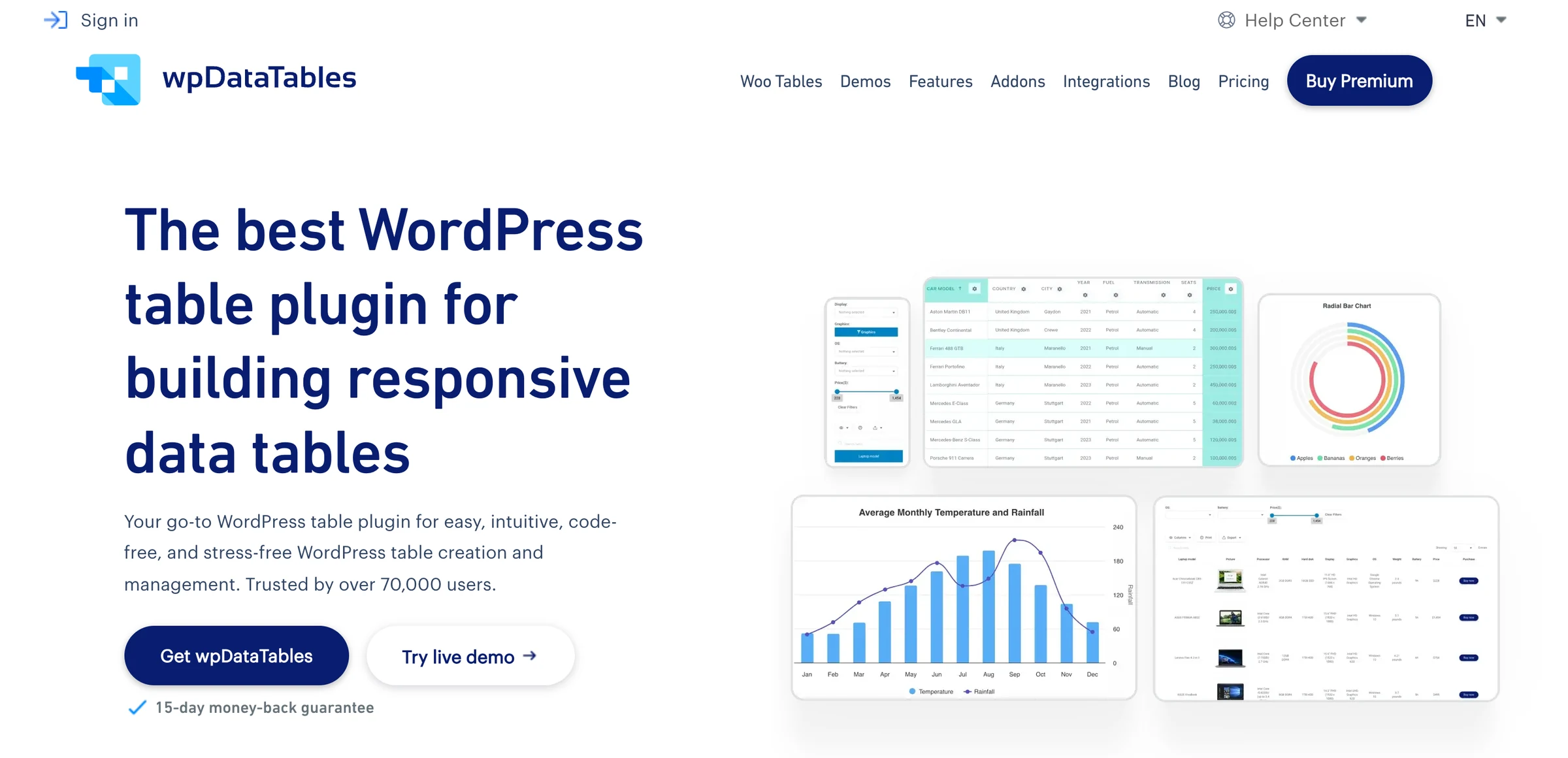
wpDataTables exists as a stripped-down Lite version that you can download directly from the WordPress plugin library, or as a Premium version that makes the tool one of the most powerful table tools for WordPress.
Creating a table in the backend is very reminiscent of Excel, but it shouldn't cause you any trouble even if you're not familiar with the office application.
For simple tables, the free version of wpDataTables is definitely enough.
Even here, you can add tables of any size to a page and include content such as images or videos, shortcodes or even a star rating. That means wpDataTables lets you create not only data tables but also price comparisons and product listings with ease.
There are almost no limits on design either: adjust individual columns and rows to your requirements, choose a custom font or insert custom HTML.
Of course, all tables you create with wpDataTables are optimized for mobile devices.
What does the Pro version offer?
wpDataTables Pro is available from €59 / year and adds a large number of extensions to the plugin.
Besides an API connection to Google Sheets and database support for MySQL or PostgreSQL, there is a really great filter function, charts and the ability to import CSV files easily.
You can also create editable tables for your visitors that then automatically perform calculations based on formulas you define.
If you have questions or problems, support is there to help, which is also only available from the Pro version.
- Free version available
- Responsive
- Very good backend editor
- Easy to insert tables with shortcodes
- MySQL or Google Sheets import
- Works with any theme without problems
- Limited to 150 rows in the Lite version
2. WP Table Builder
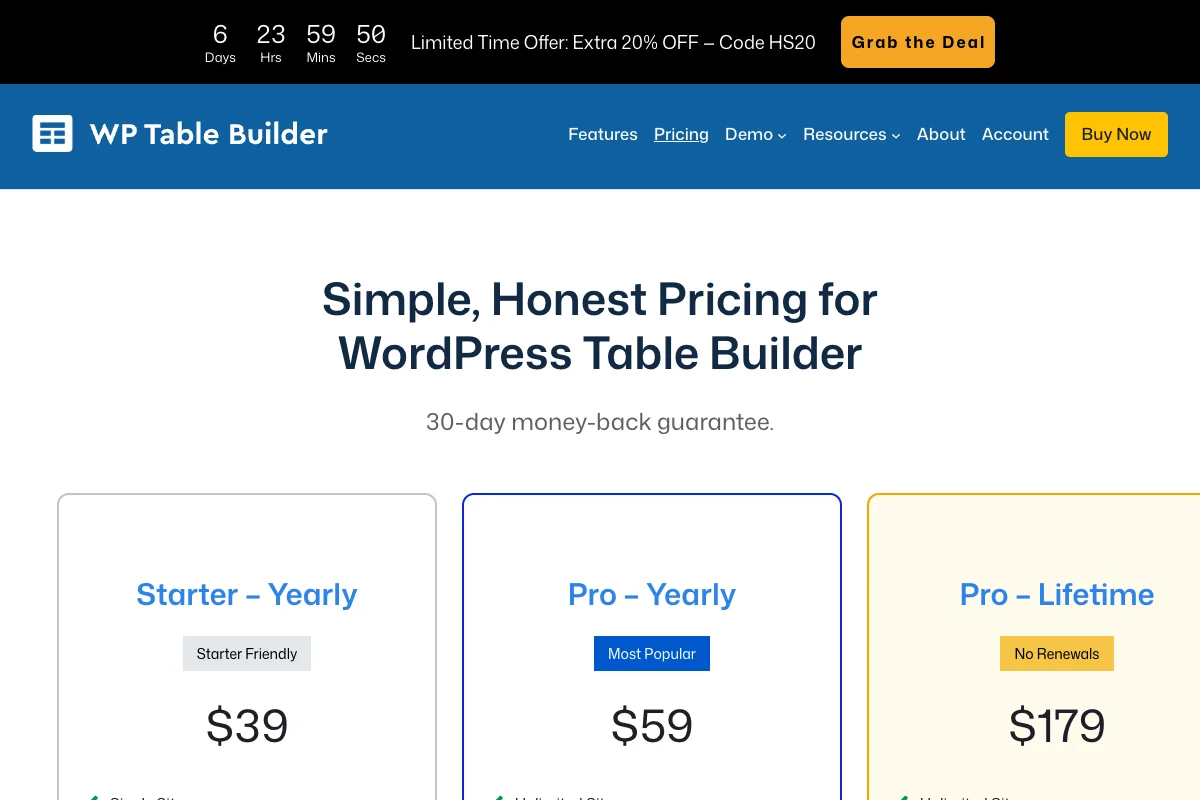
WP Table Builder is the table plugin with the best free version, which includes a wide range of features.
It's no coincidence that the plugin is currently rated 4.8 out of 5 stars on WordPress.org and is downloaded several hundred times a day.
The highlight of WP Table Builder is a very easy to use drag-and-drop builder that lets you design really great tables with media, text, buttons or star ratings in a live view, even without any programming knowledge.
That makes the plugin the perfect choice for pricing tables and product comparisons.
You can insert the tables you create, which are of course responsive, simply with a shortcode.
An import and export function was recently added to WP Table Builder as well, which in our eyes significantly improves the plugin.
The only thing we still painfully miss is a filter function: large tables with a lot of data are therefore hard to pull off with WP Table Builder. Even if you could build them, the usability for your users is severely limited.
- Free
- Very easy to use drag-and-drop builder
- Easy to add images, buttons and star ratings
- Compatible with any theme
- Easy to insert with shortcodes
- CSV import and export
- No support
- No filter function
3. Ninja Tables

Ninja Tables is a table plugin that has been very popular for many years and is available in a very extensive free version as well as a Pro version.
The good news:
Very few people will actually need the Pro version.
The free version of Ninja Tables already has an impressive range of features:
- Flexible column and row adjustment
- Add content such as buttons, images, HTML or text
- Filter function for your visitors
- Search function for individual data points
- Print view
We also liked very much how user-friendly the plugin makes these many functions available in a very clear backend. Even as a beginner, you'll have no trouble creating high-quality tables.
To see how varied the possibilities with Ninja Tables are, we recommend a look at the developers' demo page.
What does the Pro version offer?
Ninja Tables Pro is available from $79 / year or for $309 lifetime.
It adds functions such as an edit function and a CSV export for your visitors, or a live connection to Google Sheets.
If you use WooCommerce, you can have your products displayed automatically in tables that your visitors can sort by certain criteria. The same goes for blog posts.
- Very extensive free version
- Many different types of content can be added
- Filter function
- Tidy and user-friendly
- Extensive tables are no problem
- Interactive tables for your visitors
- Poor support
- Lifetime version at $309 is very expensive
4. TablePress
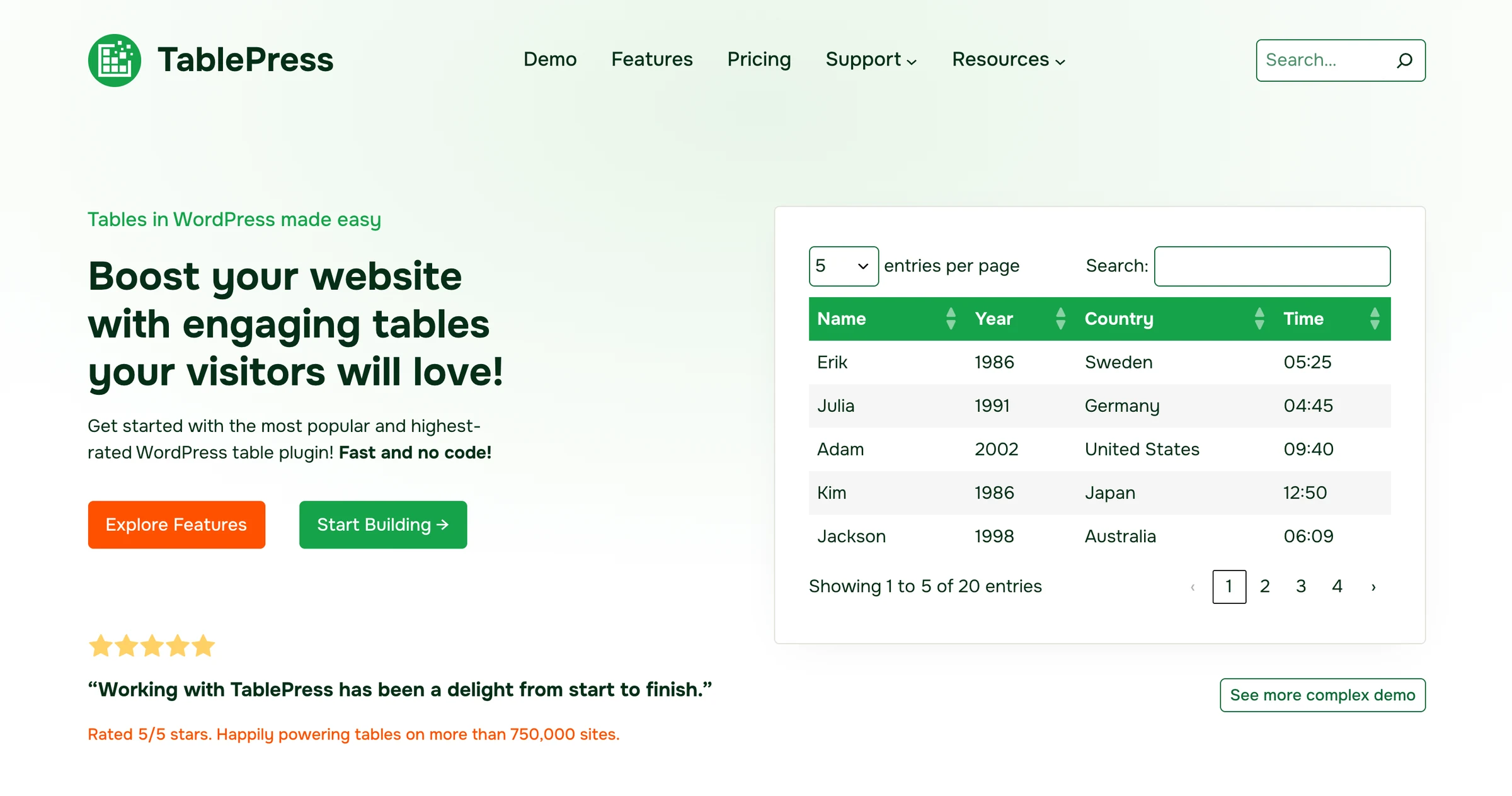
TablePress is one of the veterans among WordPress table plugins and, with 800,000+ downloads, one of the most widely used solutions.
That's no surprise: TablePress impresses with a very tidy backend and lets you display even larger amounts of data conveniently and clearly on your website.
You can not only add content via CSV or .xlsx import, but also export, sort or copy the data you've entered.
The look of the tables can also be adapted very flexibly to your needs. In addition to numbers and text, you can show images or buttons in individual cells. Even custom HTML or JavaScript is no problem.
To improve usability for your visitors, TablePress offers a simple sort function as well as the option to show a search field. That makes it quick to browse even tables with several hundred entries.
You can add further premium features via extensions, including the responsive display option, a fixed header row or a filter widget. These extensions don't cost anything, but the developers ask for a small donation.
- Free plugin
- Extensions are free as well (donate!)
- Very clear backend
- Large range of features
- Excel-style formula function
- Easy import and export
- Design adjustments are difficult
- Design is a bit dated
5. Advanced Table Block (PublishPress)
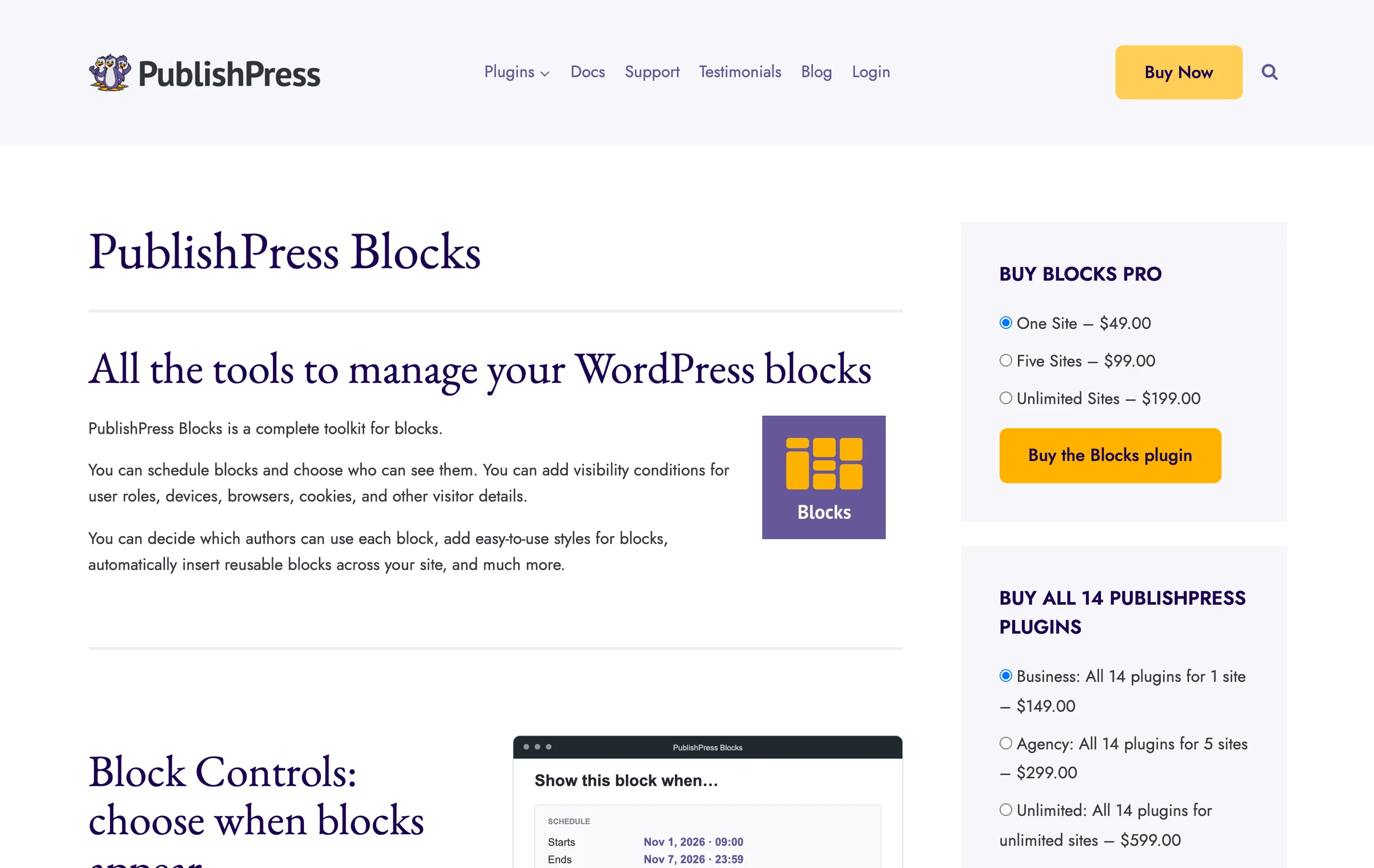
The last option we'd like to introduce in this list isn't a plugin of its own but is built into a collection of Gutenberg blocks: Advanced Table Block by PublishPress.
That means: you install the PublishPress Gutenberg Blocks plugin and can then add the “Advanced Table” as its own block directly in the Gutenberg editor.
Since it isn't a standalone table plugin, the range of features is of course much smaller. Even so, Advanced Table Block is definitely a better solution than the standard table block in the Gutenberg editor, which offers no configuration options.
Advanced Table Block makes it possible, for example, to show cells in different colors, set the column width individually or adjust the border width precisely.
Of course, all tables are responsive.
Advanced features such as import / export or a filter or search function for your users are nowhere to be found here, so we wouldn't use this plugin for larger amounts of data.
What does the Pro version offer?
You can't upgrade Advanced Table Block to the Pro version on its own, but unfortunately have to buy the Pro version of PublishPress Blocks for $49.
In return, the PublishPress branding on your website goes away and you get access to premium support.
- Free
- Edit directly in the Gutenberg editor
- Flexible adjustments of rows and cells
- Visual adjustments via CSS
- Only available in PublishPress Blocks
- No standalone Pro version
- Branding in the free version
- No filter or search function
6. The Gutenberg table block
The standard table block in Gutenberg isn't a plugin, but it's a good alternative to inserting code manually or using a table plugin.
That's especially true if you only want to create small tables with a few columns and rows.
In that case, the Gutenberg table block is definitely a sufficient solution.

Of course, it can't come close to what professional plugins do. To display a simple, small and basic table, though, the Gutenberg table block is enough.
The range of features is small:
Besides the number of columns and rows, you can also add a visually distinct header and footer row to your table.
If you want to make further adjustments, you have to do it by entering CSS.
Unfortunately, the display on mobile devices isn't always ideal either. Especially if you add several columns containing longer words, the frontend on smartphones and the like can sometimes get shifted extremely.
So it's no solution for presenting extensive collections of data to your visitors.
FAQ
Here I've put together the answers to the most common questions about WordPress table plugins:
How can I make tables in WordPress responsive?
The biggest weakness of the Gutenberg table block is how it looks on mobile devices. The columns often aren't cut off correctly, so the page width either gets stretched extremely or content gets cut off completely.
Table plugins help here, because they usually deliver a responsive layout.
To show you how to create a very clear table in WordPress with many columns quickly, easily and above all for free, and then make it responsive, I'm using one of our favorite plugins: TablePress.
For this you need to install two plugins:
- TablePress itself
- The extension “TablePress Extension: Responsive Tables”
After that, you can build a table the way you want it and insert it wherever you like with the generated shortcode.
For display on mobile devices, TablePress then gives you three options:
- Scroll: A horizontal scroll lets you show all the content of the table without widening the page itself (we don't recommend this)
- Collapse: A plus sign lets you open content that isn't displayed.
- Flip: The ideal function if your table allows it. Rows are turned into columns and columns into rows.
You can also set the breakpoint, meaning the switch between the mobile view and the desktop layout, conveniently in the backend.
Are WordPress plugins free?
Yes and no.
There are thousands upon thousands of plugins on the market. The WordPress library alone contains around 60,000 plugins! Most of them are free, and many are available as a freemium version.
Which plugins do you need for WordPress?
I've put together the best WordPress plugins 2024 for SEO, privacy, performance and more in my article the best 33 WordPress plugins 2024 (incl. 5 insider tips).
What do plugins do?
WordPress plugins can help you make your website faster and more secure, earn more money, increase your visitor numbers or save a lot of time.