
Comments can be a great way to get to know your own community and readers better and to get them to interact with you.
That's exactly why WordPress has an easy-to-use comment function.
But there are scenarios that make it necessary to disable the comment function. For example, controversial post topics that would lead to insulting or hateful comments.
In this article we'll show you how to disable comments in WordPress, both globally and for individual posts.
- To disable comments for new posts, go to Settings > Discussion and uncheck “Allow people to submit comments on new posts”. Existing comments are kept.
- For individual posts, use the Quick Edit function in the post overview or disable comments directly in the post editor under Discussion (right sidebar).
- To disable all comments completely (new and old), use the Disable Comments plugin, which switches off all comment functions site-wide with one click. Alternatively, you can do it with code in the functions.php.
1. Disable comments for new posts
The comment function is enabled by default in WordPress.
That means: when you create a new post, a comment function automatically appears at the end, where readers can write a short statement or ask you a question.
If you'd rather go without this function, you can disable it fairly easily in the WordPress backend.
Caution: This way, the comment function is only switched off for new posts. Existing comments are kept and not deleted. In a later chapter we'll show you how to disable the comment function on posts that have already been published.
To disable the comment function for new posts, you have to switch it off under Einstellungen > Diskussionen (Settings > Discussion).
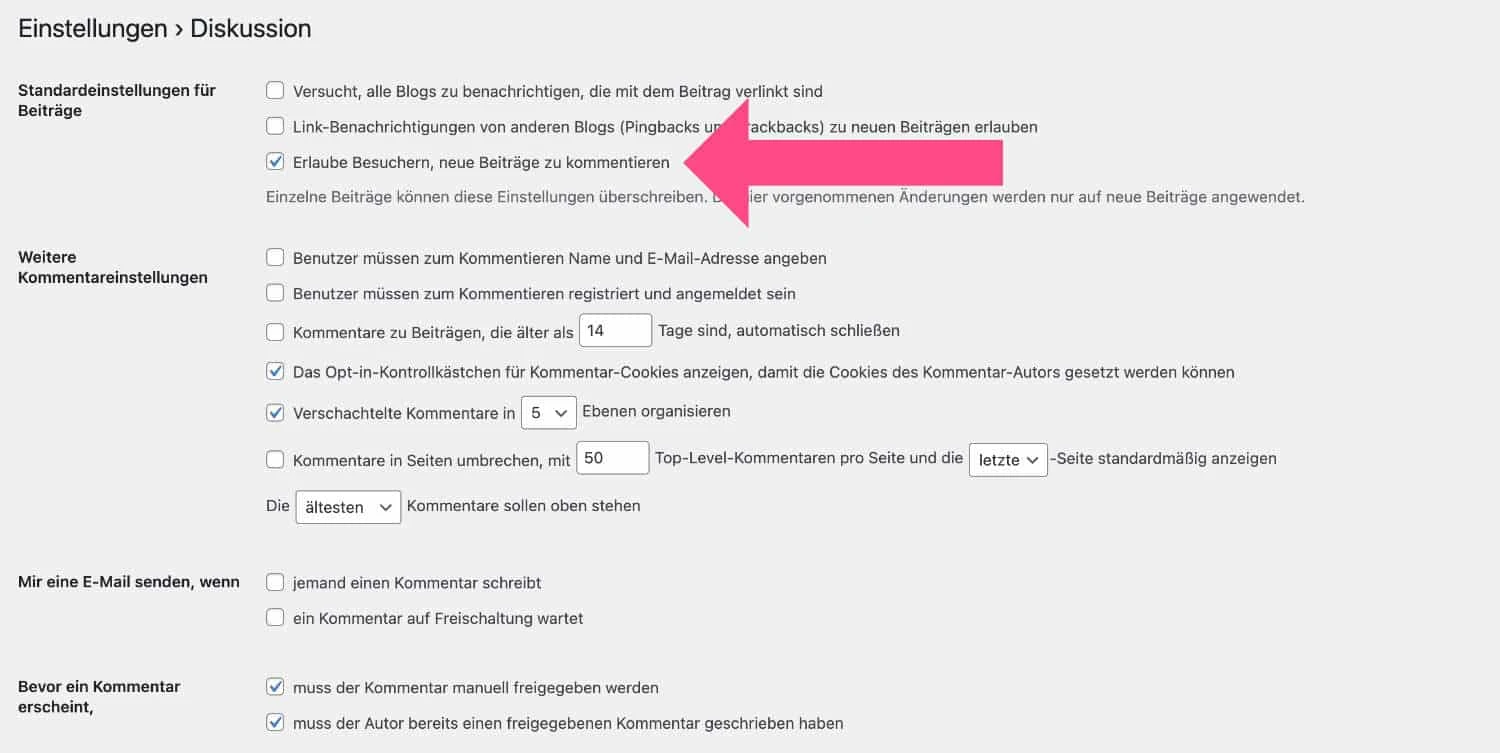
Just uncheck “Erlaube Besuchern, neue Beiträge zu kommentieren” (Allow people to submit comments on new posts), which is checked by default.
Done!
2. Automatically disable comments for older posts
To automatically disable comments on older posts, look in the WordPress backend under Einstellungen > Diskussionen (Settings > Discussion) for the item “Kommentare zu Beiträgen, die älter als XX Tage sind, automatisch schließen” (automatically close comments on posts older than XX days).
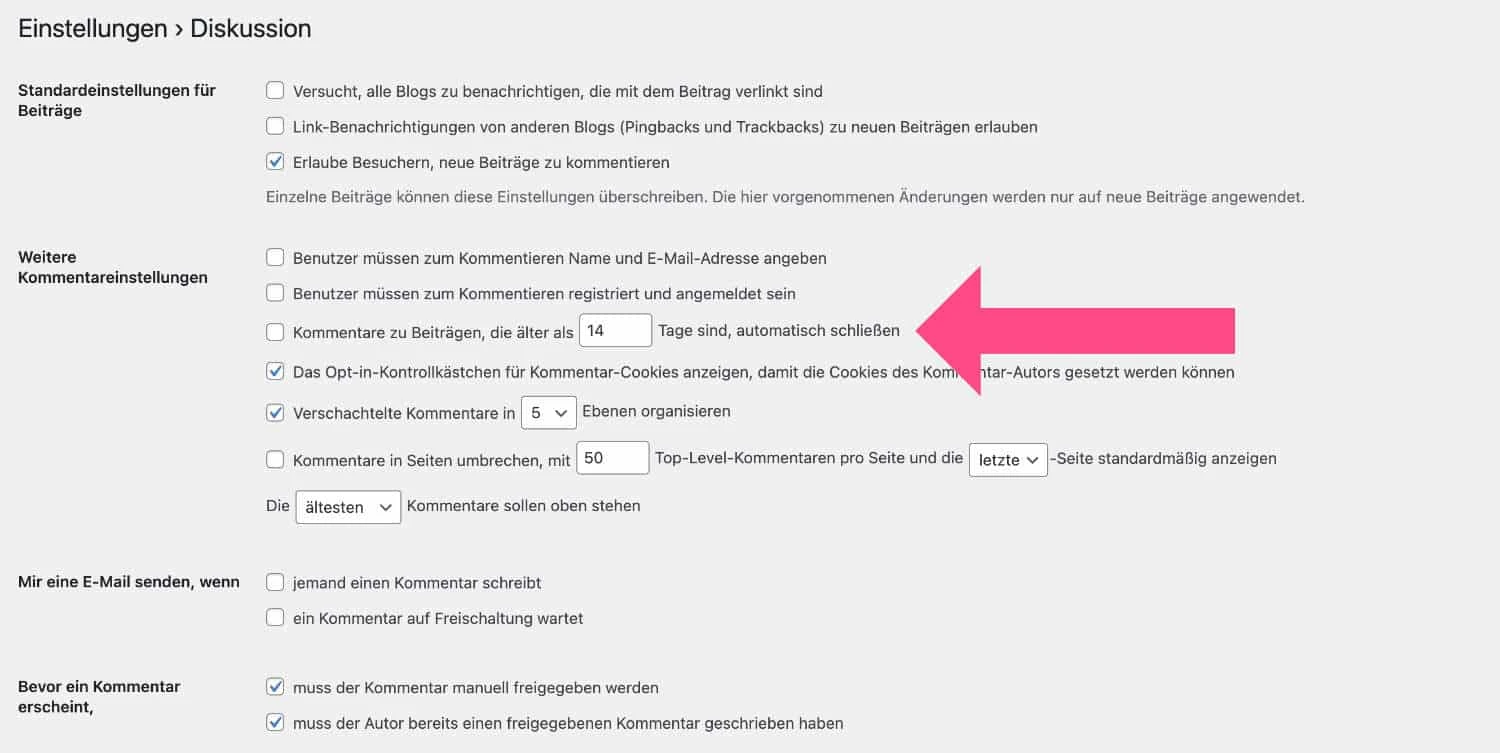
Here you first have to check the box and then define a period of time.
If you want to disable the comments on all existing posts, take a look at your published posts. Find the publication date of the latest post and then enter it into this calculator, which works out the difference in days from the date you entered.
With a final click on “Änderungen speichern” (Save changes), all comments on existing posts are deleted automatically.
3. Disable comments for individual posts
Of course, WordPress also lets you disable comments individually for single posts.
There are two ways to do this.
One is to use the Quick Edit function in the post overview.
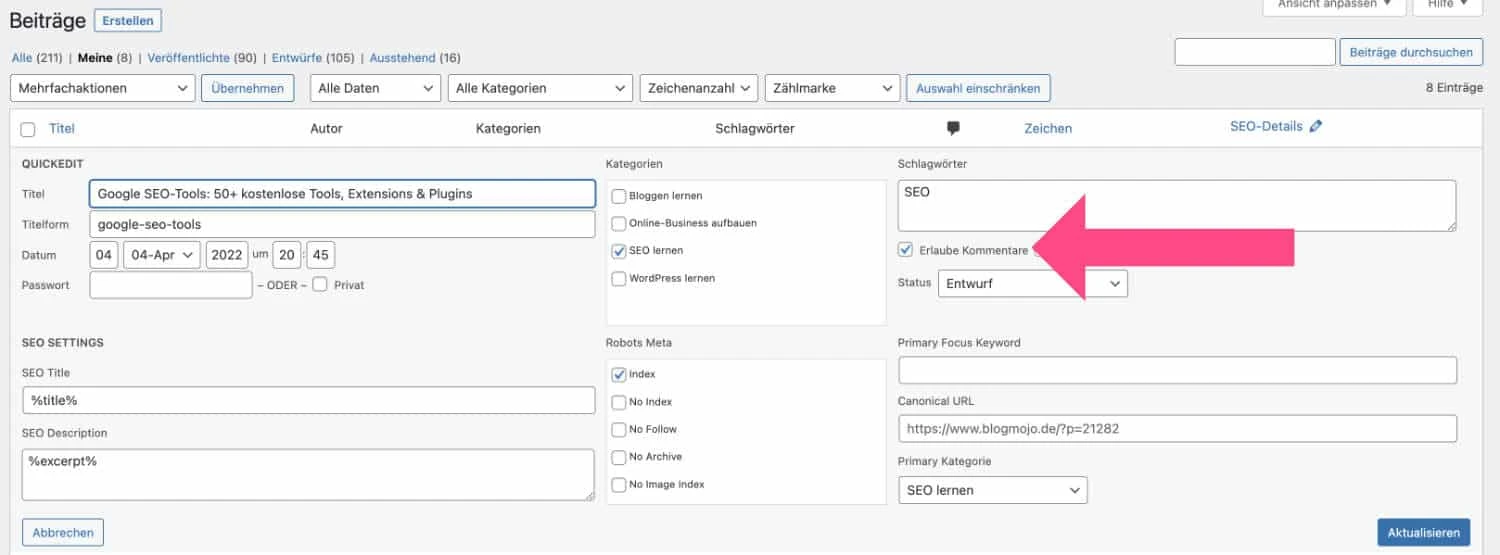
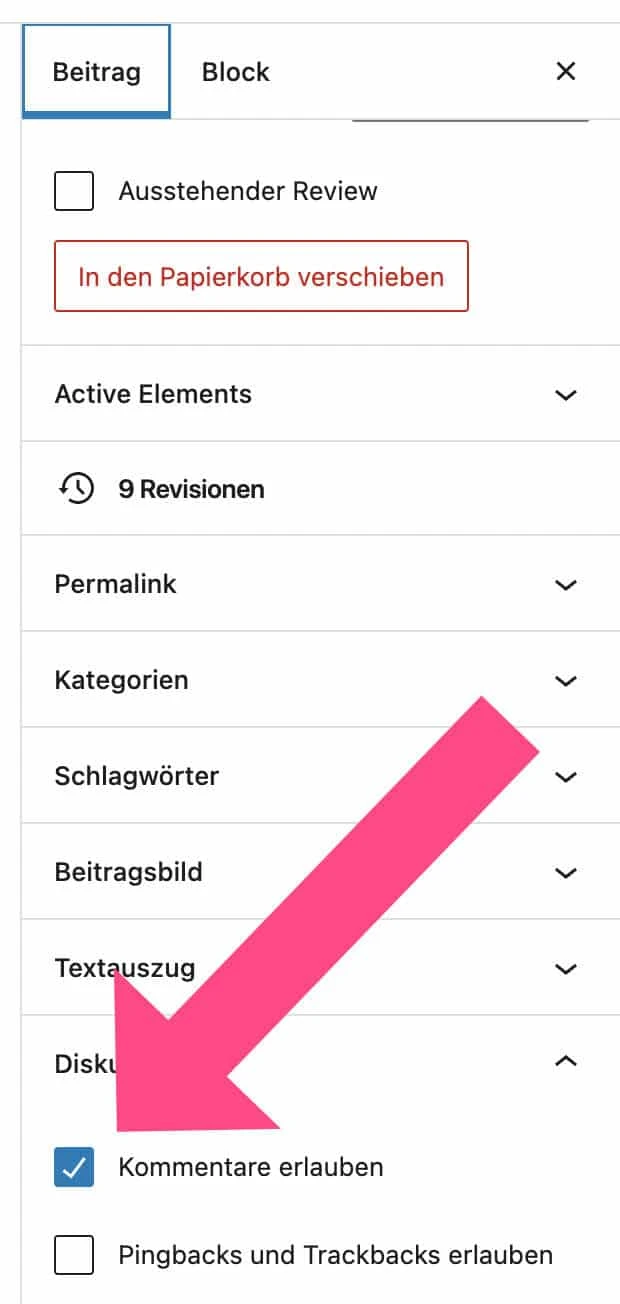
Alternatively, you could also disable the comments directly while editing the post.
Make sure you're on the “Beitrag” (Post) tab in the right-hand menu bar. Under the “Diskussion” (Discussion) menu item, you can then disable comments for this post individually.
4. Disable comments for several existing posts
If you've published posts with the comment function in the past but want to disable it afterwards, you could proceed as described in point two.
The problem here is that this disables the comments on ALL older posts.
The approach from point 3 is also possible, but very time-consuming.
Luckily, WordPress lets you edit posts in bulk.
To do this, first go to the post overview. Then check the box in front of all the posts whose comment function you want to disable. Next, select the function “Bearbeiten” (Edit) in the top menu bar and confirm your selection by clicking “Übernehmen” (Apply).
Now an editing panel opens that you already know from Quick Edit.
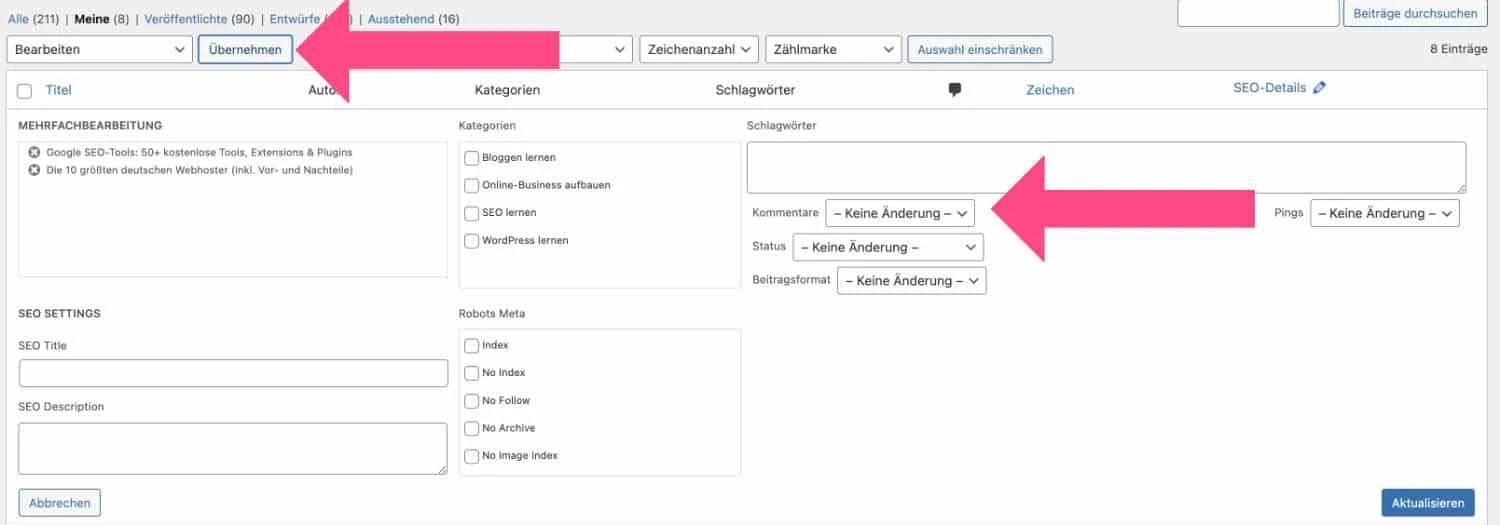
Under “Kommentar” (Comment), you can now disable the comment function for all selected posts.
5. Disable the comment function completely (with a plugin)
Besides the solutions built into WordPress for disabling comments, you can also do the whole thing with a plugin.
The advantage: with a single mouse click, you disable the comment function on existing and new posts.
The free plugin Disable Comments is very convenient here, and you can download it directly from the plugin library.
After installation, it lets you disable all comments on all pages and posts.
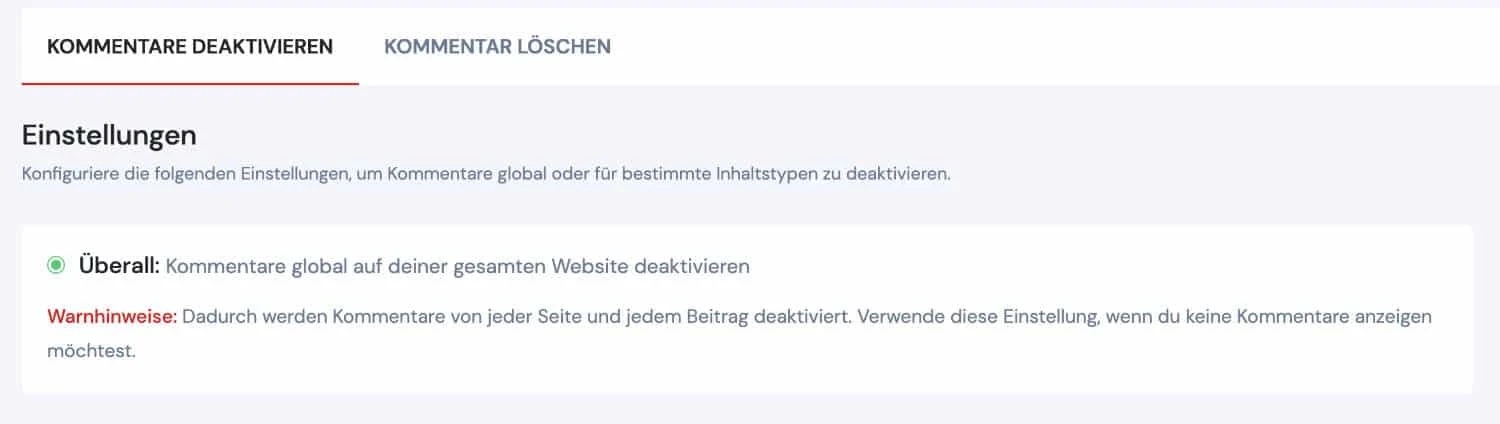
It's very quick and reliable, and certainly a great option if you've already published numerous posts with the comment function enabled and now want to disable it.
Don't be surprised: after you've disabled the comment function via Disable Comments, the “Kommentare” (Comments) menu item no longer appears in the WordPress admin area.
6. Disable the comment function completely (with functions.php)
It doesn't always have to be a plugin to change how WordPress works.
We ourselves usually prefer to adjust the functions.php to our needs. After all, plugins often contain security vulnerabilities, have to be updated regularly, and can also have a negative effect on your site's load time.
To disable the comment function in WordPress completely, all you have to do is add this code, which we found at Keith Greer, to your functions.php:
// First, this will disable support for comments and trackbacks in post types
function df_disable_comments_post_types_support() {
  $post_types = get_post_types();
  foreach ($post_types as $post_type) {
    if (post_type_supports($post_type, 'comments')) {
      remove_post_type_support($post_type, 'comments');
      remove_post_type_support($post_type, 'trackbacks');
    }
  }
}

add_action('admin_init', 'df_disable_comments_post_types_support');

// Then close any comments open comments on the front-end just in case
function df_disable_comments_status() {
  return false;
}
add_filter('comments_open', 'df_disable_comments_status', 20, 2);
add_filter('pings_open', 'df_disable_comments_status', 20, 2);

// Finally, hide any existing comments that are on the site.
function df_disable_comments_hide_existing_comments($comments) {
  $comments = array();
  return $comments;
}
add_filter('comments_array', 'df_disable_comments_hide_existing_comments', 10, 2);7. Delete all comments
Want to delete existing comments?
No problem!
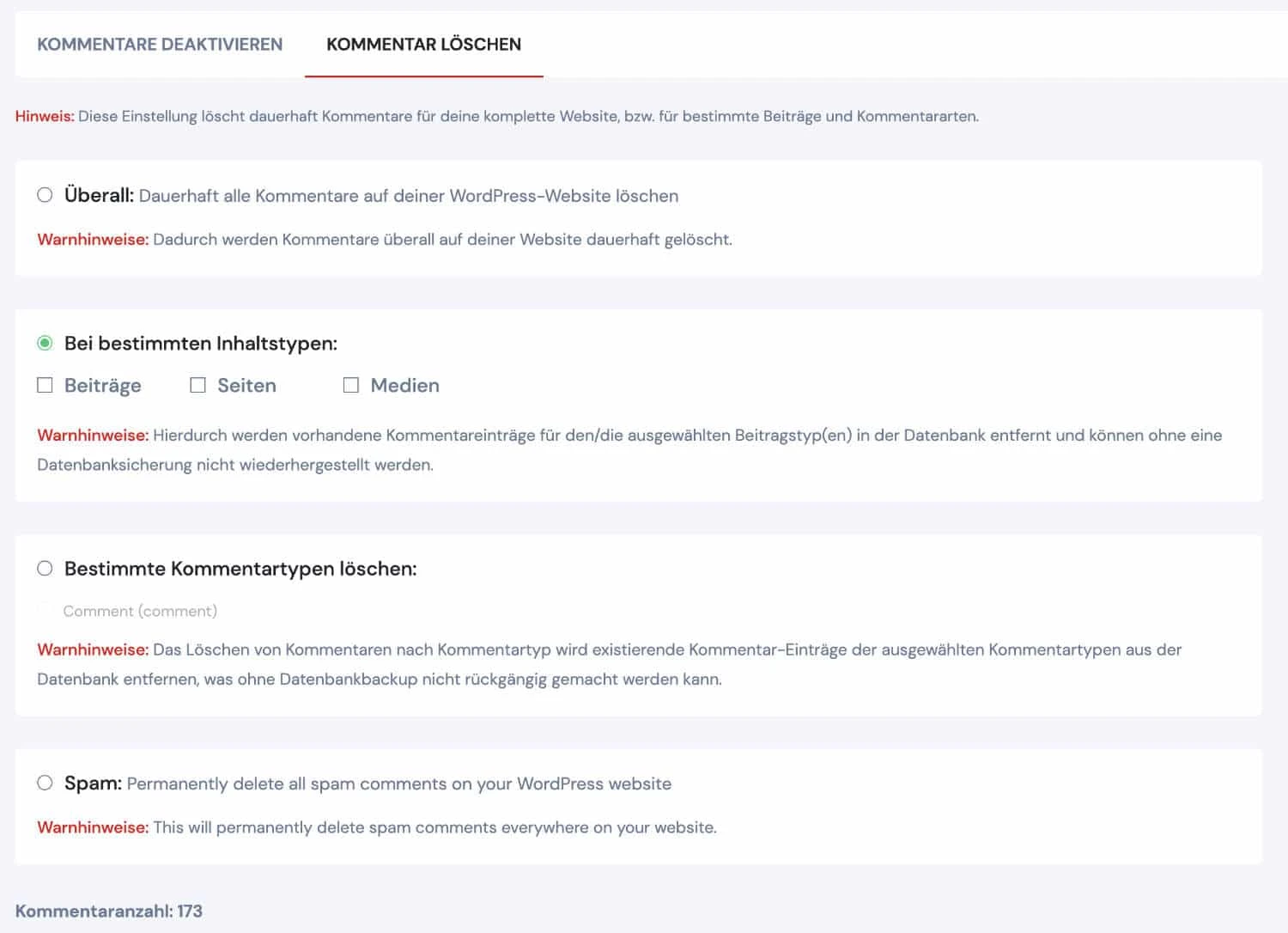
If the number hasn't grown too much yet, you can do it by hand and delete them in the comments section of the WordPress backend.
Alternatively, you can use the plugin Disable Comments mentioned earlier. The plugin offers an excellent delete function for comments that have already been published.
8. Reasons to disable WordPress comments
There are various reasons why you might want to disable the comment function in WordPress. Here we'd like to briefly go into five arguments that we find very convincing.
8.1 Less hassle with data protection
Anyone who leaves a comment may be able to enter a name and email address. This data is stored in the WordPress database.
You can choose not to mark the corresponding input fields as required. But as soon as the user enters their email address, it counts as data collection, which is tied to various legal requirements.
The same applies to the IP address of commenters, which WordPress stores in every comment by default. This should absolutely be prevented via a plugin or functions.php.
8.2 Spam
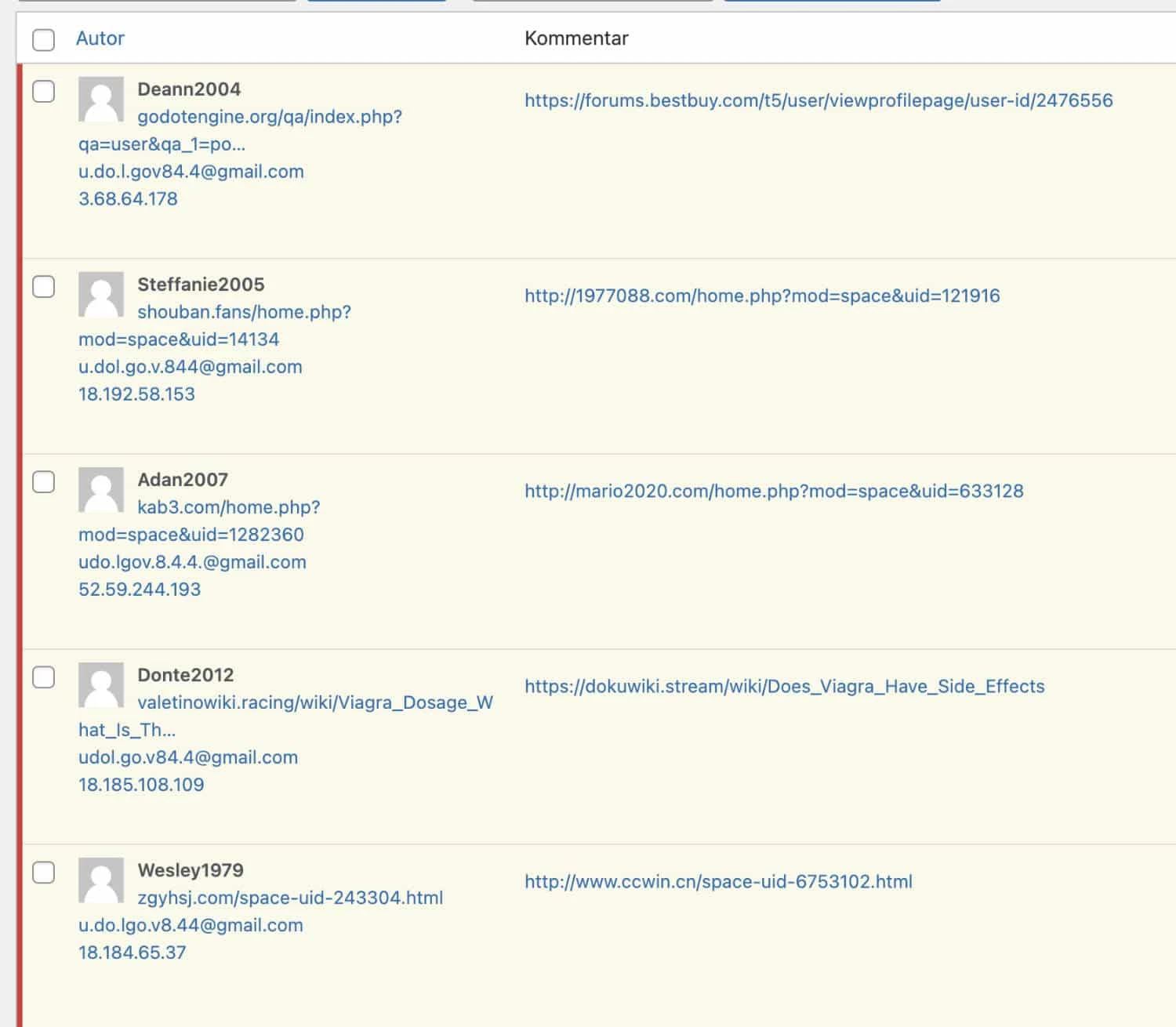
Unfortunately, a lot of bots use the comment function to place links in comments automatically.
There are various plugins that reliably catch this spam, but it still means administrative work.
8.3 Load time
One thing is clear: as the number of comments grows, the WordPress comment function can bloat the size of a page considerably.
In terms of performance, it's therefore very advisable to disable the comment function to improve your site's load time.
8.4 Comments without value
Unfortunately, today's discussion culture is nowhere near as strong as it was 10 years ago. The comment function is no longer used to share your own opinion, but often to sneak in free backlinks.
Even though Google stopped giving these comment links much weight long ago, the practice is still very popular.
This often results in comments without any real value.
8.5 High moderation effort
A comment function only makes sense if you, as the site owner, also interact with your readers. Questions that go unanswered are definitely counterproductive and do your site more harm than good.
Comments therefore create a moderation effort that is not negligible, and one you should by no means neglect.
Here I've put together the answers to common questions about disabling WordPress comments:
Frequently asked questions
Which plugins can I use to disable the WordPress comment function?
These free plugins work very well:
- Disable Comments
- Disable Everything
- Comments by wpDiscuz
Alternatively, you can go for a premium solution. We recommend perfmatters here.
Why are comments still displayed even though I disabled them?
It depends a lot on how you disabled comments.
If you turned off the comment function in the WordPress backend under Settings > Discussion, this only applies to new posts. On posts that have already been published, the comment function stays enabled.
To disable the comment function completely, plugins like Disable Comments are a good choice.
What alternatives are there to the WordPress comment function?
Besides the comment function, you could discuss things with your community in an email newsletter. Alternatively, you could put a forum on your website that serves as a discussion platform.
What are the downsides of disabling WordPress comments?
WordPress comments are an easy way for your readers to interact with you. If you disable the comment function, you take that option away from them and give up learning about your readers' problems and questions.