
Ever since the Gutenberg editor became the new default editor at the end of 2018, opinions on it have been divided.
Some people think the editor is great and some think it’s terrible.
If you belong to the latter group, you should give it a chance. It’s not as bad as all that. You might even fall in love with it.
In my guide I show you everything you need to know about Gutenberg as a WordPress user. How it works. How to use it best. What its pros and cons are.
And how to ignore Gutenberg completely if you find it abhorrent. And simply keep using the classic editor as if nothing had happened.
- Gutenberg has been the default editor since WordPress 5.0 and works with blocks instead of the classic TinyMCE editor.
- You can keep using the classic editor with the “Classic Editor” plugin if you don’t want to switch yet.
- Your old posts are still displayed correctly and can be edited in the Classic block or converted into Gutenberg blocks.
1. What is Gutenberg?
Gutenberg is a new editor that replaces the existing TinyMCE editor with WordPress 5.0.
After its release date was postponed twice, WordPress 5.0 was released on December 6, 2018.
But what’s so great and new about it?
Is it a new revolution like Johannes Gutenberg’s printing press, the first of its kind to work with movable type?
Probably not. But it’s a sensible development in the right direction:
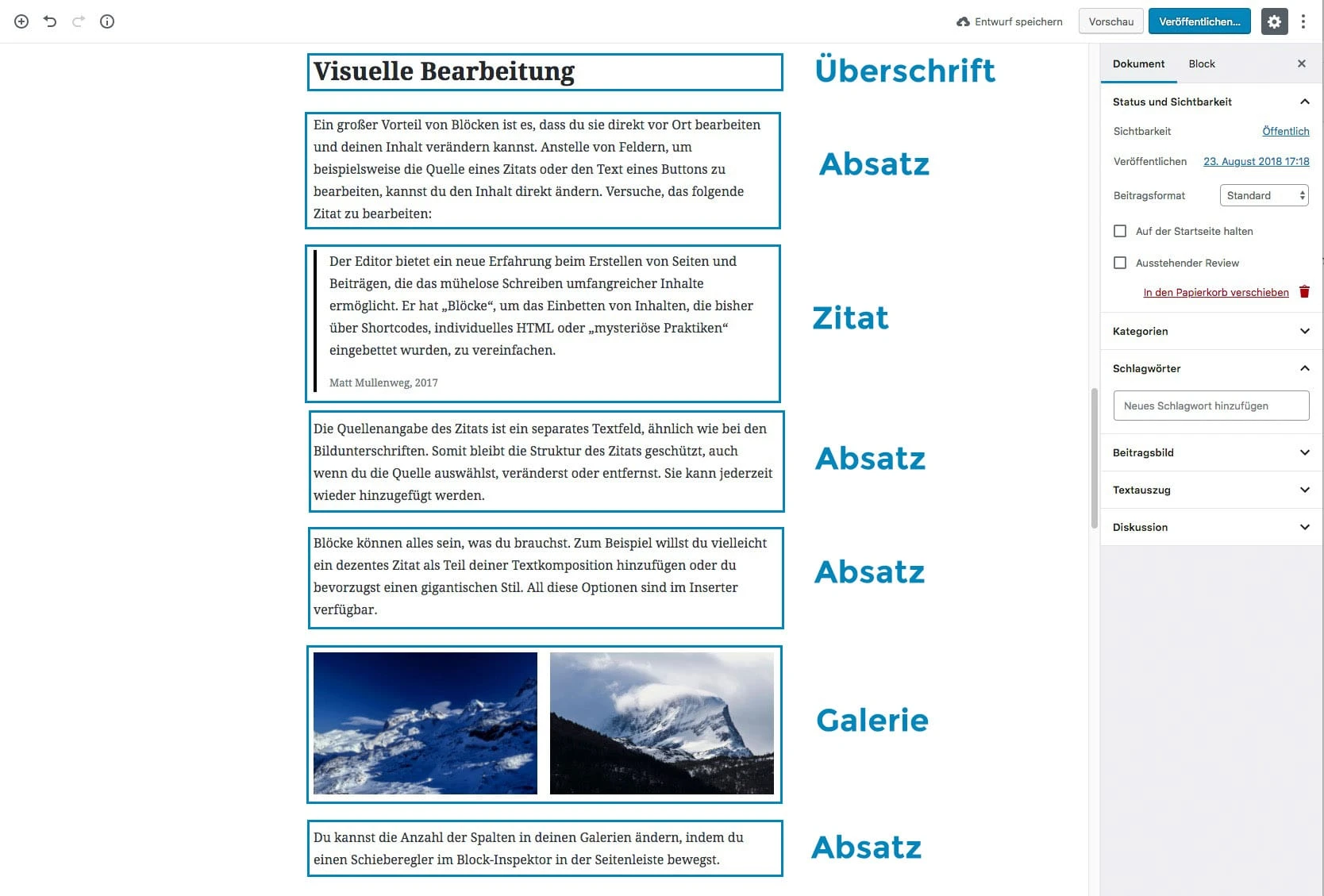
Gutenberg is a page builder.
That means for more complex post layouts with images, columns, multimedia elements, etc., you no longer have to rely on HTML and CSS.
With Gutenberg you can simply put it together from blocks (every blue box in the screenshot stands for one block):
2. Disabling Gutenberg
You find Gutenberg abhorrent and don’t (yet) feel like dealing with it?
Then you can simply install the Classic Editor. The plugin will be fully supported and maintained until at least 2024. Maybe even longer. That means you still have a bit of time before you have to switch.
The plugin offers two modes (found in WordPress under Settings > Writing).

With the setting Replace the Gutenberg editor with the Classic Editor you can simply keep using the classic editor. As if Gutenberg had never existed.
Then all traces of the editor are hidden. Including the dashboard widget that prompts users to try Gutenberg.
With the second mode you can keep Gutenberg as the default editor.
The plugin then only adds links to the admin menu, the toolbar, and the edit window that let you switch back to the classic editor for a single post.
3. General post settings
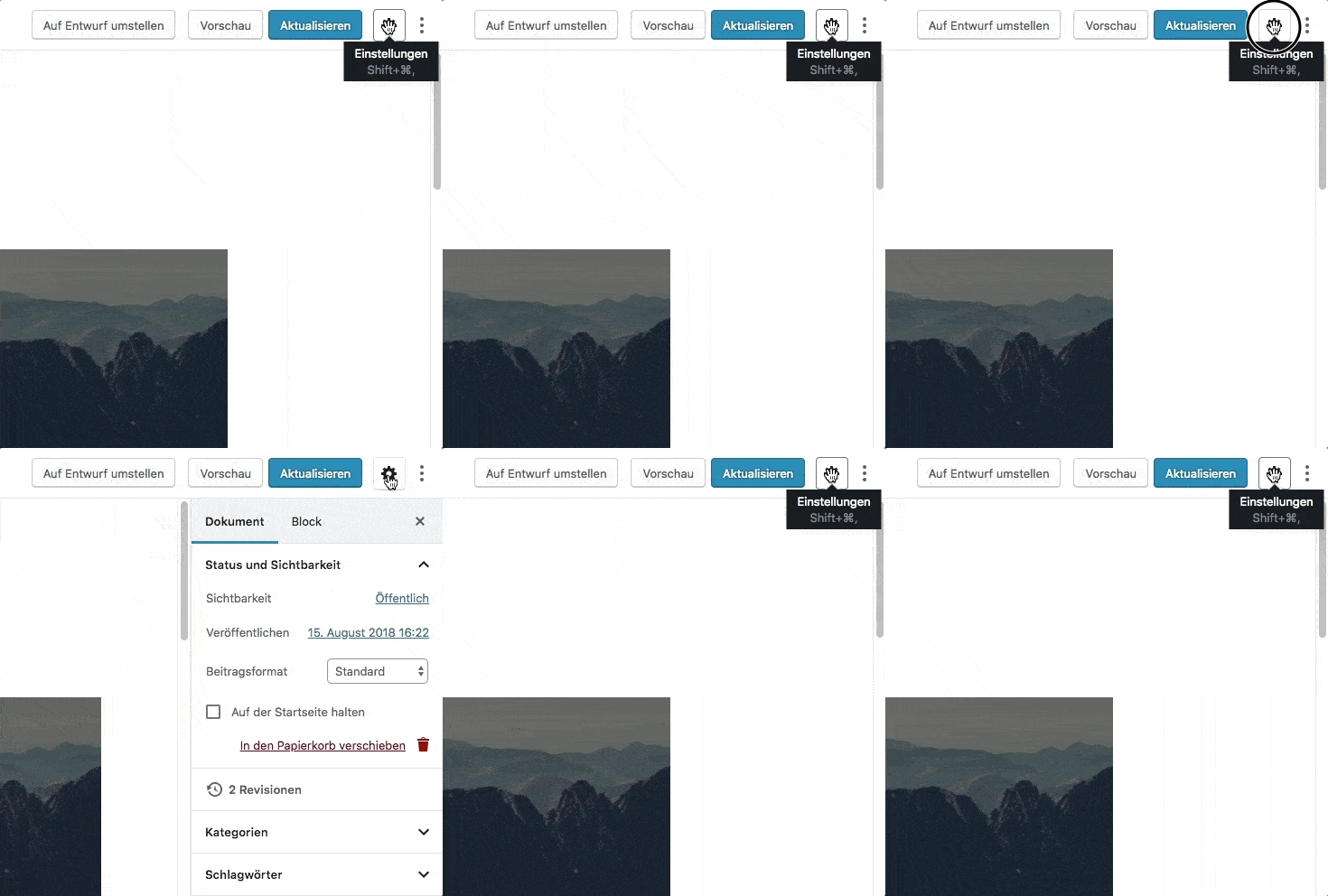
General post settings such as the publication date, post format, categories, or tags are in the right sidebar (just like in the classic editor).
You open it by clicking the gear icon at the top right of the top bar:
3.1 Changing the permalink
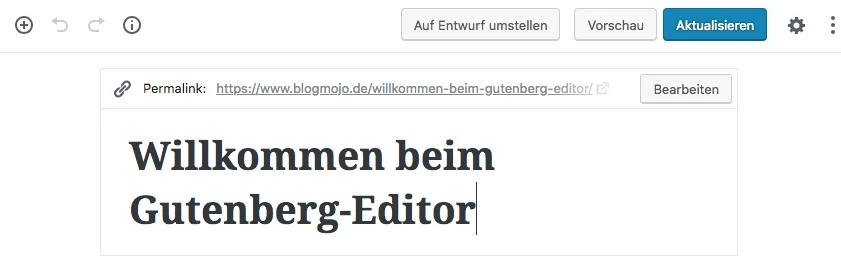
In Gutenberg, the permalink of a post is hidden by default.
If you click the post title, it is displayed and can be edited by clicking the gray button next to it:
3.2 Showing the word count
In the old editor, the word count was always shown at the bottom of the text field.
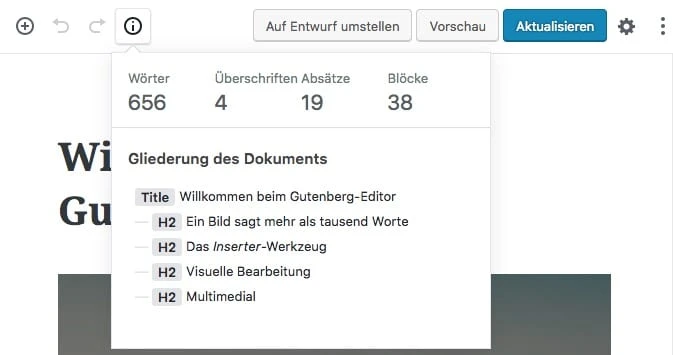
In Gutenberg you can have it displayed by clicking the info icon at the top left of the top bar.
In addition, the number of headings, paragraphs, and blocks is shown, as well as the outline of your document:
4. Using blocks
Now we’re getting down to the nitty-gritty. To what makes Gutenberg what it is:
Blocks.
Here’s how to add, move, duplicate, and style them:
4.1 Adding a block
You can add a new block in several ways, e.g.
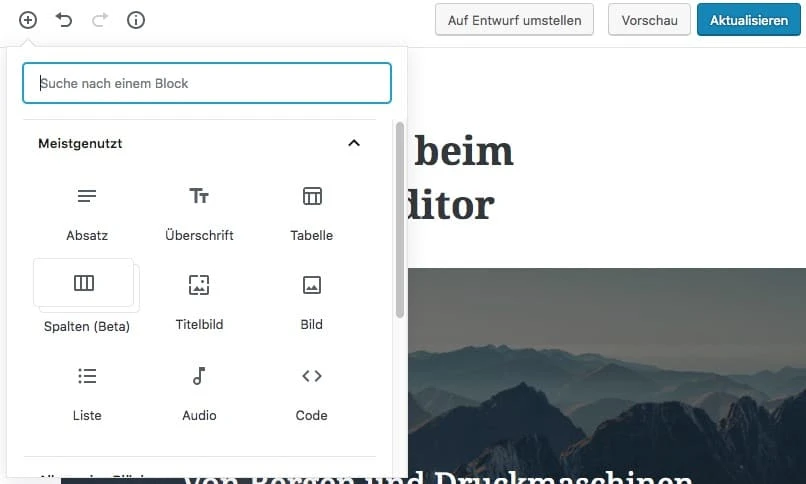
a) By clicking the plus sign (+) at the top left of the top bar:
b) By pressing the Enter key:
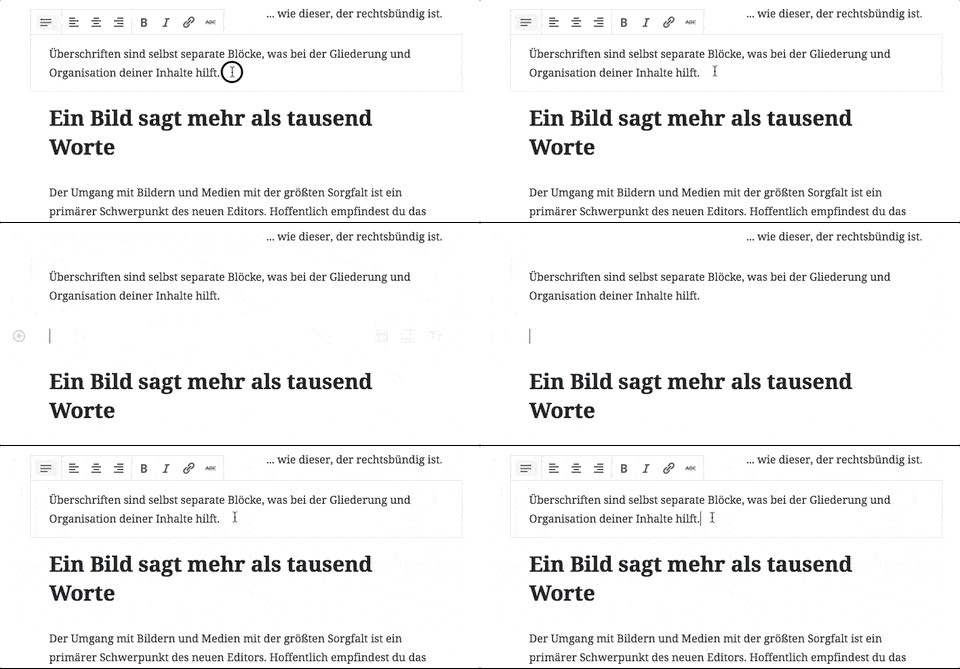
You can then choose the block type by clicking the plus sign (+) that appears to the left of the new block, or by typing a slash (/).
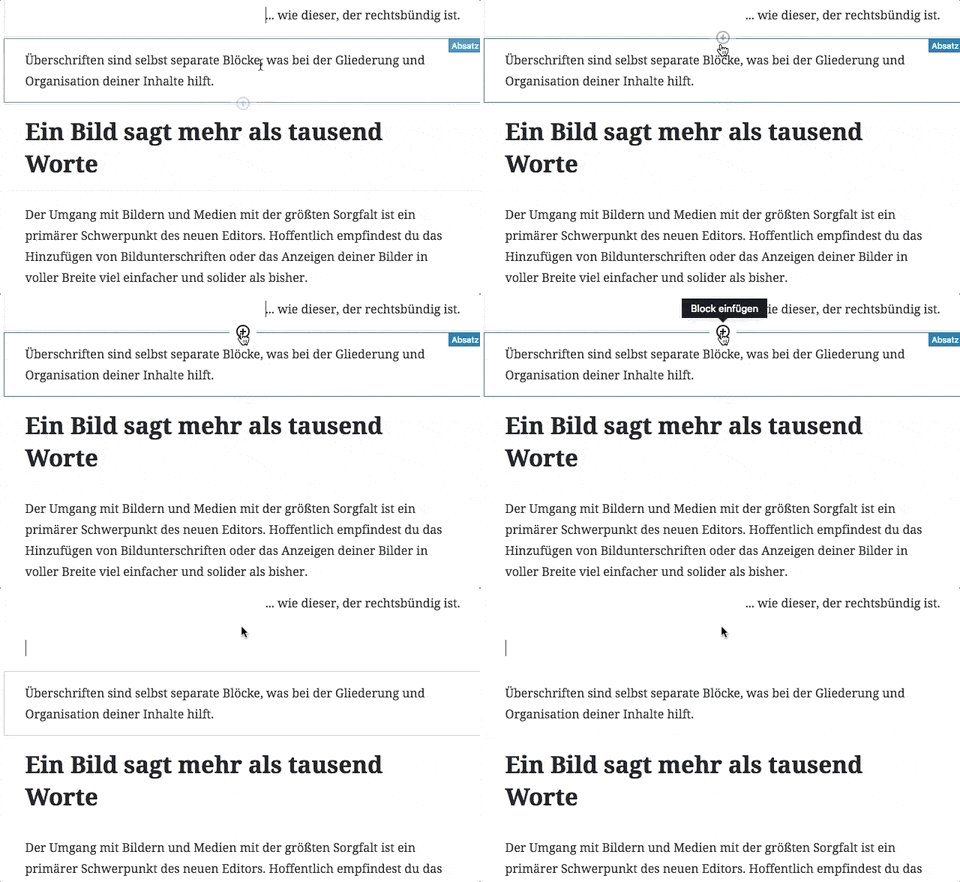
c) By clicking the plus sign (+) at the top edge of a block:
4.2 Reusable blocks
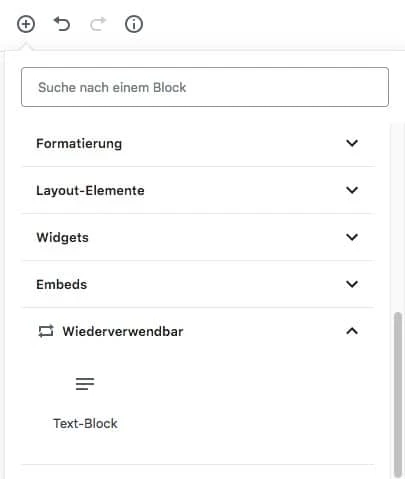
You can reuse a block from the same post or from another one.
You do that by clicking the block options (⋯).
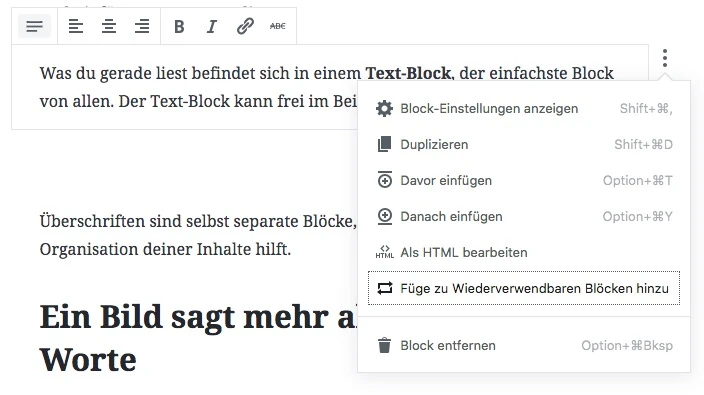
You’ll find the saved block at the very bottom of the block selection list under Reusable (⟳):
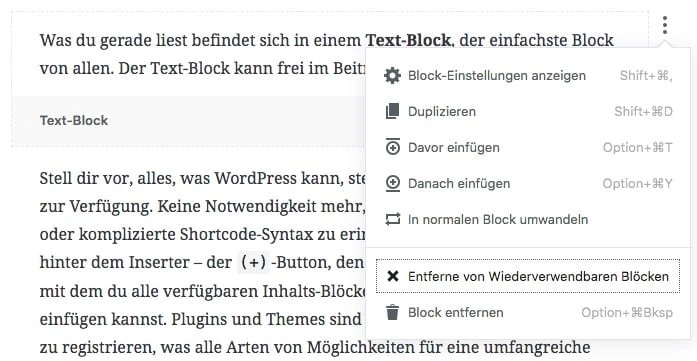
You can delete a block from the Reusable Blocks in the block options (⋯).
There you click Remove from Reusable Blocks (✕).
4.3 Duplicating a block
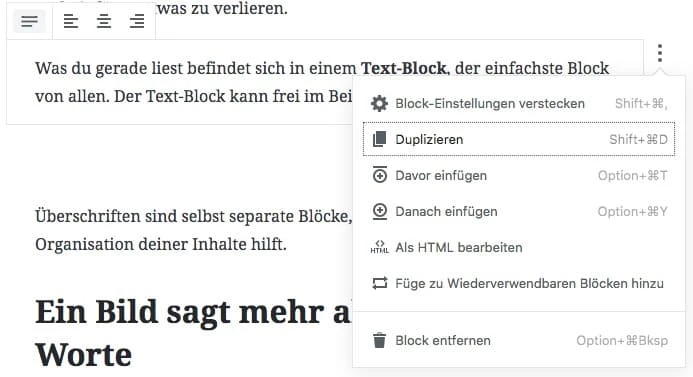
To save yourself work when creating similar blocks, you can duplicate blocks.
You can do this by clicking the block options (⋯) or with the shortcut Shift + ⌘ or Ctrl + D:
4.4 Moving a block
Unfortunately, you can’t simply drag & drop blocks to another position.
Moving a block up or down is only possible with two arrows on the left side:

4.5 Changing the styling of blocks
Depending on the block, different styling settings are available. They’re shown in the right sidebar when you click a block:
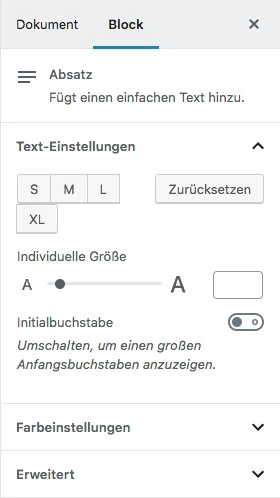
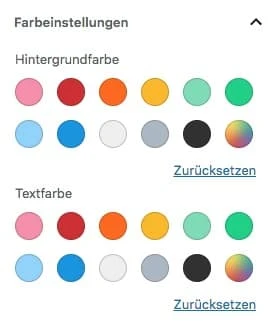
With the text block, for example, you can also change the text and background color:
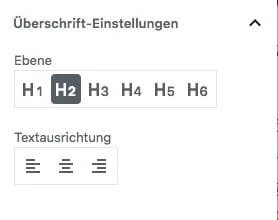
With headings, you can change the text alignment and the heading level (H1, H2, H3, etc.):
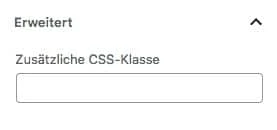
For all blocks you can also set an additional CSS class under Advanced, which I personally find very handy:
5. Which blocks are there?
There’s already a large selection of standard blocks for Gutenberg.
Over time there will be even more, because plugin and theme developers can add blocks to the selection themselves.
These are the blocks available at the moment:
5.1 General blocks
Block name | Description |
|---|---|
| Paragraph | Inserts a new paragraph. Default block, added by pressing the Enter key. |
| Audio | Insert an audio file by drag & drop, by selecting it in the media library, or by entering a URL. |
| Image | Insert an image by drag & drop, by uploading it, or from the media library. |
| File | Insert any file by drag & drop, by uploading it, or from the media library. |
| Gallery | Insert an image gallery with 2 to 8 columns. |
| List | Insert a numbered or unnumbered list. |
| Cover | Insert an image that spans the full width. Optionally fixed and with an image title. Opacity can be changed. |
| Heading | Insert an H1, H2, H3, H4, H5, or H6 heading. Alignment can be adjusted. |
| Subheading | Block with gray, italic text (suitable for image or video captions, for example). |
| Video | Insert a video by drag & drop, by selecting it in the media library, or by entering a URL. |
| Quote | Insert a quote including its source (with a thick black line on the left side). |
5.2 Formatting
Block name | Description |
|---|---|
| Classic | Lets you use the classic editor inside Gutenberg. |
| Code | Block for displaying (not executing!) code |
| Custom HTML | Lets you insert your own HTML, which you can view in a preview. |
| Pull Quote | Large, eye-catching quote that is set off with divider lines |
| Table | For inserting a table (2 x 2 by default). You can add or delete as many rows and columns as you like with a mouse click. |
| Verse | Slightly indented block for poetic text. |
| Preformatted | Block that displays text exactly as you type it (paragraphs are preserved). Styling is determined by your theme. |
5.3 Layout elements
Block name | Description |
|---|---|
| Spacer | Inserts space between two blocks. Height in pixels is adjustable. |
| Button | Inserts a button. Background and text color are adjustable. |
| More | Used to cut off the article at this point, so that, for example, it is only shown up to there in categories or on the home page. |
| Page break | Lets you split your blog article across several pages. |
| Columns (Beta) | Inserts 2 to 6 columns that let you display content side by side. You can insert any number of other blocks into each one. |
| Separator | Inserts a dividing line. |
5.4 Widgets
Block name | Description |
|---|---|
| Archives | Displays a post archive sorted by date. Optionally with the post count and as a dropdown menu. |
| Categories | Displays your categories. Optionally as a dropdown menu, with the post count, and with hierarchy. |
| Latest Posts | Displays your latest posts. Order, category, and number of items can be chosen. Optionally also with the post date. |
| Latest Comments | Displays the latest comments. Optionally with avatar, date, and text excerpt. The number of comments can also be chosen (from 1 to 100). |
| Shortcode | Inserts a shortcode. |
5.5 Embeds
As in the classic editor, you can also insert embeds with Gutenberg, such as YouTube videos, Facebook posts, or songs from Spotify.
You’ll find a complete list of the available embed blocks in the Gutenberg Codex.
5.6 Inline elements
These are elements that can be added inside a block:
Block name | Description |
|---|---|
| Inline Image | Inserts an image. |
6. Switching from the visual editor to the text editor
As in the classic editor, you can also switch from the visual editor to the text editor in Gutenberg to see the code of your post.
You do that by clicking the three vertical dots (⋯) at the far right of the top bar:
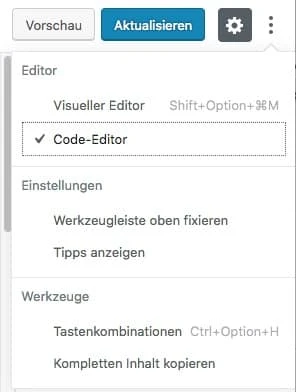
Blocks are displayed in this form (here you can see a paragraph block):
        <!-- wp:paragraph -->
        <p>This is the content.</p>
        <!-- /wp:paragraph -->
If styling options are selected for a block (in the example, the text is right-aligned), they can also be found inside the block tags:
        <!-- wp:paragraph {"align":"right"} -->
        <p style="text-align:right">Right-aligned content.</p>
        <!-- /wp:paragraph -->
<p> and </br> tags are displayed in Gutenberg’s code editor.7. Migrating posts from the classic editor to Gutenberg
Maybe you’ve already asked yourself:
What about my old posts? Will they be displayed differently with Gutenberg now? Do I have to adjust every post by hand?
Don’t panic.
Even with the Gutenberg plugin activated, your old posts are displayed just as before. And at first you don’t have to do anything at all.
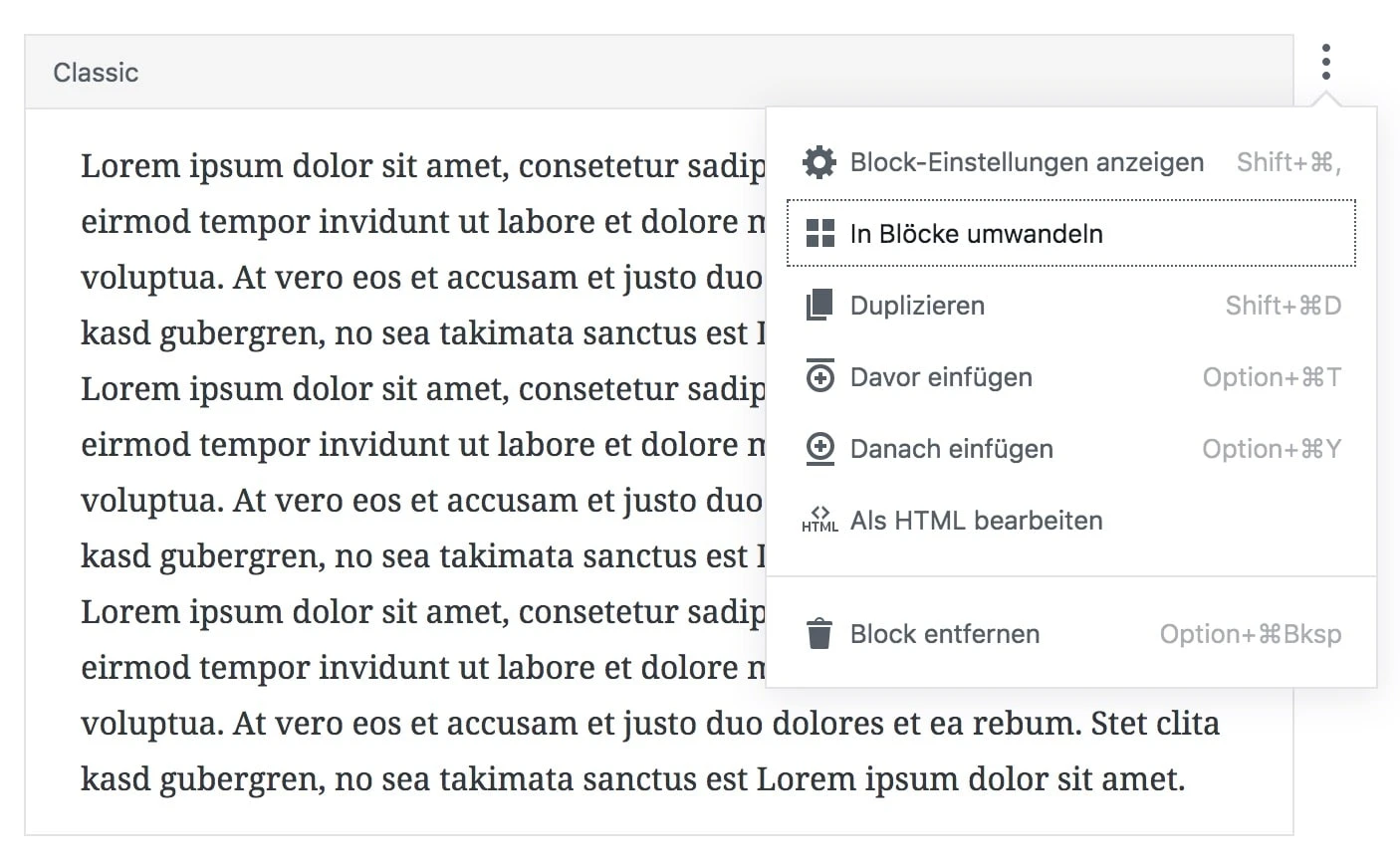
For a smooth migration, Gutenberg has a built-in Classic block that lets you keep using the classic editor inside Gutenberg.
When you edit an old post with Gutenberg, the entire content is displayed in the Classic block. There you can edit it as usual:
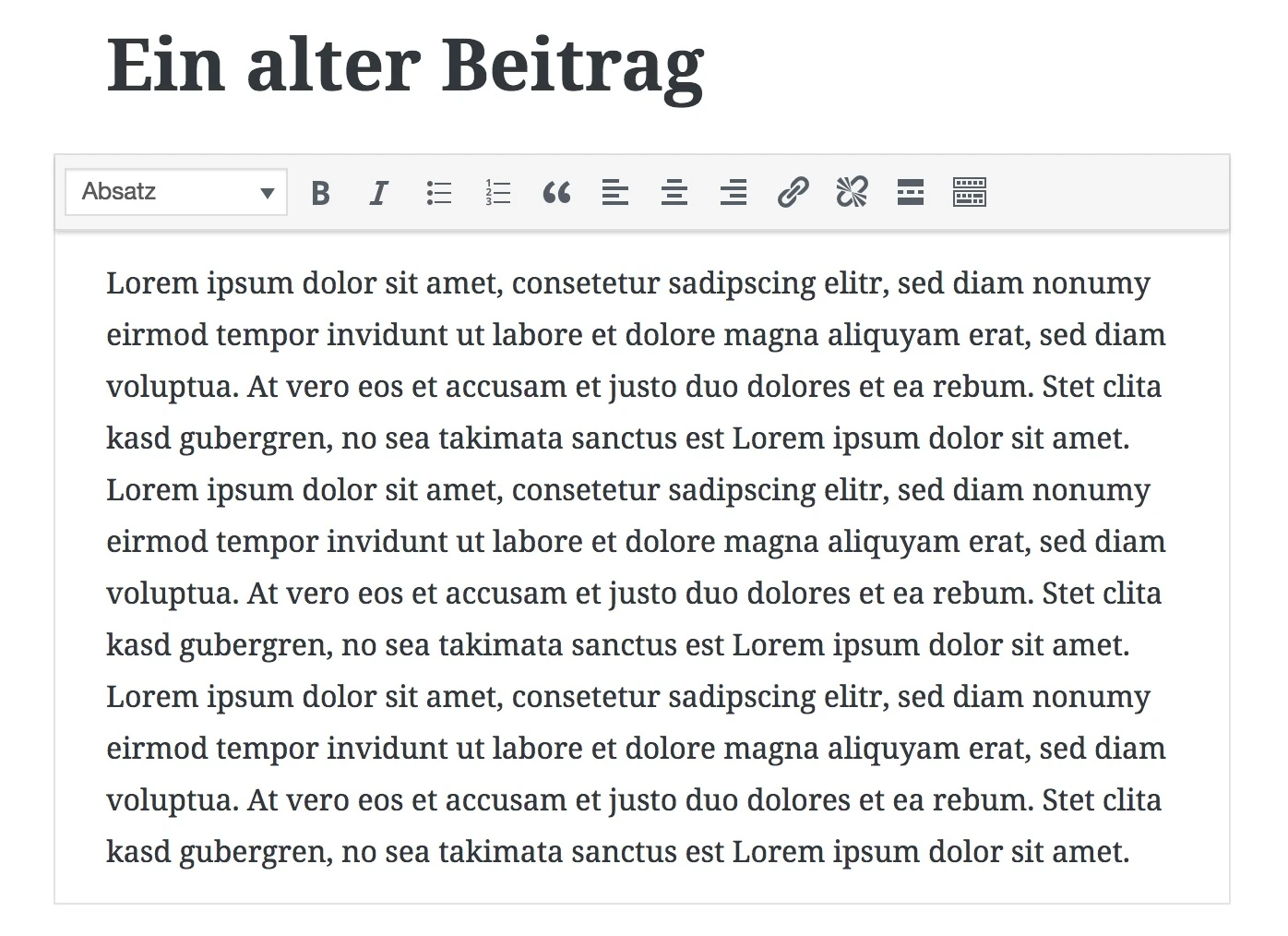
Once you feel comfortable with Gutenberg, you can simply convert the Classic block into regular blocks in the block options (⋯) (tiles):
8. Gutenberg & GDPR
According to my research, the new Gutenberg editor doesn’t process any personal data of website visitors.
It doesn’t store any visitor information in the database.
The editor itself and the individual blocks used don’t load any external scripts either.
You do still have to be careful with embeds, though:
8.1 Embeds
Embedded YouTube videos, audio files, slides, or social media posts may transfer personal data to third-party providers.
If you’ve installed a plugin that offers two-click solutions for embeds, you should check whether it’s compatible with the Gutenberg editor.
The following plugins, for example, are compatible with Gutenberg:
- Real Cookie Banner (all embeds are integrated without errors)
- YouTube Lyte (the connection to YouTube is prevented, display errors can occur because Gutenberg adds additional CSS classes to the block, which have to be deleted in the block settings, tested with version 1.7.5)
- YouTube EmbedPlus (embeds are integrated flawlessly, tested with version 12.1)
8.2 Admin area
In the backend, the font Noto Serif is loaded via Google Fonts. That only matters for registered authors or editors, though (if at all):

9. Loading time
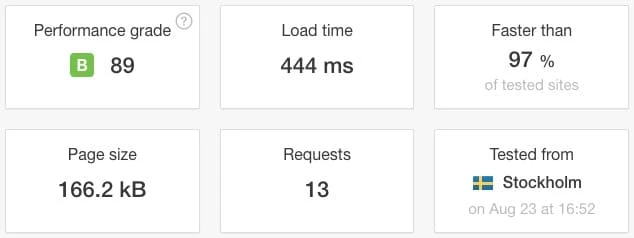
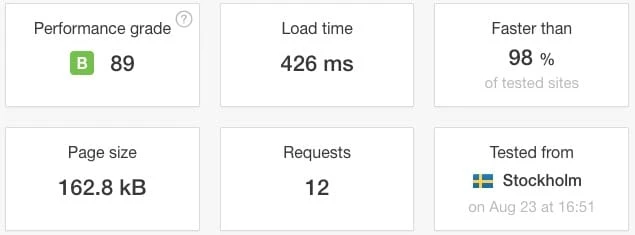
One of my worries about Gutenberg was that additional CSS or JavaScript files would make the loading time worse.
That turned out not to be the case.
Gutenberg loads one more small CSS file, which is just 3.4 KB:

It has only a minimal effect on the loading time.
Here is a WordPress post with the Gutenberg plugin activated (without caching and not minified):
Here is the same WordPress post with the classic editor (without caching and not minified):
10. Gutenberg shortcuts
Gutenberg comes with a few new shortcuts that make working with the editor easier. Some shortcuts you know from the classic editor still work as well:
10.1 Global
Mac | Windows | Function |
|---|---|---|
| Ctrl + Alt + H | Shift + Alt + H | Show an overview of keyboard shortcuts |
| ⌘ + S | Ctrl + S | Save changes |
| ⌘ + Z | Ctrl + Z | Undo an action |
| ⌘ + Shift + Z | Ctrl + Shift + Z | Redo an action |
| ⌘ + Shift + , | Ctrl + Shift + , | Close settings (sidebar) |
| Ctrl + , | Ctrl + , | Jump to the next part of the editor |
| Ctrl + Shift + , | Ctrl + Shift + , | Jump to the previous part of the editor |
| Shift + Alt + N | Shift + Alt + N | Jump to the next part of the editor |
| Shift + Alt + P | Shift + Alt + P | Jump to the previous part of the editor |
| ⌘ + Shift + Alt + M | Ctrl + Shift + Alt + M | Switch from the visual editor to the code editor and back. |
10.2 Selection
Mac | Windows | Function |
|---|---|---|
| ⌘ + A | Ctrl + A | Select all text within a block. Pressing it a second time selects the entire document. |
| Esc | Esc | Clear selection |
10.3 Blocks
Mac | Windows | Function |
|---|---|---|
| Enter | Enter | This creates a new block. Works well in combination with a slash. |
| / + search term | / + search term | If you type a slash into a new block, you can choose the block type with quick input. |
| ⌘ + Shift + D | Ctrl + Shift + D | Duplicate the selected block |
| ⌘ + Alt + Backspace | Ctrl + Alt + Backspace | Delete the selected block |
| ⌘ + Alt + T | Ctrl + Alt + T | Insert a block above the selected block |
| ⌘ + Alt + Y | Ctrl + Alt + Y | Insert a block below the selected block |
10.4 Text
Mac | Windows | Function |
|---|---|---|
| ⌘ + B | Ctrl + B | Make text bold. |
| ⌘ + U | Ctrl + U | Underline text. |
| ⌘ + I | Ctrl + I | Make text italic. |
| ⌘ + K | Ctrl + K | Turns the text into a link. |
| Ctrl + Alt + S | Ctrl + Alt + S | Removes a link. |
| Ctrl + Alt + D | Ctrl + Alt + D | Strike through text. |
| Ctrl + Alt + X | Ctrl + Alt + X | Shows text in monospace font. |
11. Compatibility
Some plugins and themes aren’t (as you’d expect) compatible with Gutenberg yet.
That’s mostly the case with plugins and themes that add either a button or a metabox to the WordPress editor.
It shows in these buttons or metaboxes not being displayed or not working properly.
For example, errors can occur with the following plugins (most of them have been fixed by updates in the meantime, though):
- All in One SEO Pack
- Yoast SEO (fixed with version 8.0.0)
- YouTube Embed Plus
- WooCommerce
- Jetpack
Daniel Hubacher has put together an extensive list of compatible and incompatible plugins (by now only downloadable as an archive).
He describes how to test a plugin for compatibility or incompatibility on GitHub.
11.1 Gutenberg vs. other page builders
Since Gutenberg is a page builder itself, you might wonder:
What about existing page builders such as Elementor, Visual Composer, or Beaver Builder? Or themes like Avada and Divi?
Fortunately, many developers are already compatible with Gutenberg:
- Theme Fusion is according to its own statements watching the development of Gutenberg closely and will inform users if there is anything to watch out for.
- Elementor is supposed to become fully compatible with Gutenberg. You’re supposed to be able to write posts in Gutenberg and then design them with Elementor.
- With Visual Composer you can, according to the documentation, use Gutenberg blocks inside its own editor or alternatively disable Gutenberg completely in the plugin options.
- Divi has offered the option to switch between its own editor and Gutenberg since the end of July.
- Beaver Builder has offered the option to switch between its own editor and Gutenberg since version 2.1
- You can use the SiteOrigin page builder inside the Gutenberg editor, according to this help article
12. Conclusion
Admittedly, I didn’t like Gutenberg at all at first.
After trying it for longer (and after various improvements by the development team over time), my verdict on Gutenberg isn’t quite as devastating as it was at the start.
You get used to the new workflow pretty quickly, and for WordPress beginners Gutenberg is definitely a gain.
The general direction WordPress is taking with Gutenberg is also the right one, in my opinion. I’m curious what becomes of Gutenberg over the next few years.
What should you do now?
Try Gutenberg. And do it quickly!
12.1 Pros of Gutenberg
- A more orderly writing environment with fewer distractions
- Doesn’t affect the loading time negatively
- You can see the outline of the document as well as further statistics about the number of paragraphs, headings, and blocks
- Inserting widgets into posts without an additional plugin
- Creating more complex layouts is easier for beginners, such as inserting tables or columns
- Theme and plugin developers can create their own blocks
- Reusable blocks save you from creating shortcodes
12.2 Cons of Gutenberg
- Writing simple blog posts isn’t as pleasant with Gutenberg as with the classic editor
- You have to get used to the new user interface and adapt your own workflow
- Still incompatibilities with some themes and plugins
- Still some bugs in places, some features aren’t fully developed yet
- Use on a smartphone or tablet isn’t ideal yet
- Some shortcuts no longer work (e.g. ## for an H2 heading)