
Maybe this sounds familiar:
You're working in WordPress and have to reach for the mouse for every tiny bit of formatting.
This back and forth between keyboard and mouse not only costs valuable time, it also breaks your writing flow and can really get on your nerves over time.
The solution is keyboard shortcuts!
In this guide, I show you all the WordPress shortcuts. Not only for the current Gutenberg editor, but also for the Classic Editor (TinyMCE) and for WordPress comments.
1. General keyboard shortcuts
You should definitely know these basic shortcuts. They mostly work in both the Gutenberg editor and the Classic Editor (and in many other editors and programs outside of WordPress):
Action | Windows/Linux | Mac |
|---|---|---|
| Copy | Ctrl + C | ⌘ + C |
| Cut | Ctrl + X | ⌘ + X |
| Paste | Ctrl + V | ⌘ + V |
| Paste (without formatting) | Ctrl + Shift + V | ⇧ + ⌘ + V |
| Undo | Ctrl + Z | ⌘ + Z |
| Redo | Ctrl + Y / Ctrl + Shift + Z | ⇧ + ⌘ + Z (Cmd + Y in Classic) |
| Select all | Ctrl + A | ⌘ + A |
| Save | Ctrl + S | ⌘ + S |
2. Text selection shortcuts
With the following WordPress shortcuts, you can select text to the left or right of your cursor:
Action | Windows/Linux | Mac |
|---|---|---|
| Select character left/right | Shift + ← / → | ⇧ + ← / → |
| Select word left/right | Ctrl + Shift + ← / → | ⌥ + ⇧ + ← / → / ⌘ + ⇧ + ← / → |
| Select line above/below | Ctrl + Shift + ↑ / ↓ | ⌘ + ⇧ + ↑ / ↓ |
| Select to start/end of line | Shift + Home / End | ⇧ + Home / End / ⇧ + ⌘ + ← / → |
| Select to start/end of document | Ctrl + Shift + Home / End | ⇧ + ⌘ + ↑ / ↓ |
3. Gutenberg editor
The Gutenberg editor, which has been the default since WordPress 5.0, works with blocks. Every piece of content (whether a text paragraph, a heading, an image, or a layout element) is its own block.
So many of the WordPress shortcuts here are about editing, creating, and moving these blocks quickly. As mentioned, you can find the complete list right in the editor with Shift + Alt + H (Win/Linux) or ⌃ + ⌥ + H (Mac), or via the options menu (three dots at the top right).
3.1 Global Gutenberg shortcuts
With the following shortcuts, you control the editor itself or jump back and forth between its main areas:
Action | Windows/Linux | Mac |
|---|---|---|
| Switch between visual editor and code editor | Ctrl + Shift + Alt + M | ⇧ + ⌥ + ⌘ + M |
| Toggle fullscreen mode | Ctrl + Shift + Alt + F | ⇧ + ⌥ + ⌘ + F |
| Open block list view | Shift + Alt + O | ⌃ + ⌥ + O |
| Show/hide settings sidebar | Ctrl + Shift + , | ⇧ + ⌘ + , |
| Navigate to the next editor region | Shift + Alt + N | ⌃ + ⌥ + N / ⌃ + ` |
| Navigate to the previous editor region | Shift + Alt + P | ⌃ + ⌥ + P / ⌃ + ⇧ + ` / ⌃ + ⇧ + ~ |
| Navigate to the next toolbar | Alt + F10 | ⌥ + F10 (fn + ⌥F10 on some Macs) |
| Save | Ctrl + S | ⌘ + S |
| Undo | Ctrl + Z | ⌘ + Z |
| Redo | Ctrl + Shift + Z | ⇧ + ⌘ + Z |
| Open command palette | Ctrl + K | ⌘ + K |
| Toggle distraction-free mode | Ctrl + Shift + \ | ⇧ + ⌘ + \ |
| Collapse all other items (list view) | Alt + L | ⌥ + L |
3.2 Block shortcuts
With these shortcuts, you can add, remove, move, or edit Gutenberg blocks:
Action | Windows/Linux | Mac |
|---|---|---|
| Add a new block (paragraph) | Enter | Enter |
| Duplicate block | Ctrl + Shift + D | ⇧ + ⌘ + D |
| Remove block | Shift + Alt + Z | ⌃ + ⌥ + Z |
| Insert a new block before the selection | Ctrl + Alt + T | ⌥ + ⌘ + T |
| Insert a new block after the selection | Ctrl + Alt + Y | ⌥ + ⌘ + Y |
| Remove multiple blocks | Del / Backspace | Del / Backspace |
| Move block up | Ctrl + Shift + Alt + T | ⇧ + ⌥ + ⌘ + T |
| Move block down | Ctrl + Shift + Alt + Y | ⇧ + ⌥ + ⌘ + Y / ⌥ + ⌘ + ⇧ + Y |
| Group blocks | Ctrl + G | ⌘ + G |
| Change block type (after a paragraph) / insert block | / | / |
| Clear selection | Esc | Esc |
| Deselect blocks | Esc (press twice) | Esc (press twice) |
| Link to content | [[ | [[ |
3.3 Text formatting shortcuts (inside blocks)
You need these WordPress shortcuts to format text inside an existing block (e.g., in a paragraph or a heading). You already know many of them from the global shortcuts.
Action | Windows/Linux | Mac |
|---|---|---|
| Bold | Ctrl + B | ⌘ + B |
| Italic | Ctrl + I | ⌘ + I |
| Underline | Ctrl + U | ⌘ + U |
| Insert/convert link | Ctrl + K | ⌘ + K |
| Remove link | Ctrl + Shift + K | ⇧ + ⌘ + K |
| Strikethrough | Alt + Shift + 5 | Alt + Shift + 5 / ⌃ + ⌥ + D |
| Inline code | Ctrl + Alt + X / Ctrl + Alt + C | ⌘ + ⌥ + X / ⌘ + ⌥ + C / ⌃ + ⌥ + X |
| Quote | Ctrl + Q | ⌘ + Q |
| Clear formatting | Ctrl + Shift + Z | ⇧ + ⌘ + Z (conflicts with “Redo” in Gutenberg) |
| Convert current heading to paragraph | Alt + Shift + 0 / Alt + Shift + 7 | ⌃ + ⌥ + 0 / ⌃ + ⌥ + 7 |
| Convert to heading (H1-H6) | Alt + Shift + 1-6 | ⌃ + ⌥ + 1-6 |
| Insert non-breaking space | Ctrl + Shift + Space | ⇧ + ⌘ + Space |
4. Classic Editor (TinyMCE)
Before Gutenberg came along, the Classic Editor (TinyMCE) was the default. It works more like a regular word processor with a toolbar at the top.
Here, too, help is available with Alt + Shift + H (Win/Linux) or ⌃ + ⌥ + H (Mac) or via a help button (sometimes you have to show the second toolbar first, see below).
4.1 Basic formatting and editing
Use these to apply the most common formatting, which you can also find in the toolbar.
Action | Windows/Linux | Mac (WP ≥ 4.2) |
|---|---|---|
| Bold | Ctrl + B | ⌘ + B |
| Italic | Ctrl + I | ⌘ + I |
| Underline | Ctrl + U | ⌘ + U |
| Strikethrough | Alt + Shift + D | ⌃ + ⌥ + D |
| Insert/edit link | Ctrl + K | ⌘ + K |
| Insert link (alt.) | Alt + Shift + A | ⌃ + ⌥ + A |
| Remove link | Alt + Shift + S | ⌃ + ⌥ + S |
| Align left | Alt + Shift + L | ⌃ + ⌥ + L |
| Center | Alt + Shift + C | ⌃ + ⌥ + C |
| Align right | Alt + Shift + R | ⌃ + ⌥ + R |
| Justify | Alt + Shift + J | ⌃ + ⌥ + J |
| Unordered list (•) | Alt + Shift + U | ⌃ + ⌥ + U |
| Ordered list (1.) | Alt + Shift + O | ⌃ + ⌥ + O |
| Quote (blockquote) | Alt + Shift + Q | ⌃ + ⌥ + Q |
| Code tag | Alt + Shift + X | ⌃ + ⌥ + X |
| Insert image | Alt + Shift + M | ⌃ + ⌥ + M |
| “Read more” tag | Alt + Shift + T | ⌃ + ⌥ + T |
| Page break tag | Alt + Shift + P | ⌃ + ⌥ + P |
4.2 Headings and advanced functions
The Classic Editor also has shortcuts for headings and special editor functions.
Action | Windows/Linux | Mac (WP ≥ 4.2) |
|---|---|---|
| Heading 1-6 | Alt + Shift + 1 to 6 | ⌃ + ⌥ + 1 to 6 |
| Paragraph | Alt + Shift + 7 | ⌃ + ⌥ + 7 |
| Address format | Alt + Shift + 9 | ⌃ + ⌥ + 9 |
| Spell check (plugin required) | Alt + Shift + N | ⌃ + ⌥ + N |
| Distraction-free mode (visual) | Alt + Shift + W | ⌃ + ⌥ + W |
| Distraction-free mode (text) | Alt + Shift + F | ⌃ + ⌥ + F |
| Show/hide toolbar (“Kitchen Sink”) | Alt + Shift + Z | ⌃ + ⌥ + Z |
| Help | Alt + Shift + H | ⌃ + ⌥ + H |
5. Markdown
In addition to the normal shortcuts, WordPress (especially since version 4.3 in the Classic Editor, and in Gutenberg as well) also knows a few Markdown shortcuts:
You type certain characters at the start of a line and they are converted automatically. This is a quick alternative to formatting with the mouse or complex shortcuts.
Action (result) | Input |
|---|---|
| Unordered list (•) | * + Space or - + Space |
| Ordered list (1.) | 1. + Space or 1) + Space |
| Heading H2 - H6 | ## + Space to ###### + Space |
| Block quote | > + Space |
| Horizontal rule | --- (on a new line) |
| Code / inline code | `Text` (wrap the text in backticks) |
These Markdown tricks are handy, often work in both editors, and are great if you know Markdown or simply want to type fast without switching to the HTML code. They make you more flexible and suit different ways of working.
6. WordPress comments
WordPress also has special shortcuts so you can moderate comments faster.
With J (down) and K (up), you fly through your comments. This is the fastest way to work through a lot of comments.
If you're at the end or the start of a page, you automatically jump to the next or previous comment page. With X, you mark the selected comment (ticks the checkbox), which you need for the bulk actions.
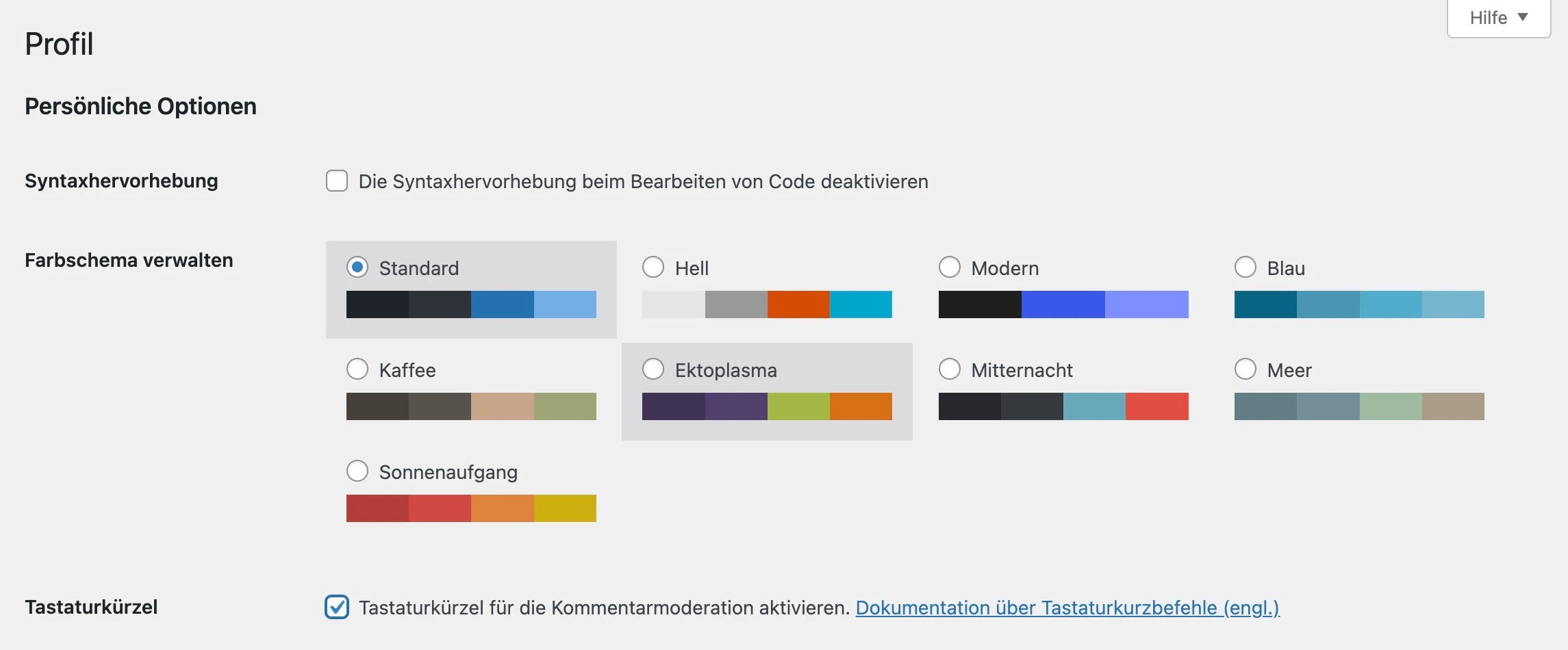
The comment shortcuts are not active by default! You have to activate them in your profile first. You do that under “Users > Profile” (“Benutzer > Profil” in the German dashboard, as in the screenshot below) in the WordPress dashboard. There you need to find the option for keyboard shortcuts and tick the box:
6.1 Navigation and single actions
With the following shortcuts, you move between comments and run actions for the comment that is currently selected:
Key | Action |
|---|---|
J | Next comment (selection moves down) |
K | Previous comment (selection moves up) |
X | Select comment / tick the checkbox |
A | Approve comment |
S | Mark as spam |
D | Delete / move to trash |
U | Unapprove / reject |
R | Reply - Esc to cancel |
Q | Quick Edit - Esc to cancel |
E | Edit (full-screen editor) |
Z | Restore (from trash) / undo (undo delete/action) |
6.2 Bulk actions
Once you've marked several comments with X, you can use these shortcuts to run an action for all marked comments at once:
Shortcut | Action |
|---|---|
Shift + X | Tick / untick all checkboxes |
Shift + A | Approve selected comments |
Shift + S | Mark selected comments as spam |
Shift + D | Delete selected comments |
Shift + U | Unapprove selected comments |
Shift + T | Move selected comments to trash |
Shift + Z | Restore selected comments from trash |