
If you want to start your own blog, the first step is choosing a system.
Often the choice falls on WordPress.
That leaves one question: Which version of WordPress should it be?
WordPress isn't just WordPress, because you have to choose between two different versions:
WordPress.com and WordPress.org.
In this article, you'll find out what is behind each of the two systems, what their pros and cons are, and which one is the right choice for you.
1. What is WordPress, anyway?
WordPress is a content management system.
More precisely:
WordPress is the content management system. Over 40% of all websites in the world use WordPress as their foundation.
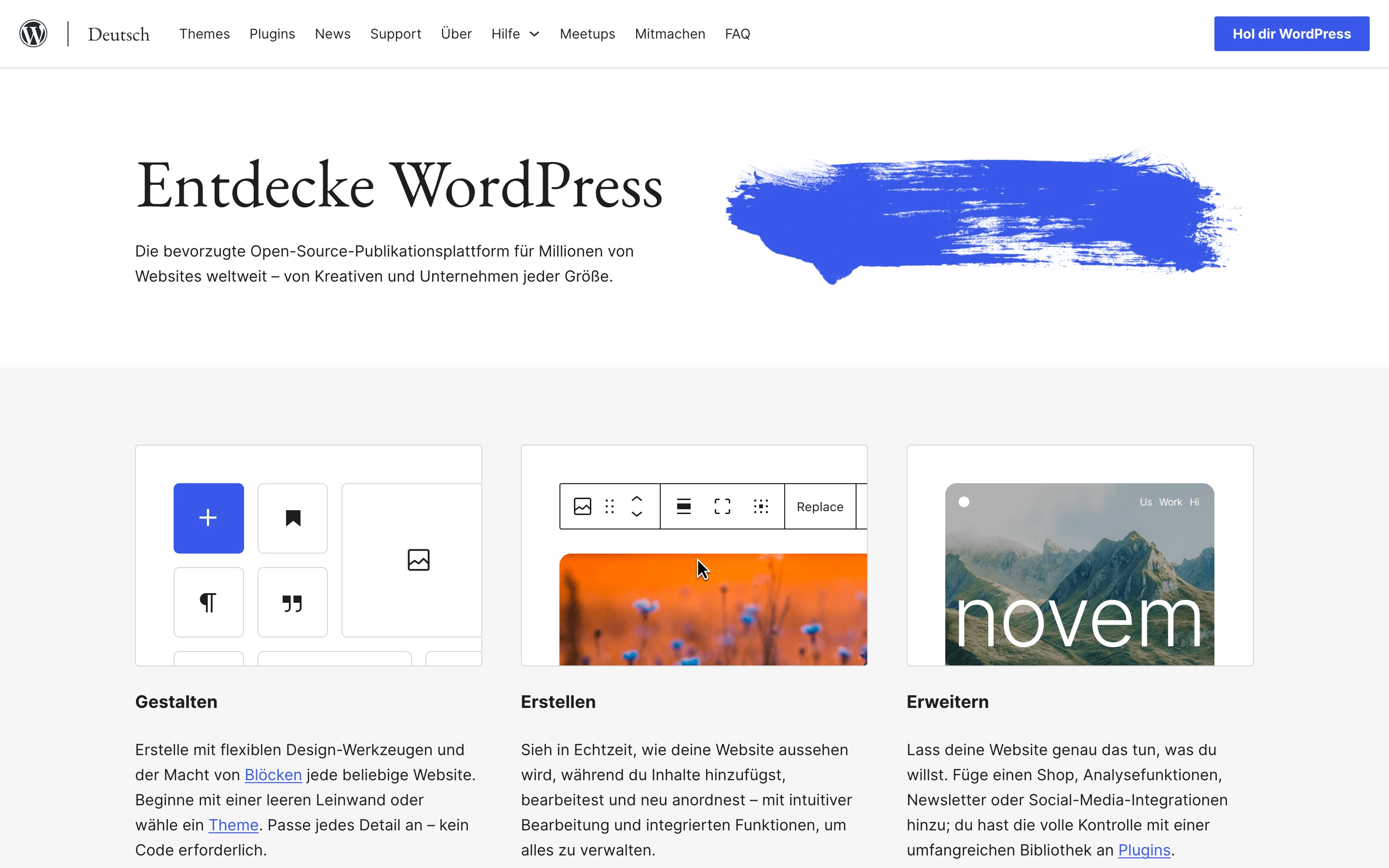
In this case, a content management system is nothing more and nothing less than the operating system of a website. This is where you create your content, define the look (template) and install software (plugins) that should be available on your website.
What makes WordPress special is that it is so-called open-source software. That means the source code is publicly available to really anyone.
WordPress was first released in 2003 and has been an indispensable part of the modern internet landscape ever since.
For bloggers in particular, WordPress is the system.
There are many reasons for this:
- Behind WordPress there is a huge community that helps you with problems and questions
- You can adapt WordPress to your needs very easily
- The costs are very low (more on that later)
Have you decided to use WordPress as the basis for your website, too?
Then you should definitely know and understand the difference between WordPress.com and WordPress.org.
Let's look at exactly where it lies in detail now.
2. The main difference between WordPress.org and .com
The difference between WordPress.org and WordPress.com is really significant, and I'm not just talking about the two different endings. WordPress.com is the “worry-free package”, while with WordPress.org you're mostly on your own.
As you can probably guess, one of the two versions is free and the other isn't...
If you know your way around domain endings, you can tell at first glance what each WordPress version is aiming for. The ending .org stands for “organization”, while .com stands for “commercial”.
If you decide on WordPress.com, you get a domain and web hosting right after you register. Behind it is the company Automattic, which really takes care of everything.
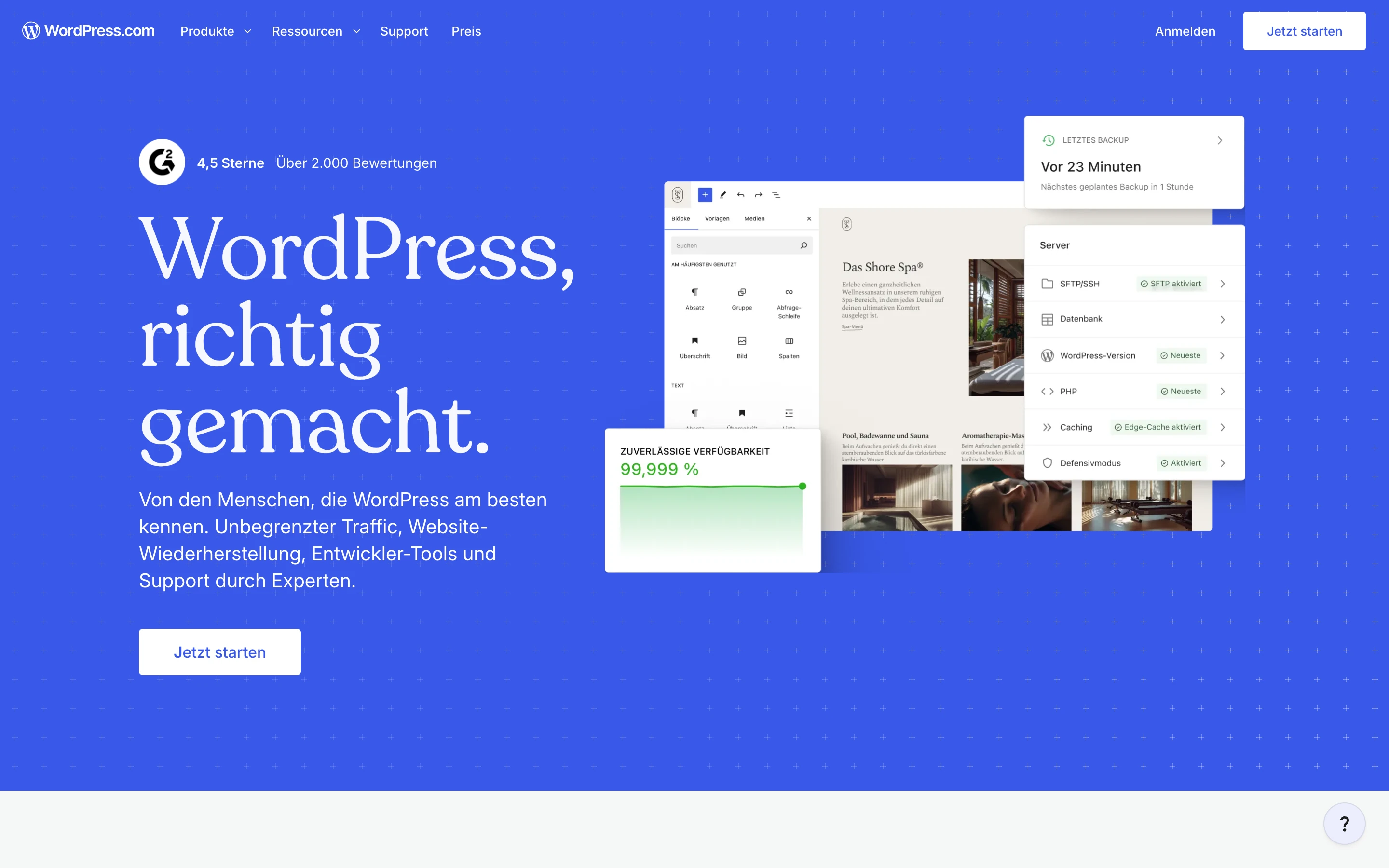
You only have to take care of the content yourself.
With WordPress.org, things look completely different.
Here you can only download the software, meaning WordPress as the content management system. You have to take care of web space and a domain yourself.
So why choose WordPress.org when WordPress.com offers more services?
Simple...
First of all, Automattic of course charges for this service. There is a “Free” plan, but it isn't usable for projects that are meant seriously. It only gets really interesting from the Business plan, which costs €25 per month. In the smaller plans, you can't install plugins and therefore can't adapt WordPress to your needs.
So WordPress.org does demand a bit more effort from you, but it then rewards you with all the freedom the system offers.
Registering a domain and booking a web hosting package won't present you with any big challenges.
Installing WordPress afterward is really child's play, too.
3. WordPress.com vs. WordPress.org in detail
Now that you know where the main difference between WordPress.com and WordPress.org lies, let's look at both systems in detail.
I especially want to go into the areas where the two systems differ the most.
3.1 Installation and setup
Since I've already described WordPress.com as the “worry-free package”, you can probably imagine that getting started and installing is much easier here than with WordPress.org.
With WordPress.com, you get a completely ready-made system that you only have to feed with some information before you can get started.
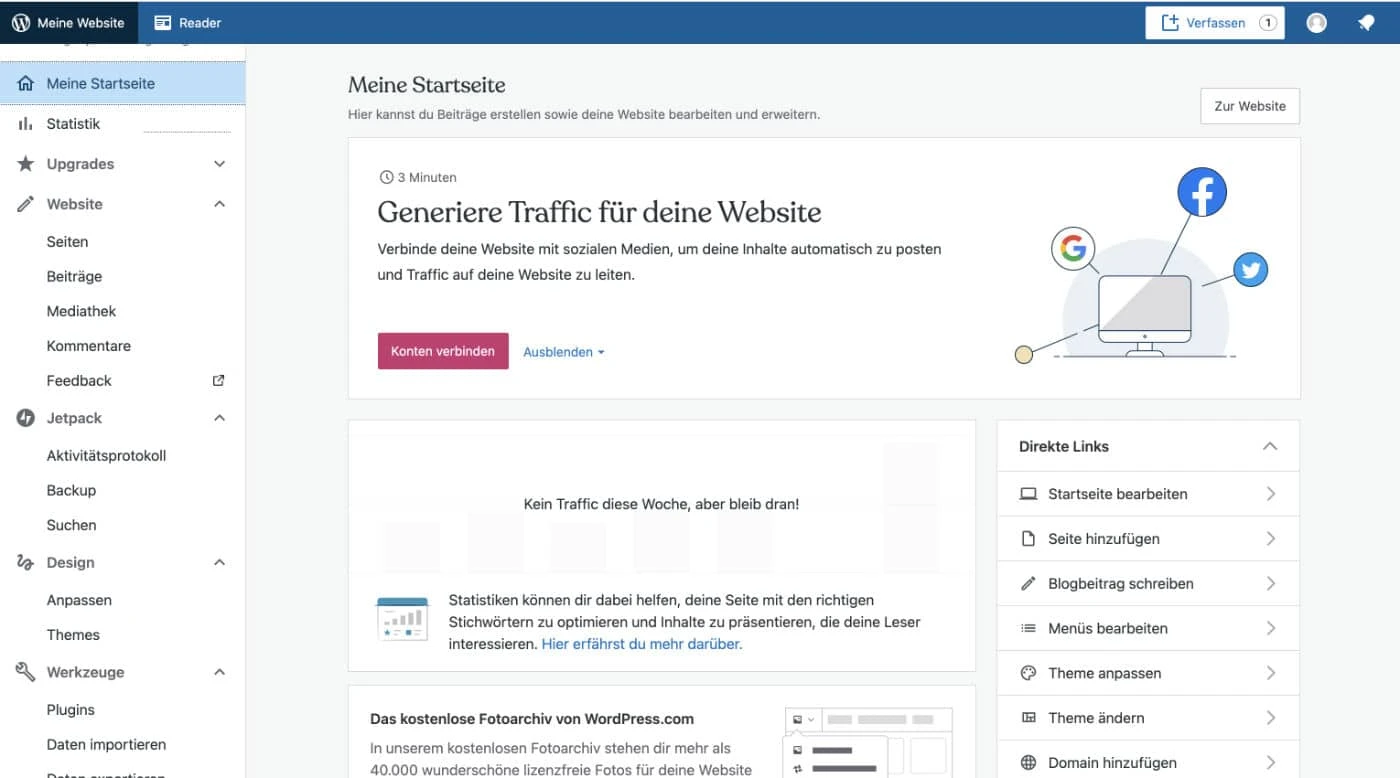
For example, you have to choose:
- What kind of website you want to create
- What the website is called
- Which domain you want to use
- Which plan it should be
Once you've made these choices, you can get started right away.
Simple, right?
With WordPress.org, it looks considerably more extensive (and admittedly more complex in direct comparison).
After you've downloaded WordPress.org, you first have to look for a suitable host. After all, you first need web space on which you can install WordPress.
I can recommend WPspace or webgo.
Next, you need a domain.
You can also book it directly with the host, or register it with an external provider and then connect it to your web space.
Once that's done, you have to:
- Upload WordPress via FTP
- Create a database
- Start the WordPress installation wizard
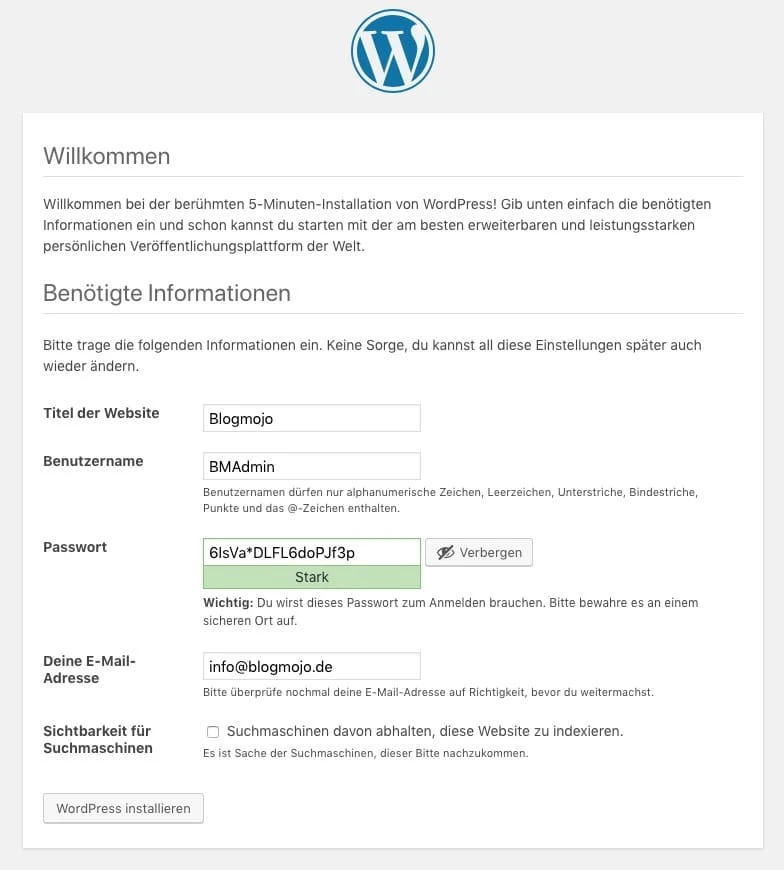
But please: Even if that sounds very complex, it isn't once you take a closer look. I've created a WordPress installation guide that takes you through the process step by step.
If you don't want to deal with installing WordPress, you can also fall back on the 1-click installation that a lot of hosts now offer.
3.2 Usability and ease of use
When it comes to usability, you can't really make out a big difference between the two systems.
How could you? After all, both versions are WordPress.
What convinces me most:
- The slim, clear design
- The well-thought-out menu structure
- The fast loading times in the backend
You'll certainly find your way around WordPress.com right away and have no problems after a short learning period.
WordPress.org has a gigantic range of features, which can be bloated even further depending on the number of plugins installed. Still, I find the interface very well structured and well thought out.
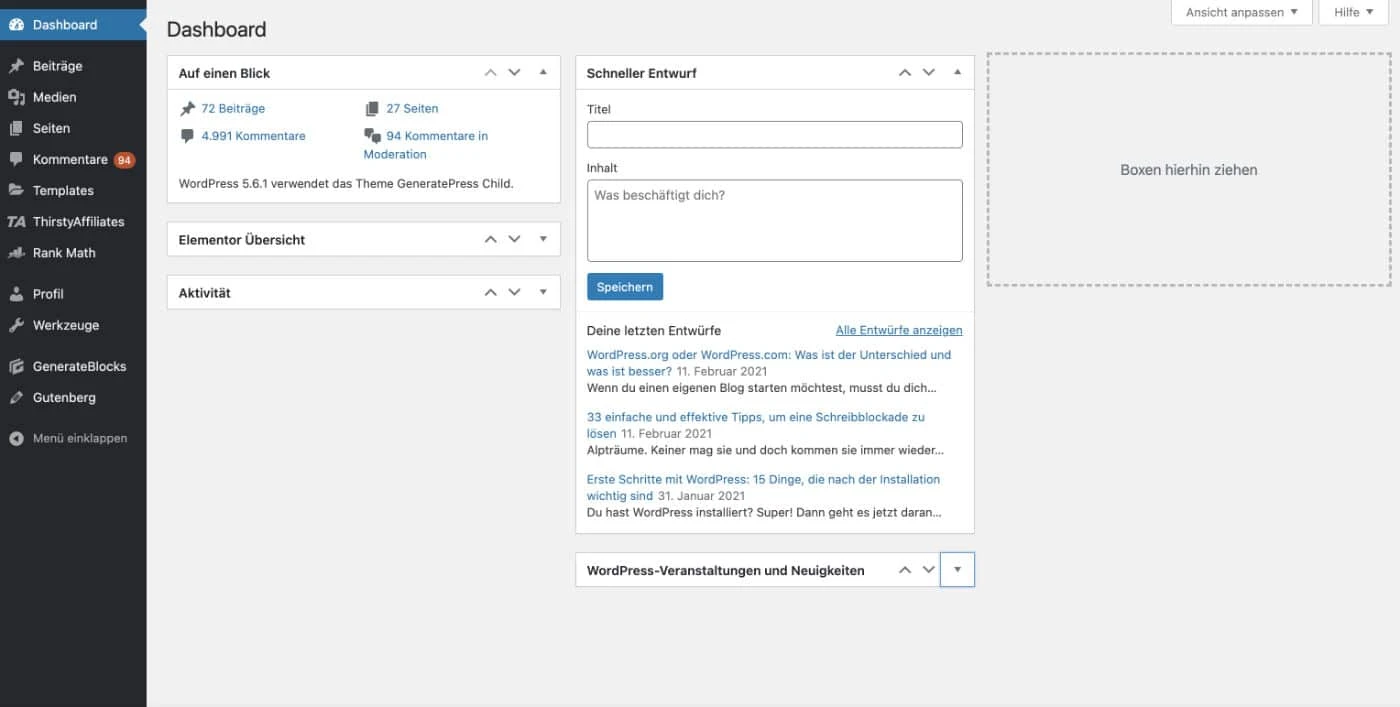
Depending on whether you also use WYSIWYG editors (what you see is what you get) like Elementor or Divi, using WordPress.org becomes even easier.
3.3 Prices
On price, WordPress.org is clearly ahead.
I already mentioned earlier that the cheapest plan on WordPress.com that is really worth it costs €25 per month. If you want to run e-commerce, it gets even more expensive. Here, up to €45 per month are due.
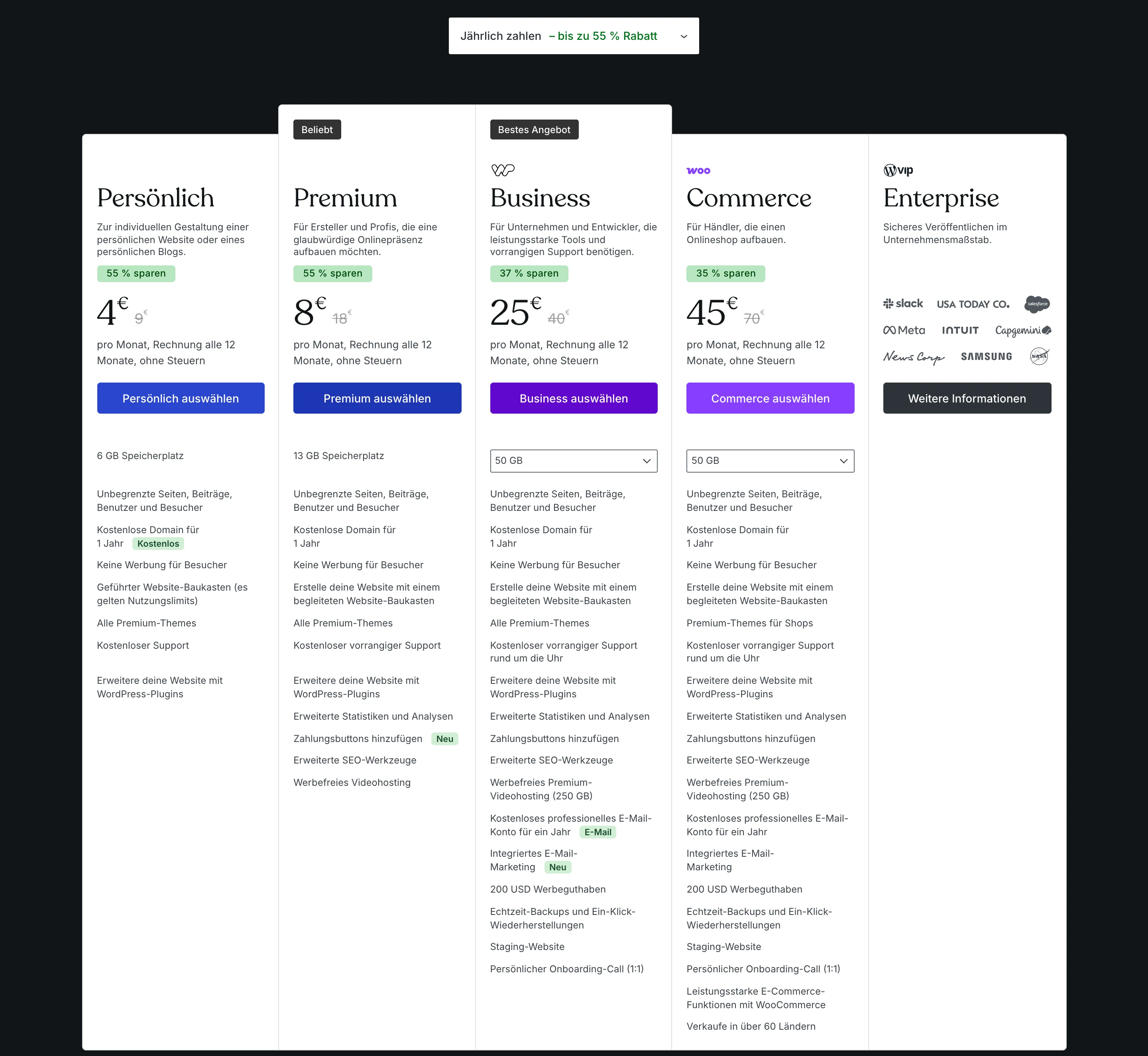
You can't really work with the cheaper plans if you seriously want to realize serious projects.
There is a Personal plan (€4 per month) that at least includes your own domain, but you'll look in vain for many important features. For example, there's no way to create backups, SEO tools aren't integrated and you can't install plugins.
Even the Premium plan for €8 per month doesn't live up to what its name actually promises. You do get your first professional tools (e.g. premium themes), but access to the plugin marketplace is still painfully missing.
As you can see: Everything below the Business plan is really not usable.
You don't have these problems with WordPress.org.
It's completely free and includes all the features that WordPress has to offer right from the start.
Yes, it takes a bit more effort until the system is up and running. But that effort is definitely worth it! Believe me.
It would be wrong, though, to claim that a website run on WordPress.org is 100% free.
That isn't the case.
Of course, with WordPress.org you also have ongoing monthly costs. You need a domain and a web hosting package. But you get that for much less than €25 per month (e.g. the Business plan at Webgo incl. 10 domains for €19.95), so the costs with WordPress.org are well below those of WordPress.com.
3.4 Design and customization options
A website lives on its appearance. The design should be slim and clear, and the recognition value high.
Which version gives you the better options for implementing an appealing design?
Let's start with WordPress.com.
Here, numerous templates are available to you from the start, and you can select them with a single click. After that, the design is applied to the entire website. You only have to add individual content.
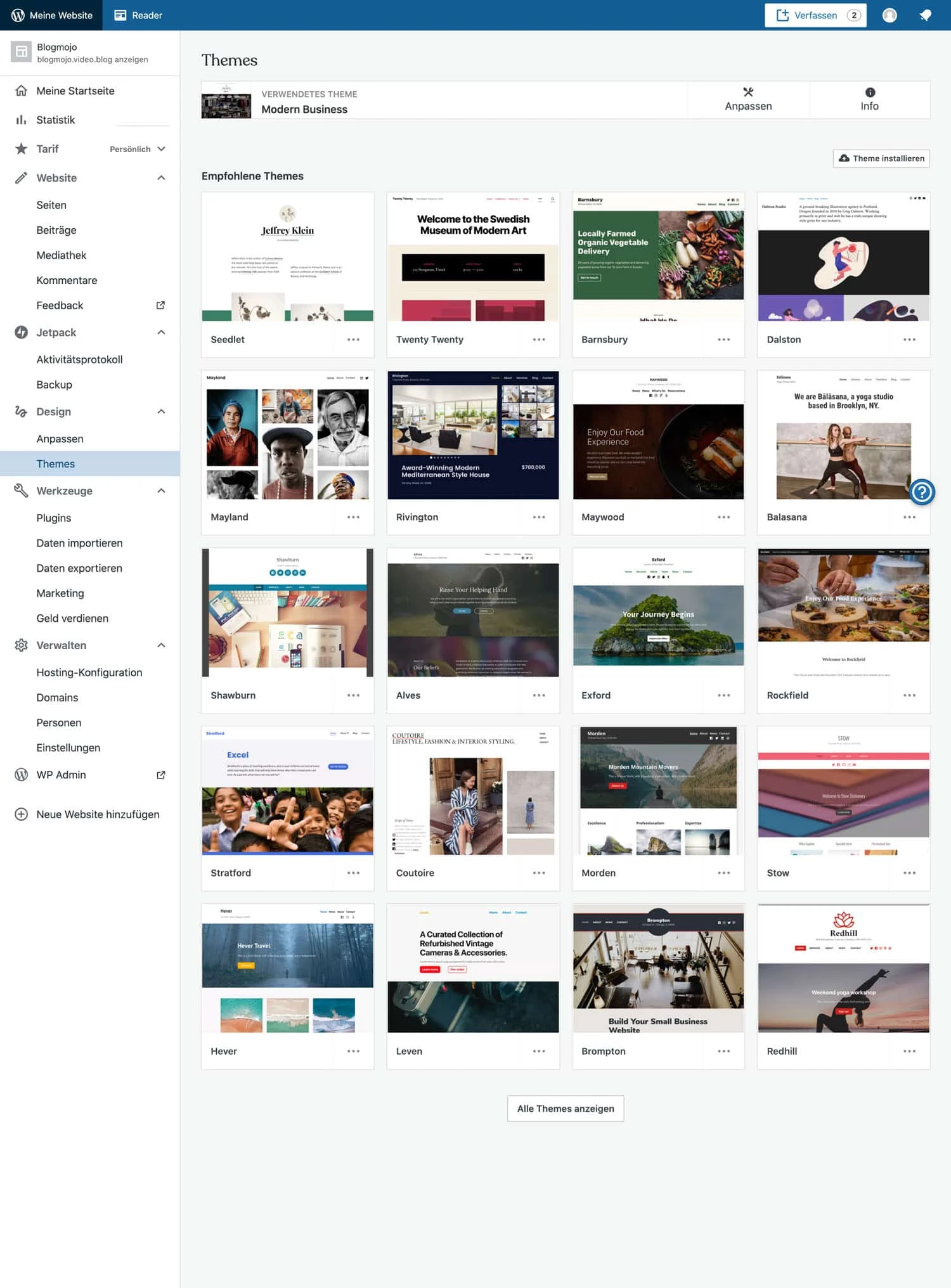
100 free themes are included in every WordPress.com plan. From the Premium plan, 200 more themes are added.
A big disadvantage is that individual customizations, for example through CSS code, are only available from a higher plan.
In summary, you could say that WordPress.com is definitely enough for projects with lower design requirements. If you have high demands on your website's design concept, you have to accept higher monthly costs here to make all the customizations you want.
Or you rely on WordPress.org from the start, because here there really are no limits to the design.
First of all, you can choose from thousands of themes that a wide range of makers provide. With premium themes like Divi or Elementor, you can also import design concepts with a mouse click and then change them as you like.
Adding your own CSS code is really child's play, too, so you can fully “let loose” here.
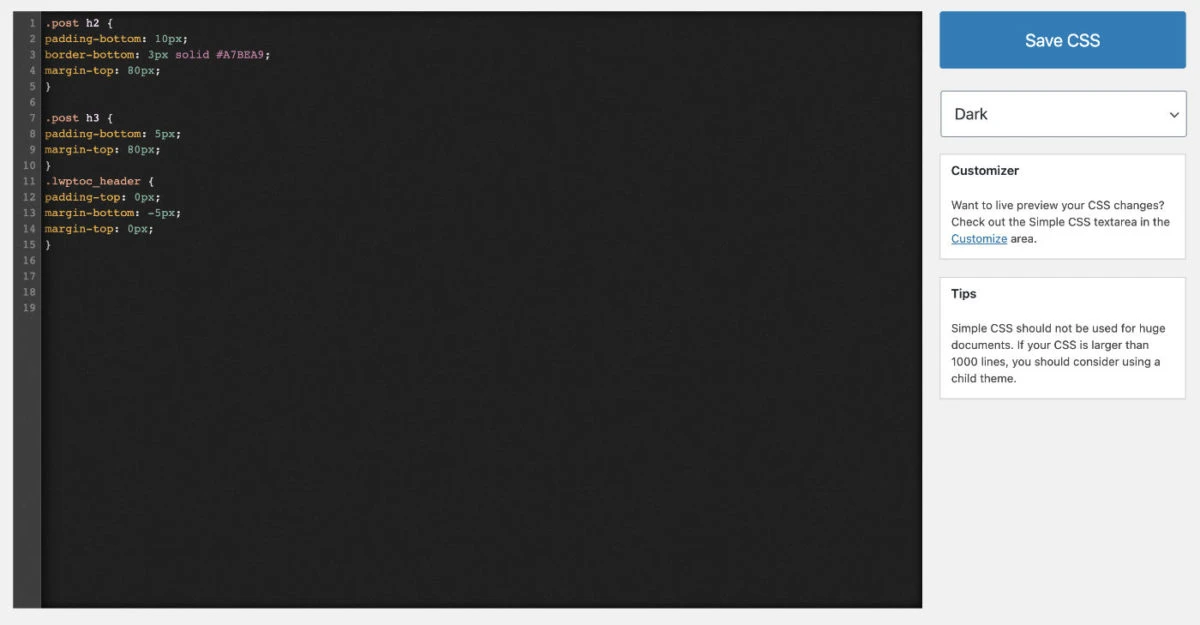
And then there are also numerous plugins that allow you to make further customizations to the design.
So this point clearly goes to WordPress.org. Not because WordPress.com is bad here, but simply because you can't wish for more flexibility than with WordPress.org.
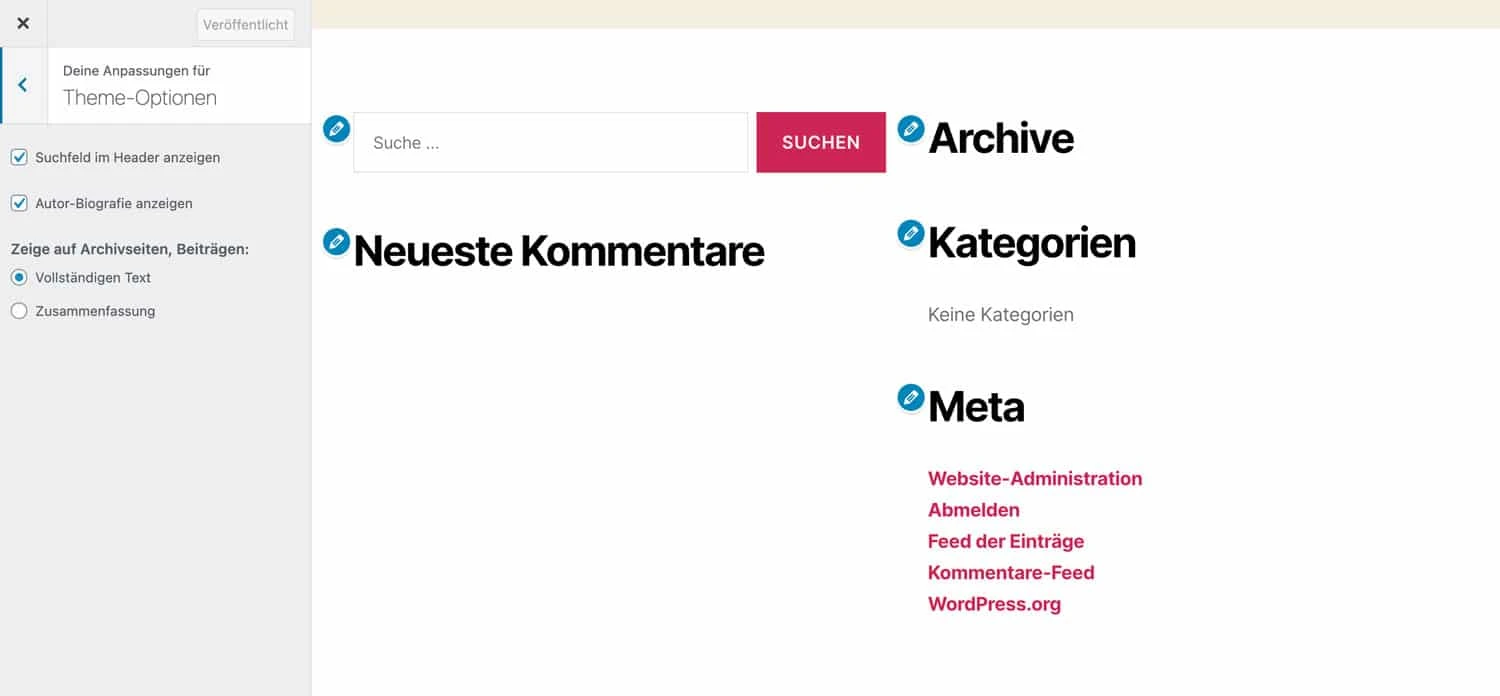
By the way: On both WordPress.com and WordPress.org, you have access to the Customizer. This is a feature in the WordPress backend that lets you make design customizations to your website and follow them live.
3.5 Security and maintenance
The security of a website is an extremely important factor, but unfortunately it is often neglected.
Not dealing with this topic at all would be simply fatal. Especially if you earn money with a website or customer data is stored in the backend.
But what does the term security actually mean in connection with a WordPress website?
Simple: You should make an effort to keep themes and plugins up to date at all times, deactivate inactive plugins and secure access to the backend as well as possible. A regular scan for malware can't hurt either.
A valid SSL certificate should (or, under the GDPR, must) also definitely be in place.
The winner on this point is quickly identified: WordPress.com
Since WordPress.com is the “worry-free solution” I've mentioned several times, you really don't have to take care of anything when it comes to security either: no plugin updates, no WordPress updates. Nothing at all.
That is admittedly very pleasant, because with WordPress.org the world looks completely different. Here you are responsible for keeping your system up to date and leaving as few gaps as possible.
That's no magic here either, because you're informed about new updates regularly...
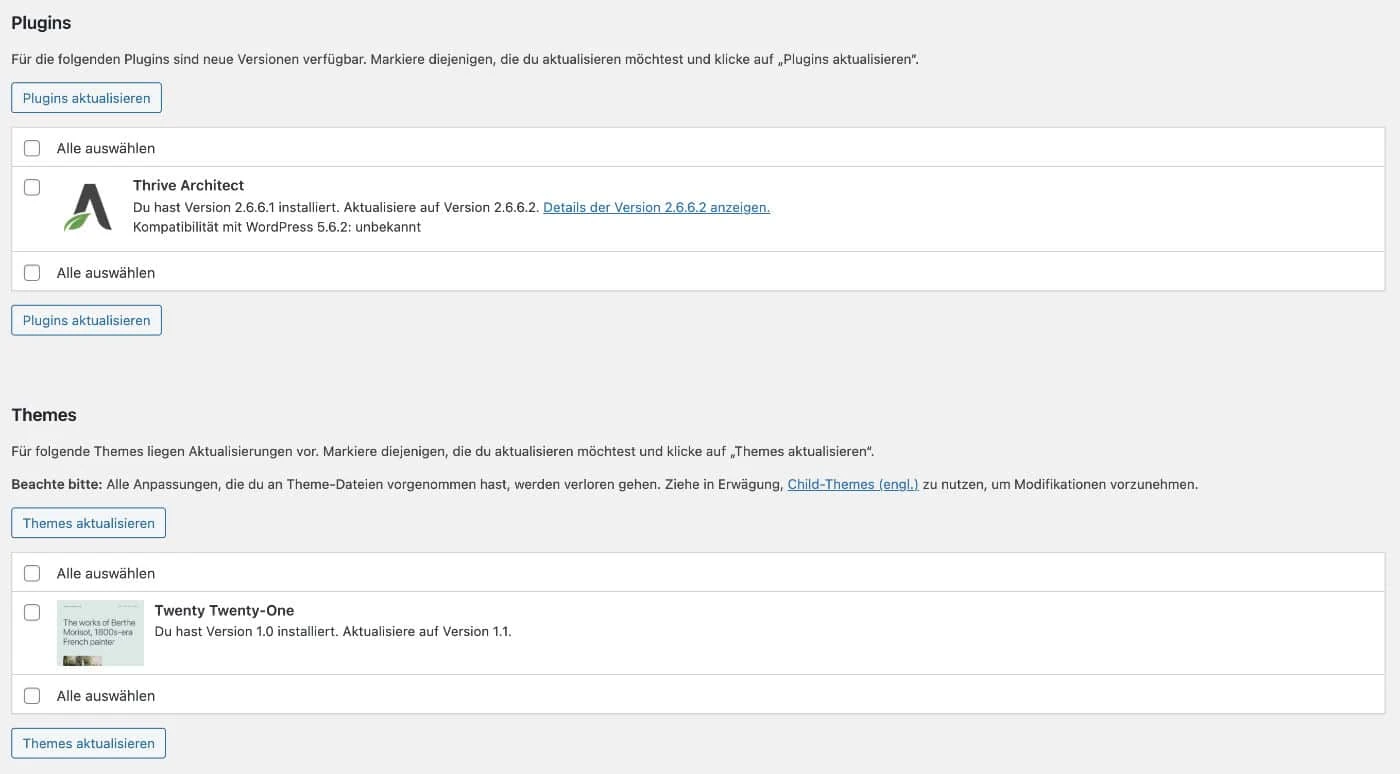
Still, the work is in your hands here.
Tip: If you don't feel like taking care of administrative things, take a look at managed WordPress hosting. That way you kill two birds with one stone, because the host manages your WordPress installation and takes many administrative things off your hands. You still benefit from all the freedom WordPress.org offers you.
So on security, WordPress.com has a slight edge.
When it comes to creating backups, things look different again.
With WordPress.org, it's enough to install a plugin like UpdraftPlus and configure it once. After that, this plugin also creates daily backups of your entire system, including all databases, if you want.
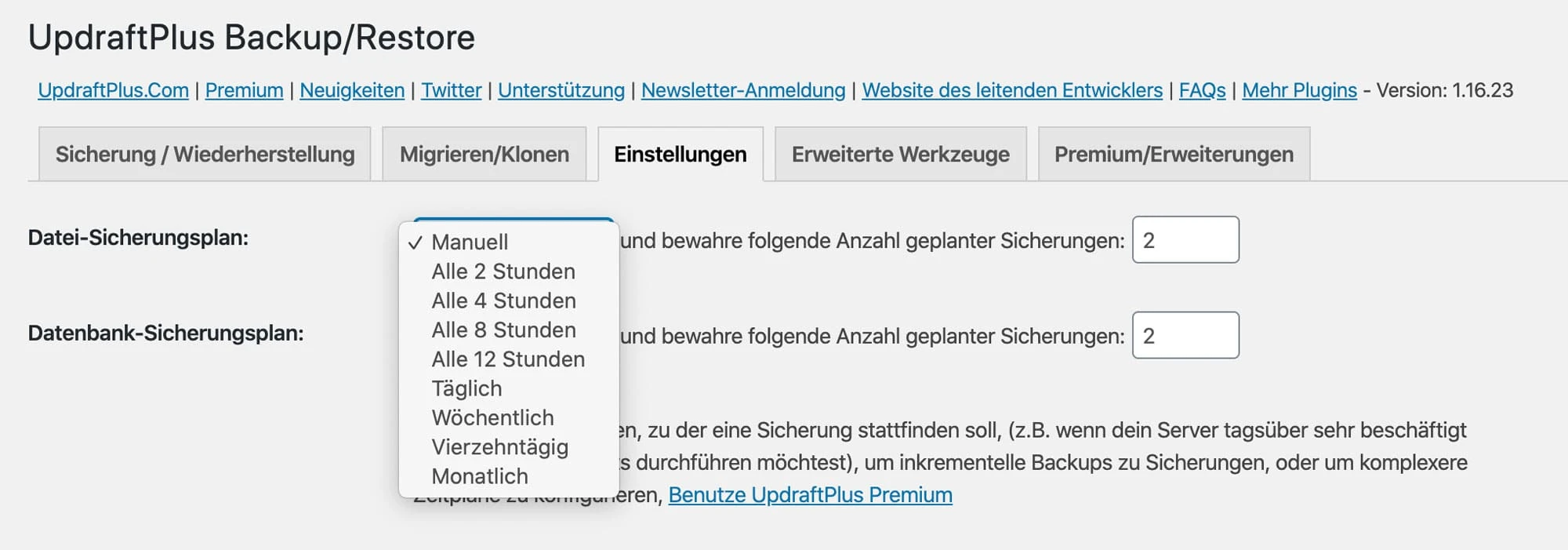
This option exists on WordPress.com as well, but only from the Business plan. Before that, you can't install plugins.
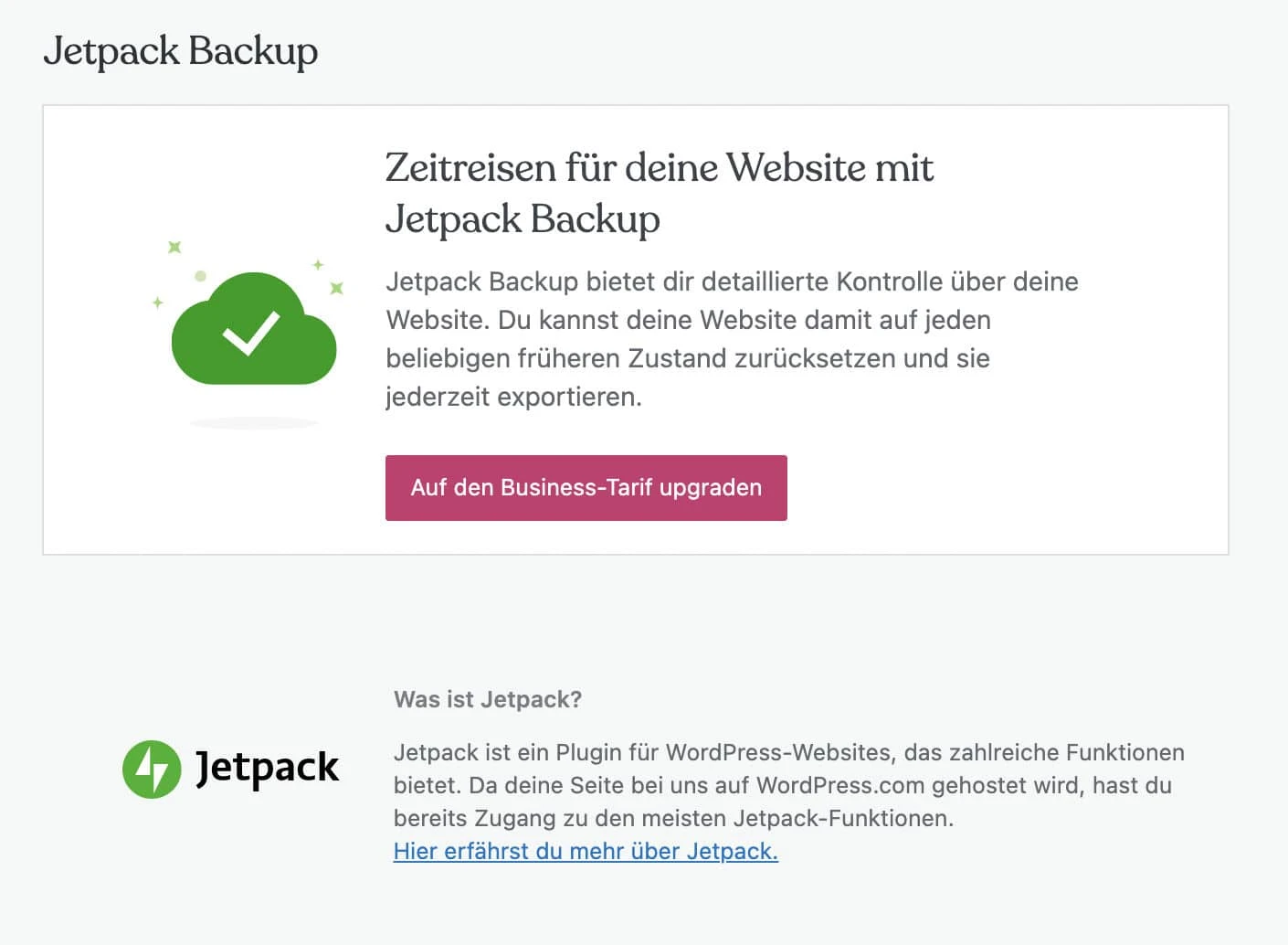
Even the preinstalled Jetpack in the WordPress.com backend is only unlocked after an upgrade to the Business plan.
3.6 Privacy
When it comes to privacy, WordPress.com and WordPress.org differ very strongly in one point:
WordPress.com is hosted in the USA, which can be problematic under data protection law because the EU/US Privacy Shield was struck down by the European Court of Justice in July 2021.
That is why WordPress.org is always the safer choice when it comes to privacy: you're free to choose the server location and can host your website within the EU or, even better, in Germany.
Apart from the server location, there are no huge differences in privacy. After all, it's the same platform.
To adapt WordPress optimally under current data protection law, I recommend three important points above all (careful, not exhaustive and not legal advice):
- Create and embed a privacy policy
- Disable Gravatar (sends data to the service in the background)
- Anonymize the IP addresses of commenters
For the first point, creating a privacy policy, WordPress.org provides you with some text modules and its own section under Einstellungen > Datenschutz (Settings > Privacy, as labeled in the German interface shown in the screenshot).

WordPress.com skips this entirely.
However, I wouldn't recommend the WordPress.org solution either, because it has some gaps and you can't create a comprehensive privacy policy from the pre-made text modules. Especially not if you've embedded several external services such as Google Analytics or similar.
That means: Create a new page, use a privacy policy generator and then paste that text in.
When it comes to Gravatar, you proceed identically on both platforms. It is disabled under Settings and “Diskussion” (Discussion, as labeled in the German interface shown in the screenshot).
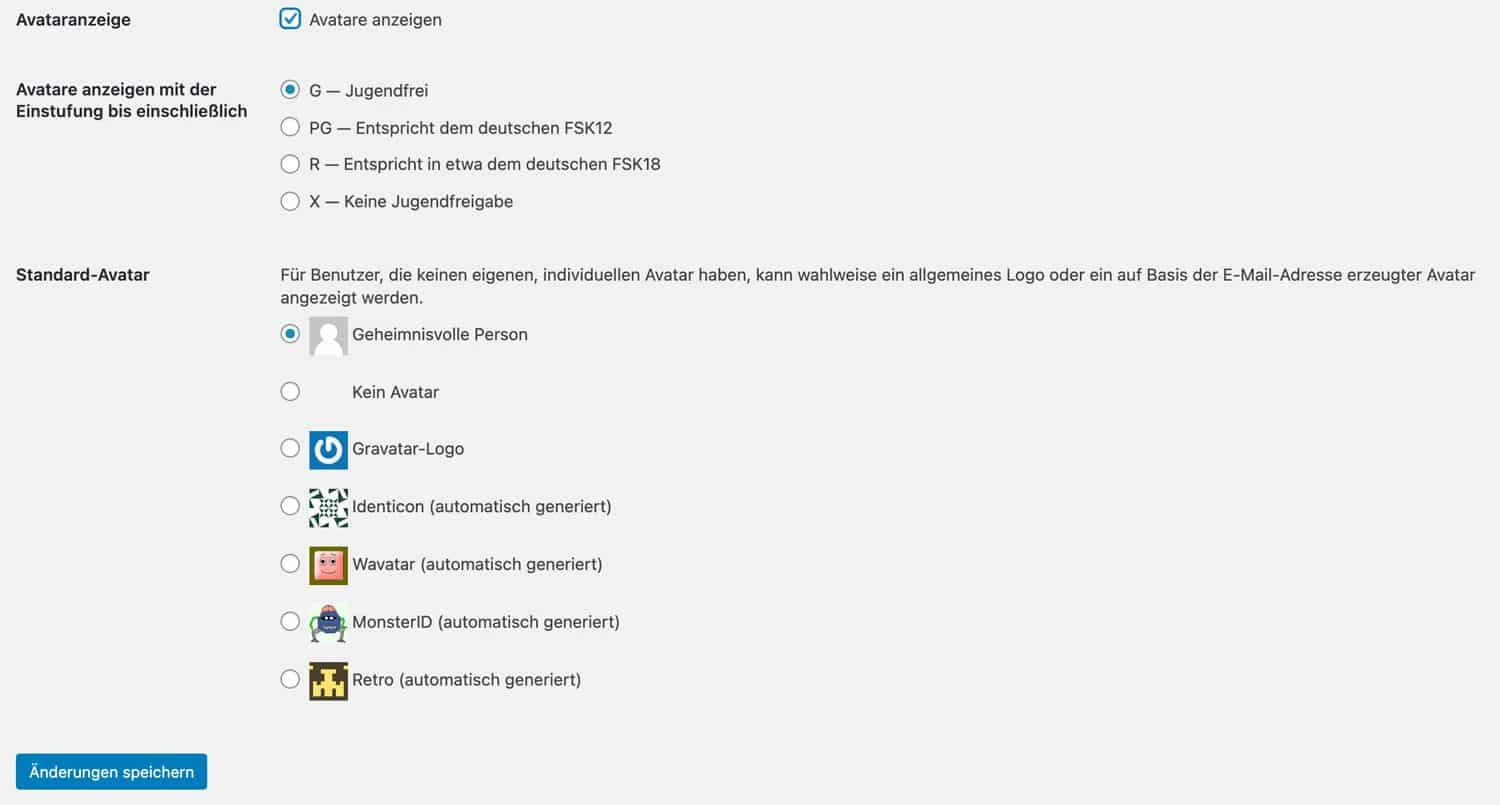
That leaves anonymizing the IP addresses of your commenters.
Ideally, you add the following code to your functions.php for this:
/* Privacy: Replace Comment IP-Address */
      function replace_comment_ip() {
         return „127.0.0.1“;
      }
      add_filter( 'pre_comment_user_ip', 'replace_comment_ip', 50);
With WordPress.org, that's no problem at all, because here you can simply use an FTP manager to access your WordPress folder on your web space and change all documents as you like. With WordPress.com, that unfortunately only works from the Business plan.
3.7 Features
WordPress offers you a range of features that is best described by the word “gigantic”.
Whatever project you want to realize, it's certainly no problem with WordPress.
Not only can you, in theory, adapt the entire source code to your wishes, but the thousands of plugins and themes also make it really easy to create a website to your vision in no time.
On this point in particular, though, WordPress.com definitely can't hold a candle to WordPress.org.
The shortcomings are obvious here.
Especially in the cheap plans, the features of WordPress.com are so limited that users who are used to the range of features of WordPress.org won't really feel comfortable.
As in many other areas, it only becomes really possible on WordPress.com to create an individual website from the Business plan.
Namely when you can install plugins.
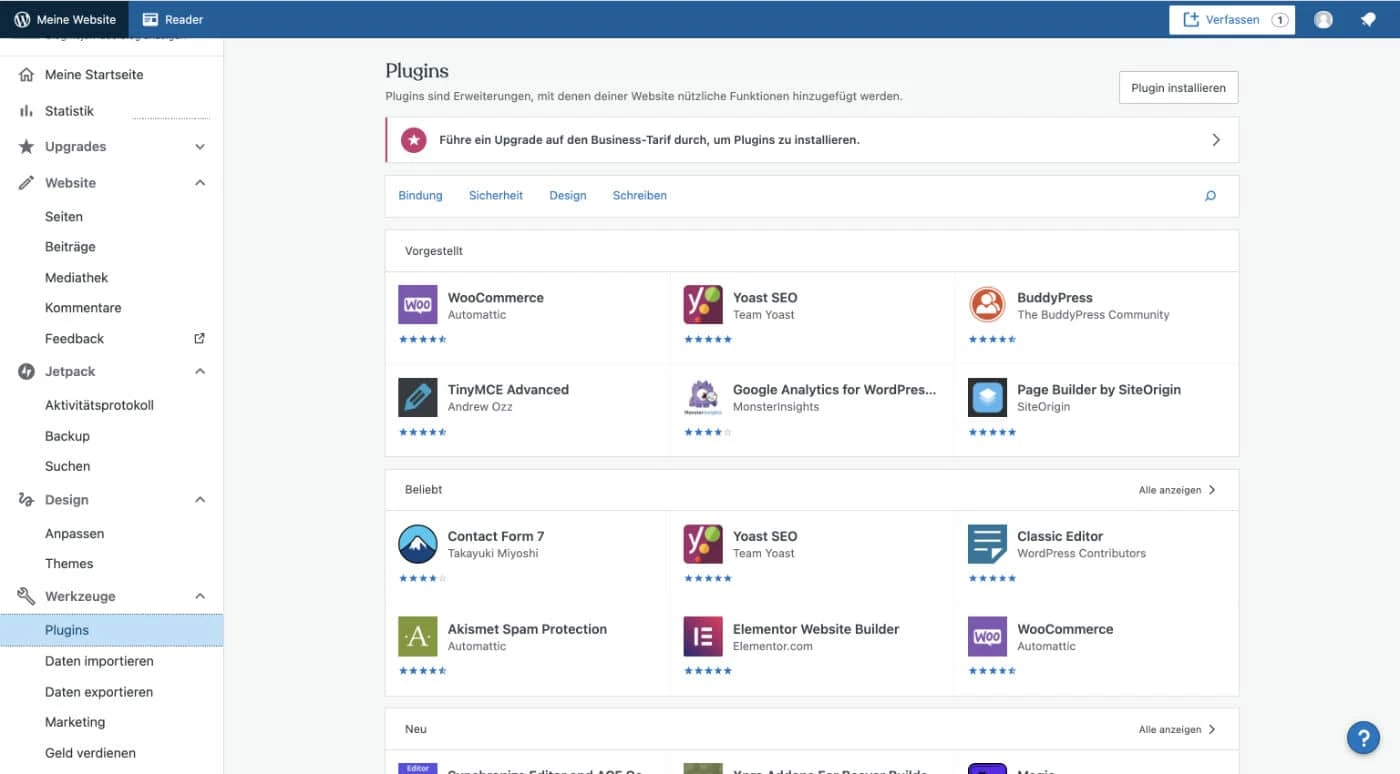
Without the Business plan, you would have to do without the option of implementing your own CSS code or using page builders like Elementor. That is certainly no problem for hobby blogs and sites meant as a leisure project. But if you want to create a website that is supposed to generate revenue, you won't get very far without these options.
In summary, you can say that the range of features of WordPress.org is unrivaled. If you want to achieve equivalent options with WordPress.com, you have to dig deep into your pocket and accept high monthly costs.
So the winner is clearly WordPress.org.
3.8 Online store
If you want to launch your own online store, WordPress.com offers really great options:
- Accept payments in more than 60 countries
- Integration of leading shipping companies
- Premium design options for online stores
Unfortunately, these advantages come with a big but. If you want to enjoy these features, you have to pay a hefty €45 per month and book the WordPress.com E-Commerce plan.

That is comparatively high, considering that WordPress.com is certainly not the first address when it comes to building an online store (tip: Definitely take a look at Shopify).
Admittedly, what WordPress.com offers here isn't bad. But do the features justify this high price? I doubt it.
With WordPress.org, things look different, as usual.
With a plugin like WooCommerce, you can create your own store in no time.
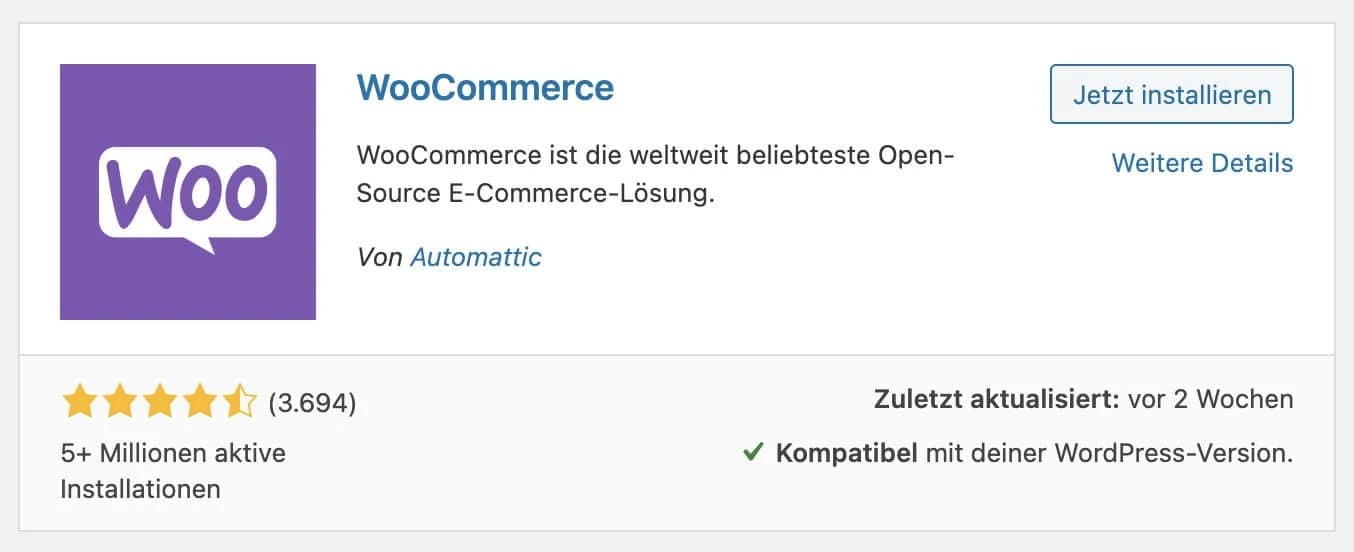
The plugin is really self-explanatory and won't present you with any big challenges. Especially since there are now several hundred German-language YouTube videos on this topic that cover really every question.
In my eyes, WordPress.org is the better alternative here.
3.9 SEO
Search engine optimization is something hardly any website owner can avoid today.
SEO is a must if you want your potential readers to find you.
The good news up front: WordPress is generally an excellent system for implementing SEO optimally. Maybe even the best system for bloggers to be found through search engines.
So when comparing the two platforms, you can only see marginal differences.
WordPress.com basically offers you all the features you need for solid SEO optimization. For example, even in the cheap plans, you can customize permalinks or assign alt attributes for images.
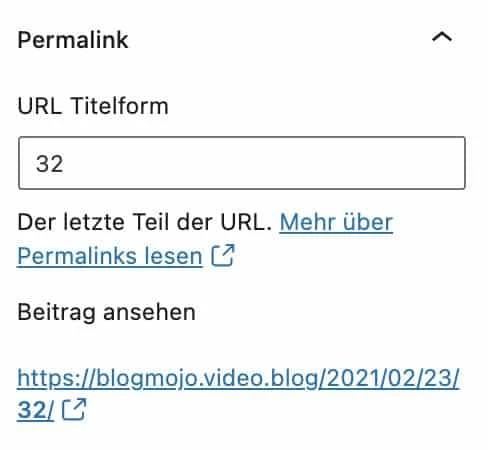
It looks bad when it comes to meta titles and descriptions, though. You can't customize either of them in the cheap plans, which in my eyes is an absolute no-go. The optimized description of a blog post in the SERPs is the be-all and end-all for generating clicks.
With WordPress.org, you can implement this relatively simply with plugins like Rank Math:
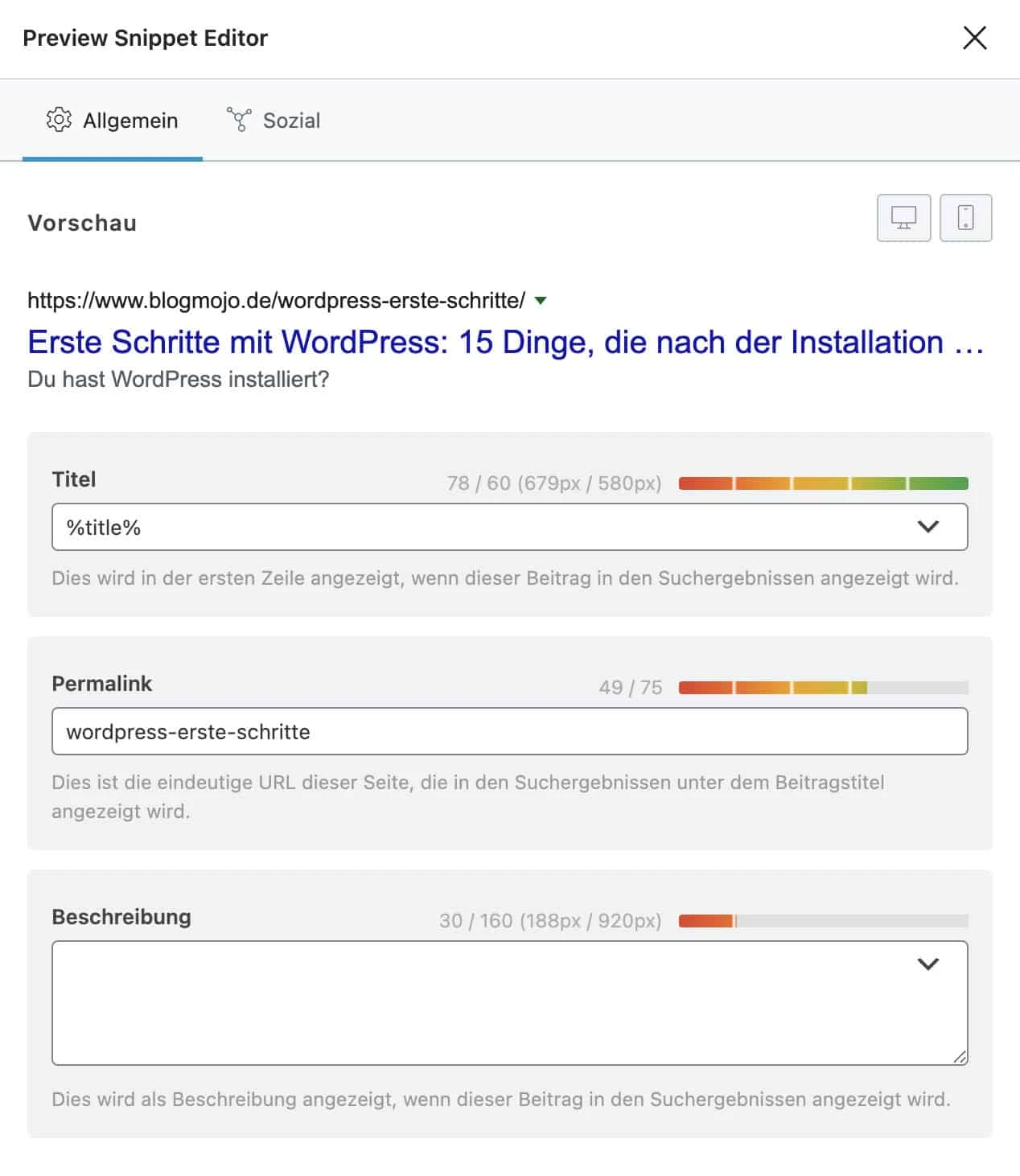
If you also want to enjoy this option on WordPress.com, you inevitably have to fall back on at least the Business plan to be able to install plugins like Yoast or Rank Math at all.
With WordPress.org, the entire universe of SEO options is available to you from the start. For this reason, I would again give the point to WordPress.org.
3.10 Making money
There are numerous different ways to monetize a website.
To name just a few:
- Affiliate programs, such as the Amazon Associates program or Awin
- Selling your own physical products through a store system
- Selling digital products through external services like Digistore24 or Affilicon
- Ads like Google AdSense
The good news: Neither WordPress.com nor WordPress.org puts any obstacles in your way here.
But let's look at all four points one by one.
1. Affiliate programs
Affiliate programs work simply: You embed a link to a product. As soon as a sale of this product comes about, you receive a commission.
Since only links or buttons have to be embedded on your website here, this is relatively simple on both WordPress.org and WordPress.com.
2. Selling physical products
If you want to sell physical products through your website, you need an inventory management system or at least a store function.
WooCommerce is the classic here in combination with WordPress.
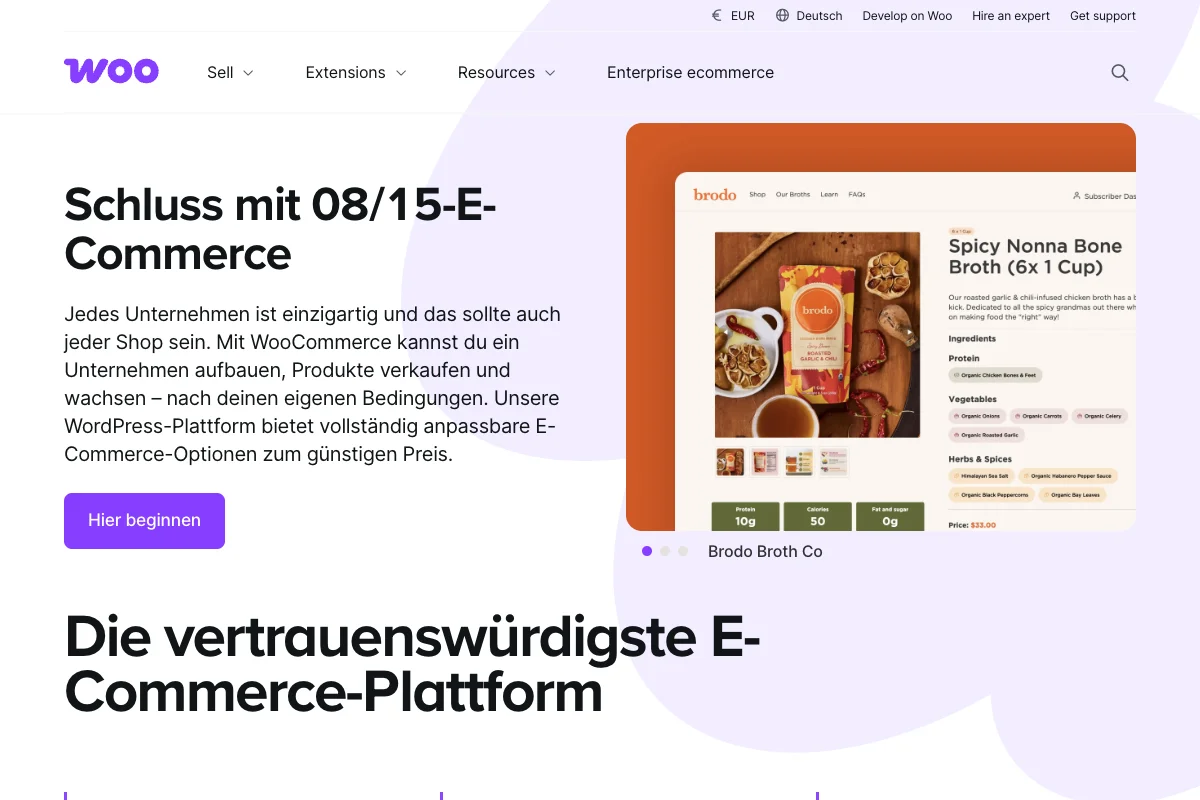
With WordPress.org, it's enough to install the plugin and create products. After that, you can start selling right away.
With WordPress.com, it looks different.
To be able to accept payments through the website, you absolutely need the Commerce plan, which costs you €45 per month.
So WordPress.org is definitely the better choice here.
3. Selling digital products
You can also sell digital products like e-books or online courses through your website.
You can do that either via WooCommerce or by using an external payment service like Digistore24. In that case, it's enough to embed a link to the external order form.
Here too, the effort is low and implementation is possible with both platforms.
4. Embedding ads
On WordPress.com, the Premium plan is needed to be able to display ads on the website. The cost is bearable at €8 per month, though.
With WordPress.org, the following applies: All options are open to you from the start, as usual.
Summary
In this area, you can't make out a clear winner.
It depends extremely on how you want to make money with your website. If you want to build your own online store, I would even advise you overall to consider other systems as well. Shopify, for example, does a really great job here.
For all other sources of income, WordPress.com and WordPress.org are equally well suited.
Conclusion
If I had to decide on one of the two systems, my choice would always be WordPress.org. Here I'm free in designing my setup and in choosing the host, which for me is the decisive advantage.
WordPress.com is certainly a good choice if you only want to realize small projects and keep the technical effort minimal.
But if you want to create a website or blog that will be filled with content steadily and grow over the years, I strongly advise you to go with WordPress.org.
By the way: Even if you would describe yourself as not very tech-savvy and as a newcomer to the online world, you can use WordPress.org without hesitation. The system is easier to use than it looks at first glance. On top of that, you'll find extensive articles here on Blogmojo on most of the topics that occasionally cause problems.