WordPress is the most widely used CMS in the world and one of the best systems for building a website or starting a blog.
Unfortunately, though, it has a few weak spots.
In this article you'll find out what they are and how you can significantly improve your WordPress security and your protection against hacker attacks with measures that are mostly simple.
An important note up front:
Maybe you think a small WordPress website doesn't interest any hacker. That attitude is wrong, though!
Hacker attacks today usually run on autopilot. The bots and crawlers used for them often make no distinction between small and large websites.
The security company Patchstack counted 11,334 newly reported vulnerabilities in the WordPress ecosystem for 2025, 42% more than the year before. 91% of them affected plugins, only 6 affected the WordPress core. For 46%, the developer had not yet released a patch at the time of publication (source: Patchstack, State of WordPress Security in 2026).
The consequence: Your leverage lies in plugins, updates, and access, not in the WordPress core.
- Vulnerabilities in plugins are the main reason WordPress websites get hacked, so reduce their number and delete inactive extensions.
- Always keep WordPress, plugins, and themes up to date, use long, unique passwords, and enable two-factor authentication.
- Rely on a security plugin like Wordfence or Kadence Security (formerly iThemes Security), a current PHP version, and backups whose restoration you have tested.
1. Reduce the number of plugins
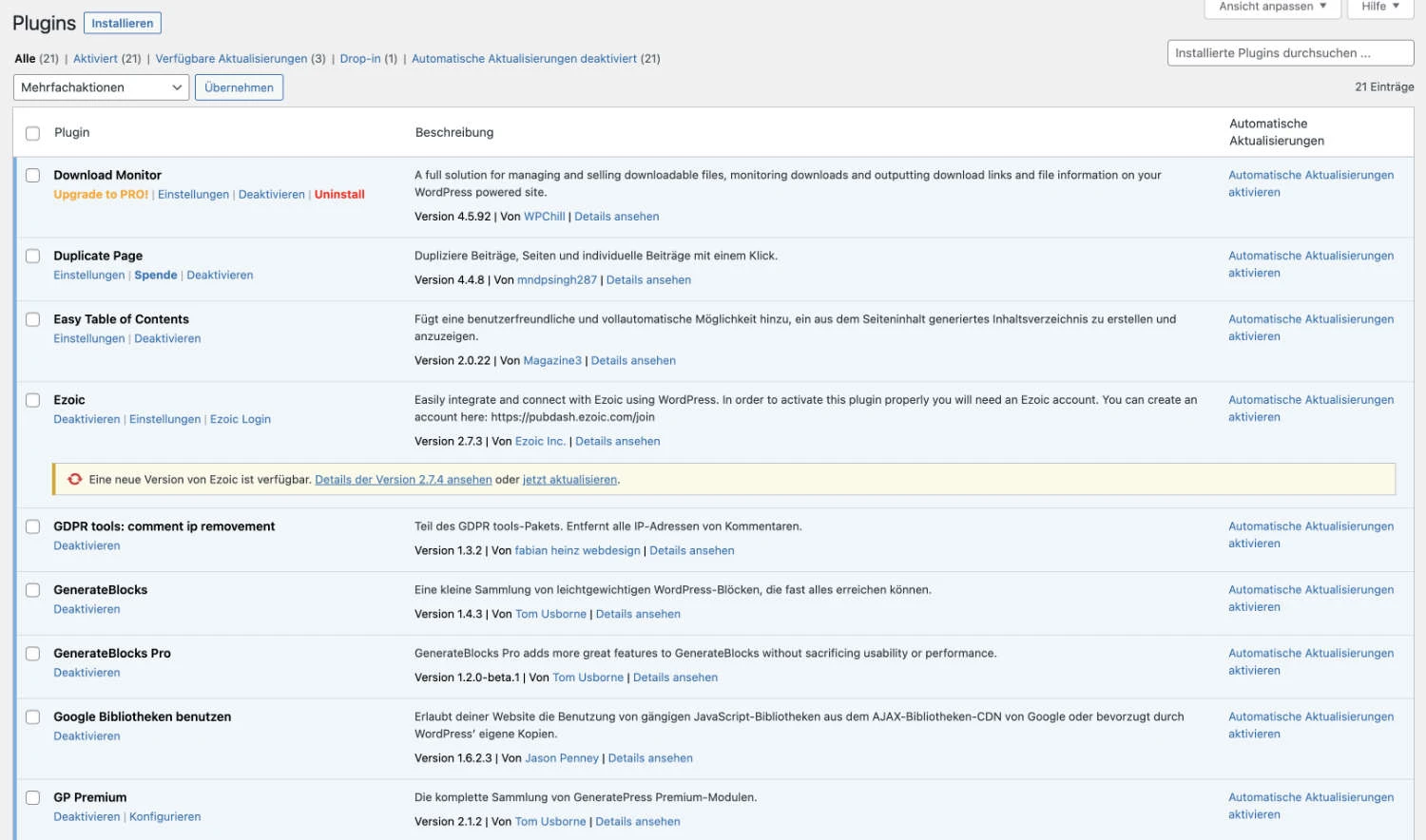
Vulnerabilities in plugins are the main reason WordPress websites get hacked.
That's why this applies:
The fewer plugins you have installed, the lower the risk.
So you should definitely think about which plugins you absolutely need and which ones you can do without.
Some plugins can also be replaced by code snippets in the functions.php or by native WordPress functions (e.g. lazy loading). For the former, it is necessary and sensible to create a child theme.
2. Delete inactive plugins and themes (don't just deactivate them)
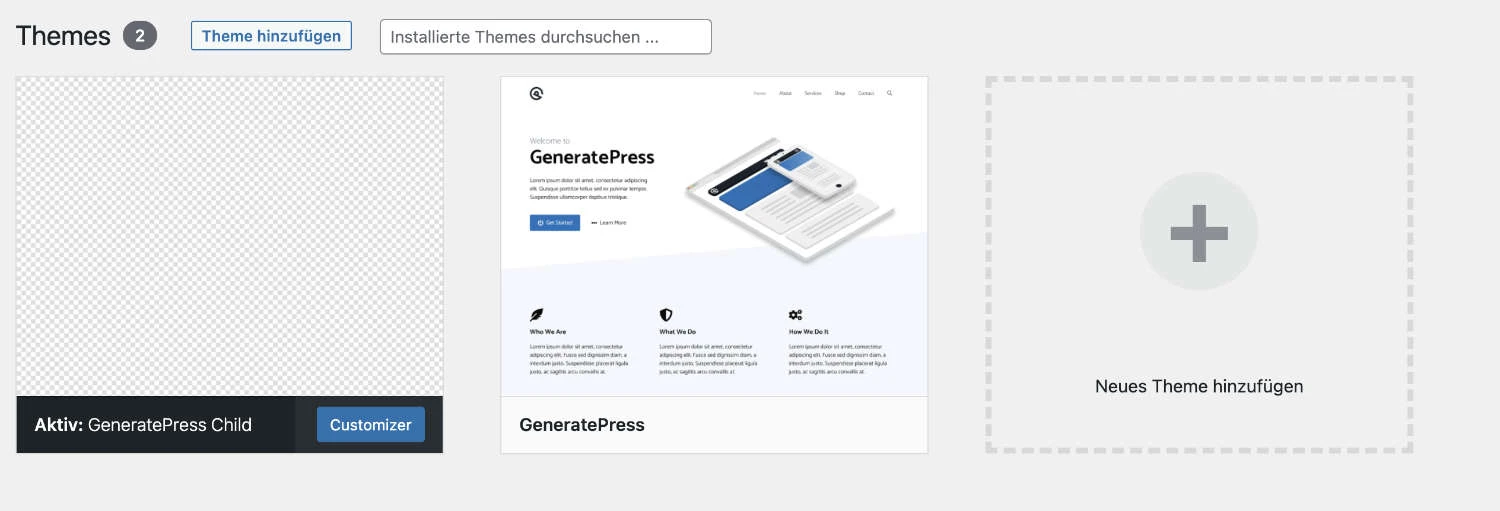
Unfortunately, many WordPress users think it's enough to deactivate unused themes or plugins instead of deleting them.
In the spirit of: “Maybe I'll need that plugin or theme again in the future.”
The problem with that:
Vulnerabilities in inactive plugins or themes can be exploited too.
So take a few minutes and delete all inactive plugins and themes.
3. Don't install plugins or themes that haven't been updated in a long time
WordPress offers tens of thousands of plugins in its library that you can add to your site for free.
Many of these extensions are hobby projects that may be well programmed but may not be developed any further, or whose development was stopped at some point.
Such outdated plugins or themes were not adapted to new security standards, and known vulnerabilities were not closed. Both mean they could become a target for hackers.
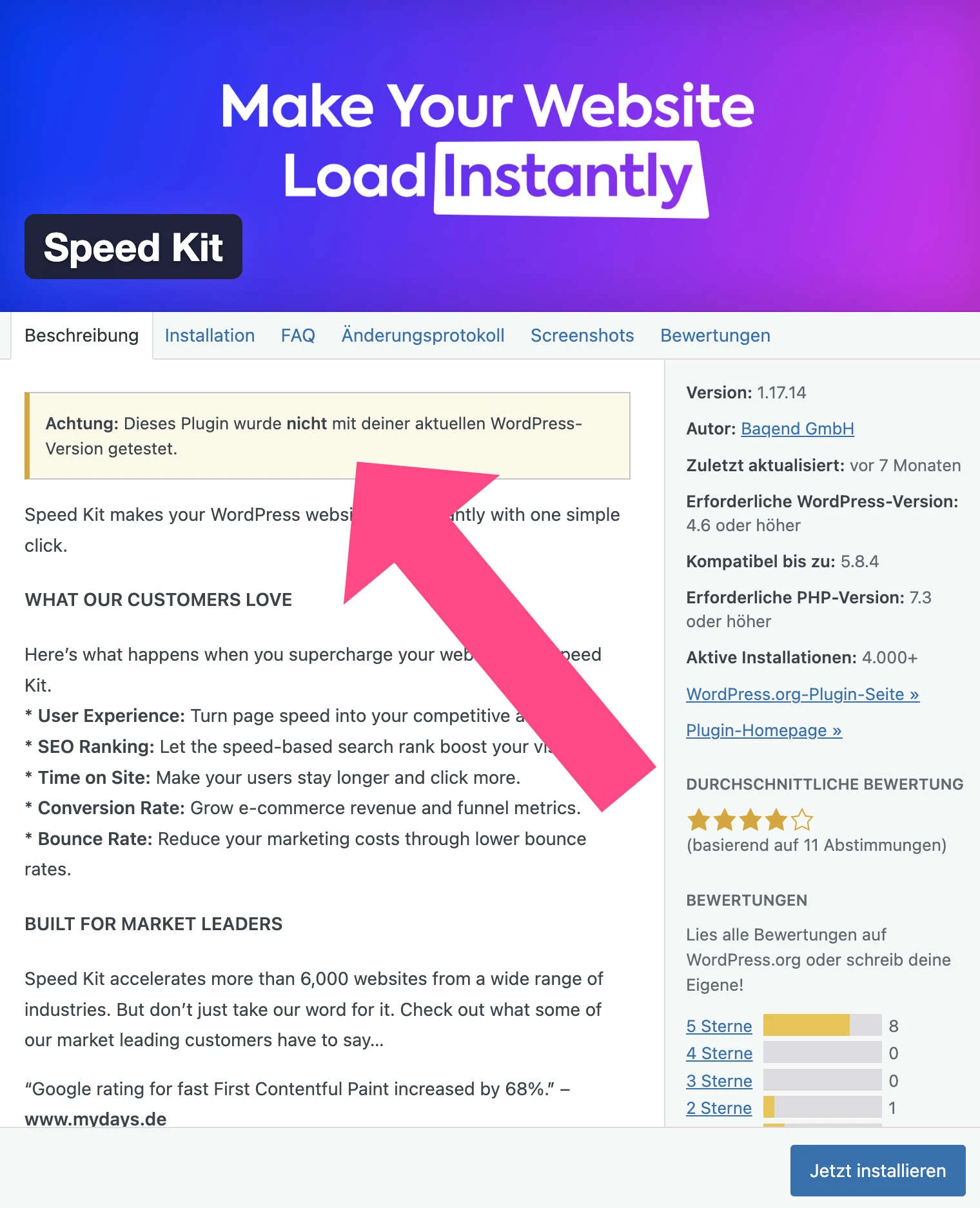
So when you install a plugin or theme, make sure that the last update isn't too far in the past, that it was tested with the current WordPress version, and that it has a living changelog.
4. Install updates regularly
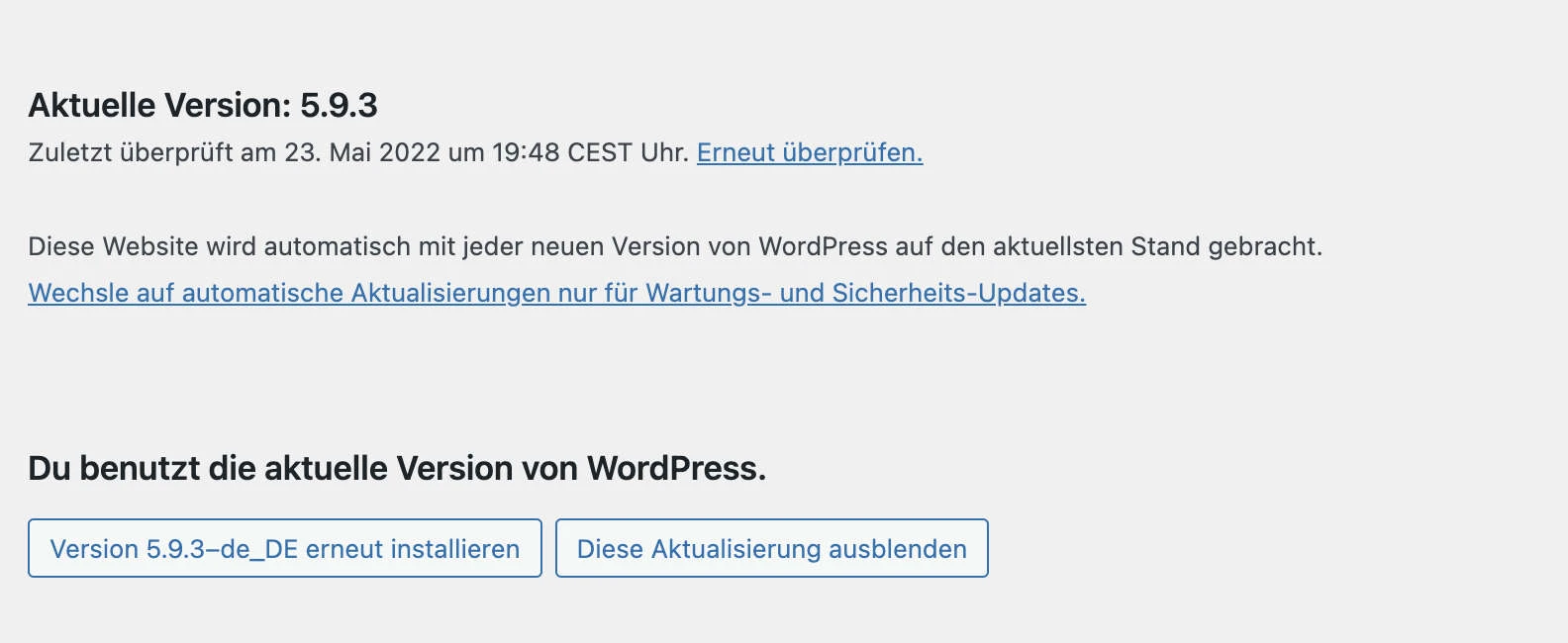
WordPress regularly provides updates to close vulnerabilities and adapt the system to current threats.
So with every update, you reduce the risk of a hacker attack.
Of course, the same goes for plugins and themes! Regular updates are a must.
A tip: WordPress can also update plugins and themes automatically. You switch that on per extension in the plugin or theme overview. Only use it together with a complete backup solution, because updates can cause compatibility problems from time to time and may take your site down. How to choose a backup plugin is covered in my comparison of the best WordPress backup plugins.
5. Scan plugins and themes for vulnerabilities
Even the best programmer won't manage to close every hole in a plugin or theme.
So you should take security into your own hands and regularly check all installed extensions for vulnerabilities yourself.
The good news: That works even if you know nothing about programming.
With the WPScan plugin, you scan WordPress, plugins, and themes for known vulnerabilities. You need a free API token from wpscan.com for that, which allows 25 requests per day. Without a token, the plugin additionally checks things like debug logs, backups of the wp-config.php, XML-RPC, or default keys. The catch: According to its description, the plugin is no longer actively maintained for non-enterprise customers, and the developers point to Jetpack Protect. It uses the same WPScan database and checks for vulnerabilities daily for free. Malware scans and a firewall are paid there.
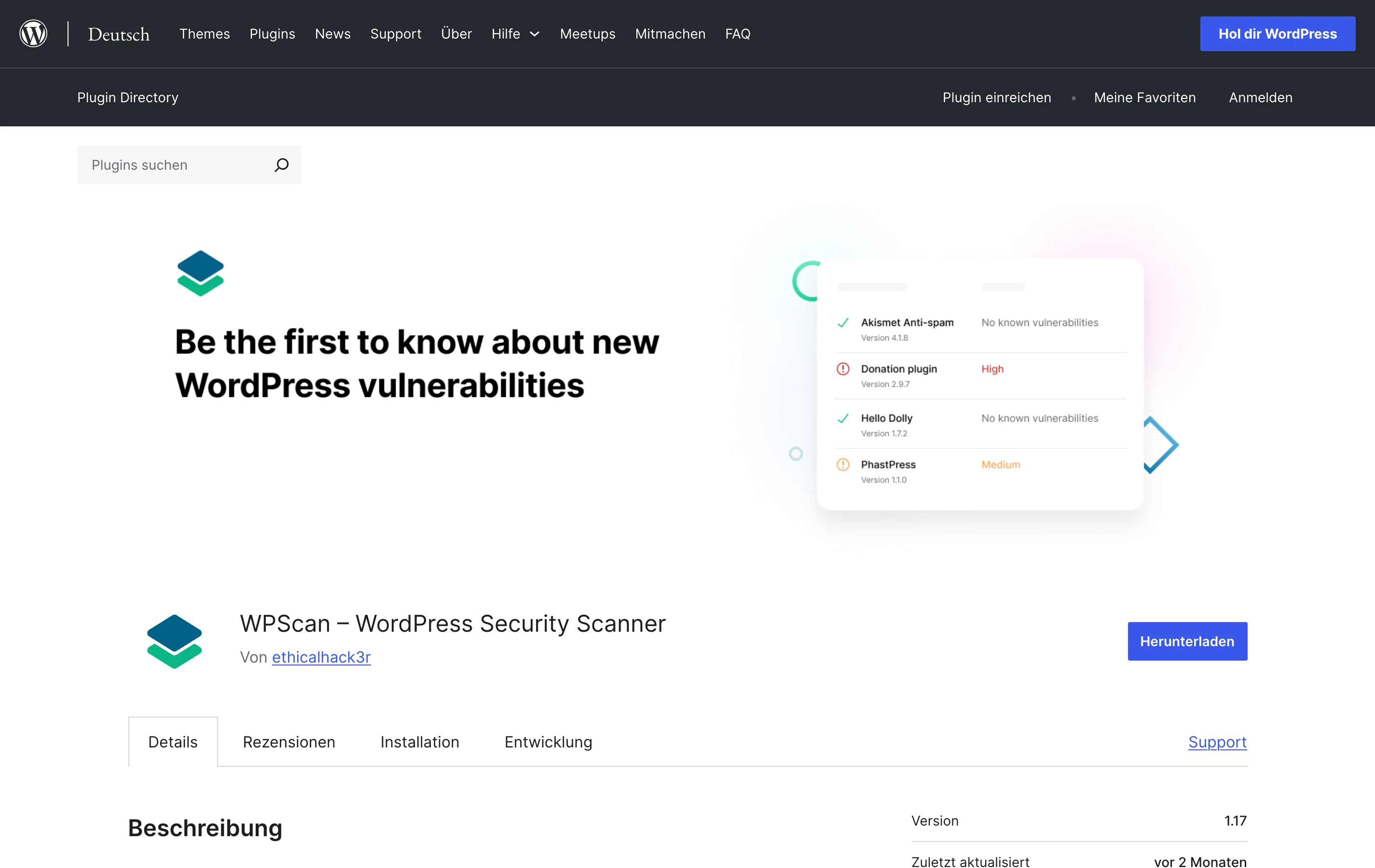
So a regular crawler run can't hurt.
On top of that, you should keep your eyes and ears open for whether the WordPress community reports on vulnerabilities. We would recommend actively reading along in Facebook groups and forums so you don't miss any news. The plugin page in the WordPress directory also shows you whether and when there were updates most recently.
6. Set up uptime monitoring
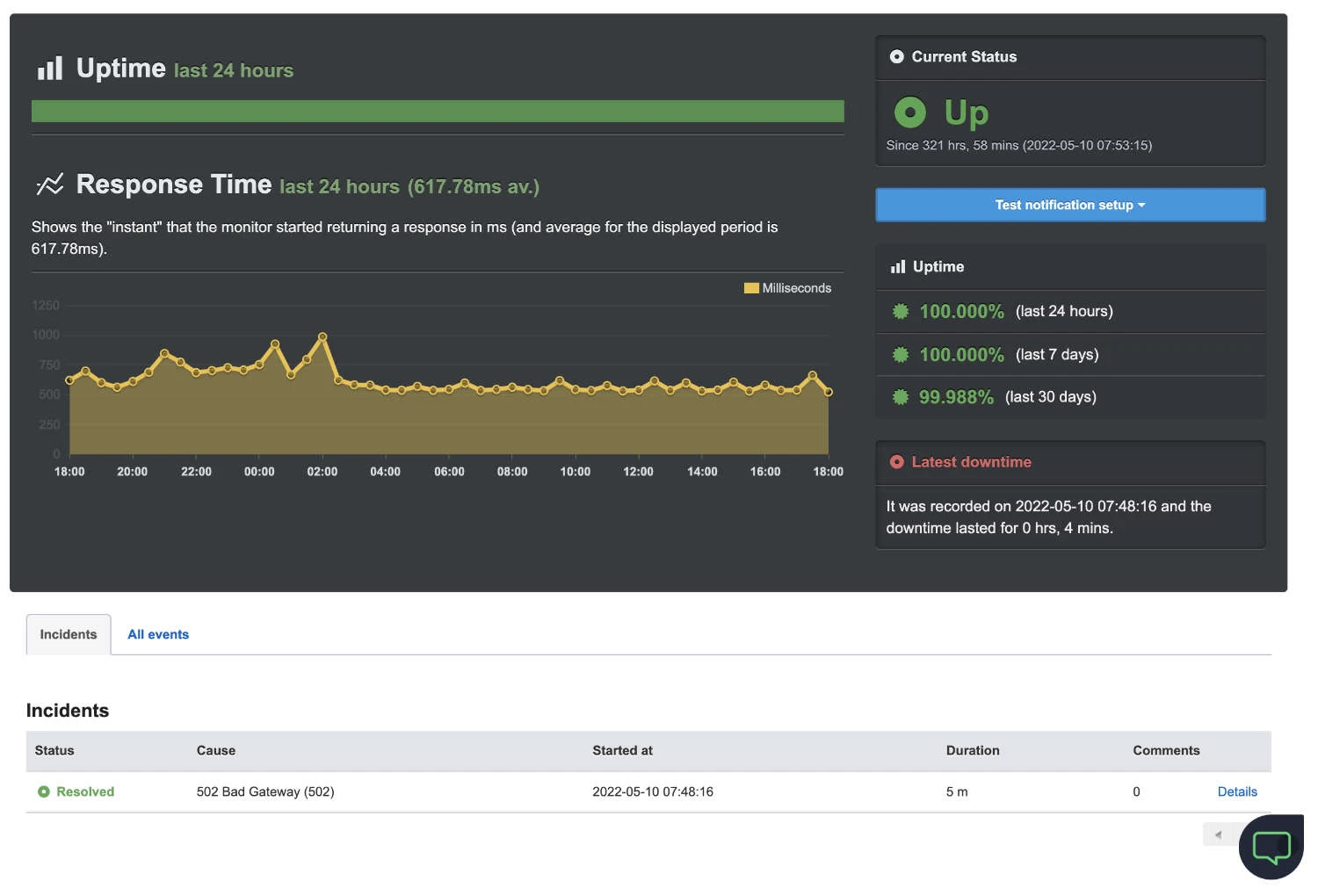
There are numerous free tools that monitor the availability of your website automatically, 24 hours a day.
As soon as your website is no longer reachable, the tool sends you a message. This uptime monitoring has two advantages:
- You see how reliable your hosting provider is.
- You can react immediately to hacker attacks or technical errors and take countermeasures
Since these tools don't have to be installed in the backend, they have little to no impact on your website's performance and can be used without worry.
We've trusted UptimeRobot for many years and are very happy with it. The free plan includes up to 50 monitors with a check interval of 5 minutes and, according to the provider, is also intended for commercial projects.
7. Keep your PHP version up to date
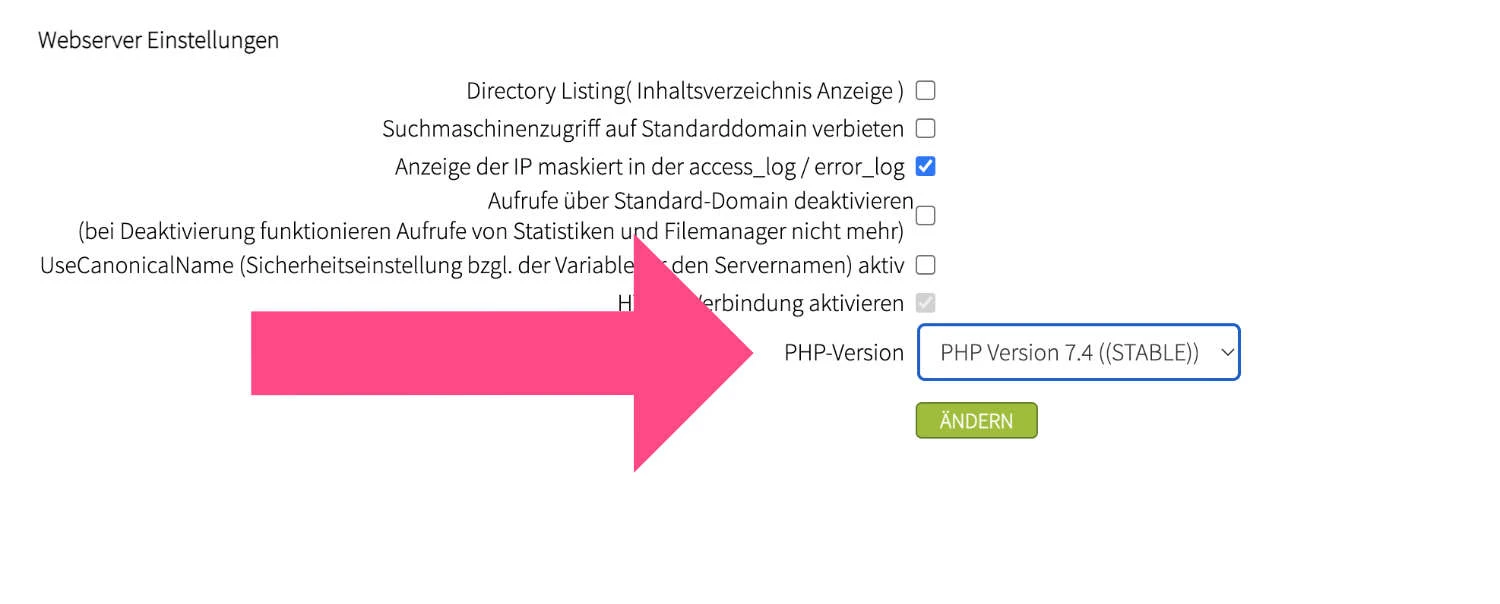
PHP is the heart of every WordPress website and one of the most important components of the CMS. The scripting language controls all the important processes in the background.
Every PHP version receives bug fixes and security updates for two years, and after that updates only for critical vulnerabilities for another two years. After that there are no patches at all. Currently (according to php.net), PHP 8.2 to 8.6 are supported. PHP 8.6 is the newest version (since November 19, 2026). PHP 8.2 still gets security updates until December 31, 2026, PHP 8.3 until the end of 2027. If you use PHP 8.1 or older, your website runs on a version without security updates.
You should close this gap immediately!
With most hosting providers, changing the PHP version in the members area is no problem, so there's really no reason to fall back on outdated code.
Caution: Please make a backup before switching PHP versions!
You can see which PHP version your website currently uses in WordPress under “Werkzeuge > Website-Zustand > Info > Server” (Tools > Site Health > Info > Server). Test your website thoroughly after the switch, because some older plugins and themes no longer run without errors on new PHP versions.
8. Use secure passwords
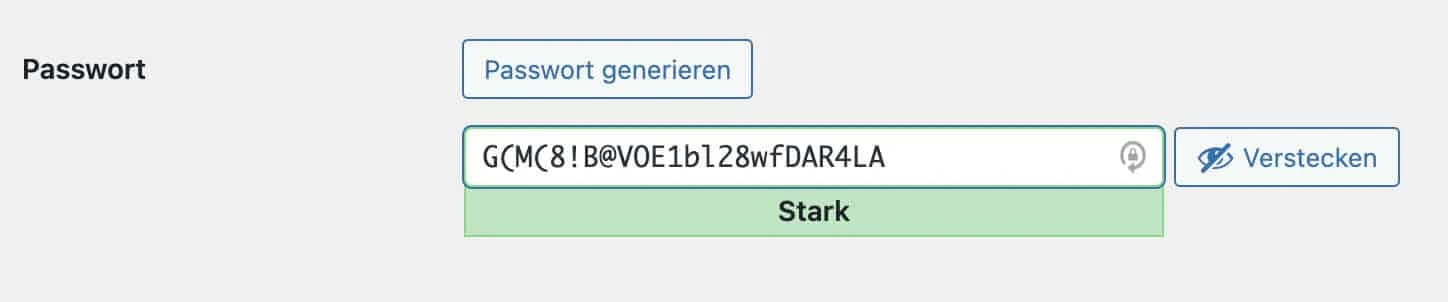
One of the best security tips for protecting your website from hacker attacks seems too banal at first glance to really be effective: Use a strong password!
Unfortunately, most site owners underestimate this.
To give you an example of how powerful length and variety of characters are: A password of 8 digits has 100 million possible combinations. With 8 characters made of uppercase and lowercase letters and digits, it's around 218 trillion. And every additional character multiplies that number by 62 again.
That's why our urgent advice is: Use a password with at least 12 characters, ideally generated randomly by a password manager.
WordPress gives you a good guide, because the system already rates how secure your chosen password is.
Please make sure that all members use only strong passwords.
Caution: Please don't use a password that you also use on another platform.
9. Secure your WordPress login
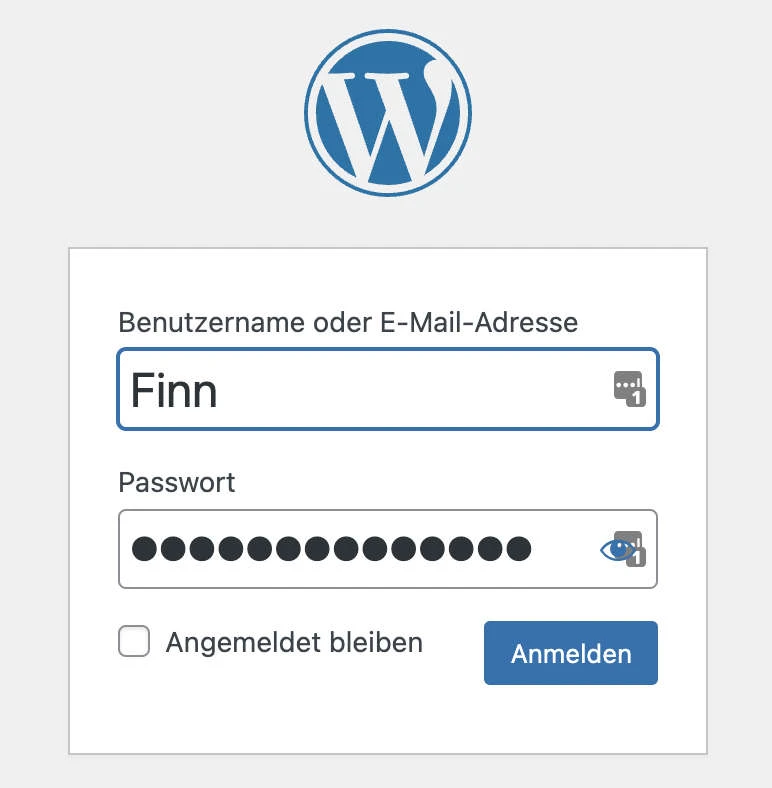
Securing the login page is one of the most common protective measures, and many bloggers are happy to implement it.
It's perfectly fine to take this measure, but you should be aware that most hacker attacks find their way into a site through other routes.
After all, a secure password can build good protection here. A password of eight characters including uppercase and lowercase letters and digits leads to 218,340,105,584,896 different possibilities. With a long, random password, trying things out is hopeless.
So the problem that such brute-force attacks bring with them isn't in the area of security. Rather, many such attacks in a short time can bring your website to its knees and take it offline.
Two-factor authentication (2FA) is still worth it, because passwords aren't only guessed, they are also stolen through data leaks or phishing. With 2FA, the password alone is no longer enough to log in. The free Two Factor plugin from WordPress developers supports authenticator apps (recommended), email codes, and backup codes. Wordfence and Kadence Security also offer 2FA.
Limiting login attempts still makes sense, though! With this restriction you get optimal protection against brute-force attacks and spare your server resources. Unfortunately, however, this measure is no longer as effective as it was a few years ago, because modern bots can switch their IP automatically.
Changing the URL of the WordPress login page can also help a little here.
10. Never reuse login credentials
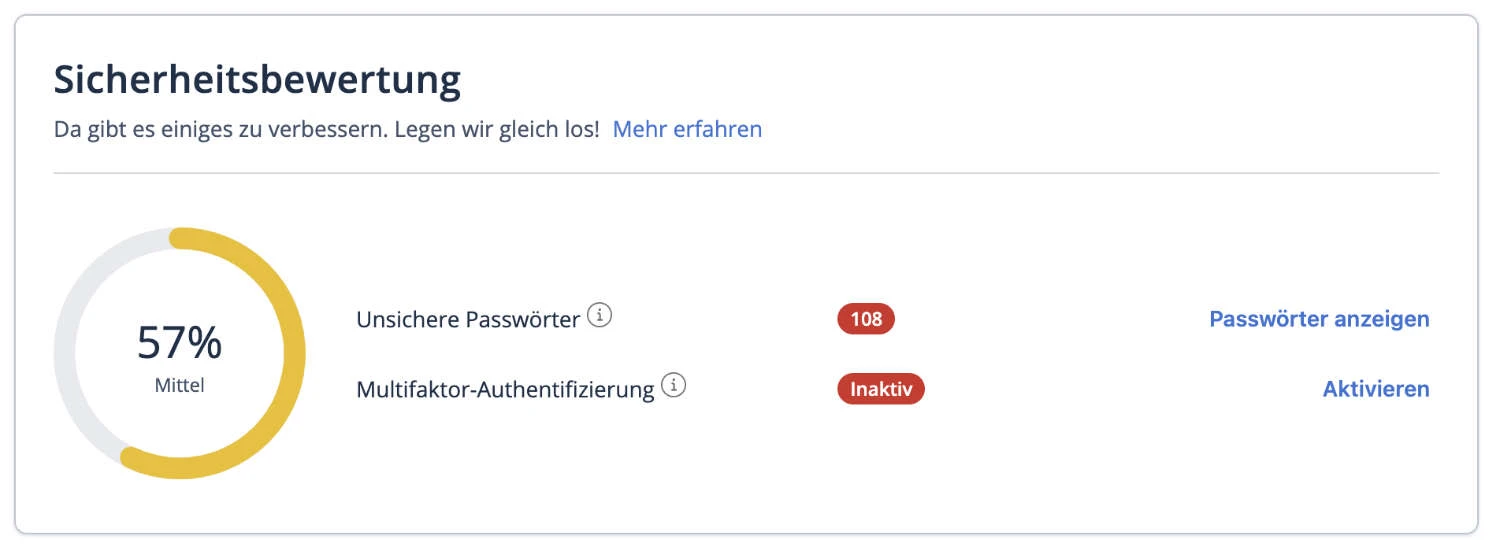
Are you one of those people who use one password on all devices and all portals? If so, you should change that urgently!
This behavior is almost reckless, because as soon as one of the platforms is hacked, the door to your website's backend is wide open too.
So:
Use your WordPress login credentials NOWHERE else and definitely use individual passwords.
You should also avoid classic usernames. In login attacks, bots first try common usernames like “admin”. So don't use that name, and create an administrator account with a unique name. Then delete the old “admin” account.
11. Change the database prefix
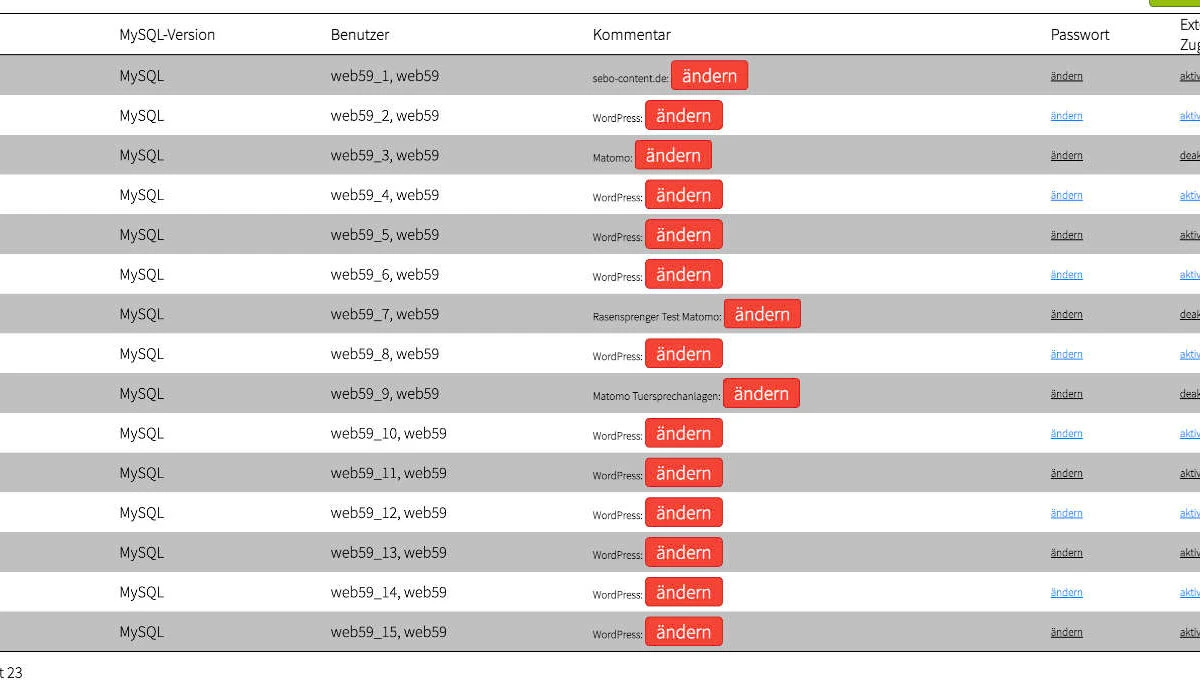
WordPress is built on databases. Content and configurations of themes and plugins are stored here.
Login data (username and password) is also stored in such databases, which makes them a frequent target of hacker attacks.
These attacks, too, run completely on autopilot. In harmless cases, the goal is publishing spam comments, and in worse cases, control over the entire website is taken over.
During installation, the system creates 12 tables with the prefix wp_. A custom prefix makes attacks that assume exactly this prefix harder. But it doesn't replace updates or clean plugin management, and it doesn't reliably protect against an SQL injection in a vulnerable plugin.
Ideally this happens right at installation, because that's where it's easiest.
For an existing website, changing it afterward is riskier and mostly only worth it with a current backup. You can change the prefix via phpMyAdmin, but we only recommend that with very precise instructions. Besides the table names, entries in the usermeta table and the options table also have to be adjusted. The Acunetix WP Security plugin, which used to do this automatically, has no longer been available for download since 2023. We don't recommend another plugin for this.
12. Set WordPress keys & salts

You've most likely never come across the term WordPress keys & salts before.
Put simply, it's a kind of cryptographic tool that WordPress uses to protect your passwords and user data stored in system cookies from attackers. Such a cookie is used, for example, to enable the “Stay logged in” function.
In its default configuration, WordPress already ships with salts, which are stored in the wp-config.php.
Changing these salts can significantly increase the security of your site, though. Such a change also has the advantage that all logged-in users are logged out automatically.
You can make this change in two different ways:
- You change them manually in the wp-config.php. You can generate new salts with the official WordPress.org salt generator.
- You use WP-CLI if your hosting provider offers it: The command
wp config shuffle-saltsgenerates new salts and writes them into the wp-config.php. - You use the Salt Shaker plugin, with which you can set up an automatic change of the salts on a schedule you define. With over 7,000 installations the plugin is small, but it is still maintained.
Tip: Use this keys and salts generator.
13. Use SFTP or SSH instead of unencrypted FTP
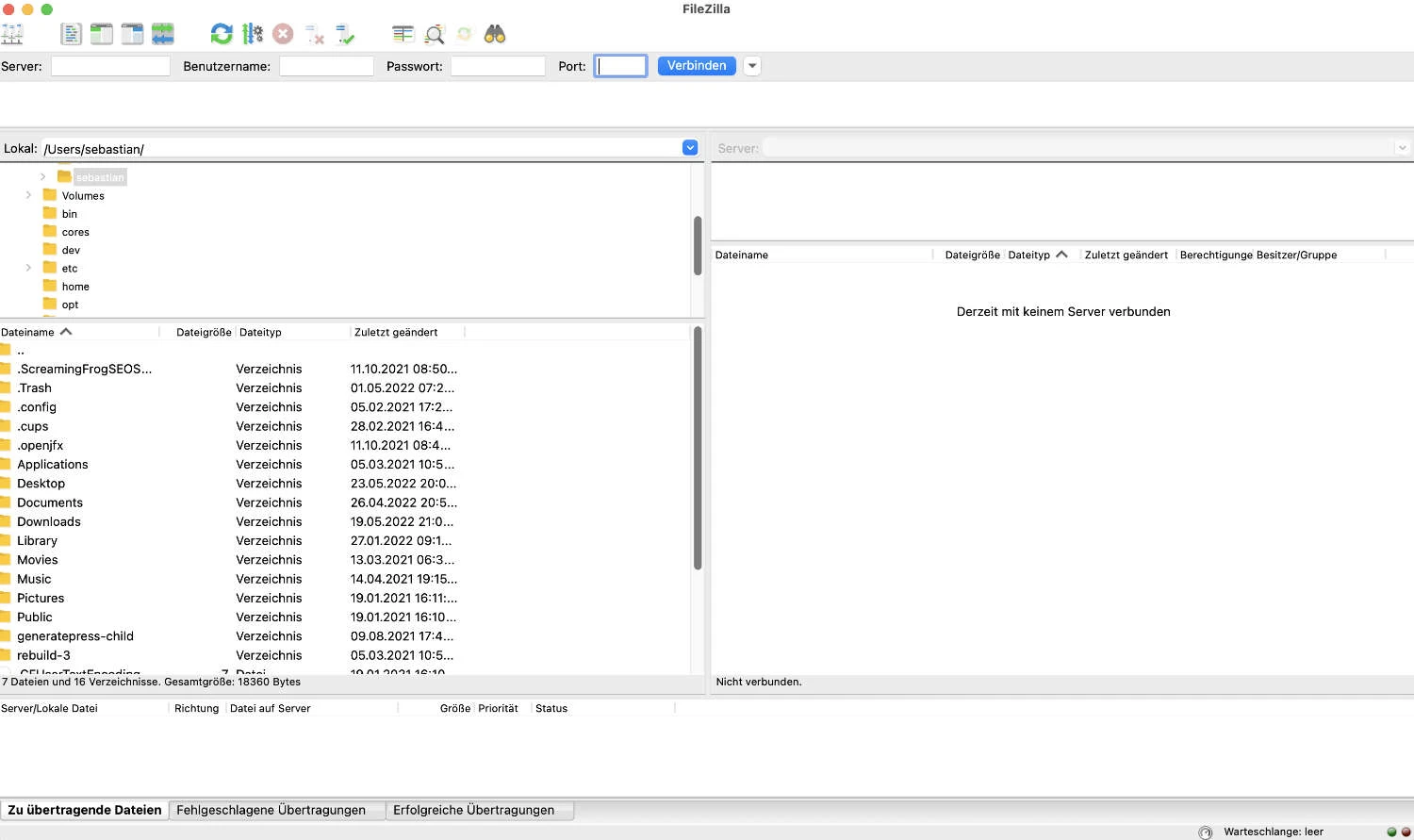
If you want to access your web space directly (for example with FileZilla), several transfer methods are available to you.
Unfortunately, the file transfer protocol FTP is still used regularly, which is unencrypted and therefore no longer meets modern security standards.
No wonder, because FTP was developed back in 1985!
Since usernames and passwords are transmitted unencrypted via FTP, you should switch to secure alternatives right away.
Two modern protocols are available to you:
- SFTP: SSH File Transfer Protocol
- FTPS: FTP over TLS (both variants encrypt the data transfer, so sensitive data is protected from access by third parties)
14. Use secure file permissions
This security tip is aimed mainly at experienced WordPress users, but ideally it should still be implemented, because it can achieve very effective protection.
To understand the procedure, you first have to grasp how a page request of a WordPress website is generated:
A visitor requests your page, that is, your web server. This activates PHP and reads the index.php. It contains everything that has to be processed for a page request. Writing to the database is possible too, for example when you leave a comment on a post.
That may sound abstract if you're a WordPress beginner. So we don't want to make it too complicated and will shorten the topic a bit here: Whether visitor or WordPress admin, PHP only needs write permissions when you want to update themes, plugins, or the WordPress core.
So it's a very effective security measure not to grant PHP any write permissions. That way you prevent attacks in this area and reach a much higher security standard.
And the best part: You don't even need a plugin for it!
As a guideline, the WordPress developer handbook gives permissions 755 for directories and 644 for files. The wp-config.php should only be readable by you and the web server (400 or 440). In addition, you can switch off the file editor in the backend by adding define( 'DISALLOW_FILE_EDIT', true ); to the wp-config.php. That doesn't prevent every attack, but some.
You'll find a step-by-step guide on how to disable write permissions for PHP here.
15. Switch WordPress to HTTPS
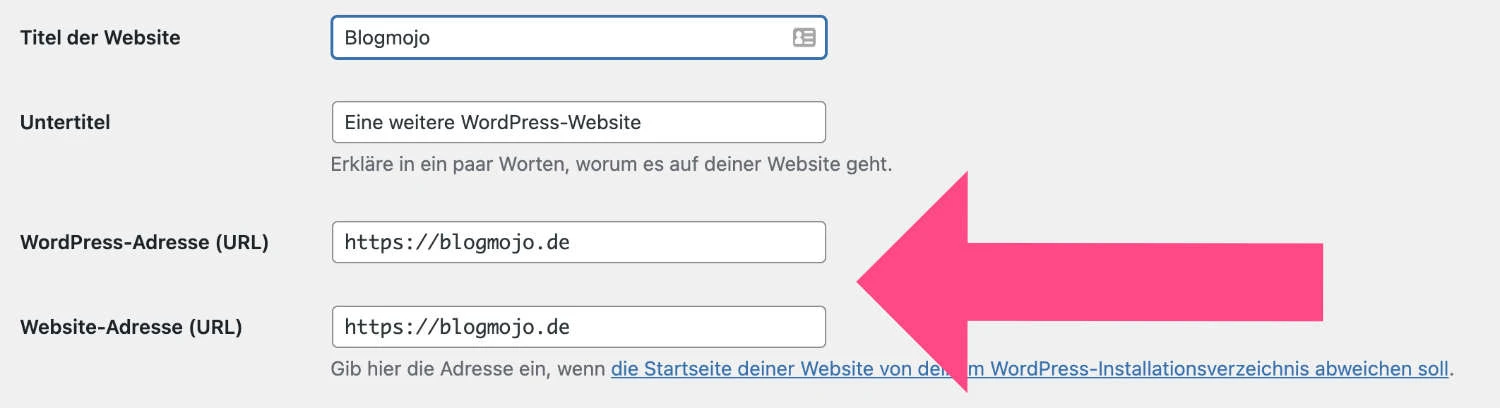
Hard to believe, but true: Countless websites still don't use an SSL certificate. Yet switching from HTTP to HTTPS is one of the easiest and most straightforward measures to increase WordPress security enormously.
Especially on e-commerce sites or members areas, sensitive data is transmitted that absolutely has to be protected. That's not the case with HTTP, because there plain text is regularly transmitted to the server.
Incidentally, there are many other reasons for setting up an SSL certificate. Among them are SEO, your site's trustworthiness toward visitors, or performance.
Setting up an SSL certificate is simple and easily possible even for beginners. With most professional hosting providers, these certificates are included in the contract for free and only have to be activated in the members area for the domain in question.
As a further step, you should check whether the WordPress backend has been switched to HTTPS.
16. Remove references to the WordPress version
As a general rule: The less information a potential attacker has about your website, the better. That also applies to the WordPress version in use, which is especially an invitation if it is an older version.
There are several ways to hide the WordPress version.
One is to adjust the source code. Add the following code to the functions.php:
function wp_version_remove_version() {
return '';
}
add_filter('the_generator', 'wp_version_remove_version');
Also check whether there is a readme.html in your root directory. If so, it contains a reference to the version there as well.
Alternatively, you can use a plugin to hide it. We recommend Perfmatters, which, besides this function, offers numerous other great features to increase your site's performance and security.
17. Log activity in WordPress
You should know at all times what is happening on your site, especially in the backend. That applies even if you're the only one working on the site. An activity log can immediately show you when changes were made without your involvement, which is a sure sign of unwanted outside access.
Among other things, you should keep an eye on the following areas:
- Content changes
- Newly created users or changed user permissions
- Login attempts
- Changes to plugins or themes
- Changes to the source code or WordPress core
What sounds like a very complex undertaking at first glance is handled by a free plugin: WP Activity Log (formerly WP Security Audit Log) with over 300,000 active installations. According to its description, the free version records the same events as the premium version.
The plugin is very beginner-friendly and guides you step by step through an extensive installation process. Afterward, you can see directly in the backend which changes were made to your website.
18. Create backups regularly
Even the supposedly most secure website can fall victim to a successful attack. 100% security is simply impossible to achieve.
With that knowledge, you shouldn't do without regular backups of your system, including all plugins and your tables.
With the help of these backups, you can reset your system after a hacker attack and restore it quickly without losing any data.
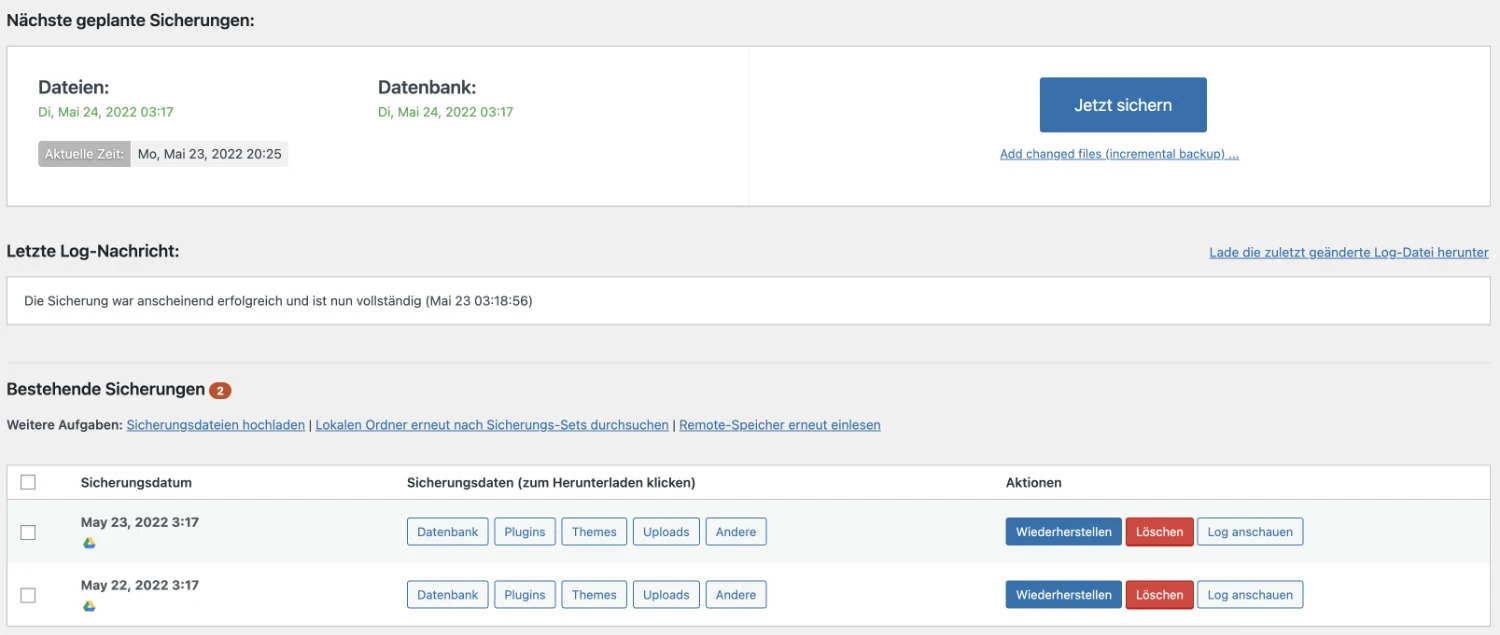
Many hosting providers offer automated backups. If that's not the case, you can alternatively use a WordPress plugin like UpdraftPlus. The tool not only creates a complete backup of your entire website on a schedule you set, but also stores it in an independent location like Google Drive. You'll find more plugins in my comparison of the WordPress backup plugins.
Also restore a backup once as a test in a test environment. Only then do you know that it works in an emergency.
19. Use a firewall
A firewall (web application firewall, or WAF for short) checks requests to your website and blocks known attack patterns and brute-force attempts before they do any damage. Against large-scale DDoS attacks (distributed denial of service), however, a plugin barely helps. For that you need protection at the network level, e.g. through your hosting provider or an upstream service.
We've trusted the NinjaFirewall plugin for many years. It works in front of WordPress and filters requests before they reach plugins. On top of that come brute-force protection for the login, a file integrity check, and email notifications for important events such as admin logins or plugin changes. The free WP Edition has over 100,000 active installations; IP-based, country-based, and role-based access control is only available in the paid WP+ Edition.
If you want a plugin with firewall and malware scanner in one, you'll find that with Wordfence (see below).
Which security plugins are recommended?
There are numerous WordPress security plugins that do excellent work and protect your website reliably.
With these plugins, you should definitely look out for the following features:
- Active security monitoring
- Reliable (automated) scanning of the website
- Spam and malware scanning
- Blacklist monitoring
- Firewall
- Brute-force protection
- Extensive notification function for threats
Besides very expensive products, you'll find two free options in the WordPress library that we've used ourselves for many years.
First there is Kadence Security, which used to be called iThemes Security and most recently Solid Security (renamed with version 10.0). The free version has over 700,000 active installations and comes with two-factor authentication, password rules, brute-force protection, file change detection, and database backups. Pro adds, among other things, passwordless login, trusted devices, and the connection to Patchstack for virtual patches. Make a backup before updating, because the reviews since the renaming are mixed, mainly because of problems saving settings with some hosting providers.
Wordfence Security has become our favorite plugin in this area. The tool is extremely clear and has over 5 million active installations. The free version comes with a firewall, malware scanner, brute-force protection, and two-factor authentication. Important to know: Free users get new firewall rules and malware signatures with a 30-day delay, while Premium gets them in real time.
What to do if your website has been hacked
Even with all the measures, a residual risk remains. If it has happened, it's best to proceed like this:
- Inform your hosting provider and take the website offline temporarily or put it in maintenance mode.
- Restore a clean backup from before the attack.
- Change all passwords (WordPress, database, FTP/SFTP, hosting account) as well as the keys and salts.
- Update WordPress, all plugins, and themes, and delete everything you don't need.
- Scan the website with a security plugin and check the user list for unknown administrators.
- Find out where the attacker got in, e.g. via the activity log and your hosting provider's logs.
If you don't have a backup, cleaning up is considerably more work. In that case, it's worth turning to a service provider or your hosting provider's support.