
Your WordPress site has been running for years. Plugins want updates, the theme is sluggish, and all you really want to do is write.
Next.js or Astro sound tempting. Fast pages, no plugin zoo, everything in your own code. And with Claude Code or Codex, you don't even have to write the code yourself.
The problem:
In a migration, things get lost easily. An old URL without a redirect, a form that sends submissions nowhere, an SEO title nobody carried over. And suddenly you're missing visitors without knowing why.
I've gone down this road myself several times. I moved blogmojo.de from WordPress to Next.js. faminino.de ran on WordPress first, then on Next.js, and today it runs on Astro. gradually.ai moved from Next.js to Astro.
In this guide I'll show you all 12 steps you need to think about. For the screenshots, I ran my own WordPress Migration Skill on a demo WordPress site, once to Astro and once to Next.js.
Let's get started!
- A migration from WordPress to Next.js or Astro works in 12 steps: back up, capture, choose the framework, transfer, rebuild the design, set redirects, carry over SEO data, replace forms, check, deploy, switch over, and monitor afterward.
- For blogs and company sites you choose Astro, for shops, logins, and member areas Next.js.
- Claude Code or Codex write the code. My WordPress Migration Skill also captures every URL, transfers content without retyping, and checks before the switch that nothing is missing.
My WordPress Migration Skill works through steps 3 to 10 of this guide for you with Claude Code or Codex. It captures every public URL, transfers content, menus, images, forms, and SEO data, and checks before the switch that nothing is missing.
You can buy it on its own. If you don't want to do anything yourself, I'll also handle the whole migration for you. You'll find the prices further down.
1. Is the migration worth it for your website?
Not every WordPress site should move. Before you type a single command, check two things.
First: What does your site actually do?
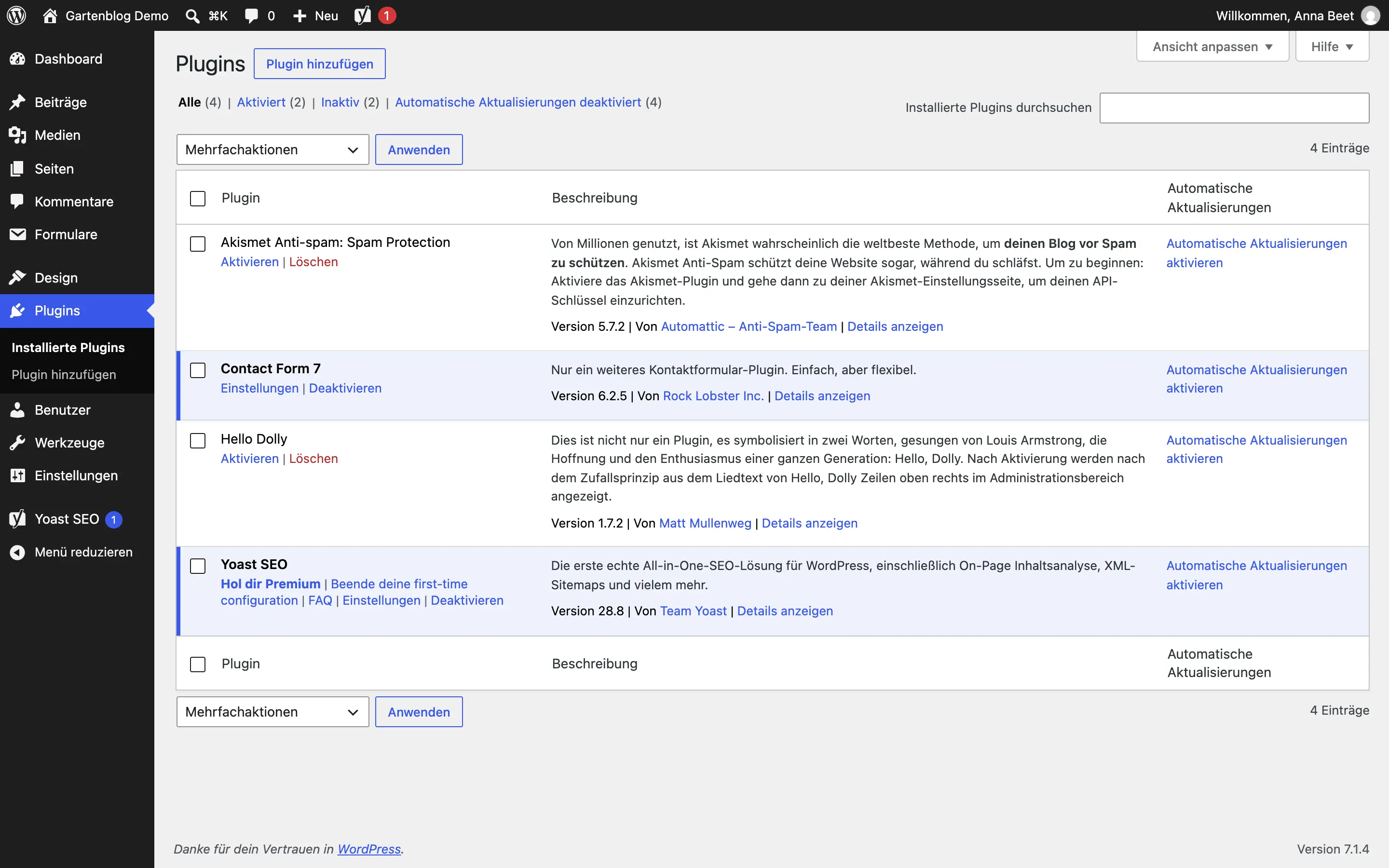
To find out, open Plugins > Installierte Plugins (Installed Plugins) in the WordPress dashboard and look at the list. Every active plugin is a function you have to rebuild, replace, or deliberately drop after the migration:
My migration skill sorts these functions into a traffic light.
| Traffic light | What belongs here | What it means |
|---|---|---|
| Green | Themes such as Astra, GeneratePress, Kadence, and the Twenty themes, SEO plugins such as Yoast and Rank Math, forms with Contact Form 7 or WPForms, Polylang, TranslatePress | tested and supported by the skill |
| Yellow | Elementor, Divi, WPML, Weglot, custom fields | moves over, but needs manual work or decisions |
| Red | Checkout, member areas, user accounts, forums, multisite | not supported, only the public pages move over |
Red functions are no small matter. A shop with a cart or a course area with a login doesn't simply come along. For these parts you decide case by case: a new provider, an import into a different system, or leaving them out entirely.
Second: Astro or Next.js?
The rule of thumb is simple. If your content is public and there's no login and no cart, you choose Astro. If you need checkout, user accounts, a member area, or courses, you choose Next.js.
You'll find the detailed comparison in my article Astro vs. Next.js. For most blogs, the answer is Astro.
Still not sure whether you should leave WordPress at all? Then first read my comparisons WordPress vs. Astro and WordPress vs. Next.js.
And if you want to get rid of WordPress completely but aren't sure where to go? In my overview of WordPress alternatives you'll also find website builders and other CMSs.
2. Two ways: by hand or with the migration skill
Claude Code and Codex can also build a WordPress migration for you without a skill. You give an instruction, the AI reads your site and writes a new project.
The problem:
The AI doesn't know what it doesn't see. An old URL that only backlinks still point to, a redirect from a plugin, or a meta description that exists only in the source code. Without a fixed process, something like that quietly gets dropped.
For the manual route, Astro offers its own guide. You start with the blog template and convert the WordPress export to Markdown with the wordpress-export-to-markdown tool. You may still have to rework the output afterward.
My WordPress Migration Skill takes this part off your hands. A skill is a set of working instructions with scripts that Claude Code or Codex work through step by step. The skill captures the public site completely, transfers content, menus, images, forms, and SEO data by extraction instead of retyping, and checks everything at the end with a fixed verification run.
Here's what the traffic light looks like for my demo site, right after the capture:
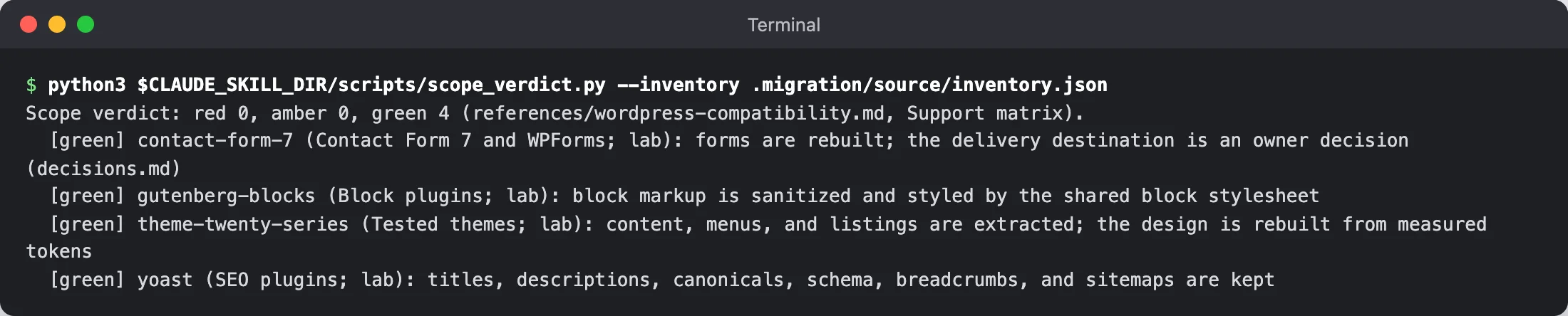
All four functions of the demo are green: Contact Form 7, the Gutenberg blocks, the Twenty Twenty-Five theme, and Yoast.
There are two things the skill deliberately doesn't do. It doesn't publish anything and it doesn't change DNS. Deployment and the switch stay your decision.
In every step I'll show you both: what you have to watch out for by hand and what the skill takes over.
Want to start with the skill right away? Then get the WordPress Migration Skill at gradually.ai and join in at step 2.
3. What you need for the migration
You only need a little software for the migration, and you may already have most of it:
- Claude Code or Codex
- Python version 3.11 or higher (the preinstalled Python 3.9 on the Mac is too old)
- Node.js version 22 or higher
- Google Chrome or Chromium
- Git and a GitHub account
- hosting for the new site, the skill is designed for Vercel
You check whether everything fits in the terminal with these commands:
python3 --version
node --version
git --version
I tested the skill on macOS. Windows is not tested.
Step 1: Back up WordPress and export your content
Before you touch anything, you back up your complete WordPress site. Files and database. I show you how in my guide to the WordPress backup.
You also export your content. To do that, click Werkzeuge > Export (Tools > Export) in the dashboard:
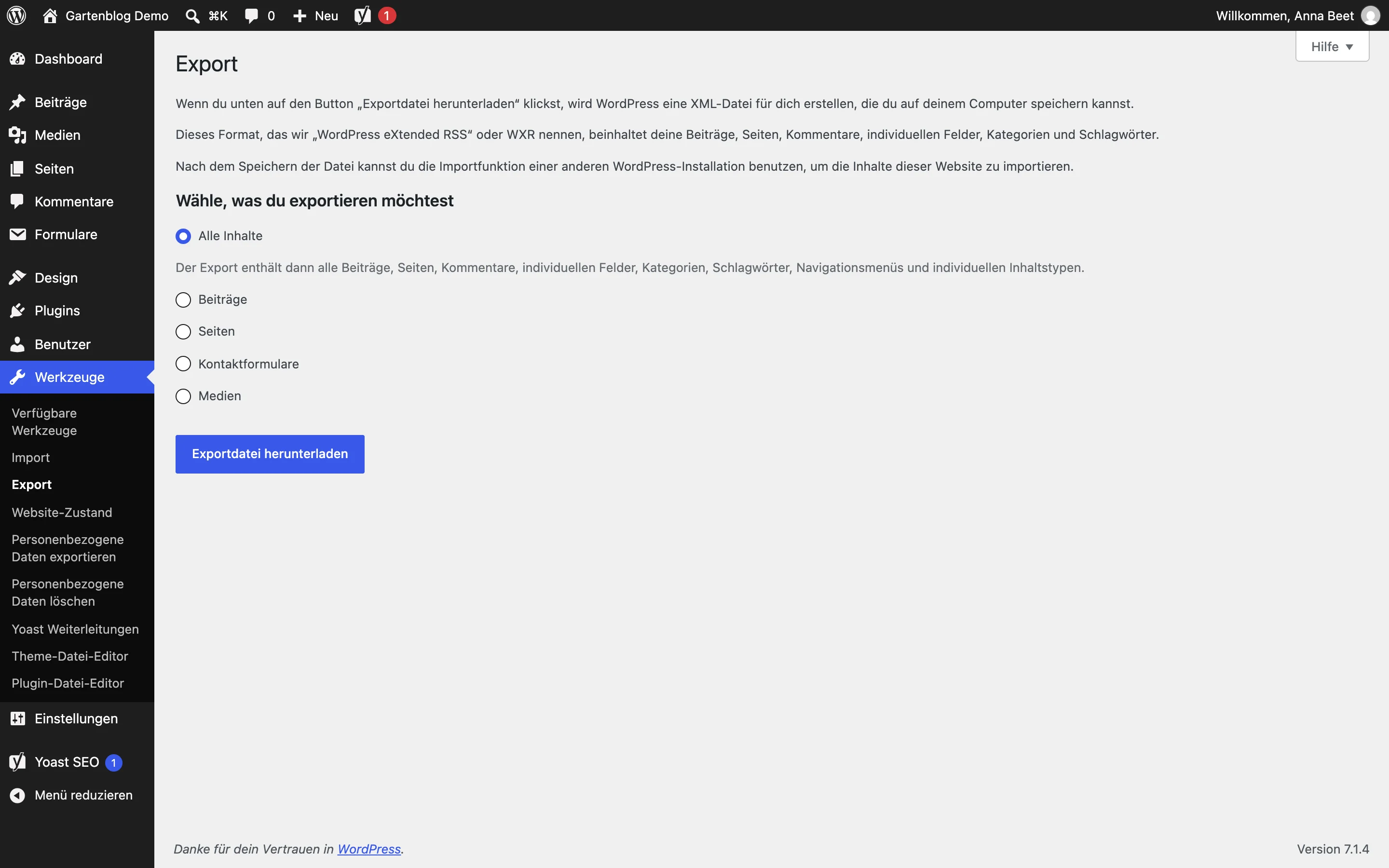
There you choose “Alle Inhalte” (All content) and click “Exportdatei herunterladen” (Download export file). WordPress creates an XML file with posts, pages, comments, custom fields, categories, and tags.
That said:
This XML file is not a backup. It's a second source for your content, nothing more.
By the way, the skill doesn't need this export. It reads your site the way visitors see it, through the public frontend. It only needs access to the dashboard, the database, or the REST API if you allow it for a specific purpose, for example for private data.
And one more thing:
Set a pause for new content. Whatever you publish in WordPress during the migration has to be redone later.
Step 2: Set up Claude Code or Codex
Now you set up the skill. You buy the WordPress Migration Skill at gradually.ai. After the purchase you get a download link by email. It contains the wordpress-migration folder. Where it belongs depends on what you work with.
With Claude Code
Claude Code looks for personal skills in the ~/.claude/skills/ folder. You put the wordpress-migration folder there, so that the file ~/.claude/skills/wordpress-migration/SKILL.md exists.
Then you create an empty project folder and start Claude Code in it:
mkdir my-new-website
cd my-new-website
claude
Claude Code recognizes the skill automatically from its description. You can also call it directly with /wordpress-migration.
Your first instruction can look like this:
Migrate https://www.your-website.com from WordPress to Astro.
Start with the capture and tell me whether the site can be migrated.
The skill also works with an instruction in German, such as “Löse meine WordPress-Seite durch Next.js ab.” (“Replace my WordPress site with Next.js.”)
With Codex
Codex looks for personal skills in the ~/.agents/skills/ folder. You put the wordpress-migration folder there. If the skill should apply to only one project, .agents/skills/ in the project folder works too.
In Codex you can call the skill with $wordpress-migration or through the /skills menu. Codex also picks it on its own if your instruction matches the description.
One difference from Claude Code:
The skill's commands use the variable CLAUDE_SKILL_DIR for the skill folder. Claude Code sets it automatically, in Codex you set it yourself.
export CLAUDE_SKILL_DIR="$HOME/.agents/skills/wordpress-migration"The rest works in Codex exactly as in Claude Code.
Step 3: Capture the WordPress site completely
Now comes the most important step of the whole migration. You need a complete list of everything your site delivers today. Every URL, every image, every form.
By hand, that means:
Go through the sitemap, open every page, download images, copy menus. With 50 pages that's tedious, with 500 it's barely doable.
The skill handles this with a capture run. It reads your site like a visitor, follows links and sitemaps, and downloads the images in full size. It respects your robots.txt and requests pages slowly enough that your server doesn't break a sweat.
On my demo site that took 78 seconds:

32 of 32 pages, 4,579 words, 52 files, and 9 forms. No page was blocked.
Right after that, the skill shows you the traffic light from section 1, this time for your real site. If anything is red, the skill stops and asks whether you can live with exactly that part not coming along. Only when you confirm does it continue.
I know two pitfalls from the test run.
The first one:
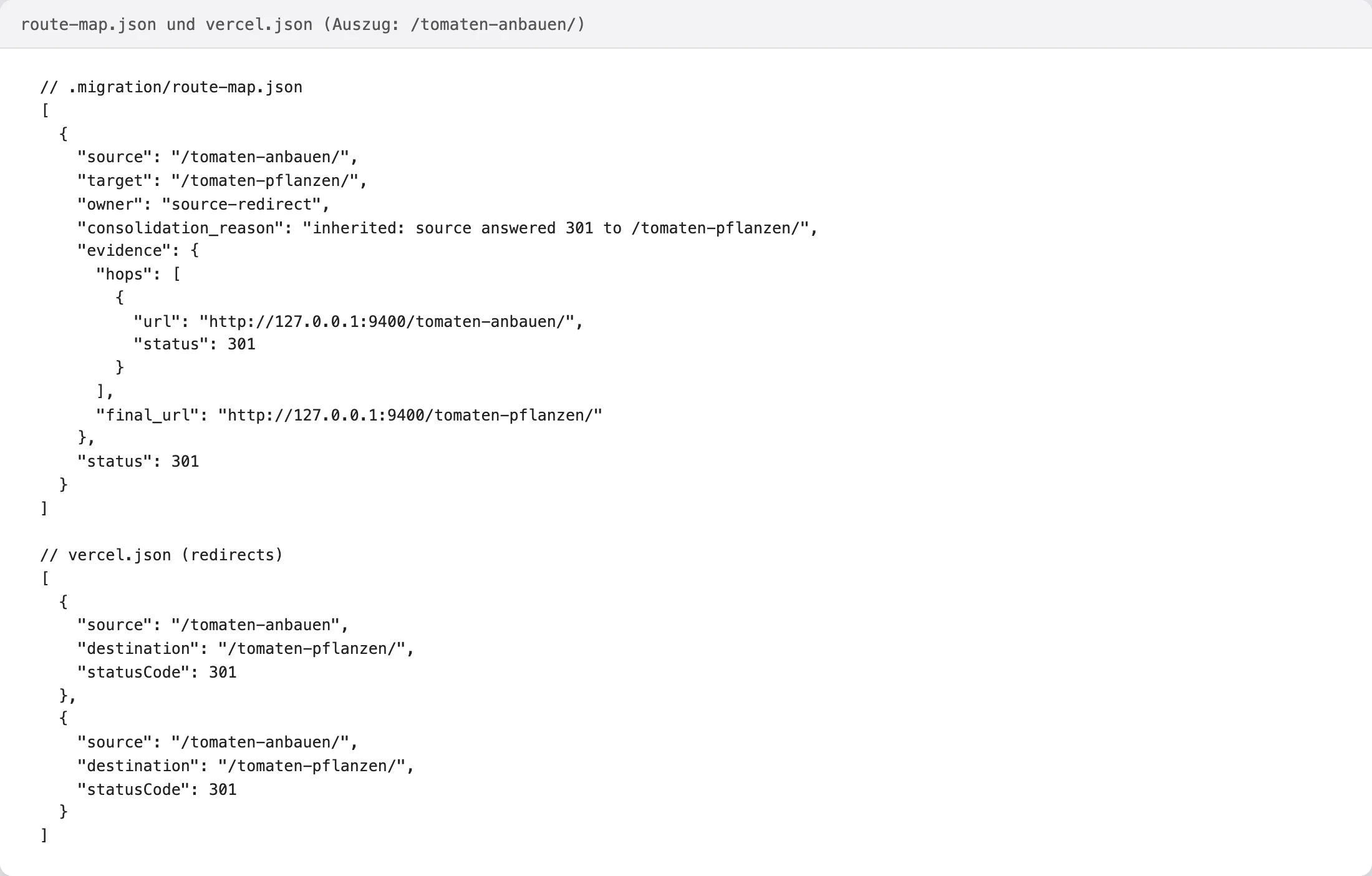
No capture finds pages that no link points to on its own. That mostly affects old URLs with a redirect. In my demo, /tomaten-anbauen/ redirected to /tomaten-pflanzen/. The first capture didn't find this old address.
For cases like this there's the --extra-url option. Even better is a script of its own in the skill that collects old URLs from the Search Console, from backlink data, server logs, and the Wayback Machine.

The second one:
Some hosts and security plugins block automated requests. The skill then stops with a message instead of disguising itself as a normal browser. You switch the block off for the duration of the capture or allow the capture.
Step 4: Choose the framework and set up the project
Now you decide between Astro and Next.js. Based on the capture, the skill suggests a framework and writes the reasoning into a file that you sign off on:
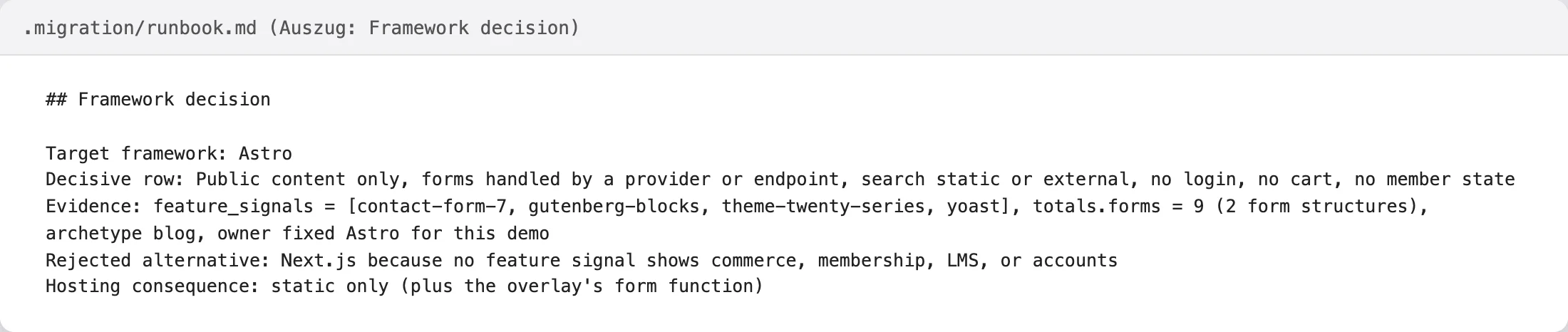
For my demo the case was clear. Only public content, no login, no cart, so Astro.
The new project doesn't come out of nowhere. For both frameworks the skill brings a ready-made template that is copied over a fresh project. It already contains the page types for posts, pages, archives, menus, and forms. Styling uses Tailwind CSS and shadcn/ui.
With Astro
The foundation is an empty Astro project with React and Tailwind CSS:
npm create astro@latest my-site -- --template minimal --install --no-git --no-ai --yes
cd my-site
npx astro add react --yes
npx astro add tailwind --yes
React only runs when the site is built and on the search page. No other page loads React in the browser, even the mobile menu is a normal HTML element.
If you work without the skill, you use Astro's official blog template instead:
npm create astro@latest -- --template blogWith Next.js
For Next.js, the skill uses create-next-app version 16:
npx create-next-app@16 my-migrated-site \
  --ts --tailwind --eslint --app --no-src-dir --no-react-compiler --no-agents-md \
  --import-alias "@/*" --use-npm --yes
The important part is @16 instead of @latest. The skill's template is written for Next.js 16. With @latest, on the day of the next major update you would automatically jump to a version it wasn't made for.
Without the skill, npx create-next-app@latest is enough. For that, Next.js needs at least Node.js 20.9.
By the way, you don't have to type these commands yourself. Claude Code or Codex run them and only ask you when something needs to be decided.
Step 5: Transfer content, menus, and images
Now your content moves into the new project. And this is where the most common mistake in AI migrations happens.
If you let the AI rewrite your articles or “take them over cleanly,” it rephrases along the way. A sentence gets smoother, a subheading shorter, a link disappears. With 200 articles you no longer notice.
That's why the skill transfers nothing by hand. Content, menus, metadata, and images are extracted from the capture. If a part fails, the extraction is improved, and the text is never patched by hand.
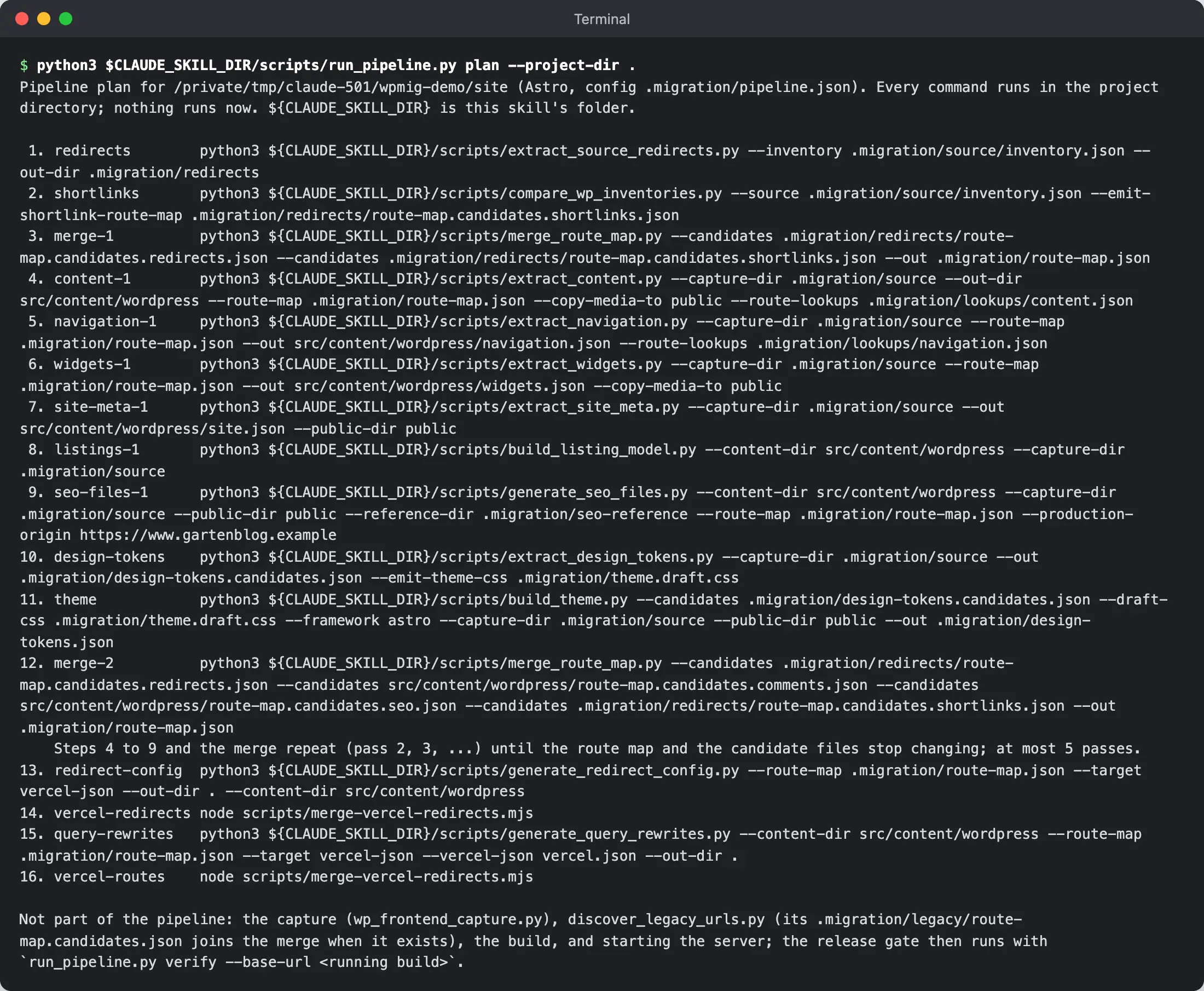
A single command handles this, the pipeline. Beforehand, plan shows you what will happen without running anything:
Then run starts the transfer:
python3 ${CLAUDE_SKILL_DIR}/scripts/run_pipeline.py run --project-dir .On my demo that ran through in 9 seconds. In the end there were 42 URLs in the mapping from old to new addresses.
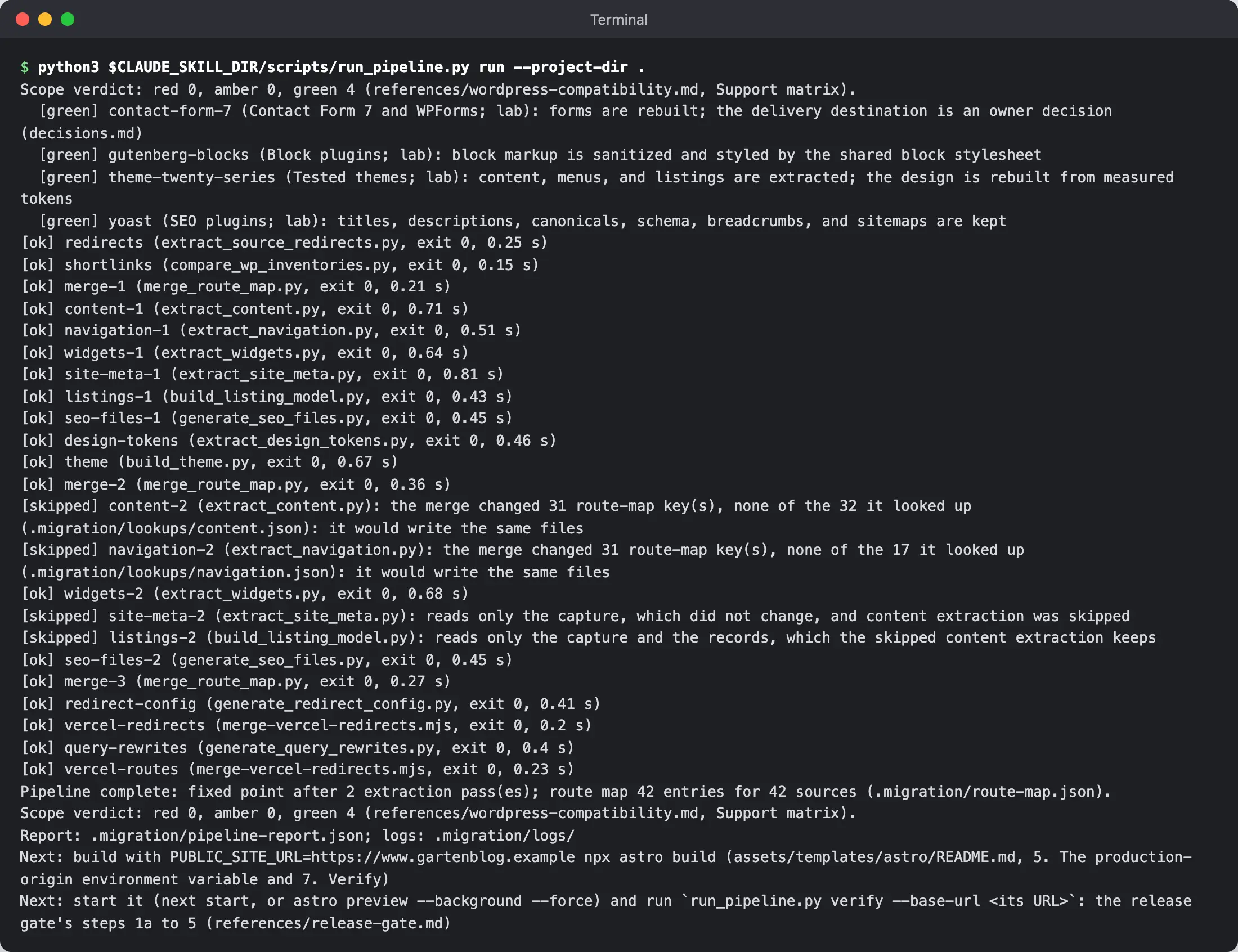
The pipeline handles:
- Posts and pages as files with all metadata
- Menus and widgets
- Images in original size instead of thumbnails
- Sitemaps, robots.txt, and feeds
- The redirects
It installs nothing, builds nothing, and publishes nothing.
After that, status brings up the open decisions. The skill collects everything it isn't allowed to decide on its own in a list with a recommendation and the consequence:
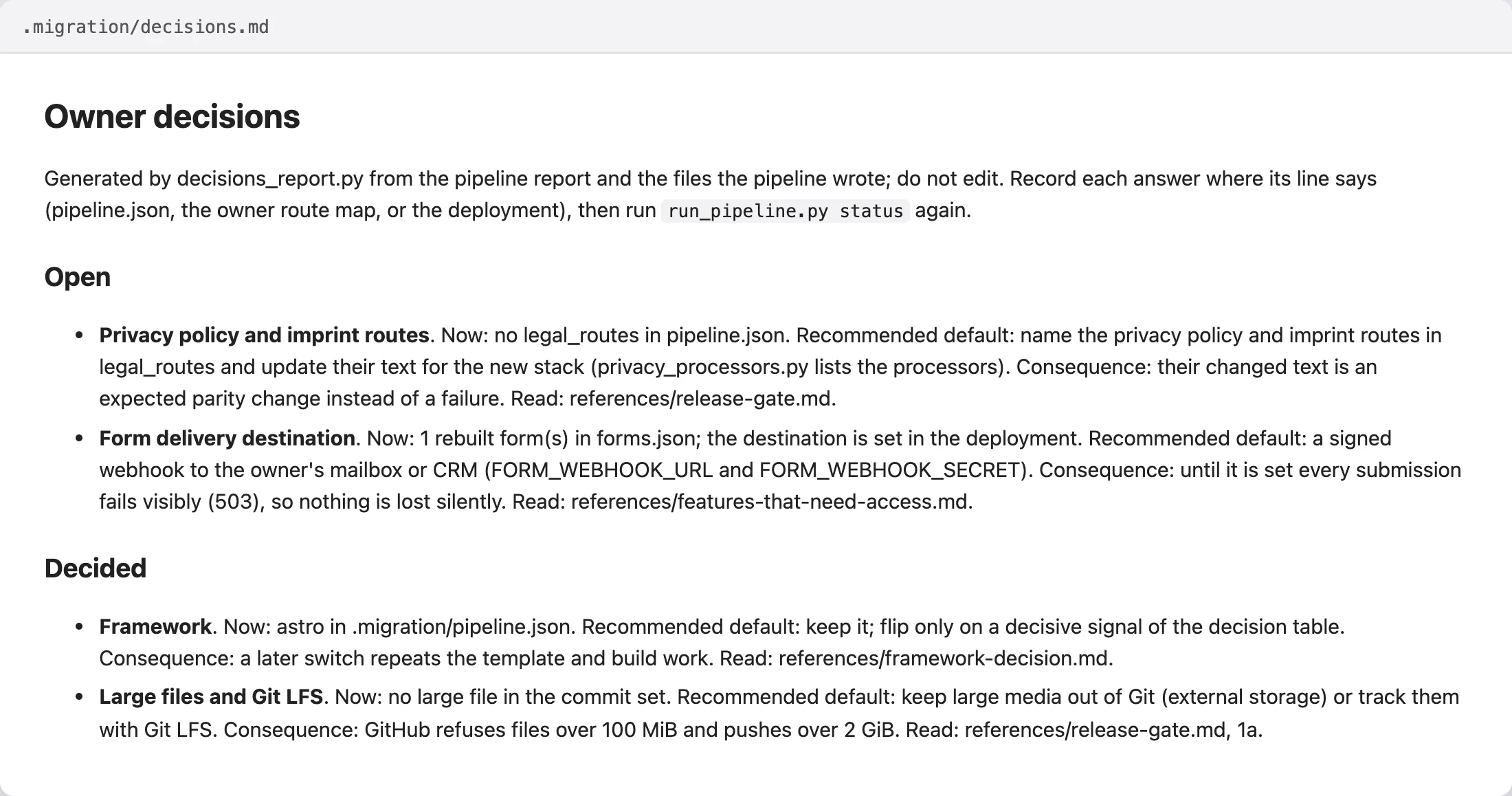
In my demo, two points were open: where the contact form should send its submissions and which pages are the Impressum (the legal notice German websites must carry) and the privacy policy.
Step 6: Rebuild the design
The pipeline transfers content, not a finished design. You need to know that before you look at the first result.
This is what my demo looked like right after the pipeline, WordPress on the left, Astro on the right:
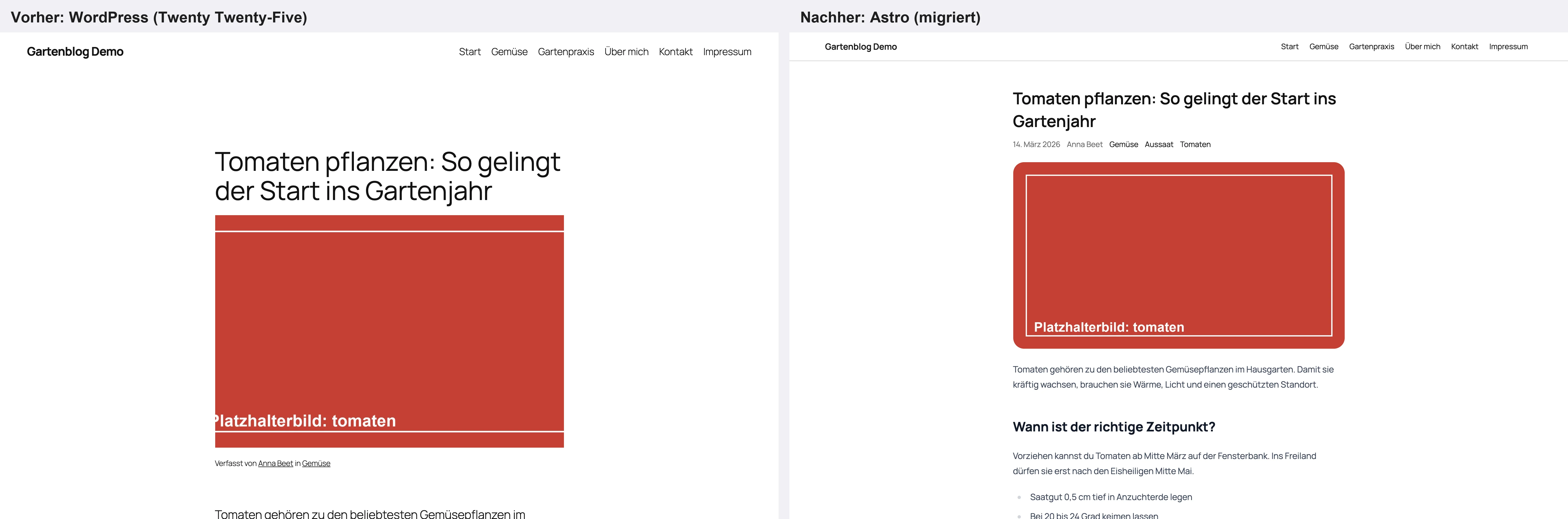
Menu, text, image, and categories are there. Font sizes, spacing, and the homepage still look different, though.
The demo's homepage was 7,024 pixels tall in the original and 1,504 pixels in the new version. Twenty Twenty-Five shows whole posts there, the skill's template only cards.
That's why you rebuild the design deliberately. For this, the skill measures the colors, fonts, and spacing of your WordPress site and turns them into a Tailwind theme. It doesn't take over the CSS of your old theme or page builder, which only serves as a reference.
Very important:
The skill saves screenshots of your WordPress site as a reference. That has to happen while the old site still runs on your domain. After the switch, this original no longer exists.
python3 ${CLAUDE_SKILL_DIR}/scripts/visual_parity.py capture-sourceAfter that, you rebuild in this order:
- Header, menu, and footer
- the homepage
- the post template, then all posts in groups
- Pages, custom post types, and archives
The skill compares the homepage with the original at three screen widths. After every group of posts, it strictly checks whether the content arrived unchanged. That way you work against measurable differences instead of by feel.
In my test run I skipped this part. That's why you see the raw state in the images.
Step 7: Keep URLs and set redirects
Every URL Google knows has to still work after the migration. That is the most important SEO rule in any migration.
It's easiest if the URLs stay the same. To check, look in WordPress under Einstellungen > Permalinks (Settings > Permalinks) to see which structure your site uses:
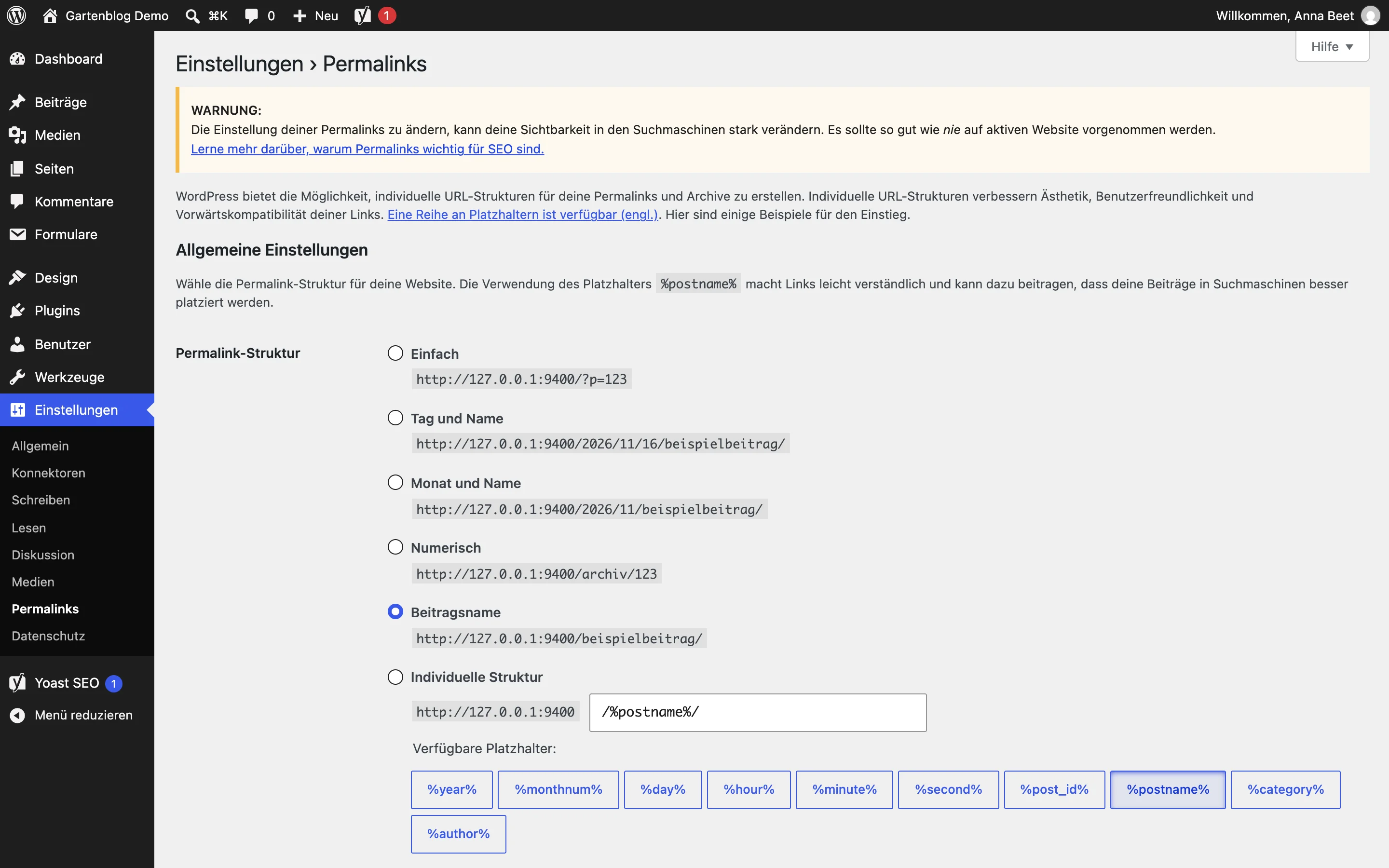
On my demo it's /%postname%/, so /tomaten-pflanzen/ with a trailing slash. That's exactly how the new site has to respond.
By default, the skill keeps every URL. That includes the trailing slash, www or no www, and every redirect your site already serves today.
If a URL does change, it needs three things: an entry in the mapping table, a redirect, and a test of that redirect.
Google recommends server-side, permanent redirects with the status code 301 or 308 for this. Keep them for at least a year.
Here's what the redirect of the old demo URL looks like in the new project:
Watch out for these traps:
- Redirect chains, meaning A to B to C
- many old URLs that all point to the homepage
- temporary redirects with 307 instead of 301 or 308
- Short links such as
?p=123and attachment pages for images - Slugs with umlauts
The skill rejects chains, loops, and redirects to the homepage without your approval.
You can also check individual redirects without the skill using my free redirect checker.
Step 8: Carry over SEO data
Your SEO titles and meta descriptions mostly live in a plugin such as Yoast. In the editor you'll find them under “Darstellung in der Suche” (Search appearance):
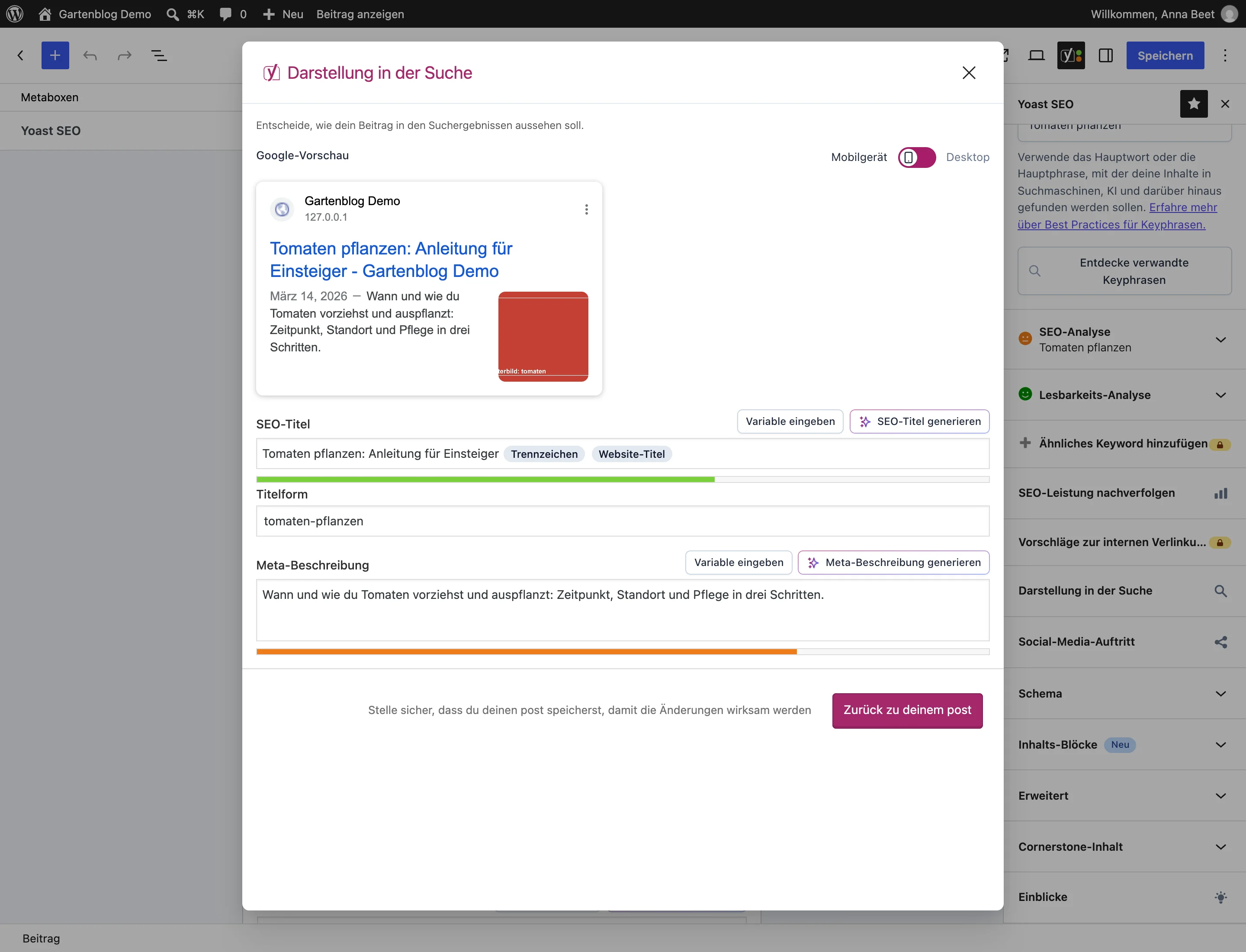
This data has to move over one to one. For Yoast and Rank Math, the skill takes over titles, descriptions, canonicals, structured data, breadcrumbs, and sitemaps.
My advice:
Don't improve anything about your SEO during the migration. No new titles, no new headings, no new URLs. Only once the new site visibly performs just as well do you optimize. Otherwise, if traffic drops, you won't know whether the migration or your change was to blame.
Most people forget these points from the skill's SEO checklist:
- The new sitemap contains only URLs that respond with 200.
- robots.txt blocks nothing that was allowed before.
- Every page has its correct canonical and
html lang. - Images have width and height, fonts are hosted on your own server.
- Verification tags for Google and Bing are back in.
- The IDs in the RSS feed stay the same, otherwise feed readers show old articles as new.
You'll find more on the sitemap itself in my article on the WordPress sitemap.
Step 9: Replace forms, search, and comments
Everything that runs on the server in WordPress no longer exists on a static site by itself. That mainly affects three functions.
Forms:
The skill rebuilds contact forms from Contact Form 7, WPForms, Gravity Forms, Fluent Forms, and Elementor Pro in the same place.
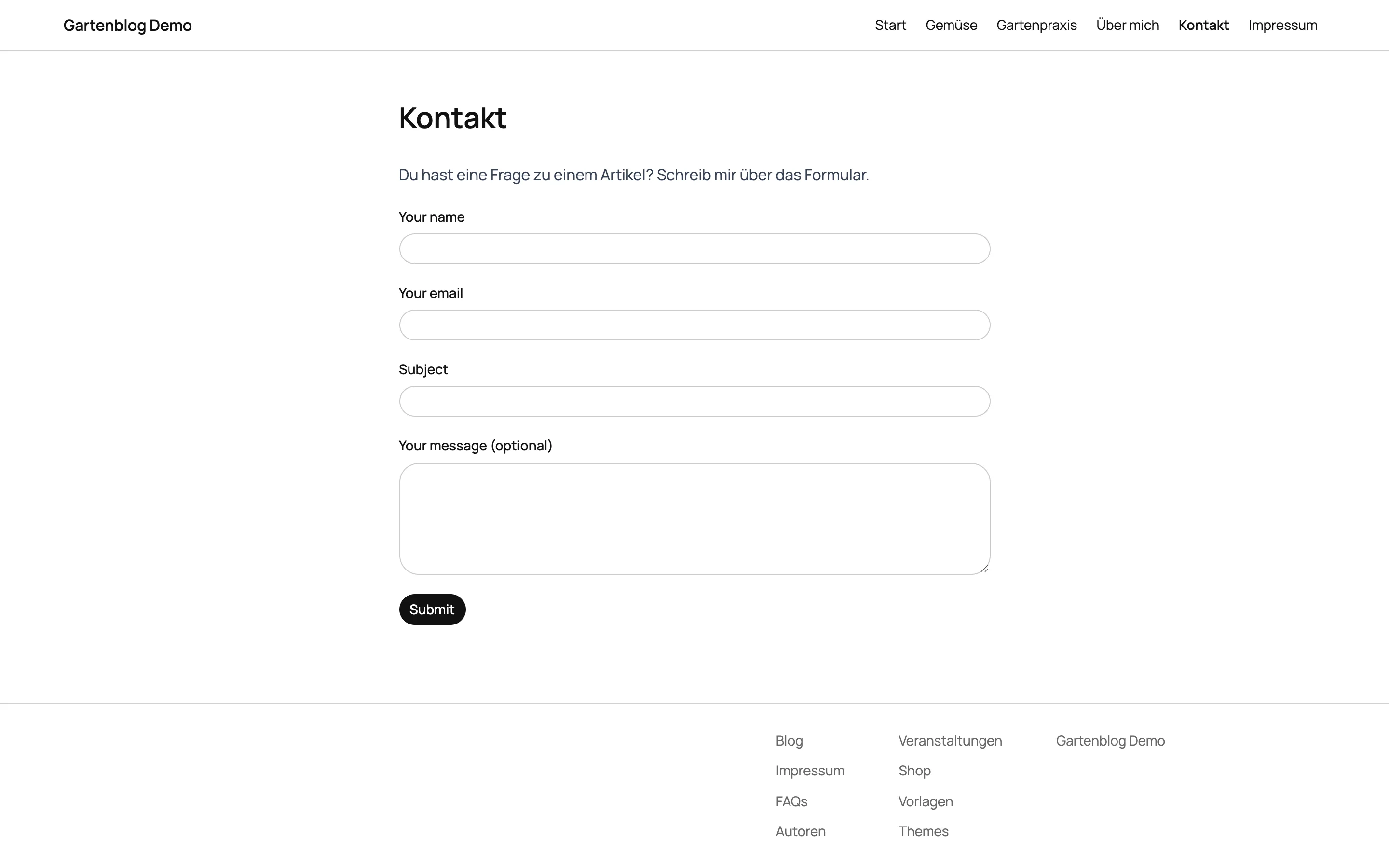
The form needs a destination, though, for example a webhook to your inbox or CRM. Until you set one, every submission visibly fails instead of silently swallowing messages.
Test every form once on a protected preview, never against your real site.
Search:
The skill rebuilds the search by default. It then searches an index that is created when the site is built.
Comments:
The WordPress comment form goes away in the migration. For the existing comments you decide: leave them as fixed text, move them to a new provider, import them, or drop them entirely.
And then there are analytics, pixels, and cookie banners. The skill doesn't transfer those. You decide anew what should run on the new site.
Step 10: Check everything before the switch
Whether everything has moved over is not a matter of feeling. It's a test result.
The skill checks this with a fixed verification run before you switch anything. To do that, you start the new site locally and call verify:
python3 ${CLAUDE_SKILL_DIR}/scripts/run_pipeline.py verify --project-dir . --base-url http://localhost:4321The verification run compares every post and every page word for word with the original. It checks all URLs and redirects, feeds and archives, the images and the design, plus accessibility and load time.
On my demo, the content got the best result possible:
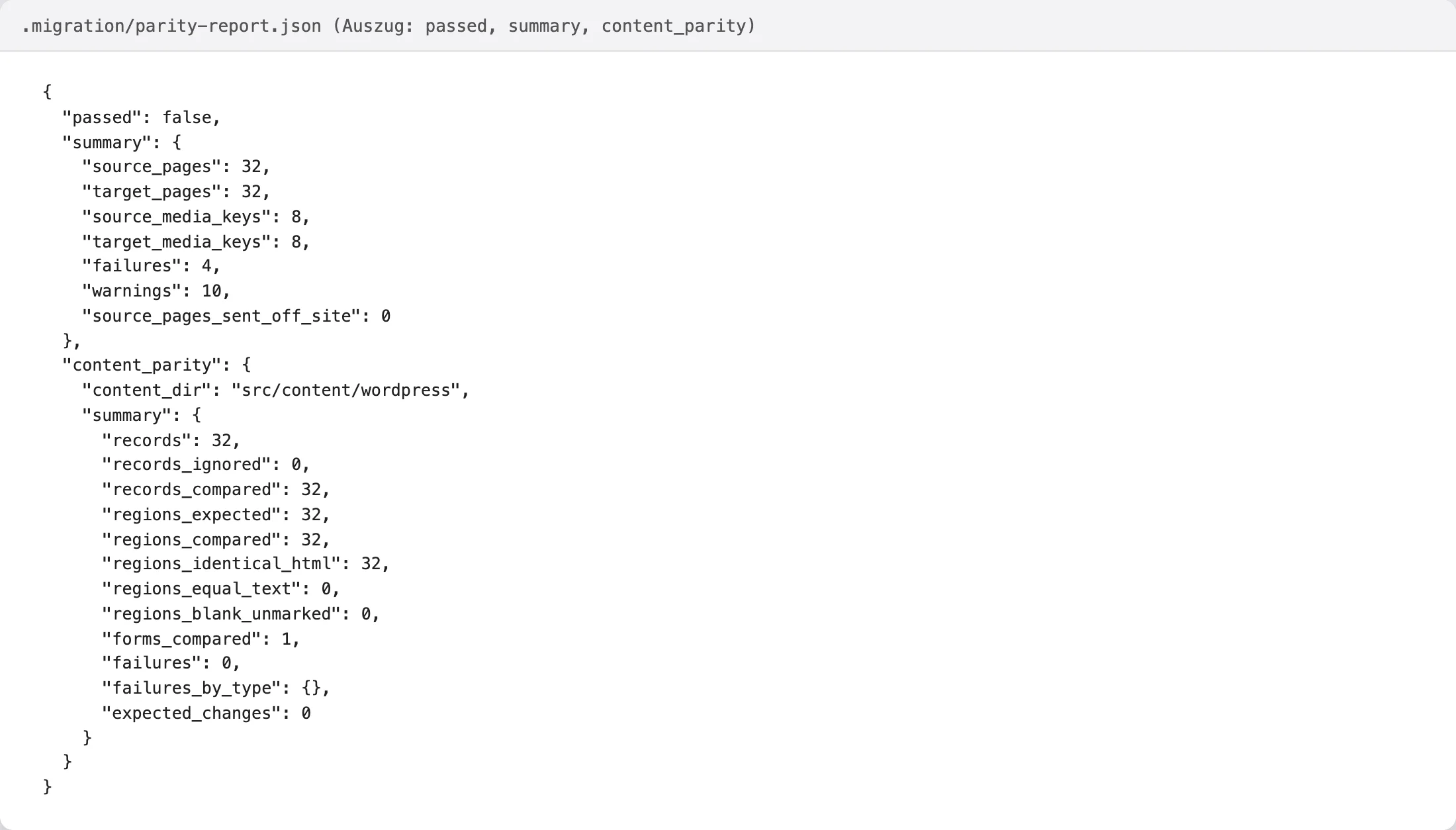
32 of 32 content items were identical, 0 errors. That applied to both the Astro and the Next.js version. For Next.js, all 78 redirect checks also passed, including the old URL /tomaten-anbauen/.
The verification run still didn't approve the site:
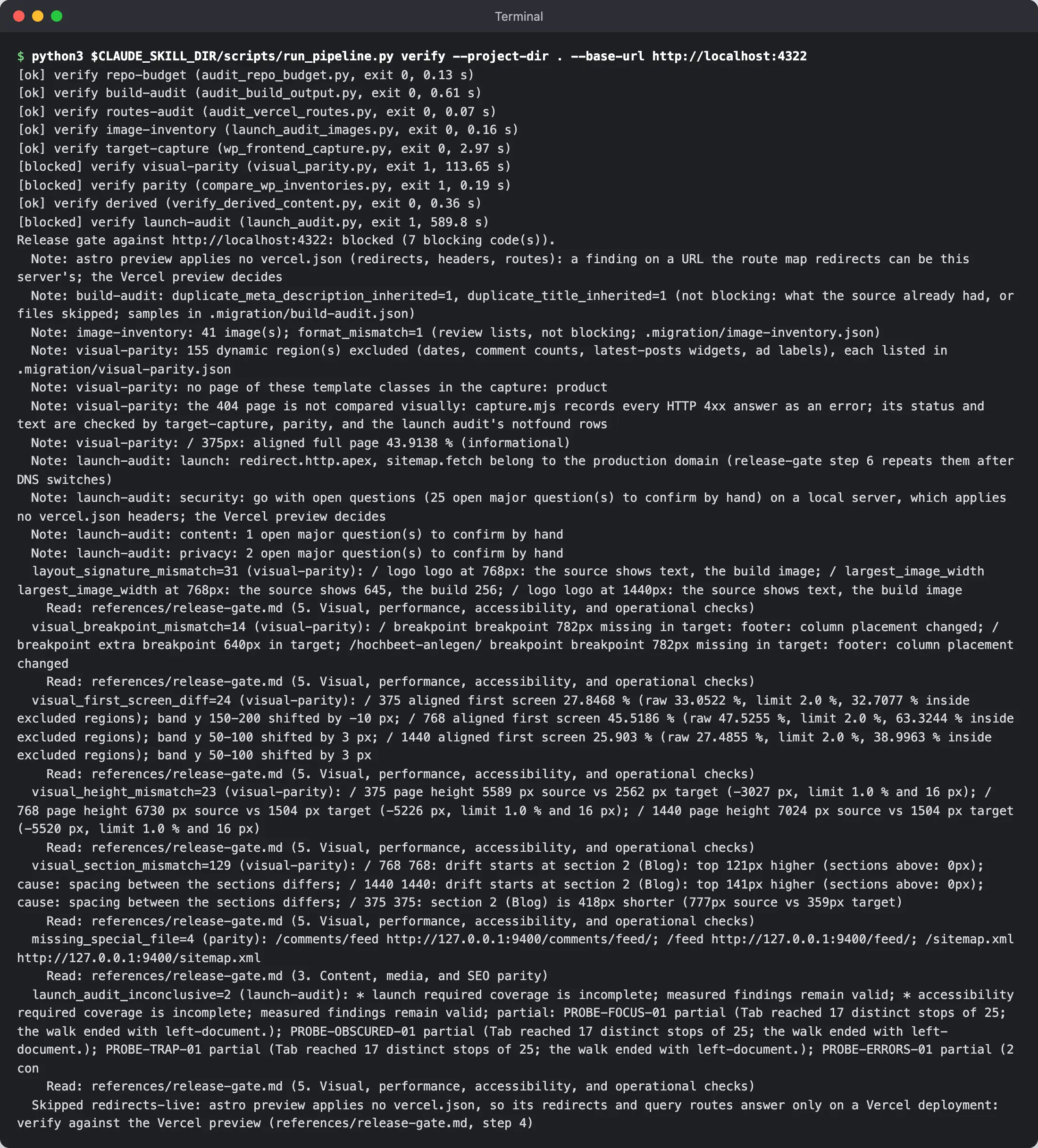
And that's exactly as it should be. I had skipped the design from step 6, so the comparisons with the screenshots were blocked. For Astro, feeds and sitemaps came on top, whose redirects only take effect on Vercel. For Next.js there were warnings about feeds and sitemaps that I hadn't checked.
Every blocking message tells you the reason and the place in the guide that you need to read. You can only ignore a message by deliberately approving it and writing down the reason.
After that you repeat the verification run on a protected preview at your host. Only there do all redirects and headers take effect.
Step 11: Deploy the new website
Your new site now lives in a Git repository. From there, your host automatically picks up the new version with every change. So you never upload files via FTP again.
Create the repository on GitHub and push your project into it. The skill keeps the .migration folder with the capture and the reports out of Git.
With Vercel
The skill is designed for Vercel. There, Astro projects keep their redirects in the vercel.json file.
- Click “New Project” at Vercel.
- Import the GitHub repository.
- Check the framework preset, so Astro or Next.js.
- Click “Deploy.”
From now on, every push gets its own preview URL. Whatever lands in main goes live.
Run the verification run from step 10 against the protected preview. The skill reads the key for it from an environment variable so that it never ends up in a log.
With Cloudflare
At Cloudflare you connect the repository through Workers Builds:
- In the dashboard, click Workers & Pages > Create application.
- Choose GitHub or GitLab.
- Choose the repository.
- Click “Save and Deploy.”
Here too, other branches get their own preview.
That said:
The redirects in vercel.json only apply on Vercel. If you move to Cloudflare with Astro, you have Claude Code or Codex transfer the redirects and check them again there. The skill doesn't provide for this path out of the box, so plan for some manual work.
And Next.js runs on Cloudflare through an integration of its own that the Next.js team hasn't verified. blogmojo.de runs exactly like that, with OpenNext on Cloudflare. On October 26, 2026, the site went down after a Next.js update because OpenNext hadn't caught up yet. With a static Astro site this risk is much smaller, because only finished files are served.
I compared which host is cheaper in my article Astro vs. Next.js.
Step 12: Switch over and monitor afterward
Now comes the moment many people dread. You connect your domain to the new host. The skill never does this step for you, but it gives you checklists to work with.
What you check before, on, and after launch day regardless of the system, I show you in my article on the website relaunch.
Before the switch:
- Catch up on the last new content from WordPress.
- Have a plan for switching back: Who switches back, by when, to where?
- Adjust the privacy policy, because the host and the form destination are new. A script in the skill lists all the services that have to be named in it.
- Don't delete the old WordPress site.
You can keep the old site for emergencies on a subdomain such as wp.your-website.com. It has to be protected with a password and noindex, though. Otherwise Google suddenly has two versions of your website.
Right after the switch:
- Check redirects and feeds again against the real domain
- submit the new sitemap in Google Search Console and in Bing Webmaster Tools
- use the Search Console's change of address tool only if the domain has changed
Over the next four weeks you regularly look at the Search Console. Watch for soft 404 errors, redirect errors, and pages that are accidentally set to noindex.
Done!
Common problems and solutions
Most problems in a migration announce themselves beforehand. These are the ones you'll run into most often.
The capture aborts
A security plugin, a firewall, or your host's bot protection blocks the requests. Allow the capture or pause the block. With small hosts, a longer pause between requests with --delay 1 helps.
Old URLs lead nowhere
The capture only finds what is linked. You get old URLs from the Search Console, your backlinks, and the server logs. You specify a single known URL with --extra-url.
Tailwind doesn't work with Next.js
In my test run on November 16, 2026, create-next-app@16 already delivered Next.js 16.4.6 with a different Tailwind setup than the template expects. The build reported “Unknown at rule: @apply”. The fix was a postcss.config.mjs file with the @tailwindcss/postcss package.
Pages from the page builder look broken
Elementor and Divi are yellow on the traffic light. The content moves over, but you rebuild the layout with Tailwind. Plan more time for it.
The contact form reports an error
That's intentional as long as no destination is set. Set the destination and test the form on the protected preview.
Rankings fluctuate
Short-term fluctuations after a migration are normal. It gets critical when individual URLs respond with 404 or titles are missing. That's exactly what you check in step 12. Nobody can give you a guarantee for stable rankings, not even my skill.
What does the WordPress Migration Skill cost?
You can get the skill on its own or together with my Webdesign Skills. If you don't want to do the migration yourself at all, I'll also handle it completely for you.
| Offer | Price |
|---|---|
| WordPress Migration Skill | €247 one-time plus VAT |
| Bundle with Webdesign Skills | €497 one-time plus VAT |
| Migration as a service | from €5,000 plus VAT |
As of November 2026
You'll find all the details on the page for the WordPress Migration Skill.
Conclusion
A migration from WordPress to Next.js or Astro is not rocket science. But it has many small spots where something can get lost.
With Claude Code or Codex, you no longer have to write any code yourself. The real work lies elsewhere: capture everything, rephrase nothing, keep every URL, and prove before the switch that nothing is missing.
For a blog or a company site, I would almost always choose Astro today. Next.js is worth it if you need a login, a shop, or a course area.
If you don't want to build the checklists and checks yourself, take my WordPress Migration Skill. It thinks of the things you're guaranteed to forget in your first migration.
Frequently asked questions
Will I lose my Google rankings because of the migration?
Not if all URLs stay the same or redirect cleanly with a 301 or 308, and your SEO data moves over unchanged. Short-term fluctuations are normal. There's no guarantee.
Can I keep WordPress as my content management system?
Yes, that's called headless WordPress. WordPress then only delivers the content, and Astro or Next.js deliver the site. For a one-time migration, though, that's usually more work than necessary.
Does the skill also work with Elementor or Divi?
Yes, but with manual work. Page builders are yellow on the traffic light. The content moves over, and the layout is rebuilt with Tailwind.
Can I also migrate a WooCommerce shop?
The public pages, yes. Cart and checkout, no. Those parts are red on the traffic light and need a shop system of their own.
Does the skill also run on Windows?
I tested it on macOS. Windows is not tested.
Do I need programming skills?
No. Claude Code or Codex write the code and run the commands. You should be able to open a terminal, though, and take part in decisions such as the form destination or the redirects.