
These days, you can't get by without online stores.
Not only classic mail-order retailers, but local brick-and-mortar stores too should definitely go this route and sell their products on two tracks, so they don't fall behind on digitalization.
The good news: It's not nearly as complex to create your own store as you might think.
With WordPress and our step-by-step guide below, your own store will be ready to sell in just a few hours.
- WordPress with WooCommerce is one of the most popular and most flexible e-commerce solutions worldwide, ideal for beginners and growing stores.
- The 11-step guide takes you from hosting through the WooCommerce installation to a legally compliant store setup with the Germanized plugin.
- For larger product ranges or international stores, alternatives like Shopify or Adobe Commerce are a better fit.
1. Is WordPress suitable for an online store?
WordPress combined with WooCommerce is one of the most widely used systems worldwide when it comes to building an online store.
Pros
- Beginner-friendly: WordPress is very logical and clearly structured, so it's easy for beginners to understand. There are also various tools that make programming skills completely unnecessary.
- Community: WordPress is the most widely used CMS in the world. Accordingly, a huge community in the form of YouTube channels, blogs or Facebook groups is available that you can turn to when you run into problems.
- Customizable: WordPress and WooCommerce can be fully adapted to your own needs with various plugins. The same goes for the look.
- SEO: WordPress comes with a lot of useful SEO features out of the box and is already programmed to be very search-engine-friendly.
- Inexpensive: WordPress and WooCommerce are free. So in theory, you can run a completely free store. Fees only apply for premium plugins and themes.
- Room to grow: A WordPress online store can keep growing with you. You can also add other content such as a blog without any problem.
Cons
- Legal compliance: To fully adapt WordPress to German law, some changes are required.
- Inventory management: WordPress and WooCommerce unfortunately don't cope easily with large stock volumes. So if you want to offer several hundred items, things quickly get confusing.
2. What alternatives to a WordPress store are there?
Even though WordPress combined with WooCommerce is a really good store solution, there are still alternatives you should definitely take a quick look at.
Depending on your requirements, they may even be better:
2.1 Shopify

Shopify is the online store solution par excellence. The platform has specialized in building a very beginner-friendly tool that even inexperienced users can use to create a professional store.
The great thing about Shopify is that you can create a very individual store with various add-ons.
An inventory management system is integrated as well.
Shopify is limited in advanced features, such as a blog. WordPress is much better there.
2.2 Wix
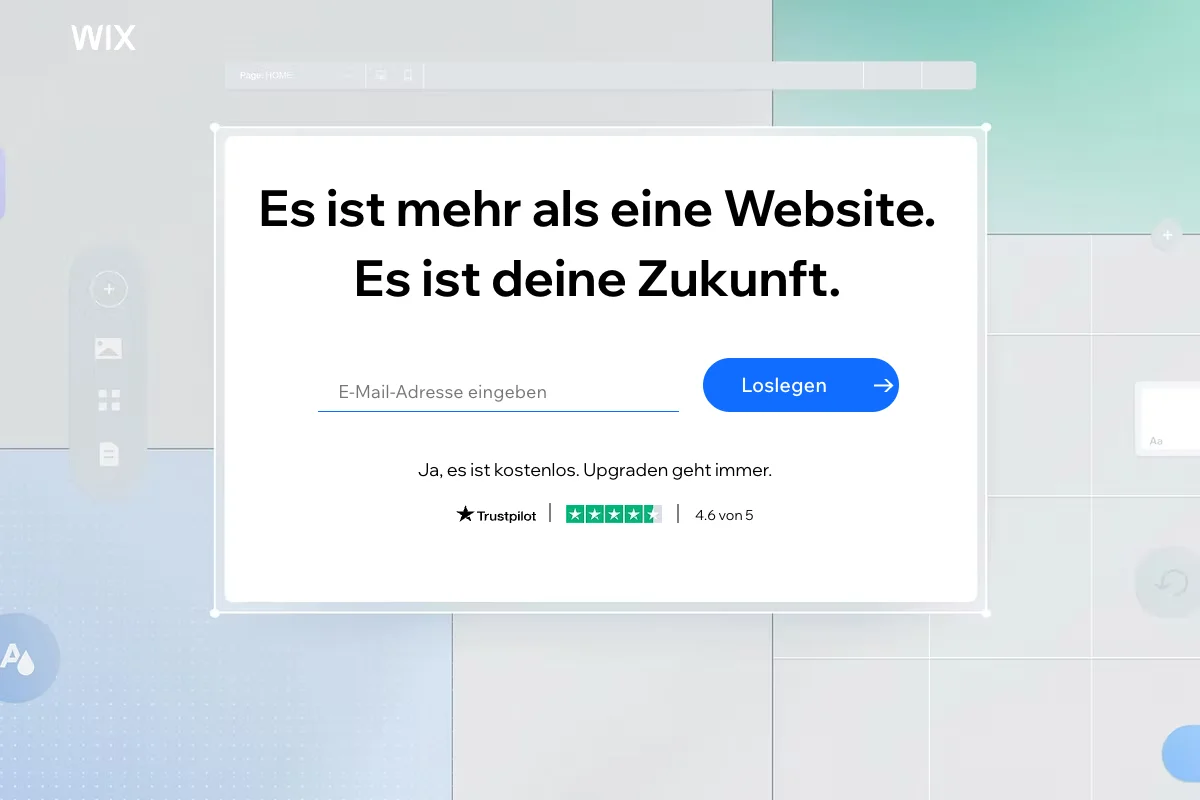
Wix is aimed at complete beginners who are looking for an all-in-one solution.
Thanks to the really well-implemented drag-and-drop builder, you don't need any programming skills to put together a nice online store. Hundreds of templates for every conceivable niche help with that.
Because Wix is a self-contained website builder, though, its range of features is severely limited compared to WordPress and WooCommerce.
2.3 Adobe Commerce (formerly Magento)
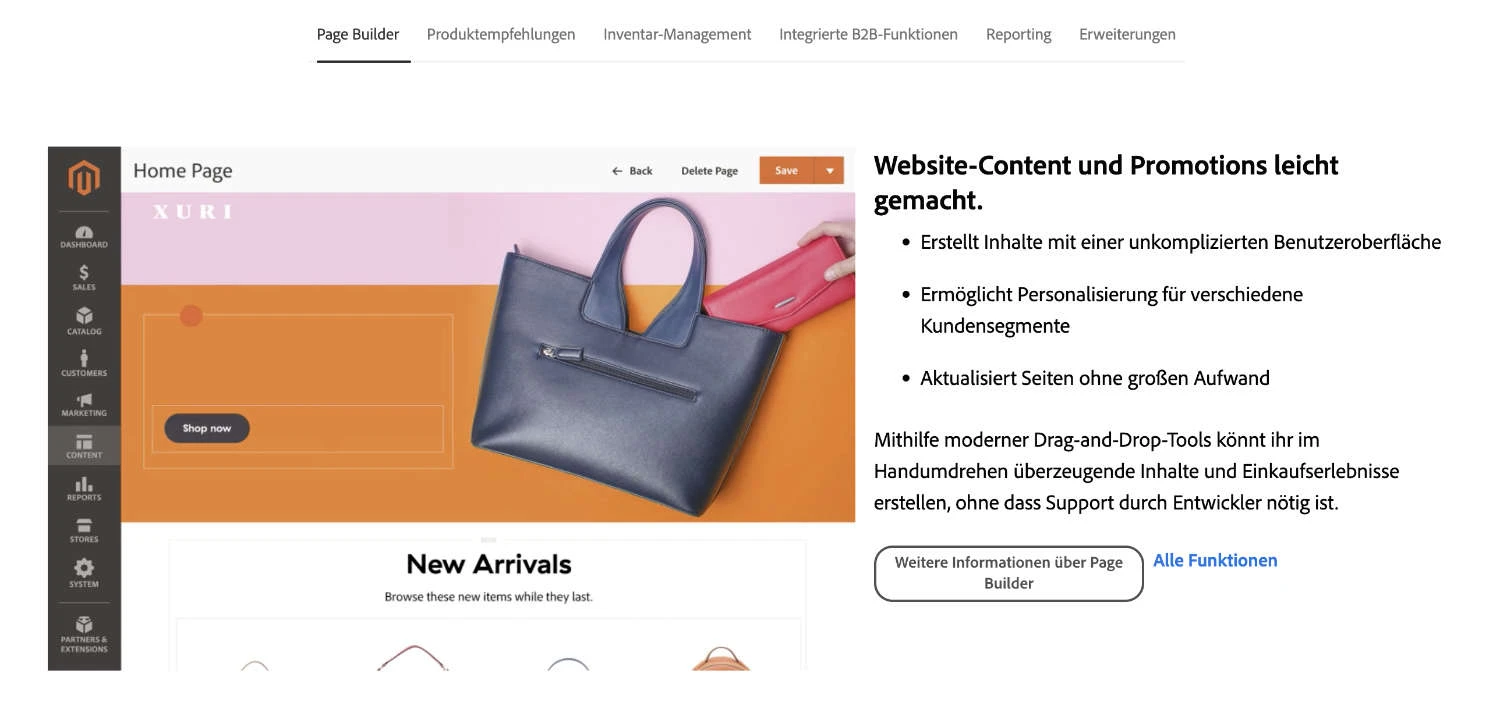
Adobe Commerce (formerly Magento) is a complex but comprehensive online selling solution. This tool is the right choice if you want to add a great many products to your portfolio.
You should be aware, though, that a fair amount of time to get up to speed is required here.
3. What e-commerce plugins are there?
Besides the WooCommerce plugin I've already mentioned, I'd like to introduce two more solutions for building an online store with WordPress.
All three solutions have their strengths and weaknesses:
3.1 WooCommerce
Price (for one website): free
Range of features: very large
Suitable for: physical products, digital products
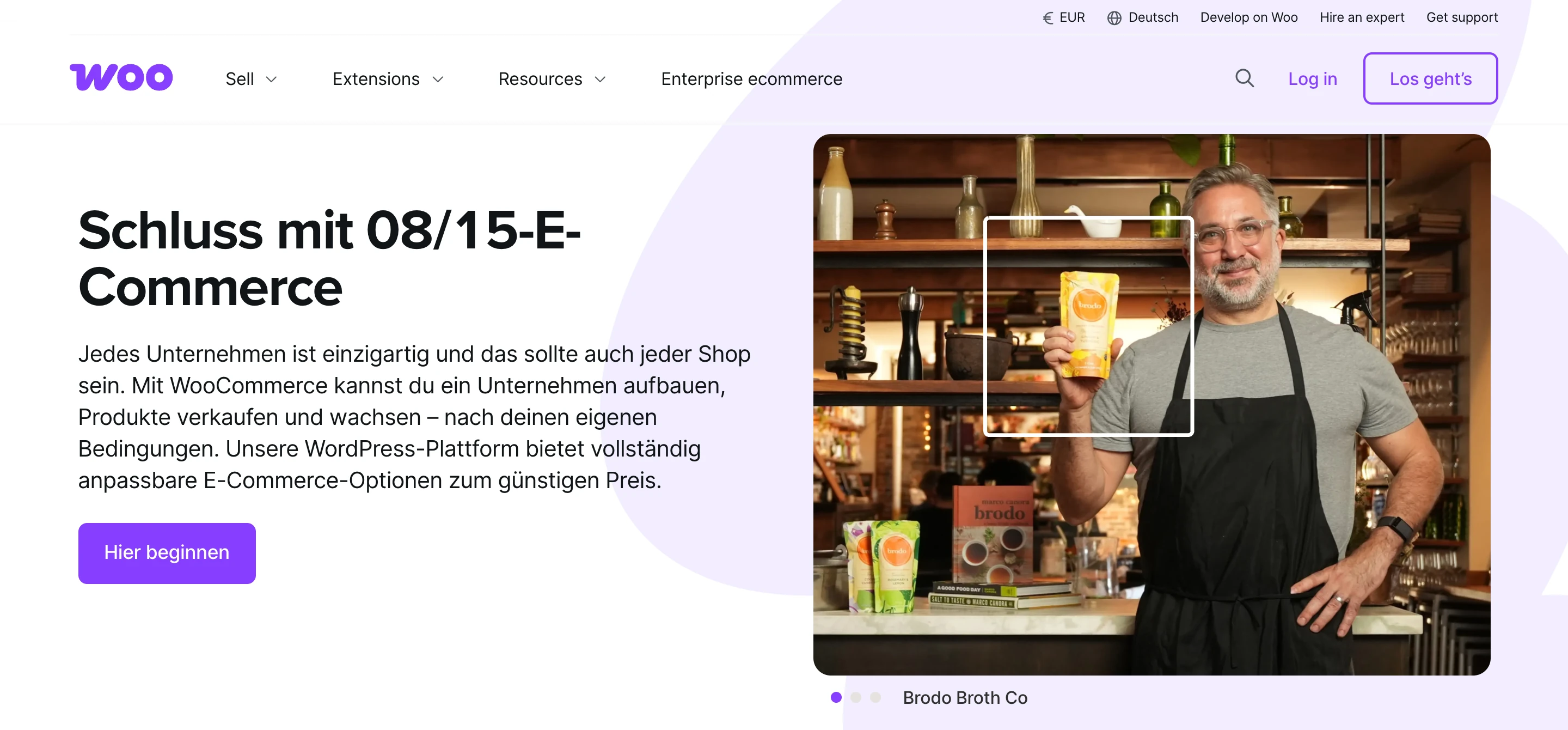
WooCommerce is the first place to go if you want to create an online store with WordPress.
The plugin is extremely easy to use and really understandable even for beginners. Besides physical products, you can also sell digital media such as e-books or online courses with WooCommerce without any effort.
The backend blends perfectly into the WordPress interface, so creating and managing products feels very much like other areas such as blog posts or categories. That feels familiar and cuts the learning curve enormously.
The many extensions and integration options with third-party tools also make WooCommerce the best beginner plugin in this area for me. Scaling is no problem as a result either. Your WooCommerce store can grow with you at any time and handle higher demand with ease.
WooCommerce clearly has weaknesses in inventory management. So if you want to run a store with a very large product range, WooCommerce isn't ideal. Its options for adapting to the German market and German law also leave something to be desired. Unfortunately, that is currently only possible through an extension.
Is WooCommerce really free?
Yes, WooCommerce is free as a plugin. That means you can create a store and actually sell products through it without monthly costs or other fees coming your way.
However, extensions can quickly become necessary, for example if you want to add different payment options or more design options.
Pros
- Free
- Very easy to use
- 100 percent compatible with WordPress
- Extensible as much as you like
- Numerous third-party tools available
- Scaling is no problem
- Sale of physical and digital products possible
Cons
- Can't be used legally in Germany without adjustments
- Weaknesses in inventory management
3.2 Easy Digital Downloads
Price (for one website): free
Range of features: medium
Suitable for: digital products
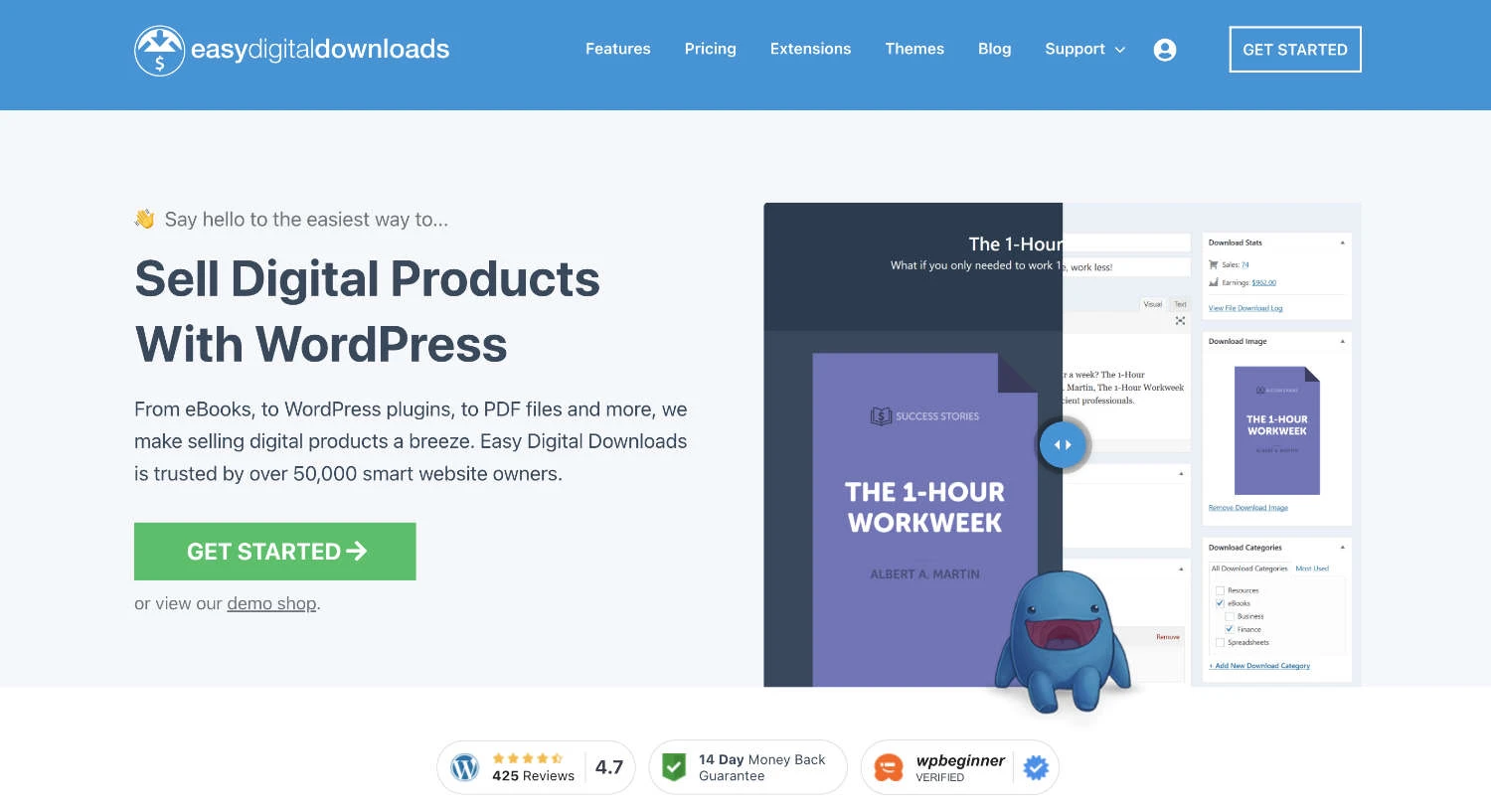
If you want to specialize in selling digital products, then the plugin Easy Digital Downloads is exactly the right tool for you.
Unlike with WooCommerce, you don't build a classic online store with this plugin. Instead, you create a kind of vault for digital products such as e-books, music or video files, where you can store your data securely.
Besides classic sales features such as a shopping cart and a customizable checkout process, Easy Digital Downloads also offers extensive statistics and a connection to various payment providers such as Stripe or PayPal.
Of course, the plugin works with any WordPress theme!
What does the Pro version offer?
With various paid extensions, Easy Digital Downloads can be adapted very individually to your wishes.
For example, you can unlock a review system for your products, activate a Mailchimp connection or offer free downloads as a kind of freebie.
Pros
- Free basic version
- Works with any theme
- Various payment providers integrated
- Extensive statistics
- Data vault for the safe storage of your files
- Individually customizable checkout and shopping cart
- Extensible through extensions
- Very competent support
Cons
- No sale of physical products possible
- Significantly fewer classic store features than WooCommerce
3.3 Ecwid

Price (for one website): Freemium, Pro version from €15.00 per month
Range of features: very large
Suitable for: physical products, digital products, marketplace
Ecwid is a freemium plugin that must not be missing from this list. Unlike WooCommerce and Easy Digital Downloads, Ecwid is an all-in-one selling solution that lets you sell not only through your own online store but also directly through social media such as Facebook or Instagram.
Another difference is the process of creating a store: After you've built your store with the Ecwid site builder, you embed it into your WordPress website.
The great thing about this tool is that the free version already contains a lot of features. For example, you can sell on several pages, create invoices in the backend or have taxes calculated automatically. Ecwid is also 100 percent GDPR compliant.
The premium plans offer further features such as discount coupons, SEO tools or extensions that improve usability for your visitors, for example a product filter.
Pros
- Free version available
- Intuitive site builder
- Selling directly on social media possible
- GDPR compliant
- Store management possible via smartphone app
- Good support
Cons
- Premium plans very expensive
- Not a classic WordPress plugin
- A bit complex for beginners
4. In 11 steps to your own WooCommerce store
In this section, I show you the 11 most important steps on the way to your own online store with WordPress and WooCommerce:
4.1 Find a host
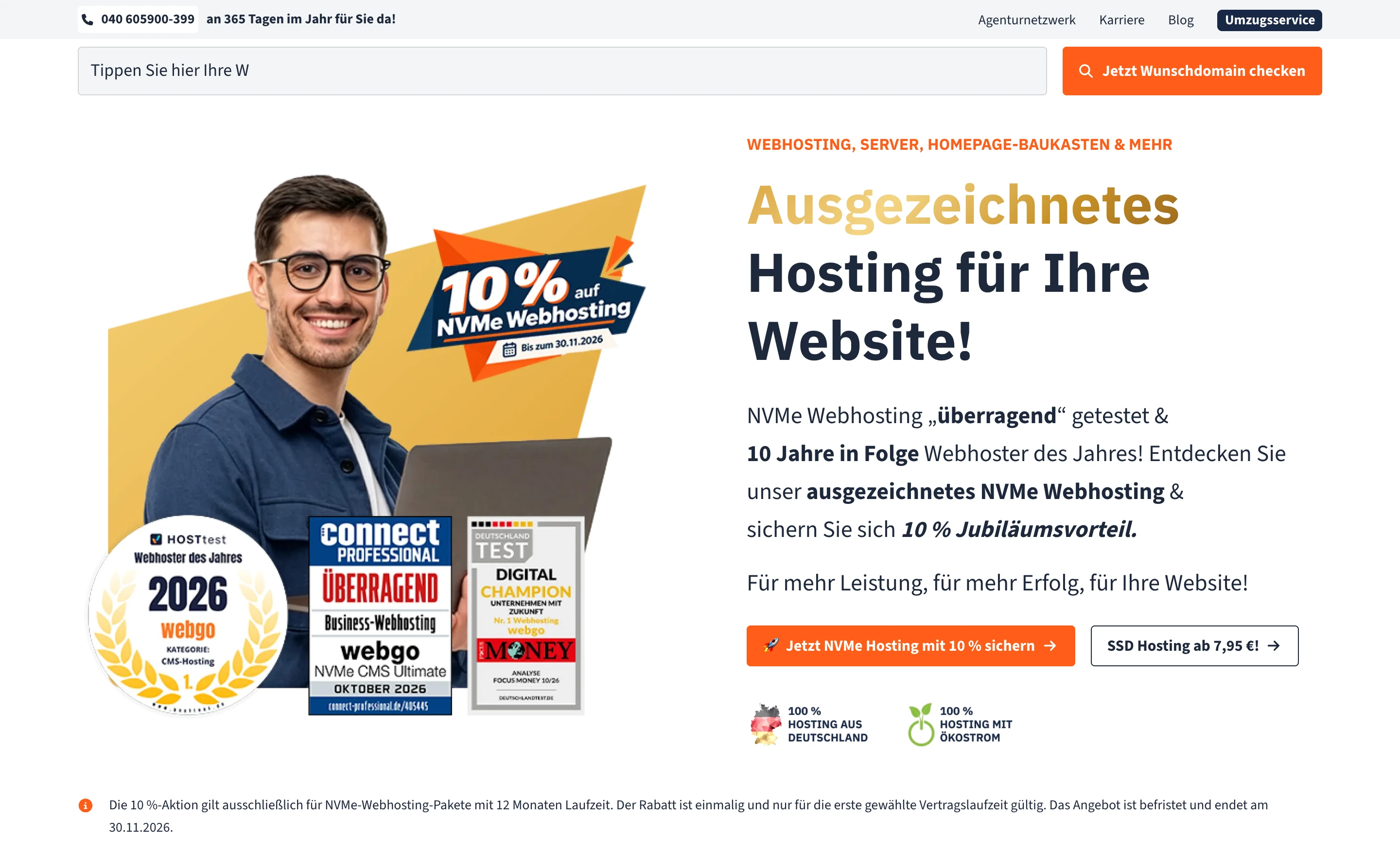
The basis and foundation of a well-functioning online store with good load times is a reliable host that provides you with a modern server architecture.
Even if that sounds complicated at first, it definitely isn't!
What matters most here is that you don't let the price be your main guide. Cheap mass hosts aren't cheap for no reason. Reliability and performance often leave a lot to be desired there.
That means frequent outages and slow load times (which is not good for your Google rankings at all).
So spend a few euros more per month and go with a good host.
I can recommend webgo with all my heart. I've been a customer there myself for many years and am more than happy. Not only with the performance, but also with the customer service.
With the CMS Power SSD plan, you're optimally set up for the start and get 200 GB of SSD web space, an included domain, unlimited email addresses and SSL certificates for €9.95 per month. You also only have to share a CPU with twelve other people.
blogmojo, new customers receive a €10 credit on their webgo customer account after a successful order. The credit is applied starting with the first invoice.4.2 Register a domain
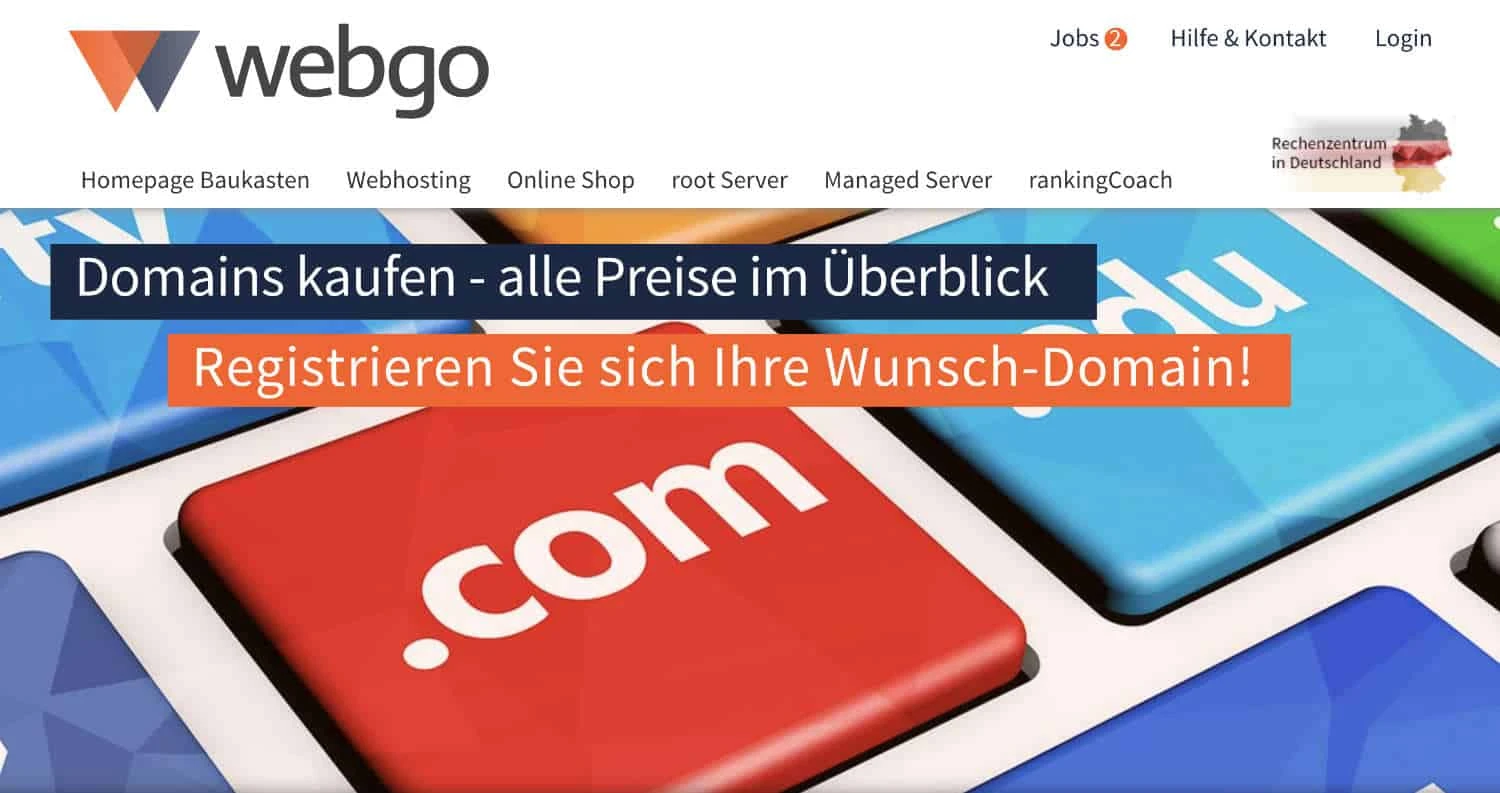
As part of setting up the hosting package, webgo asks you to register a first domain.
With a domain check, you can query right there whether your desired address is still available.
If you don't have an idea yet under which domain your store should be reachable, I'd like to give you some decision aids and criteria to take along that you should definitely keep in mind...
4.2.1 The right length and spelling
In general: The shorter a domain, the better!
As a rule of thumb, I'd recommend staying under 16 characters. Anything longer is not only cut off very awkwardly in the Google search results (SERPs), but also takes a lot of time to type.
Also, umlauts and the ß (Eszett) should definitely be avoided.
4.2.2 Clear and understandable
It should be clear immediately, at first glance, what it's about. Ideally, the domain name already hints at what kind of website is behind an address.
That doesn't have to be the case if you want to build your own brand.
In that case, though, make sure the domain is written the way it's spoken, to avoid confusion.
4.2.3 The right extension
For a German-language online store, I'd recommend a .de extension. If you plan to sell internationally, a .com extension certainly makes sense.
I'd advise against extensions like .org or .shop.
4.3 Install WordPress
4.3.1 The installation
Hosting and domain are registered. That creates all the important prerequisites to finally get hands-on and let your store take shape.
In the first step, you need to install WordPress.
You can do that with a 1-click installation or go the manual route.
If you chose webgo as your host, you'll find a button for the 1-click installation in the web space admin.
In general, there's nothing against this approach. Still, I'd recommend a manual installation. It isn't really difficult (especially with the guide below), but it has the advantage that the host doesn't install any unwanted plugins or code snippets. You can also make some security optimizations during a manual installation.
I'll keep this to a brief overview of the individual installation steps. If you need a comprehensive guide, I recommend this article: How to install WordPress in 2026: The foolproof guide
Here are the most important installation steps:
- Create an SSL certificate in the webgo backend
- Create a MySQL database (remember the name and password well!)
- Download WordPress from the official website
- Adjust and optimize the wp-config.php
- Upload the files to your web space via FTP
- Open the WordPress installation in your browser and work through it step by step
4.3.2 After the installation
Besides the actual WordPress installation, you should also install your SSL certificate right away. That also happens directly in the backend of the webgo admin area and takes just a few seconds.
For your online store to actually be reachable via HTTPS afterwards, you also need to change another setting, this time in the WordPress backend.
To do this, go to Werkzeuge > Website Zustand (Tools > Site Health) and then to the error message “Deine Website verwendet kein HTTPS” (Your website isn't using HTTPS). One click on “WordPress-Website über Site Health auf HTTPS umstellen” (Switch WordPress website to HTTPS via Site Health) completes this step too.
Last but not least, you should update WordPress to the current version. As a rule, webgo or WordPress.org already provide it, but occasionally there can be overlaps.
It can't hurt to take a look ;)
4.4 Configure WordPress
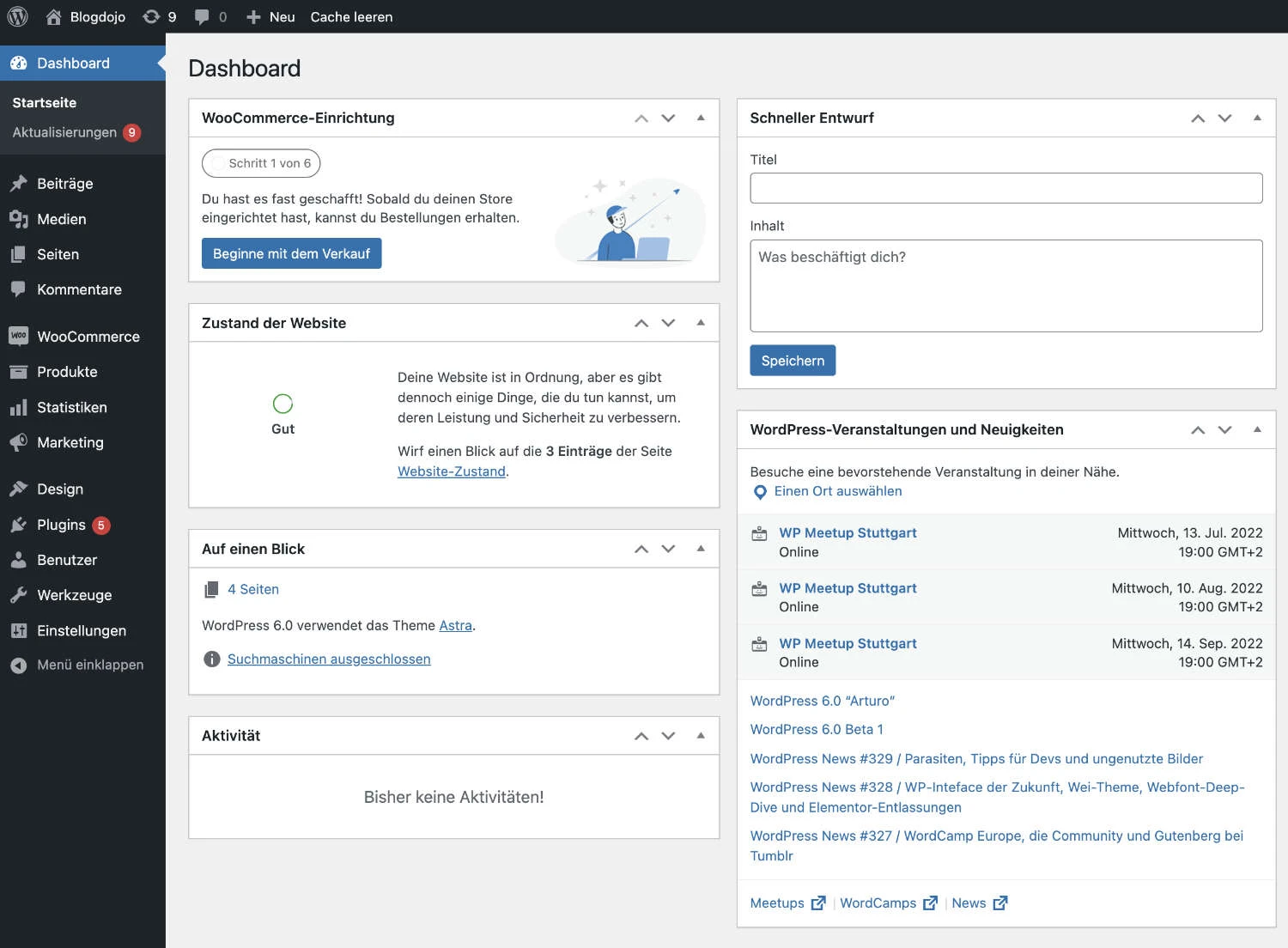
After a successful installation, WordPress is already ready to use in its full scope.
Now you should configure the system and make a few adjustments:
- Delete the default plugins (Akismet and Hello Dolly)
- Move the sample page and sample post to the trash and delete them permanently
- Change the permalinks so that the post title is displayed
- Install basic WordPress plugins (e.g. WP Rocket, Antispam Bee)
- Delete inactive themes and install a premium theme (a WooCommerce theme would be ideal)
- Define the site title and tagline
- Add a logo and favicon
- Create the privacy policy, the Impressum (the legal notice German websites must carry) and the terms and conditions (AGB)
- Create a navigation menu and a footer menu
- Install a backup solution (e.g. Updraft Plus)
- Sign up for Google Search Console
You'll find a comprehensive guide to all the steps required after the installation here: First steps with WordPress: 14 important settings
4.5 Download and install WooCommerce
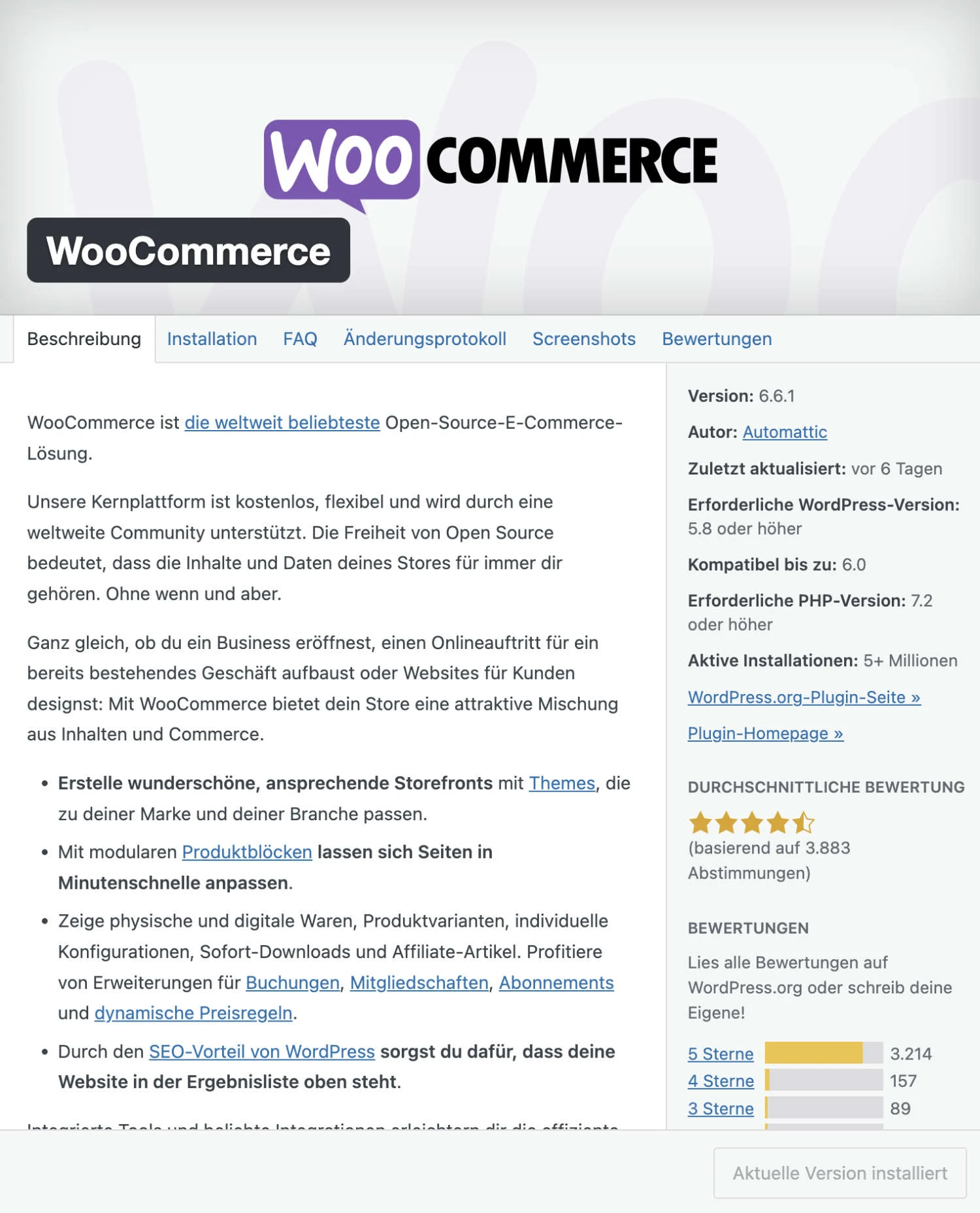
Since you want to install an online store, WooCommerce naturally can't be missing.
You can download WooCommerce directly from the WordPress plugin directory, which you'll find in the backend of the CMS.
Once it's installed, all that's missing is a last click on “Aktivieren” (Activate).
Done!
4.6 Make the basic settings in WooCommerce
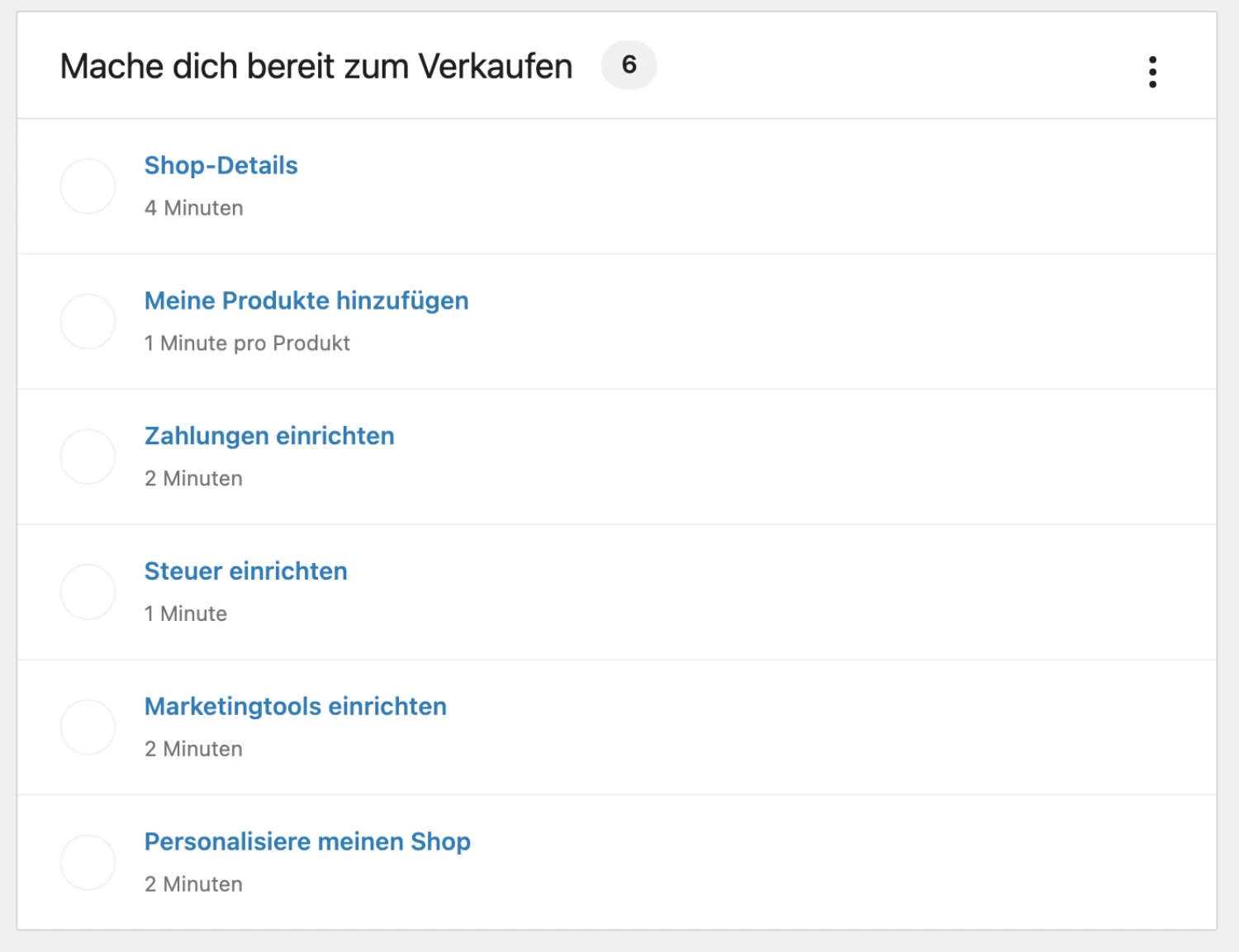
WooCommerce offers a wealth of great and important features, which can quickly overwhelm inexperienced beginners in particular. So you should approach the plugin slowly and start by configuring the basic settings.
Right after installing and activating WooCommerce, you can start the setup wizard, which walks you through the initial configuration of your store step by step.
It covers the following points:
- Store configuration: Basic settings such as address, currency and product type (physical, digital or both)
- Payment: Activate and define various payment methods
- Shipping: Here you set the shipping costs per country
- Tax: Define the applicable tax rate for selling your products (19% or 7% in Germany)
Note: The settings you make here aren't set in stone and can be changed at any time later under WooCommerce > Einstellungen (Settings).
4.7 Make your website and online store legally compliant
WooCommerce isn't a plugin developed specifically for the German market. For that reason, you absolutely have to make some adjustments to make your store legally compliant.
In this article, I'd like to give you a brief overview of what those adjustments are.
Install Germanized
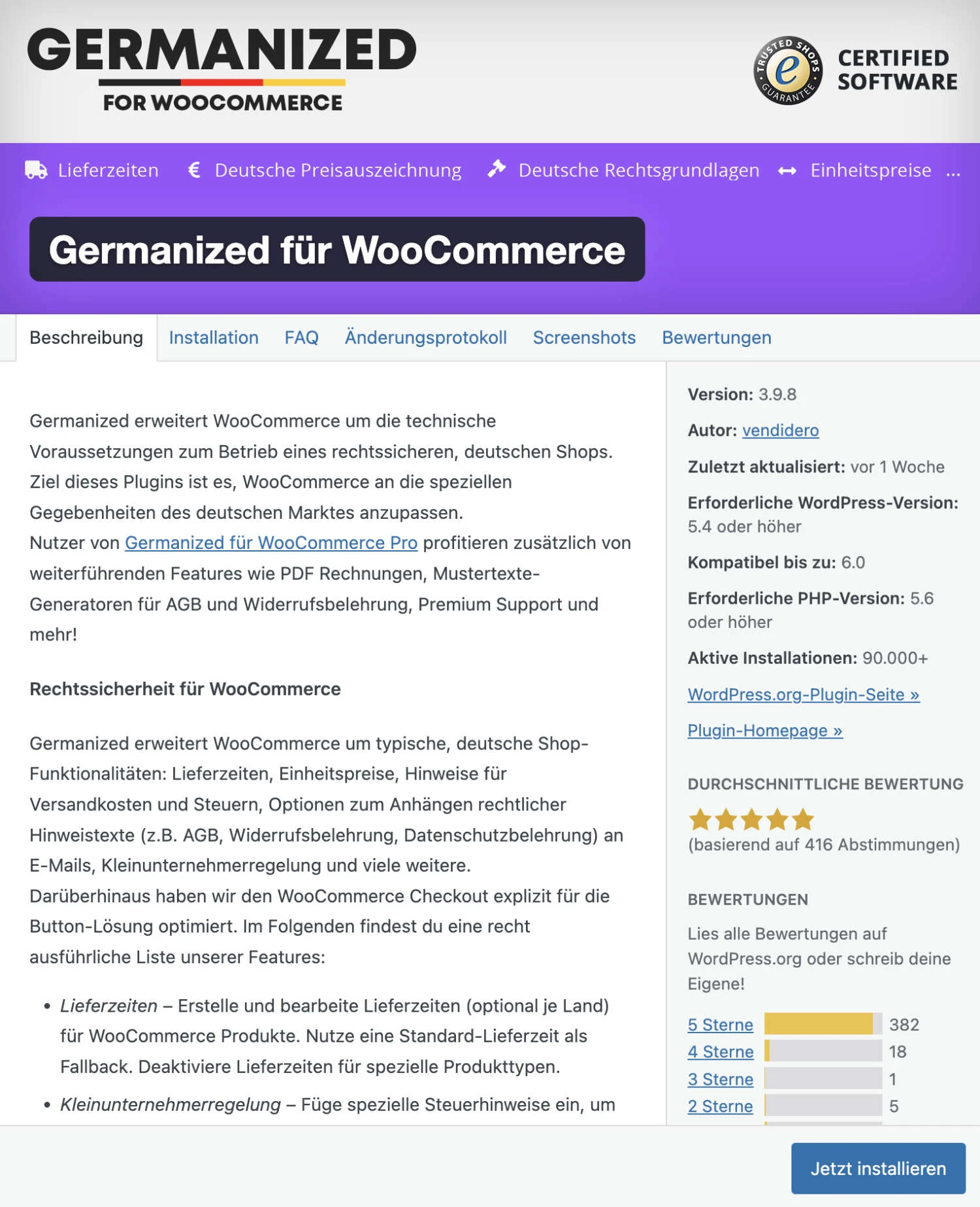
If you know nothing about programming, you absolutely need another plugin to be able to use WooCommerce legally in Germany.
I recommend Germanized, which you can download for free and which lets you display information on delivery times, shipping costs and taxes, as well as terms and conditions and privacy policy, in prominent places in your store.
The plugin is easy to use and shouldn't pose any big challenges for you.
Short checklist
As an online store operator based in Germany, you have to meet some requirements. If you don't, cease-and-desist letters (Abmahnungen) can be the painful result.
But don't panic: The adjustments mean a fair amount of effort, but they aren't rocket science.
The important legal requirements are:
- Complete Impressum with address, contact details and VAT ID
- Right-of-withdrawal notice (Widerrufsbelehrung)
- Terms and conditions (AGB) (not a must, but definitely sensible)
- Taxes and shipping costs must be visible directly during the sales process
- Privacy notices
- Cookie notice including obtaining consent before the cookies are activated
- Valid SSL certificate
If you follow these points, you've already cleared the biggest stumbling blocks. As an inexperienced operator, I'd still recommend having a lawyer review your store. That can save you a lot of money and nerves under certain circumstances.
4.8 Check which additional features you need
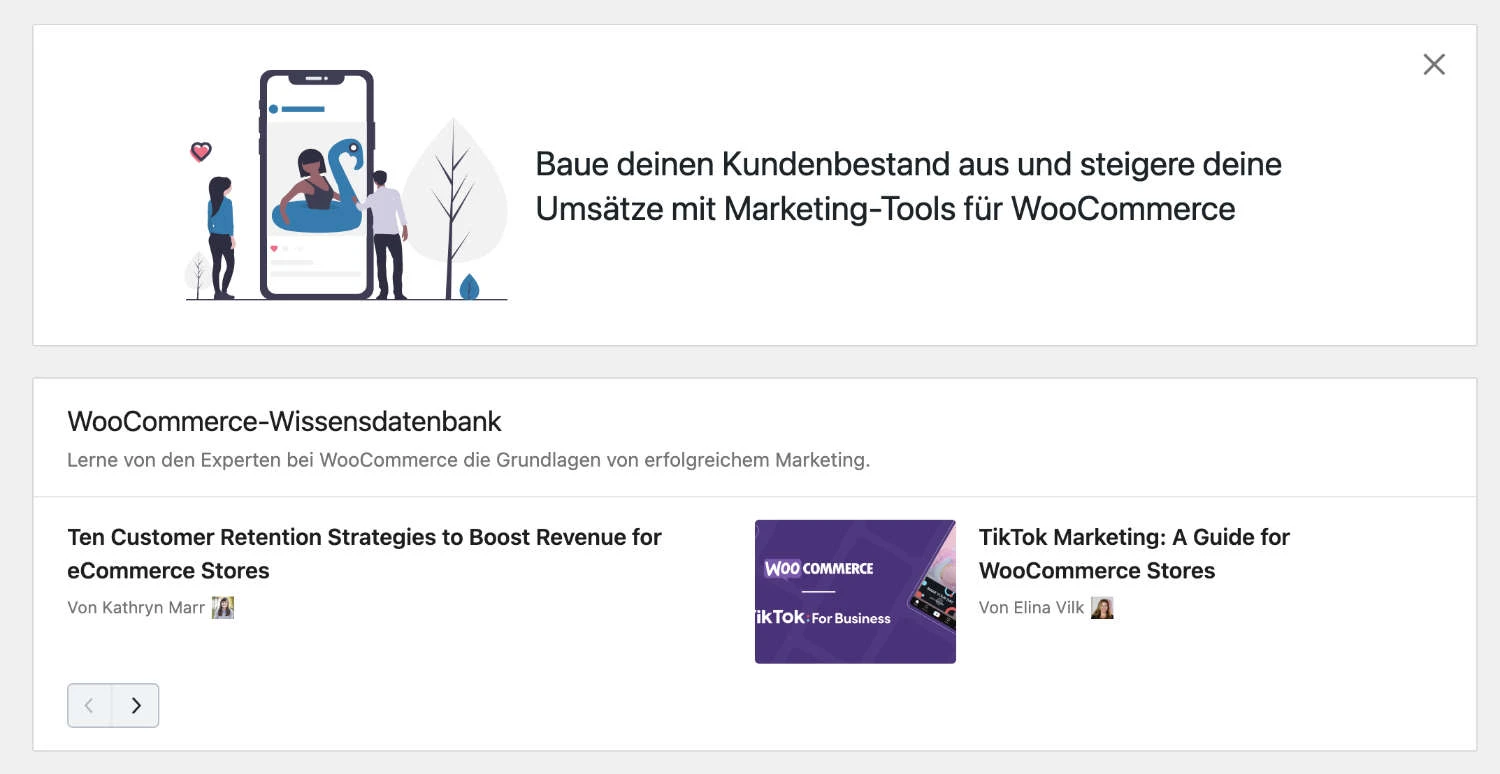
The great thing about a WordPress store is that hundreds of thousands of extensions are available to you. As a result, the store can be adapted very individually to your wishes.
Keep in mind, though: The more extensions you install, the worse your store's performance gets.
So first, think about which additional features you really need.
As a little aid, I'd like to introduce some useful extensions that make real sense especially for an online store:
- Newsletter tool: A newsletter of your own can be a brilliant booster for your sales. Here you can send special offers or new items to your subscribers and thus drive significantly more sales. As a free newsletter plugin, I recommend MailPoet 3, which also offers great e-commerce features.
- Inventory management: If you run a large store with many products and a big warehouse, product management in WooCommerce quickly becomes confusing. A dedicated inventory management system is a sensible addition here. JTL-Connector is often used.
- Scarcity: Special promotions and time-limited deals or coupon codes absolutely must not be missing from your store. With the plugin SmartCupons, you can set up exactly that in an automated way with no effort.
- Upselling and cross-selling: Have you ever noticed that you're usually asked every time you fill up your tank whether you'd like a coffee too? The McDonald's employee will also always ask whether you'd like a cola in addition to your burger. This upselling and cross-selling shouldn't be missing in your store. With the plugin Checkout Add-Ons, you can display matching products with the order during the payment process, which may maximize your sales revenue.
4.9 Adjust the design of your website and online store
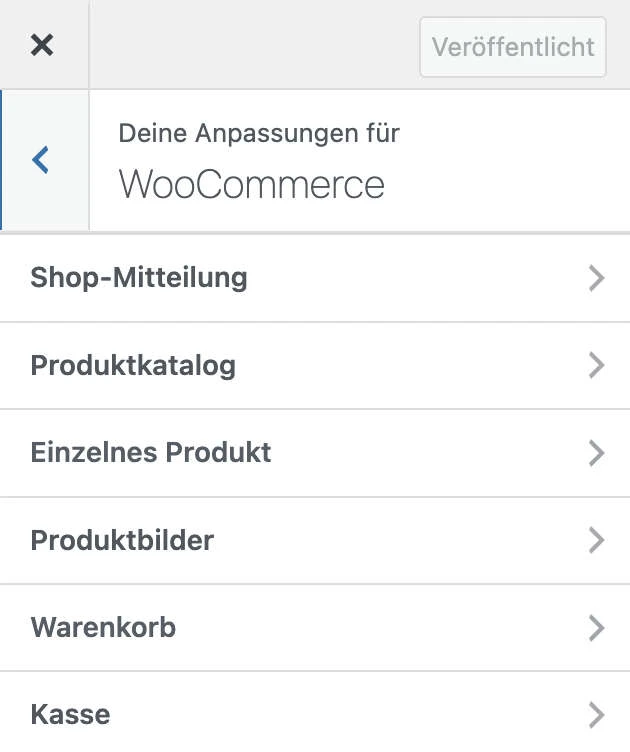
The great thing about WordPress is that there really are no limits to your imagination when it comes to design.
Via the theme settings, all store pages, including the cart, the checkout page and the product and category pages, can be adapted very individually to your ideas.
To do this, find the Customizer and navigate to WooCommerce. After that, you can configure your store as you like.
Tip: Depending on the theme you chose, you have more or fewer configuration options here. We therefore recommend a dedicated WooCommerce WordPress theme so you can use all of WooCommerce's features to the full.
You'll find the matching article here: The 13 best WooCommerce themes 2026
4.10 Create your first product
After you've installed and set up WooCommerce and made your first design adjustments, you can create your first product.
This setup is really child's play.
First, navigate to WooCommerce > Erstellen (Create).
A menu opens that you surely know well from creating a new page or a new blog post.
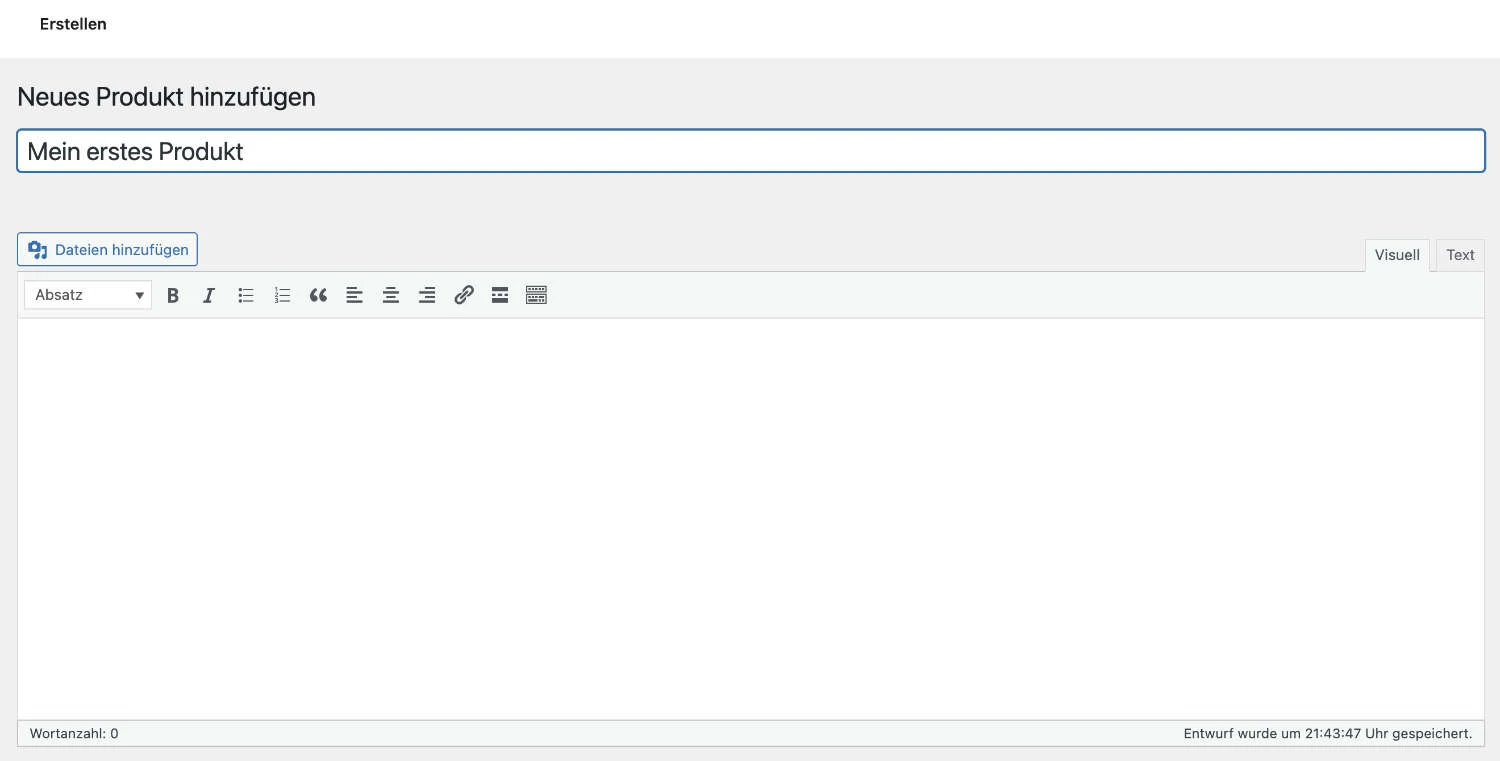
After you've created the name and description of the product, you can continue with the product data. That includes the price, the stock and the shipping, among other things.
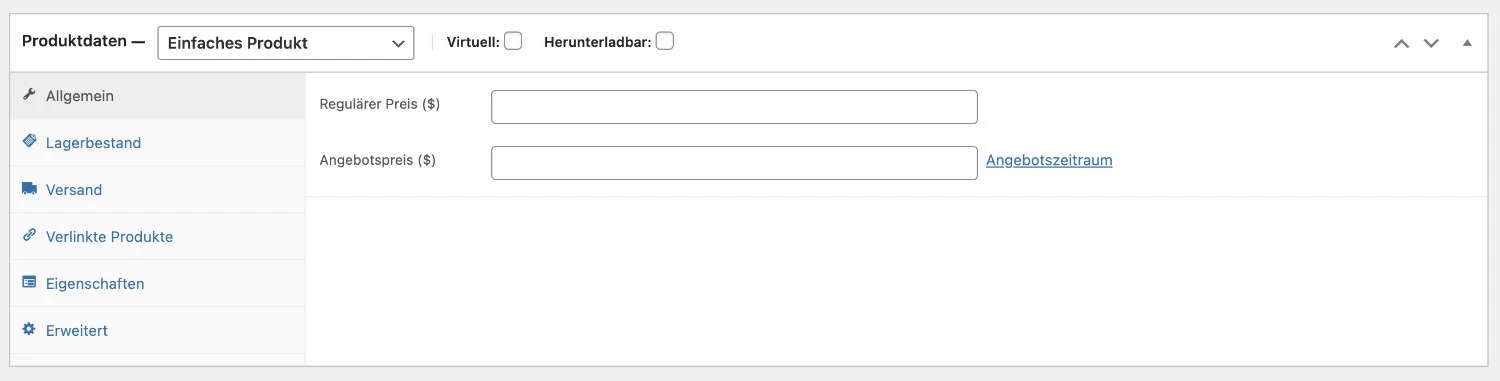
Last but not least, you need to name the product category before you can publish your first product.
4.11 Set up a company blog (optional)
Smaller online stores unfortunately have a big problem:
Visibility.
Especially in niches occupied by big market players, it's hard for a small online store to generate organic visitors. For example, you'll hardly manage to get mass products like clothing into the top 10 search results. Terms like “Herren Jeans kaufen” (buy men's jeans) or “T-Shirt kaufen” (buy t-shirt) are so hotly contested that you're guaranteed to have no success here.
E-commerce keywords are the most competitive ones on the entire internet anyway.
The good news is: There is a way to still pick up organic clicks.
The solution can be a blog of your own, where you cover peripheral topics and target search terms that are uninteresting to the big players.
To be really successful here, though, you have to dive extremely deep into a niche to identify so-called long-tail search terms. Those are keywords made up of several individual terms.
An example...
With the keyword “Bartpflege-Produkte” (beard care products), you'll hardly have a chance of achieving decent rankings.
So we take a small detour to still get your beard care products in front of buyers.
In your blog, you could write various guide articles that cover the topic of beard care for a specific target group. That could be, for example, “Bartpflege für rothaarige Männer” (beard care for redheaded men) or “Bartpflege ab 60 Jahren” (beard care from age 60). There you'll have significantly less competition and accordingly better chances of generating good search engine rankings.
Within the guide, you can present your own products in a chapter of their own and thus drive sales.
You see: With a bit of creativity, you can succeed in competitive niches too ;)
5. Who is a WordPress store suitable for, and who is it not?
A WordPress store is one of the best beginner solutions there is.
WordPress as a CMS is easy to understand, logically structured and can be adapted to your own requirements as much as you like.
A WordPress store is also very inexpensive. So you can take your first steps and test your idea without risk before you invest large sums.
For store operators who offer larger product ranges, on the other hand, there are significantly better alternatives. Inventory management with larger stock levels in particular isn't really comfortable in WordPress. A professional store system like Magento is certainly the much better choice here.
6. How much does a WordPress store cost?
A WordPress store is free in principle. WordPress itself is an open-source CMS, and you can also download the WooCommerce plugin for free from the plugin directory.
However, variable additional costs can come up on the way to the finished store. Some are mandatory, others depend on your individual requirements.
Required costs:
- Hosting and domain: The basis of every website is a hosting package and a domain.
- Transaction fees: Most payment service providers charge a certain percentage of the transaction amount
Variable additional costs:
- Plugins: Store extensions are mostly offered in the form of premium plugins
- Legal advice: Terms and conditions, privacy policy and right-of-withdrawal notice should be legally sound and should therefore absolutely be drafted by a lawyer. Don't rely on generators here, since they mostly have weaknesses.
- Insurance: As a store operator, there are various insurance policies you can take out.
7. FAQ
Here I've put together answers to common questions about setting up an online store with WordPress:
How secure is a WordPress store?
WordPress itself is secure as a store system if you take certain security measures. These include, for example:
- using secure passwords
- regular updates of plugins and themes
- avoiding too many plugins
- deleting inactive plugins
Is it advisable to host an online store on WordPress.com?
WordPress.com limits your flexibility somewhat, since it's a closed system. In return, things like maintenance and security are taken off your hands.
However, I'd always advise you to go with WordPress.org, since you're much more flexible there. Also, WordPress.com is hosted in the USA, which can cause data protection problems. Support is in English as well.
You can find out more about WordPress.com in my detailed review and in my WordPress hosting comparison.
Which plugins do I need for my online store?
Apart from WooCommerce, which plugins you need for your WordPress store depends on your individual needs.
A tool like Germanized, which adapts WooCommerce to German law, is a must.
Special WooCommerce extensions can also be very helpful for boosting sales.
Is WordPress suitable for online stores with a very large number of products?
If you want to offer a great many different products in your store, WordPress isn't the ideal system, since extensive inventory management is unfortunately not possible here. Magento is the better recommendation in that case.
What should I look out for when hosting my WordPress store?
Be sure to get fast hosting with enough storage space. Rather invest a few euros more per month and choose a reliable provider like webgo.
I recommend the plan CMS Power SSD, which offers everything you need for your new online store.
What is WooCommerce Payments?
WooCommerce Payments is an extension of the plugin that adds fully automated payment software to your store.
Besides several payment providers, there are extensive statistics and a transaction overview of all payments.
Do I have to register at WooCommerce.com?
No, you don't have to register at WooCommerce.com to run an online store with WooCommerce. At the latest when you buy extensions, though, it becomes necessary.